











Imagine this. You spend hours perfecting a video project. You hit save. Then your laptop freezes, reboots, and when the screen comes back. The file is gone. Your stomach sinks. It’s not just you. Lost files happen all the time. A dropped hard drive, a bad update, an accidental delete, or a corrupted partition can […]
How to Clean Android and Free Up 50% More Storage?
Introduction:
Android phones collect a lot of data over time. Every app you install, every photo you click, and every video you download takes up space. Even small things like temporary files and app cache keep building in the background. At first, this may not feel like a problem. Your phone works fine and storage seems enough. But slowly, the space starts getting full without you noticing.
When storage gets low, your phone begins to slow down. Apps may freeze or crash. You may not be able to install updates or download new files. This can become frustrating in daily use. The good part is that you do not need any complex tools to fix this.
With a few simple methods, you can clean your Android phone and free a large amount of storage. If done properly, you can recover a big portion of space and improve performance at the same time.
Things to Keep in Mind Before You Start Cleaning
Cleaning your phone is helpful, but it should be done carefully. Some files may look useless but may still be important. Taking a few precautions can help you avoid mistakes and keep your data safe.
- Backup important files: Always keep a copy of your photos, videos, and documents. You can use cloud storage or move them to another device.
- Check files before deleting: Open files once before removing them. This helps you avoid deleting something important by mistake.
- Avoid deleting system files: System files are needed for your phone to function properly. Removing them can cause errors or crashes.
- Understand cache vs data: Clearing cache is safe, but clearing app data may remove saved settings and logins.
- Review the downloads folder: Many important files are saved here. Check carefully before deleting anything.
- Use trusted apps only: Avoid unknown cleaning apps. They may harm your phone or misuse your data.
- Track storage after each step: This helps you see which method is working best for you.
- Restart your phone after cleaning: A restart refreshes the system and improves overall performance.
How to get more space on your phone without deleting anything important?
While using best Android phone cleaner apps is the easiest and safest solution to clean and speed up Android, you can also try built-in utilities & features to free up storage space on your device. Let’s discuss how to do this without deleting anything important.
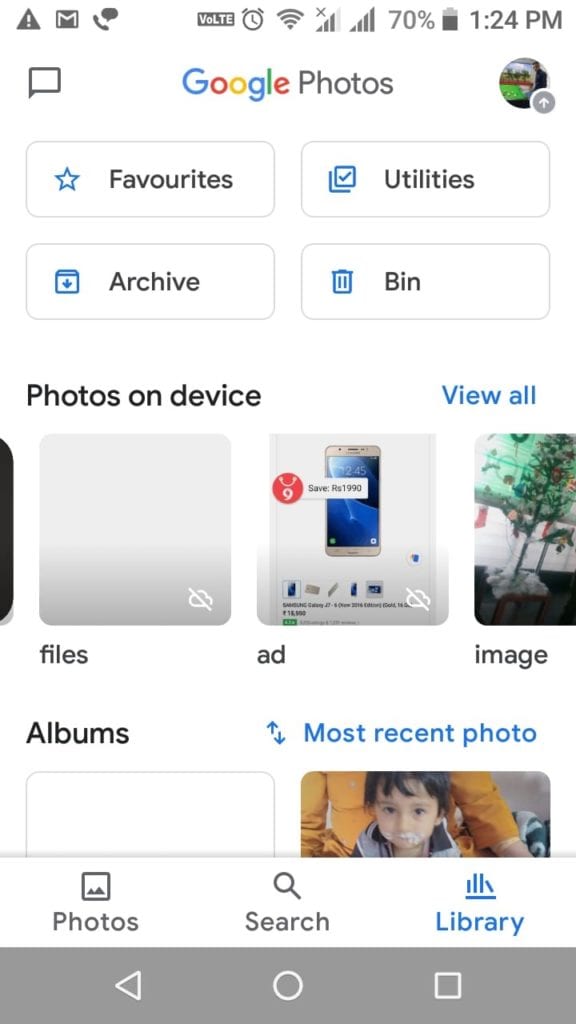
1. Clean Photos App Trash
Photos app is a useful addition to your Android device. It helps you store & manage photos & videos on your device. It not only helps you manage photos & videos from camera, but it also help you manage media from social media & chat apps. Over time, a lot of unnecessary photo & video files are accumulated on the device that you delete to free up Android storage. The problem is, all this deleted data is moved to the Photos app Bin or Trash.
This deleted data remain in the Bin/Trash folder for 60 days before it’s deleted permanently. In this case, it consumes valuable device storage unnecessarily. Thus, you should consider cleaning Trash to free up storage. To do this, follow these steps:
- Open Photos app and sign in to your Google Account.
- Select Library folder.
- Now click Bin/Trash.
- Click More option.
- Click Empty Trash/Bin > Delete.
Important:
- All deleted photos & videos
that are backed up in Google Photos will stay in Bin/Trash for 60 days before
it’s permanently deleted. - If deleted items aren’t backed
up, then it will stay in Trash for 60 days. - If you find a photo or video
that is deleted previously, it could be on removable memory card. You can
delete it, using device’s gallery app.
If you want to delete an item permanently, then follow these steps:
- Open Photos app and sign in to your Google Account.
- Long press the item to select for deletion. You can select multiple items.
- In the top right, click More
- Select Delete from device.
- You’re done.
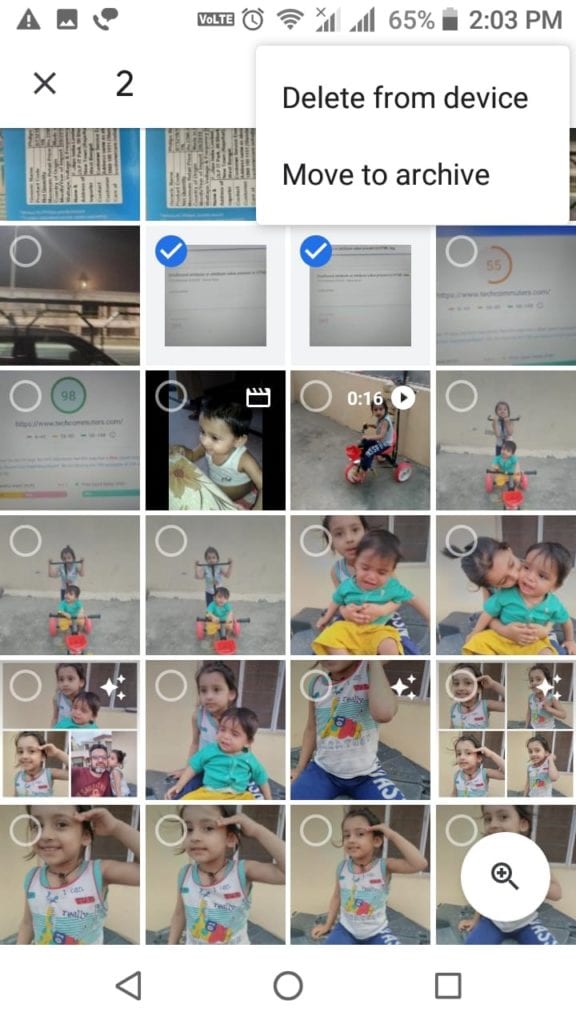
Note: If you want to clean Android and free up more storage, then you can consider deleting files that are backed up. To do this, open Library, click on + icon in the upper right corner and select Free up (storage space) option.
2. Clear Clutter from My Files
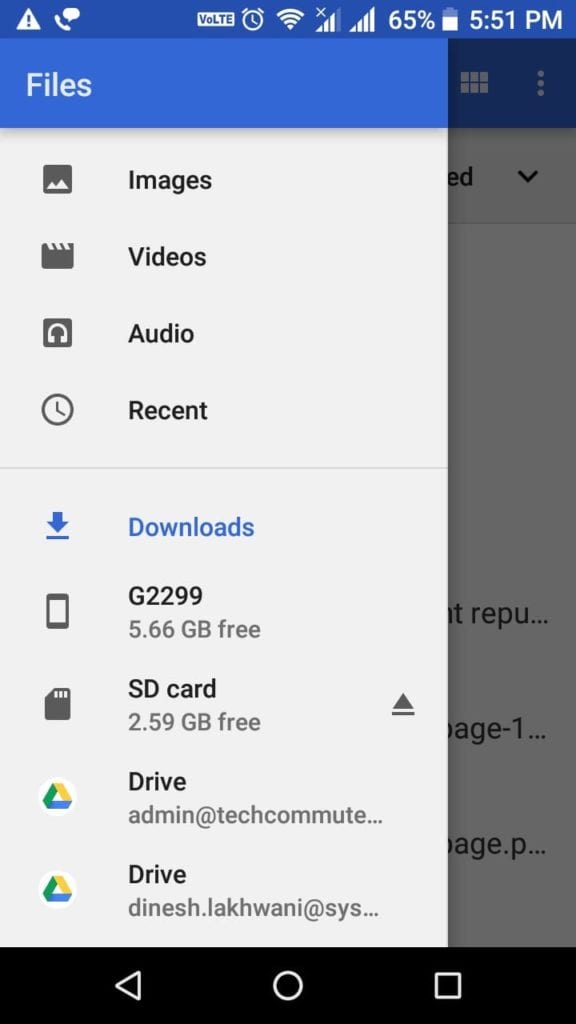
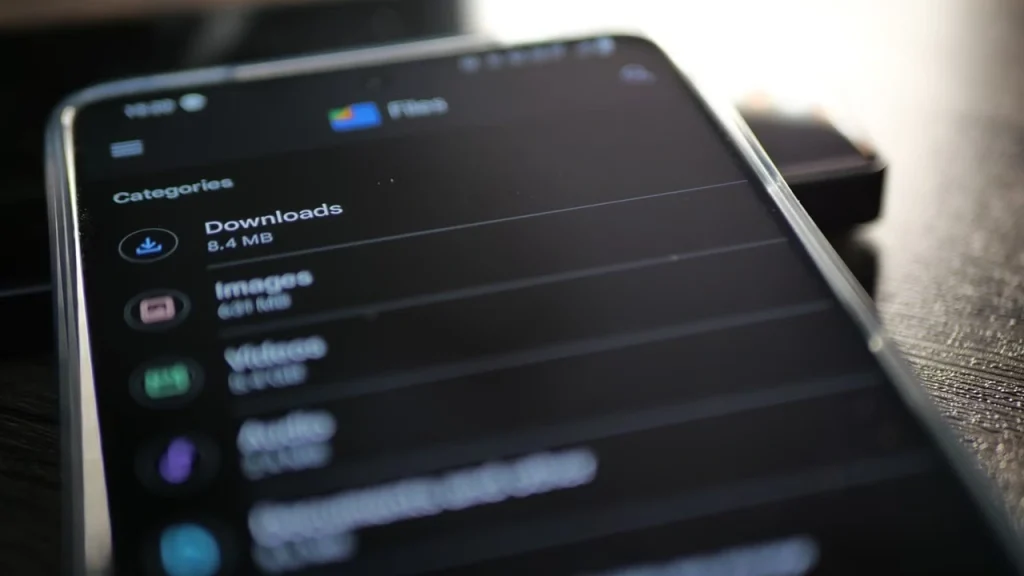
Next step to clean Android is to clear clutter from My Files. Under this folder, you can find downloads from various sources and other old files. You can check this folder to find, locate, and delete all unnecessary files including photos, videos, audio files, and more. To do this, follow these steps:
- Open Files/My Files folder from
app drawer. - In the top left corner click on
three horizontal lines to open Menu. - Here, you will find Images,
Videos, Audio, and Recent options. - Click on any of these options
to view files within these folders and delete unnecessary files.
3. Clear App Cache
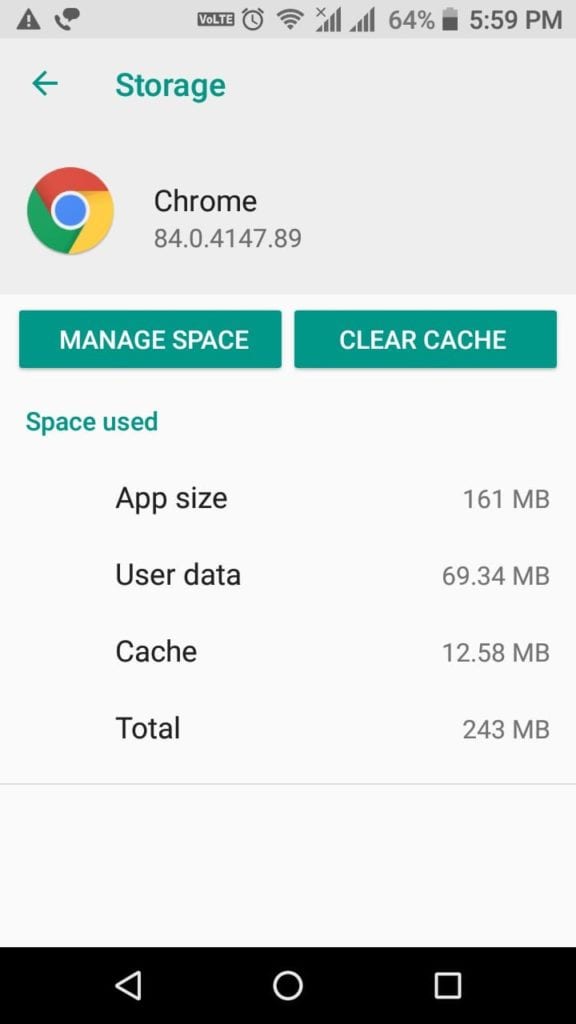
Every single app on your device generates cache every time you use it. Over time this cache accumulates in large amount occupying GB’s of storage space. It not only consumes valuable device storage, but it also affects your Android’s performance negatively. You can consider cleaning app cache to free up storage on Android. To do this, follow these steps:
- Open Settings.
- Click Apps & Notifications > App Info.
- Now you will find all installed apps on your device.
- To clear cache of any of these apps, open the app, select Storage
and click Clear Cache.
4. Uninstall Unnecessary Apps
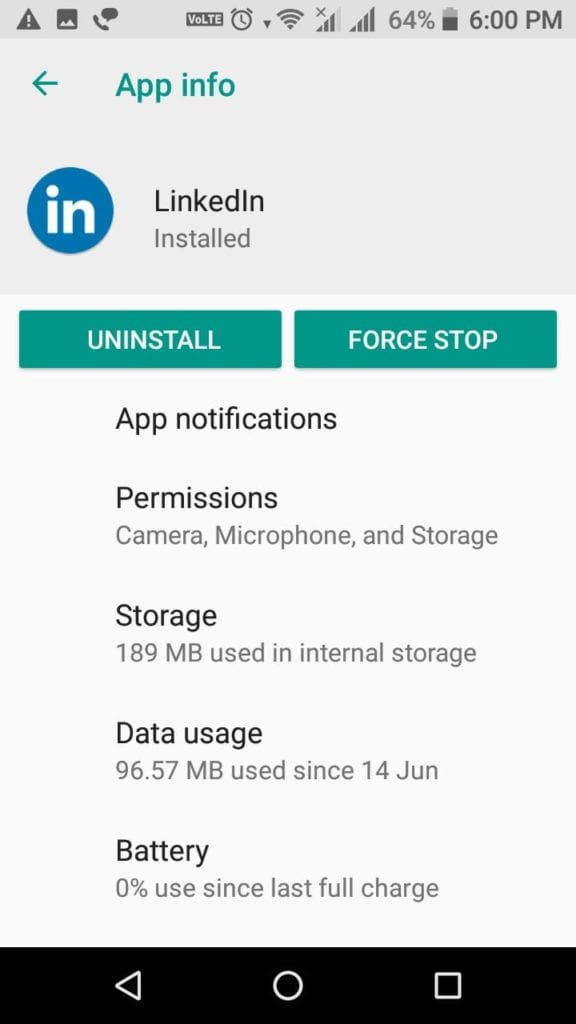
The next best step to clean an Android is to uninstall unnecessary apps. You install various apps on your device that you end up using over time. Now these apps not only occupy valuable device resources, but it also makes your device run slow. To uninstall unnecessary apps, follow these steps:
- Open Settings.
- Click Apps & Notifications > App info.
- Now select the app that you want to uninstall and press Uninstall on the next screen.
- Press Ok to confirm deletion.
Note: Remember, you can remove Bloatware by disabling it, but you may not uninstall it.
5. Move files to another storage location
Next solution you should follow to free up Android storage is to move data to other storage location. You can move files to external device storage like USB drive, on your computer, or on cloud servers. While you can back up 15 GB of data each day to cloud servers, you can consider deleting files & folders from Google Photos to clean Android storage.
6. Delete Duplicate Files
Duplicate files are very common on Android phones. You may have multiple copies of the same photo, video, or document. These duplicates are often created when files are shared or downloaded again. Over time, they take up a large amount of storage without adding any real value.
Removing duplicate files can quickly free space. It also makes your gallery and file manager more organized. You will find it easier to locate important files once duplicates are gone. This method is simple and effective if done regularly.
Steps to follow:
- Open your file manager or install a trusted duplicate file finder app.
- Scan your storage, review the results, and delete unnecessary duplicates.
7. Reduce WhatsApp and Media Storage
Messaging apps like WhatsApp store a lot of media files. Every image, video, and document you receive gets saved automatically. Over time, this can fill up your storage very quickly. Many of these files are not even important or needed later.
Cleaning WhatsApp storage can free a significant amount of space. You can remove large videos, repeated images, and old files. You can also control future storage by changing download settings. This helps prevent the problem from happening again.
Steps to follow:
- Open WhatsApp settings and go to “Storage and Data” or “Manage Storage.”
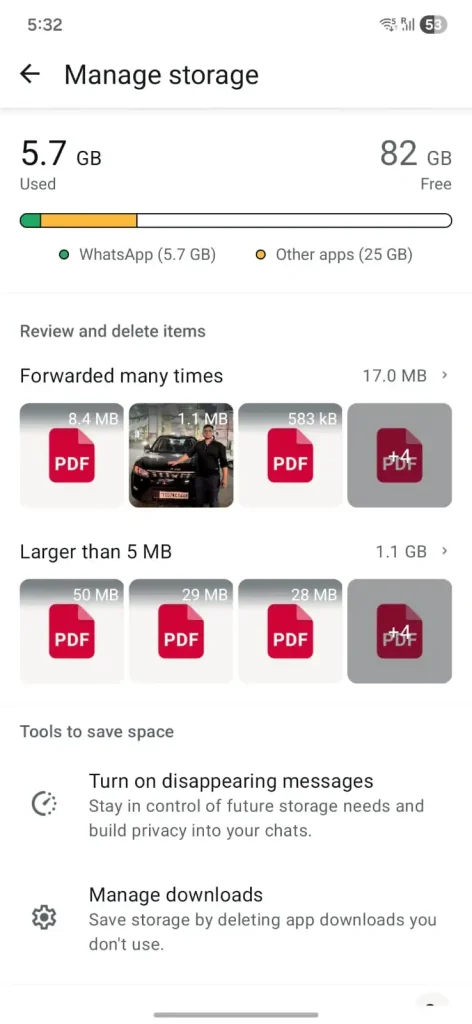
- Review large files and delete unwanted media. Turn off auto-download for better control.
8. Download Files Instead of Streaming Them Repeatedly
Streaming apps often store temporary data every time you play content. This includes music, videos, and even social media clips. Over time, this repeated streaming builds up hidden files that take space without clear visibility.
Downloading only what you need and removing it later can help control storage better. It also reduces the amount of temporary data created by apps. This method is useful if you watch or listen to the same content many times.
Steps to follow:
- Download important songs or videos inside the app instead of streaming them again and again.
- After you are done, go to the app’s download section and delete files you no longer need.
Conclusion
Cleaning your Android phone is not something you should do only once. Storage fills up again as you continue using your device. A regular cleaning routine helps you stay ahead of the problem. Even small actions like deleting unused files or managing app storage can keep your phone in good condition.
When you take control of your storage, your phone works better in every way. Apps open faster, updates install easily, and you avoid unnecessary stress. A clean phone also feels more organized and easier to use. By following these simple methods, you can maintain both storage and performance without much effort.
FAQs:
1. How often should I clean my Android storage?
You should clean your storage once every two to three weeks for normal use. If you download many photos, videos, or apps, you may need to do it more often. Regular cleaning keeps your storage from filling up too fast and helps your phone run smoothly without slowdowns.
2. Will clearing cache delete my personal data?
Clearing cache does not delete your personal data. It only removes temporary files that apps create to load faster. Your photos, messages, and documents stay safe. However, clearing app data is different and may remove saved logins and settings.
3. Can cleaning storage really improve phone performance?
Yes, cleaning storage can improve your phone’s performance. When storage is almost full, the system cannot work properly and apps may lag or crash. Freeing up space helps the phone run faster, reduces errors, and gives a smoother overall experience.
Dinesh Lakhwani
Author Bio:
Dinesh Lakhwani 

Dinesh Lakhwani, the entrepreneurial brain behind “TechCommuters,” achieved big things in the tech world. He started the company to make smart and user-friendly tech solutions. Thanks to his sharp thinking, focus on quality and the motto of never giving up, TechCommuters became a top player in the industry. His commitment to excellence has propelled the company to a leading position in the industry.
Popular Post
Recent Post

5 Best Data Recovery Software For Windows 11 and Windows 10
A crashed drive can ruin a whole day. One minute your photos, work files, and tax records sit safe on your PC. The next minute they are gone. A power cut, a bad update, or one wrong click can wipe out years of memories and months of work in seconds. That sinking feeling is why […]

How To Update NVIDIA Drivers On Windows 11/10 PC
Learn how to update NVIDIA drivers on Windows 11/10 with simple methods, safety tips, and easy steps for smoother gaming and better PC performance.

Top AI Features Hidden Inside Windows 11
Explore the top AI features in Windows 11, from Copilot to Recall, plus safety tips and simple steps to use each tool the right way.

Customize Your Screen Saver Settings in Windows [Easy Steps]
Learn how to customize screen saver settings in Windows 11 with easy steps, safety tips, and simple tricks to personalize your PC screen.

Driver Easy Windows Driver Updater Tool Review: Tried & Tested
In-depth information about Driver Easy’s functions and features can be found in our review. Learn how to update drivers more easily with this tool for a more seamless computer experience.

Is Avast Driver Updater Worth It? A Hands-On Analysis
A full review of Avast Driver Updater covering features, setup steps, pricing, pros and cons, and real PC results, to help you decide if it is worth buying.

IObit Driver Booster 13 (PRO) Review: [Tried & Tested]
IObit Driver Booster 13 is built for one purpose: keeping your PC drivers up to date. Well, yes! Outdated drivers can cause crashes, slowdowns, and hardware issues. This tool scans fast and updates with one click. The interface is simple. Even beginners can use it without confusion. Updates are pulled from a huge database, covering […]

Auslogics Driver Updater: A Detailed Walkthrough [2026]
This comprehensive review covers the key features, pros, and cons, pricing, and a final verdict on Auslogics’ driver update utility. Learn how it stacks up against manual driver maintenance.

5 Best Driver Updater Tools for Windows to Use (Free and Paid)
Introduction: Most people blame their PC for problems that a driver caused. A driver works like a bridge between your hardware and your operating system. When this bridge cracks, strange things start to happen. Screens flicker without reason. Printers go silent mid-task. Games freeze or crash out of nowhere. Manually finding the right driver is […]

