












The photos folder looked normal at first glance. Then the storage warning popped up. One trip photo appeared four times. A tax PDF sat in three different folders. Two old setup files were still in Downloads, and each one was over 500 MB. Nobody plans this mess. Copies pile up slowly. A download runs twice. […]
Smart Driver Care Review – Update Drivers Instantly
Most issues you face on Windows-based computers are due to incompatible and corrupt system drivers. Fixing them manually isn’t easy. Therefore, a tool that has thoroughly tested drivers added to its database, that can backup up old drivers, update outdated drivers automatically, lets you schedule the process is required.
Indeed, Windows update also updates system drivers. But most users keep it disabled, due to which drivers remain outdated.
In our previous post on the best driver updater for Windows, we covered all this in detail. You can check the list to know more about good driver updater programs.
In continuation of that, here we review one of the top 3 driver updater utility, i.e. Smart Driver Care.
Review – Smart Driver Care
Developer Description –
Systweak Software, the company behind Smart Driver Care, is a leading IT solution company for the last 20 years. It develops and distributes PC Optimization, security software, defrag tools, duplicates file finder, and remover, etc. for Windows, Mac, Android, and iOS applications.
Its outstanding products include Advanced System Optimizer, Smart Driver Care, Duplicate File Finder, etc. Today we will discuss in detail about Smart Driver Care.
What is Smart Driver Care?
Smart Driver Care, as the name implies, is a driver updater tool for Windows. It is compatible with Windows 10, 8.1, 8, 7, XP. Before adding any driver update to its database, the team behind it thoroughly tests updates on systems with different software/hardware/OS combinations.
The driver updater tool can check for outdated drivers and update them automatically. So, far it is the most popular driver update tool for Windows operating systems. With a vast database of device drivers from Intel, Nvidia, Realtek, etc. it guarantees a stable system performance without any BSOD error due to outdated drivers.
Moreover, it takes a complete backup of the old driver before updating them. You can update all outdated drivers in one click or can update each one separately. Both free and pro versions are available for use.
Specifications:
| Vendor: | Systweak Software |
| Compatible Operating System | Windows 11/10 / 8 / 8.1 / 7 (32 bit and 64-bit versions) |
| Installation File Size | 6.7 MB |
| Driver Database Size | 50,00,000 |
| Pricing | $ 39.95 |
| Money-Back Guarantee | 60-days |
| Get it Now | Click Here |
| License | Annual (Subscription-based) / 1 PC |
| Extra Features | Driver backup & restore, one-click updates, different themes, auto scan on launch, and more |
How we reviewed Smart Driver Care?
With a market share of 72.34%, Windows 10 surpasses all the older Windows operating systems. This makes updating drivers on Windows 10 machine even more necessary.
Although drivers get updated when Windows updates are installed, yet there can be outdated drivers if Windows Update is disabled. Therefore, to keep drivers up-to-date a software like Smart Driver Care that specializes in driver update is required.
For reviewing Smart Driver Care, we are using a standard HP laptop with 64-bit Windows 10, 8 GB RAM, Intel Core i5-3210M processor of 2.50 Ghz, 240GB SSD, and a screen resolution of 1920*1080 (using extended screen).
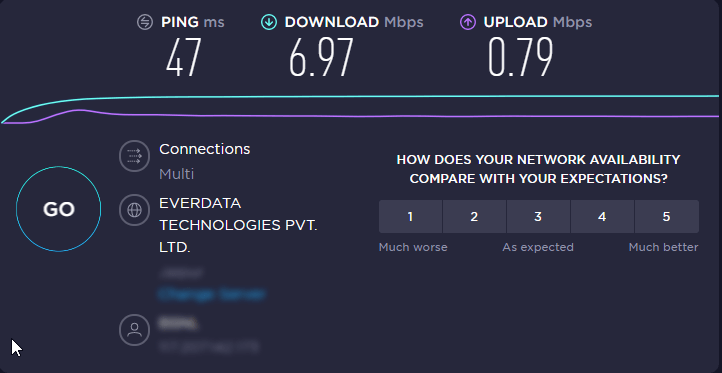
In addition to this, we even tested the connection speed via SpeedTest, and we got 6.97 Mbps, download speed and 0.79 Mbps, upload speed.
To install this fantastic driver updater for Windows, you don’t need any special skills. Simply get Smart Driver Care. Once installed, it will run an automatic scan for the first time to list down all outdated drivers.
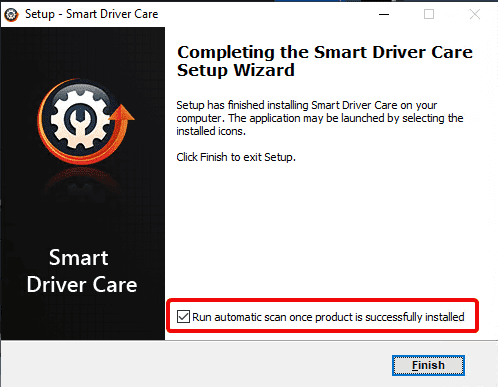
However, if you uncheck Run automatic scan once the product is successfully installed, you will have to run the scan manually.
Scanning for Outdated Drivers
If scanning is performed, you will see the number of outdated drivers.
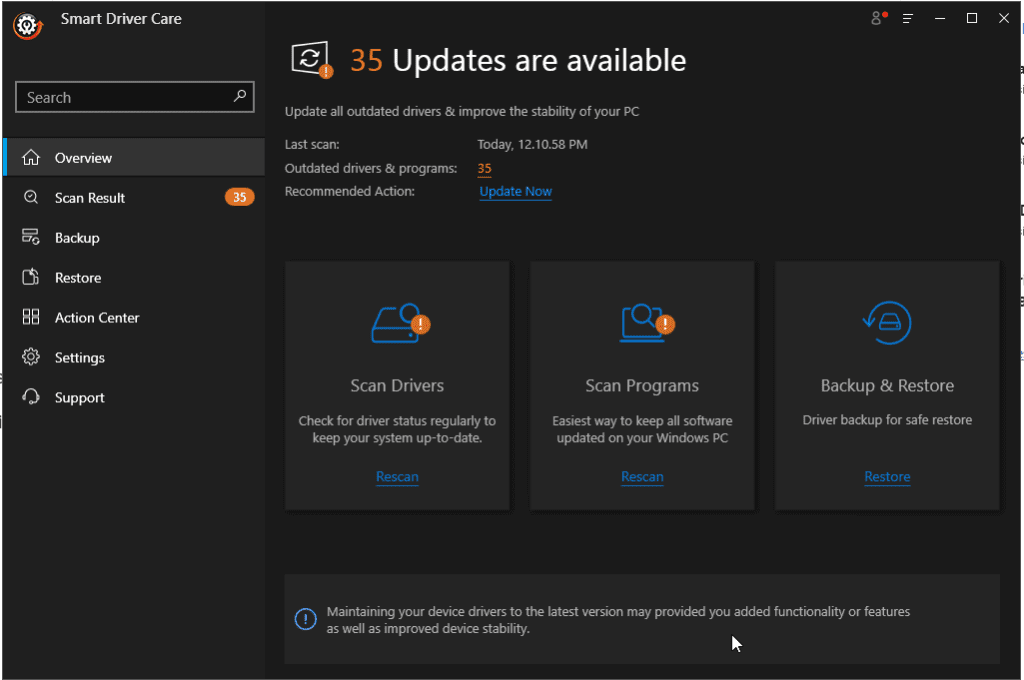
However, if you skipped automatic scanning, you will have to click Scan Now under Scan Drivers to perform scanning. In our case, the first scan lasted for 25 seconds.
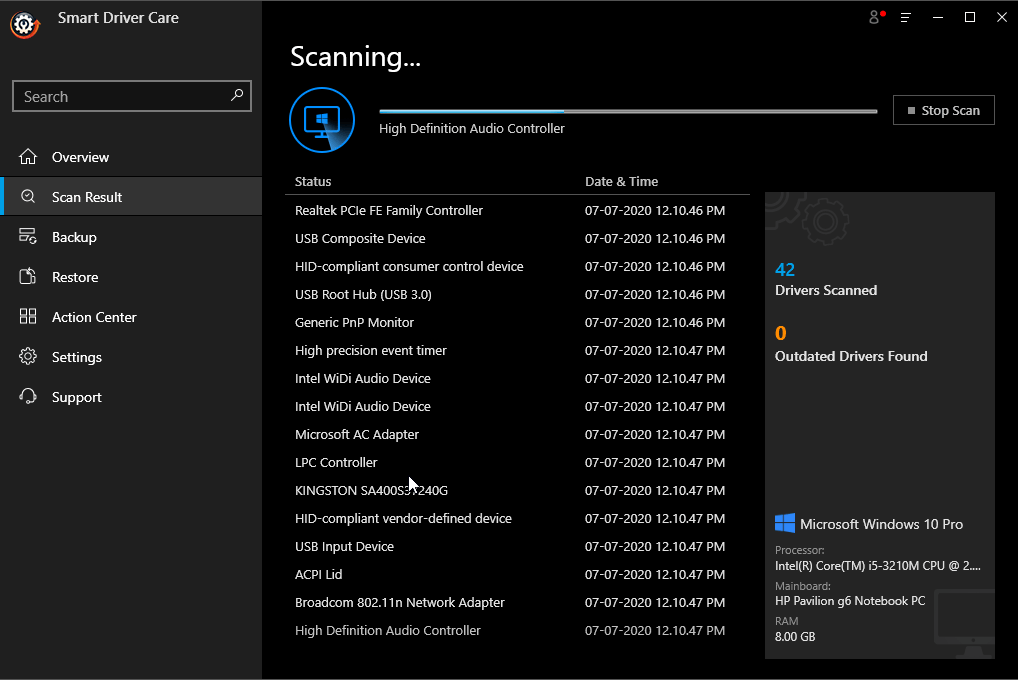
Once the scanning was done, we got a list of all outdated drives. For our laptop 36, outdated drivers were detected. We chose to update the HID Keyboard device driver, as I was facing some issues with that.
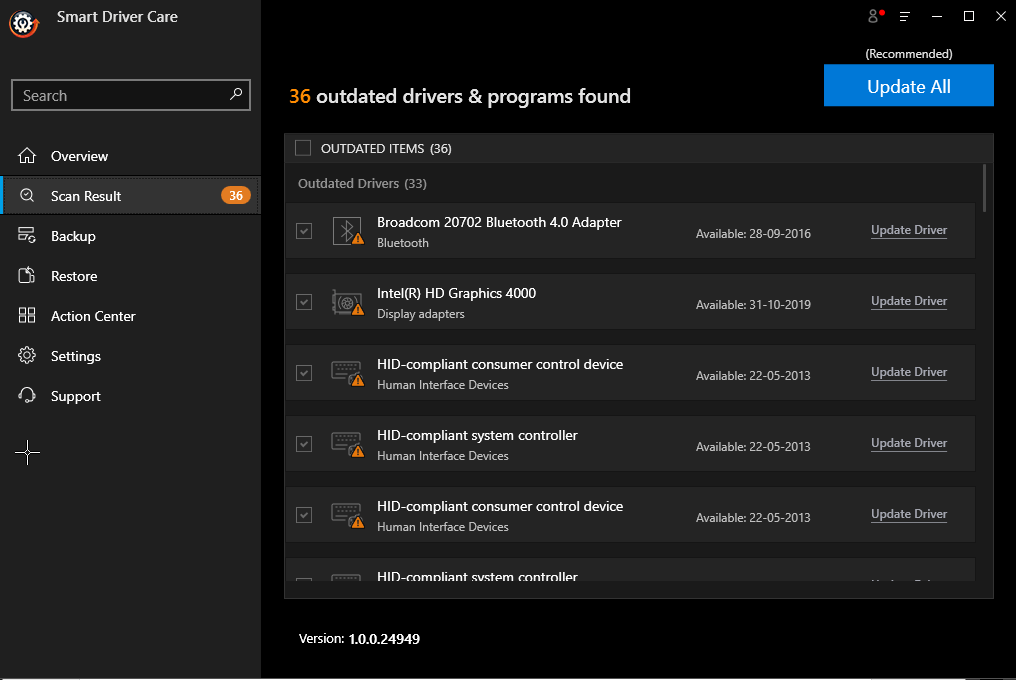
Downloading and installing the single driver took 20 minutes.
Note: Time taken to download and install the driver depends on your connection speed.
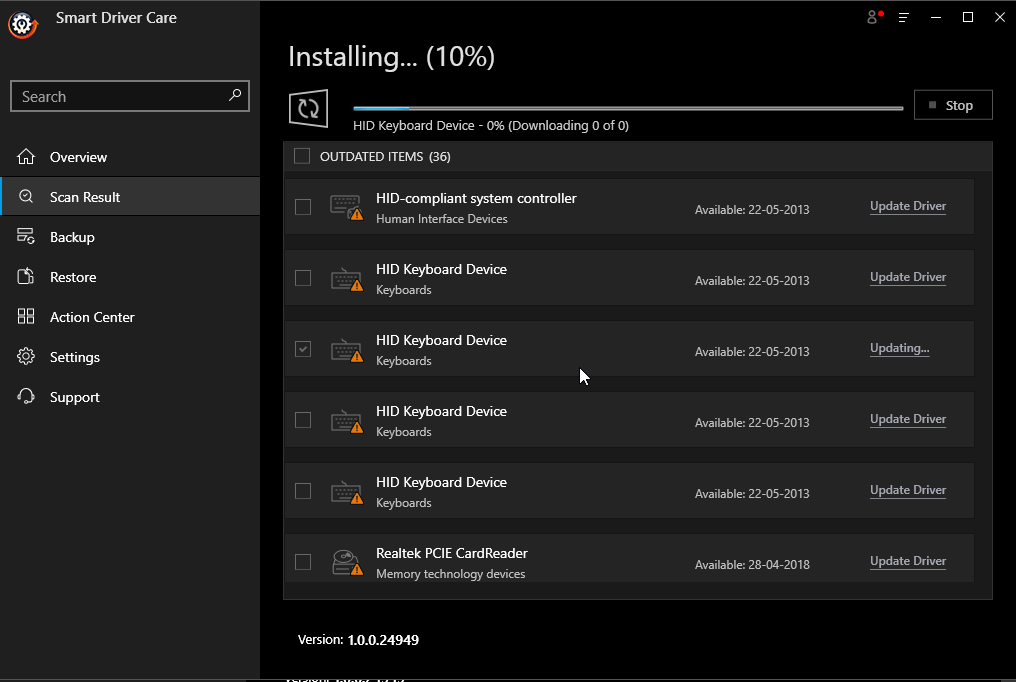
Moreover, Smart Driver Care performed a full backup of the installed driver before updating the outdated one.
Note: Backup and Restore features are available only in the Pro version. Also, you cannot update all drivers at once in the trial version.
Once the backup was taken, the driver was installed automatically. Here, I faced a bit of a problem; my system restarted automatically. Therefore, before you use Smart Driver Care, we would suggest you save all your work or use the tool when the system is in an idle state.
As my system restarted, I was a bit annoyed so, rescanned the system to judge the problem. After rescanning now, there were 35 outdated drivers instead of 36.
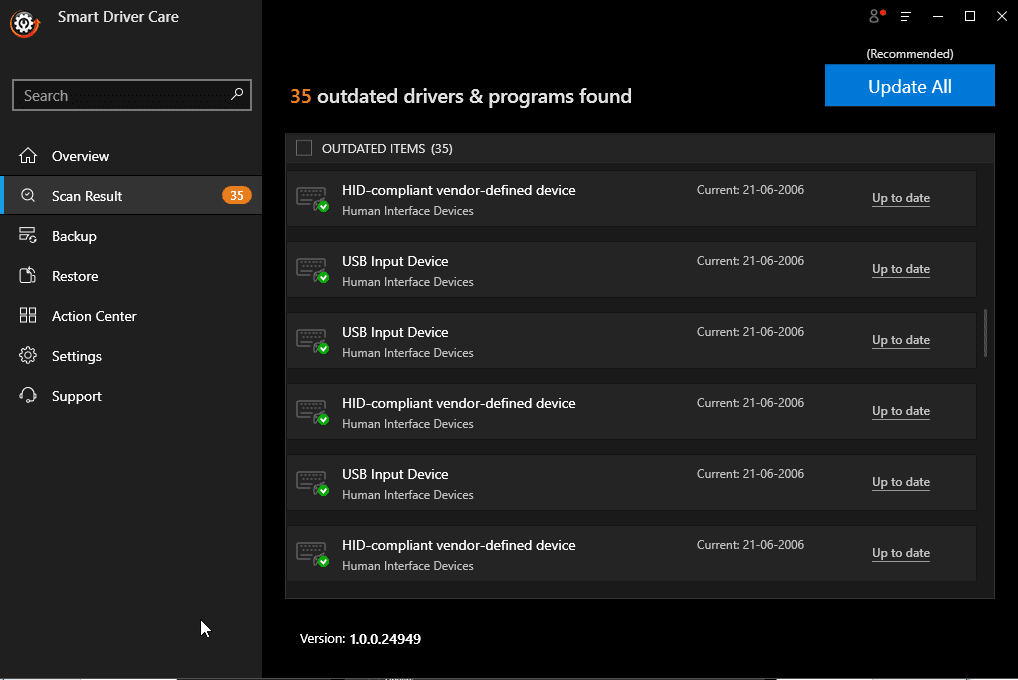
But why did the system restart? To get an answer, I consulted the technical support team. They informed me that a driver update is only applied once the system restarts. Therefore, my system rebooted. Alongside they apologized for no warning message and escalated the issue. I liked the way they assisted me.
Pros & Cons: Smart Driver Care Review
With an intuitive design, Smart Driver Care is the best driver updater for Windows 10,8,7. During testing, it became clear that this top driver updater uses an extensive database that includes both official and Microsoft signed drivers. However, we were unable to find specific driver updates to get an explanation about the same, we have contacted their support team.
Pros & Cons
| Pros | Cons |
| Automatic scanning for outdated drivers | No version available for macOS, or Linux |
| Large driver database | The free version does not let you take backup |
| Takes a backup before updating drivers | The one-click update is not available in free version |
| Quick and easy scanning | |
| 60-day money-back guarantee | |
| Creates a system restore point | |
| Scheduler to schedule scanning |
Extra Features:
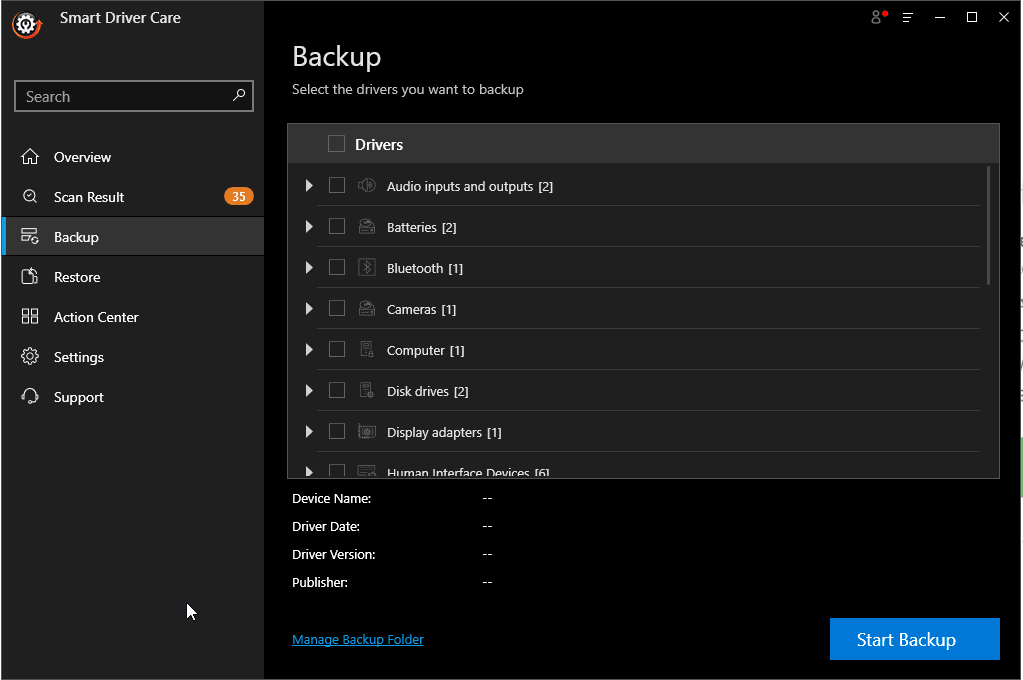
Backup and Restore are two amazing features as they help in times of crises, but they are only available for Pro users. Once you click the Backup option from the left sidebar, you get a list of drivers that you can backup.
To take the backup, simply select the driver and click Start Backup. Wait for the process to complete once done you will get to see all the backup details under the Backup window.
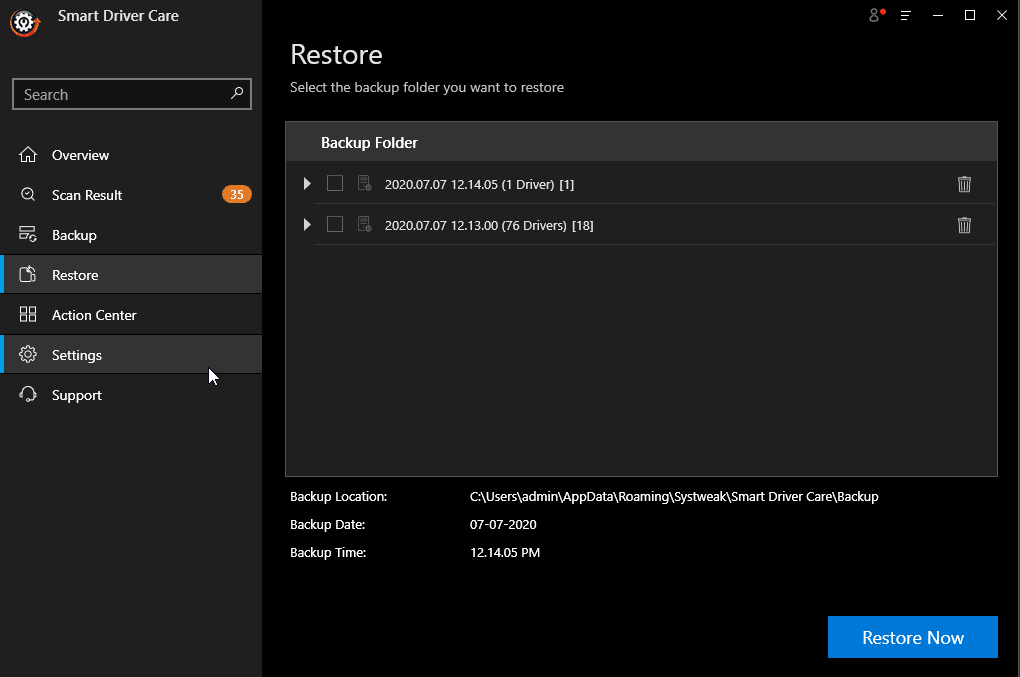
Restore tab will show you a list of all the driver backups. You can restore them if you face any problem. Select the backup you wish to restore and click Restore Now.
Here in the screen below you can see Backup Location, date, and time.
Settings – Smart Driver Care
Smart Driver Care is a user-friendly Windows driver updater. It gives you several options. Under the General tab, you see the following options:
Launch on System Startup – this will start the program each time you boot Windows.
Auto Scan on Launch– if you want to perform an automatic scanning every time you launch Smart Driver Care select this option.
Exit on close – you don’t want Smart Driver Care to sit in the system tray select this option.
Check periodic updates – this option is selected by default so that you can receive product updates regularly.
Language Settings – Currently, it is only available in English. But when asked if it will be multilingual, the company said soon; they will release it in 13 languages.
Not only this, Smart Driver Care even allows you to change the theme of the application.
For this select any of the themes under Theme mode:: Light, Dark, or Blue.
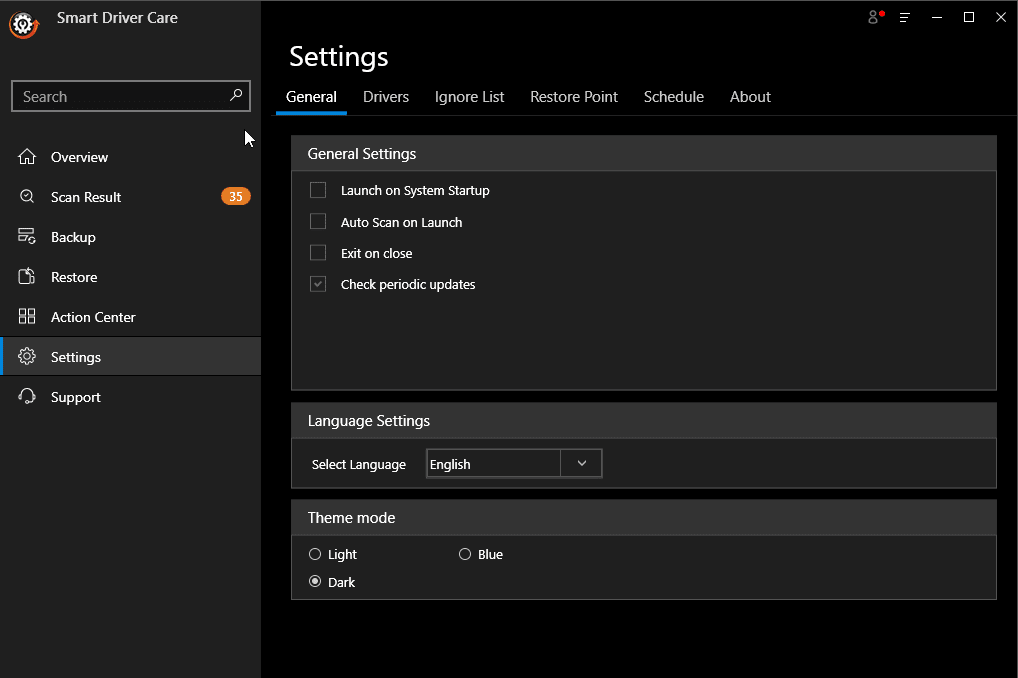
Isn’t this amazing? I love Dark themes and seeing this feature in a product made me so happy. We tested the product in the Dark theme.
Driver tab
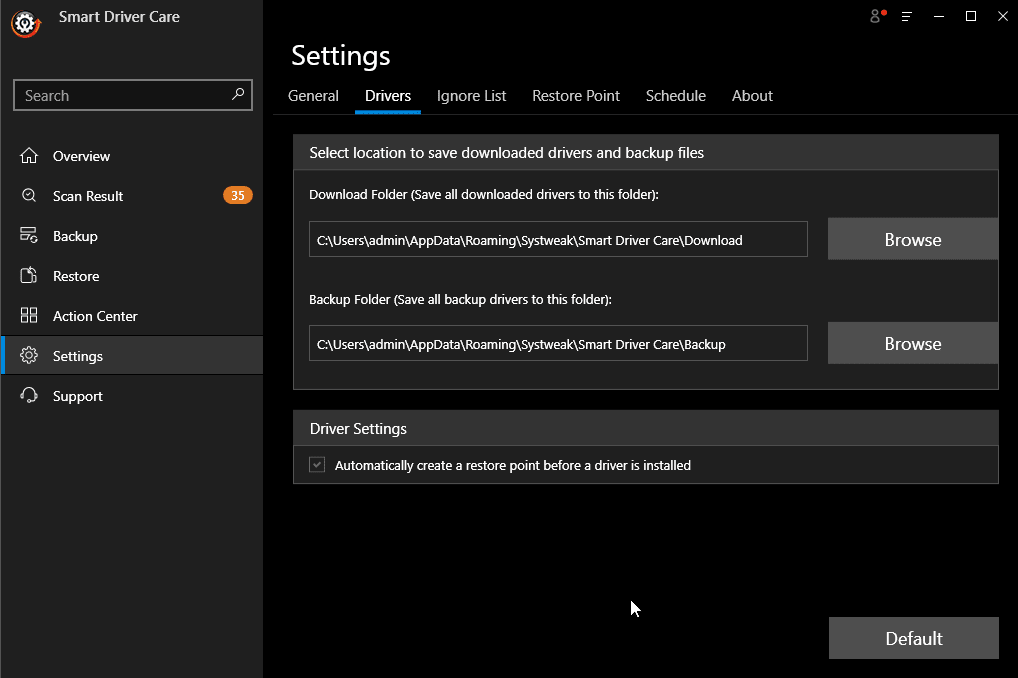
Want to know where Smart Driver care downloads the driver and stores the backup? Under the Driver tab, you can get all this information.
This helps upload driver backup if you accidentally delete it from the Restore tab. Further, you can also decide whether you want Smart Driver Care to create a restore point before installing a driver or not. By default, this option is selected.
We were amazed to see the security precautions, and this made us trust the product even more. Looking at all these measures, it is evident that the company knows what they are doing.
System drivers play a vital role in the smooth functioning of Windows. An incorrect update can make you lose all data; therefore taking these precautions is a must.
Finding these types of security measures in other driver updater tools for Windows was not possible. This is why Smart Driver Care is considered as one of the best driver updaters of Windows operating systems.
Ignore List
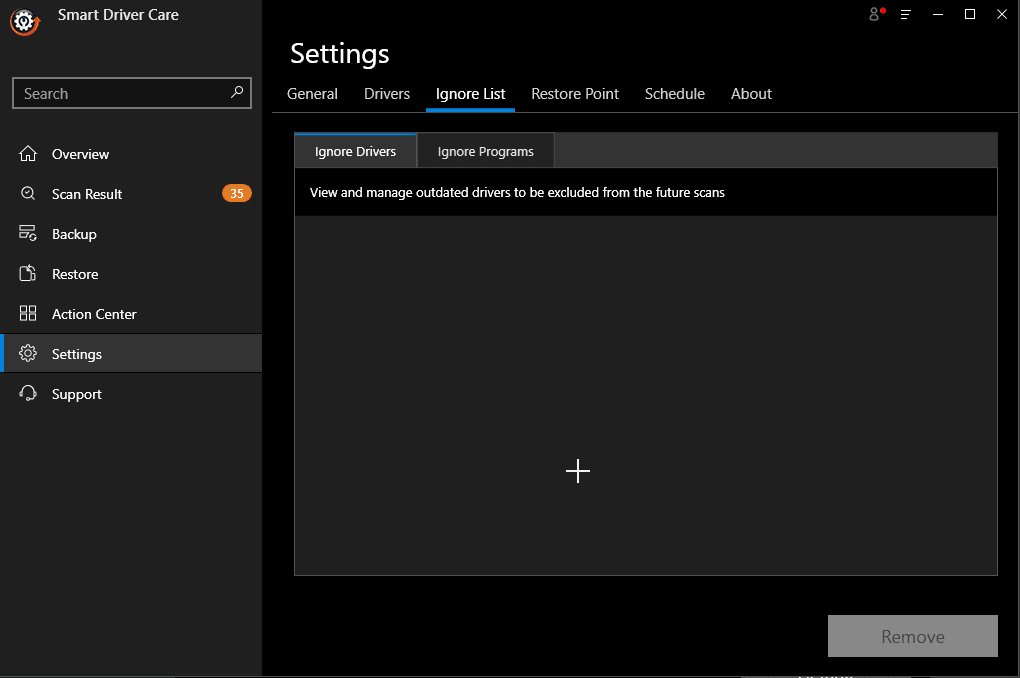
Further, there is an Ignore List that helps exclude drivers that you do not wish to update. Many times it happens a driver update compatible with significant systems is incompatible with yours. In such cases, you can exclude it until a new update is available.
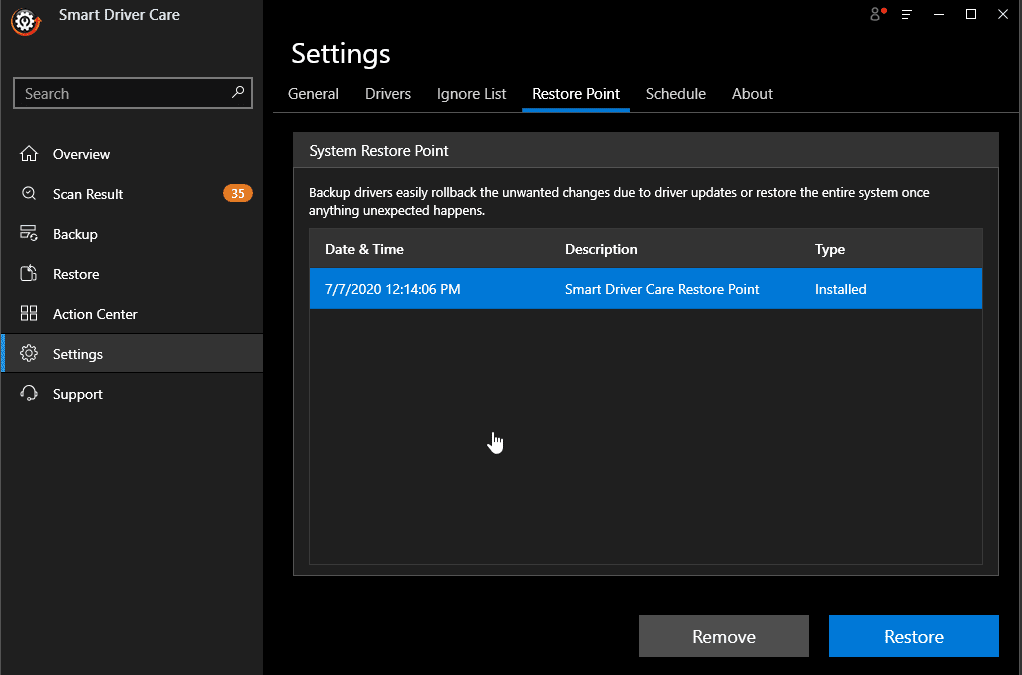
Restore Point
Restore Point helps rollback driver updates. Here, you get the information if a System Restore Point is created or not.
Scheduler
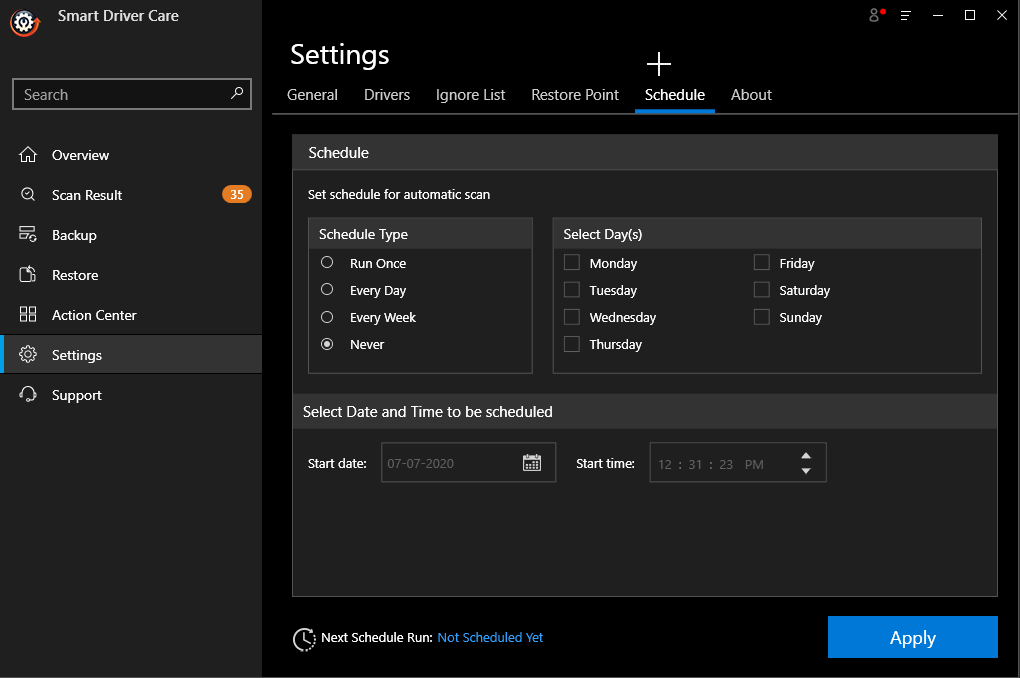
Want to run Smart Driver Care automatically?
Use the Schedule tab for automatic scanning. You can set the schedule to run weekly, daily, or at a specified time of a day. Once you have set the parameters, click Apply to set a schedule. This will help run the Windows driver updater automatically.
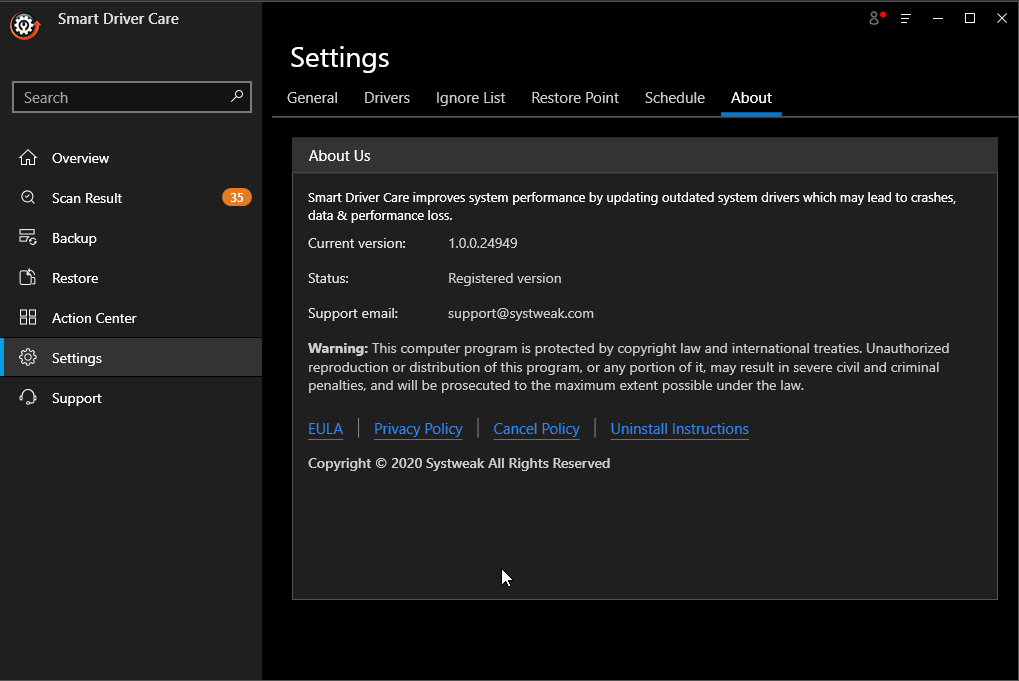
About the Product
Know the product status, version number, and other important details from this tab.
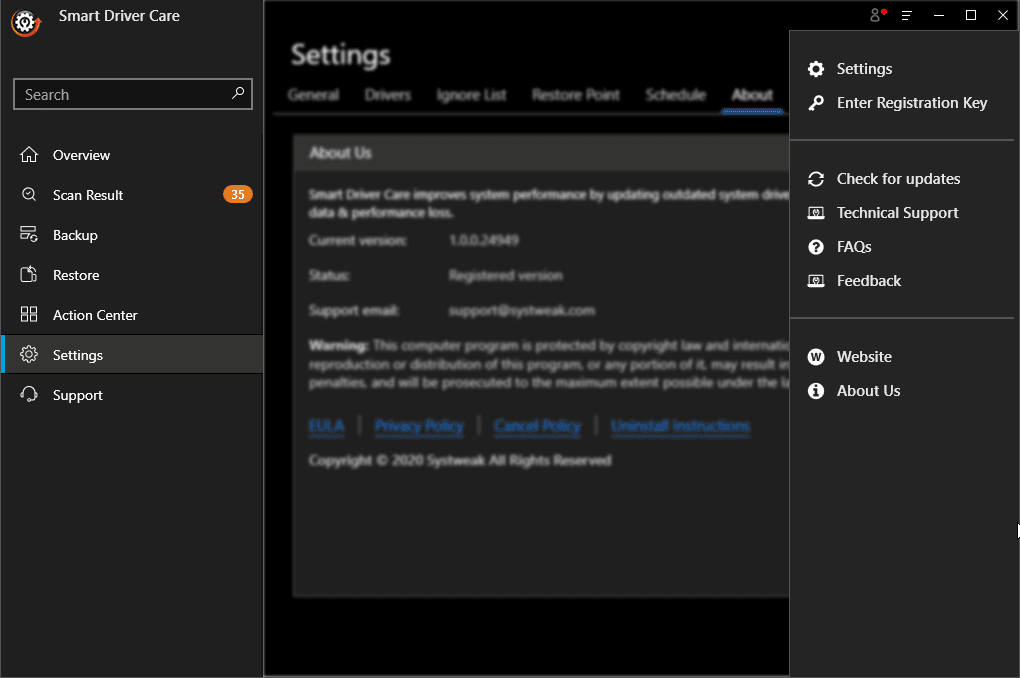
Menu
Click the three stacked lines to get the product menu, check for updates, Enter Registration Key, contacting support, etc.
FAQ
Is there a free version of Smart Driver Care available?
Yes, the trial version of the product is free. You can use it to scan the system and update outdated drivers.
Why do we need a driver updater?
When you install, Windows 11 update drivers are installed automatically. But when this update is paused, you cannot update drivers. Therefore, for the smooth functioning of Windows and to keep system drivers up-to-date a driver updater tool like Smart Driver Care is a must. You can also try this guide to update drivers on Windows 11.
Is Smart Driver Care safe?
Driver updates shown by Smart Driver Care are 100% safe. Before adding them to the database, Systweak thoroughly tests them. Moreover, all the driver updates are obtained from manufacturers, not from third party sources.
So, this is all about Smart Driver Care and why it is considered as one of the best driver updaters for Windows. This is a must have a driver updater, do give its free version a try. Do share your experience with the product in the comments section.
Author Bio:
Dinesh Lakhwani 

Dinesh Lakhwani, the entrepreneurial brain behind “TechCommuters,” achieved big things in the tech world. He started the company to make smart and user-friendly tech solutions. Thanks to his sharp thinking, focus on quality and the motto of never giving up, TechCommuters became a top player in the industry. His commitment to excellence has propelled the company to a leading position in the industry.
Popular Post
Recent Post

Wise Duplicate Finder Review: Real Results from Wise Duplicate Finder
Read my honest Wise Duplicate Finder review. See features, pricing, pros and cons, and real PC test results. Find out if this free duplicate cleaner can free up your Windows storage.

How to Recover Deleted Files from Pen drive, USB Drive, SD Card
Introduction: On tech forums, you’ll often see posts like this: “I connected my pen drive to my laptop this morning, but the folder was empty. All my college project files had vanished. I don’t have a backup. Can someone help me?” Stories like this are very common. Pen drives, USB drives and SD cards are […]

How To Recover Files Deleted from the Recycle Bin [Windows 11]
Losing a file can happen in seconds. You clear your desktop, hit Delete, and empty the Recycle Bin. Then, just when you need that file again, it seems to have vanished. This guide will walk you through ways to restore files removed from the Recycle Bin. We will begin with simple fixes, then look at […]

Disk Drill Data Recovery Tool Explained: Full Review and Guide
It happens in a split second. You delete a folder by mistake. Your drive stops showing up. A photo album from your last trip just vanishes. And your stomach drops. Lost files feel personal. They are not just data. They are memories, work hours, and sometimes years of effort packed into a few gigabytes. When […]

Recover Deleted Files In Windows 11 With Software & Without
Introduction What is the first thing that goes through your mind the second an important file vanishes from a Windows 11 PC? For most people, it is a mix of panic and disbelief, followed by a frantic click through every folder that file could possibly be hiding in. It happens in a split second: one […]

EaseUS Data Recovery Wizard: Everything To Know
Data loss does not always come from a big disaster either. Most cases start small and boring. A drive gets formatted by mistake. A laptop freezes mid-save and restarts on its own. A memory card stops showing up after being pulled out too fast. None of these feel like emergencies at first, until you realize […]

Recuva Data Recovery Tool: Is it Actually Worth it?
When I first tried Recuva Data Recovery, I wanted to see if it could really bring back lost files. The tool is free, small in size, and promises quick recovery, which made me curious enough to test it on my own PC. The setup was fast, and the wizard guided me step by step. I […]

GetData Recover My Files Data Recovery Tool: Honest Review
A hard drive error brings a special kind of silence. Well, yes! The screen freezes, then a message appears saying the drive can’t be found or must be formatted. In that moment, years of photos and work files feel at risk. It never happens at a good time. Coffee spills near a laptop, a memory […]

Windows File Recovery: A Complete Review [Tried & Tested]
Imagine this. You spend hours perfecting a video project. You hit save. Then your laptop freezes, reboots, and when the screen comes back. The file is gone. Your stomach sinks. It’s not just you. Lost files happen all the time. A dropped hard drive, a bad update, an accidental delete, or a corrupted partition can […]

