











Learn how to update NVIDIA drivers on Windows 11/10 with simple methods, safety tips, and easy steps for smoother gaming and better PC performance.
Iperius Remote Full Review- Tools for Superior-Level Desktop Remote Use
Iperius Remote Review: Introduction
Keeping track of many devices and systems can become difficult for businesses, especially those with bigger teams. This is especially more complex when team members are spread out, and one needs to present specific data or files to them in real time.
Practices such as screen sharing should work, but investing in a more comprehensive and user-friendly solution that benefits on multiple levels is important. In this context, opting for high-range remote desktop software is useful. The program allows professionals from different locations to sync with one central computer and interact with the system virtually using a remote control desktop.
Iperius Remote is a high-quality choice with versatile benefits, a simple structure, and more. In this review, you will learn further why it is a suitable remote support software to try out.
Iperius Remote Software- For Next-Level Remote Desktop Performance
Before starting the Iperius Remote review let’s discuss the basics of this software.
The Iperius Remote is a type of remote desktop software with versatile features and a lightweight structure, usable on multiple levels. With this software switched on, professionals can remotely transfer multiple files and folders between systems.
Plus, users can hold multiple sessions, operate the software to handle feature-rich presentations, and try out screen-sharing functions. Plus, professionals can use the unattended remote login functionality available on the software for remote connection to computers with their devices and safely.
Highlights- Iperius Remote
- HIPPA/GDPR- End-to-end encryption for TLS 1.3, DTLS-SRTP type.
- Unlimited access to remote computers.
- Remote printing
- Folder and file (Delta) transfers
- Session videos are recorded
- The remote access is left unattended
Languages Supported:
English, Italian, French, German, Russian, Japanese, Spanish, Dutch, Turkish, Portuguese, Simplified Chinese
Requirements:
- Windows 11/10/8/7/Server (2012, 2016, 2019, and 2022).
- macOS 13/12/11/10.15/10.14/10.13
- Android 6-13
- iOS 11-12/iPadOS 11-12
Official Page: https://www.iperiusremote.com/
Iperius Remote Review
There are different functions to use while trying out the Iperius Remote software. To fully understand its capabilities, focusing on it is important.
1. Simple and easy-to-understand interface
One of the best aspects of the Iperius Remote software is the simplicity of its usage. For both the administrator user and those connected to the software, it is to accept the software and use the given password and ID code to connect devices.
All connected devices remotely accessing the same computer will be listed on the main page directly.
2. Multi-device support
The Iperius Remote program works well as a suitable software for different user types because of the multi-device support it assures users. The program is accessible through Windows PC for people who want Remote Desktop support or even Mac computers.
App versions are also available for iOS and Android users, making the overall user experience simple. Team members can all utilize their own devices to access one central computer, with diverse access accounts and separate passwords. You can set multi-user sessions through this device overall.
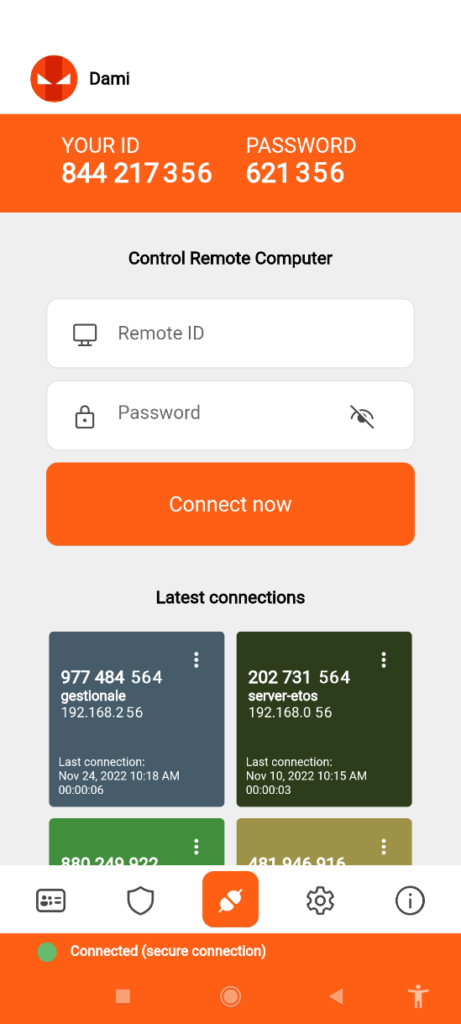
3. Administrative area access
A section for the administrative area web is available through the software, but this is only accessible to the main administrators. The one in charge of the primary computer connection, which all other devices connect to remotely, can enter this section and make configuration changes.
The admins can access and review all unattended connections through this area and see the address book details about synced operators and groups. The administrator can customize the contact list here with specific permissions, allow certain operators viewing privileges, and customize the branding elements.
4. Diverse alterations through General settings
You can control the connections to the remote computer through the settings section on this software. These include adjusting the configurations for the system/display conditions. Besides that, you can choose the preferred role for incoming connections, allowing no remote control support and only viewing or full control access.
It is possible to record live sessions through this software. In the settings section, you can set the destination path for the recording file. Also, make changes regarding the address book accessibility through the settings, like showing the unconnected computers, devices not assigned into specific groups, etc.
5. Check Connection History
For companies, referring to older connection information is important for referencing past processes, activities, and details about different projects. For example, to see the screen recording of a function that you saw a few days ago, you have to access the recording of that session. Through the Connection History section, these details are visible to users in chronological order, with information about the connection account.
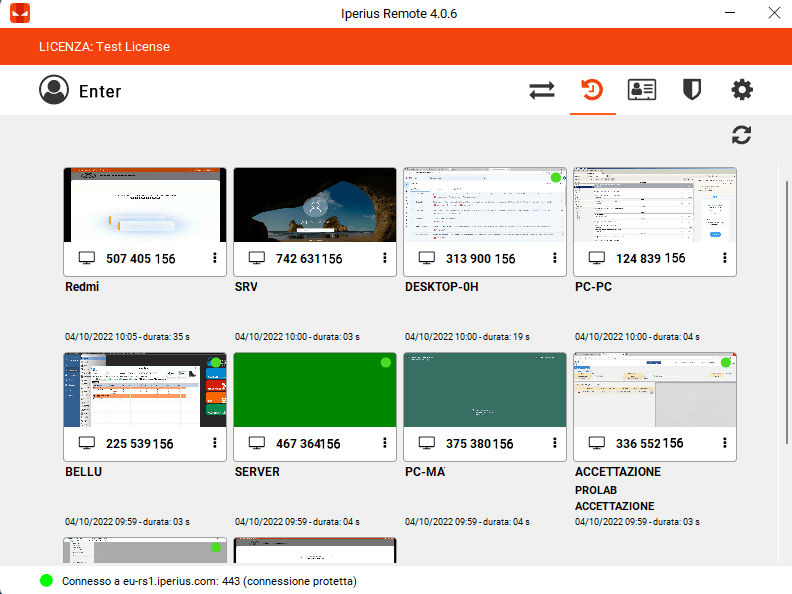
6. Set password for better data security
For the best security guarantee with different functions, the Iperius Remote software allows users the ability to set strong passwords for the connections. Setting up the password is necessary for certain functions, like setting up automatic startups each time you log in.
You can prepare a universal password for program configuration and one password for the specific device you are using.
Iperius Remote Review: The Features
- An unlimited number of destination computers are supported.
- Cross-platform remote desktop software for Mac/Android/Windows/iOS devices.
- Zero firewall configuration is available on this software.
- Get multiple connections to use for every plan.
- Secure, encrypted HTTPS protocols for safe data transfers.
- Unattended connections are available, and they occur automatically.
- Manage granular-level access permissions.
Iperius Review: Pros
- Users get detailed statistical reports on connections.
- Supports bidirectional file transfers.
- Multi-user chat functions are supported.
Iperius Review: Cons
- The Small plan only allows for 2 concurrent connections.
- Only the Pro 15 plan users get to use the corporate rebranding benefit.
How to use Iperius Remote?
The review of Iperius Remote software is incomplete with the working process. Here, I am going to explain the complete working process of Iperius Remote Software.
Here are the steps for using Iperius Remote to connect to one computer.
Step 1: Download Iperius Remote for your device type (Mac/Windows/Android/iOS) from the official website.
Step 2: Follow all of the steps that come up for the installation and setup process. Finally, the app will launch automatically on your device.
Step 3: Add the Destination ID and password of the Control Remote Computer of your primary computer (as another user) or buy a license to become the admin user. Press Connect.
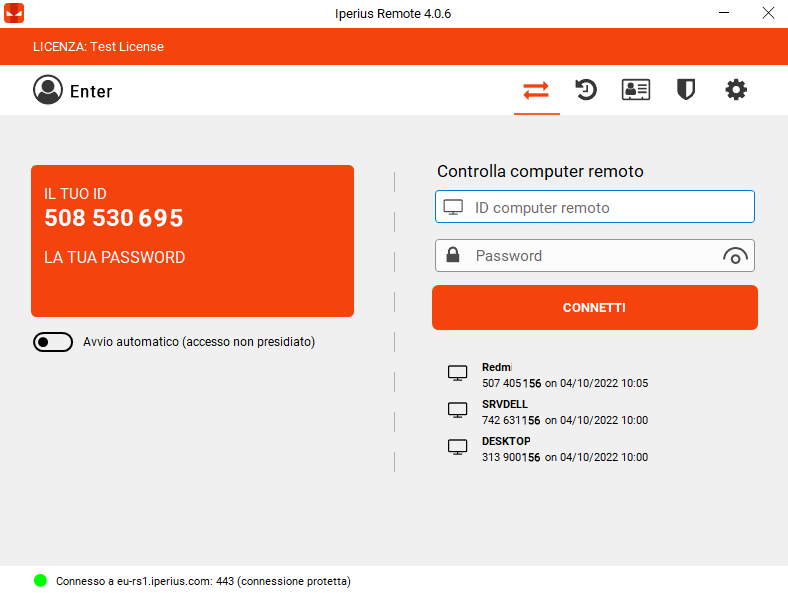
Step 4: For others, they must use their personalized ID and password to connect.
Iperius Review: Final Words
All-in-one remote desktop software like Iperius Remote is useful for remotely accessing one primary computer connection from different locations. The Iperius Remote software is simple for multiple user sessions across different devices. Properly configure the settings for your remote connections as required and review the history of the sessions, all through this one program.
If you have any questions or suggestions about this review of Iperius Remote Software then you can mention them in the comments section.
Author Bio:
Dinesh Lakhwani 

Dinesh Lakhwani, the entrepreneurial brain behind “TechCommuters,” achieved big things in the tech world. He started the company to make smart and user-friendly tech solutions. Thanks to his sharp thinking, focus on quality and the motto of never giving up, TechCommuters became a top player in the industry. His commitment to excellence has propelled the company to a leading position in the industry.
Popular Post
Recent Post

Top AI Features Hidden Inside Windows 11
Explore the top AI features in Windows 11, from Copilot to Recall, plus safety tips and simple steps to use each tool the right way.

Customize Your Screen Saver Settings in Windows [Easy Steps]
Learn how to customize screen saver settings in Windows 11 with easy steps, safety tips, and simple tricks to personalize your PC screen.

Driver Easy Windows Driver Updater Tool Review: Tried & Tested
In-depth information about Driver Easy’s functions and features can be found in our review. Learn how to update drivers more easily with this tool for a more seamless computer experience.

Is Avast Driver Updater Worth It? A Hands-On Analysis
A full review of Avast Driver Updater covering features, setup steps, pricing, pros and cons, and real PC results, to help you decide if it is worth buying.

IObit Driver Booster 13 (PRO) Review: [Tried & Tested]
IObit Driver Booster 13 is built for one purpose: keeping your PC drivers up to date. Well, yes! Outdated drivers can cause crashes, slowdowns, and hardware issues. This tool scans fast and updates with one click. The interface is simple. Even beginners can use it without confusion. Updates are pulled from a huge database, covering […]

Auslogics Driver Updater: A Detailed Walkthrough [2026]
This comprehensive review covers the key features, pros, and cons, pricing, and a final verdict on Auslogics’ driver update utility. Learn how it stacks up against manual driver maintenance.

5 Best Driver Updater Tools for Windows to Use (Free and Paid)
Introduction: Most people blame their PC for problems that a driver caused. A driver works like a bridge between your hardware and your operating system. When this bridge cracks, strange things start to happen. Screens flicker without reason. Printers go silent mid-task. Games freeze or crash out of nowhere. Manually finding the right driver is […]
Fixing Lock Screen Timeout – Screen Timeout Settings
Your Windows screen does not stay on forever. After a certain amount of idle time, it turns off or locks automatically. This is a normal feature found on both laptops and desktop PCs. It helps save battery power and reduces electricity use. It also keeps your files and personal information safe when you step away […]
How to Recover Unsaved Word Document? [Complete Guide]
It can be frustrating when a Word document suddenly disappears. You may have spent hours writing a report, assignment, or letter. Then your computer crashes, the power cuts out, or Word closes before you save the file. In that moment, it may seem like all your work is gone. This happens more often than most […]

