












A slow PC rarely gives a warning. One day, it simply takes longer to start. Apps open late. The fan runs loud, even when the screen is almost empty. Most people blame old hardware. Often, that is not the real reason. The real reason is hiding in plain sight. Windows keeps many apps active in […]
How to Secure, Speed up and Clean Mac (Without Software)
As technology advances, almost everything is now online making computers more vulnerable to cyber crimes and attacks. This calls for secure and fast machines.
Mac is no exception. Whether using a personal computer or a public computer, there are plenty of ways to improve Mac security and performance. Here are some simple tips for a clean Mac with high security and ways to speed up Mac without using external software.
Ways to Clean Mac
There are several tools available like Mac Cleaner, Clean My Mac, etc. claiming a faster and more productive Mac. Buying any of these would be unnecessary as macOS comes with cool built-in features for the same. A clean Mac is the key to greater Mac security and efficiency. Here’s how to keep it clean without any software and reclaim some drive space effectively:
1. Delete unwanted apps
The applications installed on Mac take up a good amount of space and can slow it down. To clean Mac, any application not used or needed anymore should be uninstalled. To do so, go to Finder, click Applications in the Finder sidebar. Open Applications folder and sort the apps by size.
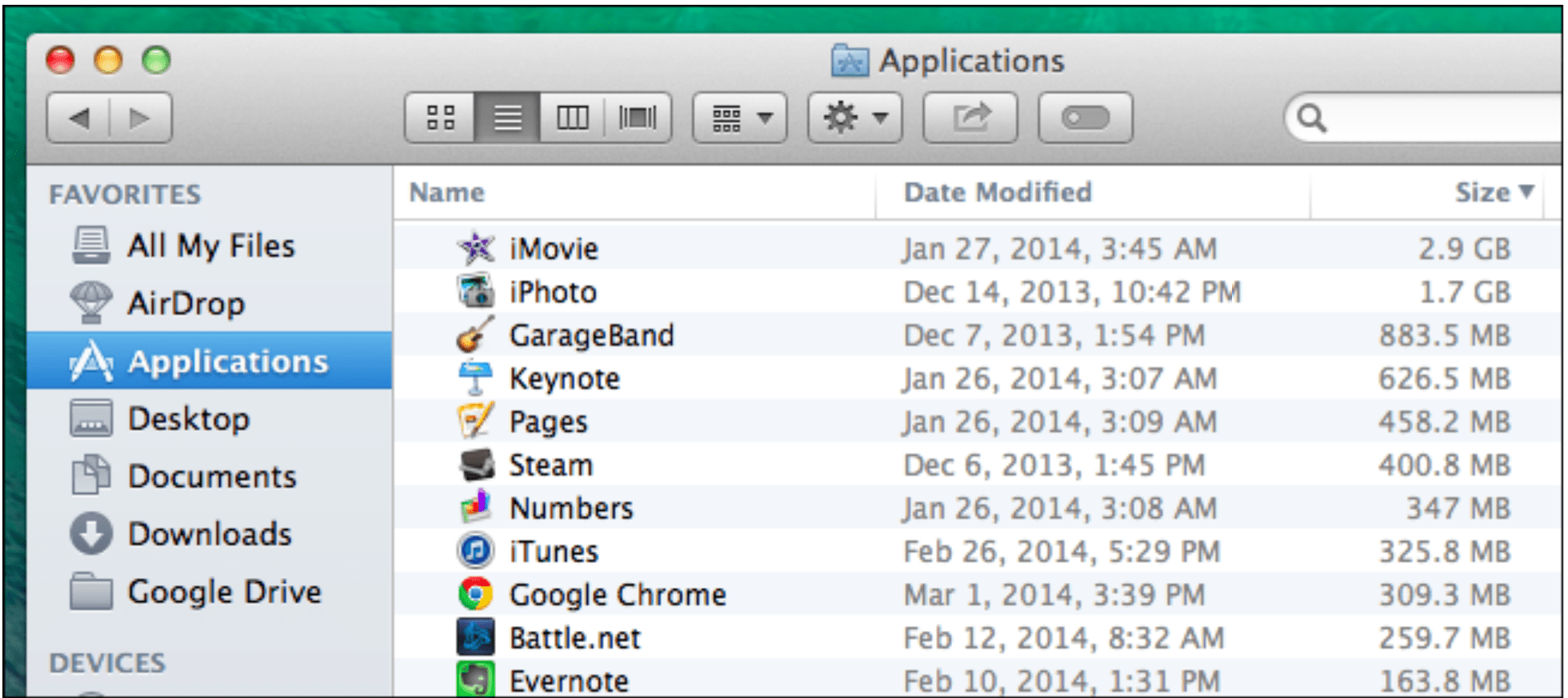
Drag the unwanted application’s icon to the trash can, or select the app and choose File > Move to Trash. Empty the trash.
In macOS Sierra and Catalina, the new built-in Optimize Storage feature can be used to uninstall apps. Go to apple logo>About This Mac. Select Storage>Manage. In the left section just under Recommendations, select Applications. It will show a list of installed applications. Select the unwanted app, to delete click on the X button. It works effectively without the use of any tool like Clean My Mac, etc.
2. Clear Storage Space
- Delete Old Mail Downloads: Email attachment files are saved in Mail Downloads folder that take up significant space. To access this folder,press Command-Space to see a search field appear, type Mail Downloads. In the Folders section, there is Mail Downloads Data folder.Go inside the folder and select all the unneeded files and delete. This will surely clean mac and some space on the disk.
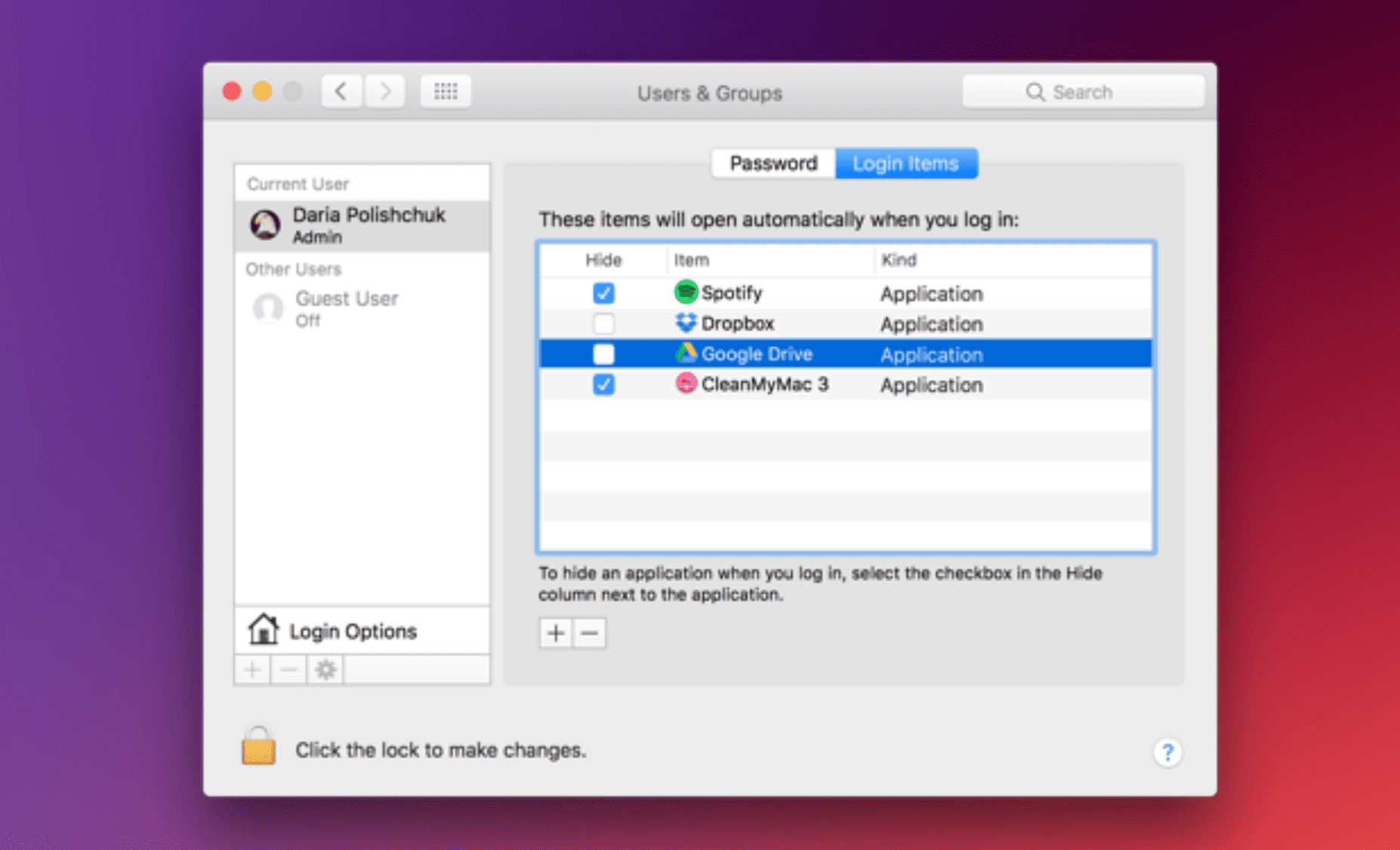
- Clear Login items: Login items are applications that run automatically during startup. Extra login items must be deleted as these consume memory. To clear login items, open System Preferences > Users & Groups. Choose Username on the right. Choose Login items Check startup programs to remove. Press the “–” sign below.
- Empty Cache: Mac stores a lot of information in files called caches, allowing fast access to that data. These files take a lot of space. Therefore, clear cache filesfor a boost to a clean Mac. To delete User cache and App cache, Open Finder window > Go >Go to Folder. Type in ~/Library/Caches, hit enter. Go into each of the folders and delete everything. Substitute ~/Library/Caches with /Library/Caches and repeat the same process.
- Delete Language Files: Mac applications come with language files for every language they support. Remove the unnecessary language files to clean Mac. Go to Finder >Applications, then right-click the app for which language files are to be removed and choose Show Package Contents. Open theResources folder, it shall have folders ending with .lproj. Each .Iprojfolder contains language files for a particular language. Delete the unused language files to clean Mac.
- Clear Downloads Folder: Most browsers save every downloaded file to the Downloads folder. To delete old and unused files, open Finder, navigate to Username>Downloads. Take a look at all the files in here, delete the ones that are not needed.
- Clear Disk Images: Macs use disk images to install files, which makes for easy installation, but take valuable space. Open Finder>All My Files, then type in Disk Manager in the search box to locate any of those DMG files. Delete DMG files to retrieve space and clean Mac.
- Empty Trash: It is a good practice to empty Trash regularly. Ctrl-click the trash can in the dock and select Empty Trash to release storage space.
- Remove Duplicates: There are chances of having duplicates of files and photos on the system. Finding and deleting them would make a clean Mac.
- Delete large and old files: Delete large and old files from the system to free some space. A clean Mac means a faster Mac.
- Clear iTunes: To free some storage space go to Library > iTunes and delete old iOS backups, old iPhone Software Updates and installers that are not needed anymore.
In macOS Sierra and Catalina, the new Optimize Storage feature can be used to manage storage space in an easier way. Go to Apple logo>About This Mac. Select Storage>Manage.
In the left section are several tabs like Recommendations, Applications, Documents, iTunes, iOS Files, Mail, Photos, Trash that help to manage storage space by deleting unwanted files from respective headers. The Recommendations tab gives four options:
Store in iCloud: This moves files back and forth between Mac and iCloud abased on usage.
Optimize Storage: This saves space by automatically removing unneeded files. This includes removing any iTunes items or deleting large email attachments.
Empty Trash Automatically: Empties trash can.
Reduce Clutter: Clicking the Review Files button here just takes to the Documents tab which gives access to Downloads folder and sorts out large files.
This works almost as automatically as a cleaning tool like CCleaner for Mac, etc.
Ways to Secure Mac
The number of threats targeting Macs continues to rise.
Keeping data secure and maintaining privacy are highly essential for a Mac user to ensure that hackers are unable to access any sensitive data. The tools in the market may come out to be potentially unwanted programs (PUP) that trick user into buying the paid version by showing fake error reports and malware.
macOS makes it simple to secure data, thanks to a host of tools and features in System Preferences.
1. Update Mac
It is wise to update macOS whenever Apple issues security updates to keep the Mac secure. Mac checks for available updates weekly. From the Apple, menu select Software Update to check for an available update. To change the frequency of checking updates, select Apple Menu >System Preferences>Software Update. Information about already installed updates can also be found here.
2. Turn on the Firewall
The first step for Mac security is enabling the firewall thus blocking any unwanted incoming network connections.To turn on the Firewall, under System Preferences > Security & Privacy, click the Firewall Click the padlock icon at the bottom left to unlock system settings.Type in the login password and click the Turn On Firewall Options>Enable Stealth Mode. This will make Mac largely invisible on public networks, such as shared Wi-Fi in a cafe.
3. Turn on FileVault
FileVault secures the files by encrypting data. It should be switched on for high data security. Either the account password or the recovery key created when FileVault was switched on is used to decrypt.
4. Manage Privacy Settings
For optimum Mac security, it is advised to manage the apps and control their access to information for Location Services, Contacts, Photos, Twitter, etc. through Privacy Settings.
5. Safari Privacy Settings
In Safari app, go to Preferences> Privacy section to manage Mac security preferences such as: guard against unsafe files, identify fraudulent websites, prevent cross-site tracking, block all cookies, clear browsing history.
To prevent Safari from storing website username and passwords, or personal data, go to the AutoFill and Passwords sections and uncheck the boxes that enable these services.
Tip: Open a private browser window in Safari’s file menu and it won’t save browsing history.
6. Manage Sharing
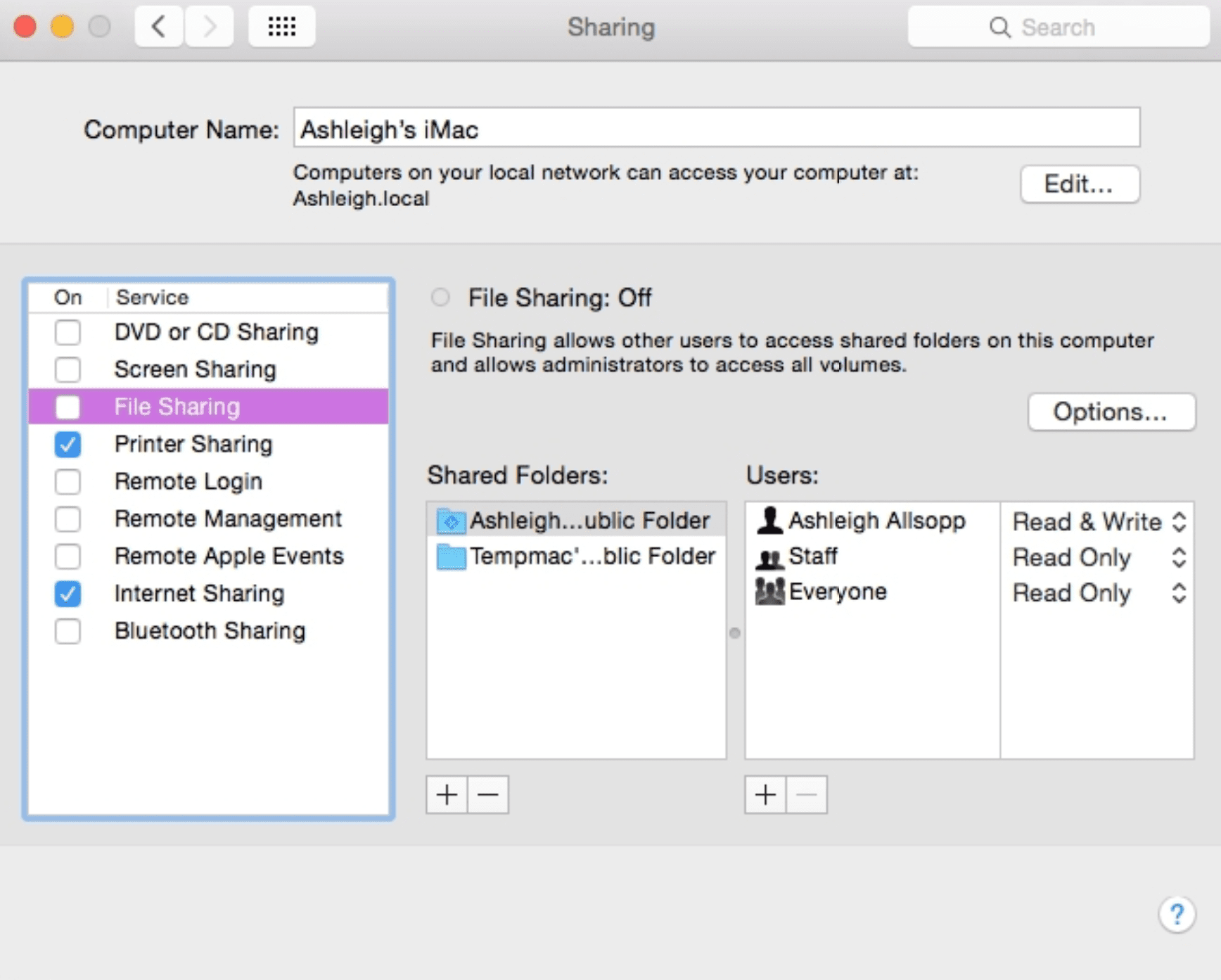
Mac has a bunch of sharing services like sharing files with other Macs and sharing screen to facilitate remote working. Having Sharing services on is a huge risk to Mac security.Go to System Preferences > Sharing and ensure to turn off any sharing service that’s not being used.
7. Enable Two-Step Authentication
Two-step authentication is a system whereby in addition to username and password, login to services and websites requires a numeric code that is either sent as a text message or generated by a special app on the user’s mobile. It is strongly recommended to set up Two-step authentication for all sites and services because it presents an invincible Mac security against any hackers.
8. Apply a Firmware Password
There is a potential risk of using a USB memory stick to boot the Mac and access system data. To prevent Mac security from being compromised, it is wise to use a firmware password. Mac’s firmware password prompt will appear only if anybody tries to boot Mac in a non-standard way.
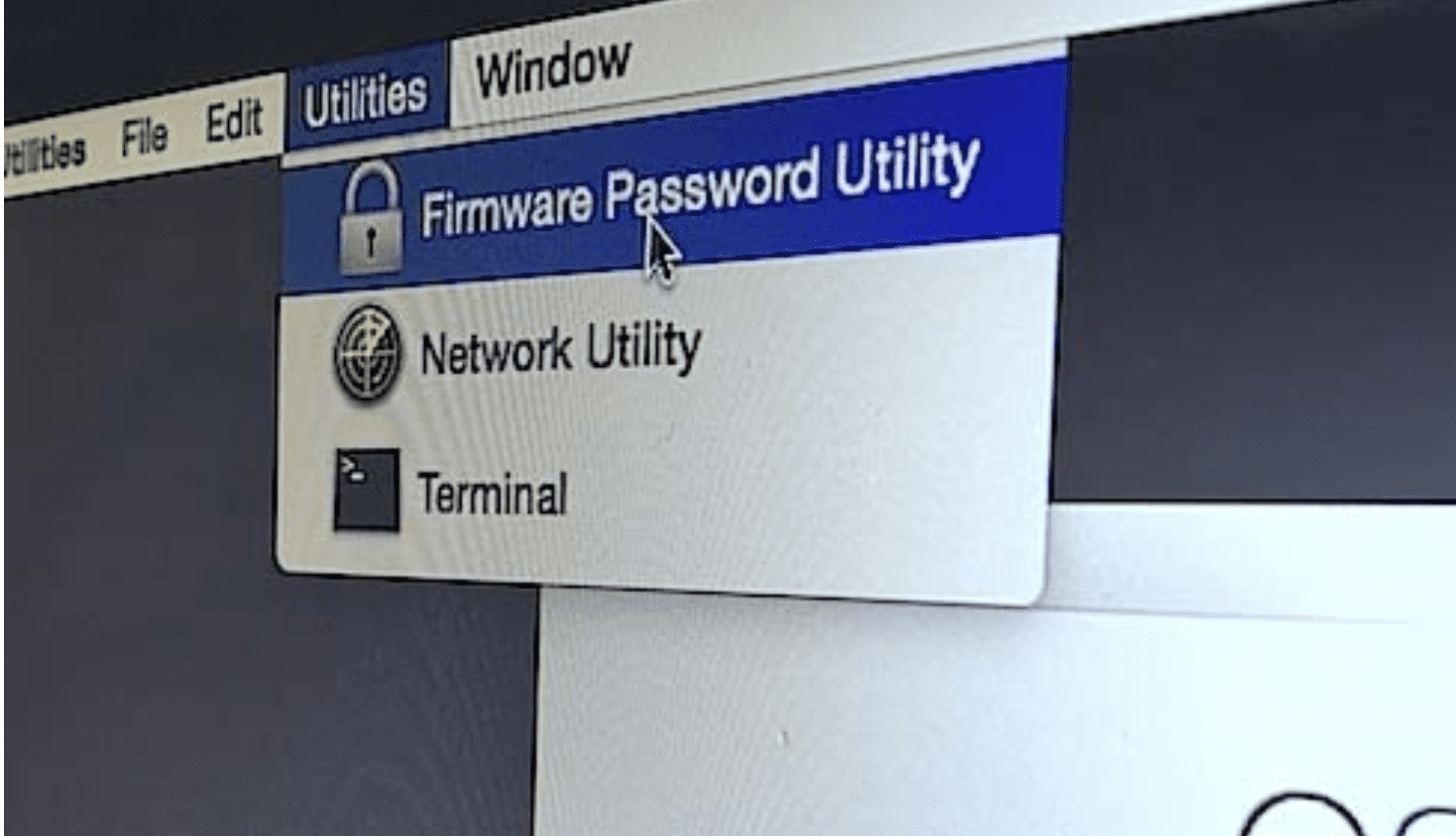
Activate the firmware password for Mac from the Recovery Console. To do so, restart the computer and just before the Apple logo appears, press and hold down Command+R. Lift fingers from the keyboard when the boot-time progress bar appears and select language and location when prompted. Click on Utilities > Firmware Password Utility. Follow the instructions to set the password.
9. Create a Standard user account
Standard users and guest users are non – admin accounts. Since they have limited access and permissions on a Mac these are preferred over admin accounts for enhanced Mac security.
10. Visit Sites with HTTPS
It is essential to have a secure web connection especially while accessing banks, webmail services, and online shopping sites. Any loophole in the web browser security is an open threat to Mac security.The URL of any site should start with ‘https:’ — the ’s’ means “secure”. There should be a padlock in the browser’s status bar.
11. Use a VPN
It is recommended to use a Virtual Private Network (VPN) service for an additional layer to Mac security. On public network, VPN encrypts data and entirely blocks other users on the same network from spying with malicious interests.
12. Backup
Ransomware attacks and hardware disasters could endanger sensitive data. Data backup is a must to ensure security. Ideally, this should include combining an external hard drive usage with an iCloud backup service.Mac already has built-in tools to make system backups. Here’s Apple’s official page on how to back up Mac using Time Machine, iCloud, and more.
13. Use a password
Using a password is very important for Mac security. To set a password, go to System Preferences > Security & Privacy > General tab. Additionally, Enable the Require password option to unlock Mac when it goes to sleep or a screen saver begins. Disable Automatic login for obvious security reasons.
Ways to Speed up Mac
Mac becomes slow and sluggish with time due to factors like increase in number of installed apps, temporary files and low disk space. Here are some simple steps to follow that will speed up Mac and greatly improve overall system performance.
1. Restart
It’s very common to leave Mac on without shutting it down. As the system boots up again, restarting gives a fresh start to the RAM. This will speed up Mac and get rid of all unused processes running in the background.
2. Find Resource-Hungry processes
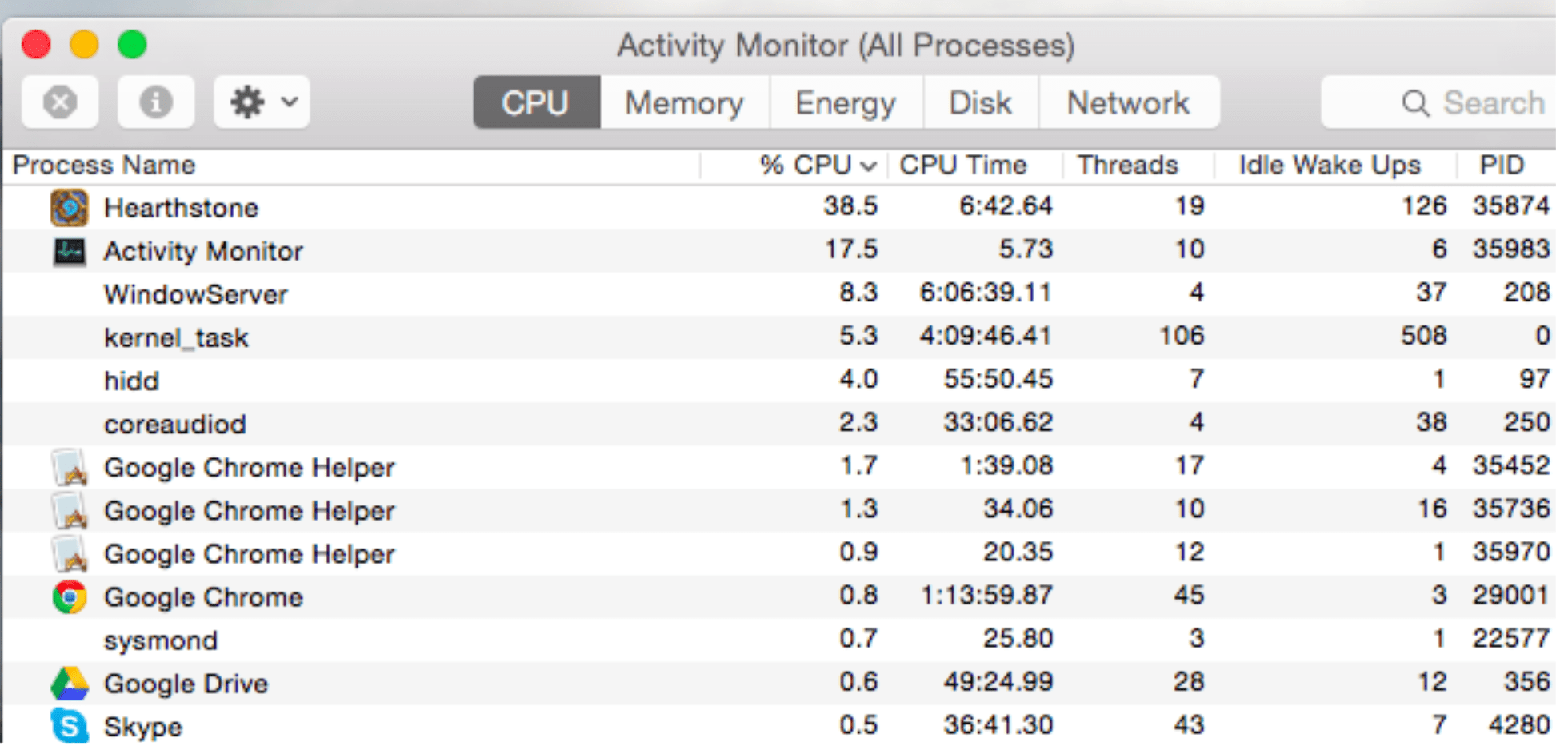
Some apps are higher in resource-consumption and slow the system. Activity Monitor gives a list of all the processes running on the Mac. To launch, press Command+Space to open Spotlight search, type in Activity Monitor. The Activity Monitor details under five different resources: CPU, Memory, Energy, Disk, and Network usage. Sort by CPU usage to see the running applications and processes using the most CPU. To force-quit the process consuming most CPU, select it and click the X button on the toolbar. Please make sure not to quit an important process.
3. Update System Software
To speed up Mac, make sure macOS is up to date. Click the Apple icon > App Store > Updates tab to Install the software updates available. Actively updating the apps and macOS gives latest features and great performance.
4. Manage Start up Items
Having too many startup programs slows down the Mac. To prevent a program from loading at Start up, go to System Preferences > Users & Groups and select current username. Click on Login Items and select the program and click the – button below it. Reducing the number of start up programs will speed up Mac.
5. Delete Browser Extensions
To speed up Mac, minimize the number of browser extensions and have fewer tabs open at once to save memory and system resources.
6. Reindex Spotlight
Spotlight indexing slows down the system sometimes. In order to speed up Mac, reindexing Spotlight is preferred. To reindex, go to System Preferences > Spotlight > Privacy. Drag Mac’s hard drive from Finder into the Privacy List.On being added, click the “-” sign to remove it. This starts the indexing again and on finishing properly gives a boost to Mac speed.
7. Reduce Apps in Dock
Each app in the Dock consumes system’s resources for faster access. To speedup Mac open System Preferences > Dock, uncheck the Animate opening applications and Automatically hide and show the Dock and limit the RAM usage of the Dock. Also, click on Minimize windows using and change Genie effect to Scale effect to turn off visual effect for a better speed.
8. Uninstall Unused Apps
The Applications folder has a list of all the programs installed on Mac. One good way to speed up Mac is to uninstall apps not needed anymore and free up some space.To uninstall, just click and drag the app icon from the Applications Folder to the Trash can on macOS.
9. Cleanup Mac’s Hard drive
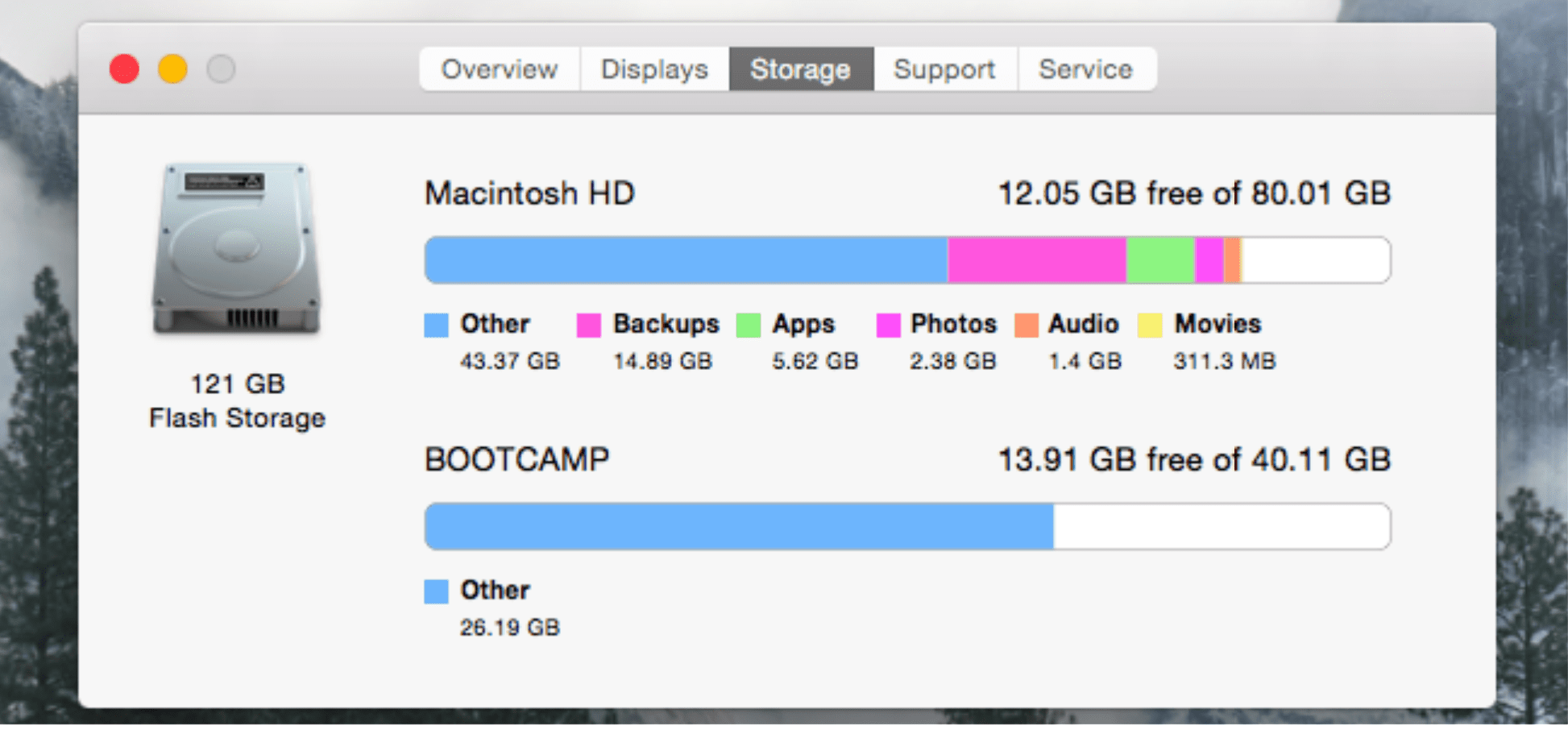
Caches, logs, apps, widgets, hidden trash, large and old files take up most space on the hard drive. To check for storage space, click the Apple menu > About This Mac > Storage. Cleaning the disk space by emptying cache and Trash, and deleting large files can speed up Mac by manifold.
10. Use SSD or External RAM
SSDs are significantly faster and efficient than HDDs. Adding an SSD (solid-state drive) makes the system booting and loading programs, saving data, and transferring files much faster.Upgrading RAM is usually a great solution to speed up Mac as it improves responsiveness and makes multitasking easy.
11. Reset SMC and PRAM
At times, Mac would act just very strange for no known reason – like shutting down unexpectedly, battery not charging, and very slow and sluggish. Resetting SMC (system management controller) and PRAM (parameter RAM) could solve such issues. The process of resetting the SMC differs depending on whether Mac’s battery is removable or not. Resetting SMC and PRAM can really help to speed up Mac. Here’s Apple’s official page on how to Reset SMC and Reset PRAM.
Wrapping Up
These are all good to adhere steps for a clean Mac, ensuring Mac security from any big threat. Tools like Mac Cleaner, Clean My Mac, etc. are no “perfect remedies” to boost Mac’s privacy and performance. Taking heed to these simple tips will speed up Mac and keep information protected.
Author Bio:
Dinesh Lakhwani 

Dinesh Lakhwani, the entrepreneurial brain behind “TechCommuters,” achieved big things in the tech world. He started the company to make smart and user-friendly tech solutions. Thanks to his sharp thinking, focus on quality and the motto of never giving up, TechCommuters became a top player in the industry. His commitment to excellence has propelled the company to a leading position in the industry.
Popular Post
Recent Post

How to Activate Windows with a Product Key for Windows 11 & Windows 10
It always shows up at the worst time. You are halfway through a report, or about to join a video call. Then you spot it in the bottom right corner of the screen. Activate Windows. Go to Settings to activate Windows. Initially, an unactivated copy of Windows may seem like a minor inconvenience. Over time, […]

Is Easy Duplicate Finder Worth It? Honest Review
The photos folder looked normal at first glance. Then the storage warning popped up. One trip photo appeared four times. A tax PDF sat in three different folders. Two old setup files were still in Downloads, and each one was over 500 MB. Nobody plans this mess. Copies pile up slowly. A download runs twice. […]

Wise Duplicate Finder Review: Real Results from Wise Duplicate Finder
Read my honest Wise Duplicate Finder review. See features, pricing, pros and cons, and real PC test results. Find out if this free duplicate cleaner can free up your Windows storage.

How to Recover Deleted Files from Pen drive, USB Drive, SD Card
Introduction: On tech forums, you’ll often see posts like this: “I connected my pen drive to my laptop this morning, but the folder was empty. All my college project files had vanished. I don’t have a backup. Can someone help me?” Stories like this are very common. Pen drives, USB drives and SD cards are […]

How To Recover Files Deleted from the Recycle Bin [Windows 11]
Losing a file can happen in seconds. You clear your desktop, hit Delete, and empty the Recycle Bin. Then, just when you need that file again, it seems to have vanished. This guide will walk you through ways to restore files removed from the Recycle Bin. We will begin with simple fixes, then look at […]

Disk Drill Data Recovery Tool Explained: Full Review and Guide
It happens in a split second. You delete a folder by mistake. Your drive stops showing up. A photo album from your last trip just vanishes. And your stomach drops. Lost files feel personal. They are not just data. They are memories, work hours, and sometimes years of effort packed into a few gigabytes. When […]

Recover Deleted Files In Windows 11 With Software & Without
Introduction What is the first thing that goes through your mind the second an important file vanishes from a Windows 11 PC? For most people, it is a mix of panic and disbelief, followed by a frantic click through every folder that file could possibly be hiding in. It happens in a split second: one […]

EaseUS Data Recovery Wizard: Everything To Know
Data loss does not always come from a big disaster either. Most cases start small and boring. A drive gets formatted by mistake. A laptop freezes mid-save and restarts on its own. A memory card stops showing up after being pulled out too fast. None of these feel like emergencies at first, until you realize […]

Recuva Data Recovery Tool: Is it Actually Worth it?
When I first tried Recuva Data Recovery, I wanted to see if it could really bring back lost files. The tool is free, small in size, and promises quick recovery, which made me curious enough to test it on my own PC. The setup was fast, and the wizard guided me step by step. I […]

