












Introduction: On tech forums, you’ll often see posts like this: “I connected my pen drive to my laptop this morning, but the folder was empty. All my college project files had vanished. I don’t have a backup. Can someone help me?” Stories like this are very common. Pen drives, USB drives and SD cards are […]
Useful Tips to Make YouTube Safer For Your Kids
In our childhood, we used to get embarrassed even with the commercials but kids nowadays, I tell you, they don’t even blink their eyes and continue watching whatever nonsense is broadcasted. I don’t even remember when was the last time I juiced up my DTH pack as YouTube has replaced the set-top box in such a dramatic fashion that now nobody flips channels on the TV.
Just tune in the YouTube on your smart TV or computer and you are good to go. Even kids are more cheerful with YouTube streaming as they can watch their favorite shows without even bothering for commercials or the quality of content. Now that your kids are consuming lot of content from YouTube, it becomes every parent’s concern to make YouTube safer for kids.
Let’s explore a few YouTube tips and tricks to give them a safe environment online.
Setup a Shared Family Account
Setting up a Google Family account is one of the best YouTube tips I can ever share. You would be able to keep an eye on your kid’s streaming activity. As and when they grow up, they might go for a private account however till the time they are in their childhood, they can be set up with a Google Family Account.
It won’t take extra effort, as we need to follow the same process to create this account.
Log out of your personal Google account and go to Gmail.com. Click on ‘Create an Account’ and fill out the form. It’ll ask you to link it to an existing email account. Once you have the account created, you can set up your YouTube channel, a shared family calendar, and a shared inbox for family emails. Any videos viewed on the account will show up in the History button on the left.
Turn ON Safety Mode
Safety mode in YouTube is not God Mode, but it is good enough to add an added security for your kid’s viewing experience. It doesn’t block all of the objectionable content but it takes care of most of the offensive content.
The settings are hidden but simple, you just need to ensure that you’re signed in. Scroll down to the bottom of the page. Click on the ‘Safety’ option at the bottom of the page and turn it ON. To make sure that your kids don’t change the settings back, click on ‘Lock Safety Mode on This Browser’ and enter your login password. If you ever want to turn it OFF again, follow the same path and enter your password.
Restricted Mode in YouTube
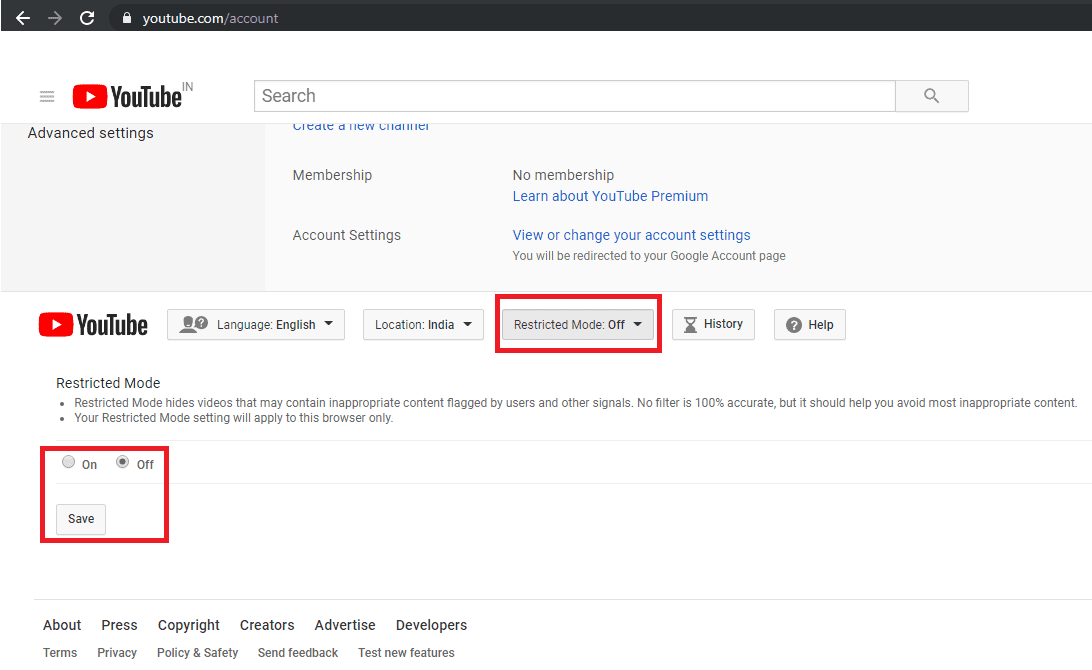
Restricted Mode on YouTube is again one of the best YouTube tips and tricks to restrict inappropriate content to be exposed to our kids.
The setting is also pretty simple, scroll down to look for settings button and click on it. On the next screen, scroll down again and you’ll see 5 buttons. One of them would be for ‘Restricted Mode’ with which you can turn ON or OFF the restricted mode settings and save the same.
Subscribe to Family-Friendly YouTube Channels
To inculcate hygienic browsing and ensure that your kids are viewing positive content only, you should subscribe to family-friendly YouTube channels. This YouTube tip will ensure that the suggested videos will also be family-friendly and the content type will match your choice and preferences.
Use YouTube Kids
With your Google account or Gmail account, you can also get free YouTube Kids app to eliminate the inappropriate content of YouTube by offering only cartoons, educational shows, and other kid-friendly content. With YouTube Kids, every content will need to pass through the YouTube filters before it reaches to your dear one’s eyes.
Google’s algorithms on YouTube Kids is perfect, but the YouTube Kids app offers some parental control features that can help reduce the risk of your child uncertain across objectionable content.
Turn OFF Search
YouTube Kids also allows you to disable the search function within the app. Disable the search function, and your kid will be recommended a smaller fraction of videos selected by Google’s algorithms. According to the research, Most of the flagged videos were uploaded on YouTube by anonymous users with names like Kids Channel TV and Super Moon TV.
To turn off the search option on YouTube, tap the lock icon in the bottom right corner, enter your passcode and got to ‘Settings’, tap on your kid’s profile, and then toggle ON or OFF the ‘Search settings’. You can also set up distinct profiles for individual kids, which lets you enable search for some but not others.
Create a Playlist for Your Kids
This YouTube tip is a bit tiring for parents as we suggest parents create a playlist for their kids. We can keep the algorithm aside knowing that we are the best judge to handpick content for our kids. You should create different playlists for education, stories, games, quizzes & puzzles or entertainment and add videos accordingly.
Limit Kid’s Time on YouTube
If your kid is so addictive to YouTube, this YouTube tip is going to tell them that you are the parent of that smart kid. Time-bound your kid’s viewing time and after the limited setup time, The App will close itself.
You may follow these steps to limit how long your kid can watch YouTube videos. Open the YouTube Kids app on your Android or iOS device and tap the lock icon at the bottom-right corner of the screen. It will prompt you to enter your password. Log in with your credentials and tap on Timer. Here you can set a time limit between 1 to 60 minutes. Once you are done with the settings, you can tap on ‘Start Timer’.
Report & Block Objectionable Content
Whenever you encounter any objectionable content, don’t just pass over it, report it and block it. This will not only block the content on your device but also let Google know that the content is flagged and is inappropriate for kids. You will soon realize that the content is blocked by YouTube or is removed from the link.
Switch to YouTube Alternates
If you are unable to customize YouTube with above YouTube Tips to suit your choice or are still unsure if your kid should watch YouTube content or not, it is recommended to go for other video streaming apps. YouTube is not the only video streaming app available on the internet, there are several alternatives available. YouTube Kids, PBS Kids Video, Nick Junior, Sesame Street, GooNoodle, CN, Jellies, or Netflix and Hulu kids are few of the best alternatives to YouTube.
Summing Up
There are other YouTube Tips & Tricks which you can check to ensure that your kid is browsing safe and only witness appropriate content. Putting a Web Filter, Uploading with extreme caution, Post in private, Kill comments, Accentuate positive videos, Parental responsibilities and setting up custom passcodes will give you peace of mind that your kid is browsing safe.
If you face any difficulties in following these steps on your PC, Android or iOS device, do leave a comment and we shall get back to you. If you like this post, do like and share this with a parent in need.
Author Bio:
Dinesh Lakhwani 

Dinesh Lakhwani, the entrepreneurial brain behind “TechCommuters,” achieved big things in the tech world. He started the company to make smart and user-friendly tech solutions. Thanks to his sharp thinking, focus on quality and the motto of never giving up, TechCommuters became a top player in the industry. His commitment to excellence has propelled the company to a leading position in the industry.
Popular Post
Recent Post

How To Recover Files Deleted from the Recycle Bin [Windows 11]
Losing a file can happen in seconds. You clear your desktop, hit Delete, and empty the Recycle Bin. Then, just when you need that file again, it seems to have vanished. This guide will walk you through ways to restore files removed from the Recycle Bin. We will begin with simple fixes, then look at […]

Disk Drill Data Recovery Tool Explained: Full Review and Guide
It happens in a split second. You delete a folder by mistake. Your drive stops showing up. A photo album from your last trip just vanishes. And your stomach drops. Lost files feel personal. They are not just data. They are memories, work hours, and sometimes years of effort packed into a few gigabytes. When […]

Recover Deleted Files In Windows 11 With Software & Without
Introduction What is the first thing that goes through your mind the second an important file vanishes from a Windows 11 PC? For most people, it is a mix of panic and disbelief, followed by a frantic click through every folder that file could possibly be hiding in. It happens in a split second: one […]

EaseUS Data Recovery Wizard: Everything To Know
Data loss does not always come from a big disaster either. Most cases start small and boring. A drive gets formatted by mistake. A laptop freezes mid-save and restarts on its own. A memory card stops showing up after being pulled out too fast. None of these feel like emergencies at first, until you realize […]

Recuva Data Recovery Tool: Is it Actually Worth it?
When I first tried Recuva Data Recovery, I wanted to see if it could really bring back lost files. The tool is free, small in size, and promises quick recovery, which made me curious enough to test it on my own PC. The setup was fast, and the wizard guided me step by step. I […]

GetData Recover My Files Data Recovery Tool: Honest Review
A hard drive error brings a special kind of silence. Well, yes! The screen freezes, then a message appears saying the drive can’t be found or must be formatted. In that moment, years of photos and work files feel at risk. It never happens at a good time. Coffee spills near a laptop, a memory […]
Windows File Recovery: A Complete Review [Tried & Tested]
Imagine this. You spend hours perfecting a video project. You hit save. Then your laptop freezes, reboots, and when the screen comes back. The file is gone. Your stomach sinks. It’s not just you. Lost files happen all the time. A dropped hard drive, a bad update, an accidental delete, or a corrupted partition can […]

5 Best Data Recovery Software For Windows 11 and Windows 10
Introduction: A crashed drive can ruin a whole day. One minute your photos, work files, and tax records sit safe on your PC. The next minute they are gone. A power cut, a bad update, or one wrong click can wipe out years of memories and months of work in seconds. That sinking feeling is […]

How To Update NVIDIA Drivers On Windows 11/10 PC
Learn how to update NVIDIA drivers on Windows 11/10 with simple methods, safety tips, and easy steps for smoother gaming and better PC performance.

