












The photos folder looked normal at first glance. Then the storage warning popped up. One trip photo appeared four times. A tax PDF sat in three different folders. Two old setup files were still in Downloads, and each one was over 500 MB. Nobody plans this mess. Copies pile up slowly. A download runs twice. […]
Optimizing Graphics Performance: Complete Guide [2026]
Introduction:
If your games stutter or your videos look choppy, your graphics might need some help. Optimizing graphics performance is one of the best things you can do for your PC. It makes everything look better and run faster without buying new hardware.
Many people think better visuals require expensive upgrades. But that is not always true. Knowing how to optimize graphics performance can save you money. A few smart changes can make a big difference in how your system runs.
This guide covers everything you need to know. From simple settings to detailed steps, it is all here. Whether you are a gamer, a video editor, or just a regular user, this guide will help you get the most out of your system.
Why Your System Needs Better Graphics: Reasons to Optimize
Optimizing graphics performance is not just for hardcore gamers. It benefits anyone who uses a computer for visual tasks. Here is why:
- Smoother Gameplay: Games run at higher frame rates when your graphics are well-tuned. You get fewer lags and more fluid motion. This makes gaming much more enjoyable.
- Faster Video Rendering: Video editors know how long rendering can take. When your GPU is optimized, rendering times drop. You can finish projects faster and with less stress.
- Better Visual Quality: Optimizing graphics performance also improves how things look on screen. Colors are sharper, edges are cleaner, and scenes look more realistic.
- Lower System Temperature: A poorly optimized GPU works harder than it needs to. This creates extra heat. Optimization reduces that load and keeps your system cooler.
- Extended Hardware Life: When your GPU runs efficiently, it wears out more slowly. Less heat and less strain mean your hardware lasts longer. That saves you money.
- Reduced Power Consumption: An optimized GPU uses only the power it needs. This lowers your electricity bill over time. It also makes laptops run longer on a battery.
Stay Safe While Tuning: Precautions Before You Start
Before you start making changes, you need to be careful. Some settings can cause crashes or even damage your hardware if done wrong. Keep these precautions in mind.
- Back Up Your Settings First: Always save your current settings before changing anything. This way, you can go back if something goes wrong. Most driver tools have a built-in save option.
- Avoid Extreme Overclocking: Pushing your GPU too hard can cause crashes or permanent damage. Only overclock in small steps. Never exceed the safe limits listed by your GPU maker.
- Keep Drivers Updated: Old drivers can cause bugs and poor performance. Always use the latest stable drivers. Avoid beta versions unless you know what you are doing.
- Monitor Your GPU Temperature: While optimizing graphics performance, watch the heat levels. If your GPU goes above 85°C regularly, stop and improve your cooling first. Overheating can shorten your card’s life fast.
- Do Not Change Multiple Settings at Once: If you adjust too many things at the same time, you will not know what caused a problem. Change one thing, test it, then move on. This makes troubleshooting much easier.
- Use Trusted Software Only: There are many free tools online for GPU tuning. Stick to well-known names like MSI Afterburner or NVIDIA Control Panel. Avoid random downloads that could contain malware.
- Check Your PSU Capacity: Overclocking or pushing your GPU harder needs more power. Make sure your power supply unit can handle it. An underpowered system can crash or corrupt files.
- Read Your GPU Manual: Every graphics card is different. Your card’s manual or product page has specific limits and recommendations. Always follow the maker’s guidelines when learning how to optimize graphics performance.
The Full Picture: Advantages and Disadvantages
Improving graphics performance brings clear advantages. Knowing the pros and limits helps you choose more wisely.
Advantages
- Better FPS: Frame rates go up with proper tuning. Games feel more responsive and smooth. This is one of the biggest wins of optimization.
- No Extra Cost: Most optimization steps are free. You just adjust software settings. You do not need to buy new parts to see real improvement.
- Personalized Experience: You can tune your system for exactly what you use it for. Gamers, editors, and designers all have different needs. Optimization lets you set things up your way.
- Faster Boot and Load Times: A well-optimized GPU speeds up more than just games. Apps load faster, and your desktop feels snappier. Everything responds quicker.
Disadvantages
- Risk of Instability: Going too far with settings can make your system crash. Games may freeze, or your screen may flicker. You need to test carefully after each change.
- Takes Time to Learn: Knowing how to optimize graphics performance is not instant. It takes reading, testing, and patience. Beginners may find the process confusing at first.
- Not Always a Permanent Fix: Sometimes the real problem is aging hardware. Optimization can only do so much. Very old GPUs may still struggle even after full tuning.
- Driver Issues Can Arise: Updating drivers sometimes causes new problems. A fresh update might conflict with your system or games. You may need to roll back and wait for a fix.
Extra Questions You May Be Thinking About:
Does Optimizing Graphics Performance Void My Warranty?
This depends on your GPU maker and what you do. Simply changing driver settings or in-game options does not void warranties. However, physical overclocking beyond factory limits might. Always check your card’s warranty terms before making major changes. Sticking to software-level optimizing graphics performance is usually safe and warranty-friendly.
How Often Should I Optimize My Graphics Settings?
You should review your settings every few months. Driver updates, new games, and software installs can all shift your performance. It is also good to check after any major Windows update. Regular tuning keeps your system running at its best.
Can Laptops Benefit from Graphics Optimization Too?
Yes, laptops can benefit greatly from optimization. In fact, knowing how to optimize graphics performance on a laptop is even more important. Laptops have limited cooling, so reducing GPU load helps a lot. Switching to the dedicated GPU for heavy tasks and integrated graphics for simple ones makes a big difference. Proper power settings also help laptops stay cool and fast.
5 Methods to Optimize Graphics Performance on Windows
Windows gives you many ways to improve how your GPU works. Some methods are quick and easy. Others take a bit more time but deliver better results. Here are five proven methods with clear steps for each.
Method 1: Update Your Graphics Drivers
Outdated drivers are one of the most common reasons for poor graphics performance. Manufacturers release updates that fix bugs and improve speed. Keeping your drivers fresh is the simplest form of optimizing graphics performance.
New driver versions often include game-ready profiles and performance patches. These can boost FPS without changing any other settings. Skipping updates means missing out on free improvements.
Many users forget to update their drivers for months. This small habit can have a surprisingly large impact on stability and visuals.
Step 1: Open Device Manager by right-clicking the Start button. Find “Display Adapters,” right-click your GPU, and select “Update Driver.”
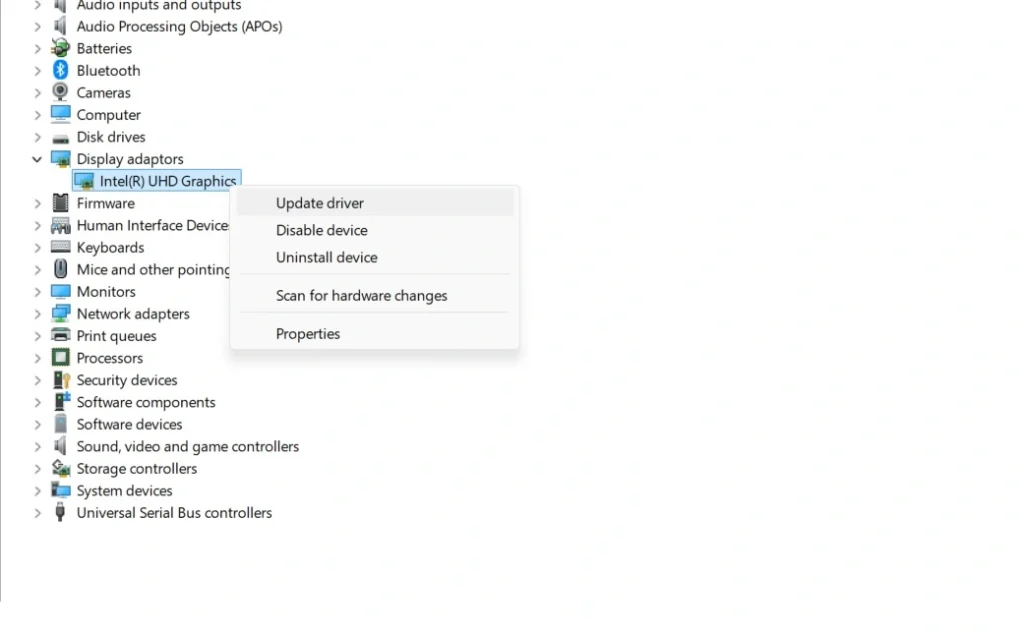
Step 2: Choose “Search automatically for drivers.” If that does not work, visit NVIDIA, AMD, or Intel’s website directly. Download and install the latest stable driver for your specific model.
Method 2: Adjust Windows Graphics Settings
Windows 11 and 10 have built-in graphics settings that many users never touch. These settings control how GPU resources are assigned to apps. Tweaking them is a smart step in optimizing graphics performance.
The Hardware-Accelerated GPU Scheduling feature is one example. Enabling it can reduce input lag and improve frame times. It works well on modern GPUs and drivers.
Setting individual apps to use your dedicated GPU instead of integrated graphics also helps. This ensures demanding programs always get the power they need.
Step 1: Go to Settings, then System, then Display. Scroll down and click “Graphics.” Here, you can set which GPU each app uses.
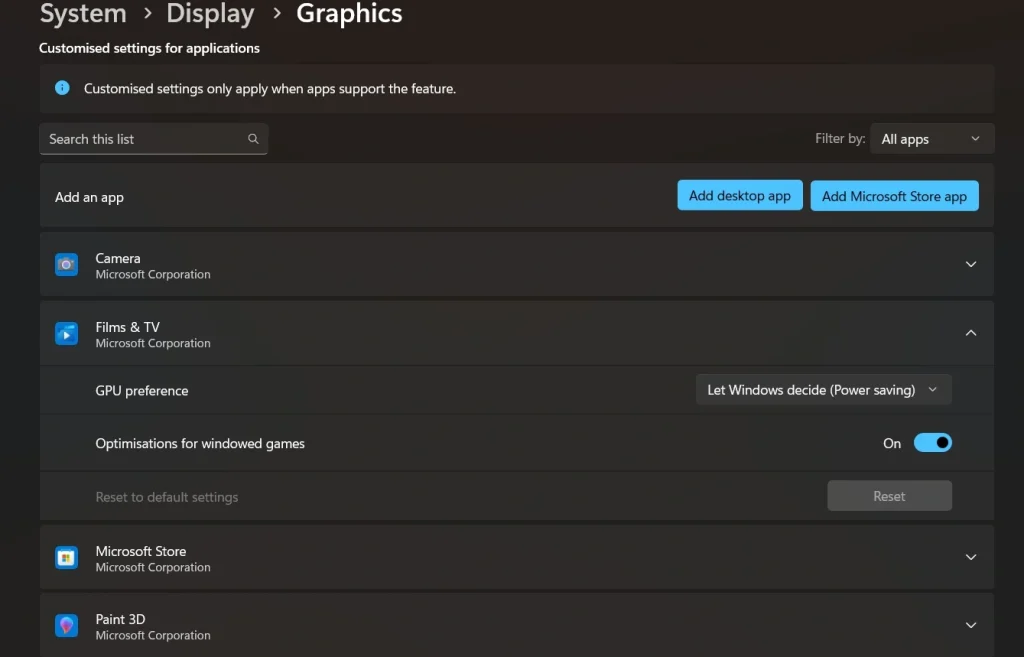
Step 2: Toggle on “Hardware-Accelerated GPU Scheduling” if your system supports it. Assign your games and editing software to your dedicated GPU. Restart your PC to apply the changes fully.
Method 3: Optimize In-Game Graphics Settings
Many gamers leave all settings on “Ultra” without thinking about performance. Lowering certain settings gives you big FPS gains with little visual loss. This is one of the most effective ways to optimize graphics performance.
Shadows, anti-aliasing, and ambient occlusion are the biggest GPU eaters. Reducing these to medium can double your frame rate in some games. The visual difference is often barely noticeable during fast gameplay.
Resolution scaling is another powerful tool. Dropping from 100% to 85% render scale is nearly invisible but cuts GPU load significantly.
Step 1: Open your game’s graphics or video settings menu. Turn shadows to medium or low, and set anti-aliasing to FXAA or off entirely.
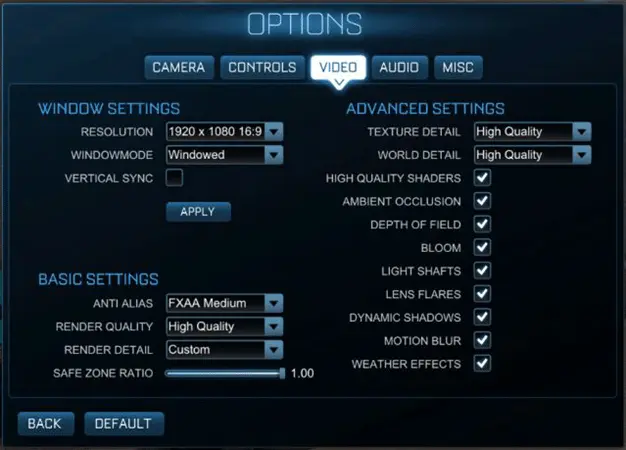
Step 2: Lower ambient occlusion and disable motion blur. Set your render resolution to 85–90% if the option exists. Save changes and test for performance improvement.
Method 4: Clean Up GPU Drivers with DDU
Sometimes old driver files cause hidden performance problems. A clean reinstall using Display Driver Uninstaller removes all leftover files. This is a deeper form of optimizing graphics performance that many overlook.
DDU is a free, trusted tool used by tech professionals worldwide. It removes every trace of old drivers before you install fresh ones. This prevents conflicts and gives your new drivers a clean start.
Running DDU in Safe Mode gives the best results. It ensures no background processes interfere with the cleanup.
Step 1: Download Display Driver Uninstaller from its official website. Boot your PC into Safe Mode via the Advanced Startup Options menu.
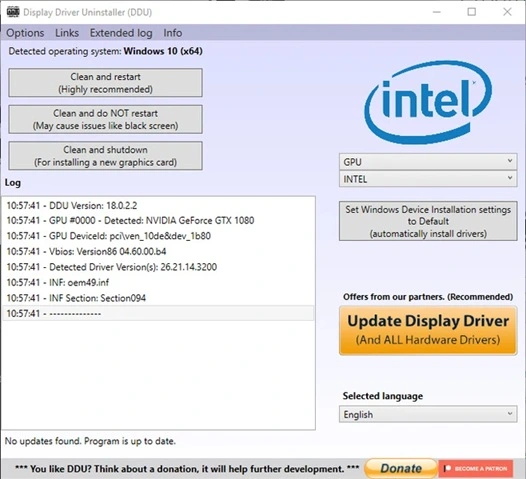
Step 2: Run DDU and select your GPU brand from the dropdown. Click “Clean and Restart.” Once your PC reboots, install the latest drivers fresh from the manufacturer’s site.
Method 5: Enable GPU Performance Mode in Power Settings
Windows often limit GPU power to save energy. This is great for battery life but bad for performance. Switching your power plan is a quick and easy part of how to optimize graphics performance.
The High Performance or Ultimate Performance power plan tells Windows to keep your GPU running at full capacity. This removes artificial limits on speed and responsiveness. It works especially well for desktops or plugged-in laptops.
NVIDIA and AMD also have their own performance modes inside their control panels. Using these alongside Windows settings gives you the best results.
Step 1: Open Control Panel and go to Power Options. Select “High Performance” or search for “Ultimate Performance” and enable it if available.
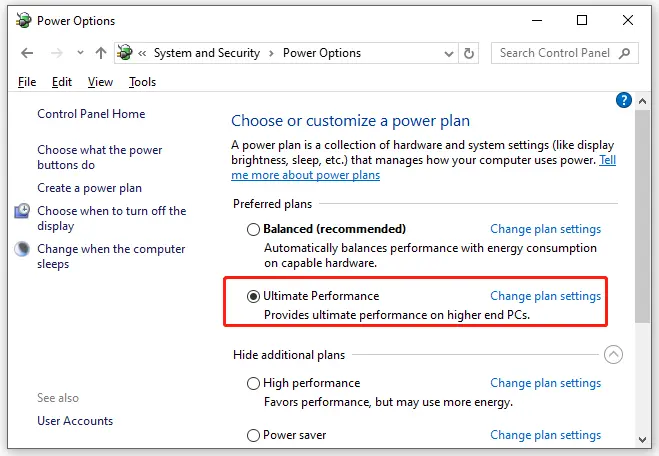
Step 2: Open NVIDIA Control Panel or AMD Radeon Software. Set the preferred power mode to “Maximum Performance” or “Prefer Maximum Performance.” Apply the settings and restart any open games or apps.
Author’s Tip
After years of working with PC systems, one thing stands out clearly. Most users are sitting on huge performance gains they do not even know about. Simply updating drivers and adjusting power settings can unlock noticeably better visuals and speed.
Do not obsess over extreme overclocking right away. Start with the simple, safe steps first. You will likely be surprised at how much better your system runs without touching any risky settings at all.
Conclusion
Optimizing graphics performance does not have to be complicated. With the right steps and a little patience, almost anyone can improve how their PC looks and runs. The methods in this guide are practical, proven, and mostly free.
From updating drivers to adjusting in-game settings, each step builds on the last. You do not need to do everything at once. Start with one method, see the results, and keep going at your own pace.
Knowing how to optimize graphics performance is a valuable skill for any PC user. It saves money, extends hardware life, and makes your whole computing experience better. Use this guide as your reference every time your system needs a tune-up.
FAQs
Q1: What is the fastest way to improve graphics performance on Windows?
The fastest method is updating your GPU drivers and switching your power plan to High Performance. These two steps take less than ten minutes and often show immediate results. For games specifically, lowering shadow and anti-aliasing settings also provides a quick and significant boost without needing any special tools.
Q2: Is it safe to overclock my GPU for better performance?
Light overclocking using trusted tools like MSI Afterburner is generally safe. The key is to go slowly and test stability after each small adjustment. Avoid pushing too far beyond stock speeds. Monitoring temperature during the process is essential, and you should never ignore warning signs like crashes or screen artifacts.
Q3: Does RAM affect graphics performance?
Yes, RAM plays a supporting role in overall graphics performance. If your system RAM is too slow or too low, your GPU cannot receive data fast enough. For most modern games and tasks, 16GB of dual-channel RAM is the sweet spot. Upgrading RAM can noticeably improve performance, especially on systems that currently have 8GB or less.
Author Bio:
Dinesh Lakhwani 

Dinesh Lakhwani, the entrepreneurial brain behind “TechCommuters,” achieved big things in the tech world. He started the company to make smart and user-friendly tech solutions. Thanks to his sharp thinking, focus on quality and the motto of never giving up, TechCommuters became a top player in the industry. His commitment to excellence has propelled the company to a leading position in the industry.
Popular Post
Recent Post

Wise Duplicate Finder Review: Real Results from Wise Duplicate Finder
Read my honest Wise Duplicate Finder review. See features, pricing, pros and cons, and real PC test results. Find out if this free duplicate cleaner can free up your Windows storage.

How to Recover Deleted Files from Pen drive, USB Drive, SD Card
Introduction: On tech forums, you’ll often see posts like this: “I connected my pen drive to my laptop this morning, but the folder was empty. All my college project files had vanished. I don’t have a backup. Can someone help me?” Stories like this are very common. Pen drives, USB drives and SD cards are […]

How To Recover Files Deleted from the Recycle Bin [Windows 11]
Losing a file can happen in seconds. You clear your desktop, hit Delete, and empty the Recycle Bin. Then, just when you need that file again, it seems to have vanished. This guide will walk you through ways to restore files removed from the Recycle Bin. We will begin with simple fixes, then look at […]

Disk Drill Data Recovery Tool Explained: Full Review and Guide
It happens in a split second. You delete a folder by mistake. Your drive stops showing up. A photo album from your last trip just vanishes. And your stomach drops. Lost files feel personal. They are not just data. They are memories, work hours, and sometimes years of effort packed into a few gigabytes. When […]

Recover Deleted Files In Windows 11 With Software & Without
Introduction What is the first thing that goes through your mind the second an important file vanishes from a Windows 11 PC? For most people, it is a mix of panic and disbelief, followed by a frantic click through every folder that file could possibly be hiding in. It happens in a split second: one […]

EaseUS Data Recovery Wizard: Everything To Know
Data loss does not always come from a big disaster either. Most cases start small and boring. A drive gets formatted by mistake. A laptop freezes mid-save and restarts on its own. A memory card stops showing up after being pulled out too fast. None of these feel like emergencies at first, until you realize […]

Recuva Data Recovery Tool: Is it Actually Worth it?
When I first tried Recuva Data Recovery, I wanted to see if it could really bring back lost files. The tool is free, small in size, and promises quick recovery, which made me curious enough to test it on my own PC. The setup was fast, and the wizard guided me step by step. I […]

GetData Recover My Files Data Recovery Tool: Honest Review
A hard drive error brings a special kind of silence. Well, yes! The screen freezes, then a message appears saying the drive can’t be found or must be formatted. In that moment, years of photos and work files feel at risk. It never happens at a good time. Coffee spills near a laptop, a memory […]

Windows File Recovery: A Complete Review [Tried & Tested]
Imagine this. You spend hours perfecting a video project. You hit save. Then your laptop freezes, reboots, and when the screen comes back. The file is gone. Your stomach sinks. It’s not just you. Lost files happen all the time. A dropped hard drive, a bad update, an accidental delete, or a corrupted partition can […]

