












A computer quietly gathers clutter over time. This includes duplicate photos, repeated downloads, and forgotten backups hiding in random folders. This buildup slowly eats away at storage and can make even a fast PC feel sluggish. Manually finding and deleting duplicates is tedious. It means checking every folder, comparing file names, and guessing which copies […]
How To Change Default Apps For File Types In Windows
Windows is designed to make using your computer easy. One way it does this is by assigning default apps to different file types. This means when you open a file, Windows automatically opens it with a specific program. For example, photos may open with Photos, music with Groove Music, and PDFs with Edge. These default settings work for most people, but sometimes you may want to use a different app for certain files.
Changing default apps allows you to customize your computer for your needs. You can open files with the software you prefer instead of the one Windows chooses. This can improve productivity and make your work smoother. You can also fix problems when Windows opens files in the wrong app. By learning how to change default apps for file types Windows offers, you can take full control of your computer experience.
Why You Need to Change Default Apps
Choosing the right app for a file type can make your computer faster and easier to use. Default apps may not always suit your needs. Changing them can make work smoother, save time, and improve the overall experience.
- Personal Preference: Some people like certain apps over others for reading, editing, or viewing files.
- Better Features: Some apps offer more tools and options for the file type.
- Faster Performance: Lighter apps can open files faster than Windows default apps.
- File Compatibility: Some apps support more file formats than default programs.
- Multiple File Types: A single app may handle multiple file types efficiently.
- Improved Workflow: Switching apps can make working on files easier and more logical.
- Customization: You can create a setup that suits your personal style.
- Problem Fixing: If a default app is not working, changing it can solve errors.
When You Should Not Change Default Apps
Changing default apps is helpful, but it is not always necessary. In some cases, keeping default apps may be better. Changing them incorrectly can cause problems.
- System Files: Windows files may stop working correctly if you change the default app.
- Security Risks: Using unfamiliar apps can expose your system to malware.
- Complex Files: Some files require specific apps for proper use.
- Frequent Updates: Default apps are updated with Windows for security and performance.
- Shared Computers: Other users may not understand your changes.
- Compatibility Issues: New apps may not open all features of certain files.
- Accidental Changes: You may change a default app by mistake and cause confusion.
- Technical Support: Support teams may assume default apps are in use.
Extra Precautions to Consider
Before changing default apps, consider safety and convenience. Following simple precautions can prevent problems.
- Backup Settings: Always keep a record of your current default apps before making any changes. This allows you to restore your previous setup if something goes wrong. You can note down the app for each file type or take screenshots of your settings.
- Check App Reliability: Only use apps from trusted developers or official sources. Unverified or unknown apps can carry malware or cause system errors. Reliable apps reduce the risk of security problems and improve performance.
- Understand File Types: Make sure you know what type of file you are working with and which apps support it best. Some apps can open files but may not let you edit them fully. Understanding file types ensures smooth operation.
- Read App Reviews: Before installing or using a new app, check reviews and ratings from other users. This helps you know whether the app performs well and avoids apps with bugs or limitations.
- Update Regularly: Keep all your apps updated to the latest version. Updates fix bugs, add features, and improve security. Using outdated apps can cause files to open incorrectly or create errors.
- Avoid System Files: Never change default apps for Windows system files. These files are critical for your computer’s operation, and using the wrong app can lead to errors or crashes. Stick to safe file types for customization.
- Test Changes: After changing default apps, open a few files to make sure they work as expected. Testing ensures your new settings function correctly and prevents unexpected problems later.
- Revert if Needed: Always know how to revert changes if a new default app does not work well. Windows allows you to reset defaults easily, so keep instructions handy. Being able to revert keeps your system stable.
Important Questions Before You Change
- Why do I need to change this app?
Ask yourself why you want to change a default app. Is it for better performance, convenience, or features? Understanding your reason helps avoid unnecessary changes that may cause confusion or errors. - Will the new app support all file features?
Check if the app you want to use supports all functions of the file type. Some apps may open a file but cannot edit it fully, causing issues in your workflow. - Is this app safe and trusted?
Make sure the app is secure and reliable. Using unknown or unverified apps can expose your system to malware or instability. - How will this affect other users or system settings?
On shared computers or work environments, changing default apps may affect others. Consider the impact and whether reverting changes might be needed.
How To Change Default Apps For File Types In Windows
Changing default apps in Windows can be done in several ways. Each method has its own advantages. Choosing the right one depends on your needs and comfort level with Windows.
Some methods are faster for a single file type, while others are better for managing multiple types at once. Understanding each method helps you pick the safest and easiest way to make changes.
Method 1: Using Settings
Windows Settings is the easiest way to manage default apps. It is built for beginners and regular users. You can see all file types and apps in one place. This method also works on Windows 10 and 11, making it consistent across versions.
Opening Settings gives you an overview of your apps and file associations. You can quickly select an app for each file type and test it immediately. Settings also allow you to search for apps by name, making it easy to find the one you want.
Steps:
- Open Settings, then click Apps and select Default Apps.
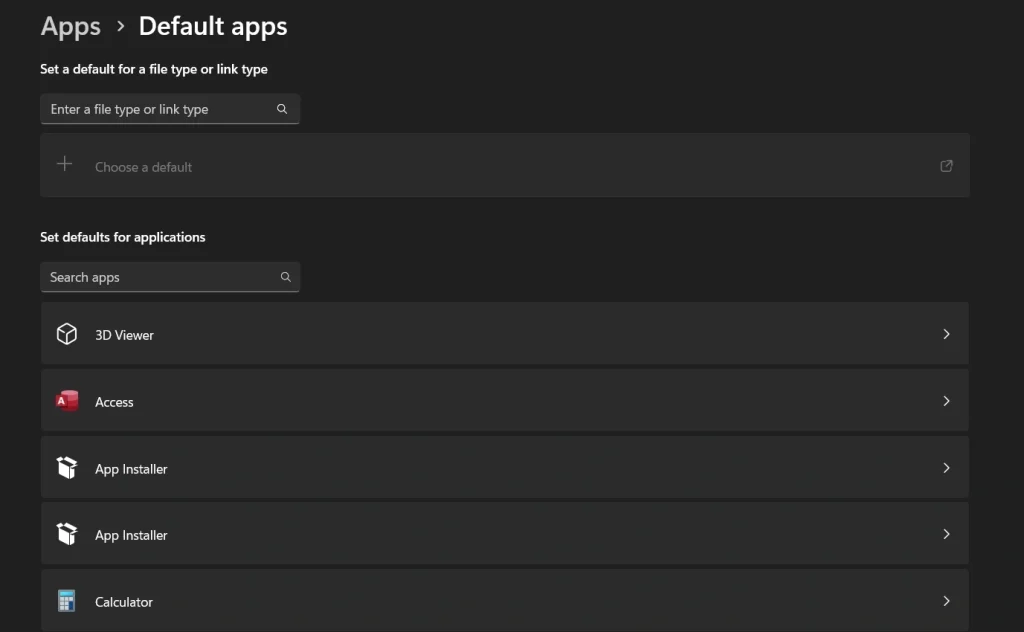
- Scroll to the file type or app you want to change and select the new default app.
Method 2: Using File Properties
File Properties is another way to change default apps. It is useful when you want to change only one type of file. This method is quick and does not require opening the full Settings menu. It also works even if you do not know which app is currently set as the default.
Using Properties gives you direct control over a single file type. You can see exactly which app is opening the file and switch it with just a few clicks. This method is helpful when you are testing different apps for a particular file type or fixing a file that opens incorrectly.
Steps:
- Right-click the file you want to change and select Properties.
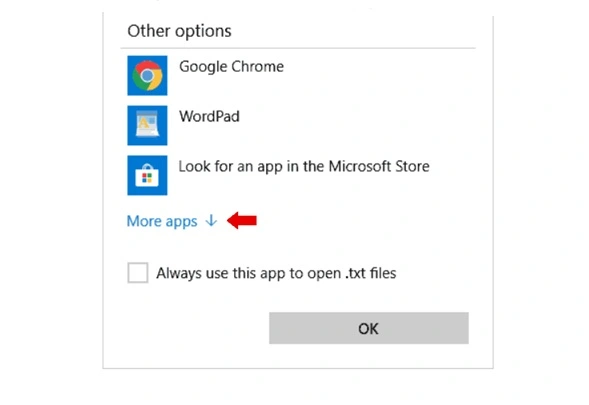
- Under the Opens With section, click Change and select the app you prefer.
Method 3: Using Control Panel
Control Panel offers a traditional way to manage default apps. It is ideal for advanced users or those using older versions of Windows. This method gives detailed control over file associations and allows you to set defaults for many file types at once.
The Control Panel also provides options to set a program as the default for all file types it can handle. This can save time if you want to switch multiple file types to a new app. It is also useful for troubleshooting issues with default apps in Windows.
Steps:
- Open Control Panel, go to Programs, then click Default Programs.
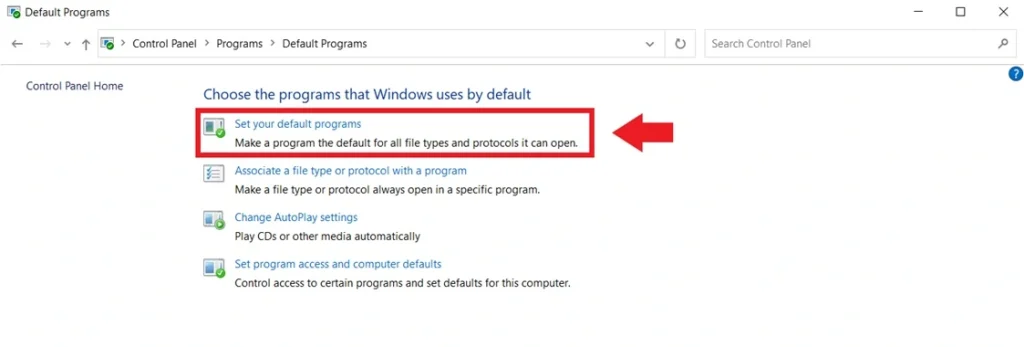
- Select Set your default programs, choose an app, and assign it to the desired file types.
Authors Tip
Changing default apps is generally simple, but it is important to think carefully before making any changes. Consider both safety and usability. Not every app is suitable for every file type, so take time to evaluate which app will work best for your needs. Make small changes first rather than switching everything at once. After making a change, test it by opening several files of that type to ensure they work correctly. If something does not work as expected, you can easily revert to the previous default without causing problems.
It is best to use apps that are regularly updated and supported by their developers. Avoid using beta versions or unfamiliar apps for important file types, as they may have bugs or security issues. Regularly backing up your settings and keeping a record of your current default apps can save time and prevent mistakes. By following these simple habits, you reduce the risk of errors, maintain system stability, and make future changes faster and easier.
Conclusion
Changing default apps gives you more control and allows you to personalize Windows to fit your needs. By selecting apps that match your workflow, you can improve efficiency, reduce frustration, and make everyday tasks easier. For example, choosing a faster photo viewer, a preferred music player, or a more powerful PDF editor can save time and provide a smoother experience. When done carefully, these changes can make your computer feel more intuitive and tailored to how you work.
However, it is important to take precautions before making changes. Avoid modifying default apps for critical system files, as this can cause errors or instability. Always use trusted and reliable applications to ensure safety and compatibility. Testing your choices by opening files after changes helps confirm that everything works correctly.
By following simple and safe methods, anyone can change default apps for file types Windows provides, enhancing their computing experience without risk or unnecessary complications.
FAQs
1. What does changing default apps mean in Windows?
Changing default apps means selecting which program opens a certain file type automatically. For example, if you prefer a different PDF reader, you can set it as the default. This ensures that every time you open a PDF, it opens in the app you chose instead of the one Windows assigns automatically. Changing default apps does not delete the original app; it only changes the association.
2. Can I reset all apps to Windows defaults if needed?
Yes, you can reset apps to Windows defaults anytime. Windows provides an option in Settings under Default Apps to restore all defaults. This is useful if a new app causes problems or if you want to revert changes. Resetting to default does not remove your installed apps; it only returns file associations to the original Windows choices.
3. Are there risks in changing default apps?
Yes, there are minor risks. Using untrusted apps can expose your system to malware or errors. Changing default apps for system-critical files may cause them to behave incorrectly. Always choose reliable apps and avoid changing system file associations. Testing changes on non-critical files first is a safe approach.
Author Bio:
Dinesh Lakhwani 

Dinesh Lakhwani, the entrepreneurial brain behind “TechCommuters,” achieved big things in the tech world. He started the company to make smart and user-friendly tech solutions. Thanks to his sharp thinking, focus on quality and the motto of never giving up, TechCommuters became a top player in the industry. His commitment to excellence has propelled the company to a leading position in the industry.
Popular Post
Recent Post

CCleaner Duplicate File Finder: Key Features, Pricing, Step-by-Step Guide and More
Every computer collects junk over time. Right? Well, yes! Photos often get copied twice. Documents get saved in two folders by mistake. Old downloads pile up and never get deleted. This slowly eats up your storage space, and most people do not even notice until their drive is almost full. That is where a duplicate […]

Duplicate File Finder Pro: A Complete Review, Everything You Should Know
Computers collect thousands of files over time. Well, yes! Many of them end up being duplicates created by backups, downloads, or accidental copies. These extra files take up valuable storage space and make it harder to keep everything organized. Finding and removing them manually can take hours. Right? Duplicate File Finder Pro is a tool […]

Monitor Screen Calibration Guide: Everything You Should Know
Your monitor shows colors every single day. But are those colors actually correct? Most people never stop to check this. They just use the screen as it comes out of the box. This habit can lead to wrong colors in photos, videos, and work files. Colors may look too warm or too cold without you […]

How To Check Installed RAM and RAM Slots [Complete Guide]
RAM plays an important role in how smoothly a computer runs. Short for Random Access Memory, it stores the data and instructions that Windows and active applications need at any given moment. From opening multiple browser tabs to running games and productivity software, RAM helps keep everything responsive. A system with limited memory may experience […]

What is Microsoft Autopilot Everything You Need To Know
Technology has changed the way companies manage computers. Well, yes! Employees now work from offices, homes, and remote locations. Setting up devices manually for every worker takes time and effort. It can also create mistakes that slow down productivity. This is where Microsoft Autopilot becomes useful. It helps businesses prepare and deploy Windows devices with […]
Enable Automatic Device Locking Feature Windows: Complete Guide
Introduction: Your computer stores important information such as emails, documents, passwords, and personal photos. Leaving it unlocked can put that data at risk. Thankfully, Windows includes built-in features that can automatically lock your device when you are away. Setting up automatic device locking is quick and does not require any extra software. In this guide, […]
How to Update Wireless Network Driver in Windows 11 and 10
Your Wi-Fi keeps dropping. Pages load slowly. The connection feels unstable? Well, you are not alone. Most of the time, the problem is not with your internet plan. It is with your wireless network driver. A driver is a small piece of software that helps your computer talk to its hardware. When it gets outdated, […]
Common Windows 11 Problems and Solutions (2026 Version)
Windows 11 has become more polished over the years, but it is still not completely free from problems. Even after regular updates from Microsoft, many users continue to face issues like lagging performance, failed updates, audio troubles, random crashes, and network errors. Some problems appear after installing new features, while others develop gradually as the […]
Fortect Driver Updater Review: Features, Steps, Pros, and Cons.
A new PC usually feels quick and responsive. Applications open instantly, games run smoothly, and everything works as expected. As time passes, however, you may notice slower performance, system crashes, hardware glitches, or devices that stop working properly. While many people assume malware or low storage space is to blame, outdated drivers are often the […]

