












The photos folder looked normal at first glance. Then the storage warning popped up. One trip photo appeared four times. A tax PDF sat in three different folders. Two old setup files were still in Downloads, and each one was over 500 MB. Nobody plans this mess. Copies pile up slowly. A download runs twice. […]
How To Choose a Computer Monitor: Monitor Buying Guide
Buying a monitor looks easy. Many people think all screens are the same. That belief causes regret later. A monitor is not just a display. It is a daily tool. You read on it. You work on it. You relax with it. Small problems become big over time. Poor brightness hurts eyes. Bad size causes neck pain. Weak colors feel dull every day. That is why learning how to choose computer monitor computer monitor buying guide is worth your time before buying.
A good monitor supports comfort and focus. It reduces eye strain. It helps posture. It makes work feel lighter. Text stays clear. Colors stay natural. Motion feels smooth. A bad screen does the opposite. It causes headaches. It slows down work. It creates constant irritation. Many people replace monitors only after years. A rushed choice stays with you for a long time. This guide explains everything in plain language. No complex terms. No confusing charts.
This guide is written for regular users: office workers, students, creators, gamers, and home users. If you are planning to buy a new screen, each section addresses the real questions buyers often face. By the end, you will feel confident in your choice.
Top 5 Questions You Should Ask Yourself Before Buying a Monitor
Q1. What will I use the monitor for most days
Usage is the starting point. Work tasks need clear text and stable brightness. Writers stare at words all day. Coders need sharp lines. Designers need accurate colors. Gamers need smooth motion. Movie watchers want contrast. No monitor is perfect for everything. The primary use decides the priority. Choosing without this step leads to a mismatch. This question shapes the entire buying decision.
Daily habits matter more than occasional use. A gamer who plays once a week does not need extreme specs. A writer working eight hours needs comfort. Be honest about your routine. This makes the computer monitor buying guide process easier and more accurate.
Q2. What screen size feels right for my space
Screen size changes how you sit and move. A large screen feels immersive but needs distance. A small desk limits size. Too big causes head movement. Too small strains the eyes. Many people find balance at 24 or 27 inches. These sizes suit most desks and rooms.
Measure your desk first. Check how far you sit from the screen. Depth matters more than width. Also, think about wall mounting or stands. A good size fits your space, not just your desire.
Q3. How important is screen quality to me
Screen quality affects comfort. Resolution controls sharpness. Panel type controls color and angles. Cheap screens look washed out. Text looks blurry. Better screens stay comfortable for long hours. High resolution helps reading and editing.
If you work long hours, quality is not optional. It protects the eyes. It reduces fatigue. Spending a little more here often feels worth it later.
Q4. Do I need extra features
Extra features improve daily ease. Adjustable stands reduce neck pain. Blue light modes help night use. USB ports reduce cable clutter. Built-in speakers save desk space. These features rarely show in ads but matter every day.
Think about posture and workflow. Comfort features are important.
Q5. How long do I plan to keep this monitor
Monitors last many years. Five to seven years is common. Cheap monitors age badly. Stands loosen. Colors fade. Spending slightly more often extends life.
Check warranty length. Build quality matters. A long-term view prevents frequent replacements.
Know Your Budget
Budget gives direction. Low budget suits basic tasks. Office work. Browsing. Online classes. Mid-range suits mixed use. Work plus gaming. Editing plus entertainment. High budget targets professionals and gamers.
Hidden costs matter. Desk arms. Display cables. Power backup. Plan for these small extras. They add up.
Do not buy specs you will not use. A high refresh gaming screen for emails wastes money. A 4K screen for basic work does the same. Balance purpose with price.
What Are the Major Types of Monitor?
Monitor type affects experience more than brand. Many buyers ignore this part. That leads to disappointment. Panel choice impacts color, speed, and contrast.
Below are common monitor types found today.
LED Monitor
LED monitors dominate the market. They are energy efficient. Thin and light. Prices stay low. They work well for everyday tasks. Browsing. Office work. Learning.
Most LED monitors serve general users well. They are easy to find and maintain.
IPS Monitor
IPS panels focus on color accuracy. Viewing angles stay wide. Colors remain stable from all sides. Professionals prefer them. Writers also enjoy text clarity.
They cost more than basic LED panels. Comfort stays high during long sessions.
VA Monitor
VA panels focus on contrast. Blacks appear deeper. Movies feel immersive. Dark scenes look better.
Response time feels slower. These screens suit media viewing more than competitive gaming.
TN Monitor
TN panels focus on speed. Response times stay low. Competitive gamers prefer them.
Colors look weaker. Viewing angles feel narrow. Not ideal for creative work.
Ultrawide Monitor
Ultrawide monitors replace dual setups. One wide screen handles multiple windows. Productivity improves.
They cost more. Desk space matters. Many users find them addictive once adjusted.
Top 5 Monitors Comparison Table
| Monitor | Size | Resolution | Panel | Refresh Rate | Best For | Price Range |
| Dell UltraSharp U2720Q | 27″ | 4K | IPS | 60Hz | Professional work | High |
| LG 27GL850 | 27″ | QHD | IPS | 144Hz | Mixed use | Mid |
| Samsung Odyssey G7 | 27″ | QHD | VA | 240Hz | Gaming | High |
| ASUS ProArt PA24DCE | 24″ | FHD | IPS | 60Hz | Creators | Mid |
| BenQ GW2480 | 24″ | FHD | IPS | 60Hz | Office | Low |
Dell UltraSharp U2720Q
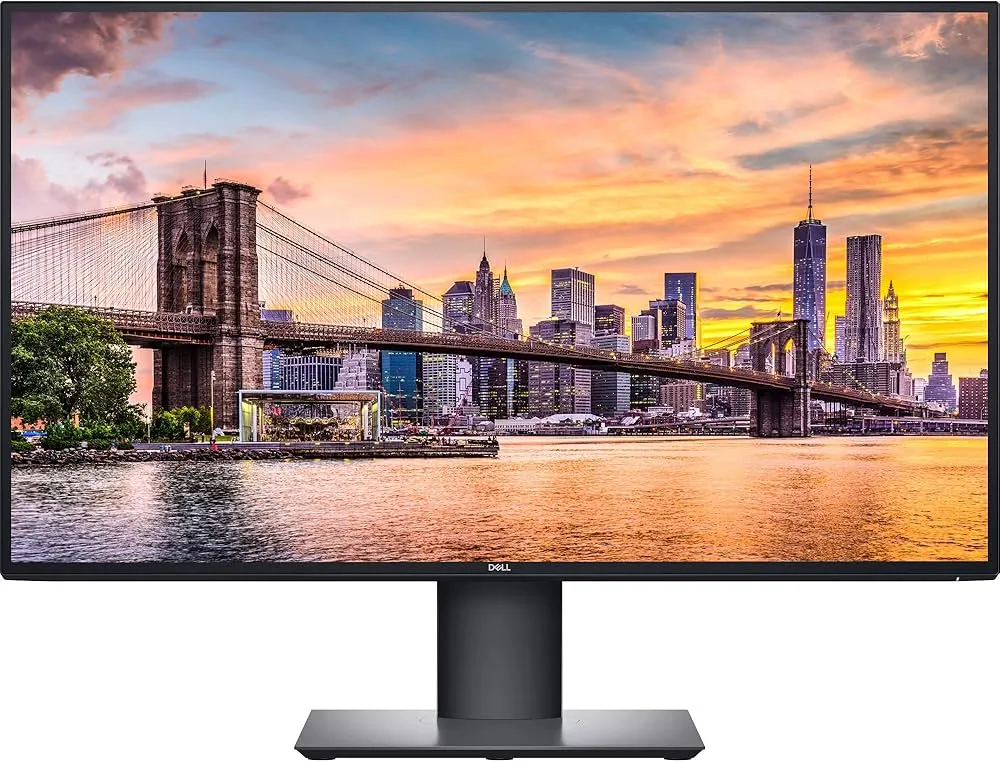
This monitor is designed for professionals who spend extended hours at their desks. Text appears crisp and clear, making reading and editing more comfortable. Colors remain consistent and accurate, which is ideal for creative tasks. With 4K resolution, you gain extra workspace that makes multitasking more efficient. Slim bezels contribute to a sleek, modern appearance.
USB-C support simplifies laptop use and reduces cable clutter. One cable can power the laptop and send the display signal. This keeps the desk neat and organized. Built-in eye comfort features reduce strain during long workdays. The overall experience feels smooth and dependable for daily professional use.
Pros
- Excellent color accuracy
- Sharp resolution
- Strong build
Cons
- Expensive
- Basic refresh rate
Price: $624.95
LG 27GL850
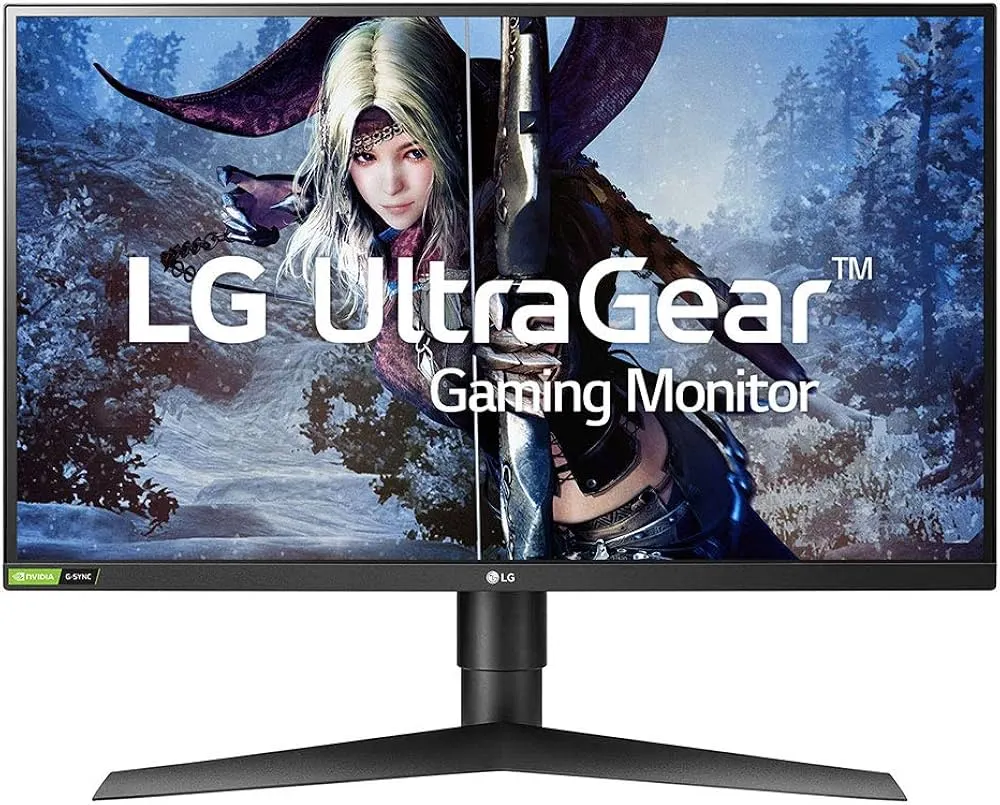
This gaming monitor balances work and play with ease. The IPS panel keeps colors accurate and stable, which helps during work tasks and content viewing. At the same time, the high refresh rate makes motion feel smooth, which gamers appreciate during fast scenes.
The QHD resolution looks sharp without putting heavy pressure on the graphics card. Text stays clear, and images look detailed. The adjustable stand improves comfort by allowing better height and tilt control. This makes long sessions more comfortable for both work and gaming.
Pros
- Fast response
- Strong colors
- Versatile use
Cons
- Average contrast
- No speakers
Price: ~$450
Samsung Odyssey G7
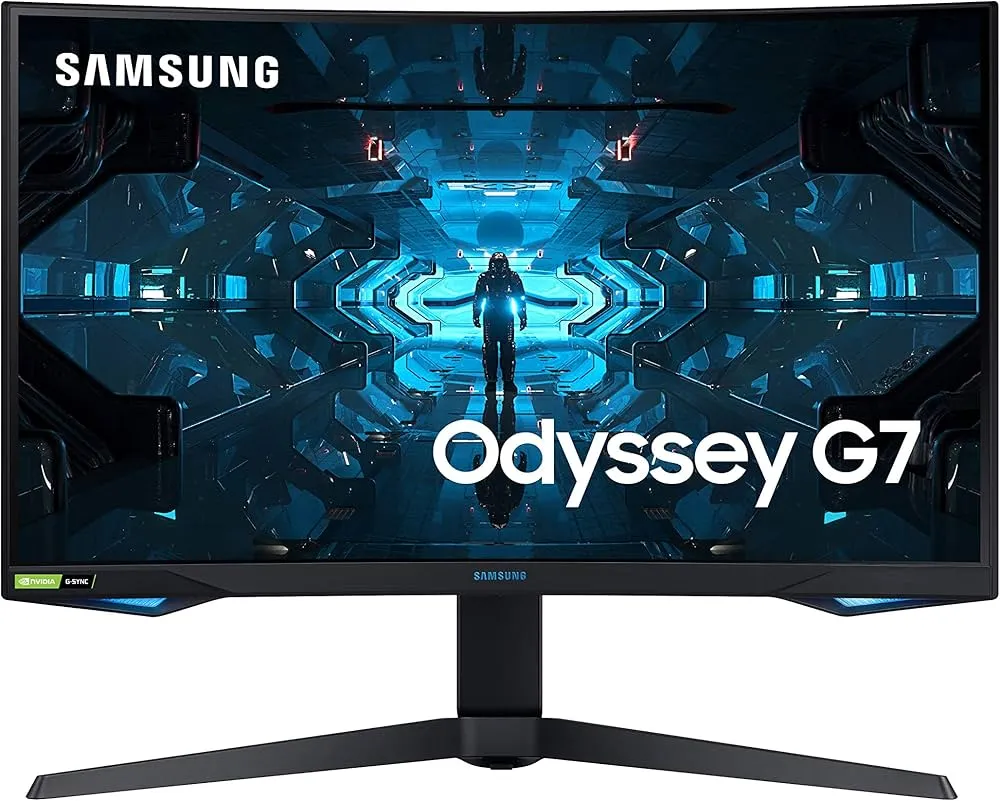
This model focuses on speed and smooth performance. The high refresh rate makes fast movement feel fluid, which helps in competitive gaming. The curved design adds immersion and keeps the screen edges within natural view during play.
The VA panel delivers deep blacks and strong contrast, which improves dark scenes. Colors feel richer during movies and games. The overall build feels solid and premium, making it suitable for users who want both performance and durability.
Pros
- Very fast
- Deep contrast
- Immersive design
Cons
- High cost
- Curve not for all
Price: ~$616
ASUS ProArt PA24DCE
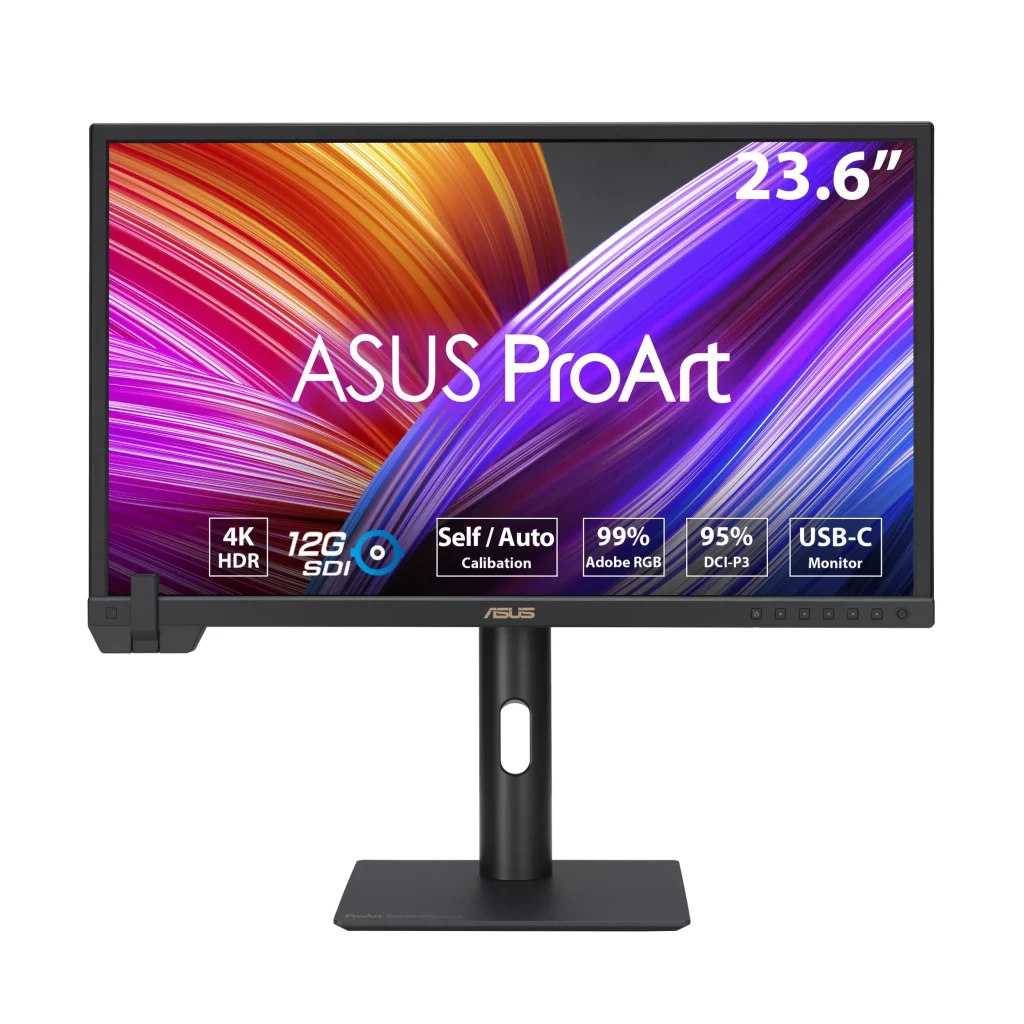
This monitor suits content creators who value accuracy over flashy features. Factory calibration improves color reliability, which helps with photo editing and design work. The compact size fits well on small desks without feeling cramped.
The Full HD resolution is enough for editing, writing, and daily creative tasks. Text remains clear and images look clean. The screen focuses on consistency and comfort, making it a reliable choice for long working hours.
Pros
- Accurate colors
- Reliable build
- Good stand
Cons
- Lower resolution
- No gaming features
Price: ~$179.99
BenQ GW2480
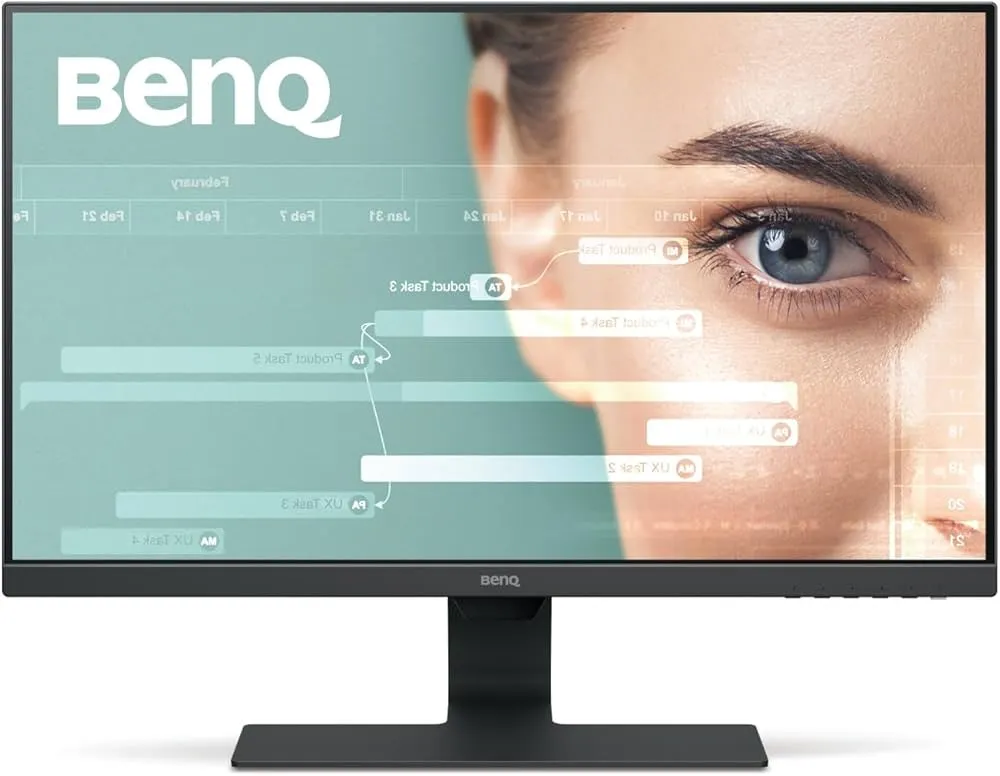
This is a simple office screen made for daily comfort. Eye care features help reduce strain during long work hours. The IPS panel improves viewing angles and keeps colors consistent, which makes reading and browsing easier.
The slim design fits into almost any desk setup without taking up much space. Controls are easy to use, and setup is quick. It works well for office tasks, study, and everyday computer use.
Pros
- Affordable
- Eye comfort modes
- Clean look
Cons
- Basic specs
- Limited features
Price: ~$144.69
NOTE: Prices may vary slightly depending on the retailer, condition (new vs refurbished), and availability.
Author’s Tip
Always prioritize comfort over flashy numbers. Your eyes and neck deal with the screen every single day. Specs look impressive on paper, but real comfort matters more. Check brightness levels in person if you can. Read a page of text on the screen. Notice glare and sharpness. If your eyes feel relaxed after a few minutes, that monitor is doing its job. Long-term comfort saves you from strain and fatigue.
A good desk setup improves any monitor, even an average one. Screen height should match your eye level. Distance should feel natural, not forced. Your chair, desk, and monitor must work together. Small adjustments change posture and focus. When everything aligns, work feels lighter and smoother. That is when a monitor truly fits your space and habits.
Conclusion
Choosing the right monitor takes patience and clear thinking. Start by understanding how you use your screen each day. Match the size to your desk and room so it feels natural, not forced. Balance useful features with your budget instead of chasing high numbers. Ignore flashy marketing and promises that do not match real needs.
A well-chosen monitor blends smoothly into your daily routine. It feels comfortable from morning to evening. You stop adjusting it or thinking about it. It supports your work without distraction. It simply works. That quiet reliability is the real goal of a smart buying decision.
FAQs:
Is higher resolution always better
Not always. Higher resolution does make images and text look sharper, but it also increases cost. It needs stronger hardware to run smoothly. For basic work, Full HD is often enough. Higher resolutions make sense only if your work or screen size truly needs them.
Are curved monitors better?
Curved monitors feel immersive for some users, especially for gaming or wide screens. They help reduce edge distortion at close distances. However, many people prefer flat screens for office work or design. The better choice depends on desk depth, viewing distance, and daily tasks.
How long does a monitor last
A good monitor usually lasts five to seven years with normal use. Quality panels age better and lose brightness slowly. Proper care, a clean power supply, and a stable setup can extend its lifespan even further.
Author Bio:
Dinesh Lakhwani 

Dinesh Lakhwani, the entrepreneurial brain behind “TechCommuters,” achieved big things in the tech world. He started the company to make smart and user-friendly tech solutions. Thanks to his sharp thinking, focus on quality and the motto of never giving up, TechCommuters became a top player in the industry. His commitment to excellence has propelled the company to a leading position in the industry.
Popular Post
Recent Post

Wise Duplicate Finder Review: Real Results from Wise Duplicate Finder
Read my honest Wise Duplicate Finder review. See features, pricing, pros and cons, and real PC test results. Find out if this free duplicate cleaner can free up your Windows storage.

How to Recover Deleted Files from Pen drive, USB Drive, SD Card
Introduction: On tech forums, you’ll often see posts like this: “I connected my pen drive to my laptop this morning, but the folder was empty. All my college project files had vanished. I don’t have a backup. Can someone help me?” Stories like this are very common. Pen drives, USB drives and SD cards are […]

How To Recover Files Deleted from the Recycle Bin [Windows 11]
Losing a file can happen in seconds. You clear your desktop, hit Delete, and empty the Recycle Bin. Then, just when you need that file again, it seems to have vanished. This guide will walk you through ways to restore files removed from the Recycle Bin. We will begin with simple fixes, then look at […]

Disk Drill Data Recovery Tool Explained: Full Review and Guide
It happens in a split second. You delete a folder by mistake. Your drive stops showing up. A photo album from your last trip just vanishes. And your stomach drops. Lost files feel personal. They are not just data. They are memories, work hours, and sometimes years of effort packed into a few gigabytes. When […]

Recover Deleted Files In Windows 11 With Software & Without
Introduction What is the first thing that goes through your mind the second an important file vanishes from a Windows 11 PC? For most people, it is a mix of panic and disbelief, followed by a frantic click through every folder that file could possibly be hiding in. It happens in a split second: one […]

EaseUS Data Recovery Wizard: Everything To Know
Data loss does not always come from a big disaster either. Most cases start small and boring. A drive gets formatted by mistake. A laptop freezes mid-save and restarts on its own. A memory card stops showing up after being pulled out too fast. None of these feel like emergencies at first, until you realize […]

Recuva Data Recovery Tool: Is it Actually Worth it?
When I first tried Recuva Data Recovery, I wanted to see if it could really bring back lost files. The tool is free, small in size, and promises quick recovery, which made me curious enough to test it on my own PC. The setup was fast, and the wizard guided me step by step. I […]

GetData Recover My Files Data Recovery Tool: Honest Review
A hard drive error brings a special kind of silence. Well, yes! The screen freezes, then a message appears saying the drive can’t be found or must be formatted. In that moment, years of photos and work files feel at risk. It never happens at a good time. Coffee spills near a laptop, a memory […]

Windows File Recovery: A Complete Review [Tried & Tested]
Imagine this. You spend hours perfecting a video project. You hit save. Then your laptop freezes, reboots, and when the screen comes back. The file is gone. Your stomach sinks. It’s not just you. Lost files happen all the time. A dropped hard drive, a bad update, an accidental delete, or a corrupted partition can […]

