












The photos folder looked normal at first glance. Then the storage warning popped up. One trip photo appeared four times. A tax PDF sat in three different folders. Two old setup files were still in Downloads, and each one was over 500 MB. Nobody plans this mess. Copies pile up slowly. A download runs twice. […]
How to Upgrade Computer RAM: Complete Guide
Upgrading RAM is one of the simplest ways to improve a computer. It helps the system feel faster and smoother. Apps open quicker. Browsers handle more tabs. Games and tools run with less delay. Many users search for how to upgrade computer RAM because it gives real results without high cost. You do not need great technical skills. You only need patience and care.
RAM works like short-term memory for your computer. It holds data that the system uses right now. When RAM is low, the computer struggles. It starts using the hard drive as backup memory. That process is slow. You may see freezing or lag. A RAM upgrade can fix this. It often brings new life to older systems. It also helps new systems reach full potential.
Ask These Questions to Yourself Before You Start
When Do You Need to Upgrade RAM?
You need more RAM when daily tasks feel heavy. The system may slow down during simple work. Switching between apps takes time. Games may stutter. Editing tools may crash. If these signs appear often, RAM could be the limit. Task Manager or Activity Monitor can confirm this. If RAM usage stays near full, an upgrade makes sense.
Are There Any Alternatives?
Sometimes RAM is not the only issue. A slow hard drive can cause similar problems. Switching to an SSD may help more. Closing unused apps also helps. A clean system startup can reduce load. Software updates can improve memory use. Still, these fixes have limits. When RAM is truly low, alternatives only delay the need.
How Much RAM Do You Need?
The right amount depends on use. Basic tasks work fine with 8 GB. Office work and browsing feel smooth at this level. Creative work needs more. Video editing and design need 16 GB or higher. Heavy gaming also benefits from more. Always check system limits. Adding more than supported gives no benefit.
Safety First Before You Touch Your Hardware
Upgrading RAM is simple, but care matters. Small mistakes can cause damage. A calm approach keeps parts safe. Preparation saves time and stress. Follow these precautions before you begin.
- Turn off the computer fully. Don’t rely on sleep or hibernate mode. Shut down the system completely. Then unplug the power cable from the wall socket or power strip to eliminate any residual electrical current that could pose a risk.
- Remove all connected devices. Disconnect USB drives, external hard disks, printers, monitors, and any other peripherals. This prevents accidental damage and gives you more room to work safely.
- Ground yourself before touching parts. Static electricity can damage sensitive components like RAM. Before opening the case, touch a grounded metal object (like a doorknob or metal table leg) to discharge any static buildup. You can also wear an anti-static wrist strap for extra protection.
- Work on a clean, flat surface. Choose a non-carpeted area like a desk or table. Avoid clutter, and use a tray or small container to hold screws and components so nothing gets lost during the upgrade.
- Check your computer manual. Refer to your system’s documentation or manufacturer’s website to identify the correct RAM type (e.g., DDR4, DDR5), maximum supported capacity, and slot layout. This ensures compatibility and avoids wasted purchases.
- Handle RAM by the edges. Always hold the RAM stick by its sides. Avoid touching the gold connectors or chips directly, as oils from your fingers can interfere with proper contact and cause issues.
- Use proper lighting. Good lighting helps you see the RAM slots clearly and align the module correctly. A desk lamp or overhead light can reduce errors and make the process smoother.
- Do not force the module RAM stick, whichs are keyed to fit only one way. If it doesn’t slide in easily or click into place, stop and double-check the orientation.
How to Upgrade Computer RAM
Upgrading RAM is a clear process. It works for desktops and laptops. The steps are similar. Some systems differ in access. Always follow your model guide. The core idea stays the same for how to upgrade computer RAM.
Step 1: Check Compatibility
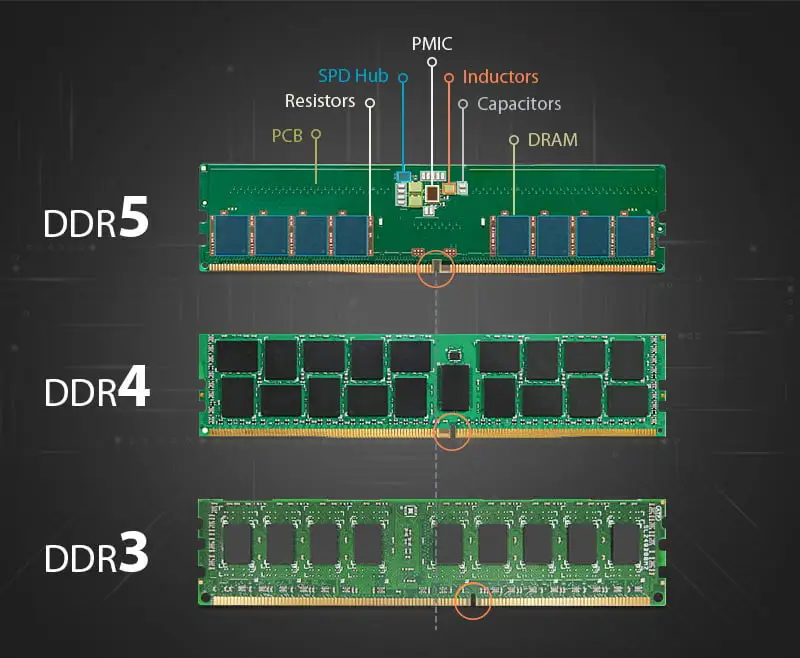
To check RAM compatibility, identify your motherboard model, confirm the RAM type (DDR3/DDR4/DDR5), check the maximum supported capacity and speed, and ensure the form factor (DIMM for desktops, SO-DIMM for laptops) matches.
Step 2: Install the RAM Module
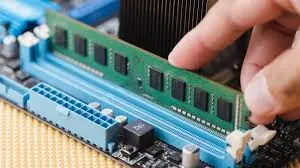
Open the case or back panel. Locate RAM slots on the motherboard. Release the clips if needed. Align the notch on the RAM stick. Press gently until it clicks into place.
Step 3: Test After Installation
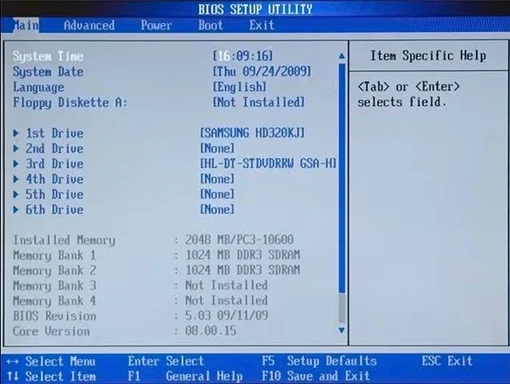
Close the case and reconnect the power. Turn on the system. Enter BIOS or system settings. Check if the new RAM is detected. Boot into the system. Monitor performance during use.
Advanced Tips for Better RAM Performance
A RAM upgrade works best with fine-tuning. Small checks improve stability. These tips help you avoid issues. They also help get full value from new memory.
- Match RAM sticks when possible.
The same brand and speed work better together. It improves stability. - Use dual-channel slots correctly.
Check the motherboard layout. Proper pairing boosts speed. - Update BIOS if needed.
New updates improve RAM support. Only update if required. - Avoid mixing very different speeds.
The system functions at the lowest speed, thereby limiting its advantages.
- Clean RAM slots before install.
Dust can affect contact. Use compressed air gently. - Monitor system temperature.
Heat affects memory performance. Ensure proper airflow. - Run memory tests after upgrade.
Tools can detect errors early. This prevents future crashes. - Do not overclock unless experienced.
Overclocking can cause instability. Stock settings are safer.
Where to Get RAM for Your Computer?
RAM is widely available today and easy to find. Online stores list many brands, sizes, and styles in one place. This makes comparison simple and quick. You can read user reviews to understand real performance and reliability. Trusted sellers usually offer clear product details and support. Always check warranty length and return rules before buying. This protects you in case the RAM does not match your system.
Local computer shops are also a good option for buying RAM. Staff members can help confirm the right type for your computer. You can inspect the packaging and product directly. If a problem appears, support is faster and more personal. Prices may be a little higher than online stores. Still, the guidance and peace of mind often justify the cost.
Conclusion
A RAM upgrade is one of the best system improvements. It is affordable and effective. The process is simple with care. Many users see instant results. Tasks feel lighter and faster. This is why guides on how to upgrade computer RAM remain popular.
Take time to plan before starting. Know your system limits. Follow safety steps. Install with patience. Test after setup. With the right approach, your computer can feel new again. The effort pays off in daily use.
FAQs
Can I Upgrade RAM on Any Laptop?
Not every laptop supports a RAM upgrade. Many thin or modern models come with memory fixed to the board. In such cases, upgrades are not possible. You should always check the exact model number first. The user manual or the brand’s official website gives clear details. If the laptop has free RAM slots or removable modules, then an upgrade can be done safely.
Will Adding RAM Delete My Data?
Adding RAM does not remove or affect your data. RAM only handles temporary tasks while the system is running. Files, apps, and documents stay stored on the drive. The upgrade process does not touch that storage. Even so, keeping a backup is a smart habit before any hardware change. It protects you from unexpected issues.
How Do I Know If RAM Is Installed Correctly?
A correct installation is easy to confirm. When the computer starts, it should recognize the new RAM automatically. You can check the total memory in system settings. If the number matches the upgrade, everything is fine. If the system fails to boot, shows errors, or makes beeping sounds, the RAM may need reseating.
Author Bio:
Dinesh Lakhwani 

Dinesh Lakhwani, the entrepreneurial brain behind “TechCommuters,” achieved big things in the tech world. He started the company to make smart and user-friendly tech solutions. Thanks to his sharp thinking, focus on quality and the motto of never giving up, TechCommuters became a top player in the industry. His commitment to excellence has propelled the company to a leading position in the industry.
Popular Post
Recent Post

Wise Duplicate Finder Review: Real Results from Wise Duplicate Finder
Read my honest Wise Duplicate Finder review. See features, pricing, pros and cons, and real PC test results. Find out if this free duplicate cleaner can free up your Windows storage.

How to Recover Deleted Files from Pen drive, USB Drive, SD Card
Introduction: On tech forums, you’ll often see posts like this: “I connected my pen drive to my laptop this morning, but the folder was empty. All my college project files had vanished. I don’t have a backup. Can someone help me?” Stories like this are very common. Pen drives, USB drives and SD cards are […]

How To Recover Files Deleted from the Recycle Bin [Windows 11]
Losing a file can happen in seconds. You clear your desktop, hit Delete, and empty the Recycle Bin. Then, just when you need that file again, it seems to have vanished. This guide will walk you through ways to restore files removed from the Recycle Bin. We will begin with simple fixes, then look at […]

Disk Drill Data Recovery Tool Explained: Full Review and Guide
It happens in a split second. You delete a folder by mistake. Your drive stops showing up. A photo album from your last trip just vanishes. And your stomach drops. Lost files feel personal. They are not just data. They are memories, work hours, and sometimes years of effort packed into a few gigabytes. When […]

Recover Deleted Files In Windows 11 With Software & Without
Introduction What is the first thing that goes through your mind the second an important file vanishes from a Windows 11 PC? For most people, it is a mix of panic and disbelief, followed by a frantic click through every folder that file could possibly be hiding in. It happens in a split second: one […]

EaseUS Data Recovery Wizard: Everything To Know
Data loss does not always come from a big disaster either. Most cases start small and boring. A drive gets formatted by mistake. A laptop freezes mid-save and restarts on its own. A memory card stops showing up after being pulled out too fast. None of these feel like emergencies at first, until you realize […]

Recuva Data Recovery Tool: Is it Actually Worth it?
When I first tried Recuva Data Recovery, I wanted to see if it could really bring back lost files. The tool is free, small in size, and promises quick recovery, which made me curious enough to test it on my own PC. The setup was fast, and the wizard guided me step by step. I […]

GetData Recover My Files Data Recovery Tool: Honest Review
A hard drive error brings a special kind of silence. Well, yes! The screen freezes, then a message appears saying the drive can’t be found or must be formatted. In that moment, years of photos and work files feel at risk. It never happens at a good time. Coffee spills near a laptop, a memory […]

Windows File Recovery: A Complete Review [Tried & Tested]
Imagine this. You spend hours perfecting a video project. You hit save. Then your laptop freezes, reboots, and when the screen comes back. The file is gone. Your stomach sinks. It’s not just you. Lost files happen all the time. A dropped hard drive, a bad update, an accidental delete, or a corrupted partition can […]

