












A slow PC rarely gives a warning. One day, it simply takes longer to start. Apps open late. The fan runs loud, even when the screen is almost empty. Most people blame old hardware. Often, that is not the real reason. The real reason is hiding in plain sight. Windows keeps many apps active in […]
How To Fix Preparing Automatic Repair Loop On Windows 10/11
Introduction:
The “Preparing automatic repair” loop is a common issue that affects Windows 10 and 11 users when the operating system fails to boot properly. This automatic repair process tries to diagnose and fix boot issues but often gets stuck repeatedly restarting and checking for problems, creating an endless loop.
There are several potential causes for this issue, ranging from system file corruption to hard drive errors. Thankfully, there are several ways to get out of this repair loop and boot back into Windows normally again. In this guide, we will walk through the top methods for fixing the Windows preparing automatic repair 10/11 loop issue.
What causes the “Preparing automatic repair” loop on Windows 10/11?
The loop happens when Windows fails to boot properly and launches automatic repair to try and diagnose the issue. This repair process checks for problems and tries to fix them, but often ends up in a restart loop.
Some common causes leading to this issue include:
- System file corruption – Damaged or missing system files like boot configuration data prevent Windows from starting correctly.
- Hard drive errors – Bad sectors, file system issues, or hard drive faults trigger the automatic repair.
- Software conflicts – Incompatible or faulty apps/drivers clash with Windows and cause startup issues.
- Windows Update issues – Buggy Windows updates can break things and stop Windows from booting.
- Registry errors – Corruption in registry files related to startup and boot configuration leads to the repair loop.
- Hardware faults – Defective RAM, storage drives, motherboards, and power issues can cause startup failures.
- Boot configuration problems – Errors in the boot loader, BCD store, or EFI boot settings manifest as automatic repair loops.
The good news is this is usually a software issue rather than a hardware failure. By troubleshooting the different possible causes, you can fix the preparing automatic repair problem and get back into Windows.
Laptop Stuck On Preparing Automatic Repair? Try These Fixes
Method 1. Perform a hard reboot
A hard reboot (or cold reboot) completely power cycles the computer to clear any temporary glitches causing the automatic repair loop. It flushes out any recent changes or corrupt memory contents that might be preventing a normal boot.
Here are the detailed steps to hard reboot a PC stuck in the preparing automatic repair 10/11 loop issue:
Step 1: Press and hold the power button for 5-10 seconds to forcefully power off the computer if the normal ‘Shut Down’ option doesn’t work.

Step 2: Once the computer is fully shut down, leave it off for at least 1 full minute. This clears residual power and drains all transient charges.
Step 3: Disconnect any peripherals you may have plugged in like USB drives or printers as a faulty device could cause boot issues.
Step 4: Press the power button again to turn the computer back on. As it boots, enter the BIOS setup screen and verify that the hard drive with the OS is set as the first boot device priority.
Step 5: Save changes and exit BIOS to continue booting. See if Windows starts normally now and boots past the preparing automatic repair loop.
The reboot resets everything and provides a clean slate for the operating system to start. If the issue was caused by temporary processes, memory states, or one-off events, this should resolve it. Try repeating the reboot 2-3 times if once doesn’t work.
Method 2. Boot your computer in Safe Mode
Safe Mode starts Windows with only the basic stuff running, so it can find and fix problems caused by other programs or drivers.
To access the Safe Mode options from the Advanced Startup screen showing Preparing Automatic Repair:
Step 1: Click the ‘Advanced options’ link at the bottom. On the resulting “Choose an option” screen, select ‘Troubleshoot’.
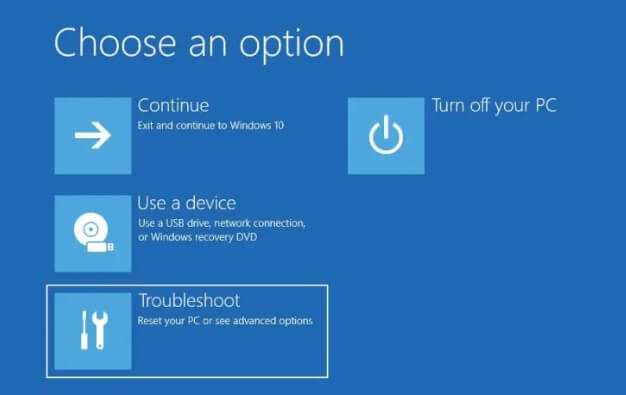
Step 2: Go to ‘Advanced options’ and click on ‘Startup Settings’.
Step 3: Click the ‘Restart’ button.
Step 4: After your PC restarts, it will display a list of startup settings showing different Safe Mode options.
Step 5: Press F4 to start in standard Safe Mode. Or F5 for Safe Mode with Networking if you need internet access. Log in with your account credentials once prompted.
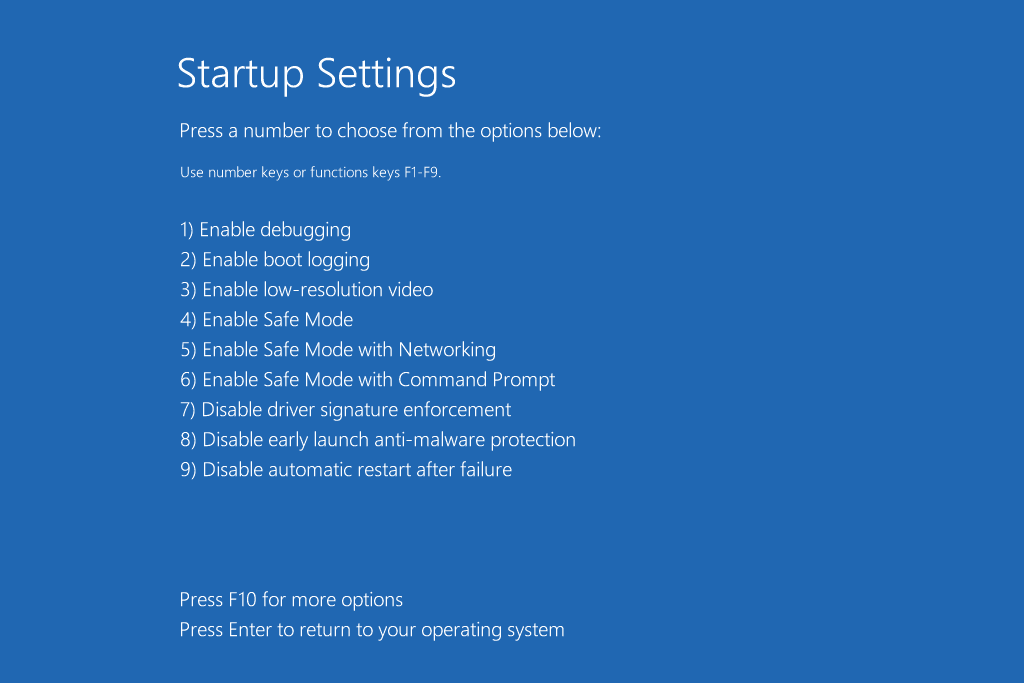
The minimalist nature of Safe Mode circumvents software issues and isolates the problem. If Safe Mode loads correctly, it indicates 3rd party apps or drivers are likely causing the error.
You can also run system repair tools like SFC and DISM scans in Safe Mode to check for corruption issues. Overall, Safe Mode isolates the issue and may directly resolve it.
Method 3. Rebuild BCD with the Command Prompt
The BCD (Boot Configuration Data) store contains important parameters for booting Windows. Rebuilding it can reset corrupt settings that may be causing the preparing automatic repair 10/11 loop.
Here are the steps to rebuild BCD via the Command Prompt:
Step 1: On the Choose an option screen, select ‘Troubleshoot’.
Step 2: Go to ‘Advanced options’ and select ‘Command Prompt’.
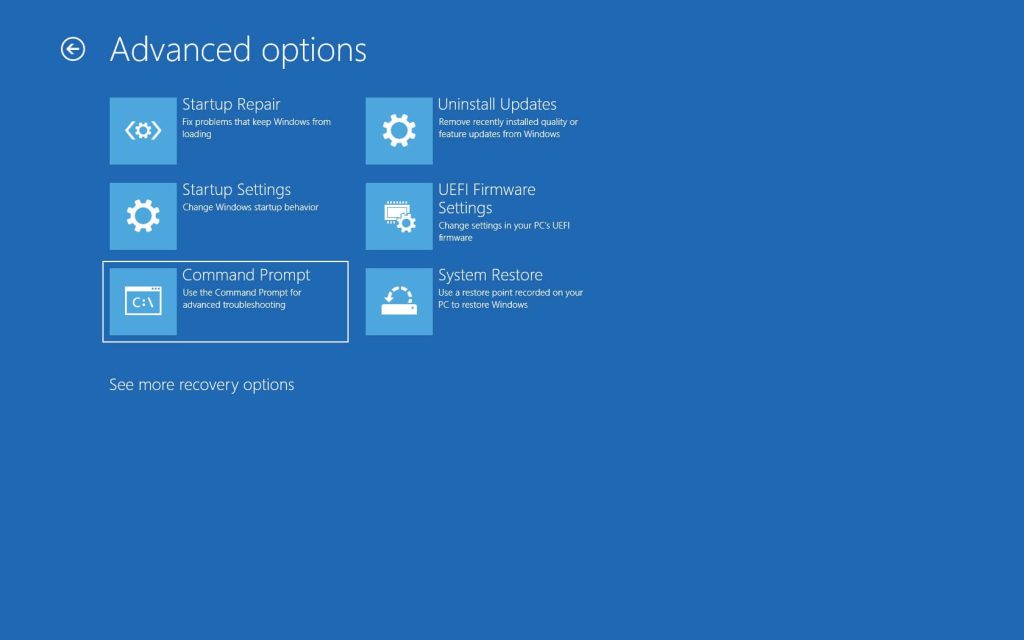
Step 3: In the Command Prompt, type the following commands to backup the current BCD configuration:
bootrec /fixmbr
bootrec /fixboot
bootrec /scanos
bootrec /rebuildbcd
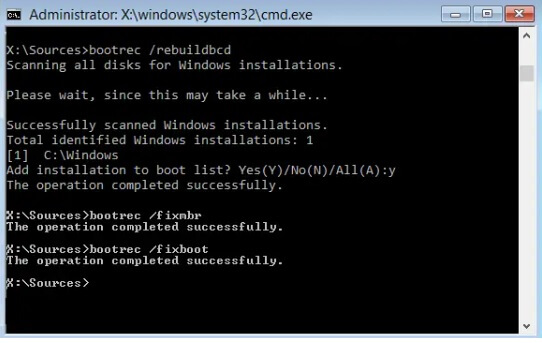
Step 4: Restart your PC when done.
The bcdedit /export command creates a backup of the existing BCD hive. The bcdedit /import command restores BCD from that backup – effectively resetting BCD to default settings.
This will reconstruct BCD if any corruption errors are present. Many boot parameters stored in BCD can trigger automatic repair issues when damaged.
Method 4. Disable Automatic Repair at boot
Disabling the automatic repair feature itself can prevent the preparing automatic repair loop from happening on boot. This stops Windows from trying to diagnose and fix startup issues.
To disable automatic repair:
Step 1: From the Advanced options screen, select ‘Command Prompt’.
Step 2: Type the command:
bcdedit /set {default} recoveryenabled No
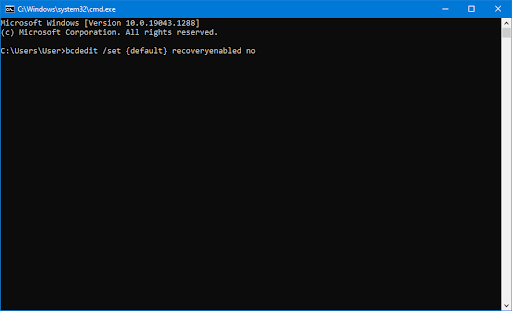
This will disable automatic repair on the default operating system entry.
Step 3: Close the Command Prompt and restart your PC.
Now Windows will boot directly to the OS instead of launching automatic repair when startup issues occur. You can re-enable automatic repair later by setting ‘recoveryenabled’ to Yes if needed.
Disabling auto repair just bypasses it rather than fixing the underlying problem. But at least it lets you boot into Windows.
Method 5. Run the Fixboot and Chkdsk commands
Damaged boot files or file system errors can trigger the preparing automatic repair loop. Fixboot finds and replaces corrupted boot files while chkdsk scans and fixes file system problems.
To use them:
Step 1: Access the Command Prompt through the Advanced options.
Step 2: Type ‘fixboot’ and press Enter. This will scan boot files and restore any missing or corrupted ones.

Step 3: Next run ‘chkdsk /r’ to scan the drive for bad sectors, file system errors, and attempt repairs.
Restart your PC when done.

Fixboot targets boot file issues specifically while chkdsk takes a wider approach looking for any file system problems. Using them together covers both causes of corruption comprehensively.
Method 6. Repair corrupted system files
Underlying Windows system file corruption is a common reason behind the preparing automatic repair 10/11 loop. SFC and DISM can scan for and repair corrupted system files.
Step 1: Boot to Command Prompt or Safe Mode Command Prompt.
Step 2: Run the SFC command:
sfc /scannow
This scans all protected system files and replaces any corrupt ones it finds.
Step 3: Follow up with DISM scan:
DISM /Online /Cleanup-Image /RestoreHealth
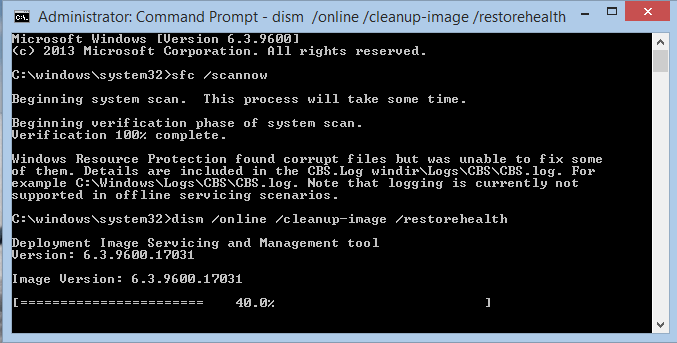
DISM scans and fixes issues in the Windows image files.
Step 4: Restart your PC after running both utilities.
SFC fixes system file errors while DISM repairs image file corruption. Using them together completely scans both areas for any issues and attempts to restore damaged files.
Method 7. Uninstall faulty Windows Updates
Recent buggy Windows Updates can break things and cause the preparing automatic repair loop. You may be able to boot normally again after uninstalling problematic updates.
Here are the steps to uninstall them:
Step 1: Boot into Safe Mode with Networking from the Advanced Startup options. This allows access to Windows Settings.
Step 2: Go to Settings > Windows Update > Update history.
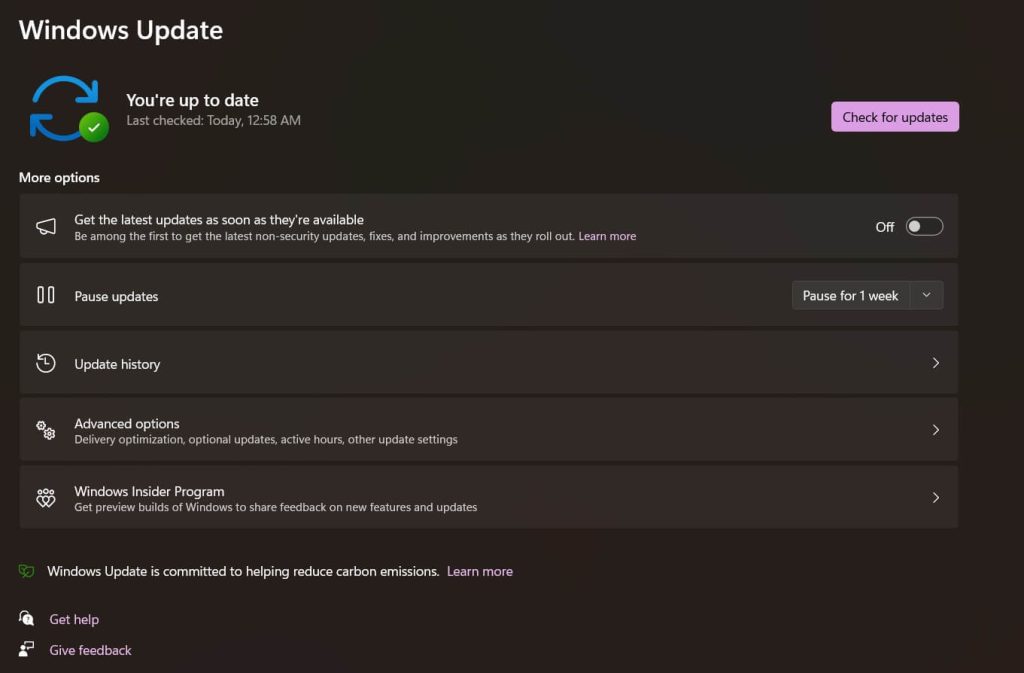
Step 3: Click ‘Uninstall updates’ at the bottom.
Step 4: The update history will now show a new ‘Uninstall’ button next to each update. Check online to identify any known bad updates, usually marked as KB5001330, etc.
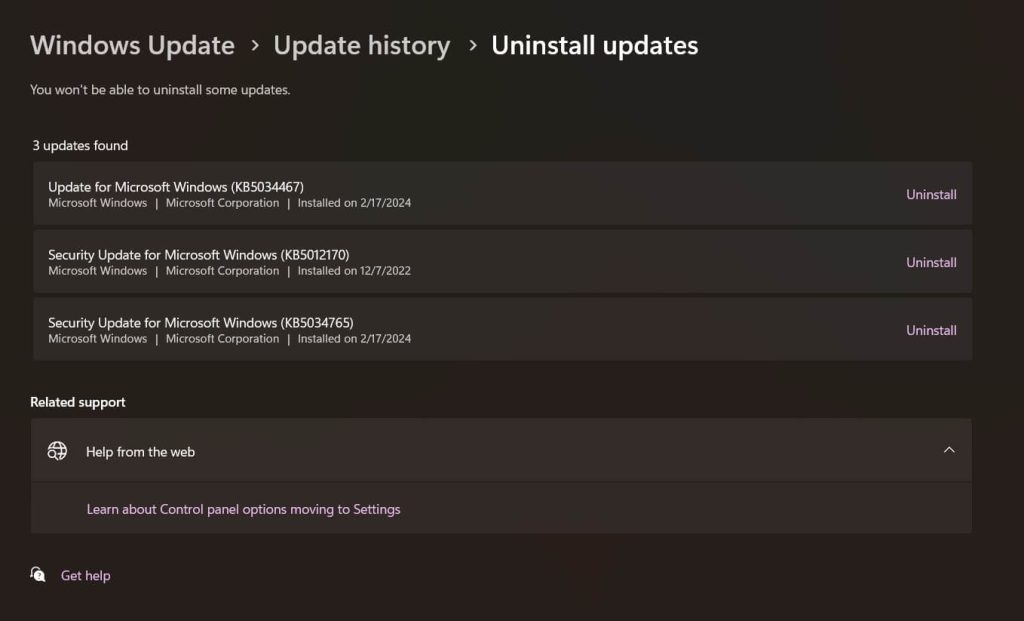
Step 5: Click Uninstall on the problematic updates one by one.
Step 6: Restart your PC when done uninstalling the bad updates.
After uninstalling the problematic updates, try booting normally again to see if the issue is resolved. You can also hide the bad updates to prevent them from accidentally being reinstalled later on.
Method 8. Restore the Windows Registry
Registry corruption related to boot settings can manifest as the preparing automatic repair loop. Restoring the registry may clear these errors.
Here are the steps to follow:
Step 1: Boot to the Choose an option screen via the Advanced Startup options. Select ‘Troubleshoot’.
Go to ‘Advanced options’ > ‘Startup Repair’.
Step 2: On the Startup Repair screen, click ‘Advanced options’. Click the ‘System Restore’ option.
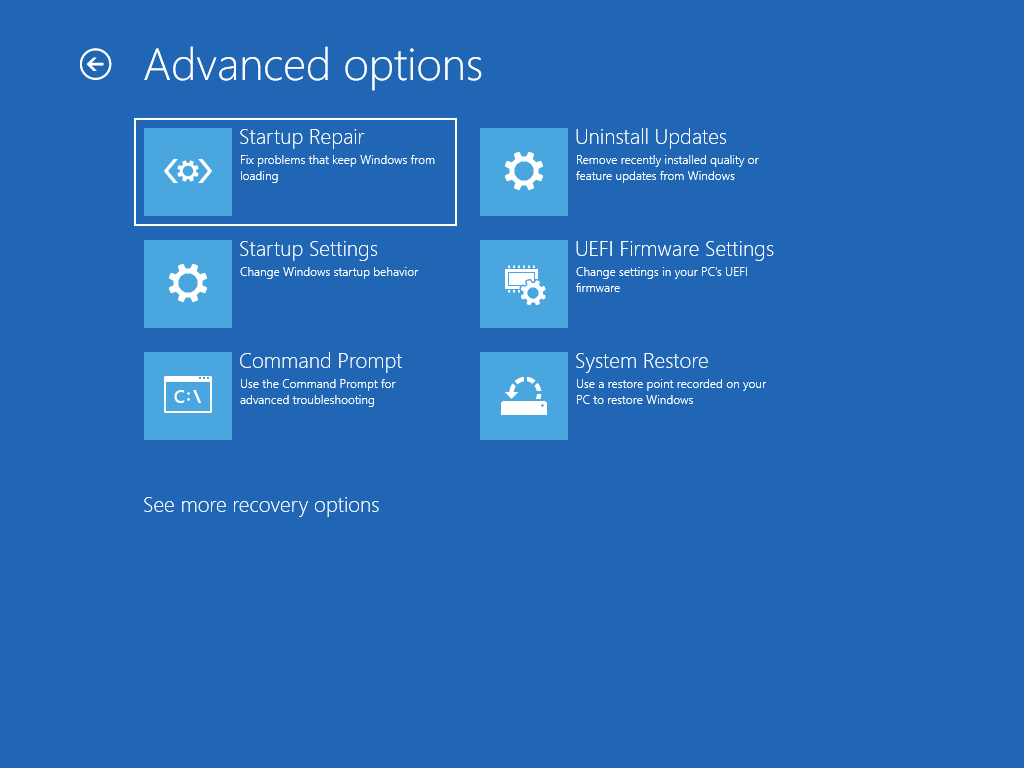
Step 3: Select one of the default system restore points, or choose ‘Choose a different restore point’.
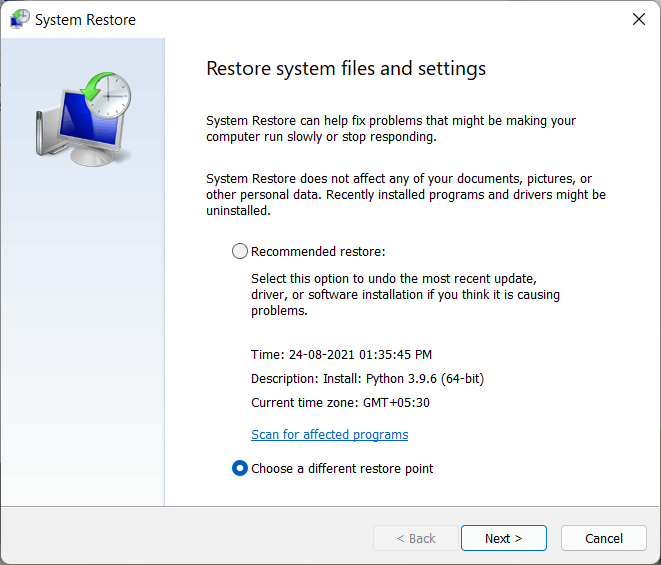
Step 4: Click ‘Next’ to confirm and restore the registry from that point. Restart your PC when done.
Using System Restore allows restoring the registry to an earlier stable point without needing a Command Prompt. The process is fully automated once you select the restore point.
This can fix any registry errors that may have developed recently and caused issues with startup and the preparing automatic repair loop. Reverting to an earlier registry snapshot should resolve them.
Method 9. Reset or Refresh Windows 11/10
If none of the above work, perform a full Windows reset or refresh to completely reinstall Windows. This guarantees to fix even the most stubborn preparing automatic repair 10/11 loop issues.
Windows Reset erases everything and reinstalls Windows from scratch. Refresh keeps your files and apps but reinstalls system files.
Step 1: Boot to Safe Mode with Networking via Advanced Startup.
Step 2: Go to Settings > System > Recovery.
Step 3: Under ‘Recovery options’, click Get started.
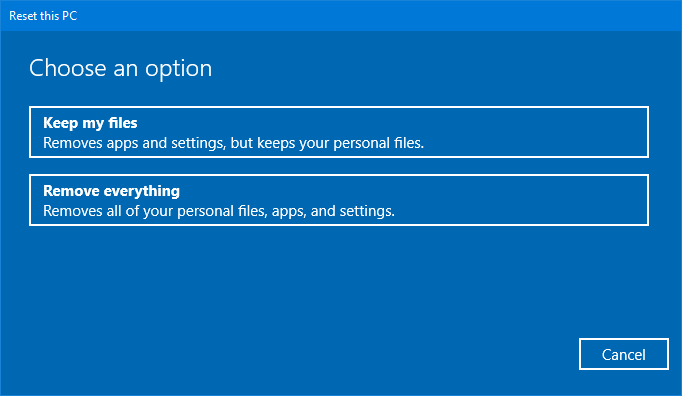
Step 4: Choose ‘Keep my files’ to refresh Windows. This keeps your personal files but reinstalls system files. Follow the prompts to complete the refresh process.
Resetting reinstalls Windows cleanly while refreshing replaces just the system files, retaining your data. Either option should resolve the issue by fully restoring Windows system files and settings.
Conclusion
In summary, the preparing automatic repair loop usually indicates an underlying software problem rather than hardware failure. Following the step-by-step troubleshooting guide outlined here should help identify and fix the issue so your PC boots normally again.
Begin with simpler options like hard reboots and Safe Mode before moving to advanced tools like SFC, DISM, and BCD rebuilding. Reset Windows as a last resort if all else fails.
For prevention, perform regular disk checkups with chkdsk and sfc scans to catch any creeping file corruption issues early. Overall though, the error can be successfully fixed with the right repair tools and troubleshooting methodology.
Author Bio:
Dinesh Lakhwani 

Dinesh Lakhwani, the entrepreneurial brain behind “TechCommuters,” achieved big things in the tech world. He started the company to make smart and user-friendly tech solutions. Thanks to his sharp thinking, focus on quality and the motto of never giving up, TechCommuters became a top player in the industry. His commitment to excellence has propelled the company to a leading position in the industry.
Popular Post
Recent Post

How to Activate Windows with a Product Key for Windows 11 & Windows 10
It always shows up at the worst time. You are halfway through a report, or about to join a video call. Then you spot it in the bottom right corner of the screen. Activate Windows. Go to Settings to activate Windows. Initially, an unactivated copy of Windows may seem like a minor inconvenience. Over time, […]

Is Easy Duplicate Finder Worth It? Honest Review
The photos folder looked normal at first glance. Then the storage warning popped up. One trip photo appeared four times. A tax PDF sat in three different folders. Two old setup files were still in Downloads, and each one was over 500 MB. Nobody plans this mess. Copies pile up slowly. A download runs twice. […]

Wise Duplicate Finder Review: Real Results from Wise Duplicate Finder
Read my honest Wise Duplicate Finder review. See features, pricing, pros and cons, and real PC test results. Find out if this free duplicate cleaner can free up your Windows storage.

How to Recover Deleted Files from Pen drive, USB Drive, SD Card
Introduction: On tech forums, you’ll often see posts like this: “I connected my pen drive to my laptop this morning, but the folder was empty. All my college project files had vanished. I don’t have a backup. Can someone help me?” Stories like this are very common. Pen drives, USB drives and SD cards are […]

How To Recover Files Deleted from the Recycle Bin [Windows 11]
Losing a file can happen in seconds. You clear your desktop, hit Delete, and empty the Recycle Bin. Then, just when you need that file again, it seems to have vanished. This guide will walk you through ways to restore files removed from the Recycle Bin. We will begin with simple fixes, then look at […]

Disk Drill Data Recovery Tool Explained: Full Review and Guide
It happens in a split second. You delete a folder by mistake. Your drive stops showing up. A photo album from your last trip just vanishes. And your stomach drops. Lost files feel personal. They are not just data. They are memories, work hours, and sometimes years of effort packed into a few gigabytes. When […]

Recover Deleted Files In Windows 11 With Software & Without
Introduction What is the first thing that goes through your mind the second an important file vanishes from a Windows 11 PC? For most people, it is a mix of panic and disbelief, followed by a frantic click through every folder that file could possibly be hiding in. It happens in a split second: one […]

EaseUS Data Recovery Wizard: Everything To Know
Data loss does not always come from a big disaster either. Most cases start small and boring. A drive gets formatted by mistake. A laptop freezes mid-save and restarts on its own. A memory card stops showing up after being pulled out too fast. None of these feel like emergencies at first, until you realize […]

Recuva Data Recovery Tool: Is it Actually Worth it?
When I first tried Recuva Data Recovery, I wanted to see if it could really bring back lost files. The tool is free, small in size, and promises quick recovery, which made me curious enough to test it on my own PC. The setup was fast, and the wizard guided me step by step. I […]

