












So, search for a pair of shoes once online. Close the tab. By evening, those same shoes are sitting on your news site, your video app, and even your recipe blog. Nobody placed them there by chance. A cookie did. Well, yes! Cookies are small files that websites place on your device while you browse. […]
Movavi Video Splitter Online: A Comprehensive Review
Video splitting and joining tools have become an essential part of any video editor’s toolkit in recent years. With more and more video content being created, there is a growing need to be able to split large video files into smaller parts or join multiple clips together. This allows for easier sharing, editing, and overall management of video content.
One of the most popular online video splitter and joiner tools is Movavi Video Splitter Online. As the name suggests, this is the web-based version of Movavi’s desktop video splitter software. In this comprehensive review, we will take a close look at the features, capabilities, advantages, and limitations of using Movavi Video Splitter Online for video splitting and joining tasks.
Overview of Movavi Video Splitter Online
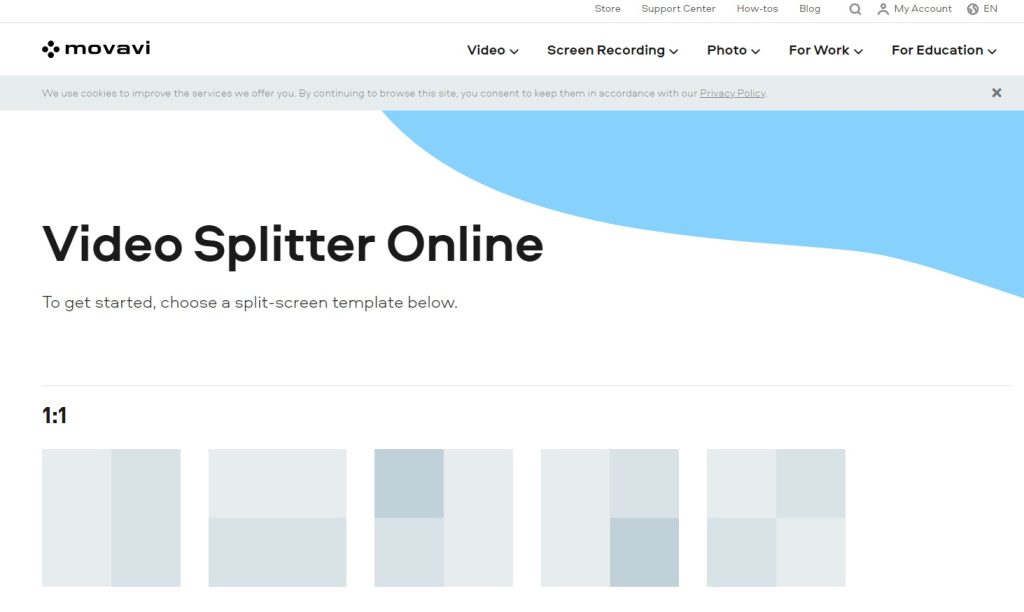
Movavi Online Video Splitter for free allows you to split large video files into smaller parts or merge multiple video clips into one. It works right in your web browser so there is no need to download any software. The interface is intuitive and easy to use, even for beginners.
Some key features of Movavi Video Splitter Online include:
- Offers an intuitive drag-and-drop interface, easy for beginners to use.
- Split videos by number of parts, or custom points.
- Merge multiple videos into one long clip.
- Fast processing time even for large HD videos.
- No quality loss when splitting or joining videos.
- Supports MP4, AVI, MKV, MOV, JPEG, GIF, PNG, and other common formats.
- Completely free to use with no watermarks.
- Unlimited splits and joins with 10-minute export for free users.
With this impressive range of features for a free online tool, Movavi Video Splitter Online provides an easy solution for basic video splitting and joining needs for personal and educational use. Let’s look at the key features and capabilities in more detail.
Movavi Online Video Splitter Review: Key Features and Tools
Custom Video Splitting Options
The video splitting capabilities of Movavi Video Splitter Online are quite flexible, with multiple parameters to choose from. You can select how many parts you want the video split into and it will divide it evenly. It serves as a simple option when you know exactly how many segments you need.
In addition to these parameters, you also have the option to make custom splits. Simply play the video, pause at the position you want to split at and make the cut. This allows for frame-accurate splitting.
The output video parts are named sequentially and can be easily rejoined in the correct order. The splitting process is very quick and seamless.
Video Joining/Merging
Movavi Video Splitter Online makes it easy to join multiple video clips into one file. Simply arrange your video parts in the correct order, then click the “Export Result” button. The videos will be combined into one long video sequentially.
The tool supports joining videos of different formats and codecs, though this may result in re-encoding and quality loss in some cases. For best results, join videos of the same format and codec.
There is no limit on the number of videos you can join, but the maximum size of merged videos is 1 GB for free users.
Supported File Formats
Movavi Video Splitter Online supports the most common consumer video formats:
- MP4, AVI – The most compatible formats for online use.
- WMV, MKV, FLV – Popular codecs used by Windows and online platforms.
- MOV – Works well but can cause some quality loss if not using h.264 codec.
- 3GP, 3G2 – Older mobile video formats.
So all the major formats are covered, allowing you to split and join videos from camcorders, smartphones, websites, etc. Do note that some formats like ProRes, XAVC, and RED are not supported.
Unlimited Free Usage
Movavi Video Splitter Online is completely free to use. There are no ads, signup requirements, or watermarks on exported videos. You can split and join unlimited videos without any subscription. This makes it ideal for casual personal and classroom use.
Output Video Quality
A major concern when using any online video processing tool is how much quality is lost in the process. With Movavi Video Splitter Online, the output video quality is identical to the source for most file types if you don’t apply edits. The proprietary compression technology ensures there is virtually no quality loss when simply splitting or joining videos.
Even after applying trims, crops, and effects, the resulting quality degradation is minimal. The output videos retain high resolution and bitrate close to the original footage. No watermarks are added by the free version. Overall, quality is well preserved for basic splitting and joining tasks.
Ease of Use
Despite the wide range of features, Movavi Video Splitter Online offers a very intuitive user interface. The design is clean and simple, with all the main tools easily accessible.
The interactive timeline makes navigating and splitting videos very visual and easy. All the options are self-explanatory so there is no learning curve. This simplicity makes Movavi Video Splitter Online ideal for casual users.
How to Use Movavi Video Splitter Online for Free
Here are the steps to use Movavi Video Splitter Online for free:
Step 1: Go to https://www.movavi.com/video-splitter-online.html in your web browser. No need to download any software.
Step 2: When you open Movavi Video Splitter Online, you will see various templates for common video splitting and joining tasks. Pick the template ratio that matches what you want to do.
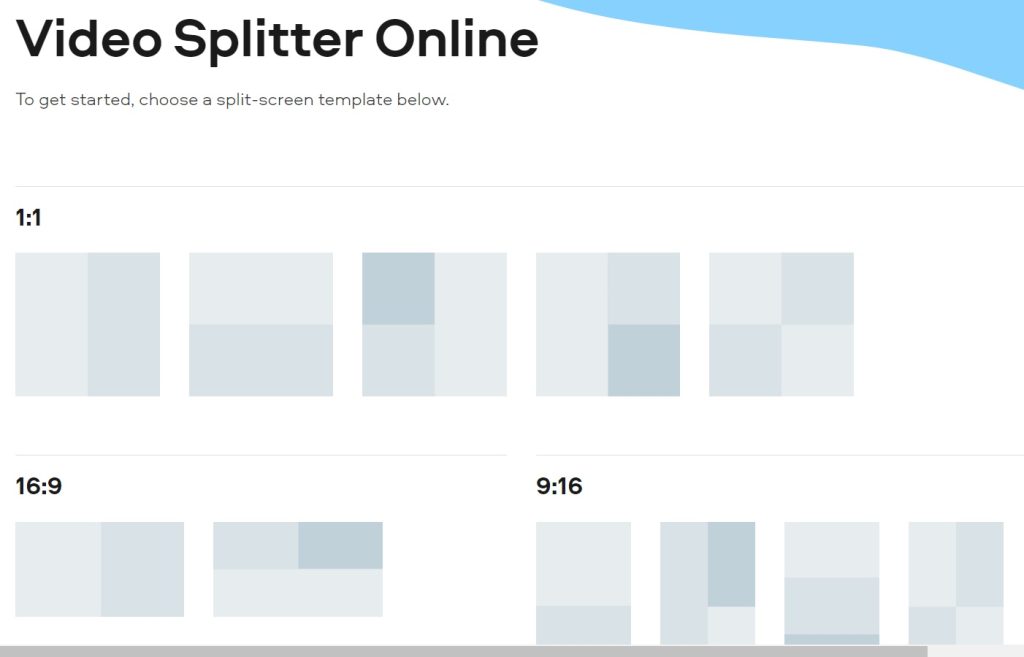
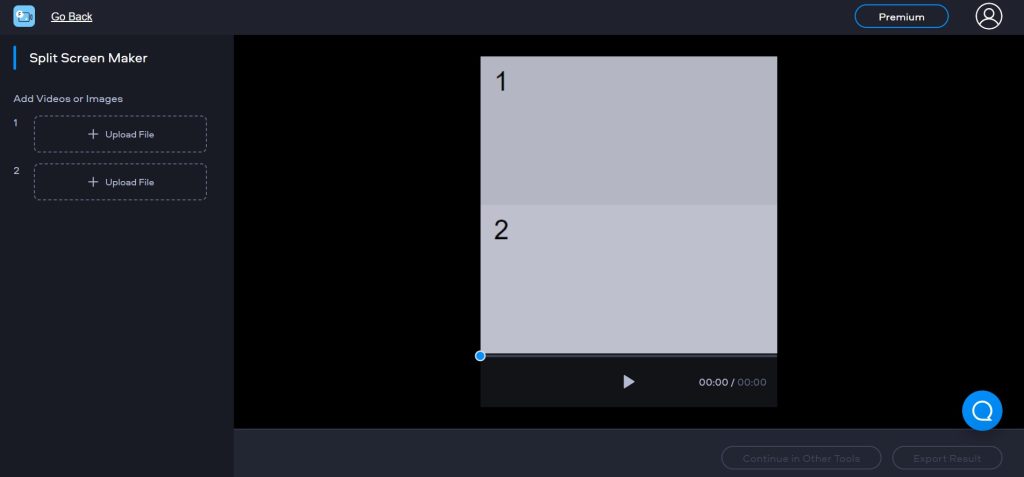
Step 3: Click on “Upload File” and select a video from your computer to upload.
Step 4: Wait until the videos are uploaded.
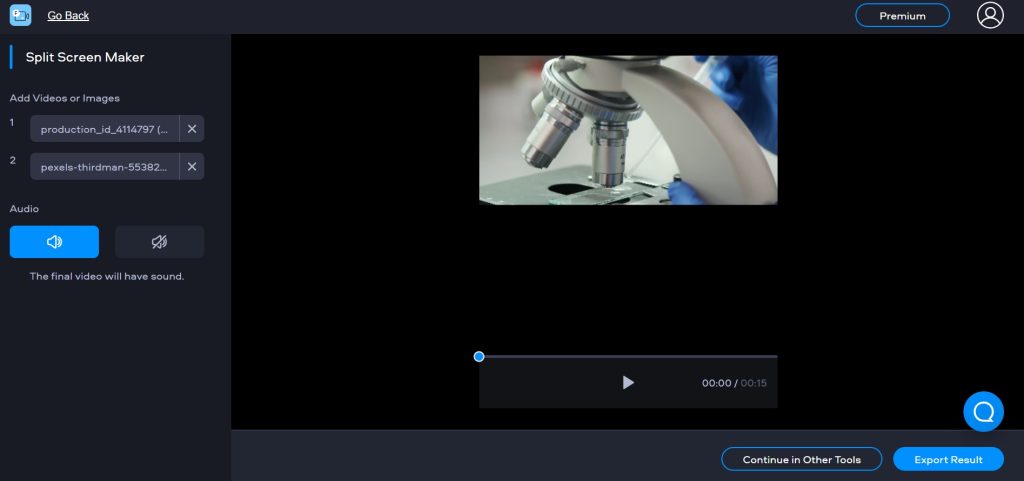
Step 5: To join videos, click the “Export Result” button placed at the bottom-right corner of the screen.
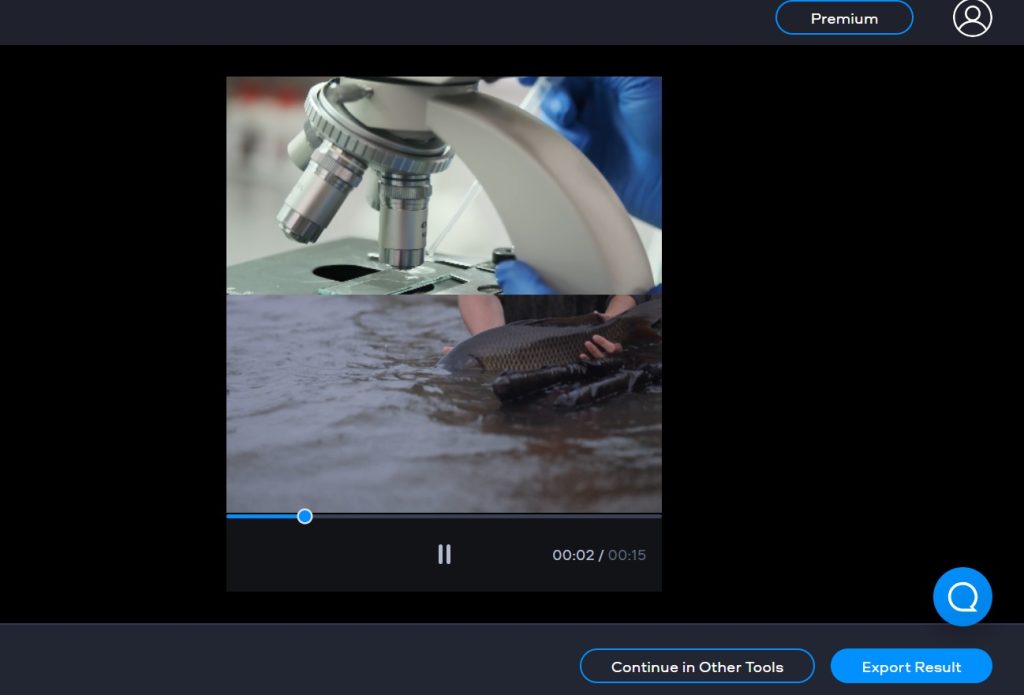
Step 6: Preview the changes to check whether the split parts or merged video looks right. Click the “Download video with watermark” link when ready to save the processed video to your computer.
So that’s it! With just a few clicks you can split large videos into smaller parts or combine multiple clips into one using Movavi Video Splitter Online completely free.
Advantages of Using Movavi Video Splitter Online
Here are some of the main advantages of using this online video tool:
- Completely free with no limits on usage.
- No software downloads or installation is required.
- Intuitive drag-and-drop interface ideal for beginners.
- Fast splitting and joining even for large high-res videos.
- Multiple parameters for flexibility in video splitting.
- Frame-accurate custom splitting is possible.
- Join an unlimited number of video clips.
- Useful basic video editing tools included.
- No quality loss for most file types and edits.
- No watermarks on downloaded videos.
- Supports all the essential video formats.
For casual personal and educational use, Movavi Video Splitter Online provides a quick, easy, and free way to split and join videos right in the browser. The convenience of the tool is perhaps its biggest advantage.
Limitations of the Free Version
While the free version of Movavi Video Splitter Online is quite generous, there are some limitations to be aware of:
- 500 MB size limit on source videos.
- Can only download the first 10 minutes for free.
- Some formats not supported e.g. ProRes, XAVC.
- Higher quality options are locked for paid users.
- Limited resolution and bitrates for free users.
- No option to save edits or projects.
- Lack of advanced editing tools.
For professional and advanced use, these limitations can be restrictive. But the free version works fine for basic personal video splitting and joining tasks within the size and time limits.
Paid Version Benefits
Movavi offers a paid version of Video Splitter Online to lift the limitations of the free version. The Plus subscription removes all restrictions and unlocks additional features:
- Work with videos of any size and length.
- Download full-length output videos.
- Access higher 4K resolution and bitrates.
- Advanced codecs like ProRes and XAVC are supported.
- Enhanced 265 codecs for HDR videos.
- Save edited projects to work on later.
- Priority faster processing for large files.
- Remove Movavi branding/watermarks.
- Download videos in gif format.
- Save presets for recurring tasks.
- Detailed metadata preservation.
- Advanced cutting tools like smart splits.
- Multi-track timeline for complex editing.
- AI tools to improve video quality.
- Frame-by-frame preview for precision.
- Unlimited cloud storage and transfers.
The Plus subscriptions start at $4.99 per month when billed annually. For professional videographers and editors who work with large files and need advanced features, the paid version is worth considering.
Final Verdict
Movavi Video Splitter Online provides a quick, convenient way to split and join videos right in your browser. The free version meets the basic video splitting and joining needs of casual users with its flexible options, speedy processing, and clean interface. For more advanced use cases, the paid version unlocks additional capabilities like multi-track editing and AI-powered video enhancement.
While Movavi Video Splitter Online may not have the sophistication of a full-fledged video editor, it excels at what it’s built for – fast splitting and joining of videos without any software required. The unlimited free usage makes it easy to recommend for personal and educational use within the size and time restrictions. For professional video work, the Plus paid subscription provides the advanced tools and flexibility needed.
Overall, Movavi Video Splitter Online earns top marks for being an easy-to-use and capable online tool for the most common video splitting and joining tasks. It fills an important gap by providing key video functionality in the cloud for free. For quickly and easily dividing or combining video clips, Movavi Video Splitter Online is a great choice.
Author Bio:
Dinesh Lakhwani 

Dinesh Lakhwani, the entrepreneurial brain behind “TechCommuters,” achieved big things in the tech world. He started the company to make smart and user-friendly tech solutions. Thanks to his sharp thinking, focus on quality and the motto of never giving up, TechCommuters became a top player in the industry. His commitment to excellence has propelled the company to a leading position in the industry.
Popular Post
Recent Post

How To Disable Background Apps In Windows: 4 Quick Methods
A slow PC rarely gives a warning. One day, it simply takes longer to start. Apps open late. The fan runs loud, even when the screen is almost empty. Most people blame old hardware. Often, that is not the real reason. The real reason is hiding in plain sight. Windows keeps many apps active in […]

How to Activate Windows with a Product Key for Windows 11 & Windows 10
It always shows up at the worst time. You are halfway through a report, or about to join a video call. Then you spot it in the bottom right corner of the screen. Activate Windows. Go to Settings to activate Windows. Initially, an unactivated copy of Windows may seem like a minor inconvenience. Over time, […]

Is Easy Duplicate Finder Worth It? Honest Review
The photos folder looked normal at first glance. Then the storage warning popped up. One trip photo appeared four times. A tax PDF sat in three different folders. Two old setup files were still in Downloads, and each one was over 500 MB. Nobody plans this mess. Copies pile up slowly. A download runs twice. […]

Wise Duplicate Finder Review: Real Results from Wise Duplicate Finder
Read my honest Wise Duplicate Finder review. See features, pricing, pros and cons, and real PC test results. Find out if this free duplicate cleaner can free up your Windows storage.

How to Recover Deleted Files from Pen drive, USB Drive, SD Card
Introduction: On tech forums, you’ll often see posts like this: “I connected my pen drive to my laptop this morning, but the folder was empty. All my college project files had vanished. I don’t have a backup. Can someone help me?” Stories like this are very common. Pen drives, USB drives and SD cards are […]

How To Recover Files Deleted from the Recycle Bin [Windows 11]
Losing a file can happen in seconds. You clear your desktop, hit Delete, and empty the Recycle Bin. Then, just when you need that file again, it seems to have vanished. This guide will walk you through ways to restore files removed from the Recycle Bin. We will begin with simple fixes, then look at […]

Disk Drill Data Recovery Tool Explained: Full Review and Guide
It happens in a split second. You delete a folder by mistake. Your drive stops showing up. A photo album from your last trip just vanishes. And your stomach drops. Lost files feel personal. They are not just data. They are memories, work hours, and sometimes years of effort packed into a few gigabytes. When […]

Recover Deleted Files In Windows 11 With Software & Without
Introduction What is the first thing that goes through your mind the second an important file vanishes from a Windows 11 PC? For most people, it is a mix of panic and disbelief, followed by a frantic click through every folder that file could possibly be hiding in. It happens in a split second: one […]

EaseUS Data Recovery Wizard: Everything To Know
Data loss does not always come from a big disaster either. Most cases start small and boring. A drive gets formatted by mistake. A laptop freezes mid-save and restarts on its own. A memory card stops showing up after being pulled out too fast. None of these feel like emergencies at first, until you realize […]

