












Read my honest Wise Duplicate Finder review. See features, pricing, pros and cons, and real PC test results. Find out if this free duplicate cleaner can free up your Windows storage.
Why Your PS4 Fan Is Loud: Easy Fixes Without Opening
Introduction
Renowned for providing an incredibly fascinating and immersive gaming experience, the Sony PlayStation 4 (PS4) is unquestionably one of the most well-liked gaming consoles worldwide. Since its release, the PS4 has seen unmatched success and opened up a world of gaming options for gamers.
However, many users have voiced their discontent regarding the system’s noisy fans, which can be quite distracting during prolonged gameplay sessions. This noise can be annoying since it ruins the immersion of a game and makes you worry about the health of the console.
Even while a noisy fan doesn’t always mean there’s an urgent issue, you can greatly minimize the noise by learning what’s causing it and doing simple fixes. This post explores the causes of the loud fan and provides PS4 loud fan fixes without opening.
Why Is PS4 Fan So Loud?
The fan on your PS4 console may probably spin and sound noticeably noisier than usual if it is overheating. Take anything off of the PS4 console and everything surrounding it. After that, give it some time to see if the gadget cools down and stops making noise. Just make sure there is enough room for ventilation around the PS4’s sides and back.
Your PlayStation 4’s loud fan could be operating for one of many different reasons.
- Dust is the primary cause of the loud fan on your PS4. You cannot make your PS4 dustproof. Dust from the atmosphere can still enter your gaming console even after you’ve cleaned the outside. The PS4 gets noisier as more dust gathers within the game system.
- The most frequent cause is that the gaming system is overtaxing its cooling mechanism. Your PS4 will need to work harder to maintain smooth operation if you’re playing a particularly demanding game or if you have multiple active applications. prevent the console from overheating, this may require the fan to run louder than usual.
- The fan may not be functioning properly because of something obstructing its vents. Dust accumulation or even something as basic as a loose screw could be the cause of this. Try looking inside your console to see if you can find anything obstructing the fan if you think this might be the issue.
- Lastly, it’s conceivable that the fan on your PS4 is just broken and has to be replaced. This is probably the issue if all other possibilities have been exhausted. Thankfully, changing the fan is an easy task that you can perform on your own with a few simple tools.
SOLUTIONS: Fix the Loud PS 4 Fan Without Opening
Don’t freak out if the fan on your PS4 is noisy and you don’t know why. A few possible solutions for PS4 loud fan fixes without opening. You should be able to identify the issue and quickly get your console operating silently again with a little troubleshooting.

Identify The Origin of The Noise
Listen to the sound and strive to find out where it’s coming from. If the fan is the cause of the noise, you’ll observe the following: Often, the console may overheat and occasionally shut down. Sounds that rattle could be caused by loose parts that need to be tightened or, if damaged, replaced. A failing hard disc can be identified by its whining noise.
It’s time to understand how to address the potential causes of the noise issue now that you are aware of them:
Put the PS4 in a well-ventilated area.
Make sure your PS4 is in an area with adequate ventilation because it needs to be able to breathe. The fan will go into overdrive and make noise if it becomes too hot.
Don’t place the console in an enclosed area and make sure there is enough airflow surrounding it. Your console’s lifespan may be shortened and internal components may be damaged if it does overheat.
Additionally, you should keep your PS4 out of direct sunlight as this can also lead to overheating. If you’re concerned that your console might overheat, you might want to get a cooling stand or something similar. By doing this, you can make sure that your PS4 remains at a safe temperature over extended gaming sessions.
On the PS4, use a can of compressed air.
If your PS4 is starting to act up, one of the first things you can try is a can of compressed air. Compressed air will help to clean out any dust or dirt that may be clogging up the system, and it’s easy to do.
Simply ensure that the compressed air you’re using is meant for electronics and not just any ordinary can of compressed air. Additionally, make sure the container is held upright to prevent the system from being damaged by the air blasting out too strongly.
You might need to take your PS4 in for repairs if the problems persist even after you’ve tried using a can of compressed air. However, you should attempt a few other PS4 loud fan fixes without opening troubleshooting techniques first.
Put Your PlayStation 4 Console Up Right
Our PS4 or PS3 game console is typically positioned horizontally. On the other hand, it can assist in removing some noise and heat issues from your console if you set it upright. Try this strategy and see if it makes your console quieter and cooler.
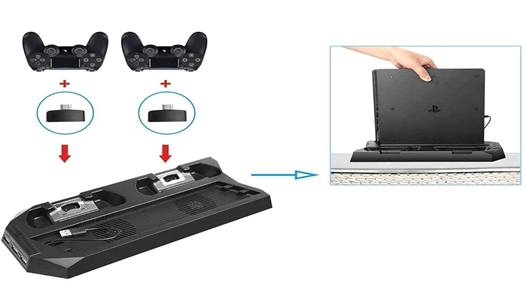
It’s time to try addressing the noise issue internally if the aforementioned fixes don’t seem to be working. The procedure that follows entails opening your game console; if you’re not handy, you might need to hire an expert to assist you.
Turn Off Boost Mode
One common complaint from users is the higher noise levels produced by the PS4 Pro, which is outfitted with Boost Mode to improve gaming performance. Fan noise is increased as a byproduct of Boost Mode, which is meant to maximize gameplay.
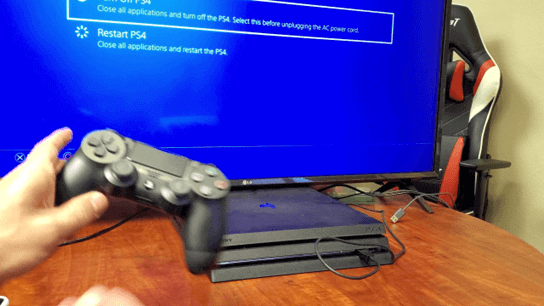
Users who are not playing 4K games can reduce this by turning off Boost Mode. Just go to Settings, then select Sound and Screen, and finally Audio Output Settings. Put the “Output to Headphones” option in this menu on “Off.”
It is especially advantageous for people who choose a calmer gaming environment above the extra performance boost that Boost Mode offers to deactivate the option and enjoy a quieter gaming experience without sacrificing performance.
Use Vacuum Cleaner
One of the best ways to clear the vents of dust is by using a hoover cleaner. The user manual makes no mention of this, despite assertions on the internet that Sony suggests it. It is practically safe to use a Hoover to remove any dirt that may have accumulated on the cooling vents.
The PS4 console may not be able to properly cool itself if there is a buildup of dust in the airflow entering and leaving the device.
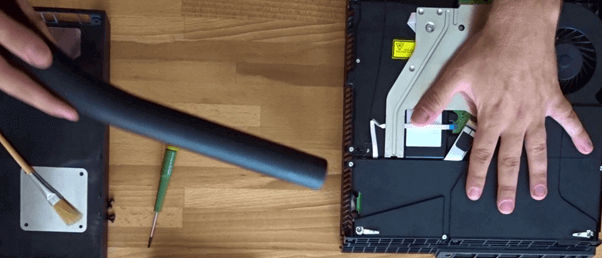
It’s crucial to remember that using a hoover to clean your PS4 will only remove the dust that has gathered on the fans and vents. The heat sink’s buildup of dirt cannot be removed by vacuuming. Sometimes the dust buildup in the heat sink will simply shift, obstructing the fan’s and heat sink’s airflow and raising the console’s temperature to an unprecedented level.
System Updates
Make sure the system software on your PS4 is current. Firmware updates are often released by Sony to fix bugs and improve fan performance. To find and install any available updates, navigate to Settings > System Software Update.
Safe Mode and Resets
Try starting your PS4 in Safe Mode and rebuilding the database if you’re having recurring software problems. Fan performance issues caused by fundamental software bugs can be fixed with this procedure. The PS4 must be turned off to enter Safe Mode. Next, continue to hold the power button for two beeps, letting go after the second one. To rebuild the database, adhere to the on-screen directions.
How Does the PS4 Cooling System Work?
AMD designed an Accelerated Processing Unit (APU) that is semi-custom and serves as the foundation of the PS4. The APU is a single chip that combines a graphics processing unit (GPU) and a central processing unit (CPU). The GPU is built using AMD’s Radeon technology, while the CPU is an eight-core x86-64 AMD Jaguar processor. Multimedia and gaming operations can be processed efficiently using this design.
Controlling the amount of heat the system produces is one of the main design difficulties for a gaming console such as the PS4. Inefficient management of the considerable heat produced by high-performance processors and graphics chips during operation can result in overheating and possible hardware damage.
The PS4 uses a complex cooling mechanism to handle this. It consists of heat sinks, an intricately planned airflow system, and a sizable internal cooling fan. Cool air is introduced into the console by the internal fan, which also removes hot air produced by the parts. Critical components like the CPU and GPU are protected from heat by heat sinks, which release the heat into the surrounding atmosphere.
Additionally, the PS4 has sensors to keep an eye on the console’s internal temperature. The speed of the fan can be adjusted to provide more cooling if the temperature rises above a particular point. This keeps the device from overheating and helps keep it working at acceptable temperatures.
The longevity and functionality of the PS4 depend heavily on proper cooling. It keeps the hardware components from being overly stressed by heat while enabling the console to run at peak rates. Performing routine maintenance, such as cleaning the vents and positioning the console in a well-ventilated place, can also contribute to the preservation of efficient cooling.
How Do You Make PS4 Quieter Without Taking It Apart?
You must use a portable vacuum cleaner with the lowest suction level to clean your PlayStation 4 to make it silent without disassembling it. Other PS4 loud fan fixes without opening are as follows:
- Placing: For better ventilation, make sure your PS4 is in an open space. Keep it clear of obstructions that could impede ventilation, such as walls. To allow all of the vents to open, it should be on a level surface. Your PS4 won’t have to work as hard to cool itself, which will reduce fan noise, the more ventilation it has.
- Cleaning: The fan may run louder and the console may overheat if dust is not removed from the vents using compressed air. Before doing this, ensure that the console is unplugged and turned off.
- Workload reduction: Whenever feasible, make an effort to lighten the PS4’s workload. For instance, stop utilizing apps and games while you’re not using them, and don’t play taxing games for long periods. To ease the load on your console, try to keep the frame rate of your games limited.
- Update the software: Make sure the software on your PS4 is current. Certain updates have the potential to improve system performance and minimize the requirement for fan speed.
- Invest in a cooling pad or stand: The PS4 may be kept cooler and more ventilated by using one of the many pads and stands that are available on the market. However, before making a purchase, do your homework as they might be hit or miss.
- Play for shorter periods: Prolonged gaming sessions will heat your PS4 and make the fan work harder. You may cool down your PS4 by taking breaks.
- Keep other devices from being stacked: It is not recommended to submerge your PS4 beneath other electronic devices, including but not limited to game consoles or DVD players. Both the PS4 and the surrounding air may become hotter due to the heat from these gadgets.
Final Thoughts
A noisy PS4 may cause distractions and detract from your game enjoyment. A PS4 loud fan fix without opening usually includes some dust buildup or overheating.
You may reduce the noise and resume playing your favorite games by making sure your PS4 has enough air, cleaning it frequently, or even replacing the fan. Just keep in mind that you can always get professional assistance if doing these procedures makes you uncomfortable.
Author Bio:
Dinesh Lakhwani 

Dinesh Lakhwani, the entrepreneurial brain behind “TechCommuters,” achieved big things in the tech world. He started the company to make smart and user-friendly tech solutions. Thanks to his sharp thinking, focus on quality and the motto of never giving up, TechCommuters became a top player in the industry. His commitment to excellence has propelled the company to a leading position in the industry.
Popular Post
Recent Post

How to Recover Deleted Files from Pen drive, USB Drive, SD Card
Introduction: On tech forums, you’ll often see posts like this: “I connected my pen drive to my laptop this morning, but the folder was empty. All my college project files had vanished. I don’t have a backup. Can someone help me?” Stories like this are very common. Pen drives, USB drives and SD cards are […]

How To Recover Files Deleted from the Recycle Bin [Windows 11]
Losing a file can happen in seconds. You clear your desktop, hit Delete, and empty the Recycle Bin. Then, just when you need that file again, it seems to have vanished. This guide will walk you through ways to restore files removed from the Recycle Bin. We will begin with simple fixes, then look at […]

Disk Drill Data Recovery Tool Explained: Full Review and Guide
It happens in a split second. You delete a folder by mistake. Your drive stops showing up. A photo album from your last trip just vanishes. And your stomach drops. Lost files feel personal. They are not just data. They are memories, work hours, and sometimes years of effort packed into a few gigabytes. When […]

Recover Deleted Files In Windows 11 With Software & Without
Introduction What is the first thing that goes through your mind the second an important file vanishes from a Windows 11 PC? For most people, it is a mix of panic and disbelief, followed by a frantic click through every folder that file could possibly be hiding in. It happens in a split second: one […]

EaseUS Data Recovery Wizard: Everything To Know
Data loss does not always come from a big disaster either. Most cases start small and boring. A drive gets formatted by mistake. A laptop freezes mid-save and restarts on its own. A memory card stops showing up after being pulled out too fast. None of these feel like emergencies at first, until you realize […]

Recuva Data Recovery Tool: Is it Actually Worth it?
When I first tried Recuva Data Recovery, I wanted to see if it could really bring back lost files. The tool is free, small in size, and promises quick recovery, which made me curious enough to test it on my own PC. The setup was fast, and the wizard guided me step by step. I […]

GetData Recover My Files Data Recovery Tool: Honest Review
A hard drive error brings a special kind of silence. Well, yes! The screen freezes, then a message appears saying the drive can’t be found or must be formatted. In that moment, years of photos and work files feel at risk. It never happens at a good time. Coffee spills near a laptop, a memory […]

Windows File Recovery: A Complete Review [Tried & Tested]
Imagine this. You spend hours perfecting a video project. You hit save. Then your laptop freezes, reboots, and when the screen comes back. The file is gone. Your stomach sinks. It’s not just you. Lost files happen all the time. A dropped hard drive, a bad update, an accidental delete, or a corrupted partition can […]

5 Best Data Recovery Software For Windows 11 and Windows 10
Introduction: A crashed drive can ruin a whole day. One minute your photos, work files, and tax records sit safe on your PC. The next minute they are gone. A power cut, a bad update, or one wrong click can wipe out years of memories and months of work in seconds. That sinking feeling is […]

