












A slow PC rarely gives a warning. One day, it simply takes longer to start. Apps open late. The fan runs loud, even when the screen is almost empty. Most people blame old hardware. Often, that is not the real reason. The real reason is hiding in plain sight. Windows keeps many apps active in […]
GeForce Experience Error code 0x0003 [9 Ways To Fix]
GeForce Experience is a useful utility program from Nvidia that allows you to optimize game settings for your PC’s graphics card, record gameplay videos, and more. However, many users have encountered the frustrating “GeForce experience error code 0x0003” when trying to use GeForce Experience.
This error prevents you from using important GeForce Experience features and can be tricky to fix. In this article, we’ll explain what causes the Experience error code 0x0003 and provide 9 proven troubleshooting steps to resolve it. From updating drivers to reinstalling GeForce Experience and more, we’ve got you covered.
Less Obvious Questions Worth Knowing
Can GeForce Experience error 0x0003 affect game performance
The error itself does not reduce in game performance. It mainly blocks GeForce Experience features like driver updates and game optimization. Your GPU drivers may continue to work, but missing updates can affect performance over time.
Does error code 0x0003 appear on fresh Windows installations
Yes, it can happen even on new systems. This usually occurs when NVIDIA services fail to start correctly after installation. Network service issues or permission conflicts are common causes in such cases.
Can antivirus or firewall settings trigger error 0x0003
Security software can sometimes block NVIDIA services from accessing the network. This interruption can cause the error to appear. Temporarily disabling the antivirus or adding NVIDIA services to the exception list often resolves the issue.
What Causes the GeForce Experience error code 0x0003 in GeForce Experience?
The 0x0003 error occurs when the Nvidia Share overlay is unable to start properly. The Share overlay powers many key features in GeForce Experience like recording gameplay and displaying tuning recommendations. If it fails to initialize for any reason you’ll see the error:
Common causes of the error code 0x0003 include:
- Outdated, Corrupted, or Missing Graphics Drivers: The error often arises due to issues with the graphics drivers. Outdated, corrupted, or missing drivers can disrupt the proper functioning of the Nvidia Share overlay, triggering the error code 0x0003.
- Background Apps Interference: Certain background applications might interfere with the functioning of the Share overlay. These apps can conflict with GeForce Experience, hindering its ability to initialize correctly.
- Corrupted or Outdated GeForce Experience Installation: If the GeForce Experience software itself is corrupted or not updated to the latest version, it can lead to errors during initialization, including the 0x0003 error code.
- Conflicts with Other GPU Utilities: Utilities like MSI Afterburner or other GPU-related software might conflict with GeForce Experience, causing issues in its proper startup and operation.
- Driver Issues After a Windows Update: Sometimes, after a Windows update, driver configurations or compatibility issues may arise, leading to the failure of the Share overlay and triggering error code 0x0003.
So now that you know what’s responsible for the error code 0x0003, here are the top fixes to resolve it and get GeForce Experience opening properly again.
How to Fix the GeForece Error Code 0x0003?
1. Update Your Graphics Drivers
The first troubleshooting step anytime GeForce Experience has problems is updating to the latest Nvidia graphics drivers. Outdated drivers often cause conflicts and issues with the GeForce Experience.
Step 1: Identify the Drivers
Access Device Manager through the Start Menu or by searching for it. Expand the categories to locate the specific device or hardware. Right-click on the device and choose “Update driver.”
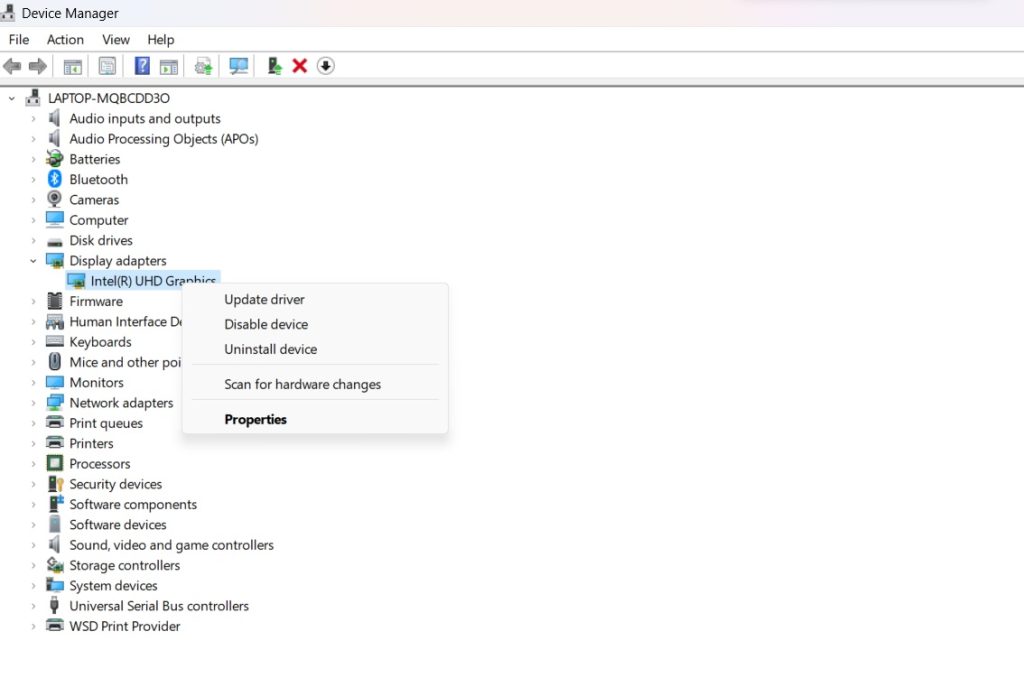
Step 2: Update the Drivers
Opt for the automatic search option to let Windows find and install the updated driver online. If you’ve downloaded the updated driver, select the manual option and navigate to the driver’s location on your computer to install it.
You can then let GeForce Experience check for driver updates automatically or visit Nvidia’s website to download the latest drivers directly from there. Make sure to fully uninstall any old drivers before installing the updates.
2. Disable Background Apps and Overlays
Apps and utilities that run overlays or remain active in the background can sometimes interfere with the Share overlay used by GeForce Experience. Streaming apps, monitoring tools, chat clients, etc. should all be closed out before launching GeForce Experience.
It’s also a good idea to disable background recording features and overlays you don’t need. Here are the steps to follow:
Step 1: Open the “Settings” menu by pressing Win + I or clicking on the Start menu and selecting the gear icon.
Step 2: In the Settings window, head to Apps> Installed Apps.
Step 3: Tap on the three-dot icon placed next to the application and select “Advanced Options”.
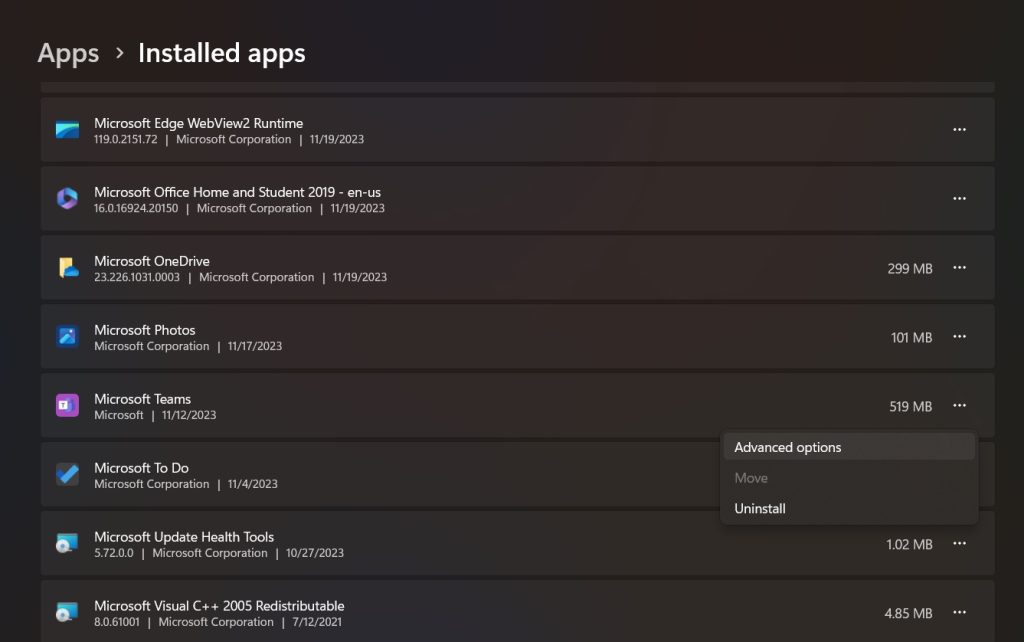
Step 4: Under the Background App Permissions section, tap on the drop-down menu and select “Never”.
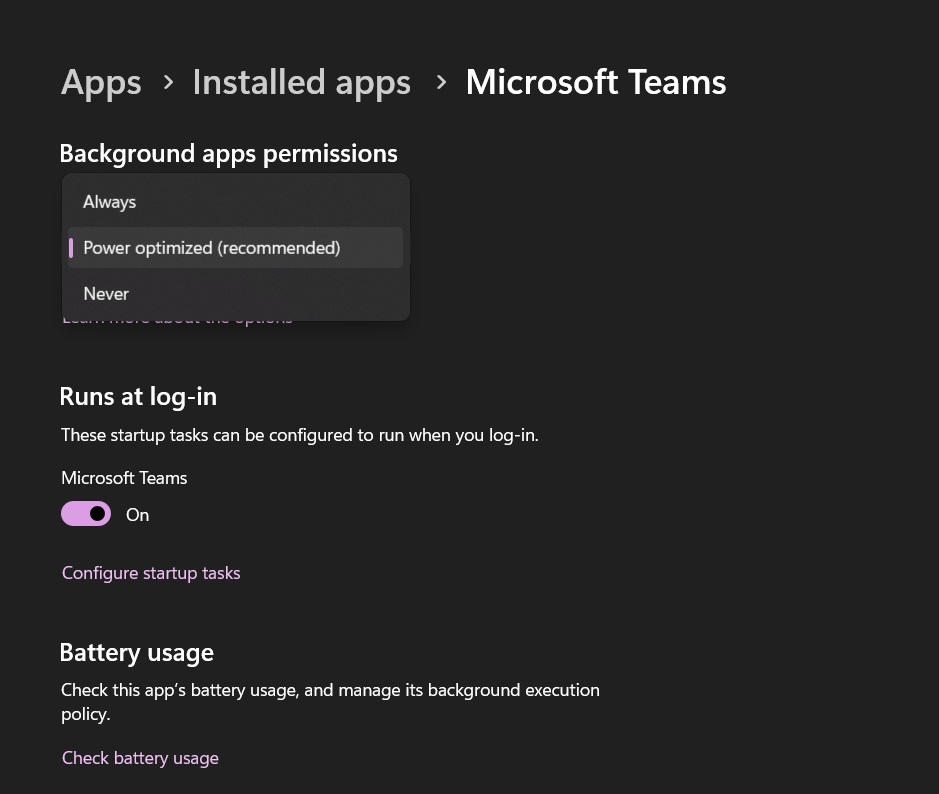
This action prevents apps from running in the background when they’re not actively in use, potentially conserving system resources and improving performance.
3. Run GeForce Experience as Administrator
Access and admin privileges seem to play a role in some instances of the GeForce experience error code 0x0003. Running GeForce Experience itself as an admin is an easy fix:
Step 1: Search for “GeForce Experience” in the Windows search bar and select it from the results.
Step 2: Right-click on the GeForce Experience app icon. From the context menu that appears after right-clicking, select “Run as administrator.”
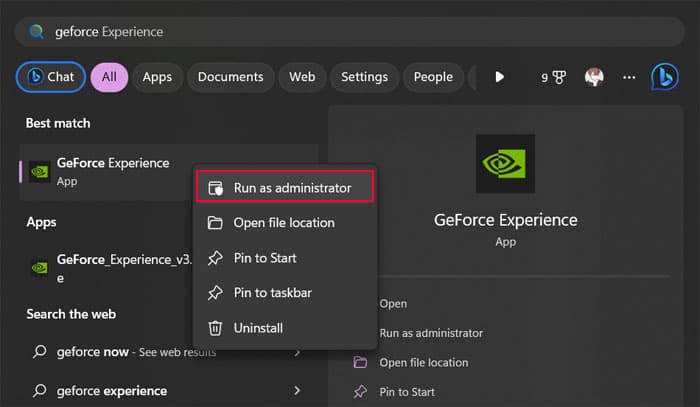
Step 3: Click Yes or Continue in any permission prompts that may appear. Then open GeForce Experience normally. Running GeForce Experience with administrative privileges can grant it access to system settings and resources that might require elevated permissions for certain functionalities.
4. Use the Clean Install Option When Installing Drivers
Whenever you update graphics drivers, using the Clean Install option can often fix GeForce Experience errors like the GeForce Experience error code 0x0003. Clean installing drivers strips away old files and settings before replacing them with fresh updated ones.
To clean install:
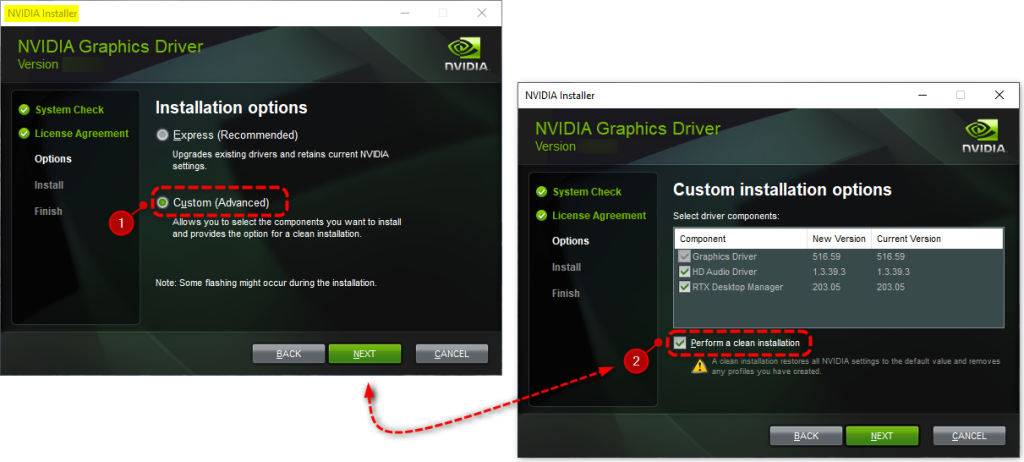
Download the latest GPU drivers > Custom Install > check Perform Clean Install > Accept > Install. This takes a bit longer but resolves many lingering issues.
5. Stop Background Nvidia Services and Processes
Much like background apps, any Nvidia services and processes running behind the scenes can potentially interrupt GeForce Experience and the overlay. Using Task Manager, these background tasks are easy to find and disable:
Hit Ctrl + Shift + Esc to open the Task Manager > Services tab. Look for any active Nvidia services (like Nvidia Share) and stop them.
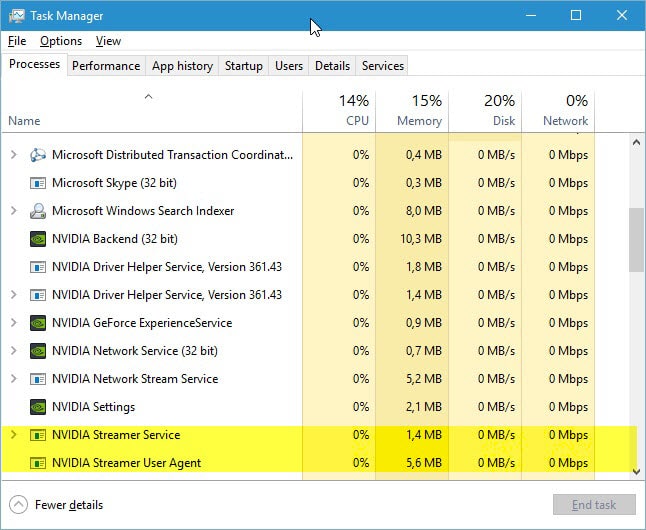
Go to the Details tab in Task Manager and end any Nvidia-related background processes too. Once you close GeForce Experience you can restart these services if needed.
6. Reinstall GeForce Experience
If none of the above steps successfully fixed the GeForce Experience error code 0x0003, a clean reinstall of GeForce Experience itself may do the trick:
Uninstall GeForce Experience through the Control Panel > Restart your PC.
Use the DDU display driver uninstaller to scrub any traces of old GPU drivers.
Reinstall the latest graphics drivers – Make sure to check Perform Clean Install.
Finally, download and install the newest GeForce Experience from Nvidia’s website. Make sure no background apps are running beforehand.
Going through this full sequence often resolves stubborn instances of the error code 0x0003 with a fresh Experience installation.
7. Turn Off In-Game Overlay Settings
Some games have their in-game overlays, performance graphs, achievement trackers, etc. These can collide with the Share overlay used by GeForce Experience, triggering the GeForce Experience error code 0x0003.
Open GeForce Experience Settings > General > check Disable NVIDIA Share In-Game Overlay.
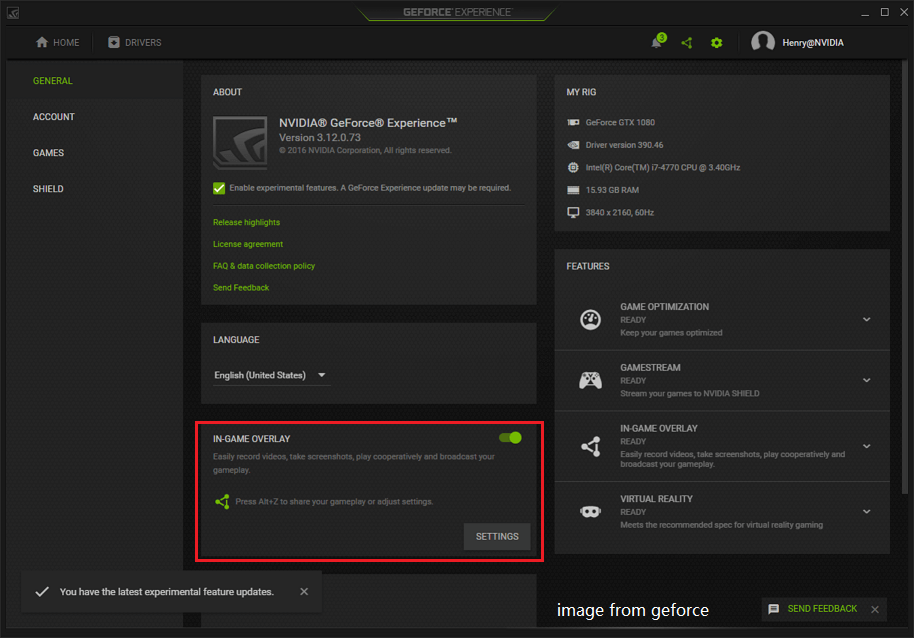
Also, go into the individual game settings and disable any in-game overlays or performance graphs they have. For example in Steam, head to Settings > In-Game then uncheck the In-Game FPS Counter. With conflicting overlays disabled, GeForce Experience should open normally without the error code 0x0003 appearing.
8. Run the GeForce Experience Repair Tool
Included in your GeForce Experience installation is a handy repair tool designed to fix common issues just like the error code 0x0003. This tool rebuilds damaged files, replaces missing components, updates corrupt registries, and more.
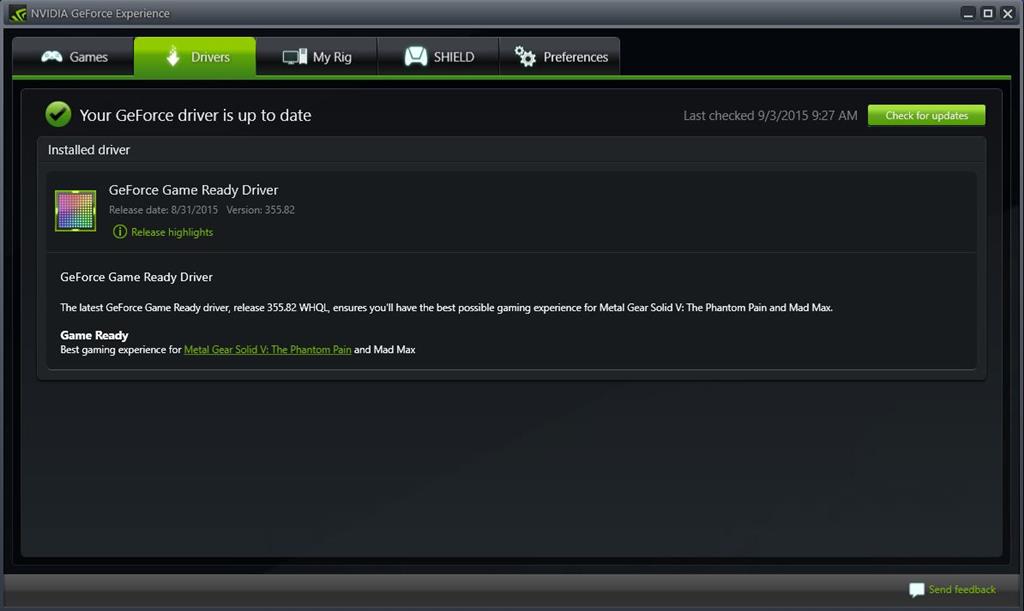
To run it, head to the GeForce Experience Settings > General > Repair button. Follow the on-screen instructions as it does its work resolving damaged program files causing the GeForce experience error code 0x0003.
9. Fresh Install Windows or Rollback System Changes
If you recently installed new GPU drivers or updated Windows before the error code 0x0003 appearing, it’s possible this introduced a compatibility issue causing GeForce Experience trouble.
Undoing these changes can help isolate the problem:
Use System Restore to roll back Windows to before the issues began appearing. If the error stops occurring, something with the latest system changes is likely the culprit.
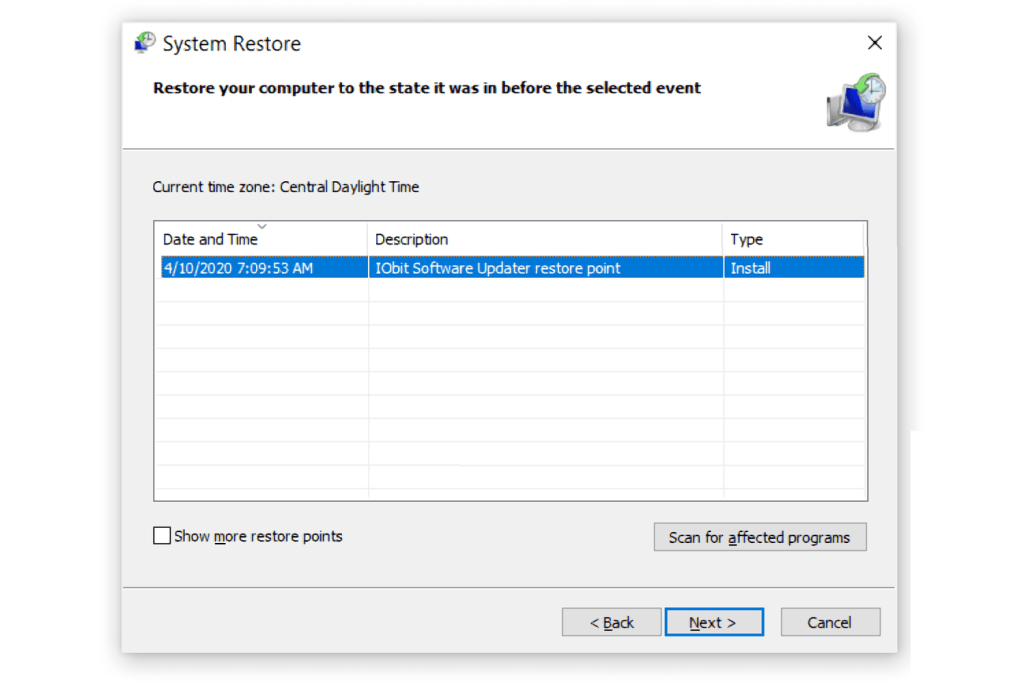
As a last resort, you can reset Windows, keep files, or perform a clean install if needed. A full OS reinstallation often resolves stubborn hardware issues like GeForce Experience failing to open with the error code 0x0003.
Best Tips to Avoid Errors When Using GeForce Experience
GeForce Experience is a handy tool for managing your NVIDIA graphics card settings, drivers, and game optimizations. Here are some tips to help avoid errors while using it:
- Keep it Updated: Regularly update GeForce Experience to ensure you have the latest bug fixes and enhancements.
- Stable Internet Connection: A stable internet connection is crucial, especially for downloading driver updates or optimizing games. Unstable connections might lead to incomplete downloads or errors.
- System Requirements: Ensure your system meets the minimum requirements for GeForce Experience. Outdated hardware or incompatible systems might cause issues.
- Disable Antivirus/Firewall: Sometimes, antivirus software or firewall settings might interfere with GeForce Experience. Temporarily disable them or add exceptions to allow GeForce Experience to function smoothly.
- Clean Install Graphics Drivers: When updating drivers, select the “Custom Installation” option and check the box for a clean install. This helps remove any previous driver files that might cause conflicts.
- Avoid Background Processes: While using GeForce Experience, try to minimize background processes or heavy applications that could interfere with its functioning.
- Check Compatibility: Ensure that the games you’re optimizing or the features you’re using within GeForce Experience are compatible with your hardware.
- Reset GeForce Experience: If you encounter persistent issues, try resetting GeForce Experience settings to default. Sometimes, settings tweaks might cause unexpected errors.
- Check Forums/Support: If you encounter specific error messages or issues, check NVIDIA forums or their official support for solutions. Often, others might have experienced similar problems and found solutions.
- Reinstall GeForce Experience: As a last resort, uninstall GeForce Experience completely and reinstall it. Sometimes, corrupted files or incomplete installations can cause errors.
Remember, while GeForce Experience is designed to simplify the gaming experience, errors can occasionally occur due to various reasons. Being patient and methodical in troubleshooting can often resolve these issues.
Conclusion
The GeForce Experience error code 0x0003 can be an unavoidable annoyance as you try using GeForce Experience to optimize gameplay performance or record mobile-worthy frags. Thankfully though, as you’ve now learned there are many effective troubleshooting steps you can follow to stop the error code 0x0003 in its tracks.
Stay diligent in applying the fixes outlined here and you should have GeForce Experience opening correctly again in no time without that pesky 0x0003 error code. We hope after reading this guide you’ll have the information needed to successfully resolve the error and restore full functionality when using Nvidia Share, ShadowPlay, tuning recommendations, and other useful GeForce Experience features.
FAQs:
What causes GeForce Experience error code 0x0003
This error usually appears when NVIDIA services stop running or fail to communicate with system components. It can also occur due to corrupted network adapters, outdated drivers, or missing permissions. In many cases, the issue starts after a Windows update or a driver change.
Does reinstalling NVIDIA drivers fix error code 0x0003
Reinstalling drivers often helps, but only if done cleanly. A fresh install removes damaged files and resets related services. However, if Windows services or network settings are the main problem, reinstalling alone may not fully resolve the error.
Is error code 0x0003 related to Windows 11 updates
Yes, some Windows updates can trigger this error by changing service permissions or network behavior. This does not mean the update is faulty. It usually means NVIDIA services need to be restarted, reconfigured, or reinstalled to match the updated system settings.
Author Bio:
Dinesh Lakhwani 

Dinesh Lakhwani, the entrepreneurial brain behind “TechCommuters,” achieved big things in the tech world. He started the company to make smart and user-friendly tech solutions. Thanks to his sharp thinking, focus on quality and the motto of never giving up, TechCommuters became a top player in the industry. His commitment to excellence has propelled the company to a leading position in the industry.
Popular Post
Recent Post

How to Activate Windows with a Product Key for Windows 11 & Windows 10
It always shows up at the worst time. You are halfway through a report, or about to join a video call. Then you spot it in the bottom right corner of the screen. Activate Windows. Go to Settings to activate Windows. Initially, an unactivated copy of Windows may seem like a minor inconvenience. Over time, […]

Is Easy Duplicate Finder Worth It? Honest Review
The photos folder looked normal at first glance. Then the storage warning popped up. One trip photo appeared four times. A tax PDF sat in three different folders. Two old setup files were still in Downloads, and each one was over 500 MB. Nobody plans this mess. Copies pile up slowly. A download runs twice. […]

Wise Duplicate Finder Review: Real Results from Wise Duplicate Finder
Read my honest Wise Duplicate Finder review. See features, pricing, pros and cons, and real PC test results. Find out if this free duplicate cleaner can free up your Windows storage.

How to Recover Deleted Files from Pen drive, USB Drive, SD Card
Introduction: On tech forums, you’ll often see posts like this: “I connected my pen drive to my laptop this morning, but the folder was empty. All my college project files had vanished. I don’t have a backup. Can someone help me?” Stories like this are very common. Pen drives, USB drives and SD cards are […]

How To Recover Files Deleted from the Recycle Bin [Windows 11]
Losing a file can happen in seconds. You clear your desktop, hit Delete, and empty the Recycle Bin. Then, just when you need that file again, it seems to have vanished. This guide will walk you through ways to restore files removed from the Recycle Bin. We will begin with simple fixes, then look at […]

Disk Drill Data Recovery Tool Explained: Full Review and Guide
It happens in a split second. You delete a folder by mistake. Your drive stops showing up. A photo album from your last trip just vanishes. And your stomach drops. Lost files feel personal. They are not just data. They are memories, work hours, and sometimes years of effort packed into a few gigabytes. When […]

Recover Deleted Files In Windows 11 With Software & Without
Introduction What is the first thing that goes through your mind the second an important file vanishes from a Windows 11 PC? For most people, it is a mix of panic and disbelief, followed by a frantic click through every folder that file could possibly be hiding in. It happens in a split second: one […]

EaseUS Data Recovery Wizard: Everything To Know
Data loss does not always come from a big disaster either. Most cases start small and boring. A drive gets formatted by mistake. A laptop freezes mid-save and restarts on its own. A memory card stops showing up after being pulled out too fast. None of these feel like emergencies at first, until you realize […]

Recuva Data Recovery Tool: Is it Actually Worth it?
When I first tried Recuva Data Recovery, I wanted to see if it could really bring back lost files. The tool is free, small in size, and promises quick recovery, which made me curious enough to test it on my own PC. The setup was fast, and the wizard guided me step by step. I […]

