











A slow computer makes it hard to focus. Programs take too long to open. Free space keeps shrinking until the disk is almost full. This happens to most PC owners at some point. Even new machines can slow down after a while. That is the exact problem cleanup tools are built to solve. They comb […]
The Application Was Unable To Start Correctly (0xc0000005): 8 Solutions
Introduction:
Are you experiencing the frustrating error message “The application was unable to start correctly (0xc0000005)” while trying to launch a program or application on your computer? This can be a common issue that many users face and it can hinder your productivity. But don’t worry, there are steps you can take to troubleshoot and fix this error.
In this article, we will explore 8 solutions to help you get back on track and successfully start your applications without encountering the dreaded 0xc0000005 error.
What is the “The Application Was Unable To Start Correctly” Error?
The Application was Unable to Start Correctly (0xc0000005) error is a frustrating issue that many computer users encounter. It can occur when trying to launch a program or application and can disrupt your workflow and productivity. Understanding this error is the first step towards resolving it and getting your computer back on track.
This error message typically indicates that there is a problem with memory access. It could be caused by various factors, such as corrupted or incompatible software, hardware issues, or even malware infections. When your computer encounters this error, it means that the program or application cannot start properly, resulting in the error message.
To better understand the error, let’s break down the error code. The “0xc0000005” code specifically refers to an access violation error. This means that the program attempted to access a memory location that it was not authorized to access. It could be a memory address that is already in use by another process or one that does not exist.
Common Causes of the “The Application Was Unable To Start Correctly” Error
To effectively troubleshoot and resolve the “Application was Unable to Start Correctly (0xc0000005)” error, it’s crucial to understand the common causes behind it. By pinpointing the root cause, you can take targeted steps to resolve the issue and prevent it from recurring.
1. Corrupted or Incompatible Software: One of the primary causes of this error is corrupted or incompatible software. If you recently installed a new program or updated an existing one, the software may be causing conflicts within your system. Incompatible or outdated drivers can also contribute to this issue.
2. Hardware Issues: Another common cause is hardware-related problems. Faulty RAM, an outdated graphics card driver, or a failing hard drive can lead to memory access errors. These issues can disrupt the proper functioning of the applications you’re trying to launch.
3. Malware Infections: Malware can wreak havoc on your computer system, causing various errors, including the “0xc0000005” error. Malicious software may modify critical system files or interfere with the execution of programs, leading to access violation errors.
4. Windows Updates: Occasionally, Windows updates can introduce compatibility issues with certain applications. If you recently updated your operating system and started experiencing the error afterward, it’s worth considering the possibility of an update causing the problem.
5. System File Corruption: Corruption in system files can also result in the “0xc0000005” error. System files can become damaged for various reasons, including software conflicts, malware infections, or hardware issues. When critical system files are compromised, it can impact the execution of applications.
6. Memory Issues: Problems with your computer’s memory, such as a faulty RAM module, can contribute to the error. When the program attempts to access a memory location that is damaged or not functioning correctly, an access violation error can occur.
By identifying the common causes of the “Application was Unable to Start Correctly (0xc0000005)” error, you can take targeted steps to troubleshoot and resolve the issue. In the next section, we will provide you with a step-by-step guide to help you effectively resolve this error and get your applications running smoothly again.
Step-by-Step Guide to Troubleshoot and Resolve the Error
Now that we understand the common causes of the “Application was Unable to Start Correctly (0xc0000005)” error, let’s dive into a step-by-step guide to troubleshoot and resolve the issue.
Follow these instructions carefully to get your applications running smoothly again.
Method 1: Update Device Drivers
Outdated or incompatible drivers can also contribute to this error. To update your drivers, go to the manufacturer’s website for each hardware component, such as your graphics card or network adapter, and download the latest drivers. Install them one by one and restart your computer after each installation. You can use software to update outdated drivers or you can update through the manual process. Here are the steps to manually update drivers on Windows:
Step 1: Open the Device Manager. To do this, right-click the Windows icon placed on the Taskbar and select “Device Manager”.
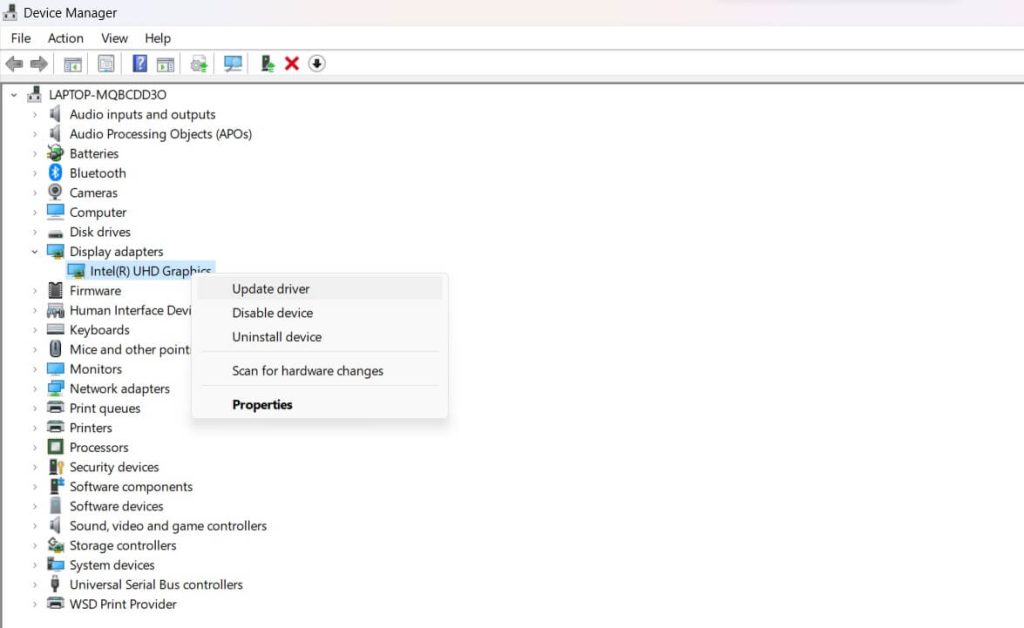
Step 2: Find the device you want to update the driver for under the appropriate heading. For example, if it’s a printer, look under “Printers”.
Step 3: Right-click the device and select “Update driver”.
Step 4: In the update driver window, select “Search automatically for updated driver software”. Windows will search for and install an updated driver automatically.
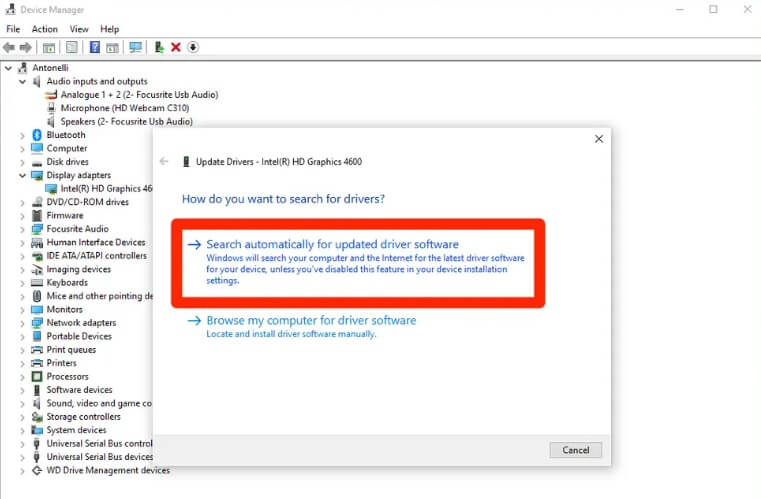
Step 5: If Windows can’t find a new driver, you can try selecting “Browse my computer for driver software” and manually pointing Windows to the driver location to install it.
Step 6: Follow any additional prompts to finish the driver installation. Restart your computer if prompted.
After updating the drivers, reboot your PC and check if the “The application was unable to start correctly” error persists.
Method 2: Run the SFC Scan
Windows has a built-in tool called System File Checker (SFC) that can scan and repair corrupted system files. Here are the steps to run an SFC scan on Windows:
Step 1: Open the Start menu and search for “command prompt”. Right-click on the Command Prompt app and select “Run as administrator”.
Step 2: In the command prompt window, type the following command and press Enter:
“sfc /scannow”
Step 3: The SFC scan will now run. This will scan all protected system files and replace any that are corrupted or missing with a cached copy that is located in a compressed folder at %WinDir%\System32\dllcache.
Step 4: The scan may take several minutes to complete. Let it run until you see a message stating “Windows Resource Protection did not find any integrity violations”. This means no corrupted files were found.
Step 5: If corrupted files were found and repaired, you may need to restart your computer for the changes to fully take effect. It’s a good idea to run the scan again after restarting to make sure no further issues are found.
Step 6: Close the command prompt window when the scan is 100% complete.
Your system files are now verified and repaired if any issues were initially found.
Method 3: Run a Virus and Malware Scan
Start by performing a thorough virus scan on your computer using reliable antivirus software. Malware infections can cause the “0xc0000005” error, so it’s important to ensure your system is free from any malicious software. You can also use the Windows security app to run a virus and malware scan on your device. Here are the steps to follow:
Step 1: Open the Windows Security app. To do this, click the shield icon in your system tray or search for ‘Windows Security’ in the Windows search bar.
Step 2: Click on the “Virus & threat protection” option on the left side of the Windows Security window.
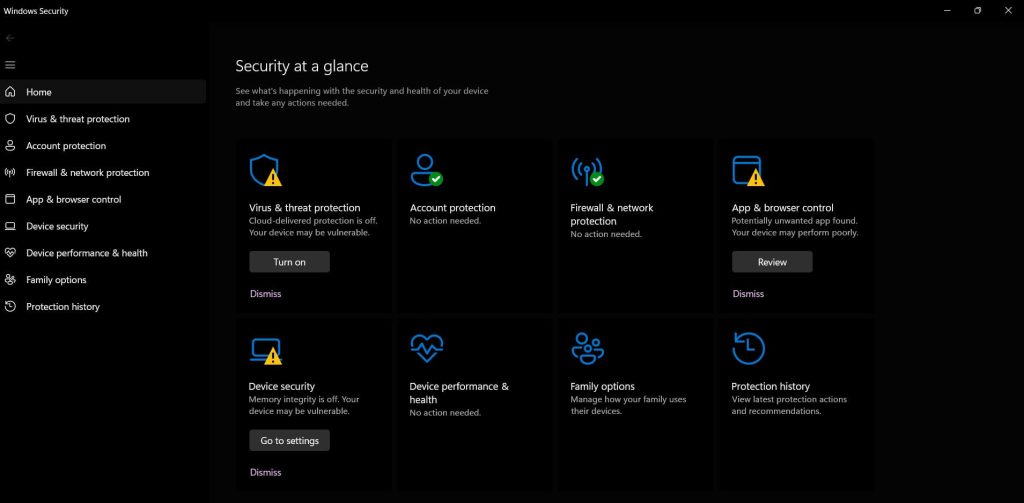
Step 3: Under “Current threats”, click on the “Scan options” link.
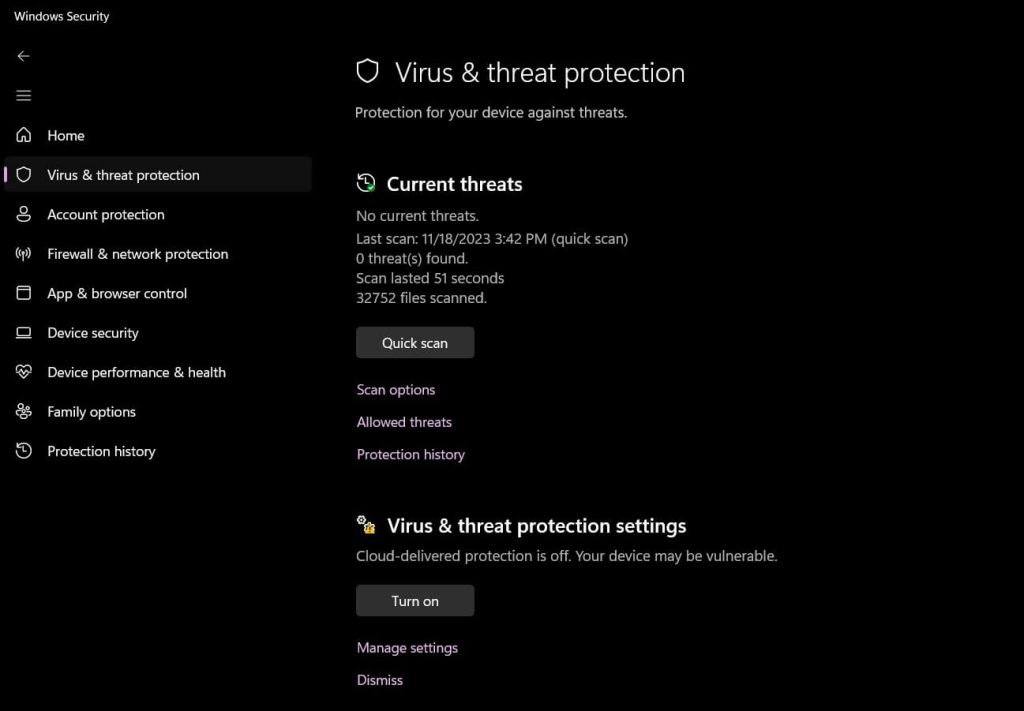
Step 4: On the next page, click on the “Scan now” button to begin the scan.
Step 5: Windows Security will now run a scan on your system looking for viruses, malware, spyware, and other threats. This may take some time depending on how many files are on your hard drive and your computer’s resources.
Step 6: Review the results of the scan when completed. It should notify you if any threats are discovered and removed. Make sure everything is listed as “No action needed” when done.
After running a complete scan, restart your Windows PC and check if you are encountering the “The application was unable to start correctly” error.
Method 4: Update Windows
Keeping your operating system up to date is crucial for optimal performance. Check for any pending Windows updates and install them. Sometimes, an update can fix compatibility issues and resolve the “0xc0000005” error. Here are the steps to check for available updates on your Windows PC:
Step 1: Open the Start Menu and go to Settings. You can also press the Windows key + I to quickly open Settings.
Step 2: In Settings, click on “Windows Update”.
Step 3: On the Windows Update tab, click “Check for updates”.
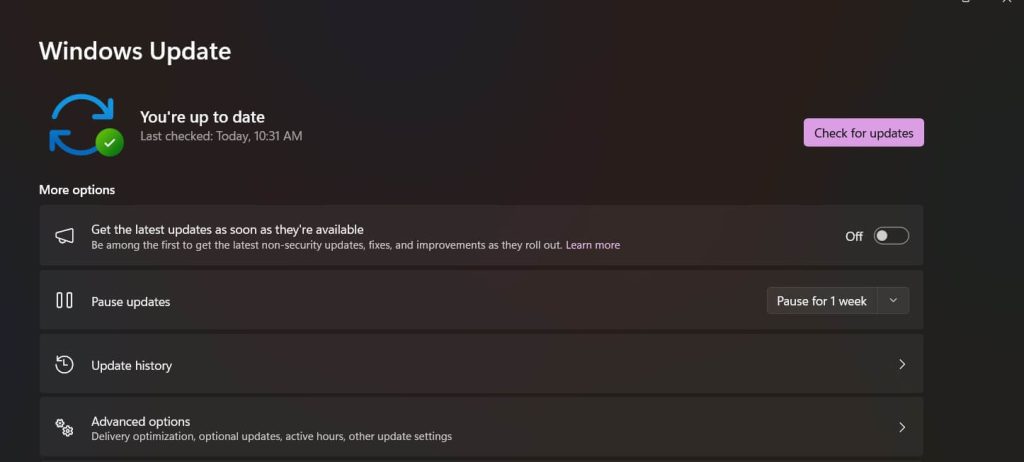
Alternative Option: On the Windows Update tab, you will see the last time an update check was run. If it has been over a day, you can also just click “Check for updates” to manually check.
Step 4: Windows will now search for new and pending updates and display a message if any are available to download and install.
Step 5: To install any found updates, click the “Download and install” button. If no updates are shown, your Windows is up to date.
Step 6: After the updates install successfully, you may be prompted to restart your computer to finish the update process. Be sure to save your work first.
Step 7: After restarting, return to Windows Update and “Check for updates” again to see if any additional updates were just made available. Continue installing updates until Windows says your system is up to date.
Method 5: Uninstall Problematic Software
If you recently installed or updated a specific program before encountering the error, try uninstalling it and reinstalling it. This can help resolve any software conflicts that may be causing the issue.
Step 1: Open the Start Menu and go to Settings > Apps > Installed Apps.
Step 2: In the list of apps and programs, locate the recently installed software that is causing problems.
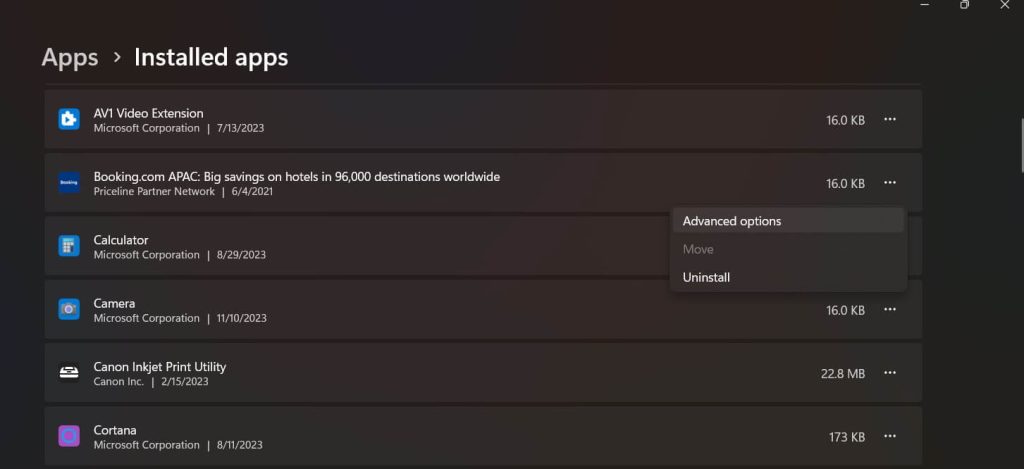
Step 3: Click on the software and then click “Uninstall” or “Modify” if that option is available.
Step 4: Follow any on-screen prompts from the uninstall wizard to fully remove the program. This includes confirming you want to uninstall in any final prompts.
Method 6: Perform a System Restore
If all else fails, you can try performing a system restore to a previous point in time when your computer was functioning properly. This will revert your system settings to an earlier state, potentially resolving any issues that occurred after that point. Here are the steps to perform a system restore on Windows:
Step 1: Open the Start Menu search for “System Restore” and launch the app. You can also go to Control Panel > System and Security > System Protection.
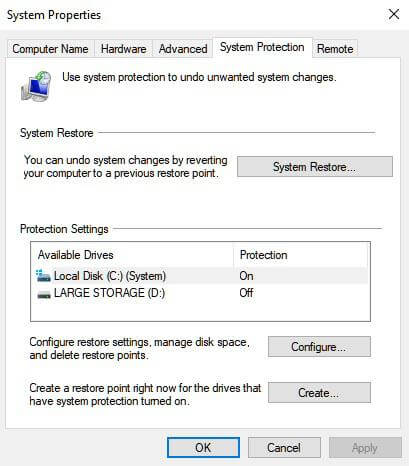
Step 2: On the System Protection tab, click “System Restore”.
Step 3: On the next screen, click “Next” to proceed to the restore point list.
Step 4: Choose a restore point to revert to. The most recent one will be at the very top. Select one higher on the list to go back further.
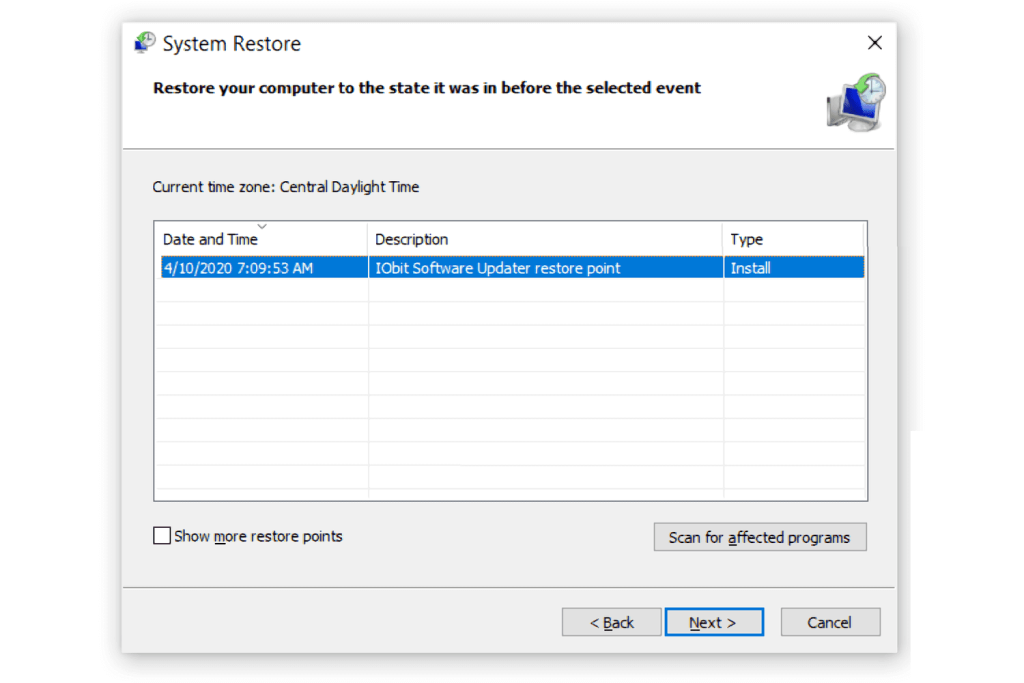
Step 5: Click “Scan for affected programs” to see what will be affected by reverting to your chosen restore point.
Step 6: Click “Close” then “Next” to proceed with the system restore using the selected restore point.
Step 7: Click “Finish” and the restore will begin. This process may take some time as files are changed and the system reboots.
Once complete, your system should be restored to how it was configured at the restore point. You can re-run software updates and repeat other actions needed from that point on.
Method 7: Reset Windows
Here comes the last resort to fix the “The application was unable to start correctly” error. As a last resort, you can choose to reset Windows, which will reinstall the operating system while keeping your files intact. This can help resolve any underlying issues that may be causing the error.
Here are the steps to reset Windows:
Step 1: Open the Start Menu and go to Settings > Update & Security.
Step 2: Click on “Recovery” in the left sidebar.
Step 3: Under “Reset this PC”, click the “Get started” button.
Step 4: On the next screen, choose either “Keep my files” or “Remove everything” depending on whether you want to keep personal files or not.
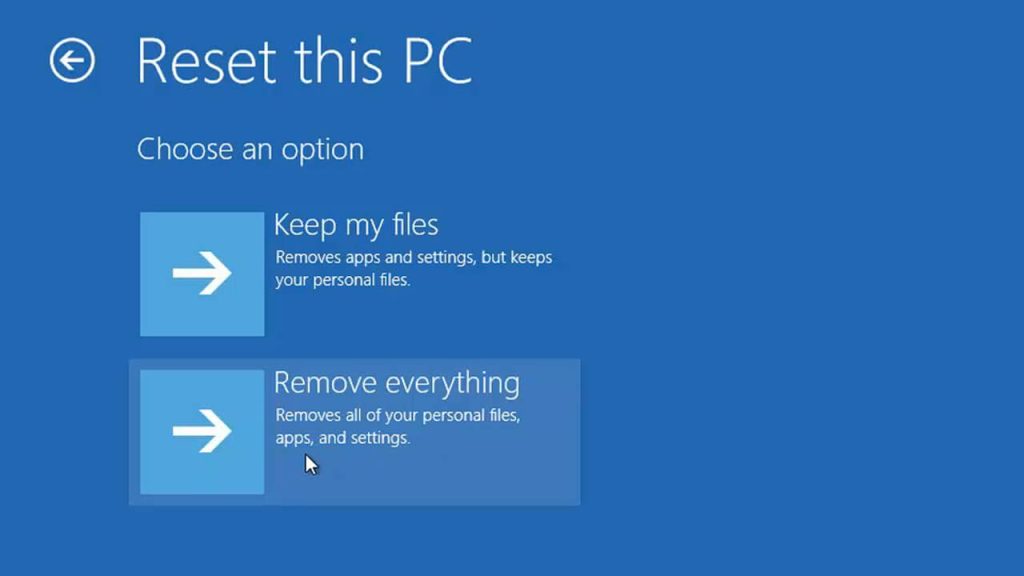
Step 5: Follow any additional prompts. If you have chosen to “Remove everything”, you will need to select whether to clean the drives too.
Step 6: The reset will now begin by restarting your PC into the recovery environment. This may take a while, do not interrupt it.
Step 7: Once complete, Windows will have been reset back to a clean default state just like on a new PC, either keeping your files (settings reset) or with everything wiped fully clean.
Go through the Windows setup prompts to configure your basic settings again before reinstalling any desired apps.
Method 8: Seek Professional Help
If you have followed all the troubleshooting steps and are still experiencing the “0xc0000005” error, it may be necessary to seek professional help. Contact a computer technician or the support team of the software causing the issue for further assistance.
Conclusion
In conclusion, if you’ve exhausted all the troubleshooting steps and the “The Application was Unable to Start Correctly (0xc0000005)” error persists, it’s time to seek professional help. Professionals can offer their expertise, diagnose any underlying hardware or software issues, and provide effective solutions to resolve the error.
Don’t hesitate to reach out for help and get your computer back to running smoothly again.
Author Bio:
Dinesh Lakhwani 

Dinesh Lakhwani, the entrepreneurial brain behind “TechCommuters,” achieved big things in the tech world. He started the company to make smart and user-friendly tech solutions. Thanks to his sharp thinking, focus on quality and the motto of never giving up, TechCommuters became a top player in the industry. His commitment to excellence has propelled the company to a leading position in the industry.
Popular Post
Recent Post

Fortect Software Review: The Ultimate PC & Mobile Cleaning, Optimization & Security Tool
Slow computers are a common problem for almost every Windows user. Well, yes! Over time, your PC picks up junk files. These files sit quietly in the background. They take up space and slow things down. Programs open slower. Windows takes longer to boot. Even simple tasks like opening a folder can feel sluggish. There […]

CCleaner PC Optimizer Review: A Complete Guide for Windows Users
If your computer has started to feel slow, you are not alone. Most Windows PCs slow down over time. Junk files pile up. The registry gets messy. Too many apps open when you start your PC. All this adds up and makes even a good machine feel tired. This is where a PC cleaner tool […]

5 Best PC Cleaners for Windows 11 & 10 | Top PC Optimizers
Remember when your PC felt fast? Every click was quick. Every app opened in seconds. Now it feels like a different machine. Windows takes forever to boot. Programs freeze for no reason. Even opening a browser feels like a chore. You are not alone in this. Almost every PC slows down over time. Files pile […]

Auslogics Duplicate File Finder: Full Review and User Guide
A computer quietly gathers clutter over time. This includes duplicate photos, repeated downloads, and forgotten backups hiding in random folders. This buildup slowly eats away at storage and can make even a fast PC feel sluggish. Manually finding and deleting duplicates is tedious. It means checking every folder, comparing file names, and guessing which copies […]

CCleaner Duplicate File Finder: Key Features, Pricing, Step-by-Step Guide and More
Every computer collects junk over time. Right? Well, yes! Photos often get copied twice. Documents get saved in two folders by mistake. Old downloads pile up and never get deleted. This slowly eats up your storage space, and most people do not even notice until their drive is almost full. That is where a duplicate […]

Duplicate File Finder Pro: A Complete Review, Everything You Should Know
Computers collect thousands of files over time. Well, yes! Many of them end up being duplicates created by backups, downloads, or accidental copies. These extra files take up valuable storage space and make it harder to keep everything organized. Finding and removing them manually can take hours. Right? Duplicate File Finder Pro is a tool […]

Top 3 Duplicate File Finder for Windows 11 & Windows 10
If your PC storage keeps filling up even after you delete big files, duplicate files could be the real reason. Most of us save the same photo twice, download a document more than once, or copy a whole folder by mistake. Over months and years, these duplicate files pile up quietly. You do not even […]

Monitor Screen Calibration Guide: Everything You Should Know
Your monitor shows colors every single day. But are those colors actually correct? Most people never stop to check this. They just use the screen as it comes out of the box. This habit can lead to wrong colors in photos, videos, and work files. Colors may look too warm or too cold without you […]

How To Check Installed RAM and RAM Slots [Complete Guide]
RAM plays an important role in how smoothly a computer runs. Short for Random Access Memory, it stores the data and instructions that Windows and active applications need at any given moment. From opening multiple browser tabs to running games and productivity software, RAM helps keep everything responsive. A system with limited memory may experience […]

