












The photos folder looked normal at first glance. Then the storage warning popped up. One trip photo appeared four times. A tax PDF sat in three different folders. Two old setup files were still in Downloads, and each one was over 500 MB. Nobody plans this mess. Copies pile up slowly. A download runs twice. […]
How To Fix Android Auto Rotate Not Working
Introduction:
Is auto rotate not working? We have got you covered. Our smartphones have become indispensable companions that help us in getting things done seamlessly. One such handy feature of our smartphone is auto-rotate, which automatically allows us to switch between portrait and landscape modes. Whether you’re browsing the web, watching videos, or playing games, the auto-rotate function ensures a dynamic viewing experience. If you find yourself frustrated with an unresponsive auto-rotate on your Android device, fear not!
In this comprehensive guide, we will explore some potential causes behind this issue and provide you with practical solutions to get your auto-rotate feature back up and running in no time.
Why is Android Auto Rotate Not Working?
The auto-rotate feature on Android devices may not work due to the following reasons:
- Disabled Screen Rotation Setting: Check if the screen rotation setting is enabled in the Quick Settings panel.
- App-Specific Settings: Some apps have settings that override the system’s auto-rotate feature. Make sure auto-rotate is enabled within the app.
- Software Glitches or Updates: Outdated or buggy software can disrupt auto-rotate. Keep your device’s software up to date to avoid such issues.
These are the common culprits behind Android auto-rotate not working. Now, let’s explore the solutions to get it back on track.
How to Fix the Auto Rotate Not Working Issue on Android?
Solution 1: Restart your Device
Restarting your Android device can often resolve various software glitches and temporarily fix issues with the auto-rotate feature. Here’s how you can do it:
- Press and hold the power button on your device until the power menu appears.
- Tap on the “Restart” or “Reboot” option.
- Wait for your device to power off and then turn it back on.
Once your device restarts, check if the auto-rotate feature is functioning properly. If not, proceed to the next solution.
Solution 2: Check the Auto-Rotation Settings
To address the issue with the auto-rotate feature, it’s important to verify and adjust the relevant settings on your Android device. Here’s a step-by-step guide:
- Head to the Settings app. Locate it in your app drawer or by swiping it down from the top of the screen and tapping the gear icon.
- Scroll down until you find the “Display” or “Display & Brightness” option. Tap on it to proceed.
- Look for the “Auto-rotate screen” option within the menu. Ensure that it is enabled or toggled on.
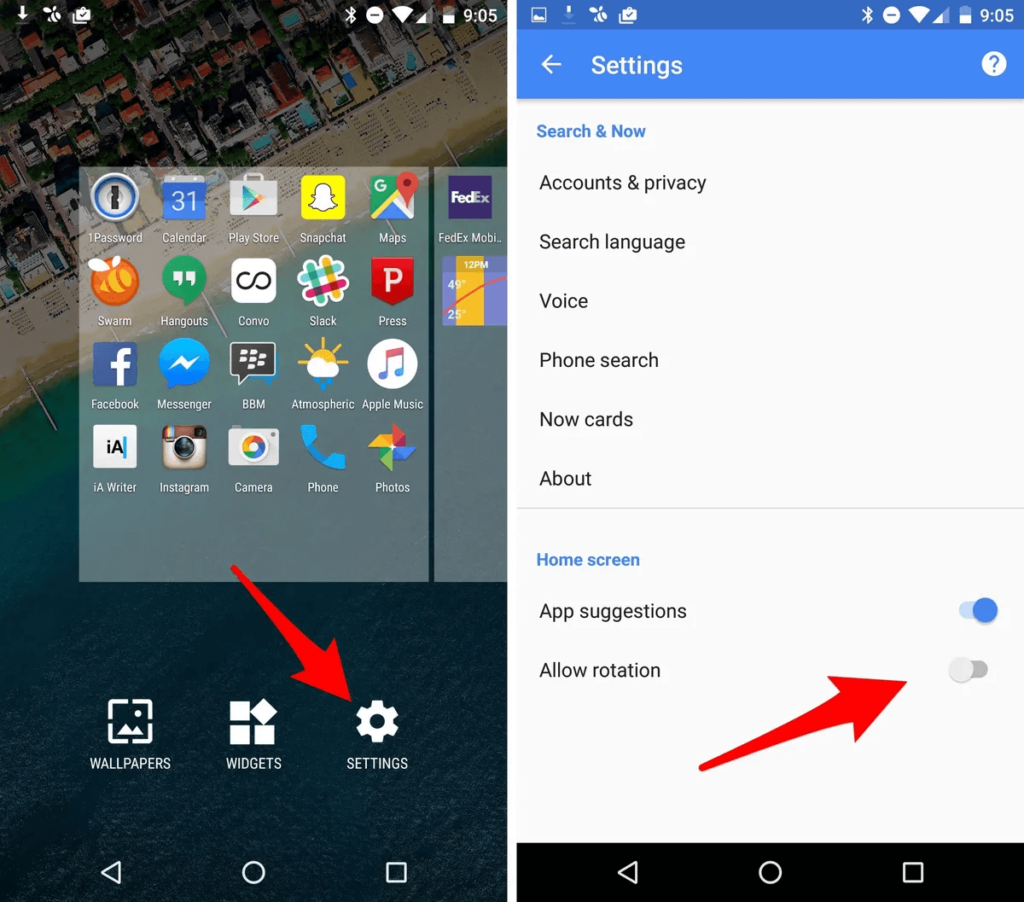
- If the option is already enabled, consider toggling it off for a moment and then back on to refresh the setting.
- Exit the settings and proceed to test the auto-rotate feature by physically rotating your device to observe if the screen orientation adjusts accordingly.
If the issue persists, you can try the below-listed solutions.
Solution 3: Review App-Specific Rotation Settings
Sometimes, the auto-rotate issue may be specific to certain apps that have their rotation settings. These apps, including video players and launchers, typically disable screen auto-rotation by default to minimize distractions and unwanted orientation changes. However, they usually offer a manual rotation option when needed.
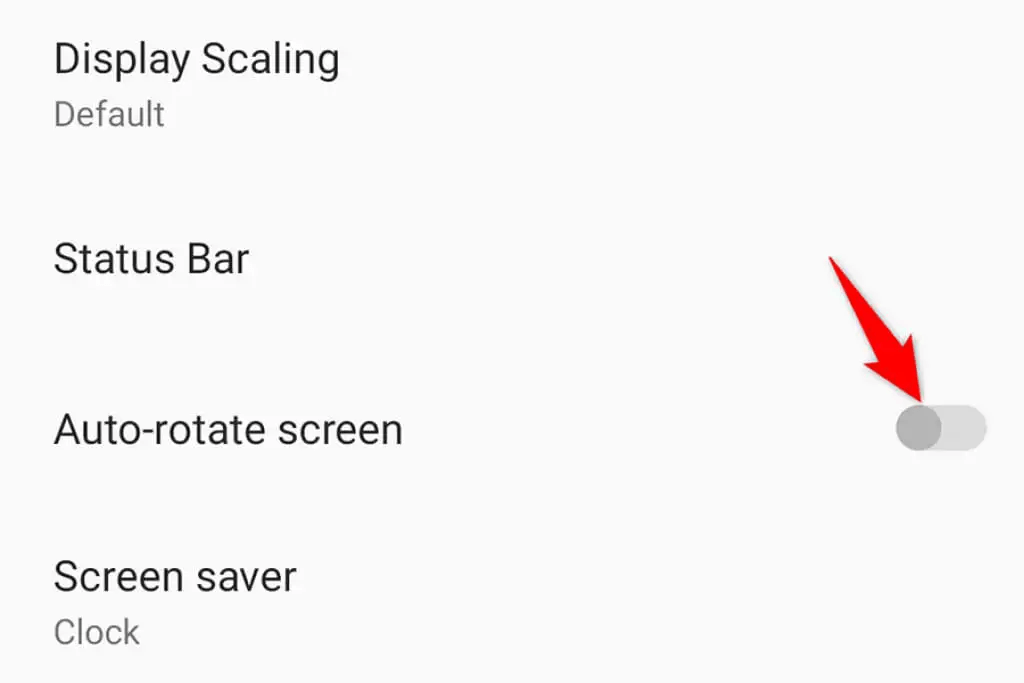
It’s important to note that some apps do not support screen rotation at all. These apps can only be used in portrait mode regardless of your device’s auto-rotate setting.
Solution 4: Update Your Phone
Updating your phone’s software can often resolve issues related to Android auto rotation not working. Software updates often include bug fixes, stability improvements, and enhancements that can address various problems.
- Connect to a stable Wi-Fi network.
- Open the Settings app and head to the System or About Phone section.
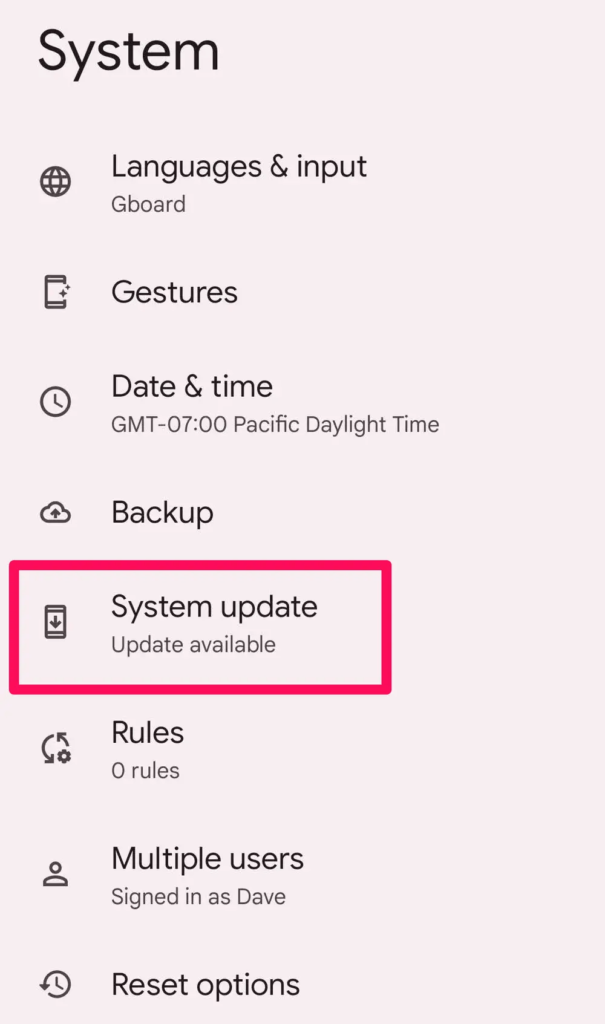
- Check for software updates.
- Download and install the update if available.
- Follow the on-screen instructions and wait for the installation to complete.
Check if the auto-rotate function is working properly after upgrading the Android OS.
Solution 5: Perform a Factory Reset
Performing a factory reset can potentially fix issues related to auto rotate not working on your device. However, before proceeding with a factory reset, it’s advisable to try some other troubleshooting steps first, as a factory reset should be considered a last resort.
Here’s a step-by-step guide in short points for performing a factory reset on an Android phone:
- Open the Settings app.
- Go to the System or System & Updates section.
- Look for the “Reset” or “Reset option”.
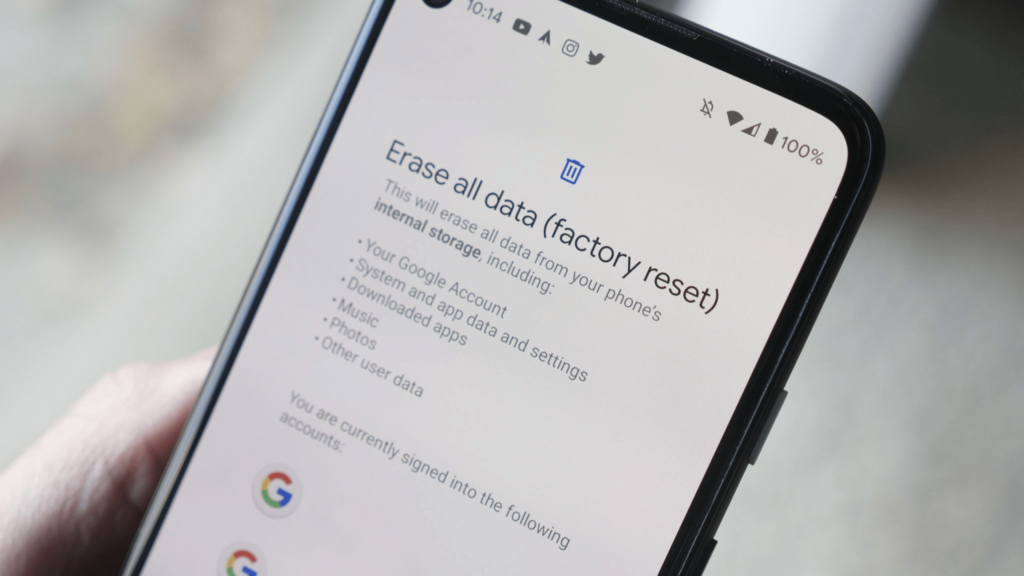
- Select “Factory data reset” or “Reset phone”.
- Enter your device’s password when prompted.
- Wait for the reset process to complete.
After performing a factory reset, check if the issue was resolved.
Solution 6: Use a Screen Rotation App
If the auto-rotate feature is not working on your Android device, you can try using a third-party screen rotation app as an alternative. These apps are designed to manually control the screen orientation of your device.
Here’s how you can go about using a third-party screen rotation app on Android:
- Open the Google Play Store on your Android device.
- Search for “Rotation Control” in the search bar.
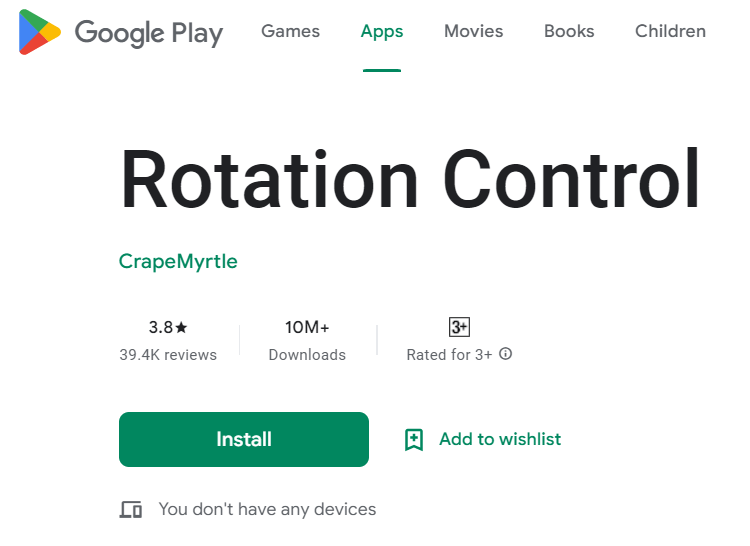
- Install the app by tapping on the “Install” button.
- Once the installation is complete, open the app.
- Follow the instructions provided by the app to set up and configure screen rotation settings.
You can use it as an alternative solution if none of the above-listed methods work.
Conclusion
Experiencing issues with the auto-rotate feature on your Android device can be frustrating, but there are several solutions you can try to resolve the problem. In this blog post, we explored various troubleshooting steps to fix the Android auto rotate not working issue. By following these troubleshooting steps, you’ll be able to tackle the auto-rotate not working issue on your Android phone and regain the convenience and flexibility of screen rotation.
Author Bio:
Dinesh Lakhwani 

Dinesh Lakhwani, the entrepreneurial brain behind “TechCommuters,” achieved big things in the tech world. He started the company to make smart and user-friendly tech solutions. Thanks to his sharp thinking, focus on quality and the motto of never giving up, TechCommuters became a top player in the industry. His commitment to excellence has propelled the company to a leading position in the industry.
Popular Post
Recent Post

Wise Duplicate Finder Review: Real Results from Wise Duplicate Finder
Read my honest Wise Duplicate Finder review. See features, pricing, pros and cons, and real PC test results. Find out if this free duplicate cleaner can free up your Windows storage.

How to Recover Deleted Files from Pen drive, USB Drive, SD Card
Introduction: On tech forums, you’ll often see posts like this: “I connected my pen drive to my laptop this morning, but the folder was empty. All my college project files had vanished. I don’t have a backup. Can someone help me?” Stories like this are very common. Pen drives, USB drives and SD cards are […]

How To Recover Files Deleted from the Recycle Bin [Windows 11]
Losing a file can happen in seconds. You clear your desktop, hit Delete, and empty the Recycle Bin. Then, just when you need that file again, it seems to have vanished. This guide will walk you through ways to restore files removed from the Recycle Bin. We will begin with simple fixes, then look at […]

Disk Drill Data Recovery Tool Explained: Full Review and Guide
It happens in a split second. You delete a folder by mistake. Your drive stops showing up. A photo album from your last trip just vanishes. And your stomach drops. Lost files feel personal. They are not just data. They are memories, work hours, and sometimes years of effort packed into a few gigabytes. When […]

Recover Deleted Files In Windows 11 With Software & Without
Introduction What is the first thing that goes through your mind the second an important file vanishes from a Windows 11 PC? For most people, it is a mix of panic and disbelief, followed by a frantic click through every folder that file could possibly be hiding in. It happens in a split second: one […]

EaseUS Data Recovery Wizard: Everything To Know
Data loss does not always come from a big disaster either. Most cases start small and boring. A drive gets formatted by mistake. A laptop freezes mid-save and restarts on its own. A memory card stops showing up after being pulled out too fast. None of these feel like emergencies at first, until you realize […]

Recuva Data Recovery Tool: Is it Actually Worth it?
When I first tried Recuva Data Recovery, I wanted to see if it could really bring back lost files. The tool is free, small in size, and promises quick recovery, which made me curious enough to test it on my own PC. The setup was fast, and the wizard guided me step by step. I […]

GetData Recover My Files Data Recovery Tool: Honest Review
A hard drive error brings a special kind of silence. Well, yes! The screen freezes, then a message appears saying the drive can’t be found or must be formatted. In that moment, years of photos and work files feel at risk. It never happens at a good time. Coffee spills near a laptop, a memory […]

Windows File Recovery: A Complete Review [Tried & Tested]
Imagine this. You spend hours perfecting a video project. You hit save. Then your laptop freezes, reboots, and when the screen comes back. The file is gone. Your stomach sinks. It’s not just you. Lost files happen all the time. A dropped hard drive, a bad update, an accidental delete, or a corrupted partition can […]

