












It always shows up at the worst time. You are halfway through a report, or about to join a video call. Then you spot it in the bottom right corner of the screen. Activate Windows. Go to Settings to activate Windows. Initially, an unactivated copy of Windows may seem like a minor inconvenience. Over time, […]
How to Create a Custom Map in Google Maps
Introduction
You may create Google custom maps that do not appear on anyone’s page by going to maps.google.com and using one of the many available choices. You do not need specialized software to make a unique map for you or someone else. All you require is Google Maps, which enables you to create a personalized map with your instructions, shapes, and pins.
You will need a Google Maps account on your desktop computer to achieve this. You must also erase your site information if Google Maps gives you an empty screen.
How to Customize a Map in Google Maps
You can only construct the Earth’s surface using a customized Google my maps. But you may add your places of interest, routes, and sites if you want to.
To add even more complexity to the current map, you may draw your personalized forms onto it. A custom map can only be made using the desktop internet-based version of Google Maps, even if you can see one via the Google my maps mobile application for Android and iOS.
Step 1: Visit the Google Maps webpage and my maps login with your Google account. Click the Put symbol in the top-left corner once you have logged in.
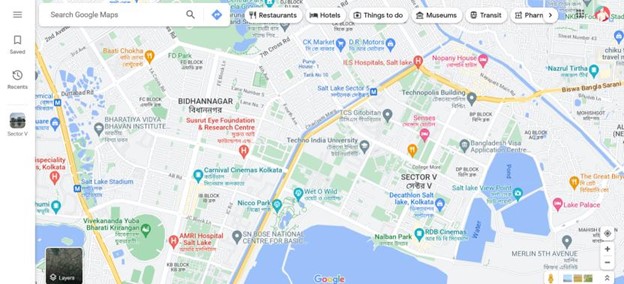
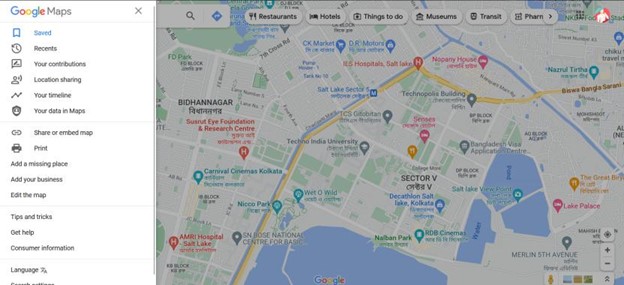
Step 2: Select “Saved” from the options menu.
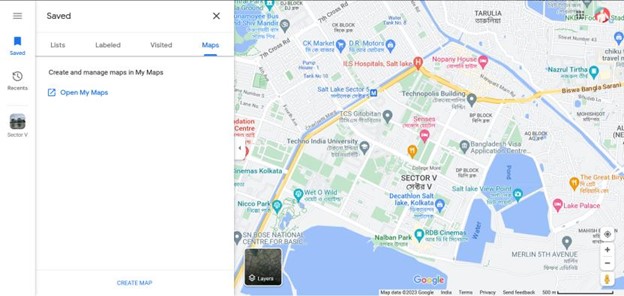
Step 3: Select the “Maps” tab from the “Your Places” option on the left. Choose the “Create Map” option from the menu’s bottom.
Step 4: A new browser tab will open with the map creation window. Select the “Untitled map” phrase at the top of the list of options on the left to give it a name.
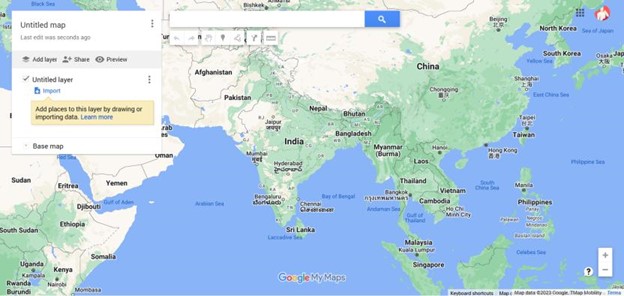
Step 5: Give your map an acronym and a brief description in the “Edit map title and descriptions” option, then click “Save” to store it.
Customized Map Layers
The “Base Map” layer, which is the default Google custom maps viewpoint, is the lowest layer of your customized map.
Step 1: Click the options icon next to “Base Map” and pick a new map theme to change the “Base Map” layer’s design.
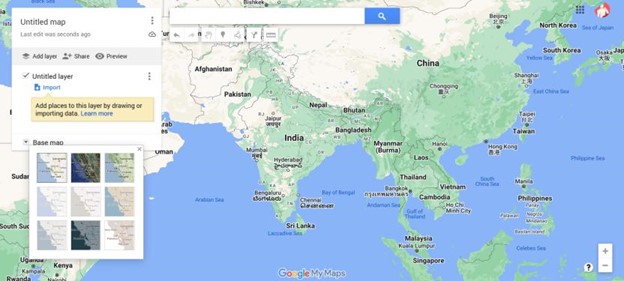
Step 2: By standard, an “Untitled Layer” is included when you build a new customized map in Google Maps.
Step 3: Choose the “Add layer” option to add as many different layers as you would like to your map, allowing you to distinguish between its many elements.
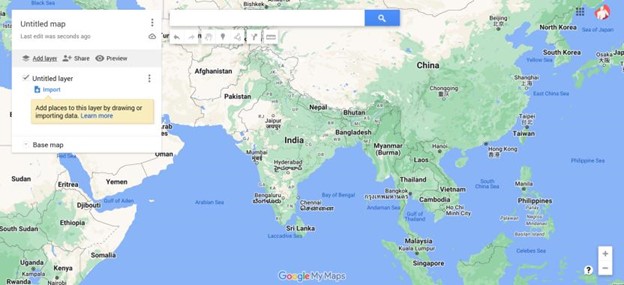
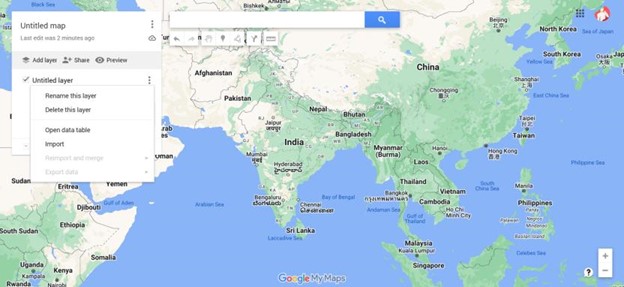
Step 4: To change the name of this layer, click “Rename Layer” in the drop-down selection after choosing the three-headed icon next to it.
Step 5: Choose “Delete Layer” in its place to remove it.
Google Maps: Adding Features to a Customized Map
Google Maps allows you to add various elements to a custom map. You may draw directions, marker stages, shapes, and lines straight into the map.
Start by visiting the Google Maps webpage and choosing the hamburger-style menu > Your Location > Maps > Create a map free to ensure you are in the customized map editor.
Combining a Marker Point
A pinpoint on the map is referred to as a custom marker point. This can give an area extra explanations and direct map viewers to a place or region not included in the “Base Map” layer.
Step 1: Ensure you have selected a suitable location on the “Base Map” layer before adding a marker point on the map itself. When ready, choose “Add Marker” from the menu below the search field in the customized map editor.
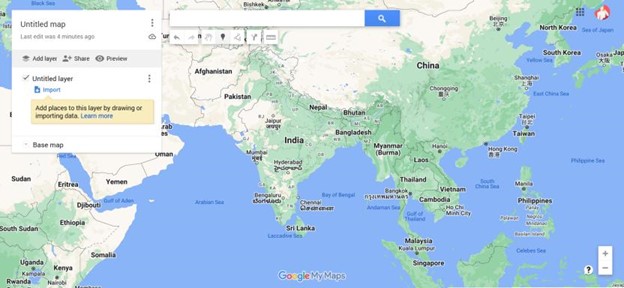
Step 2: Select a map region with your mouse or trackpad. This will open the marker editor; provide an appropriate designation and description before choosing “Save” to add it to the map you have created.
Incorporating Lines or Shapes
You may add unique contours and lines to your map to highlight particular places.
Step 1: To begin, choose “Add a line or shape” from the menu below the search bar after clicking the “Draw a Line” option.
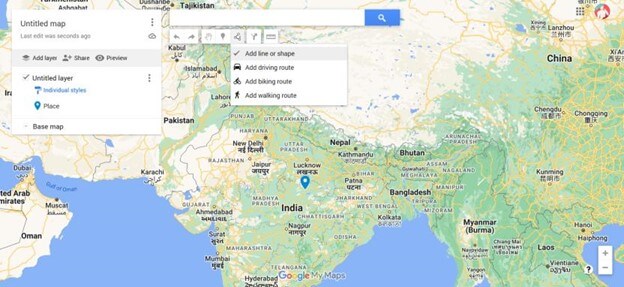
Step 2: Using your computer’s mouse or trackpad to draw a line at a suitable location on the map, connect many lines to form a joined-up shape. Entering characters submits lines.
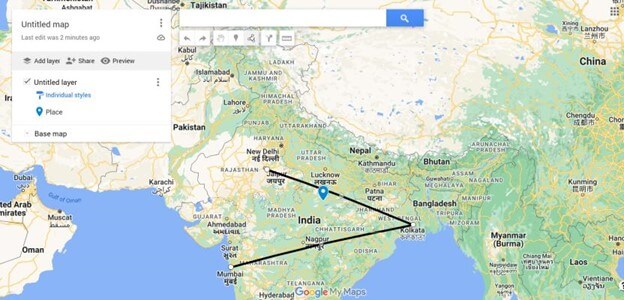
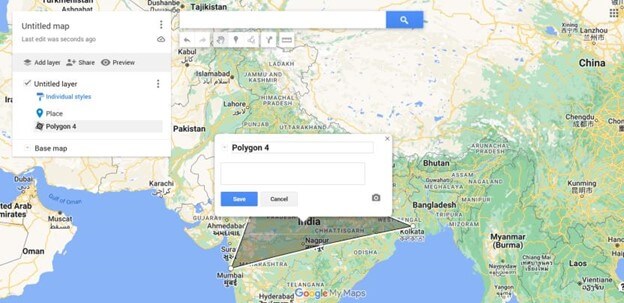
Step 3: In the pop-up menu, give your choice a unique name and explanation before clicking “Save” to finish.
Making Customized Directions
Adding a directions layer to a custom map lets you easily publish directions from point A to point B.
Step 1: Select “Add Directions” from the menu below the search box to build this layer.
Step 2: The menu on the left will now show the instructions layer. Fill in the “A” text box with your place of departure point and the “B” text box with the destination point.
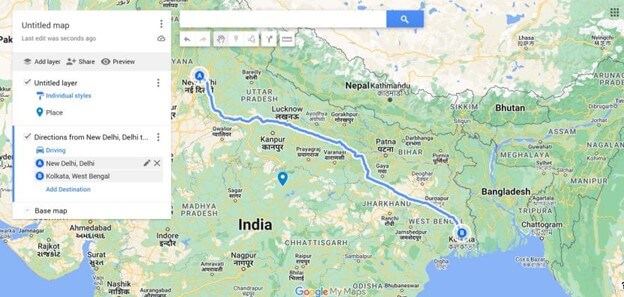
Step 3: The map will be modified to reflect the path between your designated places after both the “A” and “B” boxes have been filled in.
Share Google Maps Custom Map
Once you have made your map, you can view it anytime from either the Google Custom Maps webpage or the hamburger menu under Saved > Maps in Google My Maps.
Your personalized map is initially just visible to you, but you can share it. Navigate to the Google Custom Maps internet site, log in, and then choose the “Owned” page to get your personalized map.
Step 1: Select the “Share Map” option to distribute it to others. This will allow you to email, embed, or share your personalized map across multiple social media networks.
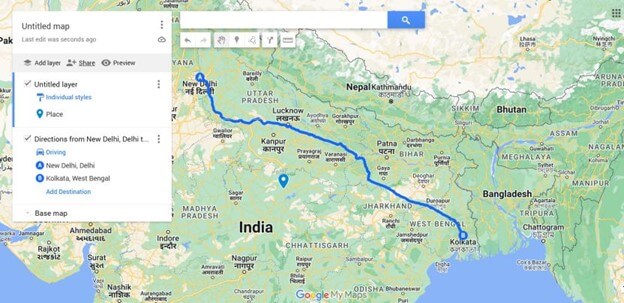
You may also get an individual hyperlink to your map, letting you send it straight to others.
Step 2: Choose the map you created to get back to the map designer on the Google Custom Maps website’s “Owned” tab, and finally, click the “Share” option in the menu on the left side.
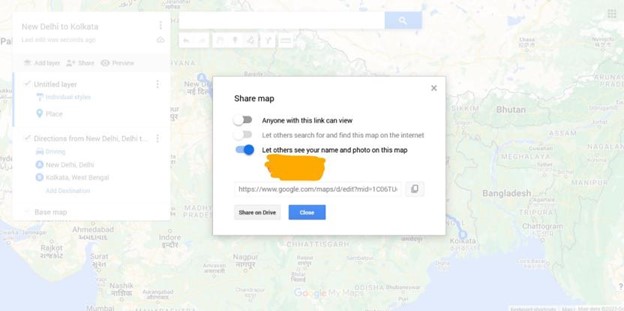
This will open the “Share Map” menu of choices. If you would like, you may make your map accessible online and open it for anybody with the URL to view.
It is incredible to have the ability to use Google My Maps’ capability for your unique maps. It is one of Google Maps’ fewer-popular options besides “Local Guides.” Remember that this cannot be the same as pointing out missing landmarks or routes on a public map.
Conclusion
It is simpler than you would think to make your personalized map. Utilizing the Google Custom Maps webpage or mobile app is the most widely used technique for producing custom maps, and this is where most users begin. This often works well for specific activities like creating a route or outlining a few places.
However, consider looking at greater-level mapping services if you want to carry out any more significant customizing, such as locating hundreds or thousands of sites at once or wishing to design more complicated routes.
Author Bio:
Dinesh Lakhwani 

Dinesh Lakhwani, the entrepreneurial brain behind “TechCommuters,” achieved big things in the tech world. He started the company to make smart and user-friendly tech solutions. Thanks to his sharp thinking, focus on quality and the motto of never giving up, TechCommuters became a top player in the industry. His commitment to excellence has propelled the company to a leading position in the industry.
Popular Post
Recent Post

Is Easy Duplicate Finder Worth It? Honest Review
The photos folder looked normal at first glance. Then the storage warning popped up. One trip photo appeared four times. A tax PDF sat in three different folders. Two old setup files were still in Downloads, and each one was over 500 MB. Nobody plans this mess. Copies pile up slowly. A download runs twice. […]

Wise Duplicate Finder Review: Real Results from Wise Duplicate Finder
Read my honest Wise Duplicate Finder review. See features, pricing, pros and cons, and real PC test results. Find out if this free duplicate cleaner can free up your Windows storage.

How to Recover Deleted Files from Pen drive, USB Drive, SD Card
Introduction: On tech forums, you’ll often see posts like this: “I connected my pen drive to my laptop this morning, but the folder was empty. All my college project files had vanished. I don’t have a backup. Can someone help me?” Stories like this are very common. Pen drives, USB drives and SD cards are […]

How To Recover Files Deleted from the Recycle Bin [Windows 11]
Losing a file can happen in seconds. You clear your desktop, hit Delete, and empty the Recycle Bin. Then, just when you need that file again, it seems to have vanished. This guide will walk you through ways to restore files removed from the Recycle Bin. We will begin with simple fixes, then look at […]

Disk Drill Data Recovery Tool Explained: Full Review and Guide
It happens in a split second. You delete a folder by mistake. Your drive stops showing up. A photo album from your last trip just vanishes. And your stomach drops. Lost files feel personal. They are not just data. They are memories, work hours, and sometimes years of effort packed into a few gigabytes. When […]

Recover Deleted Files In Windows 11 With Software & Without
Introduction What is the first thing that goes through your mind the second an important file vanishes from a Windows 11 PC? For most people, it is a mix of panic and disbelief, followed by a frantic click through every folder that file could possibly be hiding in. It happens in a split second: one […]

EaseUS Data Recovery Wizard: Everything To Know
Data loss does not always come from a big disaster either. Most cases start small and boring. A drive gets formatted by mistake. A laptop freezes mid-save and restarts on its own. A memory card stops showing up after being pulled out too fast. None of these feel like emergencies at first, until you realize […]

Recuva Data Recovery Tool: Is it Actually Worth it?
When I first tried Recuva Data Recovery, I wanted to see if it could really bring back lost files. The tool is free, small in size, and promises quick recovery, which made me curious enough to test it on my own PC. The setup was fast, and the wizard guided me step by step. I […]

GetData Recover My Files Data Recovery Tool: Honest Review
A hard drive error brings a special kind of silence. Well, yes! The screen freezes, then a message appears saying the drive can’t be found or must be formatted. In that moment, years of photos and work files feel at risk. It never happens at a good time. Coffee spills near a laptop, a memory […]

