












It always shows up at the worst time. You are halfway through a report, or about to join a video call. Then you spot it in the bottom right corner of the screen. Activate Windows. Go to Settings to activate Windows. Initially, an unactivated copy of Windows may seem like a minor inconvenience. Over time, […]
11 Ways to Fix the MacBook Screen Flickering Problem
You should not expect to see a screen covered in distorted, flickering lines and images when using a $1000+ MacBook. While MacBook screen flickering may indicate an internal hardware issue, some simple troubleshooting steps may be sufficient to resolve the issue.
To support 6.8 million MacBook users, we have compiled quick solutions to fix the MacBook screen flickering problem. Let’s dig in.
Why Does Your MacBook Screen Flicker?
Screen glitching issues have been reported by Mac users regardless of screen type, whether retina or non-retina.
The MacBook screen flickering problem is often caused by an issue with the new operating system and GPU. It is sometimes resolved by updating macOS, but there is no harm in learning the workaround.
So, let’s look at how to repair screen flickering, glitching, or blinking on a Mac.
So, Let’s See How to Fix MacBook Screen Flickering
Despite being a hardware problem, the MacBook screen flickering or blinking can be fixed by running some Mac troubleshoots. Here you can follow these ways when the fine line appears on your MacBook screen:
Way 1. Reboot Your MacBook
As simple as it sounds, rebooting the system usually resolves the issue, but most of us forget to do so. So, as a first step, restart Mac. To do so, follow these steps:
Step 1. Select Restart or Shut Down from the Apple Menu.
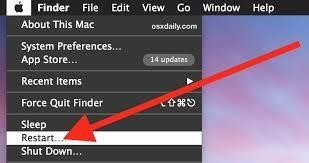
Step 2. Confirm the action and wait for it to complete.
Check to see if the flickering screen issue has been resolved.
Way 2. Update Your MacOS
Screen flickering issues on Mac can occur due to corrupt OS updates. As a result, updating to the most recent version is advised. Follow the steps below to update macOS:
We recommend backing up your data before updating macOS.
Step 1. Navigate to the Apple Menu > System Preferences > Software Update.
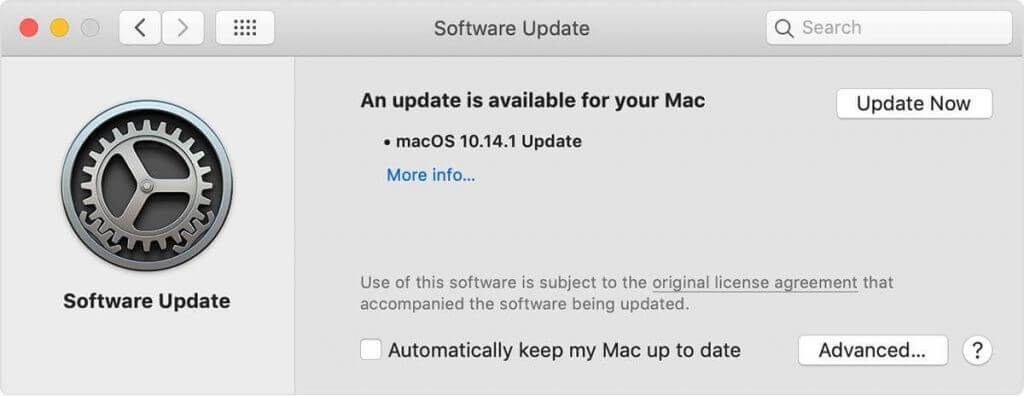
Step 2. If an update is available, you will be notified. Click Update Now and follow the on-screen instructions to update macOS.
Step 3. When finished, restart your Mac. The screen blinking problem should now be resolved. However, if none of the previous steps have helped, try the following fixes.
Way 3. Reset Your MacBook’s PRAM or NVRAM
PRAM, or non-volatile random-access memory (NVRAM), is a small memory used by Mac to store and access settings. When it becomes outdated or cluttered, you may experience screen flickering. Therefore, we recommend resetting PRAM to resolve the issue. To do so, follow these steps:
Step 1. Turn off the Mac.
Step 2. Reboot the machine and hold down the P+ R+ Command Option keys for 20 seconds.
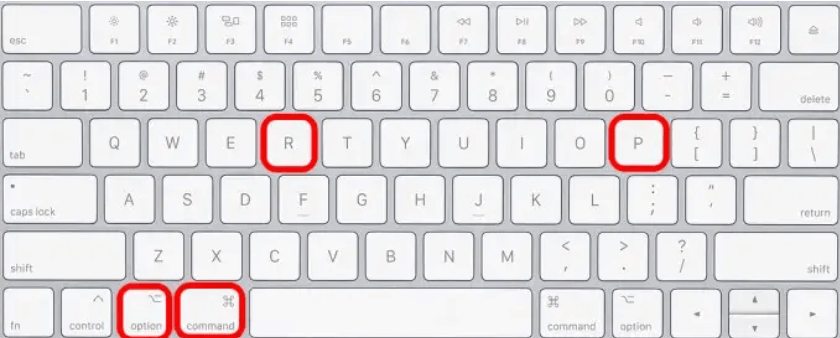
Step 3. This will clear the PRAM (or NVRAM).
Step 4. You should no longer be confronted with the problem.
Way 4. Turn Off Automatic Graphics Switching
If your MacBook Pro has a standalone graphics chip, your graphics output may be split between two GPUs. The standalone chip may handle more powerful tasks (such as gaming or video rendering), whereas the integrated chip may handle the fundamentals (like web browsing or word processing).
Automatic graphics switching is intended to help reduce overall power consumption, thereby increasing battery life. Unfortunately, it can also cause random MacBook Pro screen flickering, so if you can’t figure out what’s wrong, turning off automatic graphics may help.
Here’s how to fix MacBook screen flickering by turning off automatic graphics switching:
Step 1. Click on the Apple icon from the menu bar, then select System Preferences from the menu.
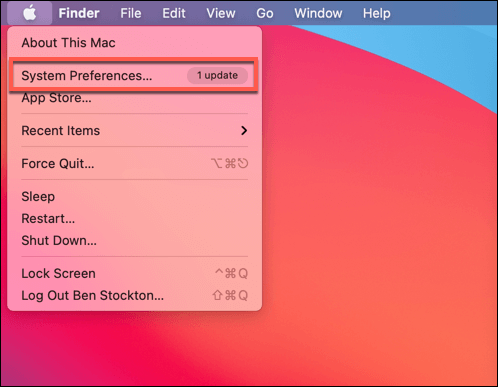
Step 2. In the System Preferences menu, select Battery. Next, select the Battery option on the left of the Battery menu.
Step 3. To disable this feature, uncheck the Automatic graphics switching checkbox.
If automatic graphics switching isn’t listed in the settings of your MacBook Pro, it doesn’t have two GPUs. As a result, you won’t have access to this feature, and it can’t be the source of your MacBook Pro display issues, so you’ll need to look into other possibilities.
Way 5. Reset the System Management Controller
The SMC (or System Management Controller) in your MacBook is a critical low-level chip that controls several internal power settings. It handles everything from putting your Mac to sleep and waking it up to charging your battery and switching between different graphics modes.
If your SMC is faulty, problems (such as a flickering screen) may begin to appear. However, you can quickly reset your MacBook’s SMC to resolve the issue.
Does your Mac have an Apple T2 security chip? Then, you will need to reset the SMC using these instructions:
Step 1. To reset the SMC on your MacBook, turn it off and unplug it from the power adapter. Then, hold down the Control + Alt + Shift keys on your keyboard for at least seven seconds before pressing the power button.
Step 2. Hold all four keys for at least another seven seconds before releasing them.
Step 3. After a few moments, restart your MacBook by pressing the power button. If you followed the instructions correctly, your SMC chip should be reset.
MacBooks manufactured before 2018 do not include the Apple T2 security chip. If your MacBook does not have this chip, you can reset your SMC by following these instructions:
Step 1. Turn off your MacBook and unplug it from the power adapter. Hold down the Shift + Control + Option keys when the MacBook is turned off.
Step 2. Press the power button with the three keys selected. Then, hold all four keys for at least 10 seconds before releasing them.
Step 3. This should clear the SMC. At this point, press the power button to restart your Mac.
Way 6. Clean Junk Files
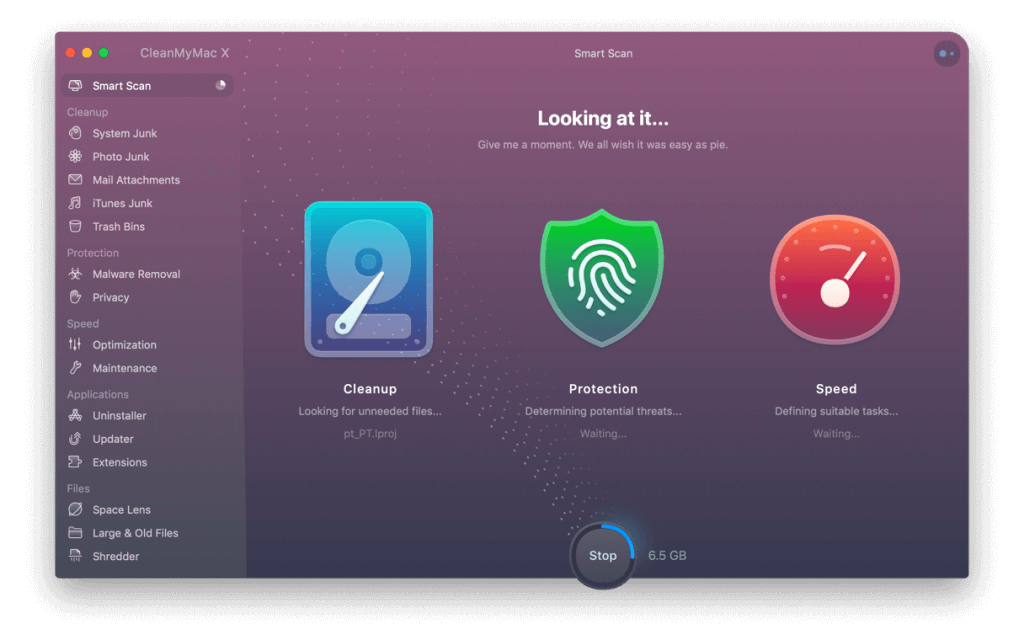
Screen flickering can also be caused by unwanted data, junk files, and even app and user cache. To remove this data, we recommend using the CleanMyMac X. It assists in cleaning the cluttered data that harm system performance. To use the software, follow these steps:
Step 1. Download, install, and launch CleanMyMac X.
Step 2. Click the System Junk tab and scan. Wait for it to finish.
Step 3. You will not see all the detected junk files; instead, you will select them and clear all the data.
Step 4. At the same time, run Smart Scan to clean up junk files and scan the system for malware and other threats with a single click.
Step 5. Reboot Mac; you should now notice a performance boost and no screen blinking issues on Mac, iMac, or MacBook.
Way 7. Use Maintenance Scripts
You can use Maintenance Scripts to repair various system flaws and inconsistencies. We recommend using CleanMyMac X to run them. This will help to prevent Mac screen glitching. To use it, follow these steps:
Step 1. Download, install, and run CleanMyMac X.
Step 2. Navigate to the Maintenance tab.
Step 3. Choose Maintenance Scripts and execute it.
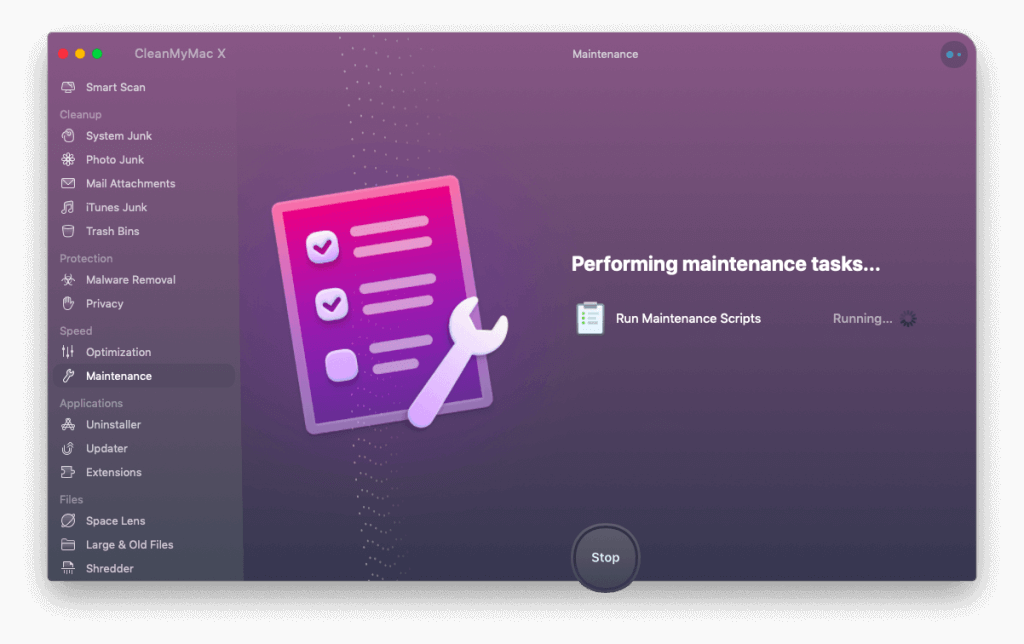
Step 4. Once completed, restart Mac to apply the changes and check if the screen flickering has stopped on MacBook, iMac, and Mac.
Way 8. Run Your Mac in Safe Mode
Third-party services frequently have an impact on on-screen parameters. As a result, to ensure that they are not causing screen glitching, boot your Mac in safe mode. To do so, follow these steps:
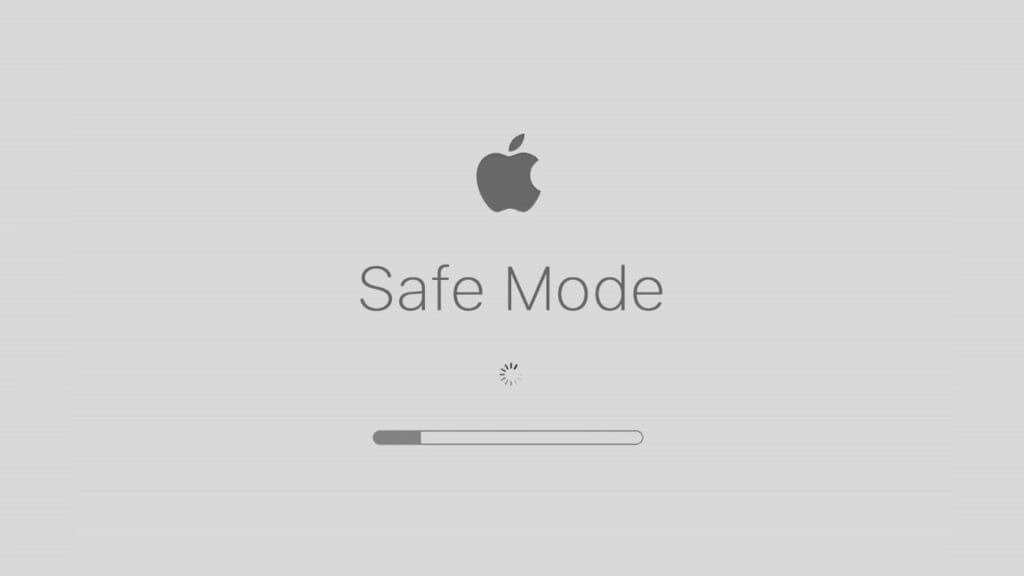
Step 1. Turn off your Mac.
Step 2. Reboot it and hold the Shift key down until you see the Login Screen.
Step 3. The Mac will boot into Safe Mode.
Check to see if the screen is still flickering or has stopped. If this does not help and you are using a 2018 Mac or newer, proceed to the next step.
Way 9. Disable True Tune
True Tone technology is available in the 2018 Mac and later versions, making your screen colors appear more natural. However, it occasionally causes screen flashing issues on Mac, iMac, and MacBook. Follow the steps below to resolve it:
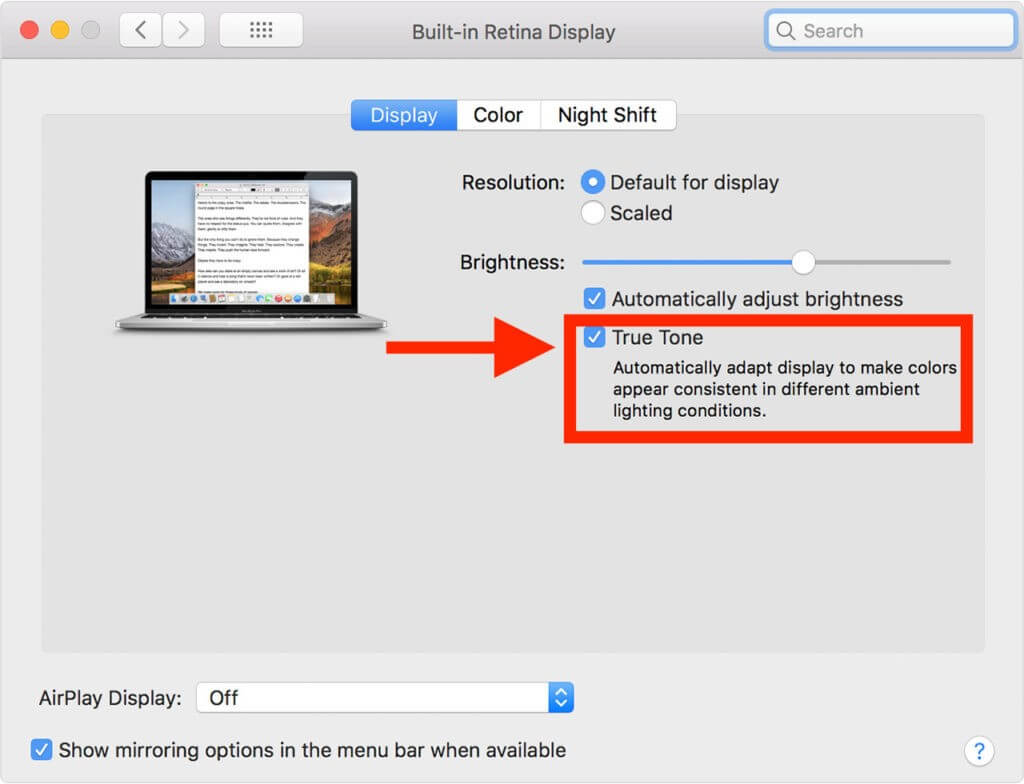
Step 1. Go to the Apple Menu, then System Preferences, then Displays.
Step 2. Uncheck the box next to True Tone.
Way 10. Disable Hardware Acceleration
Hardware acceleration is used by third-party browsers such as Chrome and Firefox to improve rendering efficiency and performance. However, it may cause problems with specific hardware configurations.
Consider disabling hardware acceleration for your browser if the flickering screen problem only occurs during browser-based activities such as streaming video. Click the three-dots icon in Chrome, then go to Settings > System and uncheck Use hardware acceleration when available.
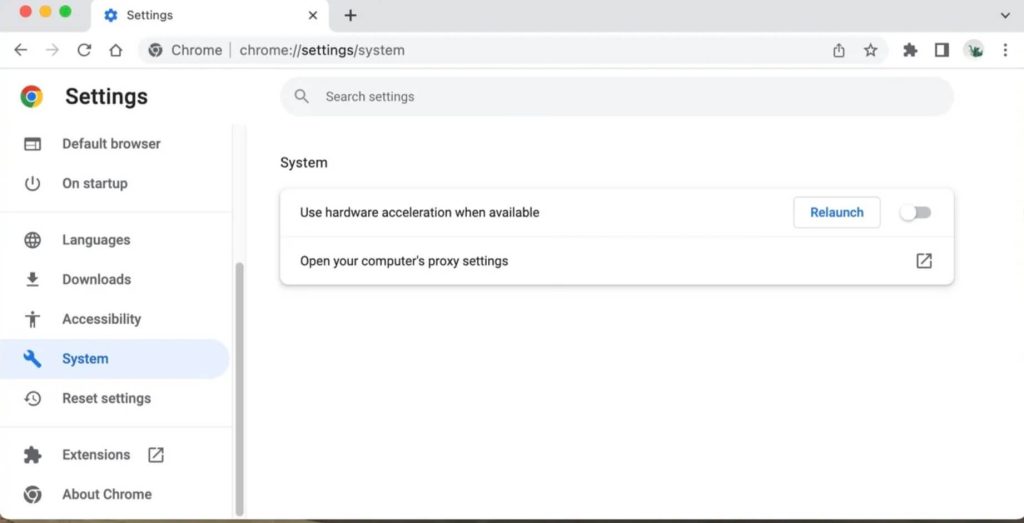
If you’re using Firefox, click the three-line icon, navigate to Settings, and then scroll down to the Performance section. Remove the check marks next to Use recommended performance settings and Use hardware acceleration when available.
Way 11. Run Apple Diagnostics
Running Apple Diagnostics can assist in determining whether your MacBook Pro’s screen flickering or flashing problems are caused by a problematic display or graphics processor. On an Intel Mac, hold down the D key during startup to accomplish this.
Turn off your Apple silicon MacBook and restart it while holding down the Power button until you see the Startup Options screen. Then, on your keyboard, press Command + D.
Once your Mac has completed the diagnostics, you will be given a reference code. For example, ADP000 indicates no problem with the hardware, whereas VFD001 to VFD007 indicates a problem with the display or GPU.
Parting Remarks
Combining several fixes, such as running maintenance scripts, clearing junk and cache files, and removing malware, can help you resolve various Mac issues, including MacBook screen flickering. Try CleanMyMac X to perform all of these tasks with a single click. This tool will quickly solve all of your problems.
You can contact the Apple community or service center when the problem persists after all the fixes.
For more Mac guides, stay tuned, and if you want a guide on a particular Mac problem, please comment below, and we will definitely help you out.
Author Bio:
Dinesh Lakhwani 

Dinesh Lakhwani, the entrepreneurial brain behind “TechCommuters,” achieved big things in the tech world. He started the company to make smart and user-friendly tech solutions. Thanks to his sharp thinking, focus on quality and the motto of never giving up, TechCommuters became a top player in the industry. His commitment to excellence has propelled the company to a leading position in the industry.
Popular Post
Recent Post

Is Easy Duplicate Finder Worth It? Honest Review
The photos folder looked normal at first glance. Then the storage warning popped up. One trip photo appeared four times. A tax PDF sat in three different folders. Two old setup files were still in Downloads, and each one was over 500 MB. Nobody plans this mess. Copies pile up slowly. A download runs twice. […]

Wise Duplicate Finder Review: Real Results from Wise Duplicate Finder
Read my honest Wise Duplicate Finder review. See features, pricing, pros and cons, and real PC test results. Find out if this free duplicate cleaner can free up your Windows storage.

How to Recover Deleted Files from Pen drive, USB Drive, SD Card
Introduction: On tech forums, you’ll often see posts like this: “I connected my pen drive to my laptop this morning, but the folder was empty. All my college project files had vanished. I don’t have a backup. Can someone help me?” Stories like this are very common. Pen drives, USB drives and SD cards are […]

How To Recover Files Deleted from the Recycle Bin [Windows 11]
Losing a file can happen in seconds. You clear your desktop, hit Delete, and empty the Recycle Bin. Then, just when you need that file again, it seems to have vanished. This guide will walk you through ways to restore files removed from the Recycle Bin. We will begin with simple fixes, then look at […]

Disk Drill Data Recovery Tool Explained: Full Review and Guide
It happens in a split second. You delete a folder by mistake. Your drive stops showing up. A photo album from your last trip just vanishes. And your stomach drops. Lost files feel personal. They are not just data. They are memories, work hours, and sometimes years of effort packed into a few gigabytes. When […]

Recover Deleted Files In Windows 11 With Software & Without
Introduction What is the first thing that goes through your mind the second an important file vanishes from a Windows 11 PC? For most people, it is a mix of panic and disbelief, followed by a frantic click through every folder that file could possibly be hiding in. It happens in a split second: one […]

EaseUS Data Recovery Wizard: Everything To Know
Data loss does not always come from a big disaster either. Most cases start small and boring. A drive gets formatted by mistake. A laptop freezes mid-save and restarts on its own. A memory card stops showing up after being pulled out too fast. None of these feel like emergencies at first, until you realize […]

Recuva Data Recovery Tool: Is it Actually Worth it?
When I first tried Recuva Data Recovery, I wanted to see if it could really bring back lost files. The tool is free, small in size, and promises quick recovery, which made me curious enough to test it on my own PC. The setup was fast, and the wizard guided me step by step. I […]

GetData Recover My Files Data Recovery Tool: Honest Review
A hard drive error brings a special kind of silence. Well, yes! The screen freezes, then a message appears saying the drive can’t be found or must be formatted. In that moment, years of photos and work files feel at risk. It never happens at a good time. Coffee spills near a laptop, a memory […]

