












It always shows up at the worst time. You are halfway through a report, or about to join a video call. Then you spot it in the bottom right corner of the screen. Activate Windows. Go to Settings to activate Windows. Initially, an unactivated copy of Windows may seem like a minor inconvenience. Over time, […]
Fix Android & iPhone USB tethering not working in Windows 11/10
In this article we will discuss how to fix Android and iPhone USB tethering not Working in Windows 11 and Windows 10 computers/laptops.
Connecting to the internet is the primary need of multiple Windows 11 and 10 devices. Systems facing issues connecting with Wi-Fi need to look for the alternatives like mobile data. With USB tethering as the key alternative to the seamless Wi-Fi connection, USB tethering, when not working, can be highly irritating and must be immediately fixed.
Let us go through the key solutions when USB tethering is not working in Windows 11 and Windows 10. Starting with the quick definition of USB tethering and the key reasons for its not working, it is easy to make your Windows device work on USB tethering. Starting with the quick details of USB tethering.
What is USB tethering:?
It is the method to share cellular services with different devices like Windows 11 and 10. It allows the users to have internet connectivity on Windows 11 and 10 systems facing Wi-Fi connectivity issues. It is easy to enable internet connectivity with a USB cable on the system. Let us go through the quick steps to set up USB tethering on your Windows 11, 10 device.
How to set up USB tethering on Windows 11 and 10?
The quick steps to set up USB tethering on Windows 11 and 10 are:
- Check if the data carrier on the mobile device has enabled Wi-Fi tethering.
- Connect the mobile with Windows 11, 10 system using a USB cable. Go to the “settings,” open “network and internet,” open “Hotspot and Tethering,” and go to “USB tethering.”
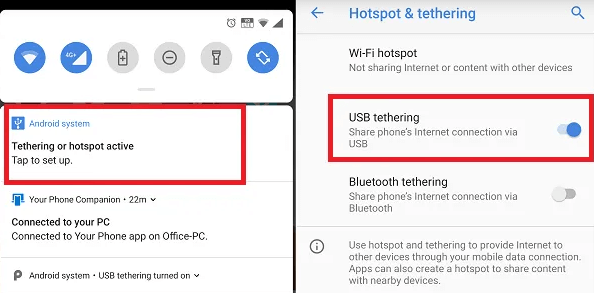
- This setup creates a different network adapter in Windows 10. The system can be quickly connected to the internet.
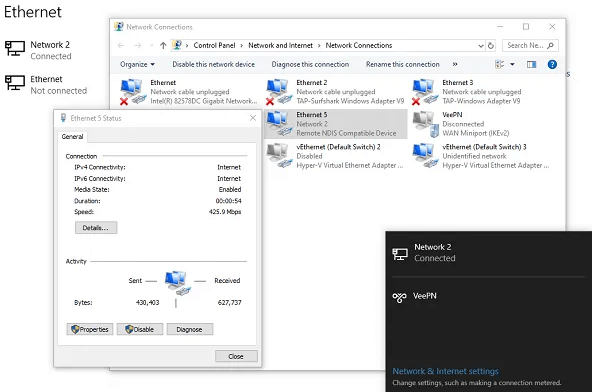
- The tethering is successful if the device is not connected to an existing Wi-Fi connection.
Top reasons: Windows 10 & Windows 11 USB tethering not working
After learning details about USB tethering, it comes down to finding the issues in the regular functioning of the mobile hotspots. Some of the problems causing issues connecting with the mobile hotspots are:
- Windows firewalls: Different antivirus software or Windows in-built firewall may hamper the seamless connection of the mobile hotspot with the device.
- Obsolete network adapter drivers: Mobile hotspots may be unable to connect with Windows 11 and 10 due to outdated network adapter drivers.
- On Bluetooth: Windows 11, 10 can’t connect to the mobile hotspot while Bluetooth is turned on.
- Enabling airplane mode: If Windows 11, 10 has airplane mode enabled, it may have been disabling all the possible wireless connections.
- IP address error: The different IP settings of the Windows 11 and 10 systems may cause USB tethering not to work properly.
Fixes: Android and iPhone USB tethering is not working Windows 11 & Windows 10
After going through the key reasons for failed internet connection on your system, it comes down to the quick fixes for USB tethering not working in Windows 11 and Windows 10. These are:
1. Use different USB cables and ports:
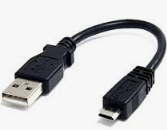
The faulty USB cables may cause an interruption in the seamless USB tethering. Hence, all you need to do is replace the USB cable with the new one to connect to your mobile and system. Further, using different ports while connecting USB tethering is easy to eliminate further hardware issues.
2. Performing Windows troubleshooting:
Windows 11, 10 offers dedicated troubleshooting for managing different issues like USB tethering. The quick steps to perform Windows troubleshooting are:
- Go to the “Start” or “Windows” icon and open the “Settings” menu.
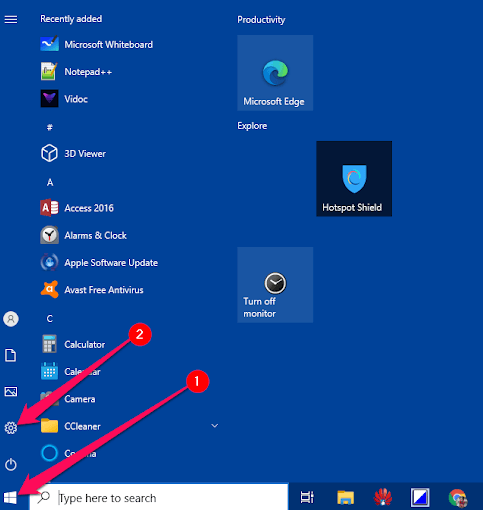
- Select “Update and Security” from the on-screen panel.
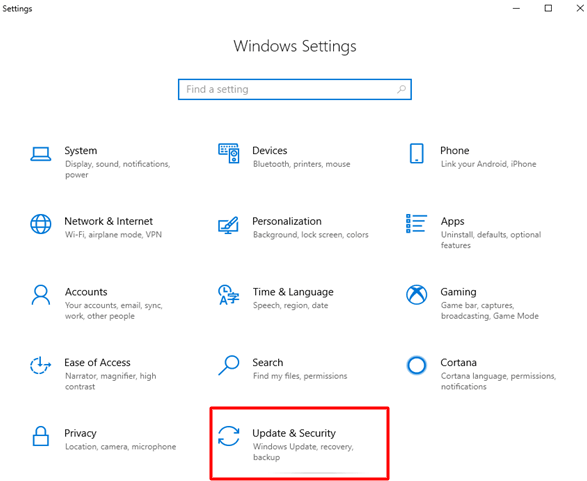
- Select the troubleshooting option and run it to treat USB tethering issues on the Windows 11, 10 system.
3. Restarting the mobile or Windows 11, 10 system:
- Users can get rid of the USB tethering issues by restarting the mobile and Windows 11, and 10 systems. The quick steps for the same are:
- Unplug the USB cable from the mobile.
- Press the “power button” and turn it off.
- Restart the mobile and check if the issues still persist.
- After restarting the mobile, it is easy to restart the system.
- Launch the “start” menu.
- Select the “power” icon from the bottom or top of the screen.
- Restart the system.
4. Activating the USB tethering option:
- It is essential to activate the USB tethering on your mobile device. The quick steps to activate the USB tethering option are:
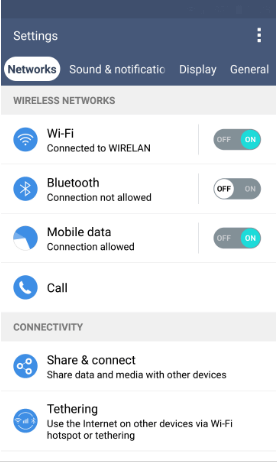
- Go to the mobile’s settings.
- Go to “Wireless and Networks,” “Connections,” etc.
- Click on the “Portable hotspot” or “Tethering and portable hotspot.”
- Turn on the “USB tethering” option.
5. Updating the obsolete drivers:
Multiple obsolete drivers can be the reason for non-performing USB tethering. It is easy to update the drivers automatically or use dedicated software updates. Further, it is easy to go through the quick steps to manually update different drivers are:
- Go to the taskbar and open “Device Manager.”
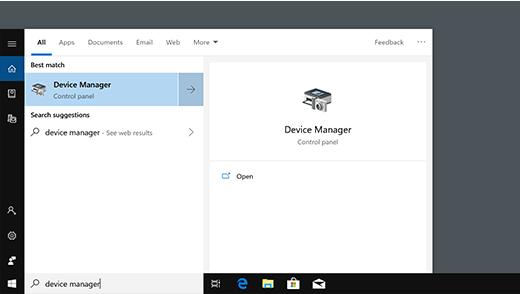
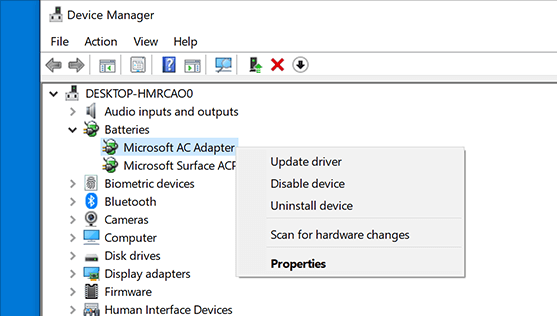
- Select the category from different device names.
- Click on “search automatically for updated driver software” and select “update driver.”
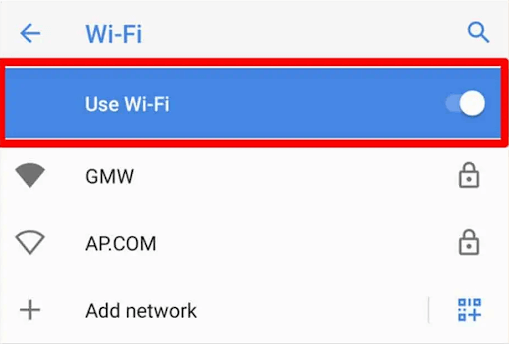
6. Turning off Wireless Technologies:
An Wi-Fi connection may interrupt the USB tethering between devices. It is all about turning these connections off with the following quick steps:
- Go to the device’s settings.
- Select Wi-Fi.
- Toggle off the “use Wi-Fi” button.
7. Set up the USB RNDIS Adapter
If USB tethering is not working on Windows, you can try to fix the issue by setting up the USB RNDIS (Remote Network Driver Interface Specification) adapter. This adapter allows your computer to communicate with your mobile device over USB, enabling the tethering functionality. Here’s a step-by-step solution to set up the USB RNDIS adapter:
- Connect your mobile device to the computer via USB.
- Enable USB debugging on Android devices or trust the computer on iPhones.
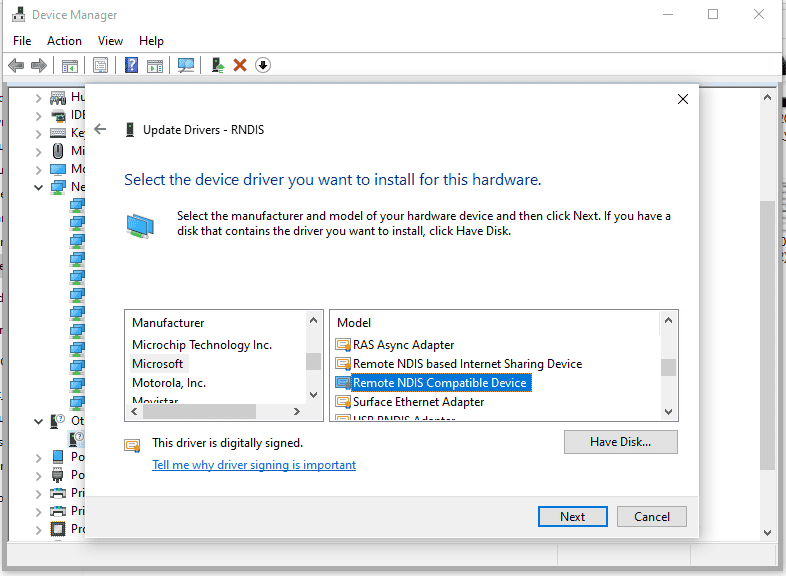
- Open Device Manager on Windows.
- Find your mobile device under “Portable Devices” or “Other Devices.”
- Update the driver for your mobile device and select “Remote NDIS compatible device” from the list.
- Restart your computer.
- Reconnect your mobile device via USB.
- Enable USB tethering in the mobile device’s settings (Android: Settings > Network & Internet> Hotspot & tethering > USB tethering; iPhone: Settings > Personal Hotspot > Enable and choose “USB Only”).
If it still doesn’t work, try using a different USB cable and port. Ensure your mobile device has the latest drivers installed. You can also try rebooting your Android or iOS device to resolve temporary glitches.
8. Edit Windows Registry
Android and iPhone USB tethering not working on Windows? Well, here comes the next solution at your disposal. By modifying the registry, you may be able to resolve this issue within no time. Sometimes, USB tethering issues can be caused by incorrect permissions on specific registry keys. To check and correct permissions follow these quick steps:
- Press Win + R to open the Run dialog box. Type “regedit” and press Enter to open the Registry Editor.
- In the Registry Editor, navigate to the following key: HKEY_LOCAL_MACHINE\SYSTEM\CurrentControlSet\Enum\USB
- Right-click on the “USB” key, select “Permissions.”
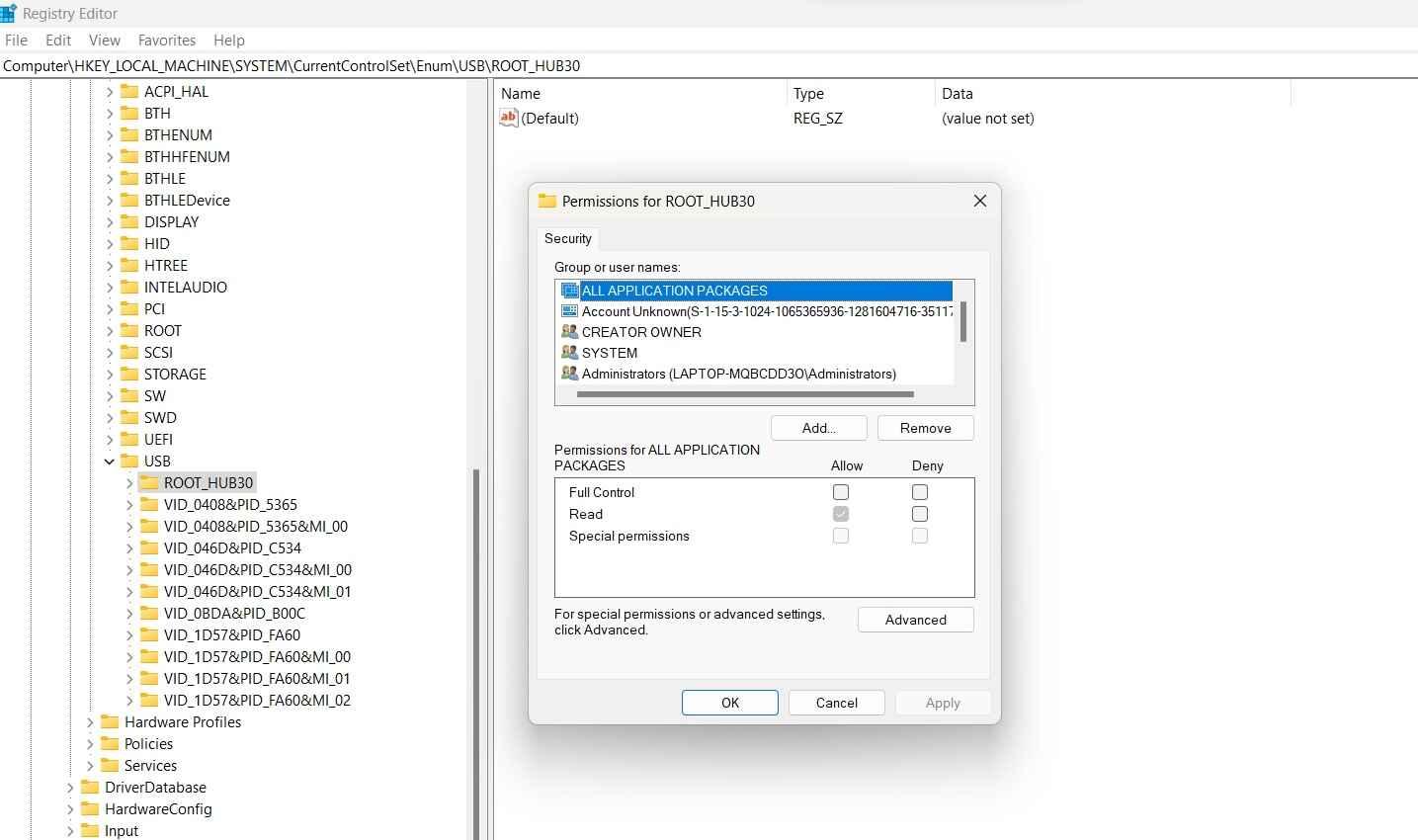
- Make sure the “Administrators” group and your user account have Full Control permission. If not, click “Add” and add the missing permissions.
After making the above-listed changes in the Windows Registry, check if the USB tethering issue was resolved.
Wrapping Up:
Hence, it is easy to tackle the situation of Android and iPhone USB tethering not working on Windows 11 and Windows 10. Starting with the USB tethering details followed by the quick reasons causing issues with USB tethering, it becomes easy to understand the seamless internet connection details.
Some quick fixes for USB tethering that are not working include restarting the mobile system, updating drivers, turning Wi-Fi off, etc. Further, activating the USB tethering on the mobile device is essential. It is easy to replace the USB ports or USB cables and troubleshoot the Windows system in quick steps.
Author Bio:
Dinesh Lakhwani 

Dinesh Lakhwani, the entrepreneurial brain behind “TechCommuters,” achieved big things in the tech world. He started the company to make smart and user-friendly tech solutions. Thanks to his sharp thinking, focus on quality and the motto of never giving up, TechCommuters became a top player in the industry. His commitment to excellence has propelled the company to a leading position in the industry.
Popular Post
Recent Post

Is Easy Duplicate Finder Worth It? Honest Review
The photos folder looked normal at first glance. Then the storage warning popped up. One trip photo appeared four times. A tax PDF sat in three different folders. Two old setup files were still in Downloads, and each one was over 500 MB. Nobody plans this mess. Copies pile up slowly. A download runs twice. […]

Wise Duplicate Finder Review: Real Results from Wise Duplicate Finder
Read my honest Wise Duplicate Finder review. See features, pricing, pros and cons, and real PC test results. Find out if this free duplicate cleaner can free up your Windows storage.

How to Recover Deleted Files from Pen drive, USB Drive, SD Card
Introduction: On tech forums, you’ll often see posts like this: “I connected my pen drive to my laptop this morning, but the folder was empty. All my college project files had vanished. I don’t have a backup. Can someone help me?” Stories like this are very common. Pen drives, USB drives and SD cards are […]

How To Recover Files Deleted from the Recycle Bin [Windows 11]
Losing a file can happen in seconds. You clear your desktop, hit Delete, and empty the Recycle Bin. Then, just when you need that file again, it seems to have vanished. This guide will walk you through ways to restore files removed from the Recycle Bin. We will begin with simple fixes, then look at […]

Disk Drill Data Recovery Tool Explained: Full Review and Guide
It happens in a split second. You delete a folder by mistake. Your drive stops showing up. A photo album from your last trip just vanishes. And your stomach drops. Lost files feel personal. They are not just data. They are memories, work hours, and sometimes years of effort packed into a few gigabytes. When […]

Recover Deleted Files In Windows 11 With Software & Without
Introduction What is the first thing that goes through your mind the second an important file vanishes from a Windows 11 PC? For most people, it is a mix of panic and disbelief, followed by a frantic click through every folder that file could possibly be hiding in. It happens in a split second: one […]

EaseUS Data Recovery Wizard: Everything To Know
Data loss does not always come from a big disaster either. Most cases start small and boring. A drive gets formatted by mistake. A laptop freezes mid-save and restarts on its own. A memory card stops showing up after being pulled out too fast. None of these feel like emergencies at first, until you realize […]

Recuva Data Recovery Tool: Is it Actually Worth it?
When I first tried Recuva Data Recovery, I wanted to see if it could really bring back lost files. The tool is free, small in size, and promises quick recovery, which made me curious enough to test it on my own PC. The setup was fast, and the wizard guided me step by step. I […]

GetData Recover My Files Data Recovery Tool: Honest Review
A hard drive error brings a special kind of silence. Well, yes! The screen freezes, then a message appears saying the drive can’t be found or must be formatted. In that moment, years of photos and work files feel at risk. It never happens at a good time. Coffee spills near a laptop, a memory […]

