











Imagine this. You spend hours perfecting a video project. You hit save. Then your laptop freezes, reboots, and when the screen comes back. The file is gone. Your stomach sinks. It’s not just you. Lost files happen all the time. A dropped hard drive, a bad update, an accidental delete, or a corrupted partition can […]
How to Upgrade RAM on a Laptop? [Latest Guide]
Whether running on Windows, Linux, or macOS, most laptop models have a lot of storage and space. However, the laptop gets sluggish in its performance with more programs, services, and apps a user adds. Older laptops especially bog down faster with more tabs open or freeze up.
You can download apps like CCleaner to optimize the system, detect background running apps/services, and remove unnecessary files. Another necessary solution is to upgrade the RAM on a laptop. In this post, that is we cover it in more detail.
Considerations Before Upgrading RAM on a Laptop
Before you can work on how to increase RAM in a laptop, you should check the maximum capacity of RAM in the device you are using. The amount of available RAM in a PC determines how many programs can operate on the system simultaneously. It influences the command response time of the system.
So, to understand the right RAM to upgrade, know the set parameters for the hardware and the OS by the device manufacturer.
Operating System
First, check the operating system of your laptop, like macOS or Windows.
- Mac– For the Mac devices, the 2006-2009 iMac models have 4 GB RAM, 2010-2012 (late) iMac models hold 16 GB RAM, and iMac 2013 (late) models have 32 GB of RAM. You cannot install the RAM if it does suit the PC model.
- Windows– For Windows laptops, check the type of processor first- 32-bit/64-bit. Choose RAM with the capacity indicated by the manufacturer. The limits are 2 TB of RAM on Windows Pro, Education, and Enterprise models with 64-bit processors, 128 GB of RAM on Windows Home models with 64-bit processors, and 3 GB of RAM in Windows laptops with 32-bit processors.
Hardware
Check the RAM space of the operating system in your laptop to know how to increase RAM in the laptop with said OS. If it is not compatible with the hardware, the upgrade cannot work. Checking the following points is important.
- Search about access to product documentation online
- Find motherboard documentation
- Operate a system cleaner software, like CCleaner for Windows or CleanMyMac X for macOS devices.
Advantages of Upgrading Laptop RAM
Upgrading your laptop’s RAM can dramatically improve performance and usability. More memory allows your system to handle tasks more efficiently, especially when multitasking or running demanding applications. Here are the key benefits:
Faster Multitasking
- More RAM lets you run multiple apps at once without slowdowns.
Improved System Performance
- Applications load quicker and respond more smoothly.
Better Gaming Experience
- Games run with fewer lags and can handle higher graphics settings.
Enhanced Productivity
- Programs like Photoshop, video editors, and IDEs work more efficiently.
Reduced Crashes and Freezes
- Extra memory prevents overload when handling large files or apps.
Future‑Proofing Your Device
- Keeps your laptop capable of handling new software updates.
Smoother Web Browsing
- Multiple tabs open without slowing down the system.
Energy Efficiency
- A well‑optimized RAM upgrade can reduce CPU strain, saving battery life.
Disadvantages of Upgrading Laptop RAM
While upgrading RAM has clear benefits, it’s not always the perfect solution. There are limitations and potential downsides to consider before making the investment:
Cost Factor
- High‑capacity RAM modules can be expensive.
Compatibility Issues
- Not all laptops support every type or size of RAM.
Limited Performance Gains
- If your CPU or storage is slow, RAM alone won’t fix bottlenecks.
Risk of Installation Errors
- Improper installation can damage components or void warranties.
Battery Drain in Some Cases
- More RAM may consume slightly more power.
Physical Limitations
- Some laptops have soldered RAM, making upgrades impossible.
Overkill for Light Users
- Casual users may not notice much difference after upgrading.
Potential Heat Increase
- Higher-performance components can generate extra heat.
Methods to Upgrade RAM on a laptop
The steps on how to increase RAM in laptop devices are not complex, time-consuming, or extremely costly. However, users need to follow the process carefully to avoid system defects, damage, or inconsistent performance. For a better experience, we present the right methods to carry out RAM upgradation.
Method 1: Check the Occupied Space on the Laptop
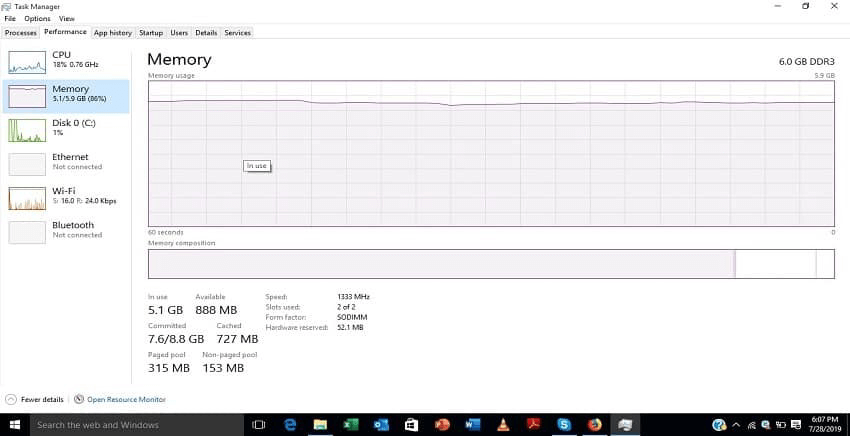
Before one can upgrade RAM on a laptop, it is important to check the available RAM on the device. This is important to understand the type of RAM with the necessary capacity you need to install into the system.
How to do this for Mac laptops?
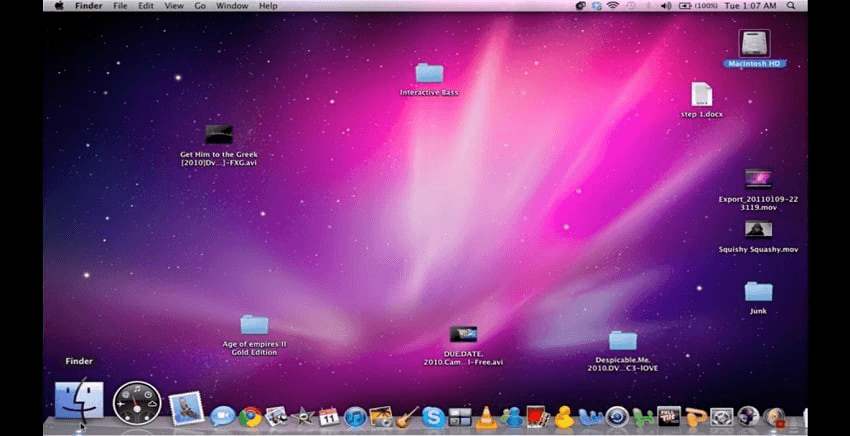
Step 1: On the Mac home screen, click on the Finder option to open the window.
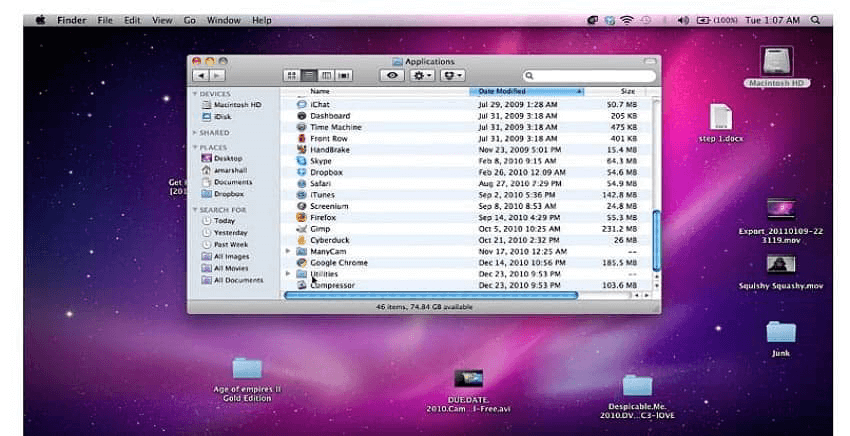
Step 2: Among the options that come up, choose the “Utilities” tab and click on it.
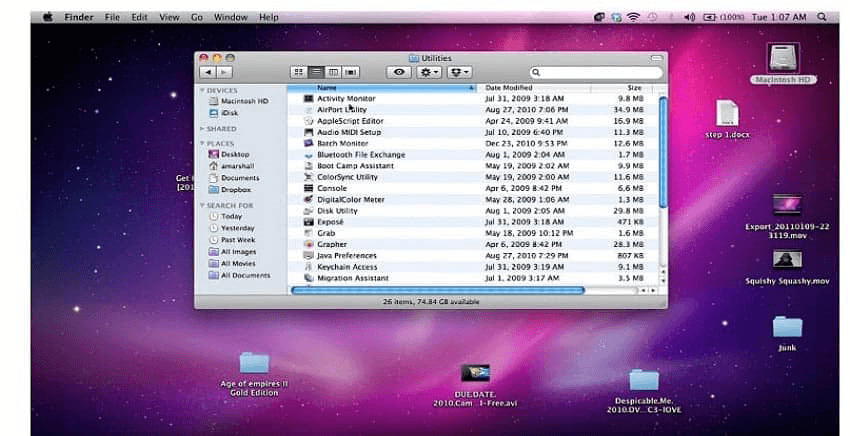
Step 3: Double-click your cursor on the “Activity Monitor” option to open the next window.
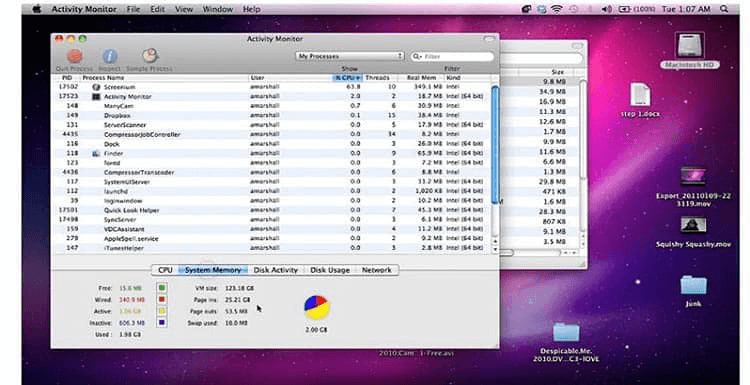
Step 4: Choose the “System Memory” tab. That would display the overall space that is in use within the device.
How to do this for Windows laptops?
Step 1: Click on the Start icon on your Windows home screen taskbar at the bottom.
Step 2: Type the term “Task Manager” into the search text field.
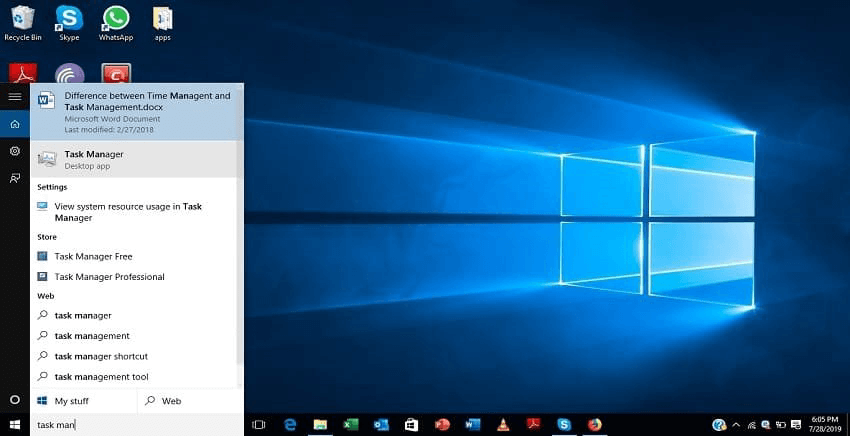
Step 3: Then, click on top of the Task Manager app option that comes up and opens. It would open the Task Manager menu.
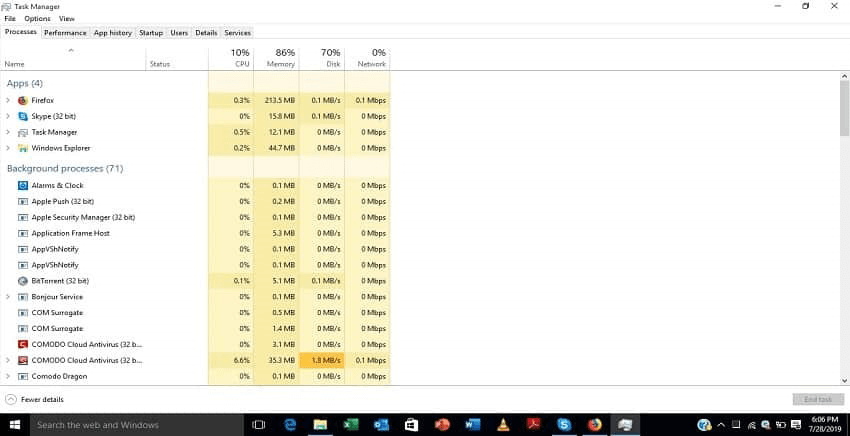
Step 4: Choose the “Performance Tab” option.
Step 5: Click on the “Memory” option. The details about the current space status are visible.
Method 2: Replace RAM Hardware Part in the Device
After checking the amount of RAM space left and choosing the RAM type, you have to open the device’s back portion to upgrade RAM on a laptop. You can take steps to replace RAM in the laptop device safely. Here, we discuss the right sequence to follow. Do these steps carefully.
How to do this?
Step 1: Use a screwdriver to remove all of the screws holding the laptop backplate in place.
In some laptops, a strip of rubber feet covers the screws. Cautiously peel it off.
Step 2: Take a small tool and slowly pry open the backplate of the laptop to see the device’s internal part. Start putting it off from a looser point that you pry up with the tool.
Step 3: If there is a metal plate that is protecting the RAM, gently pull away part of its tape or unscrew the metal part.
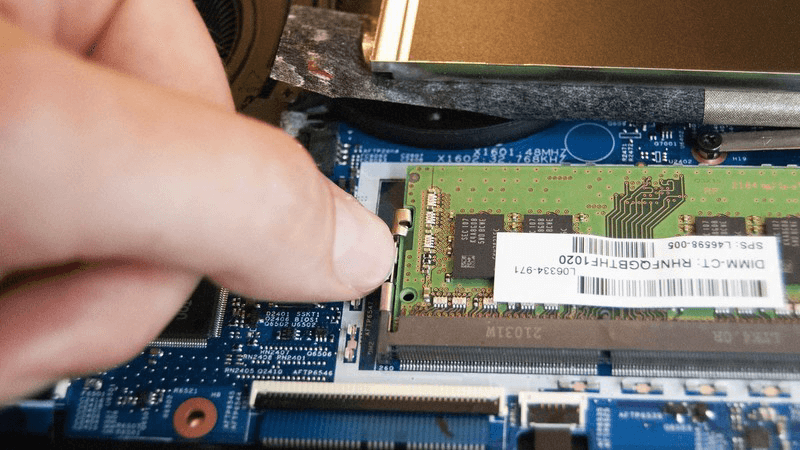
If metallic arms or clamps at the side hold the RAM in place, unfasten them or push them away cautiously. The RAM is free to take off. In some devices, the RAM pops out partially at this point.
Step 4: Pull this RAM gently from the slot space. Make sure to do this step at an angle to avoid damaging the laptop or RAM.
Step 5: Then, push the new RAM into the slot gently. When you hear a noticeable click sound, that indicates that the RAM is placed into the slot perfectly.
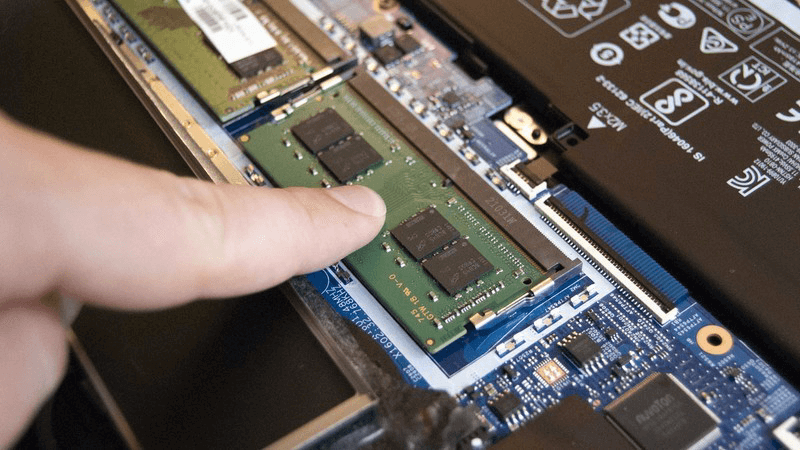
Repeat these steps for the other available RAM module as well, if necessary.
Step 6: Tape the piece back in the correct place for laptops with a RAM shield.
Step 7: Place the backplate of the laptop into place and then apply a little bit of pressure to put it perfectly. If you hear an audible clicking sound, it means that the backplate is attached well.
Step 8: Use a screwdriver to put all the screws in place. If there were rubber feet that you removed in Step 1, fix it in the right area at the end.
Method 3: Check the RAM Upgrade
After completing the hardware changing stage of how to increase RAM in the laptop process, you should check to see if it worked. Switch on your device after some minutes for the system to reorient properly. Take around 5 minutes.
How to do this?
Step 1: Power the PC back on.
Step 2: Click on the Start button on your device, like on Windows 10 laptops. You can then click on the System option that comes up.
Step 3: For Windows 11 devices or even 10 devices, type the term Task Manager into the search field after clicking on the Search icon on the home screen taskbar.
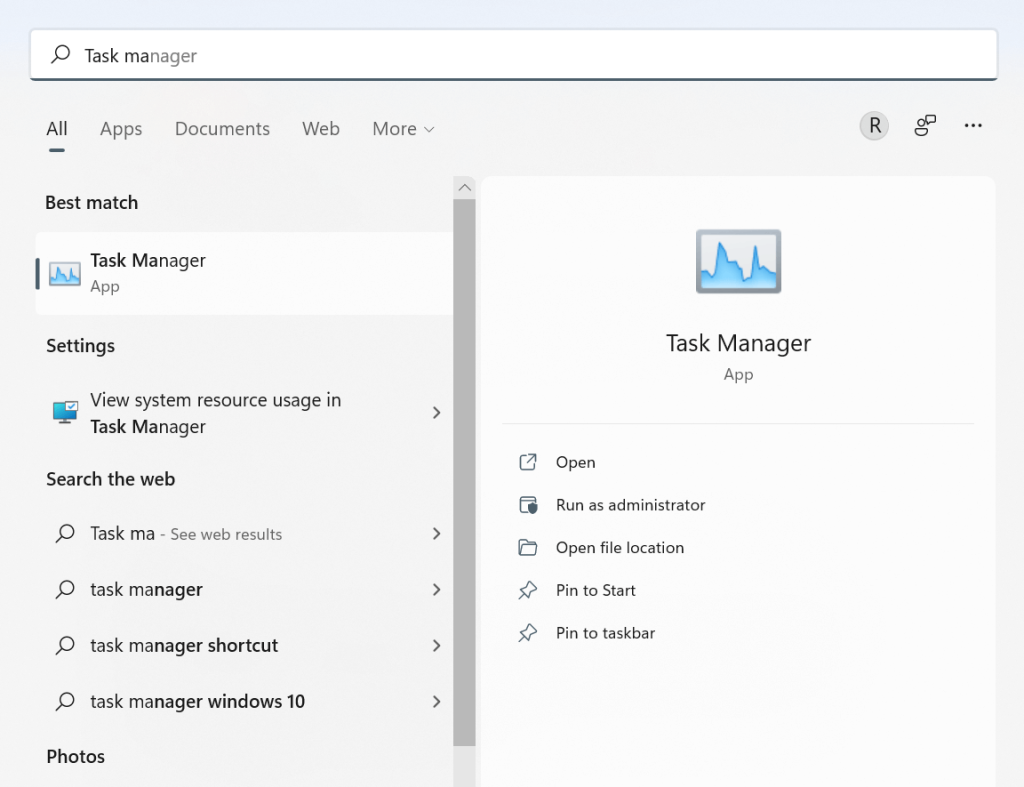
Step 4: Choose the Task Manager option
Step 5: Check the Memory option from the list. You can view the available RAM space.
Conclusion
Before starting the upgrading process for the laptop RAM, users need to check the available memory on the device. Also, make sure that you are using compatible software/hardware for your laptop device model. Follow the given sequence of steps and handle the hardware checking portion carefully. Take professional help, if necessary.
Found this post helpful? Please check out other posts on diverse software-related matters and get back to us with your thoughts.
FAQs
1. How do I know if my laptop supports RAM upgrades?
You can check your laptop’s specifications on the manufacturer’s website or use tools like CPU‑Z to see available slots and maximum supported memory.
2. Will upgrading RAM speed up my laptop instantly?
Yes, but only if RAM was the bottleneck. If your laptop is slow due to an old CPU or hard drive, adding RAM alone won’t solve everything.
3. Is upgrading RAM better than switching to SSD?
Both upgrades help, but in different ways. RAM improves multitasking and responsiveness, while an SSD speeds up boot times and file access. Ideally, combining both gives the best performance boost.
Dinesh Lakhwani
Author Bio:
Dinesh Lakhwani 

Dinesh Lakhwani, the entrepreneurial brain behind “TechCommuters,” achieved big things in the tech world. He started the company to make smart and user-friendly tech solutions. Thanks to his sharp thinking, focus on quality and the motto of never giving up, TechCommuters became a top player in the industry. His commitment to excellence has propelled the company to a leading position in the industry.
Popular Post
Recent Post

5 Best Data Recovery Software For Windows 11 and Windows 10
A crashed drive can ruin a whole day. One minute your photos, work files, and tax records sit safe on your PC. The next minute they are gone. A power cut, a bad update, or one wrong click can wipe out years of memories and months of work in seconds. That sinking feeling is why […]

How To Update NVIDIA Drivers On Windows 11/10 PC
Learn how to update NVIDIA drivers on Windows 11/10 with simple methods, safety tips, and easy steps for smoother gaming and better PC performance.

Top AI Features Hidden Inside Windows 11
Explore the top AI features in Windows 11, from Copilot to Recall, plus safety tips and simple steps to use each tool the right way.

Customize Your Screen Saver Settings in Windows [Easy Steps]
Learn how to customize screen saver settings in Windows 11 with easy steps, safety tips, and simple tricks to personalize your PC screen.

Driver Easy Windows Driver Updater Tool Review: Tried & Tested
In-depth information about Driver Easy’s functions and features can be found in our review. Learn how to update drivers more easily with this tool for a more seamless computer experience.

Is Avast Driver Updater Worth It? A Hands-On Analysis
A full review of Avast Driver Updater covering features, setup steps, pricing, pros and cons, and real PC results, to help you decide if it is worth buying.

IObit Driver Booster 13 (PRO) Review: [Tried & Tested]
IObit Driver Booster 13 is built for one purpose: keeping your PC drivers up to date. Well, yes! Outdated drivers can cause crashes, slowdowns, and hardware issues. This tool scans fast and updates with one click. The interface is simple. Even beginners can use it without confusion. Updates are pulled from a huge database, covering […]

Auslogics Driver Updater: A Detailed Walkthrough [2026]
This comprehensive review covers the key features, pros, and cons, pricing, and a final verdict on Auslogics’ driver update utility. Learn how it stacks up against manual driver maintenance.

5 Best Driver Updater Tools for Windows to Use (Free and Paid)
Introduction: Most people blame their PC for problems that a driver caused. A driver works like a bridge between your hardware and your operating system. When this bridge cracks, strange things start to happen. Screens flicker without reason. Printers go silent mid-task. Games freeze or crash out of nowhere. Manually finding the right driver is […]

