












Read my honest Wise Duplicate Finder review. See features, pricing, pros and cons, and real PC test results. Find out if this free duplicate cleaner can free up your Windows storage.
How to Crop a PDF On Windows & Mac? 6 Easiest Ways
PDF or Portable Document Format is the popular document form used widely in day-to-day activities. These document formats are presented and exchanged irrespective of the operating system, hardware, or software. The open-standard PDF is maintained by the International Organization for Standardization (ISO) and can contain business logic, video, audio, form fields, buttons, links, etc. PDF is important, and hence user often looks for how to crop PDF files?
Managing the PDF files is easy and quick. So, let us help you solve the issues of how to crop PDF files. Starting with the top reasons that may need the issue of cropping the PDF files, coming to the critical solutions that can quickly crop your PDF files, etc., let us start our journey of understanding cropping PDFs.
Why Do You Need To Crop PDF Files?
PDF documents are an indispensable part of professional lives. Some of the key reasons that call for cropping PDF include:
- Limited access to premium tools: Users often don’t have access to the premium PDF services that may allow them to crop, edit, or trim PDF files. Hence, there needs to be some method that should effectively crop or trim the PDF files without any subscription services.
- Removing parts from the PDF: Secondly, professionals often feel the need to share the quotations in PDF without the signatures or one specific clause to someone without the need of sharing the complete document. Both cases are not possible until the user can crop or trim the complete PDF document.
- Making the PDF cohesive: Thirdly, it is not only about removing the parts of documents, but PDF cropping can be used to make the document appear cohesive. Any user looking to improve the visual appeal of the PDF can be a business proposal or marketing tie-up, which can increase professionalism. Documents with multiple pages can be cropped to ensure that all PDF pages are the same size.
- Improving the PDF aspect ratio: Last but not least option that calls for looking at the solutions to how to crop PDF files includes improving the aspect ratio of PDF. If the user needs to fit the PDF in specific dimensions, it can be preset using the aspect ratio. It is necessary to print the PDF to fit it in the physical frame with specific dimensions.
Hence irrespective of any of the reasons mentioned above, the users need a quick solution to solve their problem of managing PDF files. Let us go through the quick and effective methods to how crop PDF files?
Methods to Crop PDF Files:
Method 1: Using the Preview option (Mac devices only)
Mac users have access to the Preview option that helps users to edit texts, crop PDFs, or add a password to PDF documents. It can be used to crop a single page at a time and hence eliminates the use of additional PDF viewers on Mac devices. The steps to use the preview option to crop PDF files include:
- Open the PDF with the preview option.
- Locate the little pen point icon on the Preview interface to open the markup toolbar. It is easy to open the markup toolbar using the view menu, selecting the “show markup toolbar,” and selecting the “rectangular selection” button.

- Scroll the mouse over the section of the PDF page and finish by selecting the crop option.

- Click the ok button on the warning pop-up “Cropping a PDF document doesn’t delete the content outside the selection.”
- It is easy to save the cropped PDF as a new file by selecting “Export as PDF” in the “File” menu.
Method 2: Using PDF element (Windows and Mac)
PDF element helps crop, edit, create files, and convert PDF files. The steps to use PDF element are:
- Download and install the PDF element on Mac or Windows device.
- Once done, open the PDF file using PDF element.
- Go to the “edit” option and select “crop” from the secondary menu.
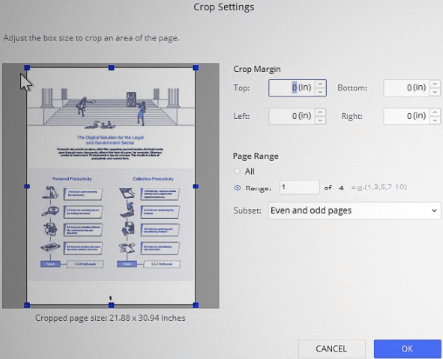
- It is easy to select the required settings from the “crop settings” box that allows choosing from the crop margin and page range. You need to click on the “ok” option to finish the settings and start cropping the PDF.
Method 3: Using Snagit (Windows and Mac)
Snagit comes as the screenshot option to crop the PDF app by capturing a specific part of the page. The steps to use Snagit in cropping PDF files are:
- Install Snagit and run it on your Mac or Windows device.
- Open the PDF document and select the page that needs to be cropped.
- Select the “Capture” button on the top-left of the app.

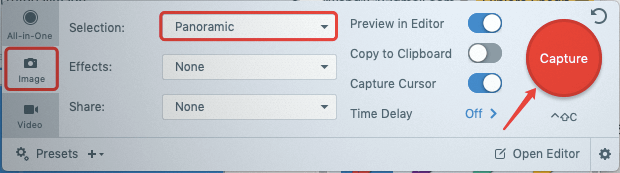
- Select the “Panoramic” option from the “Image” option located in the left column of the newly opened window. Go for the “Capture” option after this.
- Click on the PDF document and “Start” option to begin the panoramic capture.
- Locate the end of the PDF section and the “Stop” option to end the panoramic capture.
- You can use an image to PDF converter to create PDF files.
Method 4: Using Adobe Acrobat Pro (Windows and Mac)
Adobe Acrobat Pro is a useful PDF tool that comes with a detailed toolset and hence can be used to crop PDFs. The steps to use Adobe Acrobat Pro are:
- Install the free version of Adobe Acrobat Pro on your system.
- Open the PDF file with the Adobe Acrobat Pro app.
- Select the “Edit PDF” option in the “Tool” menu to enter the PDF entering mode.
- Select the “Crop Pages” in the editing toolbar and start selecting the area for PDF cropping.
- A new dialog box appears with the set page boxes options. It is easy to select the margin controls, constrain proportions, change page size, select page range, and remove white margins. Click “Ok” to crop the PDF.
Method 5: Using PDF Expert (Mac only)
It is a user-friendly and modern interface for cropping PDF files. The steps to use PDF Expert are:
- Download and install PDF Expert on Mac devices.
- Open the PDF file using the application and select the “Annotate” mode located at the top of the bar.
- Go for the “Content Selection” option in the “Annotate” mode and select the content area for cropping PDF.
- Select the “Crop” icon and select the “Current Page” to “All Pages” from the drop-down list.
Method 6: Using EasePDF (Windows and Mac)
EasePDF offers quick PDF cropping and can be used easily. The steps to use EasePDF are:
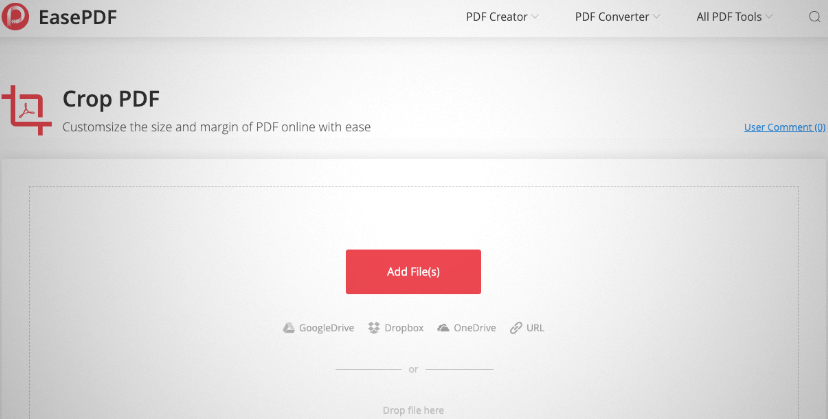
- Go to the EasePDF page and open the “Crop PDF” option.
- Go to the “Add Files” option to upload the PDF files that require cropping.
- Start PDF cropping using the cropping rectangle. Readjust the rectangle range and click the “Crop PDF” button.

- It is easy to click the “download” button and start downloading the cropped PDF.
Quick tips: How to crop PDF files?
The following are the quick tips to start cropping PDF files:
- Select the PDF file carefully before starting to crop it. It is recommended to save a copy of the file before cropping it.
- It is essential to determine the required dimensions or size of the PDF document before starting to crop it to avoid any last-minute issues.
- Users must ensure that cropped PDF files comply with the ISO 32000 standards for quick electronic document exchange.
Wrapping Up:
Hope it is easy to find the solution to how to crop PDF files quickly? You need to follow the quick steps mentioned above and start saving the vital part or saving specific information from the documents quickly. Users looking to trim the unwanted white space can crop PDF files and use any efficient methods to solve the problem.
Author Bio:
Dinesh Lakhwani 

Dinesh Lakhwani, the entrepreneurial brain behind “TechCommuters,” achieved big things in the tech world. He started the company to make smart and user-friendly tech solutions. Thanks to his sharp thinking, focus on quality and the motto of never giving up, TechCommuters became a top player in the industry. His commitment to excellence has propelled the company to a leading position in the industry.
Popular Post
Recent Post

How to Recover Deleted Files from Pen drive, USB Drive, SD Card
Introduction: On tech forums, you’ll often see posts like this: “I connected my pen drive to my laptop this morning, but the folder was empty. All my college project files had vanished. I don’t have a backup. Can someone help me?” Stories like this are very common. Pen drives, USB drives and SD cards are […]

How To Recover Files Deleted from the Recycle Bin [Windows 11]
Losing a file can happen in seconds. You clear your desktop, hit Delete, and empty the Recycle Bin. Then, just when you need that file again, it seems to have vanished. This guide will walk you through ways to restore files removed from the Recycle Bin. We will begin with simple fixes, then look at […]

Disk Drill Data Recovery Tool Explained: Full Review and Guide
It happens in a split second. You delete a folder by mistake. Your drive stops showing up. A photo album from your last trip just vanishes. And your stomach drops. Lost files feel personal. They are not just data. They are memories, work hours, and sometimes years of effort packed into a few gigabytes. When […]

Recover Deleted Files In Windows 11 With Software & Without
Introduction What is the first thing that goes through your mind the second an important file vanishes from a Windows 11 PC? For most people, it is a mix of panic and disbelief, followed by a frantic click through every folder that file could possibly be hiding in. It happens in a split second: one […]

EaseUS Data Recovery Wizard: Everything To Know
Data loss does not always come from a big disaster either. Most cases start small and boring. A drive gets formatted by mistake. A laptop freezes mid-save and restarts on its own. A memory card stops showing up after being pulled out too fast. None of these feel like emergencies at first, until you realize […]

Recuva Data Recovery Tool: Is it Actually Worth it?
When I first tried Recuva Data Recovery, I wanted to see if it could really bring back lost files. The tool is free, small in size, and promises quick recovery, which made me curious enough to test it on my own PC. The setup was fast, and the wizard guided me step by step. I […]

GetData Recover My Files Data Recovery Tool: Honest Review
A hard drive error brings a special kind of silence. Well, yes! The screen freezes, then a message appears saying the drive can’t be found or must be formatted. In that moment, years of photos and work files feel at risk. It never happens at a good time. Coffee spills near a laptop, a memory […]

Windows File Recovery: A Complete Review [Tried & Tested]
Imagine this. You spend hours perfecting a video project. You hit save. Then your laptop freezes, reboots, and when the screen comes back. The file is gone. Your stomach sinks. It’s not just you. Lost files happen all the time. A dropped hard drive, a bad update, an accidental delete, or a corrupted partition can […]

5 Best Data Recovery Software For Windows 11 and Windows 10
Introduction: A crashed drive can ruin a whole day. One minute your photos, work files, and tax records sit safe on your PC. The next minute they are gone. A power cut, a bad update, or one wrong click can wipe out years of memories and months of work in seconds. That sinking feeling is […]

