










Your Windows screen does not stay on forever. After a certain amount of idle time, it turns off or locks automatically. This is a normal feature found on both laptops and desktop PCs. It helps save battery power and reduces electricity use. It also keeps your files and personal information safe when you step away […]
Apple Pay Not Working! Here’s How to Fix It (10 Fixes)
Today, people are relying more and more upon digital payments because they are safe and fast. But sometimes, when you have to make an urgent payment, and your Apple Pay is not working, there is nothing more frustrating than it.
Apple Pay might have military-grade level security, but it is still prone to errors. However, Apple Pay stopped working on the iPhone is fixable. Using the right solution, you can easily fix Apple Pay issues.
So, let’s find the right solutions to make Apple Pay work on your iPhone.
Common Reasons Behind Apple Pay Issues
Apple Pay is simple to use. But sometimes it stops working. This can happen due to small settings or technical issues. Understanding the cause helps you fix it faster. Below are some common reasons.
- Internet connection problems
Apple Pay needs a stable internet connection. If your Wi-Fi or mobile data is weak, payments may fail. - Incorrect date and time settings
Your device must have the correct date and time. Wrong settings can block payment verification. - Card not added properly
If your card is not added correctly, Apple Pay will not work. You may need to re-add the card. - Outdated iOS version
An old software version can cause bugs. Updating your device often fixes the issue. - Face ID or Touch ID issues
Apple Pay uses Face ID or Touch ID. If these are not working, payment cannot be approved. - Apple Pay not supported
Some stores or regions do not support Apple Pay. This can stop the payment process. - Bank or card restrictions
Your bank may block transactions. This can happen due to security checks or limits. - NFC not working properly
Apple Pay uses NFC to connect with payment machines. If NFC has issues, the payment will fail.
Important Precautions Before Fixing Apple Pay
Before trying any fix, take a few simple steps. These help avoid mistakes. They also protect your data and payments. Follow these precautions.
- Check device compatibility
Make sure your device supports Apple Pay. Not all devices have this feature. - Back up your data
Always keep a backup. This protects your important data if something goes wrong. - Use a secure internet connection
Avoid public Wi-Fi. Use a trusted network to keep your details safe. - Verify your card details
Check your card number and expiry date. Small mistakes can cause failure. - Keep your device charged
Low battery can interrupt the process. Keep your phone charged before trying fixes. - Sign in to your Apple ID
Make sure you are logged in. Apple Pay needs an active account. - Remove and re-add your card carefully
If you try this step, enter details correctly. Mistakes can delay verification. - Avoid multiple rapid attempts
Too many failed tries can block your card. Wait a few minutes between attempts.
A Few More Things to Clear Up
1. Can Apple Pay stop working suddenly without any reason?
Yes, it can happen. Apple Pay may stop working even when everything seems fine. Small system glitches are a common cause. Network drops or weak signals can also interrupt the process. Sometimes, background updates or temporary bugs create issues. Restarting your device can clear these small errors. You should also check your internet connection and basic settings. In many cases, the issue gets fixed in a few minutes.
2. Does airplane mode affect Apple Pay?
Yes, it does. Airplane mode turns off all wireless connections. This includes mobile data and sometimes Wi-Fi. Without a proper connection, Apple Pay may not complete the payment. Even if the card is saved, the process may fail during verification. Always check that airplane mode is off before you try to pay. It is a small step, but it often solves the problem quickly.
3. Can a damaged phone affect Apple Pay?
Yes, it can. Apple Pay depends on hardware like the NFC chip and security sensors. If your phone has been dropped or damaged, these parts may not work properly. This can lead to failed or slow payments. You may also notice issues with Face ID or Touch ID. If such problems appear, it is best to get the device checked. A repair may be required to fix the issue fully.
4. Is it safe to remove and add the card again?
Yes, it is safe. This is a simple and trusted method to fix many Apple Pay issues. Removing the card clears old or incorrect data. Adding it again refreshes the connection with your bank. It can solve errors related to verification or syncing. Just make sure you enter all details correctly. Also, complete any OTP or bank verification steps carefully for a smooth setup.
10 Ways to Fix Apple Pay Not Working on iPhone – Apple Pay Stopped Working
When Apple Pay is not working on your iPhone, don’t panic and just follow these fixes:
Fix 1. Check your iPhone battery life
If your iPhone’s battery is below 20%, Low Battery Mode kicks in and shuts off unimportant operations on your phone. Thus, your Apple Pay will not work on an iPhone with a low battery. So, first, plug in your iPhone to a charger and then make payments using Apple Pay.
Fix 2. Make sure Apple Pay is not down
Apple provides good services to its users. But sometimes, Apple’s system goes down due to some internal glitches. In that situation, the Apple Pay app will show an error.
Go to Apple’s System Status page, and if a green circle appears next to Apple Pay & Wallet, it means the Apple services are working fine. If there is no green circle, you have to wait for Apple to fix the problem.
Fix 3. Hard restart your iPhone
Hard restarting your iPhone device can reset all background services, clear caches, and fetch new security tokens. This might also fix the Apple Pay not working issues, like difficulty in using NFC or selecting the right card.
Here’s how you can hard restart iOS devices:
- For an iPhone with a home button: Press and hold the Power and Home button together for an iPhone with a home button until the Apple logo appears.
- For an iPhone without a home button: Press and hold the Power and Volume Down buttons simultaneously till the Apple logo appears.
Fix 4. Re-sign into your Apple ID
If Apple Pay is still not working after restarting your iPhone, try signing out and signing back in to your Apple ID.
Go to the Settings app > Apple ID > Sign Out.
Now restart your iPhone and leave it connected to a charger for a while. After a few minutes, open the Settings app and enter your Apple ID and password to log back in.
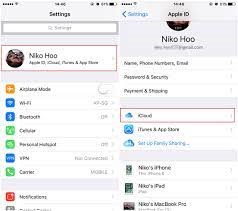
If security or identification issues prevented Apple Pay from responding on your device, this should have been fixed.
Fix 5. Re-add your card or bank account
This is an extreme fix, but if a hard restart and re-login to Apple ID didn’t work for you, this fix might work for you. Redefining payment methods will refresh your payment services that can initiate Apple Pay working on your iPhone.
Here follow these steps to re-add card or bank account to Apple Pay:
Step 1. Go to the Settings app and tap on Wallet and Apple Pay. Select the payment method you want to remove and scroll to the bottom. And tap on Remove this card.
Step 2. Confirm your action by typing your passcode.
Step 3. Once the payment method is removed, hard restart your device.
Step 4. Restart your device, open the Wallet app, and tap on + sign to add a new payment method.
Step 5. You can scan your card using the app or manually type details. Then, just follow the on-screen instructions to add a card to Apple Pay. After that, you will be able to use Apple Pay without any problem.
Fix 6. Reset your settings
If mismatched settings from the newer iOS update are creating a problem for the Apple Pay app, resetting your iPhone settings is the best solution.
To reset iPhone settings, tap on the Settings app > Transfer or Reset iPhone > Reset > Reset All Settings.
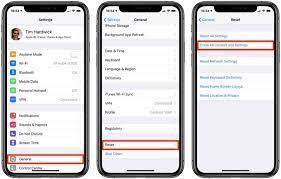
Enter your passcode to confirm the action. Usually, the iPhone will automatically restart after this, but you can manually hard restart it if it doesn’t. This method will reconfigure Apple Pay in the Settings app.
Fix 7. Remove iPhone case
If you are using an NFC scan to make payments, your iPhone case might get in the way. So, try taking off your case and then scanning the card again.
Fix 8. Select your card manually
When Apple Pay and the terminal are working fine on your iPhone, the app will automatically launch your default card to make payments. But if there is any glitch, you might need to manually select a credit card and then try the terminal again. You can manually select the card as follows:
Step 1. Open the Wallet app on your iPhone.
Step 2. Choose the card you want to use.
Step 3. Take your phone near the point of sale terminal. If it’s working, you can now make your payment normally.
Fix 9. Reset your iPhone
This is a drastic solution that we will not recommend. Resetting your iPhone will remove all your data and take your phone to the condition you have purchased it. Unless you have fully backed up your iPhone data, we don’t recommend this solution.
But if not only Apple Pay, but also many other apps are not working on your iPhone, factory resetting the device is unavoidable. So, we repeat, first backup your iPhone and then—
Go to the Settings app > General > Reset iPhone > Erase All Content and Settings.
Fix 10. Miscellaneous Solutions
There are a few miscellaneous and small fixes that might fix Apple Pay not working on an iPhone, such as:
- First, check for Apple Pay app updates.
- Then, close and reopen the app.
- Contact your bank.
- Check your Apple Pay settings.
Bottom Line – Apple Pay Stopped Working
Apple Pay is a great digital wallet that might experience a few glitches now and then. But as we discussed, it is easy to fix the Apple Pay not working issues.
So, use the problem-appropriate solutions to make quick and safe payments using Apple Pay.
Please follow us on social networks for more how-to guides if you find this post helpful.
FAQs:
1. Why is my Apple Pay declined even with enough balance?
This can happen for a few reasons. Banks often run quick security checks before approving a payment. If something looks unusual, the transaction may be blocked. It can also happen if your card has daily limits or if the payment amount is high. In some cases, the store may not fully support Apple Pay. A weak connection can also interrupt the process. If the issue keeps happening, contact your bank. They can confirm if there is any restriction on your card.
2. How do I know if Apple Pay is working on my device?
You can check this in a simple way. Open the Wallet app and make sure your card is visible and active. Try making a small payment at a supported store. If the payment goes through, everything is working fine. You can also check if Face ID or Touch ID is responding properly. If the payment fails, review your settings. Check your internet connection and card details. A quick restart can also help.
3. Can I use Apple Pay without the internet?
In some cases, yes. Apple Pay can work offline for small payments using stored information. This is useful for quick transactions. But it does not work in every situation. Some payments need online verification from your bank. If you are making a larger payment, the internet is usually required. For a smooth and reliable experience, it is better to stay connected while using Apple Pay.
Author Bio:
Dinesh Lakhwani 

Dinesh Lakhwani, the entrepreneurial brain behind “TechCommuters,” achieved big things in the tech world. He started the company to make smart and user-friendly tech solutions. Thanks to his sharp thinking, focus on quality and the motto of never giving up, TechCommuters became a top player in the industry. His commitment to excellence has propelled the company to a leading position in the industry.
Popular Post
Recent Post
How to Recover Unsaved Word Document? [Complete Guide]
It can be frustrating when a Word document suddenly disappears. You may have spent hours writing a report, assignment, or letter. Then your computer crashes, the power cuts out, or Word closes before you save the file. In that moment, it may seem like all your work is gone. This happens more often than most […]

What Is A Zero-Day Attack And How Can You Defend Against One?
Picture this. A hacker finds a secret crack in your favorite app. You don’t know it’s there. The company that built the app doesn’t know either. But the hacker does. And they use it right away, before anyone can stop them. This is the heart of a zero-day attack. It strikes when a flaw is […]
Iolo System Mechanic PC Cleanup Software: Hands-On Performance Review
PCs feel fast on the first day. Every click is quick. Apps open right away. With time, things slow down. Programs take longer to load. Files open slowly. Fans get loud even during light use. This happens to almost every computer, no matter how careful you are. The reason is clear. Junk files build up […]
Advanced SystemCare PC Cleanup Tool: A Detailed Review
You turn on your PC and wait. And wait. The same laptop that once opened apps in a snap now feels tired. This is not bad luck. It just happens over time. Files pile up. The registry gets messy. Old drivers stay installed long after they are useful. Junk data quietly eats up space on […]

Avast Cleanup PC Cleaner and Optimizer: Everything You Need to Know
A slow computer makes it hard to focus. Programs take too long to open. Free space keeps shrinking until the disk is almost full. This happens to most PC owners at some point. Even new machines can slow down after a while. That is the exact problem cleanup tools are built to solve. They comb […]

Fortect Software Review: The Ultimate PC & Mobile Cleaning, Optimization & Security Tool
Slow computers are a common problem for almost every Windows user. Well, yes! Over time, your PC picks up junk files. These files sit quietly in the background. They take up space and slow things down. Programs open slower. Windows takes longer to boot. Even simple tasks like opening a folder can feel sluggish. There […]

CCleaner PC Optimizer Review: A Complete Guide for Windows Users
If your computer has started to feel slow, you are not alone. Most Windows PCs slow down over time. Junk files pile up. The registry gets messy. Too many apps open when you start your PC. All this adds up and makes even a good machine feel tired. This is where a PC cleaner tool […]

5 Best PC Cleaners for Windows 11 & 10 | Top PC Optimizers
Remember when your PC felt fast? Every click was quick. Every app opened in seconds. Now it feels like a different machine. Windows takes forever to boot. Programs freeze for no reason. Even opening a browser feels like a chore. You are not alone in this. Almost every PC slows down over time. Files pile […]

Auslogics Duplicate File Finder: Full Review and User Guide
A computer quietly gathers clutter over time. This includes duplicate photos, repeated downloads, and forgotten backups hiding in random folders. This buildup slowly eats away at storage and can make even a fast PC feel sluggish. Manually finding and deleting duplicates is tedious. It means checking every folder, comparing file names, and guessing which copies […]

