












A slow PC rarely gives a warning. One day, it simply takes longer to start. Apps open late. The fan runs loud, even when the screen is almost empty. Most people blame old hardware. Often, that is not the real reason. The real reason is hiding in plain sight. Windows keeps many apps active in […]
How to Create a Timeline in Google Slides
Timelines are an excellent method for displaying sequential listings of activities from start to end. It is a visual display of information that includes lists, charts, or visuals. A timeline is written down and organized in the same chronological sequence. A timeline is a smart method to condense information and better explain your brand using one in your presentations.
You can provide your viewers a visual display of your company’s accomplishments and future ambitions rather than heading back and forward. Timeline google slides are one of the best ways to portray your company’s evolution.
Helpful Suggestions for Creating a Timeline
- Employ infographics, images, and other visual designs to make your timeline more colorful, engaging, and easy to understand.
- Remember to give the timeline a title.
- Ideas should be presented clearly and concisely.
- Consider the scope of your timeline ahead of time.
- Use the most proper type of timeline from vertical, horizontal, and others, depending on the number of exhibited events.
- Pick a design that goes well with the remainder of your presentation. Each slide must have its unique style.
Google Slides
Google Slides is a web-based presentation tool that allows users to create and organize presentations and collaborate with others. Google’s Chrome OS is accessible as an online application, a mobile app, and a desktop program. The program can open Microsoft PowerPoint file files, and it enables users to create and update files electronically while interacting promptly.
While PowerPoint users have abundant tools for creating timelines, Google Slides users may find it difficult to get the information they need. In this article, we will teach you how to make a timeline in Google Slides with ease.
Procedures to Create a Timeline on Google Slides
If you want to use google slides for creating your timeline, you can follow all the below procedures.

Make Use of a Timeline Template
Do you desire to invest valuable time making your custom timeline chart? If your answer is no, then Google Slides seems to have a quick answer. You can alter one of the offered templates to match your specific needs. So, if you want to add a timeline graphic to your Google Slides presentation, follow these instructions.
- Ensure you are on the right slide. Then navigate to the Insert menu and choose Diagram.
- Select the google slides timeline template from the right sidebar.
- To customize your Diagram, use the Dates and Color drop-down options. When you modify the color and number of dates in Google Slides, the samples will update to show the timeline’s style.
- Now, you need to select any google slides timeline template to insert it into the slide. Click on it. Multiple field texts rely on the template you choose, such as project name, task information, project manager, etc. Then double-click the text areas to input data to the timeline.
- Employ different colors to demonstrate your progress over time. Choose an element and choose to Fill color from the toolbar to alter its color. Under Custom, you will see a list of the colors you have used before for your timeline.
Make a Timeline from the Scratch
You can design a timeline from scratch employing shapes, callouts, and text fields if you don’t discover a Google Slides template you prefer or want more personalization choices for your project. You can customize a timeline to fit your characteristics and preferences, though it will take more time than simply inserting a template. Below are the steps to know how to make a timeline in google slides:
- Create a timeline axis. Select Line from the toolbar menu bar. You are free to use any line style you wish.
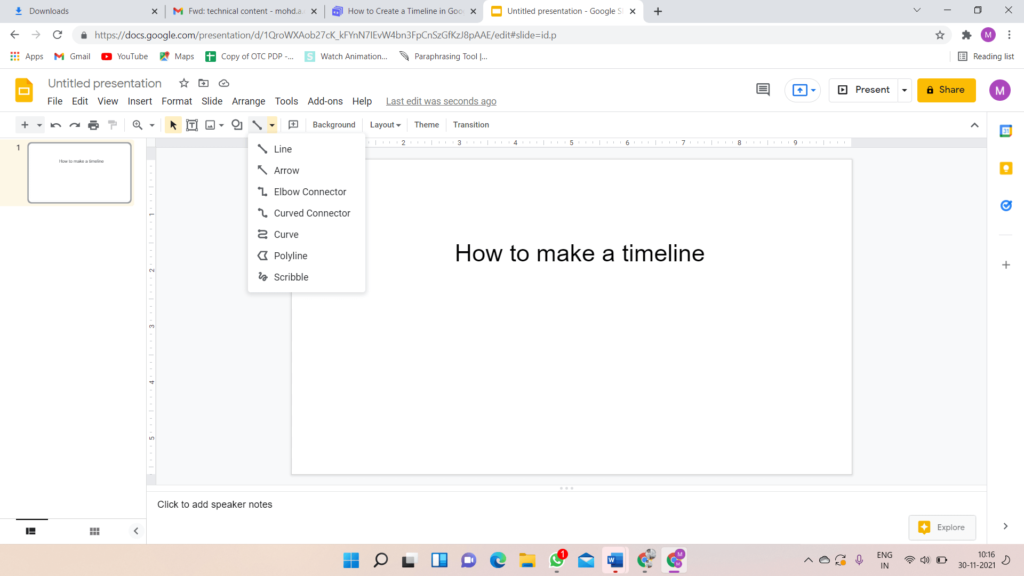
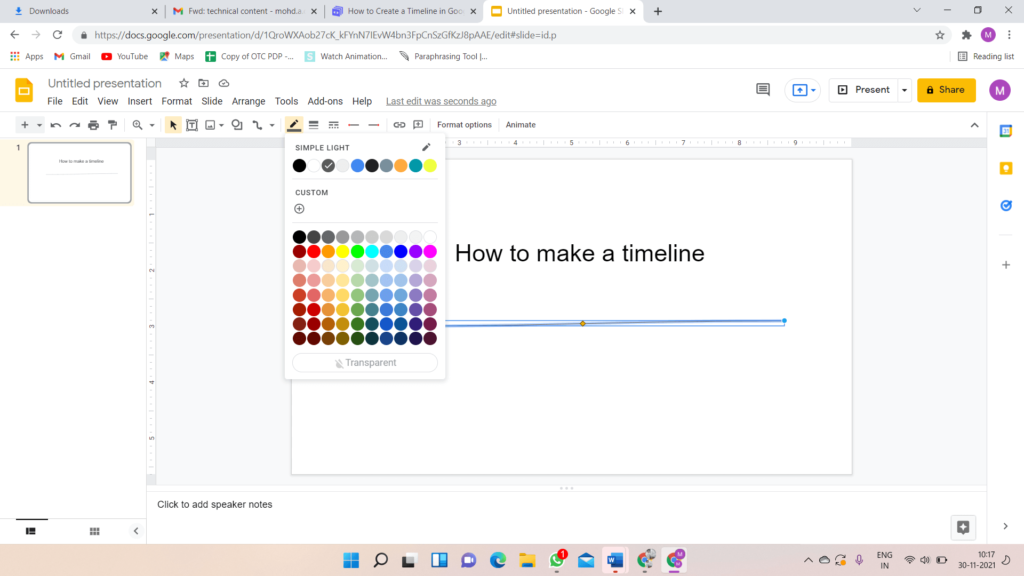
- Open Line Color when the Line is chosen to change its color. Next, under Line Weight, choose thickness.
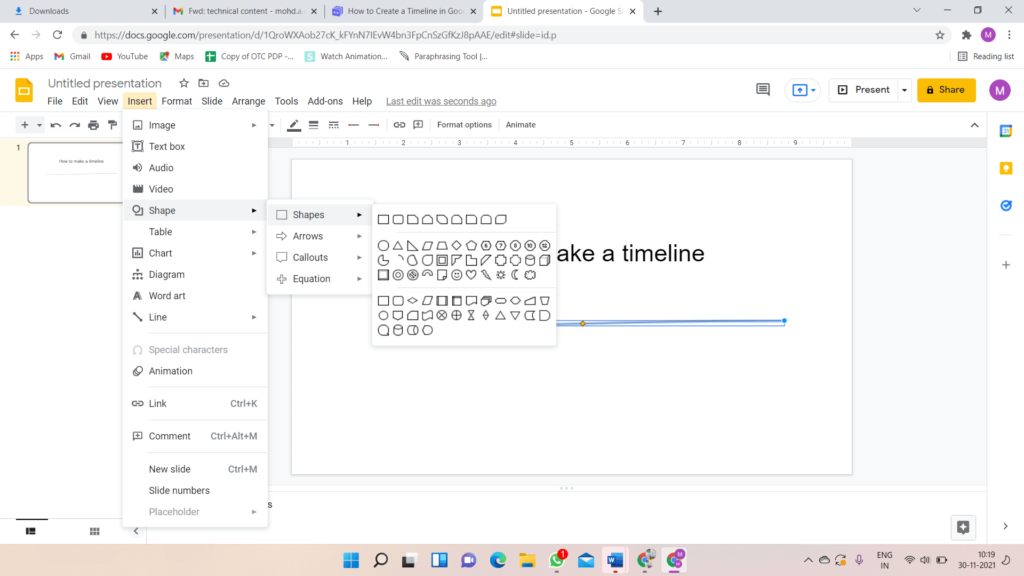
- Toss in the shapes that will be used to hold the dates. Enter the Insert menu’s Shapes drop-down option and click the shape you wish to use.
- After you have inserted the shape, adjust it and modify it with the Fill color, Border weight, Border Color, and Border dash options.
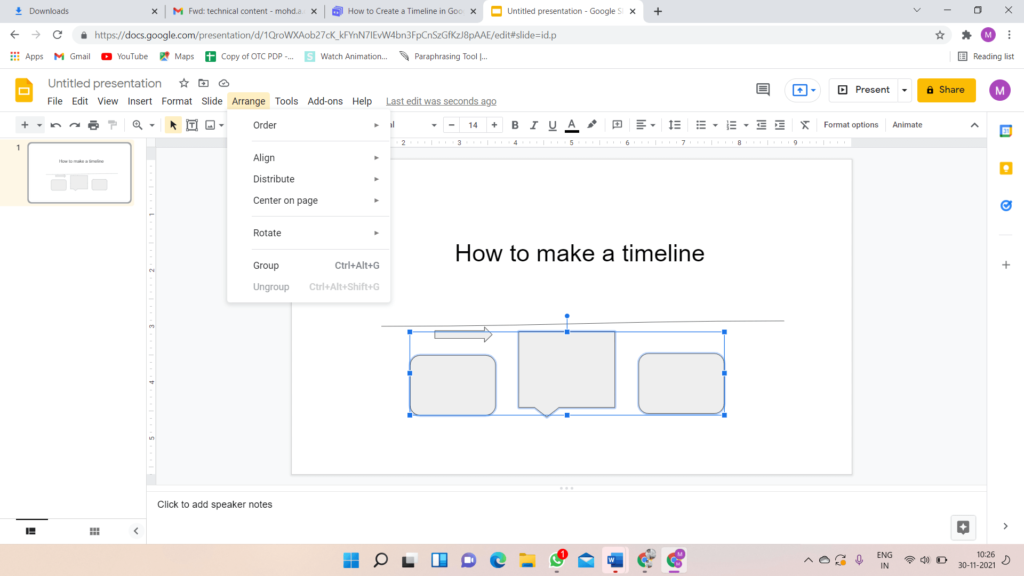
- Please copy and paste it as many times as you want to add dates. Google Slides will provide you with suggestions for reorganizing these shapes to be all on the same axis and have the same spacing between them.
- Select one of the callouts from Insert > Shapes > Callouts to insert callouts for every step in the timeline. However, you can choose from the Shapes menu whatever shape you desire.
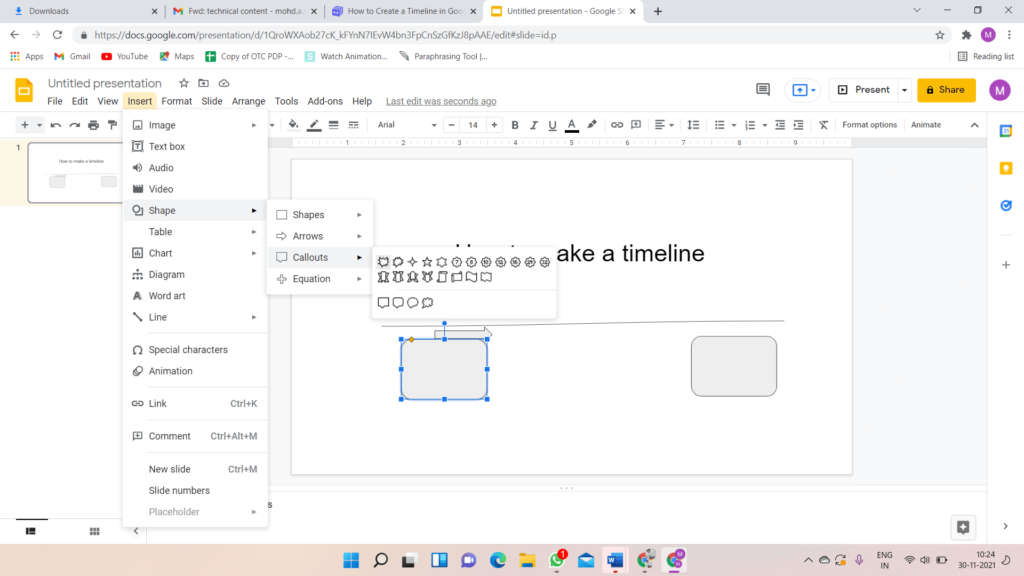
- Using the same methods we stated earlier, resize and alter the call out.
- You can copy and paste over as many times as you want. Now, using the rules, reorganize the callouts.
- You can arrange the call-outs from both sides of the axis to avoid clogging up the timeline. Right-click the callout and select Rotate, then click on Flip Vertically from the context menu. The text will be upturned on the flipped call-outs and put a text box above them to fix it.
- All of the elements should be grouped. Click on the Arrange option and pick Group after you have chosen the whole timeline. Alternatively, you can utilize the Ctrl + Alt + G keyboard shortcut.
Some of the Best Google Slides Timeline Templates
Every business employs visual presentation to improve sales, productivity, and demographics for target clients. We have compiled the leading and best Timeline Google Slides templates to improve speed and productivity.

- Free Google Slides Timeline Templates
You can substantially illustrate the chronological framework using this timeline google slides. If you want to provide a brief explanation about the company’s history, provide a glance of its progress, job guidelines, or anything, these templates are a must-have. These free timeline Google slides templates are simple to customize, so you can make and change the presentation without constructing a background.
- Six Stage Timeline Google Slides Templates
There are six stages to the chronology in this template of timeline in google slides. Google Slides templates are a fantastic timeline template with eye-catching bubbles that draw attention to each aspect of your presentation. Colorful bubbles are sure to attract people’s attention right away.
- Timeline Infographics Template
If you want to illustrate a project chronology, highlight company successes, current, previous events, failures, or anything else, this is the place to be. These timeline infographics templates are the most elegant approach to portraying facts for a specific period.
- Free Creative PowerPoint Templates
You can explore a variety of free creative PowerPoint templates to create eye-catching presentations. You can make any presentation with these free creatives. The presentation slide includes several stunning timeline visualizations, maps, graphs, charts, and other images.
- Layer Infographics Timeline Free Google Slides
This is a one-of-a-kind google slides timeline template that includes highways and signboards to reflect goals, milestones, and successes, among other things. These timeline roadmaps can also be downloaded as PowerPoint templates with milestones for showcasing strategic planning activities.
- Free Agenda Timeline Google Slides Templates
The agenda presentation provides an overview of the issues that will be covered at a conference and meetings. As attendees arrive, these free agenda timeline Google slides templates welcome them with valuable information like the meeting’s agenda, subjects to be covered, presenters, topic timings, and so on. Increase the productivity of your meetings by using these agenda PowerPoint templates.

Conclusion
We have offered the best timeline templates along with the procedures to create a timeline. These templates depict the progress of your company or project. One of the numerous methods to make your presentations more aesthetically attractive and offer straightforward ideas to include a timeline.
Author Bio:
Dinesh Lakhwani 

Dinesh Lakhwani, the entrepreneurial brain behind “TechCommuters,” achieved big things in the tech world. He started the company to make smart and user-friendly tech solutions. Thanks to his sharp thinking, focus on quality and the motto of never giving up, TechCommuters became a top player in the industry. His commitment to excellence has propelled the company to a leading position in the industry.
Popular Post
Recent Post

How to Activate Windows with a Product Key for Windows 11 & Windows 10
It always shows up at the worst time. You are halfway through a report, or about to join a video call. Then you spot it in the bottom right corner of the screen. Activate Windows. Go to Settings to activate Windows. Initially, an unactivated copy of Windows may seem like a minor inconvenience. Over time, […]

Is Easy Duplicate Finder Worth It? Honest Review
The photos folder looked normal at first glance. Then the storage warning popped up. One trip photo appeared four times. A tax PDF sat in three different folders. Two old setup files were still in Downloads, and each one was over 500 MB. Nobody plans this mess. Copies pile up slowly. A download runs twice. […]

Wise Duplicate Finder Review: Real Results from Wise Duplicate Finder
Read my honest Wise Duplicate Finder review. See features, pricing, pros and cons, and real PC test results. Find out if this free duplicate cleaner can free up your Windows storage.

How to Recover Deleted Files from Pen drive, USB Drive, SD Card
Introduction: On tech forums, you’ll often see posts like this: “I connected my pen drive to my laptop this morning, but the folder was empty. All my college project files had vanished. I don’t have a backup. Can someone help me?” Stories like this are very common. Pen drives, USB drives and SD cards are […]

How To Recover Files Deleted from the Recycle Bin [Windows 11]
Losing a file can happen in seconds. You clear your desktop, hit Delete, and empty the Recycle Bin. Then, just when you need that file again, it seems to have vanished. This guide will walk you through ways to restore files removed from the Recycle Bin. We will begin with simple fixes, then look at […]

Disk Drill Data Recovery Tool Explained: Full Review and Guide
It happens in a split second. You delete a folder by mistake. Your drive stops showing up. A photo album from your last trip just vanishes. And your stomach drops. Lost files feel personal. They are not just data. They are memories, work hours, and sometimes years of effort packed into a few gigabytes. When […]

Recover Deleted Files In Windows 11 With Software & Without
Introduction What is the first thing that goes through your mind the second an important file vanishes from a Windows 11 PC? For most people, it is a mix of panic and disbelief, followed by a frantic click through every folder that file could possibly be hiding in. It happens in a split second: one […]

EaseUS Data Recovery Wizard: Everything To Know
Data loss does not always come from a big disaster either. Most cases start small and boring. A drive gets formatted by mistake. A laptop freezes mid-save and restarts on its own. A memory card stops showing up after being pulled out too fast. None of these feel like emergencies at first, until you realize […]

Recuva Data Recovery Tool: Is it Actually Worth it?
When I first tried Recuva Data Recovery, I wanted to see if it could really bring back lost files. The tool is free, small in size, and promises quick recovery, which made me curious enough to test it on my own PC. The setup was fast, and the wizard guided me step by step. I […]

