












The photos folder looked normal at first glance. Then the storage warning popped up. One trip photo appeared four times. A tax PDF sat in three different folders. Two old setup files were still in Downloads, and each one was over 500 MB. Nobody plans this mess. Copies pile up slowly. A download runs twice. […]
How to Remove Bloatware from Windows 11?
Removing bloatware from Windows 11 is not impossible. If you know the correct instructions, it is as easy as 1-2-3. This article will explain everything clearly, thus helping get rid of bloatware from Windows 11.
To begin with, we will learn how to remove bloatware using the traditional Uninstall function.
Best Ways to Remove Bloatware – Windows 11
1. Uninstall Pre-Installed Apps
1 Press Windows + I
2 Navigate to Apps & Features > click Apps > select Apps & Features.
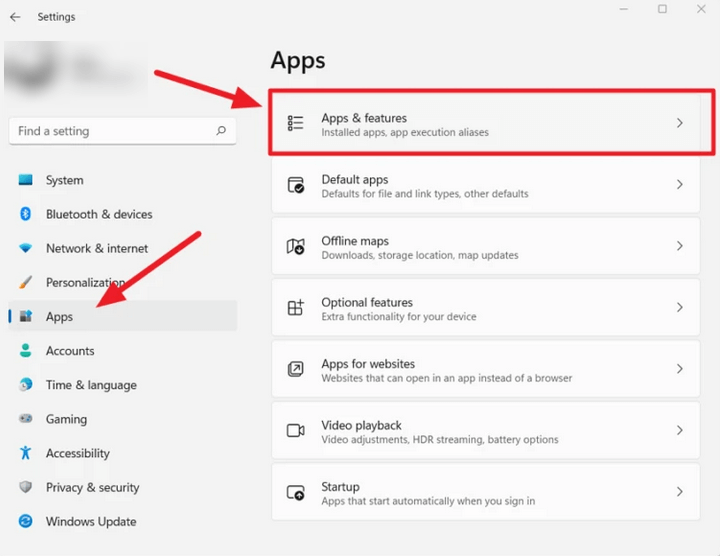
3. Locate the software you don’t need.
4 Select it > click the three-dotted button to the right > select Uninstall.
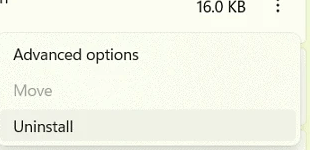
5 Confirm the action and follow on-screen instructions.
The selected app will no longer be available on the Windows 11 computer.
If you don’t find the uninstall button or think your system might be infected, try using Systweak Antivirus. The security application will thoroughly scan your system for all types of infections and help get rid of them.
Furthermore, it provides real-time protection, Malware Protection, Exploit Protection, Web Protection and scans startup items.
Method 2 – Removing Bloatware via Windows PowerShell
Some pre-installed apps (bloatware) are sticky. This means you cannot remove them using the traditional method. Therefore, we will use PowerShell to remove bloatware apps like Photos, OneNote, and others.
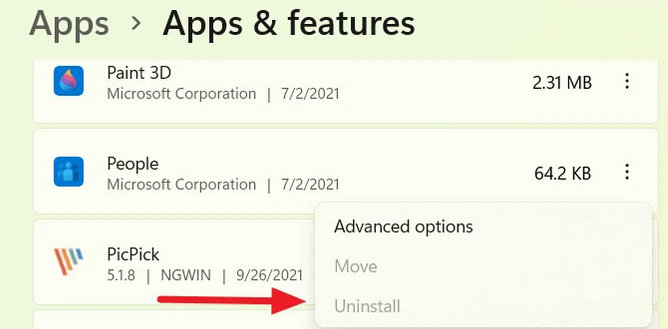
To use PowerShell, follow these steps:
Before that, get a list of pre-installed apps on your Windows 11 open PowerShell.
Press Windows + X > PowerShell (Admin).
Enter “Get-AppxPackage.”
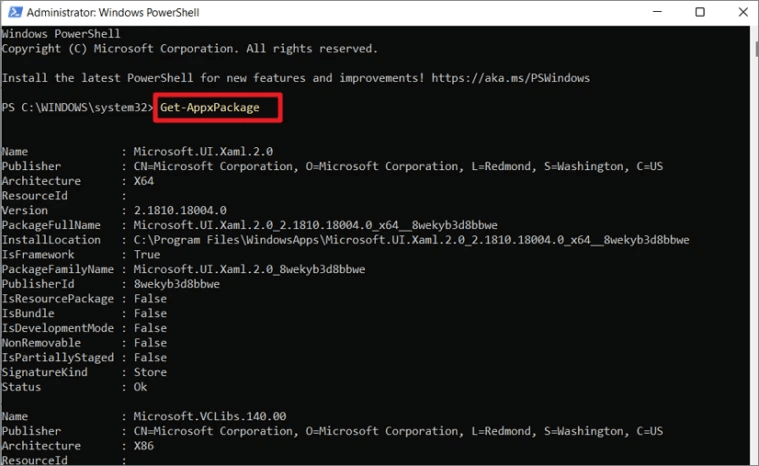
You will now get a list of pre-installed apps.
- Press Windows+X > select PowerShell (Admin).
2 To remove apps via Windows PowerShell, type the following command – “Get-AppxPackage” and “Remove-AppxPackage.”
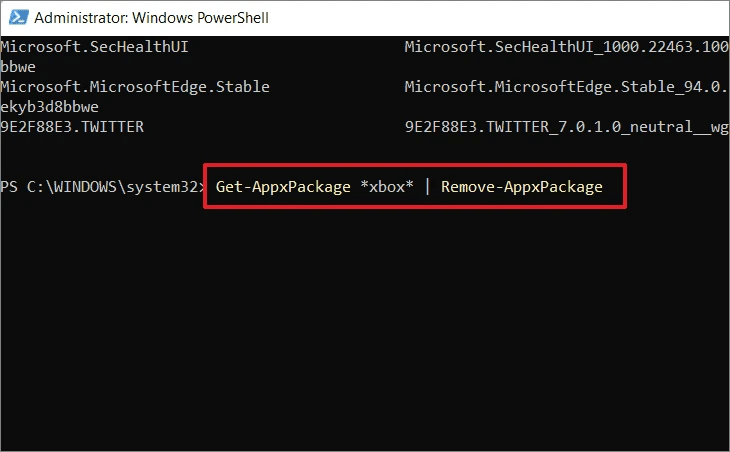
For example, if you want to get rid of the Xbox app, type – Get-AppxPackage Microsoft.Xbox.TCUI | Remove-AppxPackage
Note: The above command, instead of uninstalling apps, might hide them.
PowerShell commands to uninstall or hide bloatware applications on Windows 11.
- Remove Calculator:
Get-AppxPackage *calculator* | Remove-AppxPackage
- Remove People:
Get-AppxPackage *people* | Remove-AppxPackage
- Remove Voice Recorder:
Get-AppxPackage *soundrecorder* | Remove-AppxPackag
- Remove Get Office:
Get-AppxPackage *officehub* | Remove-AppxPackage
- Remove OneNote:
Get-AppxPackage *onenote* | Remove-AppxPackage
- Remove Alarms & Clock:
Get-AppxPackage *alarms* | Remove-AppxPackage
- Remove Camera:
Get-AppxPackage *camera* | Remove-AppxPackage
- Remove Skype:
Get-AppxPackage *skype* | Remove-AppxPackage
- Remove Your Phone Companion:
Get-AppxPackage *yourphone* | Remove-AppxPackage
- Remove Photos:
Get-AppxPackage *photos* | Remove-AppxPackage
- Remove Microsoft Store:
Get-AppxPackage *windowsstore* | Remove-AppxPackage
That’s it; using the above methods, you can easily uninstall bloatware from Windows 11.
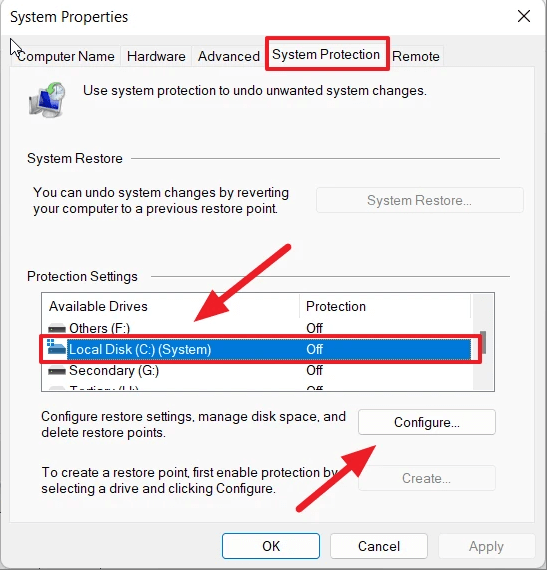
Remember, debloating Windows means uninstalling/hiding unnecessary apps from the Windows installation. But it could also mean you encounter some glitches. Therefore, don’t forget to take backups for precaution’s sake.
Using the above steps you can also disable all Telementary services that run in the background and keep an eye on your activities. Keep in mind, these pre-installed apps and services are permanently disabled via Windows Registry. So, the chances of them starting automatically are very thin.
We hope you find the information helpful and will use the methods explained to debloat Windows 11 to boost performance and make some space for critical data.
In addition to following the above steps, to keep your Windows protected from malware and other infections, use Systweak Antivirus. The security tool comes with an advanced scan engine, is light on system resources, and offers real-time protection.
Author Bio:
Dinesh Lakhwani 

Dinesh Lakhwani, the entrepreneurial brain behind “TechCommuters,” achieved big things in the tech world. He started the company to make smart and user-friendly tech solutions. Thanks to his sharp thinking, focus on quality and the motto of never giving up, TechCommuters became a top player in the industry. His commitment to excellence has propelled the company to a leading position in the industry.
Popular Post
Recent Post

Wise Duplicate Finder Review: Real Results from Wise Duplicate Finder
Read my honest Wise Duplicate Finder review. See features, pricing, pros and cons, and real PC test results. Find out if this free duplicate cleaner can free up your Windows storage.

How to Recover Deleted Files from Pen drive, USB Drive, SD Card
Introduction: On tech forums, you’ll often see posts like this: “I connected my pen drive to my laptop this morning, but the folder was empty. All my college project files had vanished. I don’t have a backup. Can someone help me?” Stories like this are very common. Pen drives, USB drives and SD cards are […]

How To Recover Files Deleted from the Recycle Bin [Windows 11]
Losing a file can happen in seconds. You clear your desktop, hit Delete, and empty the Recycle Bin. Then, just when you need that file again, it seems to have vanished. This guide will walk you through ways to restore files removed from the Recycle Bin. We will begin with simple fixes, then look at […]

Disk Drill Data Recovery Tool Explained: Full Review and Guide
It happens in a split second. You delete a folder by mistake. Your drive stops showing up. A photo album from your last trip just vanishes. And your stomach drops. Lost files feel personal. They are not just data. They are memories, work hours, and sometimes years of effort packed into a few gigabytes. When […]

Recover Deleted Files In Windows 11 With Software & Without
Introduction What is the first thing that goes through your mind the second an important file vanishes from a Windows 11 PC? For most people, it is a mix of panic and disbelief, followed by a frantic click through every folder that file could possibly be hiding in. It happens in a split second: one […]

EaseUS Data Recovery Wizard: Everything To Know
Data loss does not always come from a big disaster either. Most cases start small and boring. A drive gets formatted by mistake. A laptop freezes mid-save and restarts on its own. A memory card stops showing up after being pulled out too fast. None of these feel like emergencies at first, until you realize […]

Recuva Data Recovery Tool: Is it Actually Worth it?
When I first tried Recuva Data Recovery, I wanted to see if it could really bring back lost files. The tool is free, small in size, and promises quick recovery, which made me curious enough to test it on my own PC. The setup was fast, and the wizard guided me step by step. I […]

GetData Recover My Files Data Recovery Tool: Honest Review
A hard drive error brings a special kind of silence. Well, yes! The screen freezes, then a message appears saying the drive can’t be found or must be formatted. In that moment, years of photos and work files feel at risk. It never happens at a good time. Coffee spills near a laptop, a memory […]

Windows File Recovery: A Complete Review [Tried & Tested]
Imagine this. You spend hours perfecting a video project. You hit save. Then your laptop freezes, reboots, and when the screen comes back. The file is gone. Your stomach sinks. It’s not just you. Lost files happen all the time. A dropped hard drive, a bad update, an accidental delete, or a corrupted partition can […]

