












So, search for a pair of shoes once online. Close the tab. By evening, those same shoes are sitting on your news site, your video app, and even your recipe blog. Nobody placed them there by chance. A cookie did. Well, yes! Cookies are small files that websites place on your device while you browse. […]
Review – Tenorshare 4DDiG- Best Data Recovery Software For Windows & Mac
Restore lost or deleted files from any storage media using Tenorshare 4DDiG.
Losing important files, images, videos, or for that matter any data is no fun. It leaves us all anxious, frustrated, and stressed. What’s worse, when we don’t have a backup and the same file is urgently required. This creates panic and makes you look irresponsible in front of seniors, customers, and clients.
If you are getting what I am saying or are stuck in a similar situation, no need to panic. There’s a way to recover such lost or deleted files. Using Tenorshare 4DDiG, the best recovery tool, you can retrieve all lost or deleted files from your computer and an external hard drive.
Data Loss Scenarios
Human Errors – Major reason for losing files is accidentally deleting them, emptying recycle bin or trash, formatting without taking backup, and pressing Shift+delete.
File Corruption – Situations like sudden power cuts, attacks, or system crashes are reasons for file corruption and this causes data loss.
virus
Natural Disaster – Unavoidable situations like earthquakes, thunderstorms might damage the system and make you lose data.
Hardware Failure – Lost partition, CPU overheating, no disk image are some of the common reasons for hardware failure and data loss
Review – Tenorshare 4DDiG – Popular data recovery tool to restore data lost due to any reason
Before we dive into details here’s an overview of the best data recovery solution from Tenorshare. Known as 4DDiG this data recovery software offers robust and advanced features. The product helps restore files that have been accidentally deleted, lost due to a cyberattack, or corrupt hard disk. It also shows a preview of scanned files and can be used by both Windows and Mac users.
Supported System
Operating System
- Windows 10,8.1,8,7
- macOS 10.10 and above
RAM (both Windows and macOS)
- 512 and more
Disk Space (both Windows and macOS)
- 200 MB and more free space
CPU (both Windows and macOS)
- 1GHz (32 bit or 64 bit) or above
Languages Supported

- English
- German
- French
- Italian
- Spanish
- Portuguese
- Russian
- Japanese
- Arabic
- Traditional Chinese & Simplified Chinese.
File System Windows –
- NTFS
- exFAT and FAT16/FAT32
File System Mac
- APFS
- NTFS and HFS+
Pricing

- Standard – $49.99
- Professional – $79.99
- Premium – $99.99
| Pros | Cons |
| Easy to use, user interface | No option to scan individual folders for data recovery. |
| Different data recovery modes to retrieve data lost due to any situations | Recovering larger files of more than 3GB is difficult |
| Quick scanning and lost file recovery | |
| Compatible with both Windows and Mac | |
| Efficiently scans external drives to get back lost data | |
| Does not interfere with the working of another program |
Highlights:-
1. Retrieve data lost due to any reason
Tenorshare helps restore data from a corrupt & damaged hard disk, files lost due to a virus attack, and even the information removed from Recycle Bin.
2. Restore files from any storage media
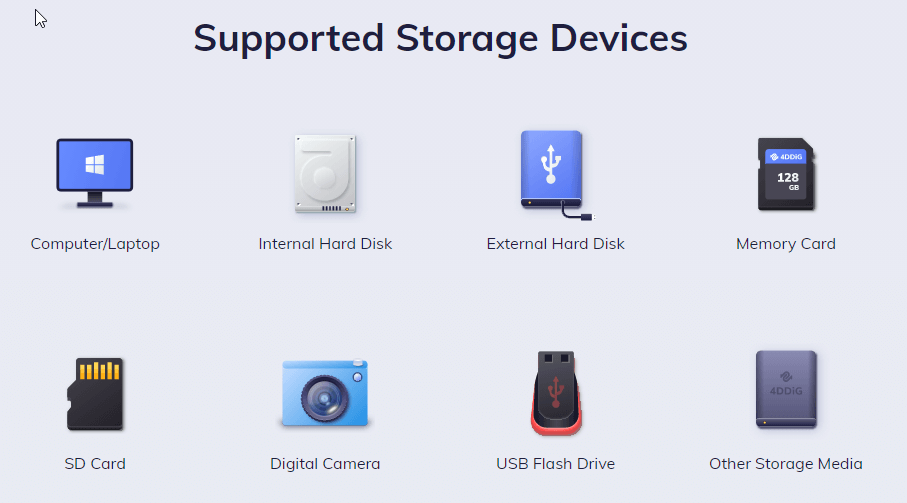
4DDiG recovery software helps get back lost and deleted files from different devices. Whether it be a formatted storage device, external hard drive, USB drive, or internal hard drive, the tool scans all and helps restore data. Using its Deep Scan option, users can easily scan all the partitions and can be sure they have all the lost files.
3. Recover media files
The data recovery tool helps retrieve audio, video, photos, and other media files from damaged storage media. You can restore pictures, videos directly from digital cameras. What’s more, Tenorshare 4DDiG can repair and restore broken or corrupt photos and video files.
4. Undelete different file types
Be it office documents, compressed files, RAR/ZIP, or system files like NTFS/FAT, 4DDiG helps recover all of them.
5. Preview scan results
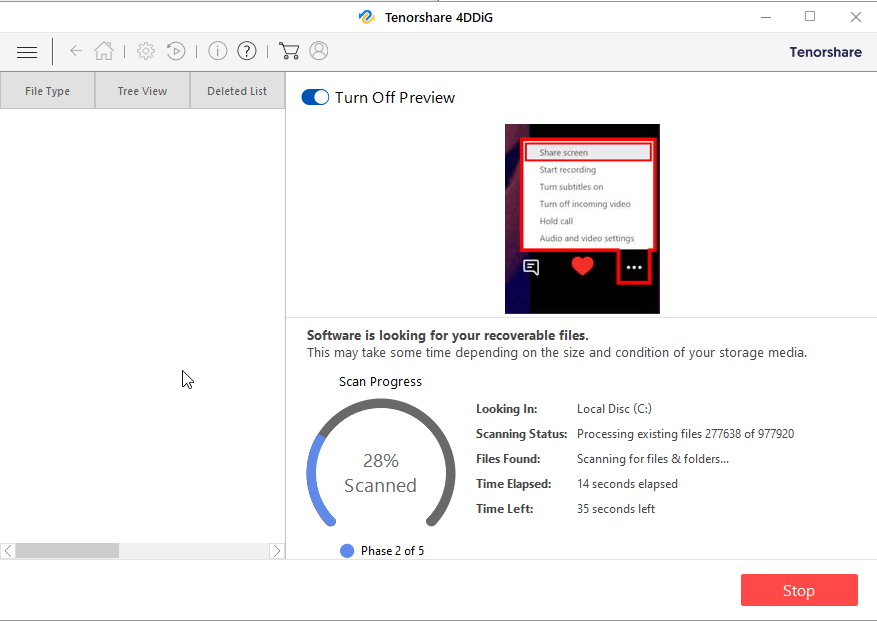
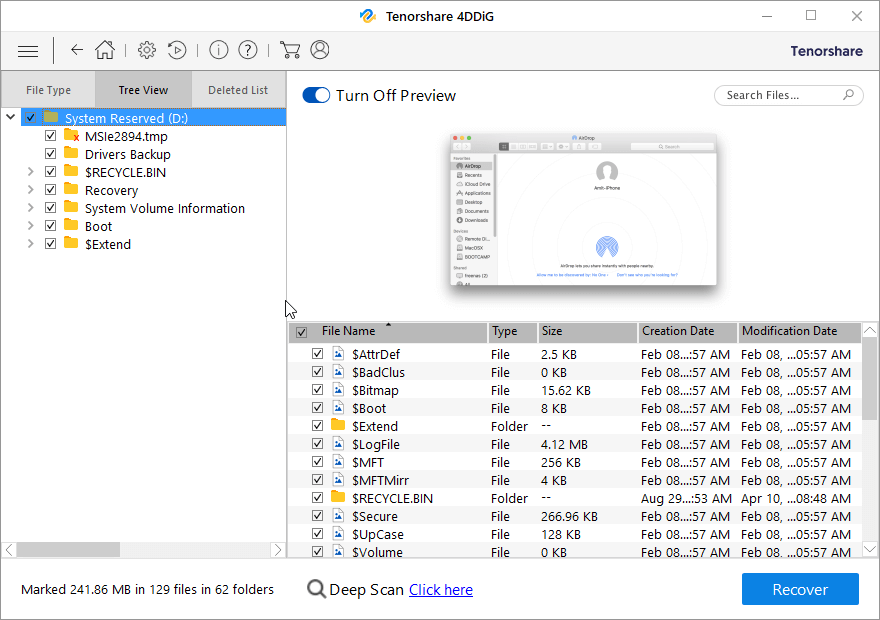
To make the recovery process easy, the recovery tool allows previewing files. This helps make better decisions and restore only those files that you actually want back.
6. Pause and resume scanning
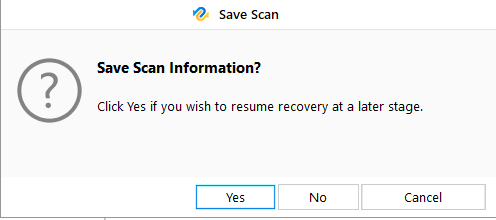
If you have some important work to do and don’t want to leave the system on, when you are not around, no issues. Stop scanning and resume it later whenever you want.
7. File Filter
Locate lost files by date and type or search for the file name using the search bar. This helps save a lot of time.
Tenorshare 4DDiG – User Interface
Tenorshare’s 4DDiG user interface is simple and easy to use. When the data recovery tool is launched, the Select What To Recover screen is displayed. From here using any of the three options you start the data recovery process.
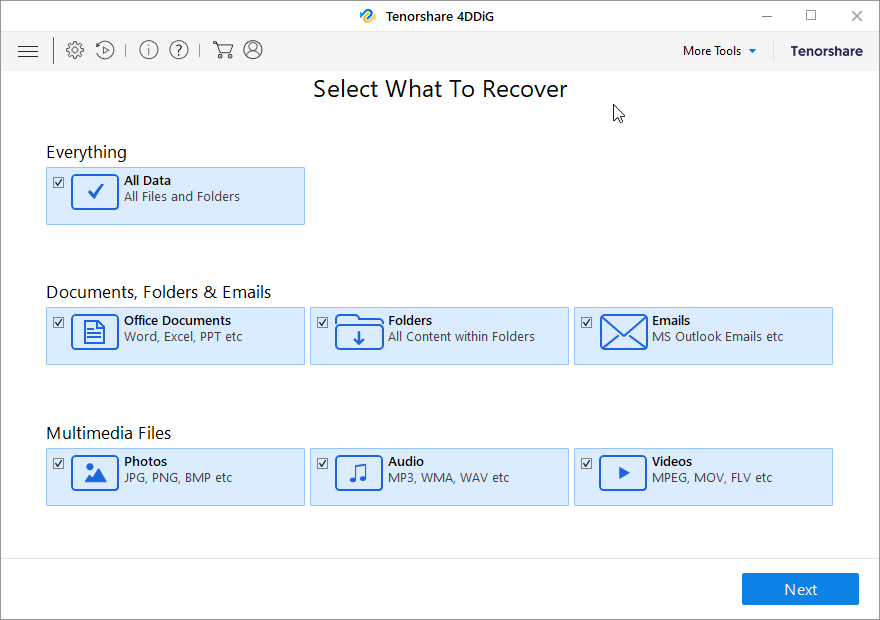
3 recovery options:
- Everything: use this option to restore data from the selected location or drive.
- Documents, Folders & Emails: recover office documents, files, folders, and emails using this option.
- Multimedia Files: lost photos, audio, and videos no worries. Use the Multimedia Files option and get going
To access additional features, click the More Tools button present at the top right corner of the Tenorshare 4DDiG welcome screen.
Brief Description of other buttons you see on Tenorshare 4DDiG:
| Menu | Show/hide the menu bar. |
| Advance Settings | Configure general, file types and recovery settings. |
| Resume Recovery | Resume data recovery. |
| About | Get details about the data recovery software. |
| Help | Access user guide using this button. |
| Buy Online | Buy the software online. |
| Activation | Register purchased version and enjoy restriction-free data recovery tool. |
| Back | Head back to the last screen via this button. |
| Home | Return to the main screen at any point. |
| Next | Go to the next window. |
| Scan | Start the scanning process. |
| Stop | Stop the scanning process at any time. |
| Recover | Save the scanned data. |
Select Specific Location or Connected Drive
Once you click Next, you will see the Recovery From screen. From here, you can select any connected drive or a specific location on your hard drive.
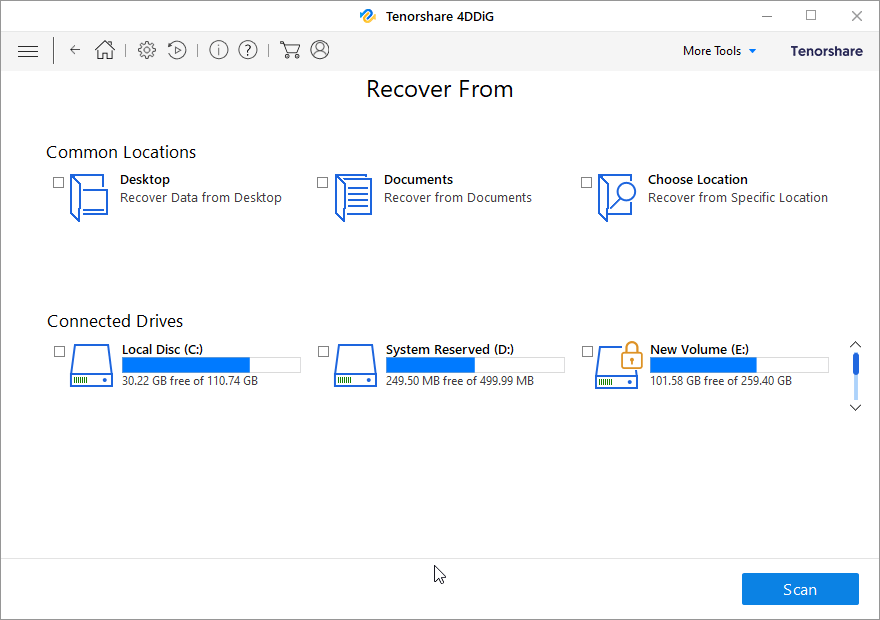
- Common Locations – Common Locations include Desktop, Documents, and Choose Location.
- Connected Drives – These include all the drives and external storage media connected to the system.
How to use 4DDiG Data Recovery Software?
Using 4DDiG Data Recovery Software is a three-step process.
- Download and install the data recovery software.
- Launch the tool > select the location to scan for lost data.
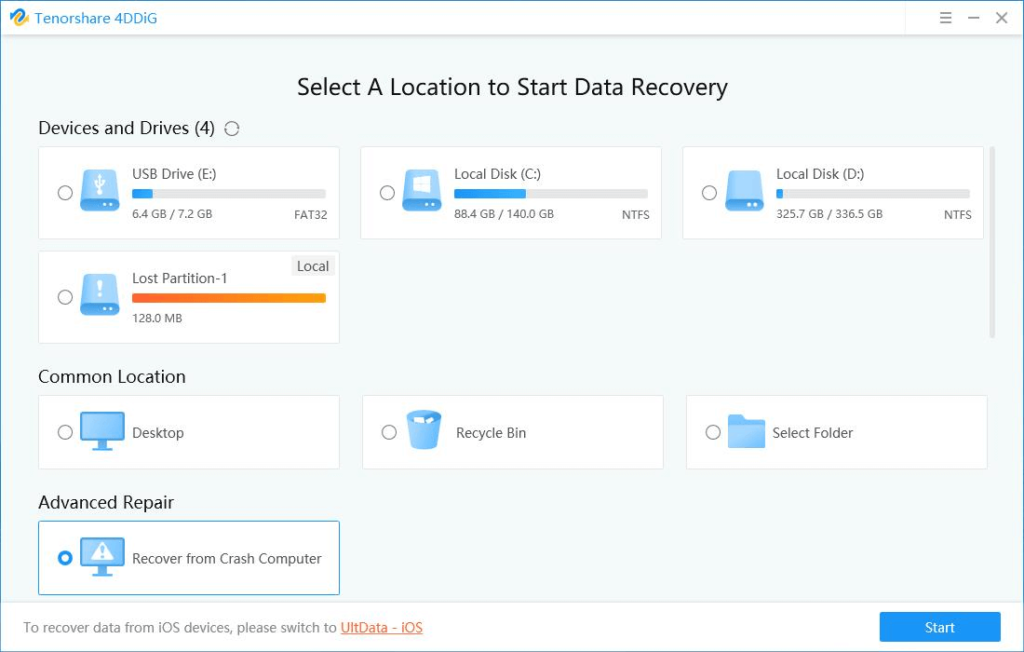
3. Preview scan results
4. Select the files to restore > select the location to restore the files and hit the Recover button.
What Makes Tenorshare the Best Recovery tool?
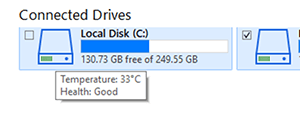
- Tenorshare 4DDiG displays the temperature and health details of connected drives. To view, hover the mouse cursor on the drive in the Recover From screen and you will get all the details as shown in the image below:
- Helps scan drive encrypted using BitLocker. When you try to scan a locked drive, the tool prompts you to unlock the disk and start the recovery process.
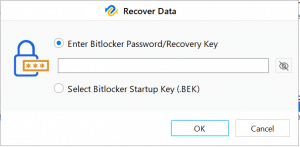
- Deep Scan option to thoroughly scan a drive and locate data that you were unable to locate during Quick Scan.

Tenorshare 4DDiG Worth Giving a Try
To sum up the review, we would like to say that the tool is worth giving a try. Using it you can restore a wide array of files lost due to any reason. Also, you can preview files before recovering them, this helps save time and disk space as only the required data will be put back on the disk. If you are looking for a comprehensive tool to recover any kind of data, Tenorshare is the choice for you.
We hope you find the information helpful and will give this tool a try. Looking forward to hearing from you about the tool and how it helped in retrieving lost or deleted files.
Author Bio:
Dinesh Lakhwani 

Dinesh Lakhwani, the entrepreneurial brain behind “TechCommuters,” achieved big things in the tech world. He started the company to make smart and user-friendly tech solutions. Thanks to his sharp thinking, focus on quality and the motto of never giving up, TechCommuters became a top player in the industry. His commitment to excellence has propelled the company to a leading position in the industry.
Popular Post
Recent Post

How To Disable Background Apps In Windows: 4 Quick Methods
A slow PC rarely gives a warning. One day, it simply takes longer to start. Apps open late. The fan runs loud, even when the screen is almost empty. Most people blame old hardware. Often, that is not the real reason. The real reason is hiding in plain sight. Windows keeps many apps active in […]

How to Activate Windows with a Product Key for Windows 11 & Windows 10
It always shows up at the worst time. You are halfway through a report, or about to join a video call. Then you spot it in the bottom right corner of the screen. Activate Windows. Go to Settings to activate Windows. Initially, an unactivated copy of Windows may seem like a minor inconvenience. Over time, […]

Is Easy Duplicate Finder Worth It? Honest Review
The photos folder looked normal at first glance. Then the storage warning popped up. One trip photo appeared four times. A tax PDF sat in three different folders. Two old setup files were still in Downloads, and each one was over 500 MB. Nobody plans this mess. Copies pile up slowly. A download runs twice. […]

Wise Duplicate Finder Review: Real Results from Wise Duplicate Finder
Read my honest Wise Duplicate Finder review. See features, pricing, pros and cons, and real PC test results. Find out if this free duplicate cleaner can free up your Windows storage.

How to Recover Deleted Files from Pen drive, USB Drive, SD Card
Introduction: On tech forums, you’ll often see posts like this: “I connected my pen drive to my laptop this morning, but the folder was empty. All my college project files had vanished. I don’t have a backup. Can someone help me?” Stories like this are very common. Pen drives, USB drives and SD cards are […]

How To Recover Files Deleted from the Recycle Bin [Windows 11]
Losing a file can happen in seconds. You clear your desktop, hit Delete, and empty the Recycle Bin. Then, just when you need that file again, it seems to have vanished. This guide will walk you through ways to restore files removed from the Recycle Bin. We will begin with simple fixes, then look at […]

Disk Drill Data Recovery Tool Explained: Full Review and Guide
It happens in a split second. You delete a folder by mistake. Your drive stops showing up. A photo album from your last trip just vanishes. And your stomach drops. Lost files feel personal. They are not just data. They are memories, work hours, and sometimes years of effort packed into a few gigabytes. When […]

Recover Deleted Files In Windows 11 With Software & Without
Introduction What is the first thing that goes through your mind the second an important file vanishes from a Windows 11 PC? For most people, it is a mix of panic and disbelief, followed by a frantic click through every folder that file could possibly be hiding in. It happens in a split second: one […]

EaseUS Data Recovery Wizard: Everything To Know
Data loss does not always come from a big disaster either. Most cases start small and boring. A drive gets formatted by mistake. A laptop freezes mid-save and restarts on its own. A memory card stops showing up after being pulled out too fast. None of these feel like emergencies at first, until you realize […]

