











Imagine this. You spend hours perfecting a video project. You hit save. Then your laptop freezes, reboots, and when the screen comes back. The file is gone. Your stomach sinks. It’s not just you. Lost files happen all the time. A dropped hard drive, a bad update, an accidental delete, or a corrupted partition can […]
How to Fix Microphone Not Working on Windows 10?
Introduction:
Microphone issues in Windows 10 can interrupt important tasks. Whether you are on a call, recording audio, or using voice commands, a non-working mic can create real inconvenience. At times, the problem appears without any warning. The microphone may not detect sound, produce very low input, or stop working completely. This can affect both personal and professional use.
The good part is that most microphone problems are not serious. They are often linked to settings, permissions, or minor software glitches. In many cases, a few simple adjustments can fix the issue quickly.
By checking the right areas step by step, you can restore your microphone and get back to normal use without much difficulty.
What Causes the Microphone to Stop Working in Windows 10?
Microphone problems usually come from small system or hardware issues. It is rarely a major fault. Often, a simple setting or background conflict is responsible. Understanding these causes helps you fix the issue faster and avoid it in the future.
- Microphone Access Disabled
Windows gives control over which apps can use the microphone. If access is turned off, no application will be able to detect or use it. - Incorrect Default Device
Your system may select a different input device by default. This can prevent your actual microphone from working. - Outdated or Corrupted Audio Drivers
Drivers are essential for hardware communication. If they are outdated or damaged, the microphone may not respond properly. - Muted or Low Input Volume
The microphone might be muted or set to a very low level. This often makes it seem like the mic is not working at all. - App-Specific Permission Issues
Some apps require a separate permission to use the microphone. If not allowed, the mic will not function within that app. - Loose or Faulty Connections
External microphones depend on proper connections. Loose cables or damaged ports can stop the mic from working. - Conflicts with Other Applications
Certain apps may take exclusive control of the microphone. This blocks access for other programs and causes issues. - System Glitches or Bugs
Temporary Windows issues can affect audio functions. These glitches often appear after updates or long periods of system use.
How to Fix Microphone Not Working on Windows 10
To fix the mic on your Windows devices, you can try the following methods:
Check your App Permission
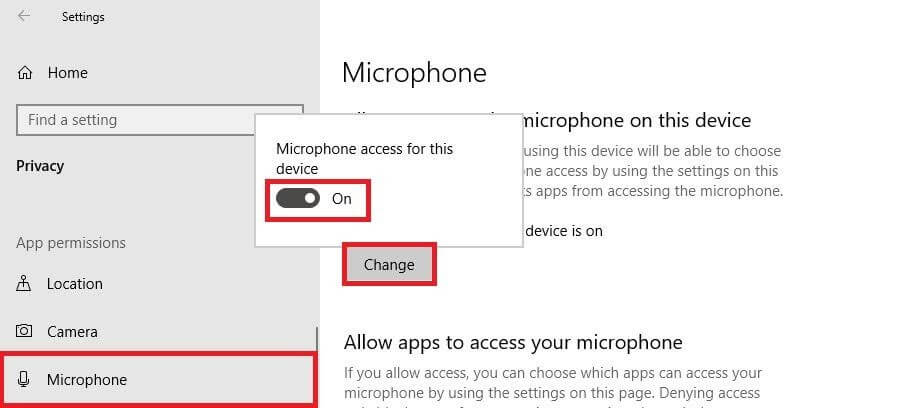
If you have recently updated your Windows 10, you might have to give mic access permission to all your apps. When your apps don’t have access permission, the mic not working on Windows 10 problems might occur.
Quick Solution
- Go to Start > Settings > Privacy > Microphone.
- Select Change and then turn on the Allow apps to access your microphone.
- After giving access to the microphone, select apps from the Microsoft Store and choose which app can access the mic. For non-Microsoft Store apps, ensure to switch on the Allow desktop apps to access your microphone button.
Disable App Exclusive Control
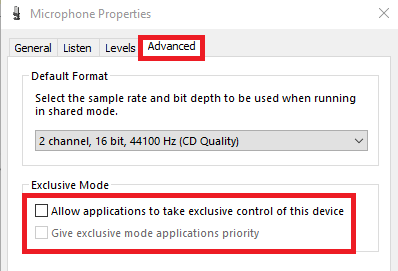
When you speak in your mic, you see green bars rising, but nothing records; you might be using the wrong device. If you have multiple microphones or recording devices attached to your PC, this can cause the mic not working on Windows 10 for you.
Quick Solution
- Open Control Panel on your computer.
- Next, click on the Hardware and Sound.
- Click on the Sound, and you can now see the allowed recording devices in the Recording tab.
- Now, right-click in an empty area in the list and check for Show Disabled Devices and Show Disconnected Devices.
- Select the microphone from the recording devices list and then click on the Properties.
- Under the Advanced tab, uncheck options: Allow applications to take exclusive control of this device and Give exclusive mode applications priority.
Update Audio Driver
Generally, your laptop’s manufacturer must have installed a suitable audio driver on your device. But, if you haven’t updated your audio driver in a long time, this can cause the microphone not working on your device 10.
Quick Solution
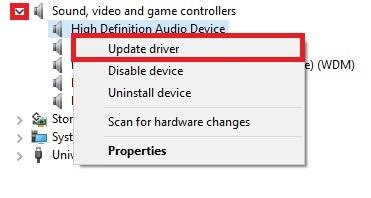
- Click on the Start button and then open Device Manager.
- Expand Sound, Video, and Game Controllers and right-click on the High Definition Audio Device and select Update Driver.
- Click on the Browse my computer for driver software and Let me pick from a list of available drivers on my computer.
- Choose the High Definition Audio Device and then click on Next.
- Confirm changes and restart your system to check if the microphone works now.
Check Basic Microphone Physical Settings
Sometimes your mic is not working on Windows 10 due to basic physical settings, such as:
- Your microphone or headset isn’t properly connected to your computer.
- The microphone isn’t positioned correctly.
- The headset has been muted.
- The volume of the microphone is low.
Check Hardware Compatibility with the Mic
If your microphone isn’t suitable for your system’s hardware, a microphone not working on Windows 10 will occur. Therefore, you should test your microphone with your system.
Quick Solution
- Ensure your microphone is connected to your device.
- Click on Start > Settings > System > Sound.
- In Sound settings, open Input > Test your microphone. If the blue bar rises and falls when you speak into your microphone, it means your mic is compatible with your system.
Manually Connect Bluetooth Headset
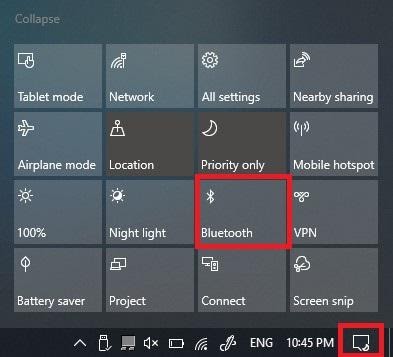
The Bluetooth microphone automatically connects to your device, but sometimes they don’t. This mic not working on Windows 10 issue can be easily fixed by manually connecting a mic.
Quick Solution
- First, go to Control Panel > Hardware and Sound > Sound and then right-click on the recording devices tab.
- Now, disconnect your current microphone connection and again right-click and select Connect. This will fix all glitches in the Bluetooth connection.
Ensure Microphone is Enabled in BIOS Settings
If you have a laptop with an integrated microphone, some laptop manufacturers let you disable this microphone in your PC’s BIOS or UEFI settings. This option isn’t present on all laptops, but it can disable your webcam.
Quick Solution
You have to head over to your computer’s BIOS settings and re-enable the microphone. Simply enabling the microphone can fix the microphone not working on Windows 10 for you.
Uninstall your Microphone
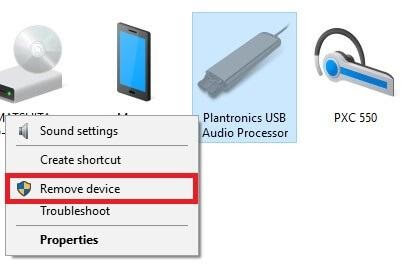
Some microphones appear in the Devices and Printers list in your control panel. In that case, you can remove the device, unplug it and reconnect it, and your mic not working on Windows 10 will be resolved.
Quick Solution
- Press the Windows and R keys together.
- Next, type the Control Panel in the Run Window.
- Click on the View Devices and Printers to see your devices’ list.
- Right-click on your microphone dongle and click on Remove device, and confirm it.
- Now, you can disconnect your device and reconnect to see if it works.
Uninstall VOIP Apps
VOIP means Voice Over IP which basically is an audio or video chat. Sometimes when you prevent control of certain apps like Skype, Zoom, or WhatsApp, your microphone settings will automatically prevent it from working.
Quick Solution
Simply review your VOIP apps and uninstall the problem-causing apps.
Update your Windows 10
If you haven’t updated your Windows 10 lately, it might create numerous system glitches. Therefore, if you are facing multiple other problems, including the microphone not working on Windows 10, you should update your operating software.
Run Troubleshooter
In Windows 10, a built-in troubleshooter is available that can automatically fix audio-related problems. To access it, go to Settings > Update & Security > Troubleshoot. Then, choose the “Recording Audio” troubleshooter, click “Run the Troubleshooter,” and follow the on-screen instructions.
Author’s Tip
Test your microphone using basic apps like a voice recorder or system settings. Make sure it is selected as the default input device and that permissions are properly enabled. These small checks often solve the issue without needing deeper fixes.
It is also important to keep your system clean and updated. Avoid installing too many audio-related tools, as they can create conflicts. If the problem starts after a system update, review recent changes or reinstall drivers. Regular maintenance and careful usage help keep your microphone working smoothly over time.
Conclusion
Microphone issues in Windows 10 are common but usually easy to resolve. Most problems are linked to settings, permissions, or minor software errors. By checking these areas carefully, you can restore proper function without much effort. There is no need to assume hardware failure in the beginning.
A step-by-step approach always gives better results. Begin with basic fixes and move forward only if needed. Regular updates, proper settings, and clean system management help prevent such issues in the future. Once fixed, your microphone should work reliably for calls, recordings, and daily tasks.
FAQs:
1. Why is my microphone not picking up any sound?
This usually happens due to muted settings, low input volume, or disabled permissions. It can also occur if the wrong device is selected as the default. Checking these settings and testing the microphone in different apps can help identify and fix the issue.
2. How do I enable microphone access in Windows 10?
Go to Settings, then Privacy, and select Microphone. Turn on device access and allow apps to use the microphone. Also check that the specific app you are using has permission enabled, as each app may need separate access.
3. Can outdated drivers affect microphone performance?
Yes, outdated or corrupted drivers can cause the microphone to stop working or respond poorly. Updating or reinstalling audio drivers often fixes these issues and improves overall sound performance.
Dinesh Lakhwani
Author Bio:
Dinesh Lakhwani 

Dinesh Lakhwani, the entrepreneurial brain behind “TechCommuters,” achieved big things in the tech world. He started the company to make smart and user-friendly tech solutions. Thanks to his sharp thinking, focus on quality and the motto of never giving up, TechCommuters became a top player in the industry. His commitment to excellence has propelled the company to a leading position in the industry.
Popular Post
Recent Post

5 Best Data Recovery Software For Windows 11 and Windows 10
A crashed drive can ruin a whole day. One minute your photos, work files, and tax records sit safe on your PC. The next minute they are gone. A power cut, a bad update, or one wrong click can wipe out years of memories and months of work in seconds. That sinking feeling is why […]

How To Update NVIDIA Drivers On Windows 11/10 PC
Learn how to update NVIDIA drivers on Windows 11/10 with simple methods, safety tips, and easy steps for smoother gaming and better PC performance.

Top AI Features Hidden Inside Windows 11
Explore the top AI features in Windows 11, from Copilot to Recall, plus safety tips and simple steps to use each tool the right way.

Customize Your Screen Saver Settings in Windows [Easy Steps]
Learn how to customize screen saver settings in Windows 11 with easy steps, safety tips, and simple tricks to personalize your PC screen.

Driver Easy Windows Driver Updater Tool Review: Tried & Tested
In-depth information about Driver Easy’s functions and features can be found in our review. Learn how to update drivers more easily with this tool for a more seamless computer experience.

Is Avast Driver Updater Worth It? A Hands-On Analysis
A full review of Avast Driver Updater covering features, setup steps, pricing, pros and cons, and real PC results, to help you decide if it is worth buying.

IObit Driver Booster 13 (PRO) Review: [Tried & Tested]
IObit Driver Booster 13 is built for one purpose: keeping your PC drivers up to date. Well, yes! Outdated drivers can cause crashes, slowdowns, and hardware issues. This tool scans fast and updates with one click. The interface is simple. Even beginners can use it without confusion. Updates are pulled from a huge database, covering […]

Auslogics Driver Updater: A Detailed Walkthrough [2026]
This comprehensive review covers the key features, pros, and cons, pricing, and a final verdict on Auslogics’ driver update utility. Learn how it stacks up against manual driver maintenance.

5 Best Driver Updater Tools for Windows to Use (Free and Paid)
Introduction: Most people blame their PC for problems that a driver caused. A driver works like a bridge between your hardware and your operating system. When this bridge cracks, strange things start to happen. Screens flicker without reason. Printers go silent mid-task. Games freeze or crash out of nowhere. Manually finding the right driver is […]

