What is Fast Startup in Windows 10? How to Enable/Disable it?
Last updated on June 2nd, 2024 at 2:32 pm
What is Fast Startup in Windows 10?
Fast Startup in Windows 10 works similar to Fast Boot in Windows 8 and hybrid sleep mode in all previous Windows versions. It is designed to speed up Windows 10 boot process once you shut down the PC. This feature is enabled by default in Windows 10, if applicable. When Fast Startup is enabled, your system enters a hibernation state instead of a full shutdown when you shut down your PC.
How does Fast Startup work?
Fast Startup offers functionality of cold shutdown and the hibernate feature both. When you shut down the PC when Fast Startup is enabled, all apps and user accounts will be closed just like it happens with cold shutdown. It is similar state when your freshly booted up your PC, there are no users logged in or any program that is started.
The only difference here is that, it keeps Windows kernel loaded and the system session working. Here, an alert is sent to device drivers program that is tasked to support preparing for hibernation, where it will save the current system state to the hibernation file and shuts down your PC.
Now that when you reboot your PC, Windows will simply refresh the RAM with the loaded hibernation file image and heads you to the login screen. Here, it will skip steps where it needs to load the kernel, drivers, and system state again. Whole this process is designed to shave off your start up time significantly.
This process is little different when you hibernate your system in general. When you turn on your system from hibernation mode, Windows will open saved apps and opened folders including current logged in users. In hibernation state, you will return to exact state of system when it was turned off. But, with Fast Startup you will find freshly-started Windows.
Reasons Why You Should Disable Fast Startup in Windows 10
Although Fast Startup is useful process, but it has its own limitations. Let’s discuss reasons why you should disable Fast Startup in Windows 10.
- When you perform system updates, it require full shutdown. When Fast Startup is enabled your system will be in dual state of hibernation and cold shutdown. So, full shutdown won’t be possible causing trouble with applying system updates.
- If you are on PC that doesn’t support hibernation, then you can’t apply Fast Startup either.
- If you are using encrypted disk images, then you may find Fast Startup is interfering with the process. You may find encrypted drives are automatically remounted causing trouble.
- With Fast Startup process, the system hard disk will be locked when you shut down your PC. Here, you will be blocked from accessing it when you have configured more than one OS. Furthermore, if you to boot into another OS and try to access your hard disk or try to change it, then it might get corrupted. It is suggested you shouldn’t use Fast Startup if you are multiple booting.
- When you are into Fast Startup mode, your system will not fully shutdown. Thus, you may find trouble accessing BIOS/UEFI settings.
How to enable or disable Fast Startup in Windows 10?
Follow below mentioned steps to enable or disable Fast Startup in Windows 10.
- Search and select Control Panel from the search bar on the taskbar.
- On Control Panel window, select Power Options.
- Select Choose what the power button does from left pane.
- Click on Change settings that are currently unavailable.
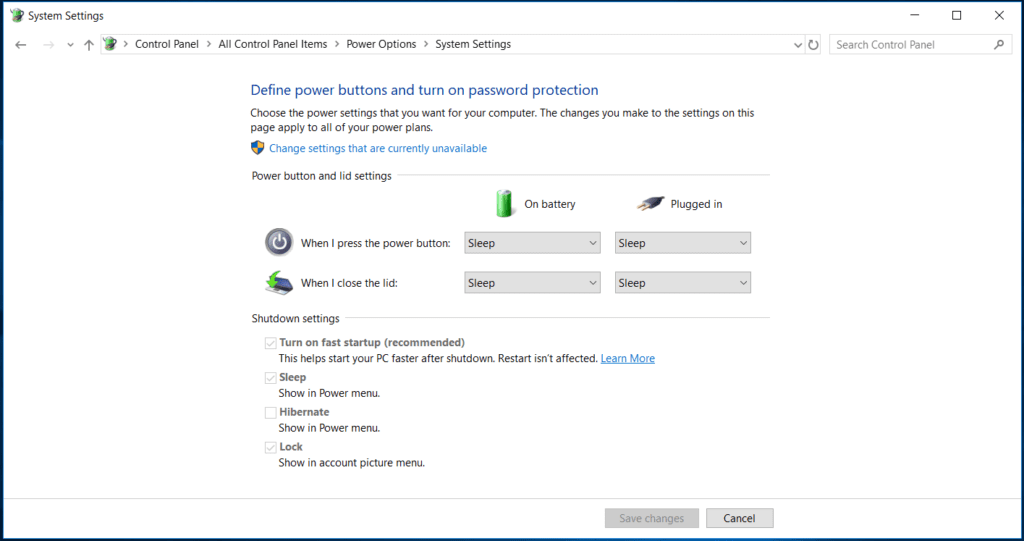
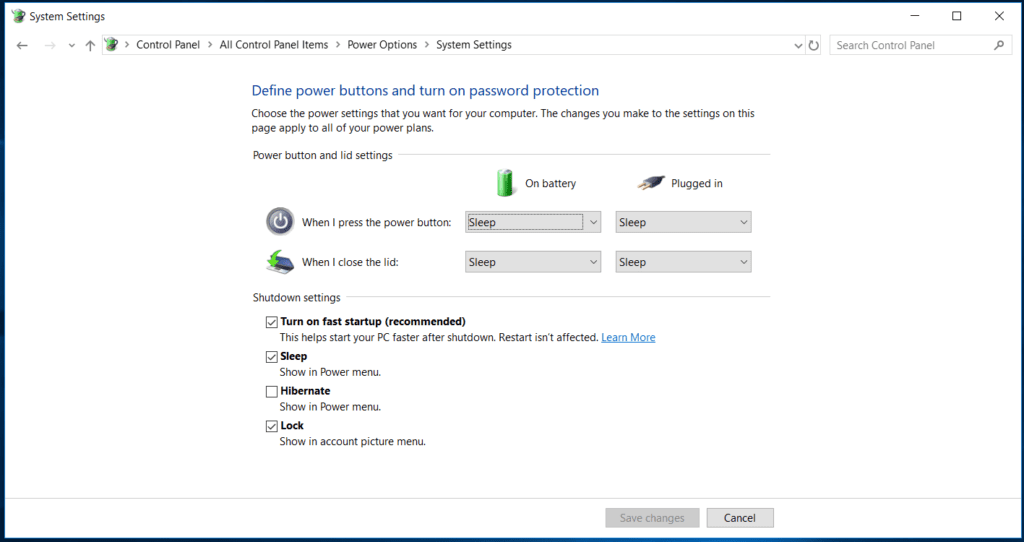
- Now check the box next to Turn on fast startup (recommended) to enable the Fast Startup and save changes. You can uncheck this box to disable the fast startup.
Conclusion So, this was a quick discussion on what is Fast Startup in Windows 10 and how to enable or disable it. Do try these steps and share your experience in the comments below.
Author Bio:
Dinesh Lakhwani 

Dinesh Lakhwani, the entrepreneurial brain behind “TechCommuters,” achieved big things in the tech world. He started the company to make smart and user-friendly tech solutions. Thanks to his sharp thinking, focus on quality and the motto of never giving up, TechCommuters became a top player in the industry. His commitment to excellence has propelled the company to a leading position in the industry.
Popular Post











Recent Post

How To Change Default Apps For File Types In Windows
Windows is designed to make using your computer easy. One way it does this is by assigning default apps to different file types. This means when you open a file, Windows automatically opens it with a specific program. For example, photos may open with Photos, music with Groove Music, and PDFs with Edge. These default […]

How To Adjust The Mouse Pointer Speed: Complete Guide
Using a computer every day means you use the mouse a lot. The mouse pointer moves on the screen and helps you click, scroll, and select items. Many people never think about the speed of the mouse pointer. They have used the default setting for years. This can cause small problems over time. A slow […]

How to Change Mouse Scrolling Settings In Windows
A mouse is one of the most used computer tools. People use it every day. They scroll through emails. They scroll through documents. They scroll through websites and images. The movement becomes automatic. Most users do not notice it. That is why problems often go unnoticed. Scrolling problems show up slowly. At first, it feels […]

Keyboard Light Settings: Keyboard Lighting Control [Complete Guide]
Keyboards are no longer simple typing tools. Well, yes! Over time, they have evolved to include features that improve comfort, visibility, and overall experience. One of the most useful features today is keyboard lighting. It helps users work comfortably in low-light conditions. It also reduces strain when typing for long hours. Many users first notice […]

Customizing Pointer Appearance: Complete Guide
The way your mouse pointer looks on your computer may seem like a small detail. But customizing pointer appearance can make using your PC more comfortable and visually appealing. Many users do not realize that they can change the pointer size, color, and style to fit their needs. Whether you want a bigger pointer for […]

How To Choose a Computer Monitor: Monitor Buying Guide
Buying a monitor looks easy. Many people think all screens are the same. That belief causes regret later. A monitor is not just a display. It is a daily tool. You read on it. You work on it. You relax with it. Small problems become big over time. Poor brightness hurts eyes. Bad size causes […]

How To Get Help With File Explorer in Windows 11 [Complete Guide]
File Explorer is one of the most important tools in Windows 11. It is used to open folders, view files, and manage stored data. Almost every action on a Windows computer depends on it in some way. When users open documents, save downloads, or organize photos, File Explorer is always involved. Because it is used […]

How To Fix A Frozen Computer: Complete Guide [Windows 11/10]
A frozen computer is one of the most common problems Windows users face. The screen stops responding. The mouse pointer does not move. Keyboard inputs do nothing. You may hear the fan running loudly. Sometimes the system looks alive, but nothing works. This situation often happens when you are busy or working on something important. […]

How to Upgrade Computer RAM: Complete Guide
Upgrading RAM is one of the simplest ways to improve a computer. It helps the system feel faster and smoother. Apps open quicker. Browsers handle more tabs. Games and tools run with less delay. Many users search for how to upgrade computer RAM because it gives real results without high cost. You do not need […]

How To Clean Your Computer Keyboard: Complete Guide
A computer keyboard is touched more than almost any other device you own. It is used during work, study, gaming, and casual browsing. Fingers carry natural oils, sweat, and dirt. Small food crumbs fall between keys without notice. Dust settles each day slowly. Over time, this creates a hidden layer of grime. Many users do […]

