Valorant not launching today – Reasons and Fixes
Last updated on September 16th, 2025 at 2:48 am
It is a common frustration for gamers when they encounter issues with launching a game, especially a popular one like Valorant. When Valorant fails to launch, it can be caused by a variety of factors. Here, we will explore the potential reasons why you may find Valorant not launching today and provide a comprehensive guide to troubleshooting and fixing the issue.
Best Practices for Keeping Valorant Running without Any Issues
Before we discuss the reasons why you are facing the issue, let us look at some best practices to keep Valorant running without any issues:
1. Keep Your System Updated
One of the most common reasons for technical issues in Valorant is outdated system drivers. As a PC game, Valorant requires regular updates to its system drivers to function smoothly. Therefore, it is essential to keep your system updated with the latest drivers, such as graphics, audio, and network drivers. Outdated drivers can cause the game to crash or lag, resulting in a poor gaming experience.
2. Clear Cache and Temporary Files
Another common issue that can affect the performance of Valorant is accumulated cache and temporary files. These files can take up a significant amount of space on your system, causing it to slow down and affect the game’s performance. It is recommended to clear these files regularly to ensure your system is running smoothly. You can do this by using the Disk Cleanup tool on your Windows PC or using third-party software.
3. Optimize In-Game Settings
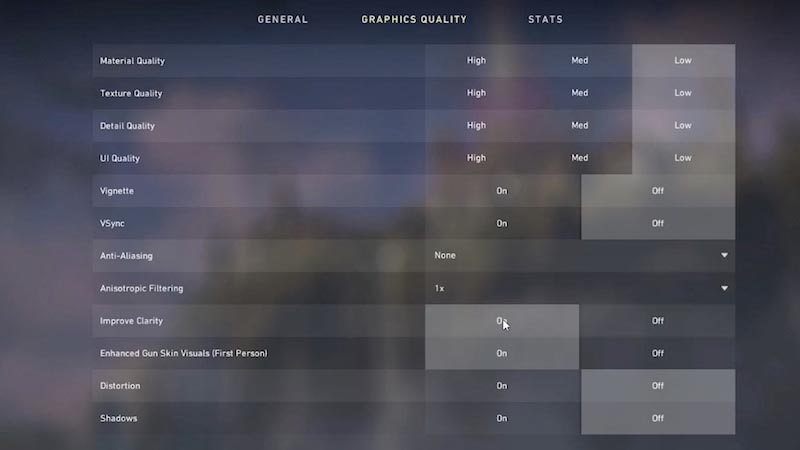
Valorant offers a variety of in-game settings that can be adjusted to optimize the game’s performance. These settings include graphics, audio, and network options. It is essential to find the right balance between performance and visuals to ensure a smooth gaming experience. For example, lowering the graphics settings can improve the game’s performance, while disabling VSync can reduce input lag.
4. Close Background Applications
Running other applications in the background while playing Valorant can also affect the game’s performance. These applications can consume system resources and cause the game to lag or crash. It is recommended to close all unnecessary background applications before launching the game. You can also use the Task Manager to check for any unwanted applications running in the background and end their processes.
5. Use a Wired Connection
Playing Valorant with a stable and fast internet connection is crucial for a smooth gaming experience. It is recommended to use a wired connection instead of a wireless one to avoid any connectivity issues. Wireless connections are susceptible to interference and can cause lag or disconnections while playing.
Valorant not launching today – Reasons and Fixes
There are many reasons why you might find Valorant not launching today. Here are some of the probable reasons for the issue, along with their fixes:
Reason 1: Insufficient System Requirements
If your computer doesn’t meet the minimum system requirements for Valorant, the game may not launch. This could be due to inadequate hardware specifications, such as an outdated processor or insufficient RAM.
Steps to fix this issue:
Step 1: Check the minimum system requirements for Valorant on the official website.
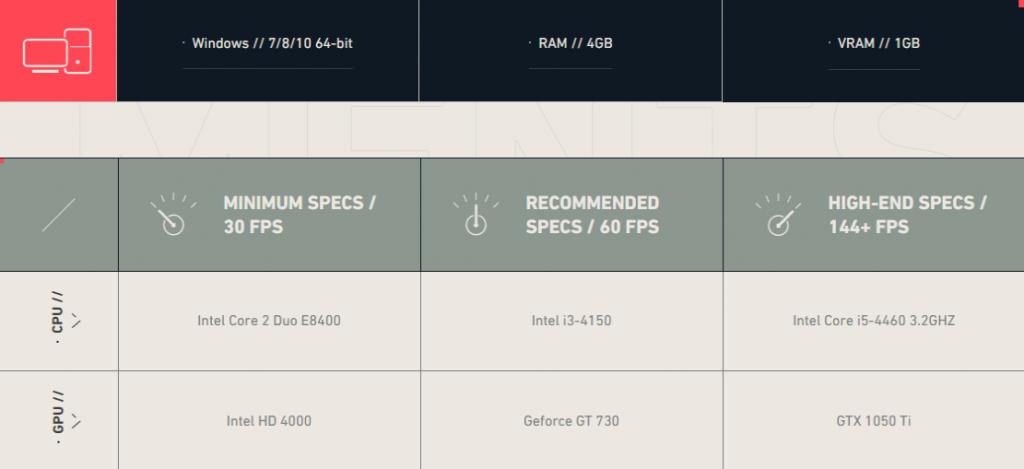
Step 2: Upgrade your hardware, such as the CPU, GPU, or RAM, if necessary.
Step 3: Ensure that your operating system is up to date.
Step 4: Restart your computer and try launching Valorant again.
Reason 2: Corrupted Game Files
Corrupted game files can be the reason why you may find Valorant not launching today. This can occur due to incomplete downloads, interrupted installations, or issues with the game’s files themselves. Reinstalling or repairing the game files may resolve this issue.
Steps to fix this issue:
Step 1: Open the Riot Games launcher.
Step 2: Click on the Valorant game icon and select “Settings.”
Step 3: Under the “General” tab, click on “Repair” and wait for the process to complete.
Step 4: Once the repair is finished, try launching Valorant again.
Reason 3: Incompatible Anti-virus Software
Certain anti-virus software can interfere with the launch process of Valorant. Overly aggressive security settings or false positive detections can prevent the game from launching. Temporarily disabling or whitelisting Valorant in the anti-virus software may help resolve this issue.
Steps to fix this issue:
Step 1: Open your anti-virus software.
Step 2: Add Valorant and the Riot Games launcher as exclusions or trusted applications.
Step 3: Disable any additional security features that may interfere with the game.
Step 4: Restart your computer and try launching Valorant again.
Reason 4: Outdated Graphics Drivers
Outdated graphics drivers can cause compatibility issues with Valorant, and may be the reason why you find Valorant not launching today. The game relies heavily on graphics processing, so having outdated or incompatible drivers can lead to crashes or the game failing to launch. Updating your graphics drivers to the latest version can often resolve this issue.
Steps to fix this issue:
Step 1: Identify your graphics card manufacturer.
Step 2: Visit the manufacturer’s official website.
Step 3: Download and install the latest graphics drivers for your specific graphics card model.
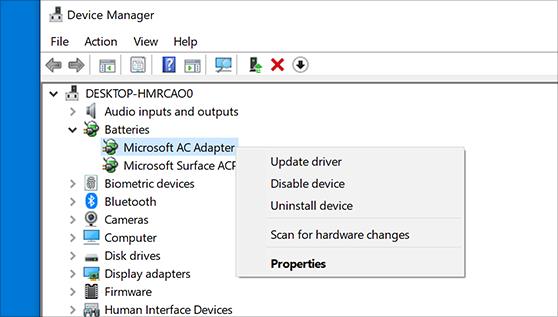
Step 4: Restart your computer and try launching Valorant again.
Reason 5: Firewall Restrictions
Firewall restrictions may prevent Valorant from accessing necessary network resources, resulting in launch failures. If the game is being blocked by your firewall, you may need to manually add an exception or allow the game through your firewall settings.
Steps to fix this issue:
Step 1: Open the Control Panel and navigate to the “System and Security” section.
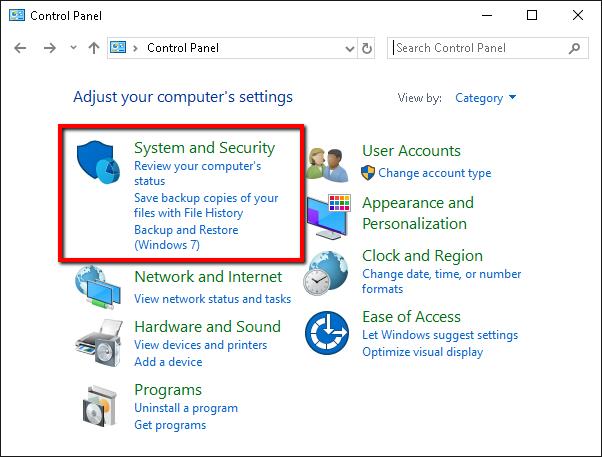
Step 2: Click on “Windows Defender Firewall” and select “Allow an app or feature through Windows Defender Firewall.”
Step 3: Click on “Change settings” and locate the Riot Games launcher and Valorant in the list.
Step 4: Enable both the private and public checkboxes for the launcher and Valorant.
Step 5: Restart your computer and try launching Valorant again.
Reason 6: Riot Games Server Issues
Server issues on Riot Games’ side can prevent Valorant from launching. If there are server outages or maintenance happening, it may disrupt the game’s launch process. Checking the official Riot Games status page or social media channels can provide information on any ongoing server issues.
Steps to fix this issue:
Step 1: Visit the official Valorant Twitter account or Riot Games’ server status page for any announcements or updates regarding server issues.
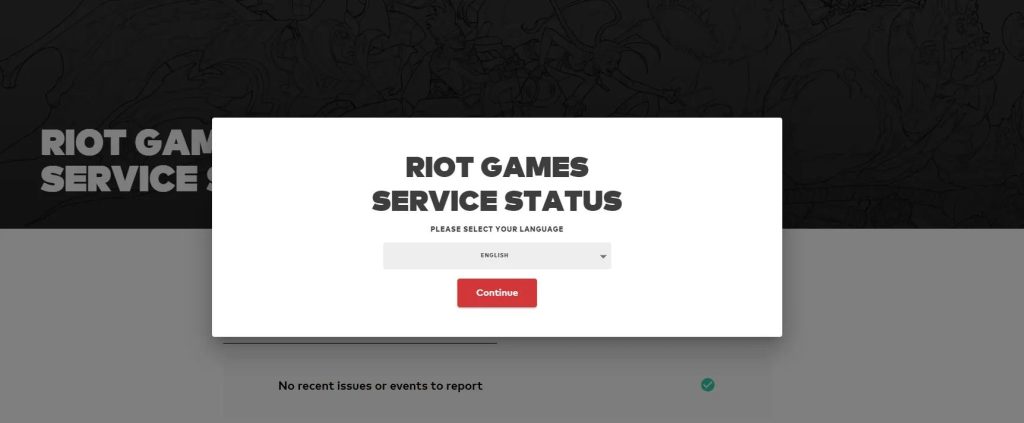
Step 2: Follow the instructions provided by Riot Games to resolve any server-related problems.
Step 3: Wait for the issue to be resolved and try launching Valorant again.
Reason 7: Third-Party Software Conflicts
Certain third-party software may conflict with Valorant’s launch process and might be the reason Valorant is not launching today. Programs running in the background, such as overlays, recording software, or performance boosters, can interfere with the game’s launch. Closing or temporarily disabling these programs can help resolve the issue.
Steps to fix this issue:
Step 1: Identify the third-party software that may be causing the conflict.
Step 2: Disable or uninstall the software temporarily.
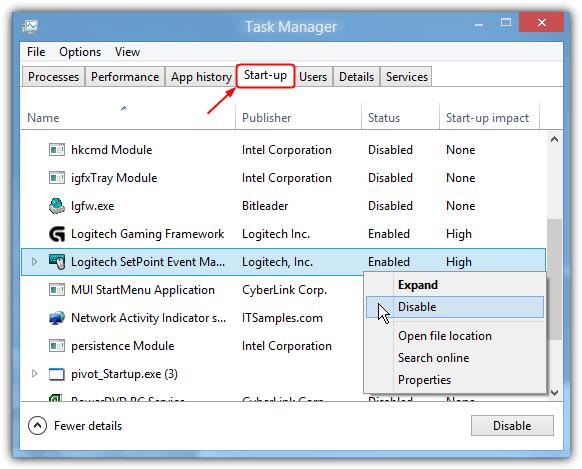
Step 3: Restart your computer and try launching Valorant again.
Step 4: If Valorant launches successfully, consider finding an alternative software or contacting the software’s support team for assistance.
Reason 8: Internet Connectivity Issues
Unstable or poor internet connectivity can hinder Valorant’s launch. If your internet connection is weak, experiencing packet loss, or facing high latency, it can prevent the game from launching or cause frequent disconnections. Troubleshooting your internet connection or switching to a more stable network can help resolve this issue.
Steps to fix this issue:
Step 1: Restart your modem and router.
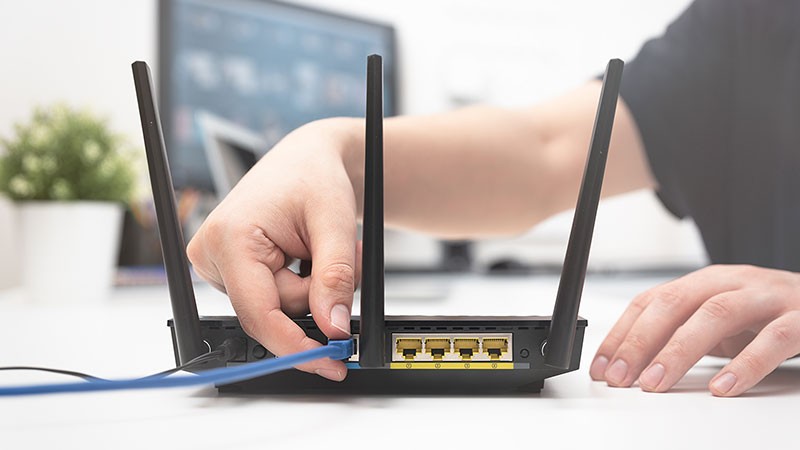
Step 2: Check your network cables and ensure they are securely connected.
Step 3: Disable any VPN or proxy services.
Step 4: Temporarily disable any bandwidth-intensive applications or downloads.
Step 5: Connect your computer directly to the modem via an Ethernet cable, if possible.
Step 6:Try launching Valorant again.
Reason 9: Background Applications
Resource-intensive background applications can affect Valorant’s launch process, and it might be the reason why you may find Valorant not launching today. Programs consuming a significant amount of system resources, such as heavy task managers or video editing software, can interfere with the game’s launch. Closing unnecessary background applications before launching Valorant may resolve this issue.
Steps to fix this issue:
Step 1: Press Ctrl + Shift + Esc to open the Task Manager.
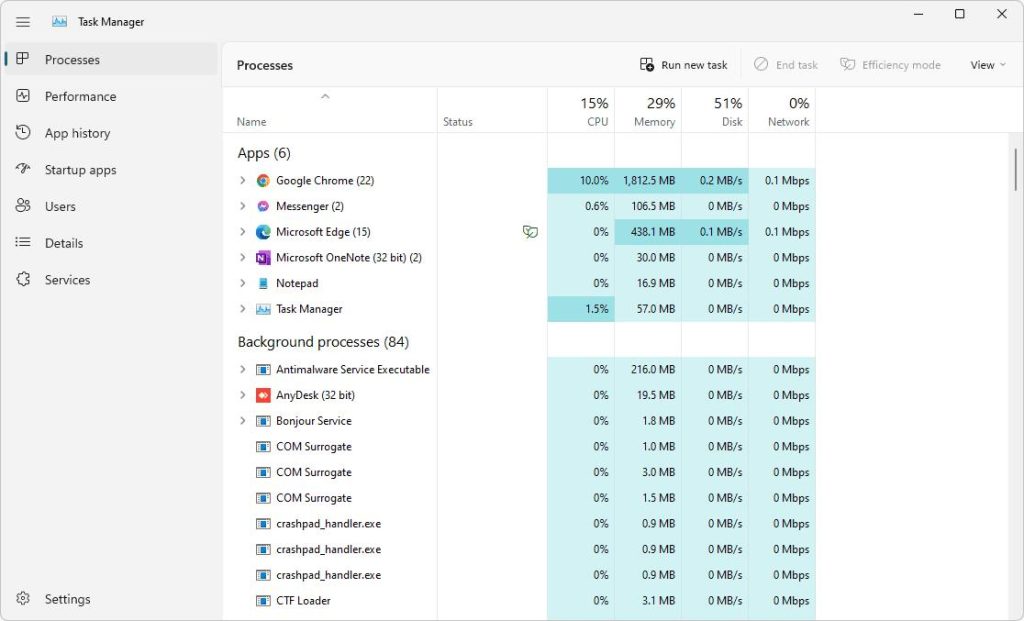
Step 2: Identify any resource-intensive applications running in the background.
Step 3: Right-click on the application and select “End Task” to close it.
Step 4: Try launching Valorant again.
Reason 10: Unstable Operating System
An unstable operating system can cause Valorant to crash or fail to launch. Issues such as corrupted system files, conflicting software, or outdated operating system versions can lead to launch failures. Ensuring your operating system is up-to-date and stable can help resolve this issue.
Steps to fix this issue:
Step 1: Update your operating system to the latest version.
Step 2: Install all available system updates, including driver updates.
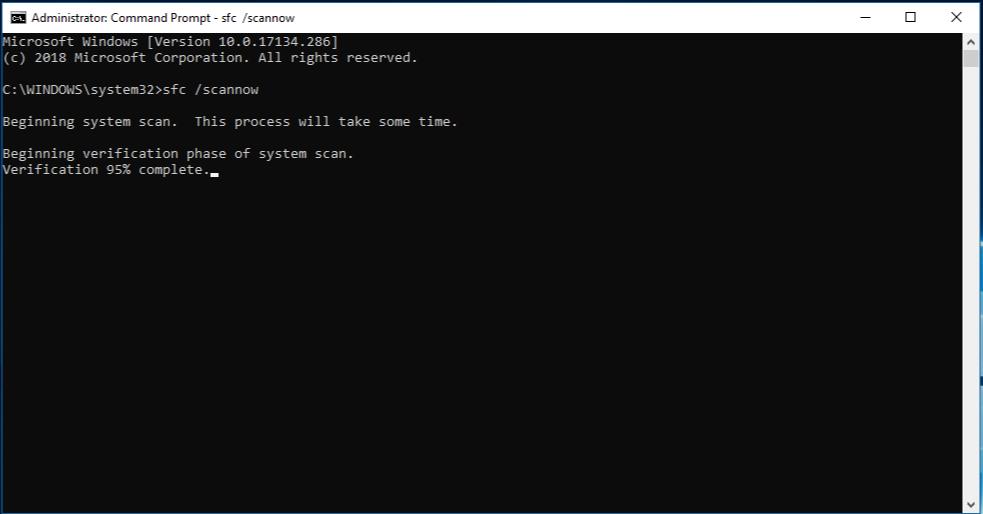
Step 3: Run a system file checker scan to identify and repair any corrupted system files.
Step 4: Restart your computer and try launching Valorant again.
Conclusion
The issue of Valorant not launching has affected numerous players, leading to frustration and disappointment. However, by understanding the potential reasons behind this problem and exploring the various fixes available, players can take proactive steps to address the issue and get back to enjoying the game.
FAQs
1. What are the common reasons for Valorant not launching?
There are several common reasons why Valorant may fail to launch. These reasons may include outdated graphics drivers, corrupted game files, conflicting software, or insufficient system resources. Additionally, network connectivity issues, antivirus software, and administrative permissions can also contribute to the game not launching properly.
2. How can I update my graphics drivers to resolve Valorant launch issues?
Updating graphics drivers is a crucial step in resolving Valorant launch issues. Players can manually update their graphics drivers by visiting the websites of their respective graphics card manufacturers and downloading the latest drivers for their specific hardware.
3. What steps can I take to repair corrupted game files in Valorant?
Corrupted game files can prevent Valorant from launching successfully. To address this issue, players can utilize the game’s built-in repair tool, if available, to scan and repair any corrupted files. Alternatively, reinstalling the game or verifying the integrity of game files through the game launcher or platform can help resolve issues related to corrupted game files.
4. How can I identify and resolve conflicting software that prevents Valorant from launching?
Conflicting software, such as third-party applications or background processes, can interfere with Valorant’s launch process. To identify and resolve conflicting software, players can perform a clean boot of their system, disabling all non-essential startup programs and services.
Next Read: 9 Ways To Fix Valorant VAN9003 Error On Windows 11 & 10
Author Bio:
Dinesh Lakhwani 

Dinesh Lakhwani, the entrepreneurial brain behind “TechCommuters,” achieved big things in the tech world. He started the company to make smart and user-friendly tech solutions. Thanks to his sharp thinking, focus on quality and the motto of never giving up, TechCommuters became a top player in the industry. His commitment to excellence has propelled the company to a leading position in the industry.
Popular Post











Recent Post

How To Switch To A Dark Background Theme In Windows [2026]
Most people spend many hours each day in front of a computer screen. Office work, online classes, editing, browsing, and streaming all require long screen time. A bright white background may look clean at first. However, over time, it can feel sharp and tiring. The strong contrast between white backgrounds and black text may cause […]

How to Switch From Local To Microsoft Account On Windows
Many users begin with a local account when they set up a new Windows computer. A local account works only on that single device. It stores settings, files, and preferences locally. It does not connect to online Microsoft services. For basic offline use, it works well. However, as digital needs grow, many users want better […]

How to Switch Windows 10 to a Local Account: Complete Guide
Windows 10 allows users to sign in with either a Microsoft account or a local account. When you set up a new computer, the system often suggests using a Microsoft account. This account connects your device to Microsoft services such as Outlook, OneDrive, and the Microsoft Store. It also syncs settings, themes, and passwords across […]

How To Change Default Apps For File Types In Windows
Windows is designed to make using your computer easy. One way it does this is by assigning default apps to different file types. This means when you open a file, Windows automatically opens it with a specific program. For example, photos may open with Photos, music with Groove Music, and PDFs with Edge. These default […]

How To Adjust The Mouse Pointer Speed: Complete Guide
Using a computer every day means you use the mouse a lot. The mouse pointer moves on the screen and helps you click, scroll, and select items. Many people never think about the speed of the mouse pointer. They have used the default setting for years. This can cause small problems over time. A slow […]

How to Change Mouse Scrolling Settings In Windows
A mouse is one of the most used computer tools. People use it every day. They scroll through emails. They scroll through documents. They scroll through websites and images. The movement becomes automatic. Most users do not notice it. That is why problems often go unnoticed. Scrolling problems show up slowly. At first, it feels […]

Keyboard Light Settings: Keyboard Lighting Control [Complete Guide]
Keyboards are no longer simple typing tools. Well, yes! Over time, they have evolved to include features that improve comfort, visibility, and overall experience. One of the most useful features today is keyboard lighting. It helps users work comfortably in low-light conditions. It also reduces strain when typing for long hours. Many users first notice […]

Customizing Pointer Appearance: Complete Guide
The way your mouse pointer looks on your computer may seem like a small detail. But customizing pointer appearance can make using your PC more comfortable and visually appealing. Many users do not realize that they can change the pointer size, color, and style to fit their needs. Whether you want a bigger pointer for […]

How To Choose a Computer Monitor: Monitor Buying Guide
Buying a monitor looks easy. Many people think all screens are the same. That belief causes regret later. A monitor is not just a display. It is a daily tool. You read on it. You work on it. You relax with it. Small problems become big over time. Poor brightness hurts eyes. Bad size causes […]

How To Get Help With File Explorer in Windows 11 [Complete Guide]
File Explorer is one of the most important tools in Windows 11. It is used to open folders, view files, and manage stored data. Almost every action on a Windows computer depends on it in some way. When users open documents, save downloads, or organize photos, File Explorer is always involved. Because it is used […]

