How to Stop Your Phone from Turning Off By Itself
Last updated on July 13th, 2024 at 6:09 pm
Having your phone unexpectedly turned off can be frustrating and inconvenient, especially when it happens frequently. Whether you’re in the middle of an important call, playing a game, or simply browsing the internet, an unexpected shutdown can disrupt your productivity and disrupt your day. Here, we will explore some effective methods to help you if you are thinking about how to stop your phone from turning off by itself.
Common Reasons for a Phone to Turn Off By Itself
There are many reasons for a phone to turn off by itself. Some of the most common reasons for a phone to turn off by itself are:
1. Battery Issues
One of the most common reasons for a phone to turn off by itself is related to the battery. Over time, smartphone batteries degrade, leading to decreased capacity and stability. If the battery is old or damaged, it may not be able to hold a charge, causing the phone to shut down unexpectedly.
2. Overheating
Another common reason for spontaneous phone shutdowns is overheating. Smartphones generate heat during normal operation, but excessive heat can lead to thermal shutdowns as a safety measure to prevent damage to the device.
3. Software Glitches
Software glitches or bugs within the operating system can also cause a phone to turn off by itself. This can occur due to corrupted system files, incompatible apps, or conflicts between software components.
4. Hardware Malfunctions
Hardware malfunctions, such as a faulty power button, damaged motherboard, or loose internal connections, can also result in random shutdowns. These issues require professional diagnosis and repair to resolve.
5. Environmental Factors
Environmental factors, such as exposure to moisture, dust, or physical damage, can contribute to a phone turning off by itself. Water damage, in particular, can corrode internal components and lead to erratic behavior, including sudden shutdowns.
Tips to Avoid Unexpected Phone Shutdowns
Taking some necessary precautions can help in avoiding unexpected phone shutdowns. Here are some tips to avoid unexpected phone shutdowns:
1. Battery Maintenance
To mitigate battery-related shutdowns, it is essential to maintain the health of the phone’s battery. This includes avoiding deep discharges, which can stress the battery, and keeping the battery within an optimal temperature range.
2. Manage Heat
To prevent overheating, users can take several precautions, such as avoiding prolonged exposure to direct sunlight, removing the phone from protective cases during heavy usage, and minimizing background processes and apps that contribute to excessive heat generation.
3. Software Updates and Maintenance
Regularly updating the phone’s operating system and apps can help address software-related issues that may cause unexpected shutdowns. It is also important to monitor app behavior and uninstall any apps that are known to cause stability issues.
How to Stop Your Phone from Turning Off By Itself
There are numerous methods by which you can stop your phone from turning off by itself. So, if you are wondering how to stop your phone from turning off by itself, you may consider checking out these effective methods:
Method 1: Check Battery Health
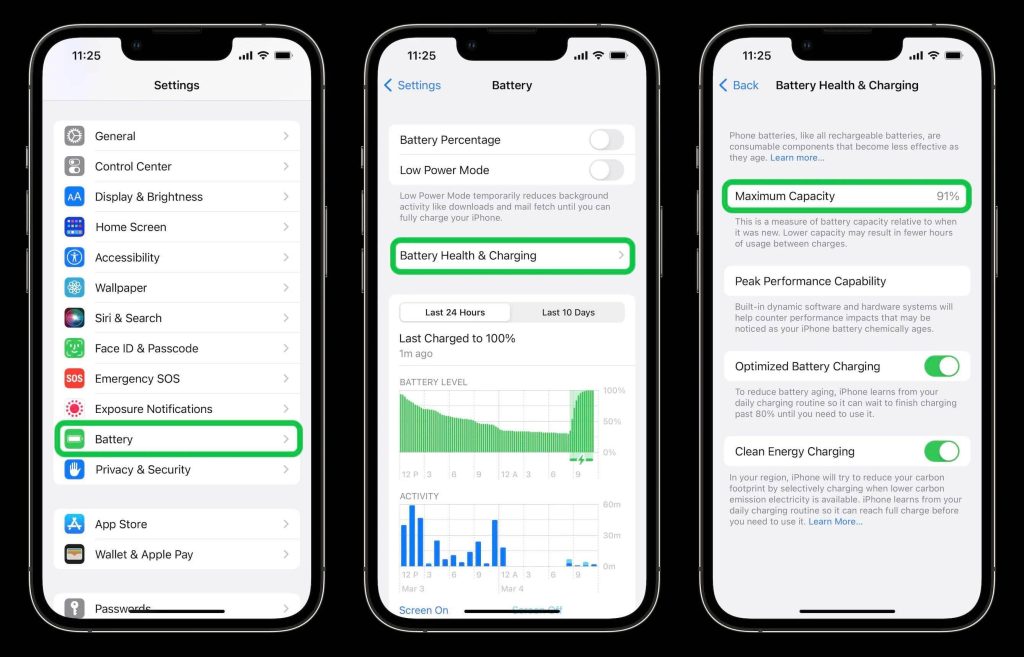
Before diving into troubleshooting methods, it’s important to ensure that your phone’s battery is in good health. Over time, batteries degrade, leading to unexpected shutdowns. On most smartphones, you can check the battery health in the device settings. If the battery health is below 80%, consider replacing it to prevent future shutdowns.
Method 2: Update Software
Keeping your phone’s software up to date is crucial for stability and performance. Software updates often include bug fixes and improvements that can resolve issues causing your phone to turn off unexpectedly. To check for updates:
Step 1: Go to your phone’s settings.
Step 2: Navigate to “Software Update” or a similar option.
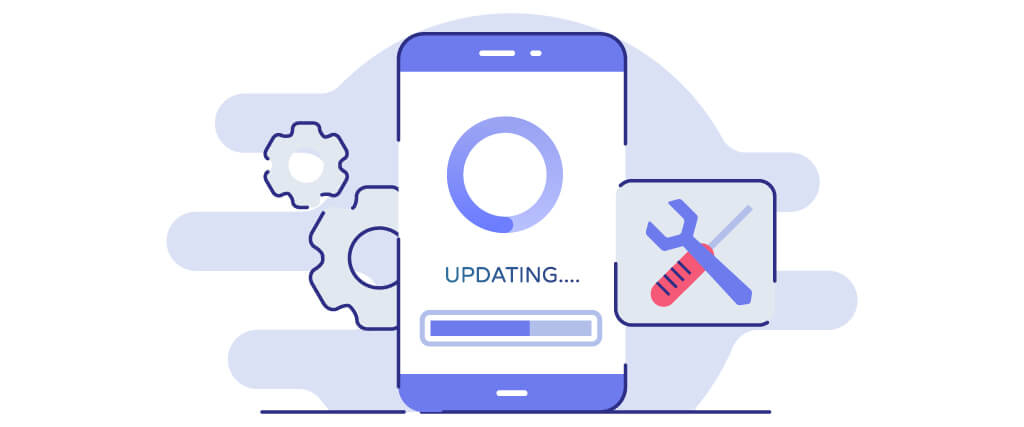
Step 3: Install any available updates.
Method 3: Remove Problematic Apps
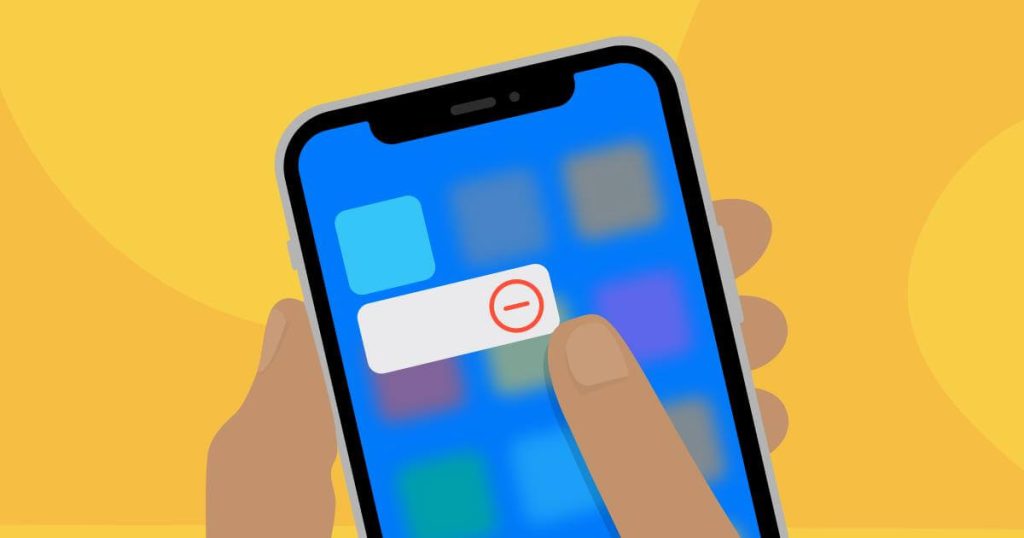
For those who are wondering how to stop your phone from turning off by itself, removing problematic apps might be a good solution. Certain apps can cause your phone to crash or unexpectedly shut down. To identify if an app is causing the issue, boot your phone into safe mode.
In safe mode, only pre-installed system apps will run, and third-party apps will be temporarily disabled. If your phone doesn’t turn off in safe mode, it indicates that a third-party app is causing the problem. Uninstall recently installed apps one by one until the issue is resolved.
Method 4: Clear Cache
Accumulated cache files can lead to performance issues, including unexpected shutdowns. Clearing the cache regularly can help resolve such issues. To clear the cache:
Step 1: Go to your phone’s settings.
Step 2: Find the “Storage” or “Device Care” option.
Step 3: Locate the “Cached Data” section.
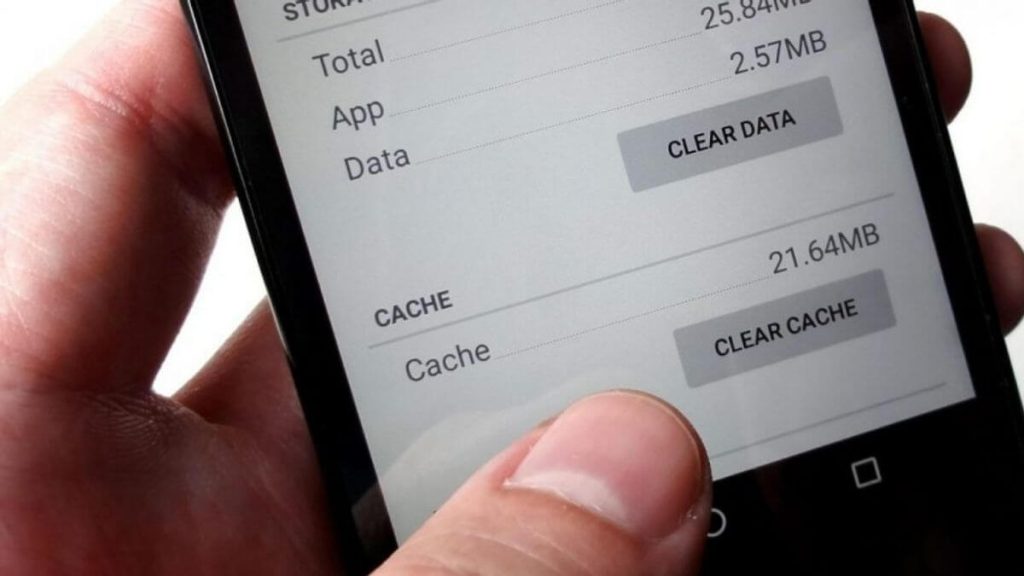
Step 4: Tap on it and confirm the action. This will clear the cache and potentially resolve any software-related issues.
Method 5: Manage Power Settings
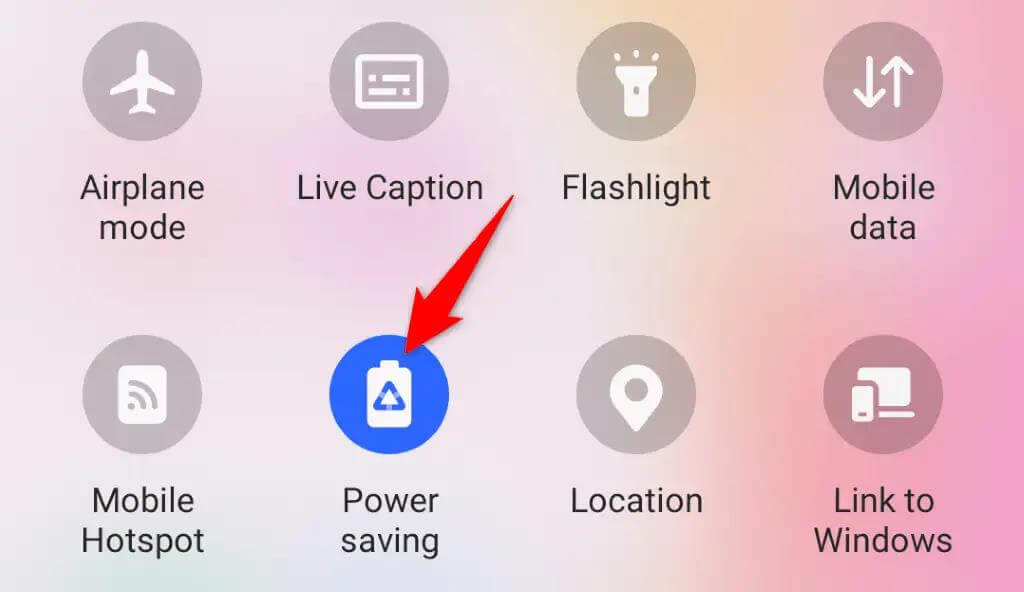
Your phone’s power settings play a significant role in its performance and battery life. Adjusting these settings can help prevent unexpected shutdowns. Start by navigating to your phone’s settings and locating the “Battery” or “Power” section.
Disable any power-saving modes that restrict performance. Additionally, Check if there are any custom battery optimization settings for specific apps that might be causing the issue.
Method 6: Check for Overheating
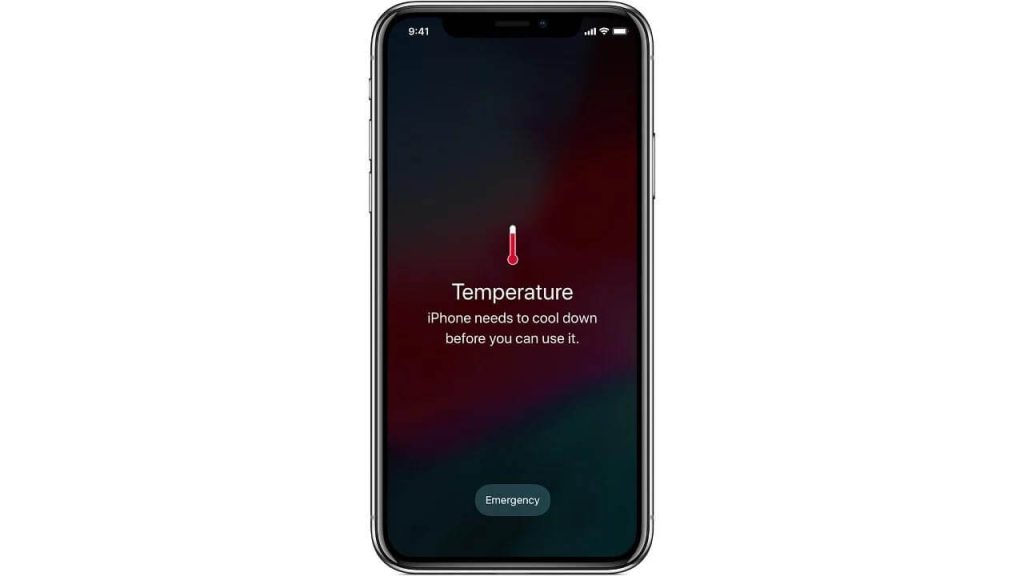
Overheating can cause your phone to shut down to prevent further damage. Ensure that your phone is not exposed to high temperatures for prolonged periods. Avoid using your phone while it is charging or placing it in direct sunlight. If your phone frequently overheats, consider getting it checked by a professional as it may indicate a hardware issue.
Method 7: Reset Network Settings
Network-related issues can sometimes cause unexpected shutdowns. Resetting your phone’s network settings can help resolve these problems. To do this:
Step 1: Go to your phone’s settings.
Step 2: Find the “General Management” or “System” section.
Step 3: Locate the “Reset” option.
Step 4: Select “Reset Network Settings” and confirm the action.
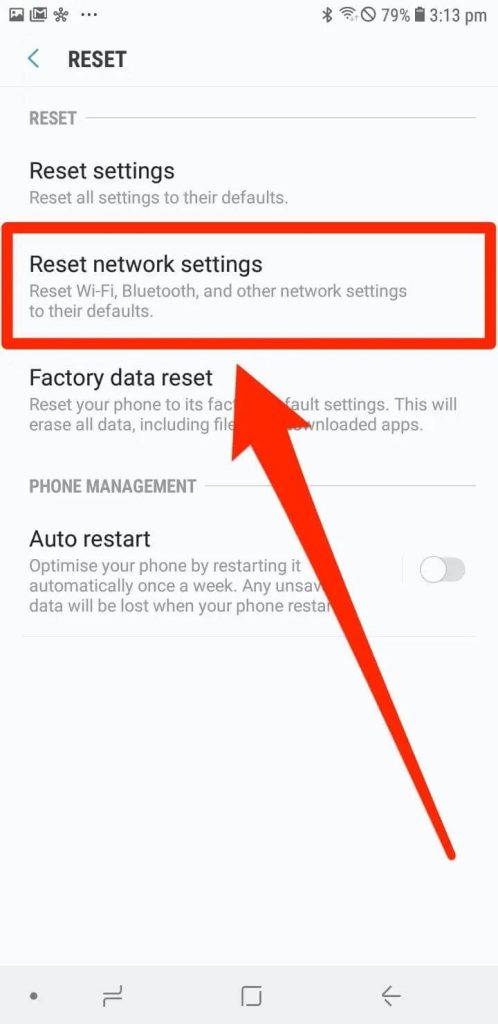
Step 5: After the reset, reconnect to your Wi-Fi network and check if the issue persists.
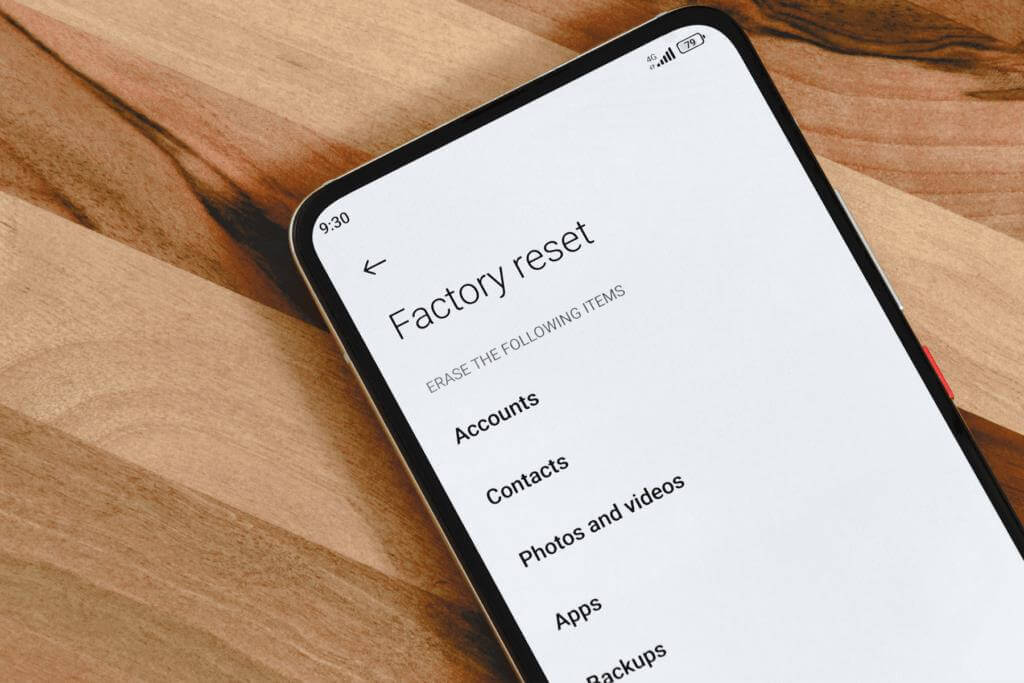
Method 8: Factory Reset
If all else fails, and you are still thinking about how to stop your phone from turning off by itself, performing a factory reset can help resolve persistent issues causing your phone to turn off by itself. However, this should be considered as a last resort, as it will erase all data and settings on your phone.
Before proceeding, ensure that you have backed up your important data. To perform a factory reset, go to your phone’s settings, find the “General Management” or “System” section, and select “Reset.” From there, choose the “Factory Data Reset” option and follow the on-screen instructions.
Method 9: Check for Hardware Issues
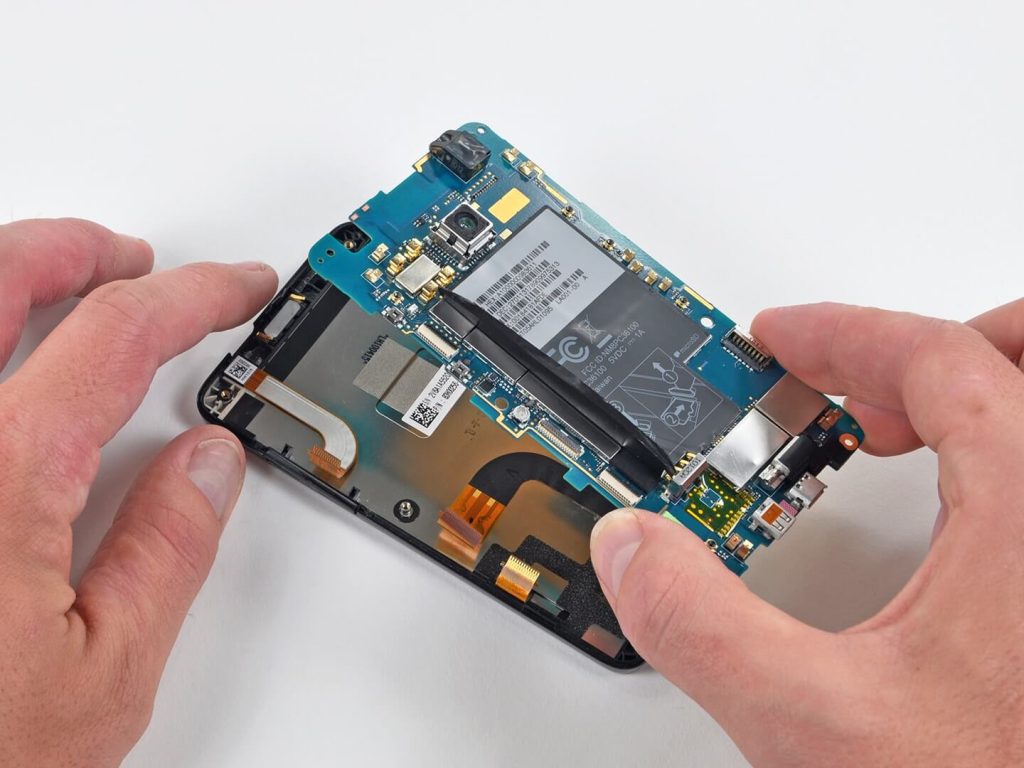
If your phone continues to turn off unexpectedly even after trying the above methods, it may indicate a hardware problem. In such cases, it’s best to seek professional assistance. Visit an authorized service center or contact the manufacturer’s support for further guidance and potential repair options.
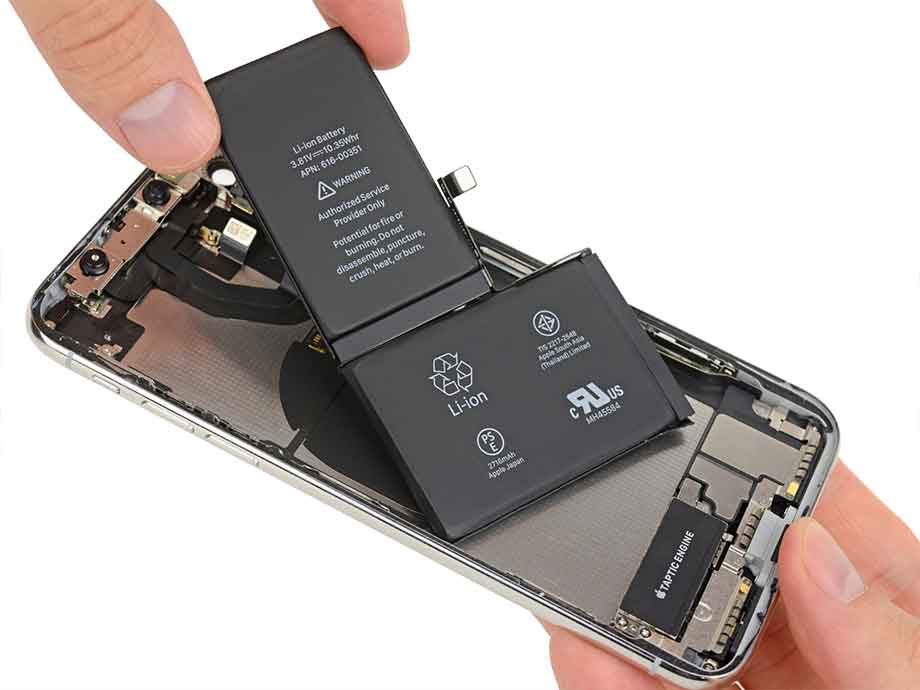
Method 10: Consider Battery Replacement
If your phone’s battery health is significantly degraded, replacing the battery can help resolve unexpected shutdown issues. Contact the manufacturer or a reputable mobile repair shop to inquire about battery replacement options. Ensure that you choose a genuine battery to maintain optimal performance and compatibility.
Conclusion
Experiencing your phone turning off by itself can be a frustrating experience. However, by following the methods outlined here, you can troubleshoot the issue and prevent unexpected shutdowns. Remember to start with the basic steps, such as checking battery health and updating software, before proceeding to more advanced troubleshooting methods. If all else fails, seeking professional assistance is recommended. Hope you have now learned how to stop your phone from turning off by itself.
FAQs
1. What are the common reasons for a phone to turn off by itself?
Mobile phones may shut down spontaneously due to various factors, including software glitches, hardware malfunctions, overheating, battery issues, and incompatible applications. Understanding these potential causes is essential for identifying the underlying problem.
2. How does the phone’s operating system affect its tendency to turn off?
The operating system (OS) plays a critical role in the stability and performance of a smartphone. Issues within the OS, such as bugs, conflicts, or corrupted system files, can lead to unexpected shutdowns. It is important to consider the impact of the OS on the phone’s behavior.
3. Can user behavior and usage patterns contribute to phone shutdowns?
Factors such as excessive multitasking, prolonged gaming sessions, or running resource-intensive tasks can strain the phone’s hardware and lead to overheating or battery depletion, potentially causing the device to turn off unexpectedly. Understanding the impact of user behavior on the phone’s performance is essential for preventing such occurrences.
4. What role does overheating play in causing a phone to shut down?
Excessive heat generated during intensive usage or exposure to high ambient temperatures can force a phone to power off as a protective measure. Managing heat dissipation and avoiding extreme environmental conditions are important considerations in preventing automatic shutdowns.
Author Bio:
Dinesh Lakhwani 

Dinesh Lakhwani, the entrepreneurial brain behind “TechCommuters,” achieved big things in the tech world. He started the company to make smart and user-friendly tech solutions. Thanks to his sharp thinking, focus on quality and the motto of never giving up, TechCommuters became a top player in the industry. His commitment to excellence has propelled the company to a leading position in the industry.
Popular Post











Recent Post

Resolving Microphone Detection Problems: Latest Guide [2026]
Microphones are important tools in daily life. People use them for office meetings, online classes, interviews, gaming, customer support, and content creation. When a system fails to detect a microphone, communication stops at once. This situation can cause stress and confusion. Many users believe the microphone is damaged. In reality, most problems are simple and […]

How To Switch To A Dark Background Theme In Windows [2026]
Most people spend many hours each day in front of a computer screen. Office work, online classes, editing, browsing, and streaming all require long screen time. A bright white background may look clean at first. However, over time, it can feel sharp and tiring. The strong contrast between white backgrounds and black text may cause […]

How to Switch From Local To Microsoft Account On Windows
Many users begin with a local account when they set up a new Windows computer. A local account works only on that single device. It stores settings, files, and preferences locally. It does not connect to online Microsoft services. For basic offline use, it works well. However, as digital needs grow, many users want better […]

How to Switch Windows 10 to a Local Account: Complete Guide
Windows 10 allows users to sign in with either a Microsoft account or a local account. When you set up a new computer, the system often suggests using a Microsoft account. This account connects your device to Microsoft services such as Outlook, OneDrive, and the Microsoft Store. It also syncs settings, themes, and passwords across […]

How To Change Default Apps For File Types In Windows
Windows is designed to make using your computer easy. One way it does this is by assigning default apps to different file types. This means when you open a file, Windows automatically opens it with a specific program. For example, photos may open with Photos, music with Groove Music, and PDFs with Edge. These default […]

How To Adjust The Mouse Pointer Speed: Complete Guide
Using a computer every day means you use the mouse a lot. The mouse pointer moves on the screen and helps you click, scroll, and select items. Many people never think about the speed of the mouse pointer. They have used the default setting for years. This can cause small problems over time. A slow […]

How to Change Mouse Scrolling Settings In Windows
A mouse is one of the most used computer tools. People use it every day. They scroll through emails. They scroll through documents. They scroll through websites and images. The movement becomes automatic. Most users do not notice it. That is why problems often go unnoticed. Scrolling problems show up slowly. At first, it feels […]

Keyboard Light Settings: Keyboard Lighting Control [Complete Guide]
Keyboards are no longer simple typing tools. Well, yes! Over time, they have evolved to include features that improve comfort, visibility, and overall experience. One of the most useful features today is keyboard lighting. It helps users work comfortably in low-light conditions. It also reduces strain when typing for long hours. Many users first notice […]

Customizing Pointer Appearance: Complete Guide
The way your mouse pointer looks on your computer may seem like a small detail. But customizing pointer appearance can make using your PC more comfortable and visually appealing. Many users do not realize that they can change the pointer size, color, and style to fit their needs. Whether you want a bigger pointer for […]

How To Choose a Computer Monitor: Monitor Buying Guide
Buying a monitor looks easy. Many people think all screens are the same. That belief causes regret later. A monitor is not just a display. It is a daily tool. You read on it. You work on it. You relax with it. Small problems become big over time. Poor brightness hurts eyes. Bad size causes […]

