Speed Up Your Mac with These Top 10 Mac Troubleshooting Tips

Last updated on June 2nd, 2024 at 2:53 pm
Apple offers some potent computing machines in the form of Mac. Mac offers numerous useful features & functionalities for seamless performance. You can invest into these machines for improved user experience and power packed features.
Despite having a reputation of powerful and potent machines still, Macs are not immune to some basic computer problems. These problems cause certain speed & performance issues on your Mac.
Usually, you can find various built-in utilities on your Mac to fix different performance issues. In this article, we have discussed some common Mac troubleshooting tips and ways to speed up your Mac performance.
Tips to Speed up Your Mac Performance
Manage Apps using Activity Monitor
Activity Monitor on your Mac helps you see and manage all apps & programs that are consuming system resources. You can go to Utility folder to access Activity Monitor on your Mac to find and stop all resource hungry apps & programs.
Alternatively, you can also press CMD + Spacebar to search and open Activity Monitor. Here, on Activity Monitor window, it will display all running processes that are consuming resources. To view these items, go to View > Windowed Processes.

Source: apple
Now click on CPU tab to view “%CPU” consumed by different programs on your system. It is helpful to analyze which programs are consuming the highest CPU percentage. Further, you can stop them to save some system resources.
To stop these resource hungry apps & programs simply select them by mouse click and press “x” icon in the left-side corner of the window.
Apart from CPU usage, you can click on Memory, Energy, Disk and Network tabs to view individual usage by different apps & programs and stop them instantly.
Manage Startup Programs
If you are experiencing slower than normal boot process then it might be due to lot of unnecessary apps & programs that run during boot process. A lot of these apps & programs that run at boot time include items that you rarely use and sometimes remain there without your knowledge.
It also includes bloatware that comes pre-installed on your Mac in the form of manufacturer and third-party based apps & programs. You can tweak settings to stop these unnecessary items running at boot time to boost your startup process.
Source: alvinalexander
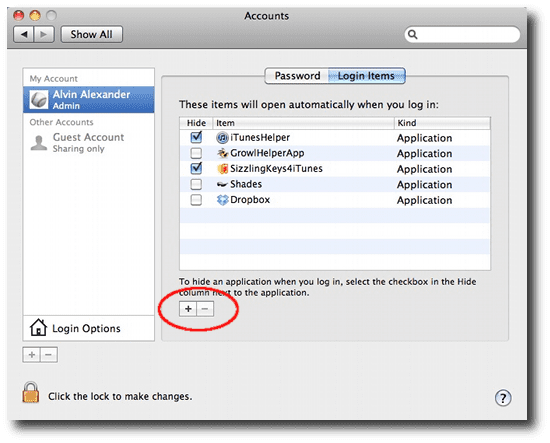
To do this, go to System Preferences and click on Users & Groups. Next, click on Login Items tab to view all items that run during boot process. Scroll through the list to find those programs & services that you don’t want to run during boot process. To stop them running, select them and click on Delete from Login Items (-) button at the bottom of the list.
Update your Mac
Use this Mac troubleshooting tip to instantly boost your Mac performance. Software developers offer various updates at regular intervals to improve the performance of their product. In each software update, they offer bug fixes, security patches, and additional useful features to improve software and system performance.
To keep your system up-to-date, you can look for all software update notifications that comes automatically in your notification bar and download them immediately to keep your system performance intact.
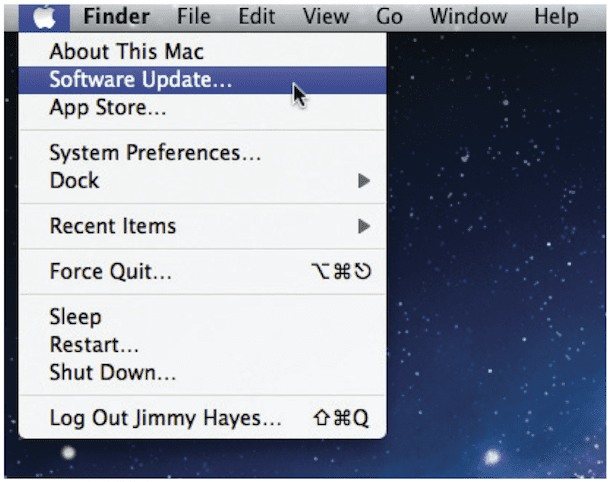
You can also do it manually by clicking on Apple icon in the Menu bar and selecting Software Update from the drop-down list.
Source: gadgetdaily
In addition to software update, you can also look for individual app updates from App Store. For third-party app updates, go to individual app manufacturer’s website. Use this simple tip to speed up your Mac performance instantly.
Turn Off Visual Effect
Next on the list is to turn off visual effect to save some system resources and boost its performance. On every system, you can find various visual effects, animations and much more to increase aesthetic value. But these visual effects consume more CPU cycles, RAM, and other system resources to run.
All these special effects make your system run slow and cause other performance issues. To deal with this issue, you can consider disabling all visual effects on your Mac. To do this, follow these steps.
Source: trendmicro
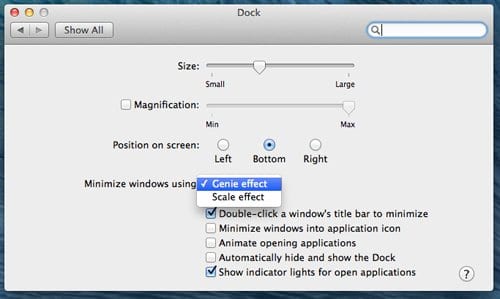
Go to System Preferences > Dock and unselect these options:
- Magnification
- Animate opening applications
- Automatically hide and show the dock
- Turn off accessibility
Also, consider changing Genie Effect to Scale Effect under “Minimize windows using” section.
Empty the Trash and Downloads
Your system Trash holds all deleted files at one place. Technically, when you delete any file or folder it doesn’t get erased from disk space permanently by the operating system, instead, it only gets marked as “deleted” making space to be overwritten by other files.
Thus, your system Trash keeps on accumulating files consuming precious disk space unless you delete files from there. Your system Trash sometimes holds gigabytes of data for no good reasons.
Source: consumingtech
To recover some precious disk space on your Mac and to boost Mac performance, you can consider emptying your system Trash with immediate effect. To do this on your system, go to Dock and right-click on Trash icon and select Empty Trash option.
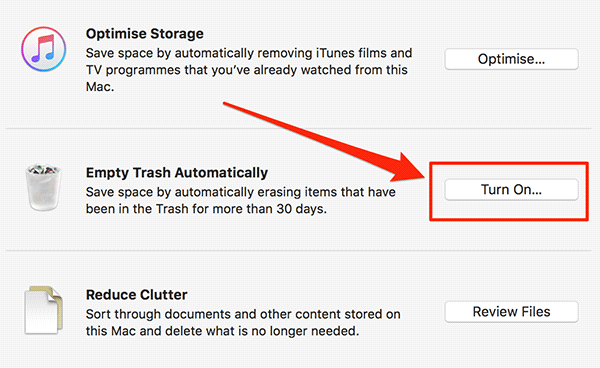
It will instantly remove all files from Trash to recover disk space. In addition to manual cleaning of Trash, you can also set it to be cleaned automatically. To do this, follow these steps.
- Click on Apple icon in the menu bar.
- Choose About this Mac.
- Go to Storage > Manage and turn on Empty Trash Automatically. Here, it will set 30 days time limit to clean your Trash automatically.
Apart from emptying Trash, you should also clean and manage Downloads folder to recover disk space. To clean Downloads folder, click on Downloads icon in the Dock and then select Open it in the Finder. Here, it will display all download items. Sift through the data to find unnecessary files and instantly remove them.
Reset PRAM
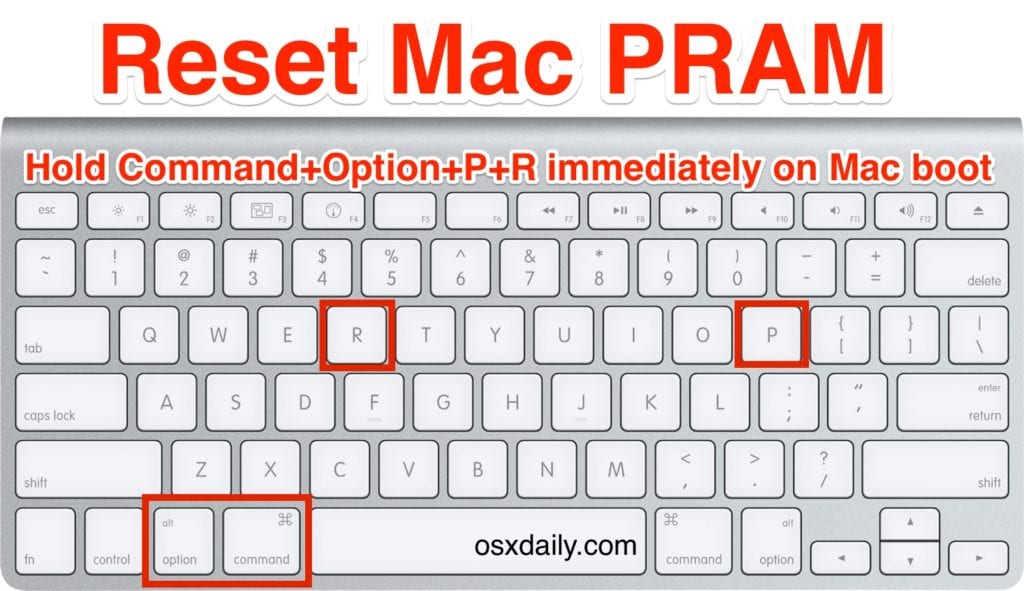
Apple suggests resetting PRAM first before SMC. PRAM holds lot of important things on your Mac like virtual memory, disk cache, RAM disk, 32-bit addressing, monitor depth, startup disk, menu blink count, mouse scaling, attention sound and much more.
Thus, following this quick Mac troubleshooting tip can help you fix various system problems effortlessly.
Source: mactrast
To reset PRAM on Mac, follow these steps.
- Shut down Mac completely.
- Press and hold power button and Command + Option + P + R keys simultaneously before grey screen display on your screen.
- Hold all these keys until your Mac reboots and you hear the startup chime for the second time.
- Release all keys and let your system reboot normally.
Reset SMC
System Management Controller (SMC) plays an important role in your system performance. It helps you perform different tasks like hibernation, video mode switching, sleep & wake up of the Mac, thermal & power management. Battery charging and much more.
By resetting SMC, you can fix various performance issues effortlessly to speed up your Mac performance. To do this, follow these steps.
If the battery is removable
- Shut down the Mac completely.
- Disconnect the MagSafe plug from the Mac.
- Remove the battery.
- Press and hold the power button for 5 seconds and release it.
- Reinsert the battery into your machine and reconnect the MagSafe cord.
- Turn on Mac by pressing power button.
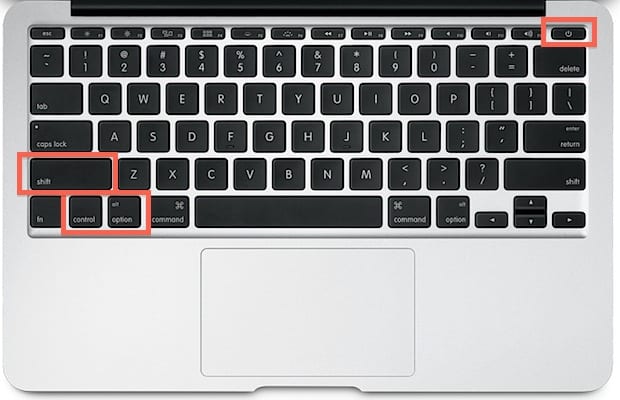
If the battery is non-removable
Source: osxdaily
- Turn off Mac completely.
- Keep the power adapter plugged in.
- Press and hold power button and Control + Shift + Option keys simultaneously for 10 seconds.
- Release all keys.
- Press power button to turn on your Mac.
Note: You can keep the power supply plugged in when you have Mac with built-in battery. Keep power supply plugged out on Mac where you can pull the battery out.
Reset SMC on Mac desktop systems
- Shut down your Mac completely.
- Unplug the power cord.
- Wait for 15 seconds.
- Plug back the power cord.
- Wait for five seconds.
- Press and hold down the power button for 5 seconds to turn on Mac.
Repair Permissions
Each app installation on your Mac brings a piece of software as a part of a package of files including permissions. It tells your operating system that what users can do with specific files.
Over time, these permissions related to different apps changed and get cluttered causing slow Mac performance, crashing and freezing of your system. You can use built-in Disk Utility to repair permissions as a quick troubleshooting tip for your Mac.
Source: pondini
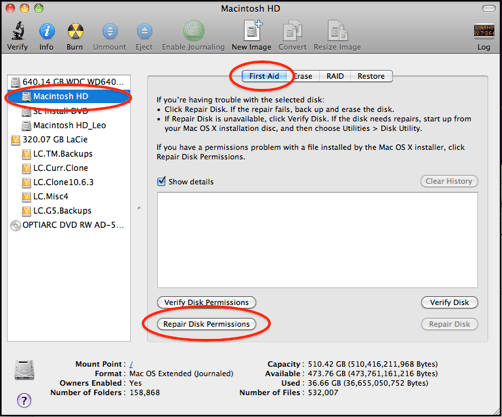
To do this, head to Applications > Utilities > Disk Utility. Now on Disk Utility window select hard drive from the left panel and press “Verify Disk Permissions” button. It will scan your complete hard drive to find permissions that need to be fixed. Once you find the results, click on “Repair Disk Permissions” button to quickly fix the issue.
Edit Preference Panes
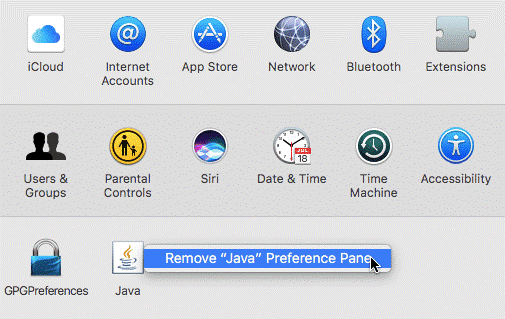
Use this quick tip to speed up your Mac performance effortlessly. System Preferences is the place where all custom items are added on your Mac. To check these items, open System Preferences and find items in the row at the bottom.
To edit and remove any custom item that you are not using on your Mac, simply right-click on the item and select “Remove from Preference Pane” option. It will stop these items consuming CPU and other system resources.
Source: systweak
Delete old & obsolete large files
Follow this step to recover some precious disk space on your Mac and boost its performance. To do this, open the Finder and select All My Files. Now sort files by date or size to find and delete old & obsolete largest files. If you can’t find size option in Finder then go to View > Show View Options and select Size.
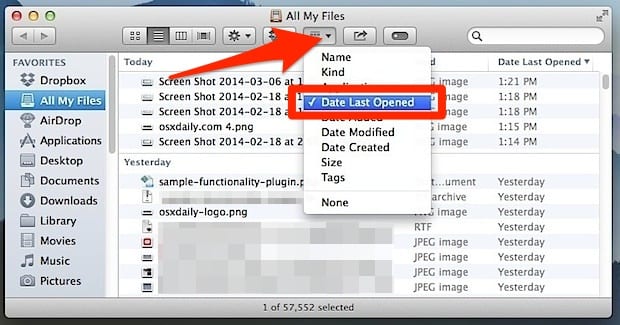
Source: osxdaily
Conclusion
Mac offers various built-in utilities to deal with all performance issues that may arise on your Mac. It helps you speed up your Mac performance using some simple yet effective steps. Using these Mac troubleshooting tips, you can improve your system performance seamlessly.
Apart from above-mentioned steps, you can try emptying your Mac’s cache files, Safari cache files, remove unwanted apps & programs, install more RAM, restart regularly and do much more to boost your Mac performance. In addition to that, you can also use third-party apps for instant and effective results.
Author Bio:
Dinesh Lakhwani 

Dinesh Lakhwani, the entrepreneurial brain behind “TechCommuters,” achieved big things in the tech world. He started the company to make smart and user-friendly tech solutions. Thanks to his sharp thinking, focus on quality and the motto of never giving up, TechCommuters became a top player in the industry. His commitment to excellence has propelled the company to a leading position in the industry.
Popular Post











Recent Post

Resolving Microphone Detection Problems: Latest Guide [2026]
Microphones are important tools in daily life. People use them for office meetings, online classes, interviews, gaming, customer support, and content creation. When a system fails to detect a microphone, communication stops at once. This situation can cause stress and confusion. Many users believe the microphone is damaged. In reality, most problems are simple and […]

How To Switch To A Dark Background Theme In Windows [2026]
Most people spend many hours each day in front of a computer screen. Office work, online classes, editing, browsing, and streaming all require long screen time. A bright white background may look clean at first. However, over time, it can feel sharp and tiring. The strong contrast between white backgrounds and black text may cause […]

How to Switch From Local To Microsoft Account On Windows
Many users begin with a local account when they set up a new Windows computer. A local account works only on that single device. It stores settings, files, and preferences locally. It does not connect to online Microsoft services. For basic offline use, it works well. However, as digital needs grow, many users want better […]

How to Switch Windows 10 to a Local Account: Complete Guide
Windows 10 allows users to sign in with either a Microsoft account or a local account. When you set up a new computer, the system often suggests using a Microsoft account. This account connects your device to Microsoft services such as Outlook, OneDrive, and the Microsoft Store. It also syncs settings, themes, and passwords across […]

How To Change Default Apps For File Types In Windows
Windows is designed to make using your computer easy. One way it does this is by assigning default apps to different file types. This means when you open a file, Windows automatically opens it with a specific program. For example, photos may open with Photos, music with Groove Music, and PDFs with Edge. These default […]

How To Adjust The Mouse Pointer Speed: Complete Guide
Using a computer every day means you use the mouse a lot. The mouse pointer moves on the screen and helps you click, scroll, and select items. Many people never think about the speed of the mouse pointer. They have used the default setting for years. This can cause small problems over time. A slow […]

How to Change Mouse Scrolling Settings In Windows
A mouse is one of the most used computer tools. People use it every day. They scroll through emails. They scroll through documents. They scroll through websites and images. The movement becomes automatic. Most users do not notice it. That is why problems often go unnoticed. Scrolling problems show up slowly. At first, it feels […]

Keyboard Light Settings: Keyboard Lighting Control [Complete Guide]
Keyboards are no longer simple typing tools. Well, yes! Over time, they have evolved to include features that improve comfort, visibility, and overall experience. One of the most useful features today is keyboard lighting. It helps users work comfortably in low-light conditions. It also reduces strain when typing for long hours. Many users first notice […]

Customizing Pointer Appearance: Complete Guide
The way your mouse pointer looks on your computer may seem like a small detail. But customizing pointer appearance can make using your PC more comfortable and visually appealing. Many users do not realize that they can change the pointer size, color, and style to fit their needs. Whether you want a bigger pointer for […]

How To Choose a Computer Monitor: Monitor Buying Guide
Buying a monitor looks easy. Many people think all screens are the same. That belief causes regret later. A monitor is not just a display. It is a daily tool. You read on it. You work on it. You relax with it. Small problems become big over time. Poor brightness hurts eyes. Bad size causes […]

