5 Best Images To Text Tools to Extract Text From the Image
Last updated on November 1st, 2025 at 4:46 pm
Introduction:
Images contain a wealth of information in the form of text, but extracting that text can be tedious and time-consuming. Well, not anymore. With advanced image processing algorithms and optical character recognition (OCR) technology, image-to-text conversion tools have made the process much easier.
In this article, we will look at the 5 best image-to-text tools that can help extract text from images quickly and accurately.
Exploring the OCR Technology
The conversion of image text to editable format is a crucial tool. This technology, known as optical character recognition (OCR), has changed significantly. It is widely used to convert printed materials into digital formats and to gather information from image-based documents.
The primary purpose of OCR is to recognize and extract text from these documents, which may be in various fonts, sizes, and styles. OCR technology uses machine learning algorithms and pattern recognition to analyze the shapes and patterns of characters in an image or document. Once the characters are identified, the OCR software converts them into machine-encoded text.
Top Image-to-Text Tools Compared: Find Your Perfect OCR Match
Extracting text from images has become a routine task for students, professionals, and content creators alike. Whether you’re digitizing printed documents or pulling quotes from screenshots, OCR (Optical Character Recognition) tools make it seamless.
Below is a comparison of five standout platforms that offer reliable image-to-text conversion, each with its own strengths in usability, accuracy, and features.
| Tool | Key Strengths | Supported Formats | Free Usage Limitations | Unique Features |
| OnlineOCR | Leading the Pack | JPG, PNG, BMP, PDF | 15 MB file size limit | Converts to Word, Excel, Text; no signup needed |
| HiPDF | A Comprehensive Tool | PDF, JPG, PNG | Free with limited features | Cloud-based, secure deletion, ISO-certified |
| Sider | Simplicity and Efficiency | Screenshots, PDFs | Free basic OCR | Integrated with chat tools, fast processing |
| OCR.Best | Simple and Efficient | JPG, PNG, PDF | No registration required | Minimalist UI, quick results |
| IMG2TXT | Easy Conversion | JPG, PNG | Free with ads | Drag-and-drop interface, instant preview |
5 Best Images to Text Tools to Extract Text From Images
1. OnlineOCR: Leading the Pack
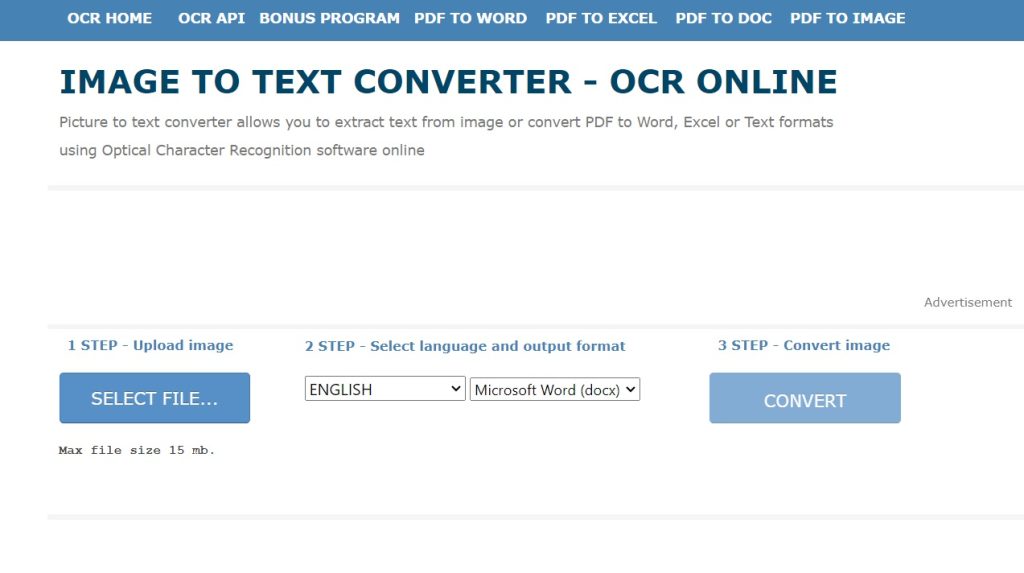
In the realm of OCR tools, OnlineOCR shines with its exceptional accuracy and efficiency. This tool is versatile, accommodating a variety of languages and file types, thus serving a broad spectrum of users. OnlineOCR’s standout trait is its refined image to text converter technology, adept at precisely interpreting and transforming text from images, even amidst complex formats or varying image quality.
OnlineOCR’s design prioritizes ease of use. Its interface allows for simple image uploads and rapid receipt of the converted text. This quick processing is particularly valuable for tasks requiring prompt text conversion. Moreover, OnlineOCR skillfully preserves the original layout of documents, an essential feature for maintaining the structure of tables or columns.
Key Features:
- Caters to an international user base with its multi-language support. (60+ languages)
- Capable of processing different file types including JPEG, PNG, GIF, BMP, and PDF files, enhancing its usability.
- Particularly effective in extracting text from intricately laid out images.
- Offers various output options that include plain text, searchable PDF, Word, Excel, and PowerPoint.
Pros:
- Completely free to use with no limits on usage.
- Simple and easy-to-use interface.
- Good accuracy for scanned documents and clear images.
- Multiple output formats.
Cons:
- Slow OCR processing speed.
- Mediocre accuracy for low-quality and complex images.
- Limited file size for uploads.
2. HiPDF: A Comprehensive Tool
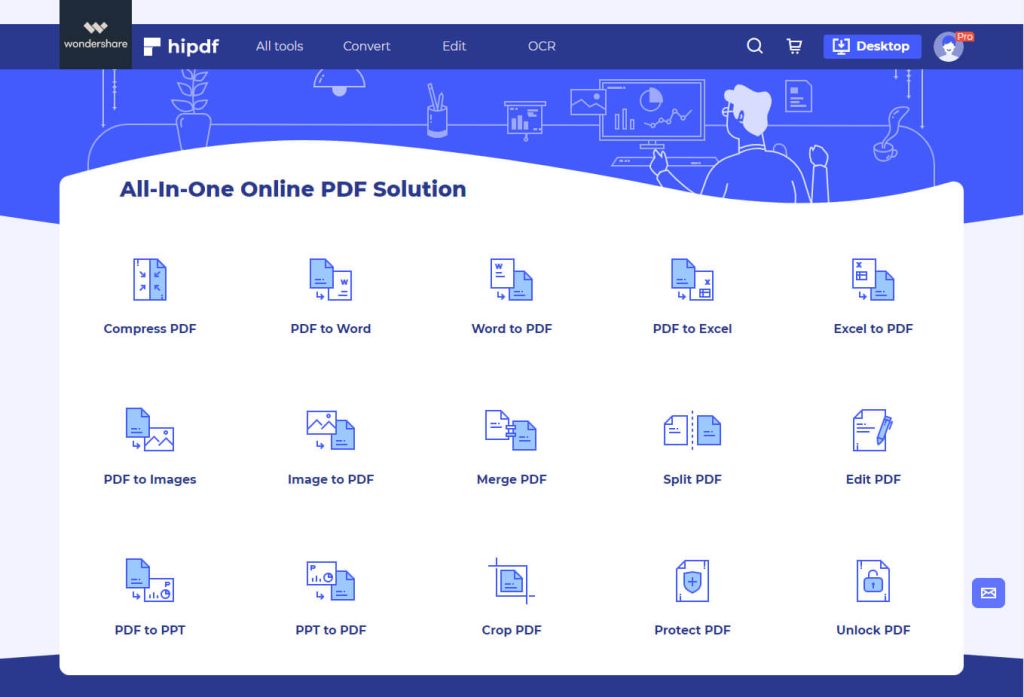
HiPDF distinguishes itself in the OCR landscape with its comprehensive suite of features, which go far beyond mere text extraction. This versatile tool transcends the basic functionality of converting images to text by incorporating additional capabilities like sophisticated PDF editing and versatile file conversion options.
What sets HiPDF’s OCR feature apart is its remarkable efficiency in swiftly and accurately converting text from a wide range of image types and formats. This attribute is particularly beneficial for users dealing with diverse document types.
The design of HiPDF’s interface prioritizes straightforwardness and user-friendliness, making it a breeze for anyone to find their way around its functionalities. This approach to design ensures that navigating through the tool is a smooth experience.
Key Features:
- Performs OCR on PDFs and common image formats.
- Retains original document formatting after OCR.
- OCR supports 189 languages.
- Batch conversion for multiple files.
- Customize OCR settings for optimized text extraction.
- Editable text post-OCR for correction.
- Secured with password protection.
Pros:
- Extracts text accurately from high-quality scans and images.
- Maintains original PDF layout, columns, tables, etc.
- OCR can be customized for optimal results.
- Supports a wide range of languages for text extraction.
- Can directly edit and correct OCR text
Cons:
- Expensive paid plans.
- Slow OCR processing time.
3. Sider: Simplicity and Efficiency
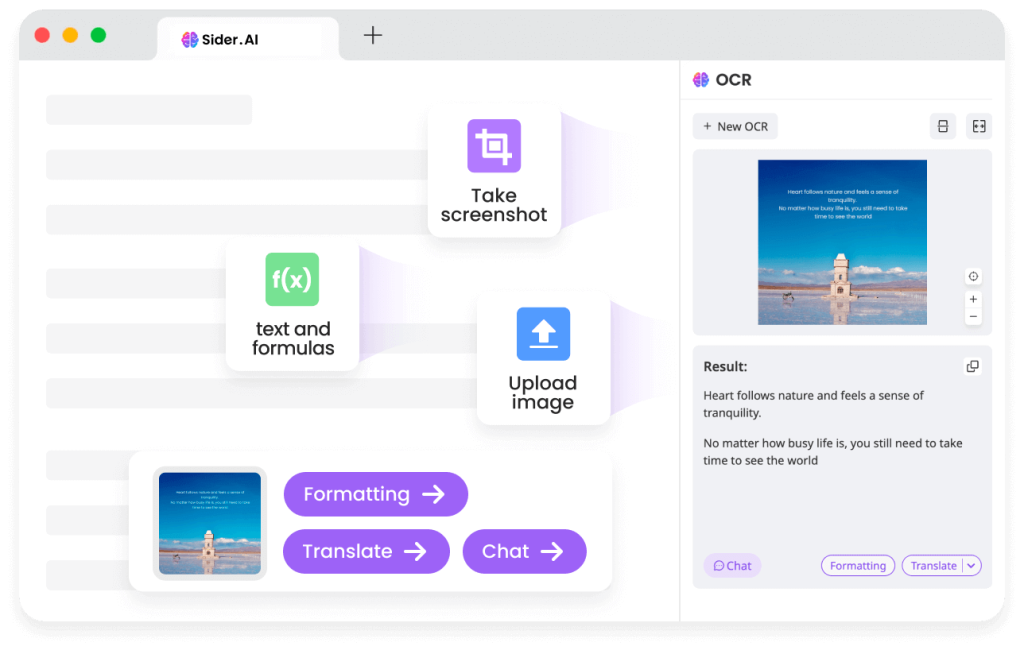
Sider, while perhaps not as widely known as OnlineOCR or HiPDF, establishes itself as a steadfast and dependable tool in the OCR sector. It specializes in delivering straightforward and effective text extraction from images, with a system that supports an array of languages and consistently offers a satisfactory level of accuracy.
This tool avoids overcomplicating the process with extra features that might not be frequently used. Sider’s approach is to offer a practical, easy-to-use tool, aimed at fulfilling fundamental OCR tasks effectively. This makes it an ideal tool for anyone in need of a straightforward solution for converting text from images without the clutter of additional, complex functionalities.
Key Features:
- One-click text extraction from web pages.
- Customizable OCR area with smart selection.
- Extracts text, tables, and data.
- Convenient Chrome extension with easy setup.
- organizes extracted information into shareable notes.
- Exports text to Word, Excel, PDF, etc.
Pros:
- Easy and quick text extraction from web pages
- Does not require screenshots or saving web images
- Smart OCR area selection
- Structured data output for tables, lists, etc.
- Can export to various document formats
- Useful for research, archives, etc.
Cons:
- Browser extension only, no desktop app.
- Cannot OCR normal image files.
- Limited functionality on mobile browsers.
- Exports lack original formatting mostly.
4. OCR.Best: Simple and Effecient
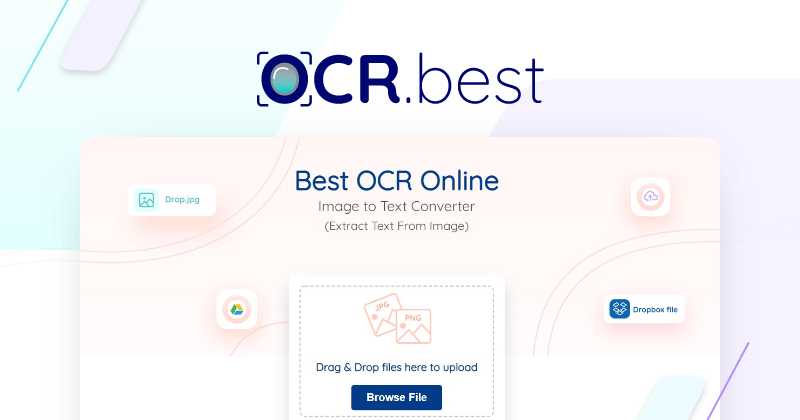
OCR.Best is an online OCR service that can extract text from images and PDF files through optical character recognition. It offers a free tier along with paid plans for bulk processing.
OCR.Best provides a capable free online OCR service for extracting text from images and PDFs. Its ease of use and document formatting retention make it suitable for personal and light business usage. However, the free tier has restrictive usage limits, and accuracy falls short for low-quality scans. Paid plans give access to bulk processing and API integration. Overall, OCR.Best is a decent option for basic image and PDF OCR needs if you have clear scans.
Key Features:
- Free online OCR with size limits.
- Extracts text from PDFs, JPEGs, PNGs, etc.
- Retains original document formatting.
- Supports multiple languages for text extraction.
- Convert scanned PDFs into searchable and editable documents.
- Custom OCR engine optimizations.
- Batch processing and API access.
Pros:
- Free tier available with decent usage limits.
- Good accuracy for clean scans and images.
- Preserves original document formatting like PDF.
- Quick processing time.
- Multiple language support.
Cons:
- The free tier has limits on the number of monthly pages.
- Lacks editable OCR text post-processing.
- Limited file size and monthly processing in the free tier.
5. IMG2TXT: Easy Conversion
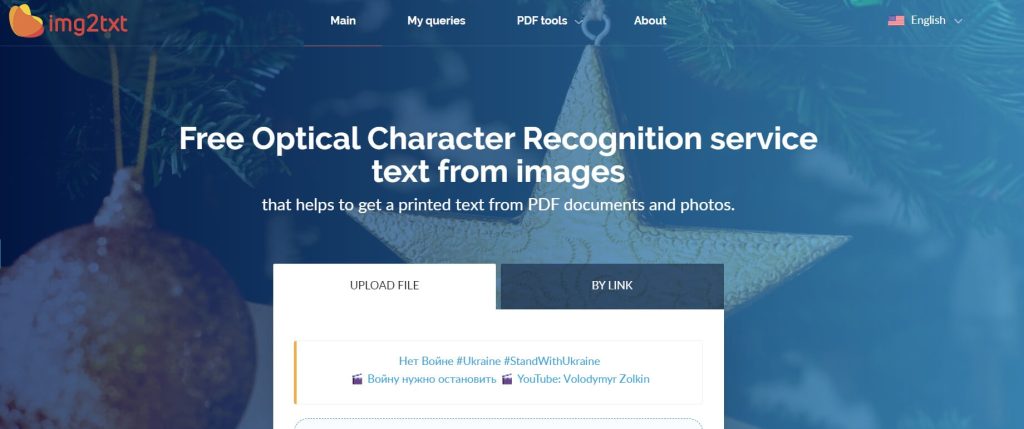
IMG2TXT is a free web-based OCR tool to extract text from images. It accepts various image formats like JPG, PNG, TIFF, and BMP and converts them into editable text documents.
IMG2TXT is an easy-to-use free online OCR tool for basic image-to-text needs. It retains formatting and supports batch processing. However, the OCR accuracy is average and cannot be tuned. The lack of integration options also limits automated use cases. But for occasional manual OCR conversion, IMG2TXT is a decent free option to extract text from common image formats.
Key Features:
- Free online OCR conversion.
- Supports JPG, PNG, TIFF, and BMP image formats.
- Outputs text in TXT, DOC, and PDF formats.
- Retains paragraphs, headings, and other formatting.
- Batch conversion for multiple images.
- Extracts text in English and 100+ languages.
- User-friendly interface and workflow.
Pros:
- Completely free to use with no limits.
- Preserves formatting like paragraphs and headings.
- Quick processing time for OCR conversion.
- Batch processing for multiple images.
- Wide language support for text extraction.
Cons:
- Does not allow editing extracted text.
- No integration or API access.
- Exports lack original font styling and sizes.
Conclusion
In a nutshell, the capacity to extract text from images is a fundamental tool in both professional and personal settings. Each tool has its unique strengths, whether it’s HiPDF’s comprehensive features, OnlineOCR’s precision, or Sider’s simplicity, offering users a variety of choices to meet their OCR requirements.
Overall, with modern AI advancements, OCR accuracy continues to improve while becoming more accessible. The right OCR tool can save huge amounts of time and effort extracting text from images or PDFs in personal, academic, or commercial contexts.
FAQs:
1. Are these OCR tools safe to use for sensitive documents?
Most reputable OCR platforms like HiPDF and OnlineOCR prioritize user privacy. HiPDF, for instance, deletes uploaded files within 60 minutes and holds ISO/IEC 27001 certification for data security. However, users should always review each tool’s privacy policy before uploading sensitive content.
2. Do these tools work well with handwritten text?
Handwritten text recognition varies across platforms. While most tools excel at printed fonts, only a few—typically premium OCR engines—offer decent accuracy with cursive or stylized handwriting. For best results, ensure the handwriting is clear and the image resolution is high.
3. Can I use these tools on mobile devices?
Yes, many OCR tools are mobile-friendly. HiPDF and Sider offer responsive web interfaces, while others like IMG2TXT are optimized for drag-and-drop use on smartphones. Some platforms also offer dedicated mobile apps for on-the-go text extraction.
Author Bio:
Dinesh Lakhwani 

Dinesh Lakhwani, the entrepreneurial brain behind “TechCommuters,” achieved big things in the tech world. He started the company to make smart and user-friendly tech solutions. Thanks to his sharp thinking, focus on quality and the motto of never giving up, TechCommuters became a top player in the industry. His commitment to excellence has propelled the company to a leading position in the industry.
Popular Post











Recent Post

How to Switch Windows 10 to a Local Account: Complete Guide
Windows 10 allows users to sign in with either a Microsoft account or a local account. When you set up a new computer, the system often suggests using a Microsoft account. This account connects your device to Microsoft services such as Outlook, OneDrive, and the Microsoft Store. It also syncs settings, themes, and passwords across […]

How To Change Default Apps For File Types In Windows
Windows is designed to make using your computer easy. One way it does this is by assigning default apps to different file types. This means when you open a file, Windows automatically opens it with a specific program. For example, photos may open with Photos, music with Groove Music, and PDFs with Edge. These default […]

How To Adjust The Mouse Pointer Speed: Complete Guide
Using a computer every day means you use the mouse a lot. The mouse pointer moves on the screen and helps you click, scroll, and select items. Many people never think about the speed of the mouse pointer. They have used the default setting for years. This can cause small problems over time. A slow […]

How to Change Mouse Scrolling Settings In Windows
A mouse is one of the most used computer tools. People use it every day. They scroll through emails. They scroll through documents. They scroll through websites and images. The movement becomes automatic. Most users do not notice it. That is why problems often go unnoticed. Scrolling problems show up slowly. At first, it feels […]

Keyboard Light Settings: Keyboard Lighting Control [Complete Guide]
Keyboards are no longer simple typing tools. Well, yes! Over time, they have evolved to include features that improve comfort, visibility, and overall experience. One of the most useful features today is keyboard lighting. It helps users work comfortably in low-light conditions. It also reduces strain when typing for long hours. Many users first notice […]

Customizing Pointer Appearance: Complete Guide
The way your mouse pointer looks on your computer may seem like a small detail. But customizing pointer appearance can make using your PC more comfortable and visually appealing. Many users do not realize that they can change the pointer size, color, and style to fit their needs. Whether you want a bigger pointer for […]

How To Choose a Computer Monitor: Monitor Buying Guide
Buying a monitor looks easy. Many people think all screens are the same. That belief causes regret later. A monitor is not just a display. It is a daily tool. You read on it. You work on it. You relax with it. Small problems become big over time. Poor brightness hurts eyes. Bad size causes […]

How To Get Help With File Explorer in Windows 11 [Complete Guide]
File Explorer is one of the most important tools in Windows 11. It is used to open folders, view files, and manage stored data. Almost every action on a Windows computer depends on it in some way. When users open documents, save downloads, or organize photos, File Explorer is always involved. Because it is used […]

How To Fix A Frozen Computer: Complete Guide [Windows 11/10]
A frozen computer is one of the most common problems Windows users face. The screen stops responding. The mouse pointer does not move. Keyboard inputs do nothing. You may hear the fan running loudly. Sometimes the system looks alive, but nothing works. This situation often happens when you are busy or working on something important. […]

How to Upgrade Computer RAM: Complete Guide
Upgrading RAM is one of the simplest ways to improve a computer. It helps the system feel faster and smoother. Apps open quicker. Browsers handle more tabs. Games and tools run with less delay. Many users search for how to upgrade computer RAM because it gives real results without high cost. You do not need […]

