How to Rotate YouTube Videos – 3 Easy Methods Explained

Last updated on February 8th, 2026 at 3:41 pm
Rotated YouTube videos are a common issue today. Most videos are shot on phones. Phones rely on orientation sensors. During recording, rotation data is saved as metadata. When that data is ignored or misread, videos appear sideways or upside down after upload. This creates a poor viewing experience and frustrates viewers quickly.
In 2026, YouTube still expects videos to be correctly oriented before upload. The platform does not offer built-in rotation tools anymore. That makes it important to understand your options. Some fixes work before uploading. Others help only during playback. Knowing the difference saves time, quality, and effort.
Q1. Why does the video look fine on my phone but wrong on YouTube?
Phones read orientation metadata correctly. YouTube sometimes ignores it. The file itself may still be sideways. That causes a mismatch between local playback and online viewing.
Q2. Why do some rotated videos look zoomed or cropped?
This happens when the aspect ratio is mishandled. Rotation changes the width and height values. Poor tools auto-crop to fit frames. Quality editors avoid this.
Q3. What is the biggest mistake people make while rotating videos?
They rotate the video multiple times. Each re-encode lowers the quality. The best approach is one clean rotation. Preview once. Then upload.
Precautions Before Rotating a YouTube Video
Before rotating any YouTube video, take a moment to prepare. Rotation seems simple, but it affects resolution, framing, and playback. A few careful steps help avoid quality loss and repeated work.
- Save the original file
Always keep the raw video untouched. It acts as a safety net. - Confirm the correct direction
Decide the exact angle needed. Wrong rotation means re-editing. - Check resolution limits
Some tools reduce output quality. Pick tools carefully. - Avoid online tools with heavy compression
Many free tools lower the bitrate without notice. - Preserve aspect ratio
Incorrect rotation may crop sides or stretch frames. - Rotate before editing effects
Rotation should come first. Effects should follow. - Test audio alignment
Poor tools can desync sound slightly. - Preview on multiple devices
Desktop and mobile may show differences.
Rotate Video Using the YouTube Video Editor
One of the oldest methods out there for rotating YouTube videos was by doing so through the video editor given on the application. Even though this is a fairly easy step, there is still some confusion that we will clear away. Below are the steps one would have to go through.
- First up, start by making sure that you are logged into your YouTube account.
- Once you are in your account, head over to the side where your profile is. Right next to it, you will be able to locate a dropdown. Click on it.
- Now that you have the dropdown option open, you will be given a place to start your magic. Search in this bar and find the video that you want to rotate.
- Once you have found the video, that is when the actual editing work will begin. Click on the video, and there will be a bunch of other options accessible to you.
- Select the Edit option from this list, look under the thumbnail, and you can spot the option to edit right under it.
- There will be further changes allowed for you to make once you are in the editing system. Here, find the Enhancements tab and press on it.
- A whole preview box will be opened on that page. Look in the bottom left corner, and you will find arrows that will indicate the options for rotation.
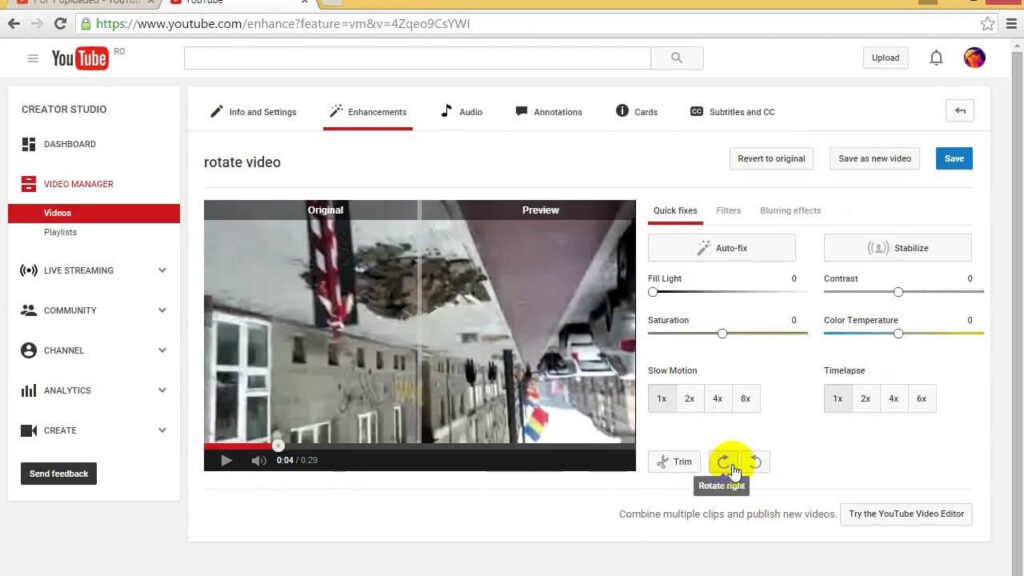
- Select the setting you want for your video, and voila! You’re done. You have successfully rotated it using the YouTube editor.
While this is a famous method for rotating, there is some bad news. Since it is a built-in editor, the features for editing are pretty limited, and the available ones are very basic. If you’re looking for something more fun, then keep on reading.
How To Rotate YouTube Videos With YouTube Video Editor Alternatives
Like mentioned earlier, the YouTube editor built-in is very basic and won’t be of any use if you want to add some fancy effects or level up your video game. For this, you need to bring in the big guns. Some alternative editors to rotate YouTube videos are Filme and VivaVideo. Both are extremely efficient at their job and can get you beautiful-looking content in no time.
1. iMyFone Filme (win & mac)
The first alternative editor we have for you is this one. With a user-friendly interface, it makes rotating YouTube videos extremely fun and easy. With tons of other editing tools, this is a must-have tool for video editors. Below are the steps for learning how to rotate your video by using iMyFone Filme.
- Start the process by installing iMyFone Filme on your Mac or Windows PC. Wait for the app to download to your computer.
- Once it is successfully launched, we can begin the editing process.
- Add a video and double-click on the Edit option. This edit option can be seen right in the toolbar.
- Once you click the edit option, you will be given many editing tools to work on. Right in the middle of the Edit page, there will be a slider for Rotate.
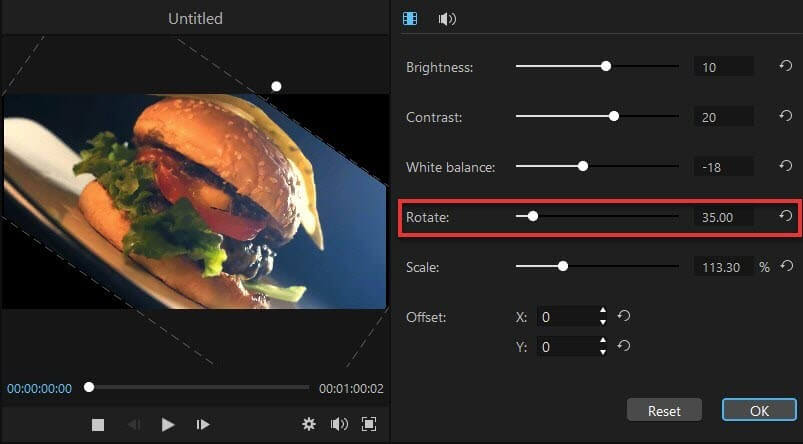
- Use this slider and move it to rotate your video to a particular angle. If you like, you can even put the angle number in the box on the corner.
- Once the video is rotated to your preferred angle, click OK, which is in the bottom right corner. Remember, if it didn’t turn out the way you wanted, then you can press Reset and start editing from scratch. You can even find ways to crop videos for IGTV on this app.
Using iMyFone Filme is pretty easy. Once you have the video edited, you can even add music to it. Or you can upload it on Instagram, learn how to upload videos on Instagram stories here.
2. VivaVideo
Another tool commonly used when learning how to rotate YouTube videos is the famous VivaVideo. Similar to iMyFone Filme, VivaVideo is also easy to use and comes with different features for you to try on your videos.
- Quite similar to iMyFone Filme, for VivaVideo, you will have to install it on your computer or device as well.
- Head over to the official website of VivaVideo and download the application. Once it is downloaded, launch the app to begin the editing process.
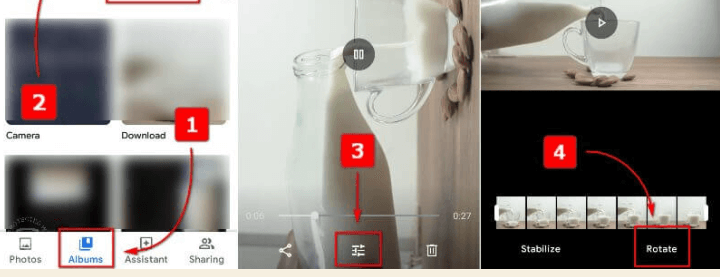
- Right on the main menu, you will be given an option to edit your content. Press on it and select your video and get to work.
- Once you have your video open in front of you, you can work on it in several different ways through a variety of editing tools.
- For rotation, look for the arrow that indicates moving it to a different angle. Click it to find the rotated angle that you like.
- And that’s it! Your video will have been successfully rotated using the VivaVideo app. Click on Save and upload the picture to the gallery of your phone or your computer.
3. How to Rotate Videos Using VLC Media Player (Free, Windows & Mac)
VLC Media Player is widely known as a free and versatile media player, but it also includes basic video editing tools like rotation. Many creators already have it installed, making it a convenient choice for quickly correcting sideways or upside-down videos before uploading to YouTube. Unlike some online tools, VLC works offline and does not require an internet connection. Its rotation feature allows you to adjust videos by 90°, 180°, or 270°, ensuring your video displays correctly for all viewers.
Using VLC to rotate videos is straightforward but slightly technical compared to dedicated editors. You open your video, navigate through the Effects and Filters menu, and apply the desired rotation. Once rotated, the video can be saved using the Convert/Save function.
This method preserves video quality better than many free online tools and avoids adding watermarks, making it a reliable option for creators who need a free, cross-platform solution.
Steps:
- Open your YouTube video in VLC. Go to Tools> Effects and Filters >Video Effects >Geometry> Transform. Now select the rotation angle.
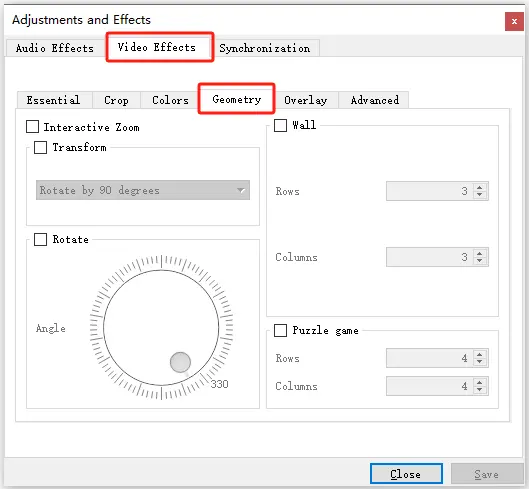
- Save the rotated video via Media. Click Convert/Save, choose output format, and export.
4. Rotate Videos Using CapCut (Mobile, iOS & Android)
CapCut is a free, user-friendly mobile video editor popular among casual creators and social media enthusiasts. It allows you to rotate videos quickly on your iPhone, iPad, or Android device. CapCut is designed for mobile workflows, so you can edit and correct videos directly on your device without needing a computer. The app supports multiple rotation angles and ensures that the exported video is ready for YouTube upload without losing quality.
One of the biggest advantages of CapCut is its intuitive interface. The rotate option is visible in the main editing toolbar, making it easy to adjust your video with a few taps. Beyond rotation, CapCut offers basic trimming, transitions, and effects, so creators can make minor edits simultaneously. This method is ideal for users who capture video on mobile and want a fast, all-in-one solution to rotate and prepare clips for YouTube directly from their phone.
Steps:
- Import the YouTube video into CapCut. Tap Rotate in the editing toolbar. Adjust to the desired angle.
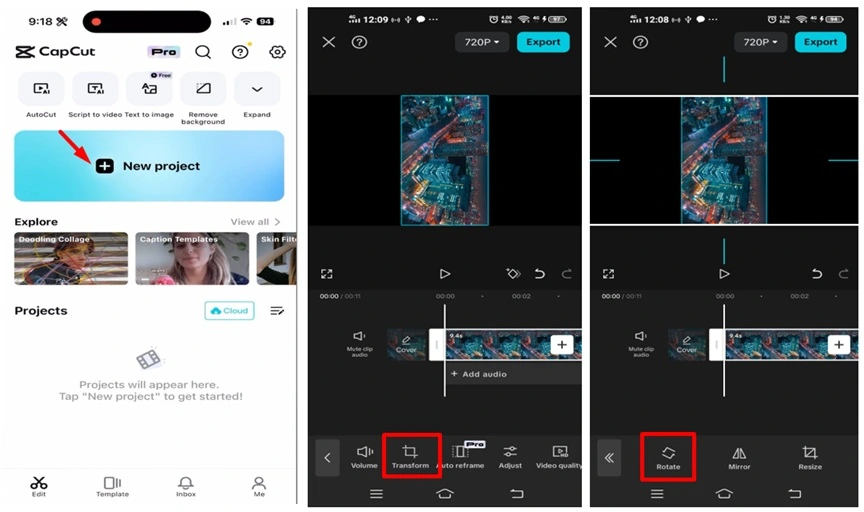
- Tap Export. Save the video in high quality. Upload to YouTube.
_______________________________________________________________________________
Conclusion
Rotating YouTube videos is more about preparation than difficulty. The actual rotation takes seconds. The impact of doing it wrong lasts much longer. A poorly rotated video looks unprofessional and drives viewers away. Fixing orientation before upload ensures consistency across all devices.
Creators should always rotate videos using reliable editing software before publishing. This preserves quality and avoids platform issues. Viewers can use playback rotation for personal viewing, but that does not fix the source file. When done correctly and once, rotation becomes a one-time fix instead of a repeated problem.
FAQs
Q1. Can YouTube auto-fix rotated videos during upload?
No. YouTube does not correct orientation automatically. It depends on the uploaded file. If metadata is ignored, the video stays rotated. Creators must fix it before uploading. That is the only reliable method.
Q2. Does rotating a video change its file size?
Often yes. Rotation usually requires re-encoding. That can slightly change the file size. High-quality editors keep changes to a minimum. Online tools may increase or decrease in size unpredictably.
Q3. Is it better to rotate on a phone or a computer?
Both work, but computers give more control. Desktop editors preserve quality better. Phones are fine for quick fixes. For creators, desktop tools remain safer.
Author Bio:
Dinesh Lakhwani 

Dinesh Lakhwani, the entrepreneurial brain behind “TechCommuters,” achieved big things in the tech world. He started the company to make smart and user-friendly tech solutions. Thanks to his sharp thinking, focus on quality and the motto of never giving up, TechCommuters became a top player in the industry. His commitment to excellence has propelled the company to a leading position in the industry.
Popular Post











Recent Post

How To Fix Issues Downloading from the Microsoft Store On Windows
Introduction: Downloading apps from the Microsoft Store should be a simple task. You open the Store, search for an app, and click install. In most cases, the process works without any problem. However, there are times when the download does not start. In some cases, it may stay stuck at a certain percentage. You may […]

How To Fix Windows Update Issues Easily On Windows [2026]
Introduction Windows updates play an important role in keeping a computer stable and secure. They bring new features, fix known bugs, and improve overall performance. When updates work as expected, the system runs smoothly. However, when they fail, users often face slow performance, missing features, or security risks. This is why it becomes important to […]

How To Check If Your PC Is Infected? [Complete Guide]
Computers now sit at the center of almost everything we do. Well, yes! From sending emails to watching videos, we depend on them without much thought. Because of this, even a small issue can disrupt daily tasks. One common problem is hidden malware. It does not always show clear signs at first. It can enter […]

Repair Apps And Programs: Repair Apps That Aren’t Working
Computers have become an essential part of everyday life, supporting work, study, communication, and entertainment. Most of these activities rely on apps and programs, so when one stops functioning, even simple tasks can be disrupted. Common problems include error messages, frozen screens, or apps that fail to open. On Windows systems, such issues often arise […]

Troubleshooting Microphone Privacy Settings: Complete Guide
Sound is a basic part of how we use computers today. People attend meetings, record audio, speak to others, and use voice tools almost every day. A working microphone makes all these tasks easy. When the microphone fails, even simple work becomes difficult. Many users first think the device is broken. In reality, the issue […]

Windows Sound Settings – Sound Control Panel: Complete Guide
Sound plays an important role in how we use a computer every day. It supports both work and leisure. You need it for meetings, videos, music, and alerts. When audio fails, even simple tasks become difficult. Many users feel stuck when sound issues appear. This usually happens because they are not familiar with Windows Sound […]

Run a Troubleshooter For PC Issues Windows: Complete Guide
A computer plays an important role in everyday life. People use it for work, study, communication, and entertainment. When a problem appears, it can interrupt everything. Even a small issue can waste time and create frustration. Many users feel unsure about how to fix such problems. They often think they need expert help. In reality, […]
![Adjusting Audio Output Settings Complete Guide [2026]](https://www.techcommuters.com/wp-content/uploads/2026/03/Adjusting-Audio-Output-Settings-Complete-Guide.webp)
Adjusting Audio Output Settings: Complete Guide [2026]
Sound is part of almost everything we do on a computer. It lets you watch videos, join calls, play music, and hear alerts. When the audio stops working the right way, it can interrupt both work and daily use. That is why adjusting audio output settings matters for every user. Many people get unsure when […]

Artificial Intelligence Explained: Concepts, Terminology, Benefits, and Future Trends
Artificial Intelligence, or AI, is basically computers doing things that usually need a human brain. We’re talking about stuff like learning from experience, figuring out problems, understanding language, and making decisions. It’s not magic, just a lot of data, pattern-spotting, and math behind the scenes. Now, AI doesn’t actually think or feel like we do. […]

Resolving Microphone Detection Problems: Latest Guide [2026]
Microphones are important tools in daily life. People use them for office meetings, online classes, interviews, gaming, customer support, and content creation. When a system fails to detect a microphone, communication stops at once. This situation can cause stress and confusion. Many users believe the microphone is damaged. In reality, most problems are simple and […]

