How To Get More Storage On PC Without Deleting Anything [2026]

Last updated on December 22nd, 2025 at 1:40 pm
Running out of space on your PC is frustrating. You might think deleting files is the only way. But that’s not true. There are many ways to get more storage without losing your important data.
Learning how to get more storage on PC can save you time and stress. These methods work well and keep your files safe. Let’s explore smart ways to expand your computer’s storage capacity.
Part 1: How To Get More Storage On PC Without Deleting Anything
Storage problems don’t always need file deletion. Smart solutions can help you expand space while keeping everything you need. These methods range from simple cleanup to hardware upgrades.
Method 1: Clean Temporary Files and Cache
Your PC stores many temporary files you don’t see. These files pile up over time. They take valuable space but serve no purpose. Cleaning them frees up storage instantly. Most users have gigabytes of temp files. These files build up from daily computer use.
Windows creates temp files during normal use. Browser cache files also grow large. System cache and update files add to the problem. App data folders often contain unnecessary files. Update downloads stay on your drive even after installation. Browser history and cookies also use storage space.
How it helps:
- Frees up several GB of space quickly
- Improves PC performance and speed
- Removes hidden junk files safely
- No risk of losing important data
Step 1: Open Windows Settings and go to System > Storage.
Step 2: Click “Temporary files” and select all categories, then click “Remove files.”
Method 2: Use External Storage Drives
External drives offer instant extra space. They connect easily to your PC. You can move large files there safely. This keeps your main drive clean and fast. External storage is the simplest upgrade option. No technical skills are needed for setup.
USB drives work well for small files. External hard drives handle bigger storage needs. These drives are portable and reliable. They cost less than internal upgrades. You can disconnect and take them anywhere. Multiple drives can expand storage even more.
How it helps:
- Adds storage without opening your PC
- Keeps files accessible and portable
- Works with any computer instantly
- Protects data with backup copies
Step 1: Buy an external drive that fits your needs and budget.
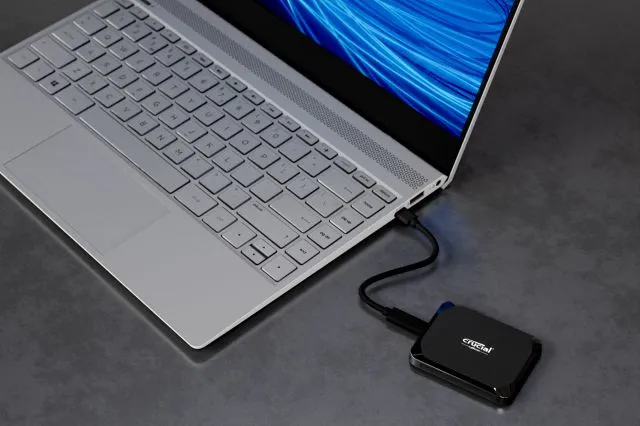
Step 2: Connect it to your PC and move large files like videos and photos there.
Method 3: Enable Storage Sense
Windows has a built-in cleanup tool. Storage Sense works automatically. It finds and removes unneeded files. This feature runs in the background quietly. You set it once and forget about it. The tool learns your usage patterns over time.
Storage Sense targets safe-to-delete files. It cleans recycle bin contents regularly. Old downloads and temp files get removed. The tool respects your important data. You can customize what gets cleaned. Different cleanup schedules are available for different file types.
How it helps:
- Works automatically without user input
- Prevents storage from getting too full
- Removes only safe and unnecessary files
- Saves time on manual cleanup tasks
Step 1: Go to Settings > System > Storage > Configure Storage Sense.
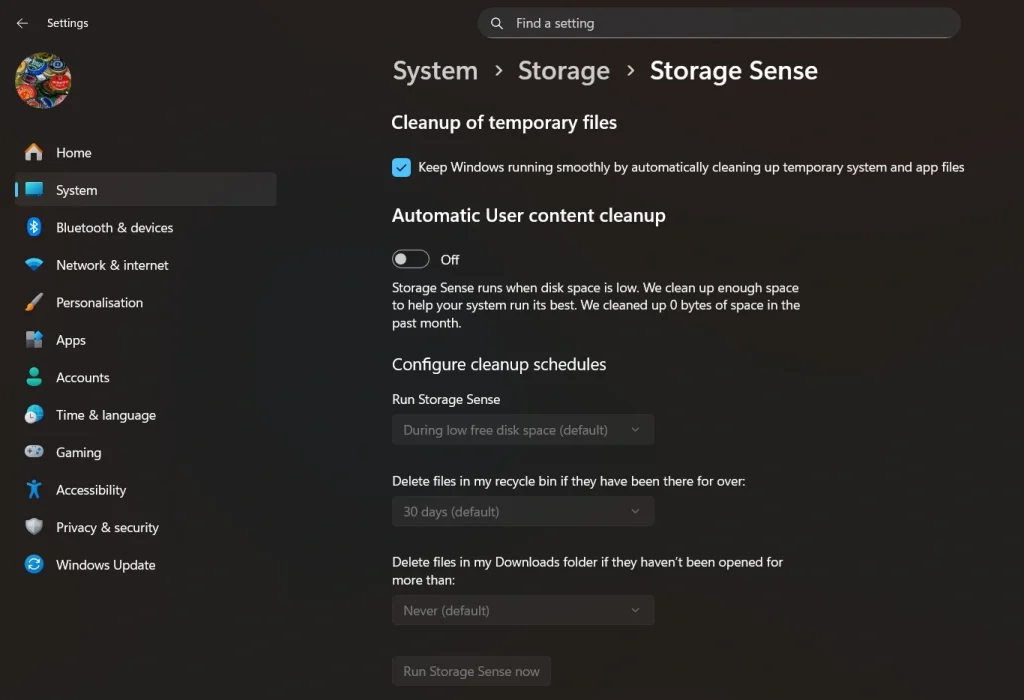
Step 2: Turn on Storage Sense and set it to run monthly or when space gets low.
Method 4: Move Programs to Another Drive
Many programs are installed on your main drive. This uses up primary storage fast. You can move apps to other drives. This frees space on your main system drive. Windows allows app relocation easily. The process is built into system settings.
Large programs take up lots of space. Games and creative software are the biggest culprits. Moving them helps balance storage use. Your PC still works the same way. Programs run normally from any drive. You can choose which apps to relocate based on size.
How it helps:
- Relocates large programs efficiently
- Keeps the main drive space available
- Maintains full program functionality
- Balances storage across multiple drives
Step 1: Go to Settings > Apps and find the program you want to move.
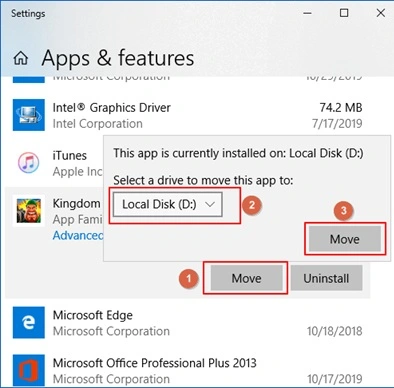
Step 2: Click the program, select “Move,” and choose your destination drive.
NOTE: (The “Move” option is only available for apps installed from the Microsoft Store.)
Method 5: Compress Files and Folders
File compression reduces storage use significantly. Compressed files take up less space. You can still access them normally. This method works great for archives. Compression ratios depend on file types. Text files compress better than media files.
Compression works best with documents. Photos and videos compress less. ZIP files are the most common format. Windows has built-in compression tools. You can compress entire folders at once. The process is reversible if needed later.
How it helps:
- Reduces file sizes by 50% or more
- Keeps files fully accessible
- Works with built-in Windows tools
- Perfect for old documents and archives
Step 1: Right-click files or folders you want to compress.
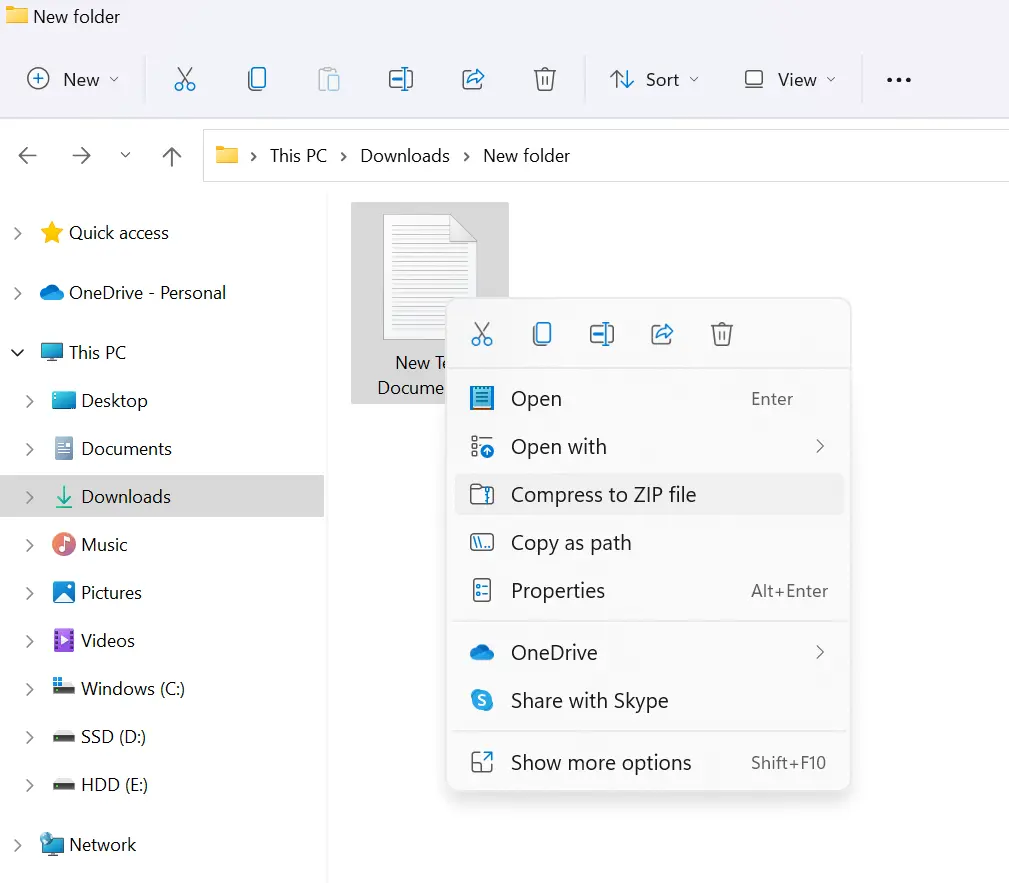
Step 2: Select “Send to” then “Compressed folder” to create a ZIP file.
Method 6: Use Cloud Storage Services
Cloud storage gives unlimited expansion options. Your files live online safely. You access them from anywhere. Local space gets freed up completely. Cloud services sync across all devices. Internet connection lets you reach files anytime.
Popular services include Google Drive and OneDrive. They sync files automatically. Free storage comes with most accounts. Paid plans offer much more space. Files stay safe in professional data centers. You can share files easily with others.
How it helps:
- Provides virtually unlimited storage space
- Syncs files across all your devices
- Backs up data automatically online
- Frees local storage completely
Step 1: Sign up for a cloud service like Google Drive or OneDrive.
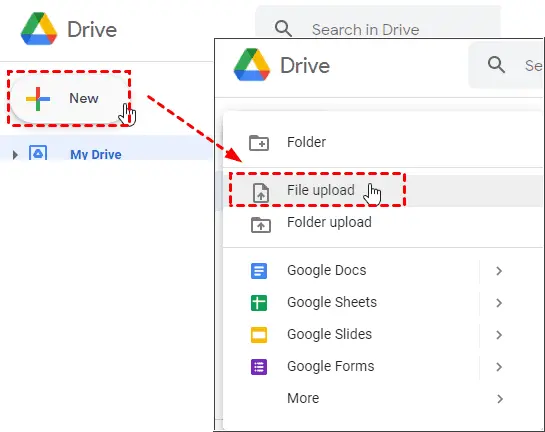
Step 2: Install their desktop app and move large files to cloud folders.
Method 7: Add a New Hard Drive
Installing additional drives gives permanent storage. This is how to get more storage on PC permanently. New drives cost less than new computers. Installation is usually straightforward. Internal drives work faster than external ones. They become part of your computer system.
Desktop PCs accept multiple drives easily. Laptops might need external solutions. SSD drives work faster than traditional ones. Size options range from small to massive. You can mix different drive types. Each drive appears as a separate storage in Windows.
How it helps:
- Provides large amounts of permanent storage
- Improves overall system performance
- Costs less than buying a new PC
- Allows for future expansion needs
Step 1: Buy a compatible internal or external hard drive for your PC.
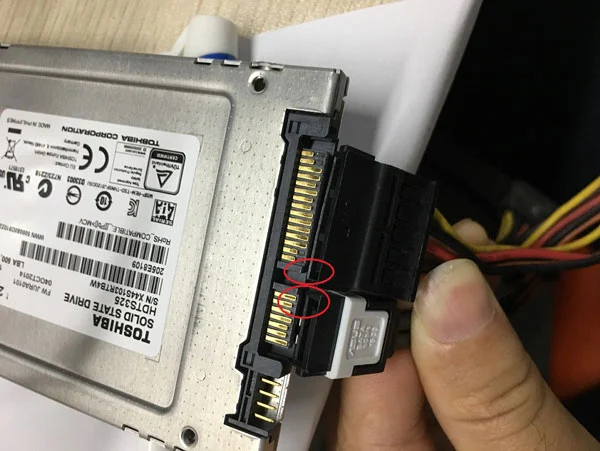
Step 2: Install it following the manufacturer’s instructions or connect it via USB.
Method 8: Use Drive Cleanup Tools
Third-party cleanup tools find more junk. They scan deeper than Windows tools. These programs locate hidden waste files. They clean more thoroughly and safely. Professional tools use advanced algorithms. They identify files that Windows tools miss completely.
Popular tools include CCleaner and TreeSize. They show exactly what uses space. Visual maps help identify problem areas. Most tools have free versions available. Advanced features come with paid versions. These tools often find several extra GB of junk.
How it helps:
- Finds hidden files Windows tools miss
- Shows detailed storage usage maps
- Removes more junk safely
- Provides ongoing maintenance features
Step 1: Download a reputable cleanup tool like CCleaner.
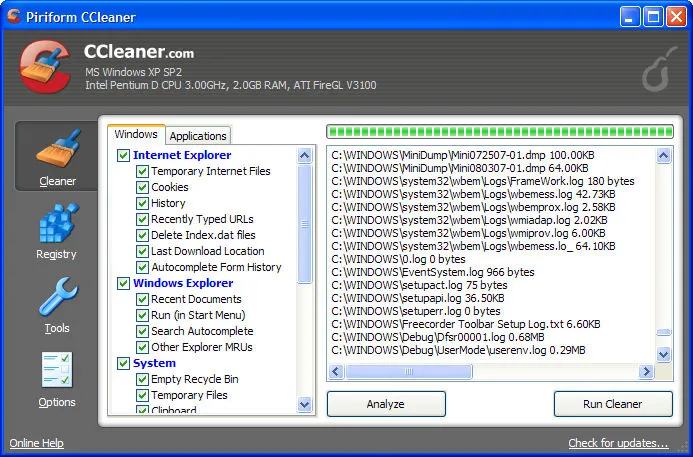
Step 2: Run a full system scan and follow the tool’s recommendations for safe cleanup.
Part 2: Expert’s Tips and Tricks to Free Up Storage Space
Smart storage management goes beyond basic methods. These expert tips help you maximize space efficiently. Use these strategies to keep your PC running smoothly while expanding storage capacity.
- Monitor large files regularly: Use TreeSize or similar tools monthly to spot space hogs before they become problems.
- Set up automatic backups: Configure cloud services to back up important files automatically, then remove local copies safely.
- Use symbolic links: Create links to files stored on external drives so programs think they’re still on the main drive.
- Manage system restore points: Limit restore points to save space while keeping recent recovery options available.
- Clean browser downloads: Set browsers to auto-delete downloads after 30 days to prevent folder bloat.
- Use NTFS compression: Enable file system compression on folders you rarely access to save 20-40% space.
- Redirect user folders: Move Documents, Pictures, and Videos folders to external drives through Windows settings.
- Schedule regular maintenance: Set monthly reminders to clean temp files, empty the recycle bin, and check storage usage.
Conclusion
Getting more storage doesn’t require deleting precious files. These methods help expand your PC’s capacity safely. From cloud storage to new drives, options exist for every budget and skill level.
Remember that how to get more storage on PC involves combining multiple approaches. Use temporary file cleanup with external storage. Add cloud services with new hardware. This creates a complete storage solution that grows with your needs.
FAQs
What’s the fastest way to get more storage on PC?
External storage drives provide the quickest solution. You can connect a USB drive or external hard drive instantly. This gives you extra space right away without any complex setup or file deletion.
Is it safe to use cleanup tools on my PC?
Yes, reputable cleanup tools are safe when used properly. Stick to well-known programs like CCleaner or Windows built-in tools. Always review what files will be deleted before confirming. Avoid tools that promise unrealistic results.
How much storage do I really need on my PC?
Most users need 500GB to 1TB for comfortable use. This allows room for programs, files, and system operations. If you work with large media files or games, consider 2TB or more. Cloud storage can supplement local needs effectively.
Author Bio:
Dinesh Lakhwani 

Dinesh Lakhwani, the entrepreneurial brain behind “TechCommuters,” achieved big things in the tech world. He started the company to make smart and user-friendly tech solutions. Thanks to his sharp thinking, focus on quality and the motto of never giving up, TechCommuters became a top player in the industry. His commitment to excellence has propelled the company to a leading position in the industry.
Popular Post











Recent Post

Artificial Intelligence Explained: Concepts, Terminology, Benefits, and Future Trends
Artificial Intelligence, or AI, is basically computers doing things that usually need a human brain. We’re talking about stuff like learning from experience, figuring out problems, understanding language, and making decisions. It’s not magic, just a lot of data, pattern-spotting, and math behind the scenes. Now, AI doesn’t actually think or feel like we do. […]

Resolving Microphone Detection Problems: Latest Guide [2026]
Microphones are important tools in daily life. People use them for office meetings, online classes, interviews, gaming, customer support, and content creation. When a system fails to detect a microphone, communication stops at once. This situation can cause stress and confusion. Many users believe the microphone is damaged. In reality, most problems are simple and […]

How To Switch To A Dark Background Theme In Windows [2026]
Most people spend many hours each day in front of a computer screen. Office work, online classes, editing, browsing, and streaming all require long screen time. A bright white background may look clean at first. However, over time, it can feel sharp and tiring. The strong contrast between white backgrounds and black text may cause […]

How to Switch From Local To Microsoft Account On Windows
Many users begin with a local account when they set up a new Windows computer. A local account works only on that single device. It stores settings, files, and preferences locally. It does not connect to online Microsoft services. For basic offline use, it works well. However, as digital needs grow, many users want better […]

How to Switch Windows 10 to a Local Account: Complete Guide
Windows 10 allows users to sign in with either a Microsoft account or a local account. When you set up a new computer, the system often suggests using a Microsoft account. This account connects your device to Microsoft services such as Outlook, OneDrive, and the Microsoft Store. It also syncs settings, themes, and passwords across […]

How To Change Default Apps For File Types In Windows
Windows is designed to make using your computer easy. One way it does this is by assigning default apps to different file types. This means when you open a file, Windows automatically opens it with a specific program. For example, photos may open with Photos, music with Groove Music, and PDFs with Edge. These default […]

How To Adjust The Mouse Pointer Speed: Complete Guide
Using a computer every day means you use the mouse a lot. The mouse pointer moves on the screen and helps you click, scroll, and select items. Many people never think about the speed of the mouse pointer. They have used the default setting for years. This can cause small problems over time. A slow […]

How to Change Mouse Scrolling Settings In Windows
A mouse is one of the most used computer tools. People use it every day. They scroll through emails. They scroll through documents. They scroll through websites and images. The movement becomes automatic. Most users do not notice it. That is why problems often go unnoticed. Scrolling problems show up slowly. At first, it feels […]

Keyboard Light Settings: Keyboard Lighting Control [Complete Guide]
Keyboards are no longer simple typing tools. Well, yes! Over time, they have evolved to include features that improve comfort, visibility, and overall experience. One of the most useful features today is keyboard lighting. It helps users work comfortably in low-light conditions. It also reduces strain when typing for long hours. Many users first notice […]

Customizing Pointer Appearance: Complete Guide
The way your mouse pointer looks on your computer may seem like a small detail. But customizing pointer appearance can make using your PC more comfortable and visually appealing. Many users do not realize that they can change the pointer size, color, and style to fit their needs. Whether you want a bigger pointer for […]

