How to Fix Start Menu not Working in Windows 10
Last updated on August 15th, 2024 at 3:57 pm
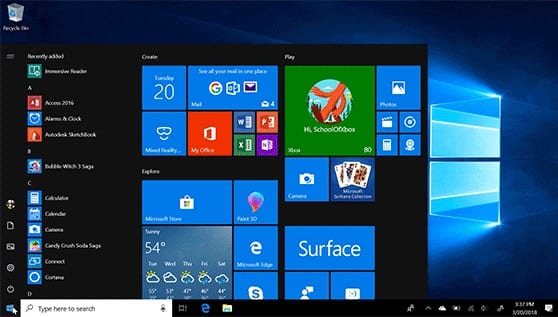
Recently, due to Windows 10 Fall Creators Update version 1709, many users have faced that the Start Menu is not working at all. Sometimes, there may be other reasons too. When this type of problem occurs the first thing ping to our mind is that this might be the worst Operating System. But that’s not true, this is one of the best Operating Systems we have ever used. Also, you don’t need to worry because there are several ways to fix this problem.
Start menu not working in Windows 10?
Don’t stress your nerves, there are several ways to resolve the start menu not working crisis-
1.Re-login into your account
If the Start Menu is not working then this method is one of the best and the quickest methods to apply.
Steps to Re-login into your account: –
- Press Ctrl + Alt + Del buttons simultaneously.
- Tap on Sign Out
- Press Ctrl + Alt + Del key combination again and insert your credentials (if any).
- You will log in again and your problem should be solved.
2. Create a new local account
This method could possibly end your trouble. But before heading with this method you should always back up your settings and files.
Steps to create a new local account: –
- Right-click on the taskbar and select Task Manager.
- Then click on File and tap on ‘Run new task’
- A dialog box appears saying ‘create new task’
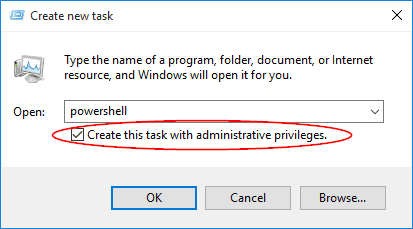
- Type in ‘Powershell’ and put a check mark on ‘Create this task with administrative privileges’.
- Click on the OK button.
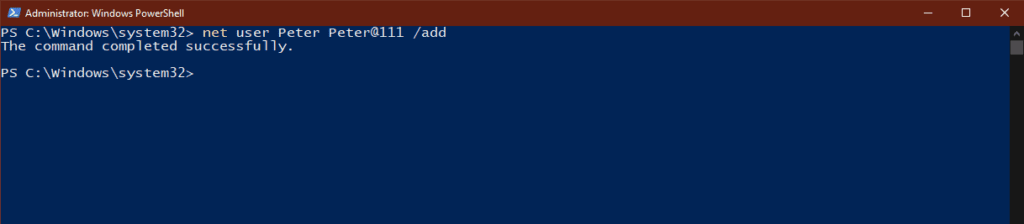
- On the Powershell Window, insert net user NewUsername NewPassword /add in the box.
- Restart your computer.
- Log in with the new user ID and password created.
3. Uninstall third-party antivirus software
In your system, if the Start Menu is not working appropriately then you should perhaps uninstall third-party malware software. To do so, the user needs to follow these steps: –
- Go to the Start Menu.
- Then, click on Setting > Apps > Apps and Features.
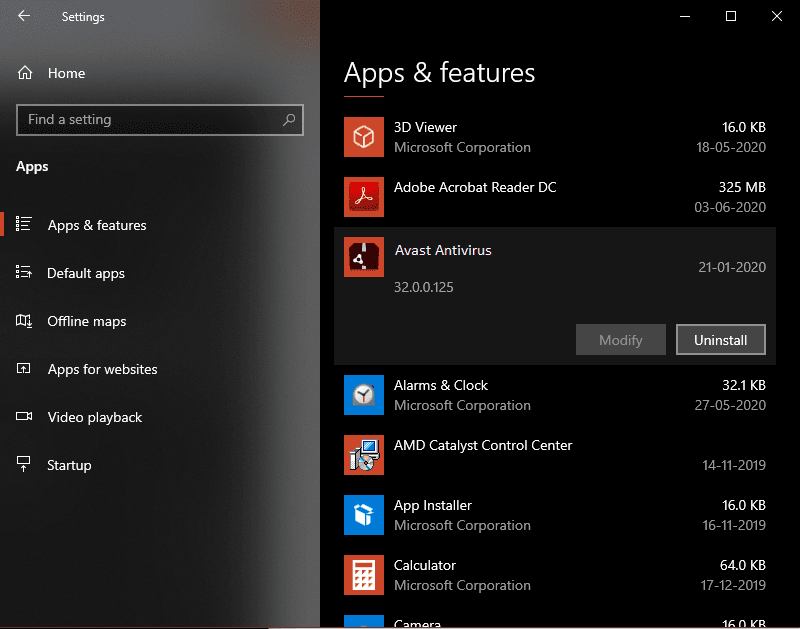
- Click on the Uninstall button to uninstall your installed antivirus.
- Check if the problem is fixed or not.
4. Launch a hidden Taskbar
We can apply this solution when the Windows button is not working or it is not visible on the taskbar or the whole taskbar is not visible.
Steps to launch a hidden taskbar-
- Press the Windows logo button and ‘I’ together.
- Tap on Personalization > Taskbar.

- Click on ‘Lock the Taskbar’ option.
- Also, check on ‘Automatically hide the taskbar’.
- Check if the Windows button is working or not.
5. Restart Windows Explorer
Restarting the Windows Explorer is one of the smart moves to fix the start menu not working in Windows 10 bug.
Steps to Restart Windows Explorer
- Simultaneously, press Alt + Shift + Esc keys to open Task Manager.
- Tap on more details if it is collapsed.
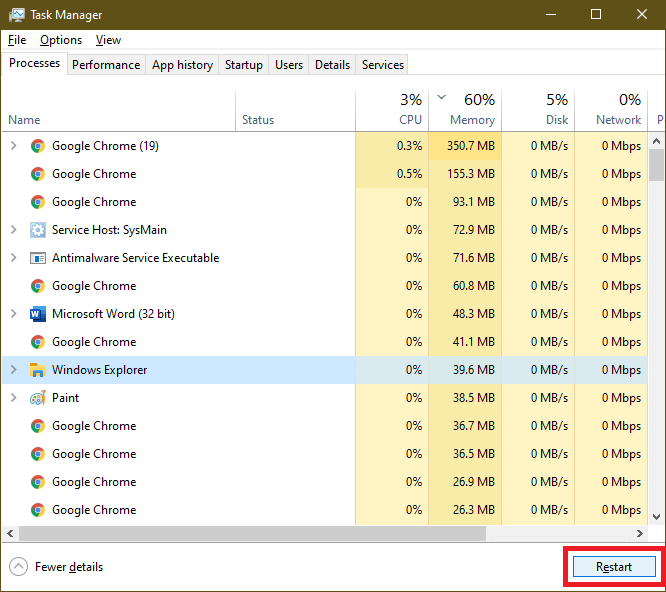
- Select the ‘Processes’ tab on the top of the window.
- Select ‘Windows Explorer’ and then click on the ‘Restart’ button.
- After completion of the process, close the Task Manager.
6. Update Drivers
Sometimes, the start menu not working problem emerges when the drivers of your PC get outdated. So, to fix this problem, update the graphics and audio drivers.
Steps to update drivers
- Open device manager, through the taskbar search box or you can press (Win + R), type ‘devmgmt.msc’, and press enter.
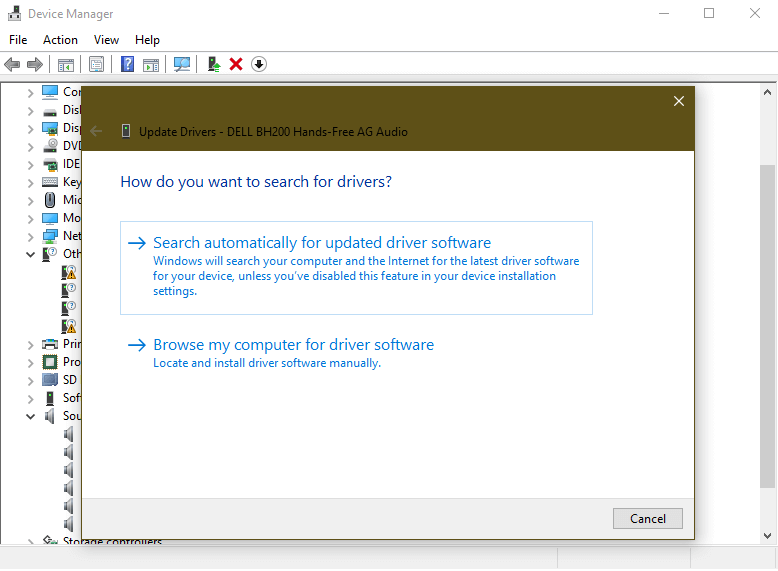
- Right-click Sound, video and game controllers category from the list and right click on device to select Update Driver.
- Tap on Search automatically for updated driver software to let Windows search and install all latest driver updates on your PC automatically.
- Alternatively, select Browse my computer for driver software and locate and install driver software manually from your device storage.
Note: Before you browse for latest driver software on your PC, you need to download it from manufacturer’s website.
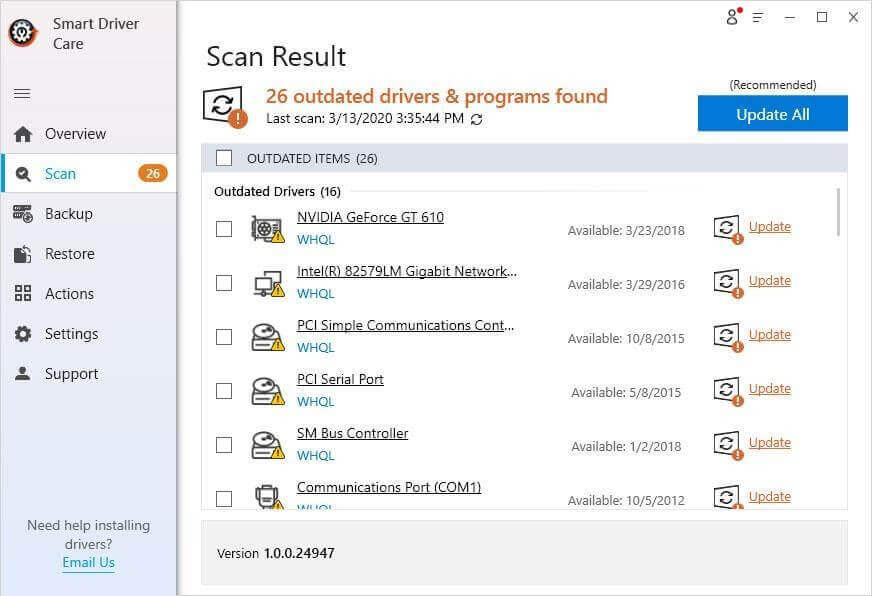
If you can’t find an updated driver, you can also try using Smart Driver Care to update all outdated drivers automatically.
7. Restart Your Computer
After updating your computer’s drivers, if the problem is still unsolved then you should probably try to restart your device. This is one of the basic methods to fix any issue. To restart your PC, press Alt + F4 simultaneously or Click on the Start button and click on the ‘Power’ option. Then select the restart option from the dropdown menu to restart your computer.
8. Run SFC SCANNOW
The next option is one of the most preferred options. SFC SCANNOW is a System File Checker command that fixes corrupt files and settings and restores the computer in proper state.
- Press (Win + R) to open the Run command box.
- Type ‘CMD’ and press enter to open the command prompt.
- Type SFC SCANNOW and press enter.
- You can also try another command DISM /ONLINE /CLEANUP-IMAGE /RESTOREHEALTH
- to scan and restore a healthy image of the computer. This command enables the Deployment Imaging and Servicing Management (DISM) tool. DISM Online Cleanup command can fix errors that even SFC command couldn’t fix.
9. Reset Your Device
If none of the above methods worked to fix your Start Menu problem then you should Reset your PC. This is the most effective solution to solve this issue. This feature will delete all your saved files, apps, and settings. Hence, we recommend you take a backup before doing so. In Windows 10, you can reset your system by using Recovery options.
Summing Up
The Start Menu not working in Windows 10 is a very common bug to fix. Above all the shared methods are the best-selected methods. Therefore, users can try any of them according to their convenience. You can comment below if you are facing any other issue pertaining to the Start Menu. Please give your feedback so that we can serve you better.
Author Bio:
Dinesh Lakhwani 

Dinesh Lakhwani, the entrepreneurial brain behind “TechCommuters,” achieved big things in the tech world. He started the company to make smart and user-friendly tech solutions. Thanks to his sharp thinking, focus on quality and the motto of never giving up, TechCommuters became a top player in the industry. His commitment to excellence has propelled the company to a leading position in the industry.
Popular Post











Recent Post

Keyboard Light Settings: Keyboard Lighting Control [Complete Guide]
Keyboards are no longer simple typing tools. Well, yes! Over time, they have evolved to include features that improve comfort, visibility, and overall experience. One of the most useful features today is keyboard lighting. It helps users work comfortably in low-light conditions. It also reduces strain when typing for long hours. Many users first notice […]

Customizing Pointer Appearance: Complete Guide
The way your mouse pointer looks on your computer may seem like a small detail. But customizing pointer appearance can make using your PC more comfortable and visually appealing. Many users do not realize that they can change the pointer size, color, and style to fit their needs. Whether you want a bigger pointer for […]

How To Choose a Computer Monitor: Monitor Buying Guide
Buying a monitor looks easy. Many people think all screens are the same. That belief causes regret later. A monitor is not just a display. It is a daily tool. You read on it. You work on it. You relax with it. Small problems become big over time. Poor brightness hurts eyes. Bad size causes […]

How To Get Help With File Explorer in Windows 11 [Complete Guide]
File Explorer is one of the most important tools in Windows 11. It is used to open folders, view files, and manage stored data. Almost every action on a Windows computer depends on it in some way. When users open documents, save downloads, or organize photos, File Explorer is always involved. Because it is used […]

How To Fix A Frozen Computer: Complete Guide [Windows 11/10]
A frozen computer is one of the most common problems Windows users face. The screen stops responding. The mouse pointer does not move. Keyboard inputs do nothing. You may hear the fan running loudly. Sometimes the system looks alive, but nothing works. This situation often happens when you are busy or working on something important. […]

How to Upgrade Computer RAM: Complete Guide
Upgrading RAM is one of the simplest ways to improve a computer. It helps the system feel faster and smoother. Apps open quicker. Browsers handle more tabs. Games and tools run with less delay. Many users search for how to upgrade computer RAM because it gives real results without high cost. You do not need […]

How To Clean Your Computer Keyboard: Complete Guide
A computer keyboard is touched more than almost any other device you own. It is used during work, study, gaming, and casual browsing. Fingers carry natural oils, sweat, and dirt. Small food crumbs fall between keys without notice. Dust settles each day slowly. Over time, this creates a hidden layer of grime. Many users do […]
Computer Mouse Buying Guide for Beginners and Advanced Users
Buying a mouse looks easy at first. Many people think all mouse work the same way. Well, that idea often leads to regret later. A mouse affects comfort, speed, and daily work. It matters for office tasks, gaming, design, and study. The right choice reduces strain and improves control. The wrong one feels annoying every […]

How To Overclock a Computer: A Complete Guide
Overclocking is the process of making your computer run faster than its factory settings. It mainly affects the processor, graphics card, and sometimes memory. Many people choose this method to improve performance without buying new hardware. It is popular among gamers, video editors, and users who run heavy software. When done properly, overclocking can give […]
How To Find Password Saved on This Computer: Complete Guide
Many people forget their login details at some point. It happens often. We create many accounts every year. Each one needs a username and a password. Over time, it becomes hard to remember all of them. That is why computers offer ways to store login details. These saved details help users sign in faster. They […]

