How To Fix App Store Missing On iPhone or iPad
Last updated on January 20th, 2025 at 10:05 am
Every iPhone and iPad user needs the App Store. It lets users discover and download apps, games, and other digital content. However, sometimes users need help finding the App Store. This can be challenging if you need to access an app quickly. Rest assured. Several options exist to assist in locating the App Store.
This blog post will discuss these potential fixes for the app store missing on iPhone or iPad issues. You could be dealing with a software error, a disabled setting, or something more serious, regardless of the root cause – we have the answers! Find out how to fix this issue in 6 simple ways. But first, let’s find out the reason.
Why is the App Store missing on iPhones or iPads?
Few people realize they accidentally deleted the App Store from their iPhone, causing much concern. The App Store is part of iOS and cannot be deleted. The App Store may have disappeared from the Home Screen, App Library, and Spotlight Search because the device has been restricted from installing unfamiliar apps.
Siri cannot open the App Store in this situation. This could mislead people into thinking the App Store is gone. We will solve this confusing problem.
6 Ways to Restoring the App Store on iPhone or iPad
Rest assured that if you cannot locate the app store on the iPhone or iPad. It is impossible to be deleted it from your device. It’s hiding somewhere; we can find it with a little investigation. This section will look into the six effective methods to resolve the missing app store on your iPhone or iPad. Below are some ways to fix this troubleshooting. They are:
1. Use the App library to find
The App Library feature was introduced in iOS 14. It automatically categorizes your applications into various categories. So you can find the desired app easily.
Step 1: For App Library, swipe right to the left. This will take you to the App Library.
Step 2: If your home screen contains many pages of apps, you might have to lift more than once to reach the App Library.
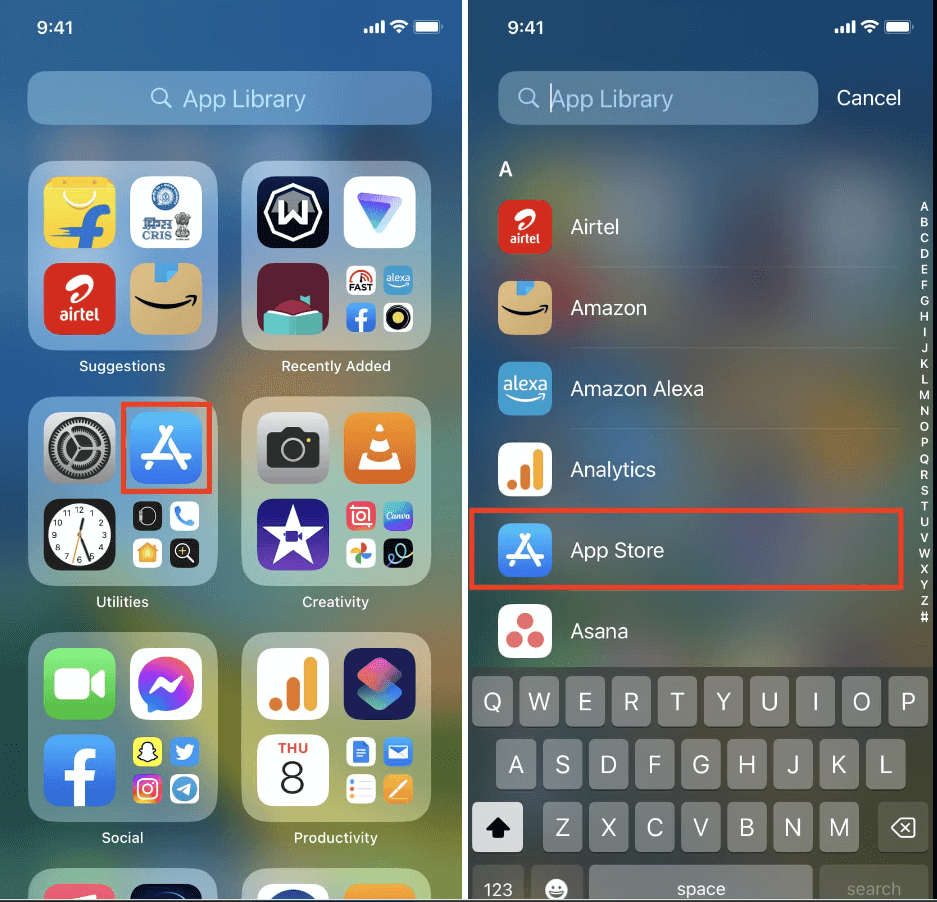
Step 3: Under “Utilities,” you will find the App Store.
2. Disable Restrictions to fix
You may have set up some restrictions on your iPhone, which further prevents you to get complete access of the App Store. Though, there is no need to worry – you can easily disable all the restrictions to get full access. Here’s how:
Step 1: Go to Settings and then click on the Screen Time. After that, click on the Content & Privacy Restrictions on your iPhone or iPad.
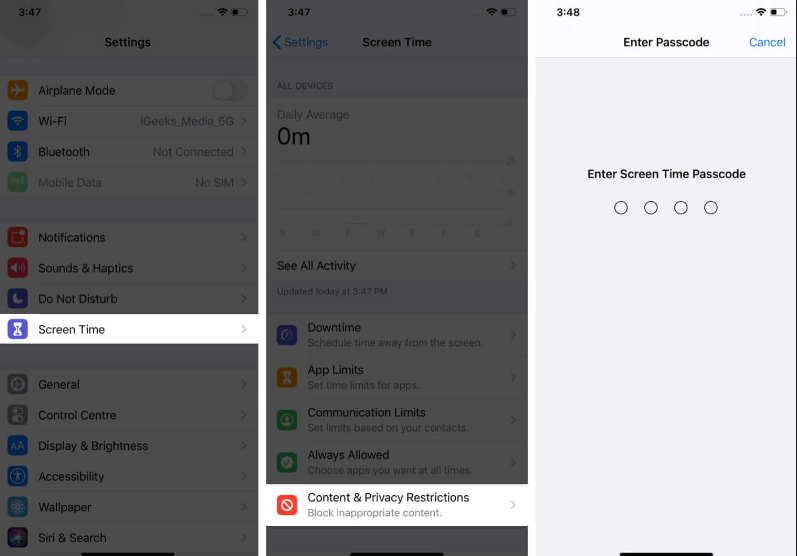
Step 2: Select iTunes & App Store Purchases to fix the missing App Store on your iPhone or iPad.
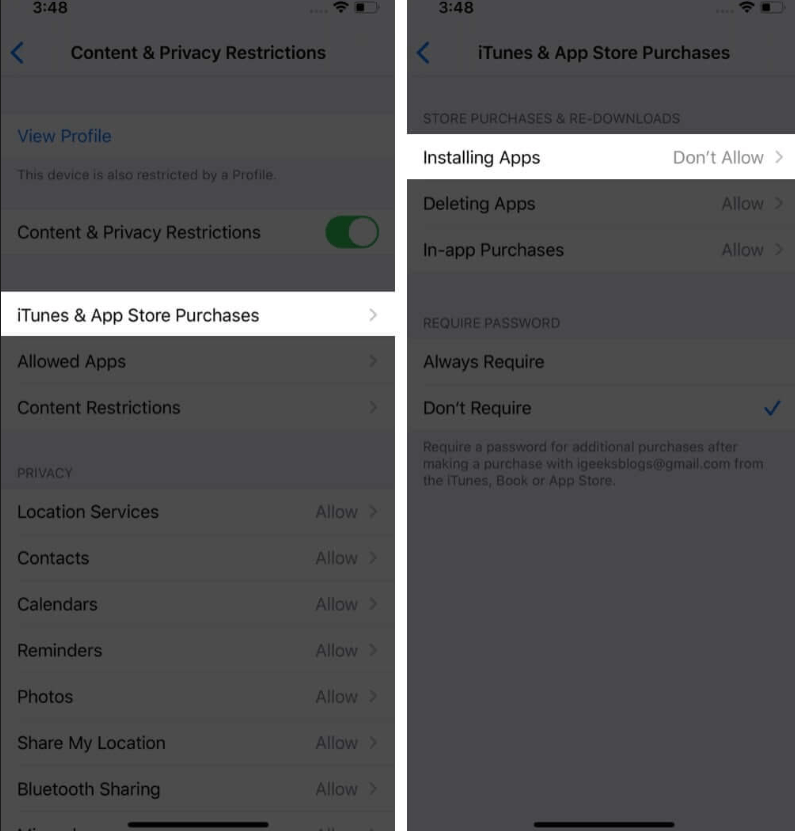
Step 3: Click on the Installing Apps after clicking it. Then, click the toggle switch next to Content & Privacy Restrictions.
3. Restore the Default Home Screen Layout
Following this step, you will restore your iPhone or iPad’s Home Screen to its original layout. Do not panic. Your apps will not get deleted. The Home Screen will, however, be returned to its original position if you have moved any stock apps around.
Step 1: Open your Settings.
Step 2: Go to General and click on the “Reset Home Screen.
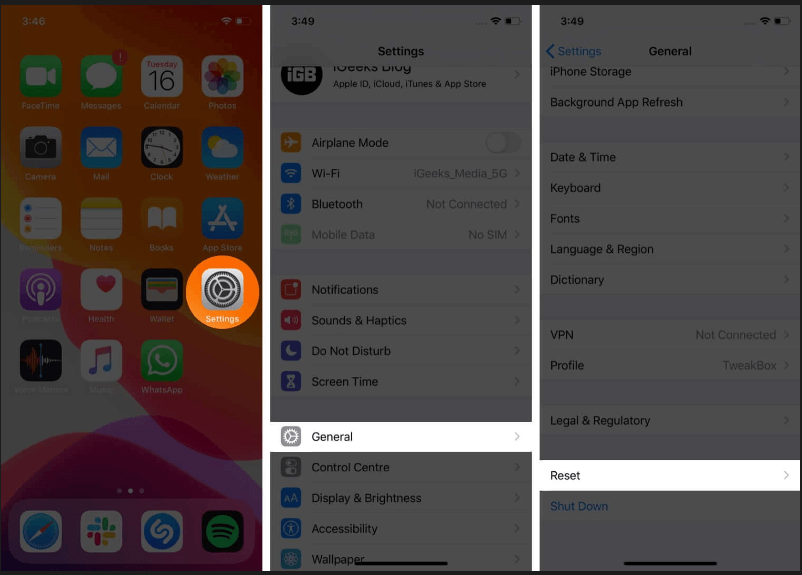
Step 3: Click Reset the Home Screen Layout and select Reset Home Screen.
4. Set up your settings again
Reset all settings to fix the issues of athe pp store missing on your iPhone or iPad after trying every previous procedure. Resetting your device’s settings may restore the missing icon. It will not impact your existing files.
Step 1: First, go to your Settings.
Step 2: Scroll down and click on the “General.” Then, click on reset under it.
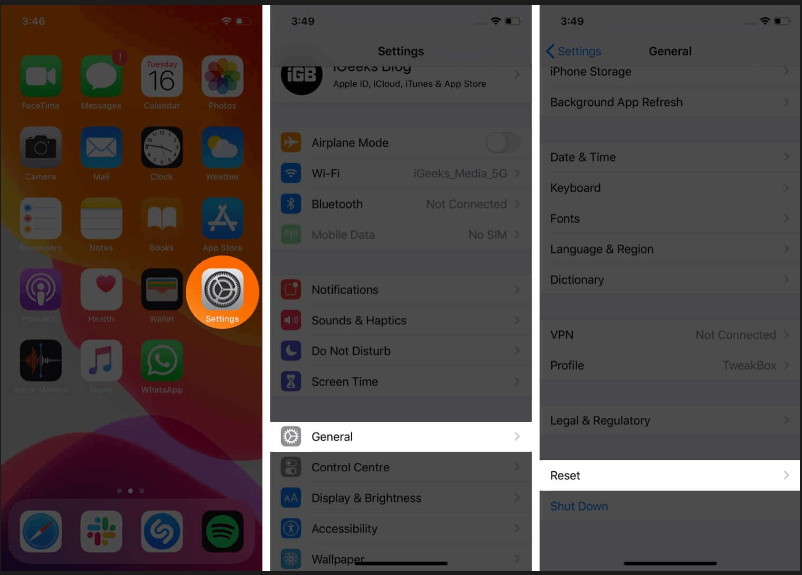
Step 3: Click on the “reset all settings” now.
Step 4: Again, click on the “reset all settings”.
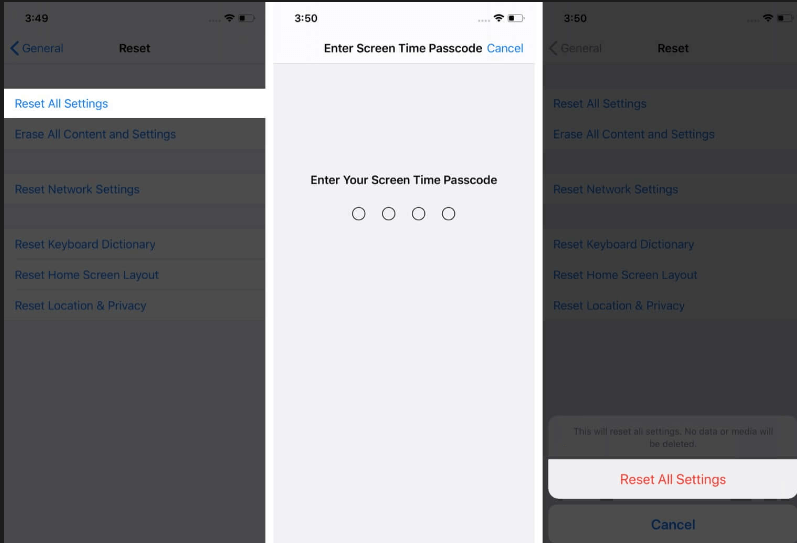
Once your device is back up and running, search again for “App Store.” Now should be the time to find it.
5. Simply search
The App Store icon is sometimes hidden in a folder with other apps. Here are the steps to search the App Store.
Step 1: Scroll down from your Home screen.
Step 2: The search bar on your iPhone will appear. Then, search “App Store.”
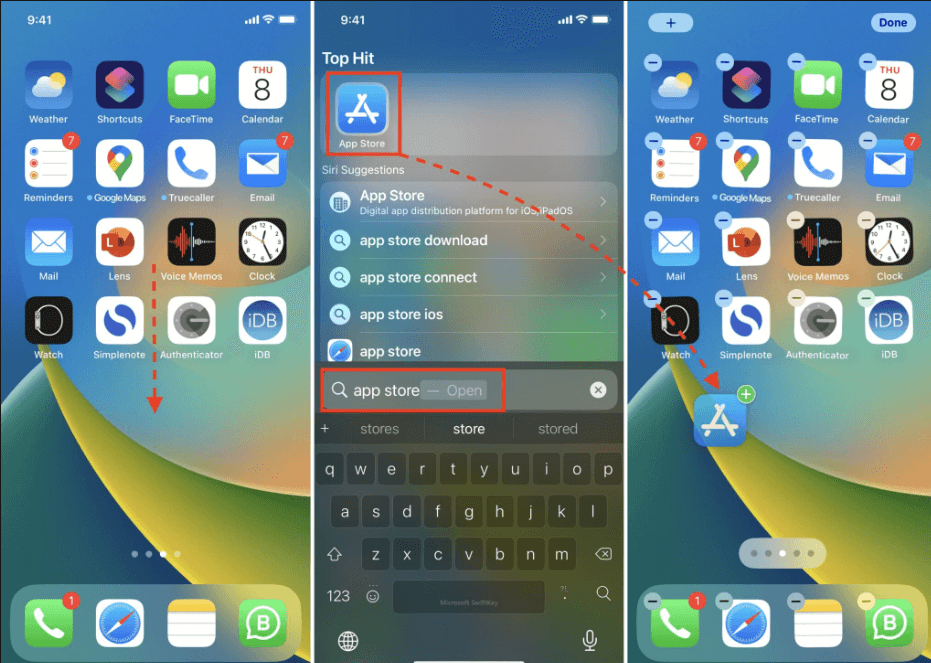
The result of the “App Store” will appear. And if not, then try other methods.
6. Update your iPhone or iPad software
Make sure your iOS is the latest version before resolve the problem of missing app store on iPhone or iPad. Even though it’s not a common issue, outdated iOS can sometimes cause the App Store to be unavailable. You can verify or update it by following the instructions provided.
Step 1: Open your settings option.
Step 2: Go to the General option and click on Software update.
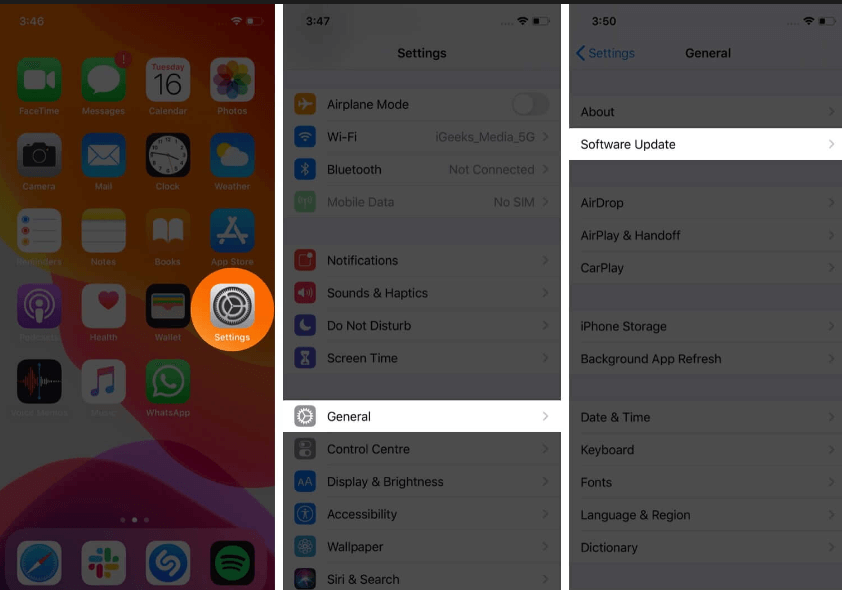
Step 3: See if the new version is available. If so, then click on the download and install option.
Step 4: Wait while your iPhone is downloading. It will take some time.
Step 5: After completing the download, check the App store.
Conclusion
In conclusion, iPhones and iPads need the App Store. It is the leading platform for downloading apps, games, and other digital content. If the App Store is missing from your device, no worries. This article will help you restore the App Store and resume downloading and using your favorite apps. These simple techniques can rapidly fix the missing App Store on your iPhone or iPad.
Check Screen Time to see if the App Store is hidden or restricted. Or else, restart your device, reset your home screen layout, or update your software. If everything else fails, return your smartphone to factory settings. Follow our tips to get back to enjoying your device after the App Store disappears!
Author Bio:
Dinesh Lakhwani 

Dinesh Lakhwani, the entrepreneurial brain behind “TechCommuters,” achieved big things in the tech world. He started the company to make smart and user-friendly tech solutions. Thanks to his sharp thinking, focus on quality and the motto of never giving up, TechCommuters became a top player in the industry. His commitment to excellence has propelled the company to a leading position in the industry.
Popular Post











Recent Post

Resolving Microphone Detection Problems: Latest Guide [2026]
Microphones are important tools in daily life. People use them for office meetings, online classes, interviews, gaming, customer support, and content creation. When a system fails to detect a microphone, communication stops at once. This situation can cause stress and confusion. Many users believe the microphone is damaged. In reality, most problems are simple and […]

How To Switch To A Dark Background Theme In Windows [2026]
Most people spend many hours each day in front of a computer screen. Office work, online classes, editing, browsing, and streaming all require long screen time. A bright white background may look clean at first. However, over time, it can feel sharp and tiring. The strong contrast between white backgrounds and black text may cause […]

How to Switch From Local To Microsoft Account On Windows
Many users begin with a local account when they set up a new Windows computer. A local account works only on that single device. It stores settings, files, and preferences locally. It does not connect to online Microsoft services. For basic offline use, it works well. However, as digital needs grow, many users want better […]

How to Switch Windows 10 to a Local Account: Complete Guide
Windows 10 allows users to sign in with either a Microsoft account or a local account. When you set up a new computer, the system often suggests using a Microsoft account. This account connects your device to Microsoft services such as Outlook, OneDrive, and the Microsoft Store. It also syncs settings, themes, and passwords across […]

How To Change Default Apps For File Types In Windows
Windows is designed to make using your computer easy. One way it does this is by assigning default apps to different file types. This means when you open a file, Windows automatically opens it with a specific program. For example, photos may open with Photos, music with Groove Music, and PDFs with Edge. These default […]

How To Adjust The Mouse Pointer Speed: Complete Guide
Using a computer every day means you use the mouse a lot. The mouse pointer moves on the screen and helps you click, scroll, and select items. Many people never think about the speed of the mouse pointer. They have used the default setting for years. This can cause small problems over time. A slow […]

How to Change Mouse Scrolling Settings In Windows
A mouse is one of the most used computer tools. People use it every day. They scroll through emails. They scroll through documents. They scroll through websites and images. The movement becomes automatic. Most users do not notice it. That is why problems often go unnoticed. Scrolling problems show up slowly. At first, it feels […]

Keyboard Light Settings: Keyboard Lighting Control [Complete Guide]
Keyboards are no longer simple typing tools. Well, yes! Over time, they have evolved to include features that improve comfort, visibility, and overall experience. One of the most useful features today is keyboard lighting. It helps users work comfortably in low-light conditions. It also reduces strain when typing for long hours. Many users first notice […]

Customizing Pointer Appearance: Complete Guide
The way your mouse pointer looks on your computer may seem like a small detail. But customizing pointer appearance can make using your PC more comfortable and visually appealing. Many users do not realize that they can change the pointer size, color, and style to fit their needs. Whether you want a bigger pointer for […]

How To Choose a Computer Monitor: Monitor Buying Guide
Buying a monitor looks easy. Many people think all screens are the same. That belief causes regret later. A monitor is not just a display. It is a daily tool. You read on it. You work on it. You relax with it. Small problems become big over time. Poor brightness hurts eyes. Bad size causes […]

