How to Clean & Optimize Windows 10 for Gaming?
Last updated on May 5th, 2025 at 6:44 am
If you are short on time:
There are multiple manual methods available to help you boost gaming performance on Windows 10. But, the problem is, it consumes a lot of time and efforts. Now that, if you are looking for an instant solution to optimize Windows 10 for gaming, then we suggest you should use best PC cleaner tools for enhanced gaming performance. CleanMyPC and CCleaner are two best tools available that offer tons of useful features to optimize PC for improved gaming.
Overview
If you love gaming on Windows 10, then you are not alone. The Microsoft has designed Windows 10 keeping needs of power gamers in mind. This powerful operating system for gamers allows mixing native games, support retro titles, and even supports Xbox One Streaming. But, there are limitations with Windows systems as well that could affect your gaming experience negatively.
Why you should clean Windows 10 for better gaming performance?
You may encounter sluggish gaming performance due to various reasons. It could include over occupied disk space, malware issues, hardware & settings issues, and more. Now to get best out of your PC to enjoy seamless gaming experience, you need to make certain tweaks. With these tweaks, you can optimize Windows 10 for improved gaming performance.
How to clean & optimize Windows 10 for gaming?
To clean & optimize Windows 10 for gaming, you can consider to enable Game Mode, disable Nagle’s algorithm, upgrade to SSD, manage the active hours, tweak visual effects settings, and try similar things. Remember, best PC cleaner software also helps you optimize your PC for better gaming performance.
Method 1: Use Windows 10 Game Mode
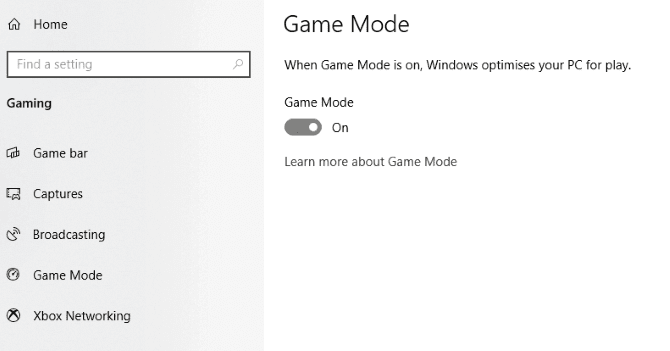
Game Mode on your Windows 10 PC is a powerful tool that is designed to dedicate more resources for games for seamless gaming experience. Once you enable this mode, it will prevent other programs and Windows Update from distracting you with annoying notifications. It will also prevent these programs from hogging system resource while you are playing. To enable Game Mode, follow these steps:
- Press Windows + I keys to open system Settings.
- On Settings window, type game mode in the search box and hit Enter.
- Click Control Game Mode for optimizing your PC for games option.
- On the next window, select Game Mode from the left pane.
- In the right pane, turn on the Game Mode option.
If your PC supports game mode, it will optimize your system for seamless gaming experience, If yu can’t see this option, then latest Windows Creators Update is not installed on your PC.
Method 2: Tweak Visual Effects Settings
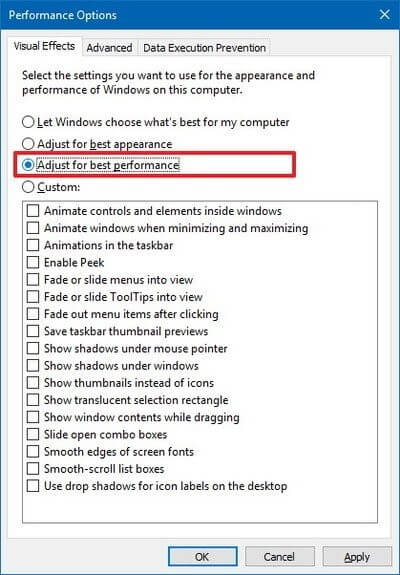
Next thing you should do to optimize Windows 10 for gaming is to tweak Visual Effects settings. You can find stunning visual effects on your Windows 10 PC that enhances aesthetics of your PC. But, it consumes a lot of device resources making gaming experience sluggish. To deal with that, you can consider tweaking Visual Effects settings. To do this, follow these steps:
- Press Win + I keys to open Settings.
- On Settings window, search Performance and hit Enter.
- On the next window, select Adjust the appearance and performance of Windows option,
- Select Adjust for best performance when prompted.
- Click Apply.
- Next you need to click the Advanced tab and make sure, the Adjust the best performance of is set to Programs.
- Click Apply & OK.
Method 3: Adjust for high performance
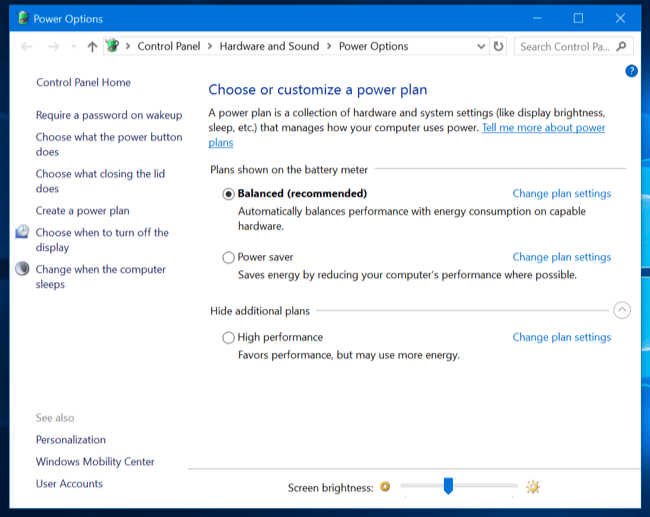
You can tweak power plans to adjust for high performance to speed up your gaming experience. To do this, you need to tweak your power settings. Follow these steps to adjust for high performance.
- Press Windows key + I to open Settings.
- On Settings window, type Power and hit Enter.
- Select Power & sleep settings > Additional power settings option in the right panel.
- On the next window, select the High Performance option.
- If you can’t find this option, then select Create a power plan from left pane and select High Performance on the next window.
- Follow the on-screen instructions to complete the process.
Method 4: Update drivers
To speed up gaming performance in Windows 10, you can consider to update display drivers. Outdated, missing or corrupt drivers could affect your gaming performance, thus, it is suggested to update them immediately to avoid performance issues. To update drivers on Windows 10, follow these steps:
- Right click on Start menu and select Device Manager.
- On Device Manager window, search and expand Display Adapters category.
- Once expanded, right click on device type and select Update Driver.
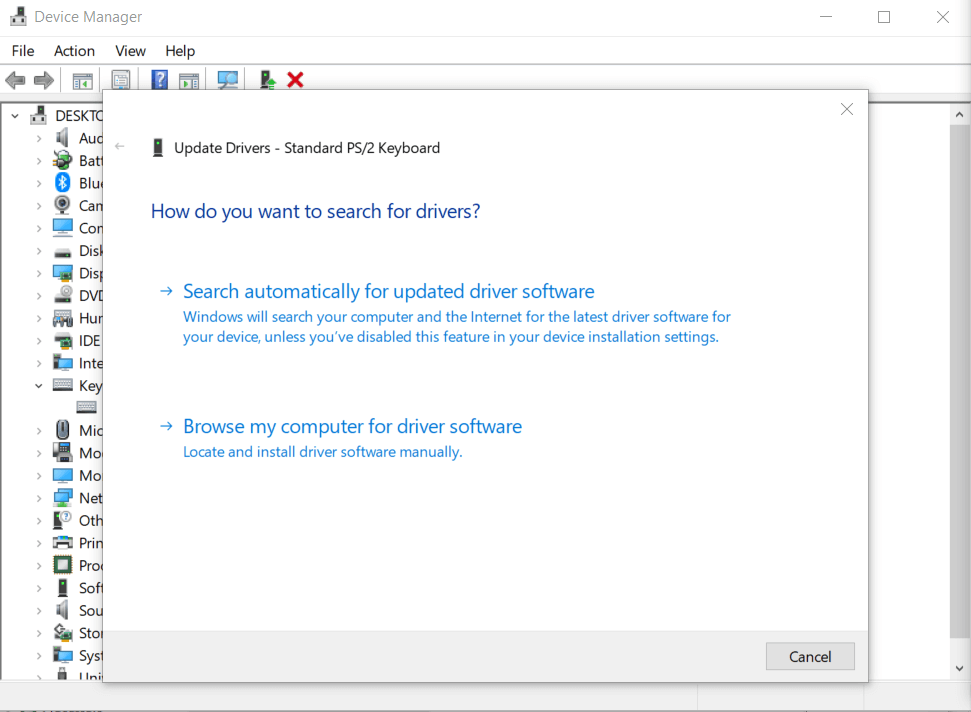
Now you will find two options on next window:
First, Search automatically for updated driver software that allows Windows to search and install the latest drivers automatically.
Second, Browse my computer for driver software, where you can browse the location of your driver file and install it.
Note: Before you browse the location of driver file, you need to download the latest driver file from the device manufacturer website.
If you find updating drivers manually complicated task, then you can consider using best driver updater software for instant and effective results.
Method 5: Install DirectX 12
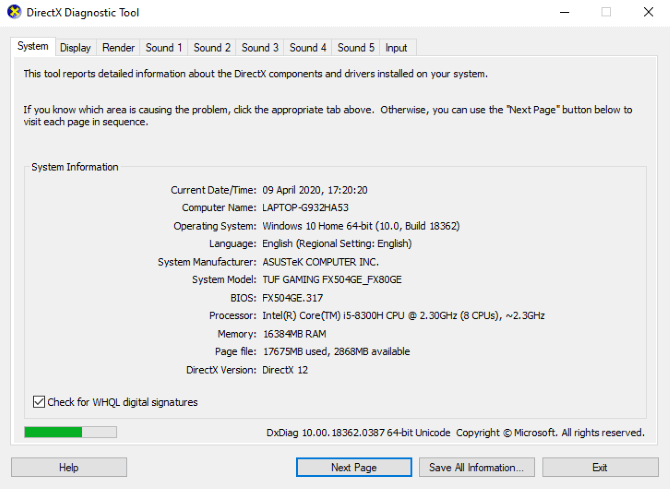
DirectX 12 is useful addition on Windows PC that enhances gaming performance. It comes with the latest version of Microsoft’s popular API tool. With DirectX 12, you will find support for various CPU and GPU cores, lowered power consumption, better frame rates, and enhanced graphical effects. To check if your system has DirectX 12, open Windows PowerSheel, type dxdiag and hit Enter. You will find a direct Diagnostic Tool. If you don’t have DirectX 12 installed, follow these steps:
- Open Settings > Update and Security.
- Select Windows Update from left pane.
- Click Check for updates in right panel.
- Let the system update automatically.
DirectX 12 will be installed automatically and optimize many gaming settings.
Method 6: Tweak DNS Settings
If you are relying on a remote server for Windows 10 gaming or playing online multiplayer, then network traffic could cause a trouble. To fix this issue, you can consider upgrading to faster Internet. To do this, follow these steps:
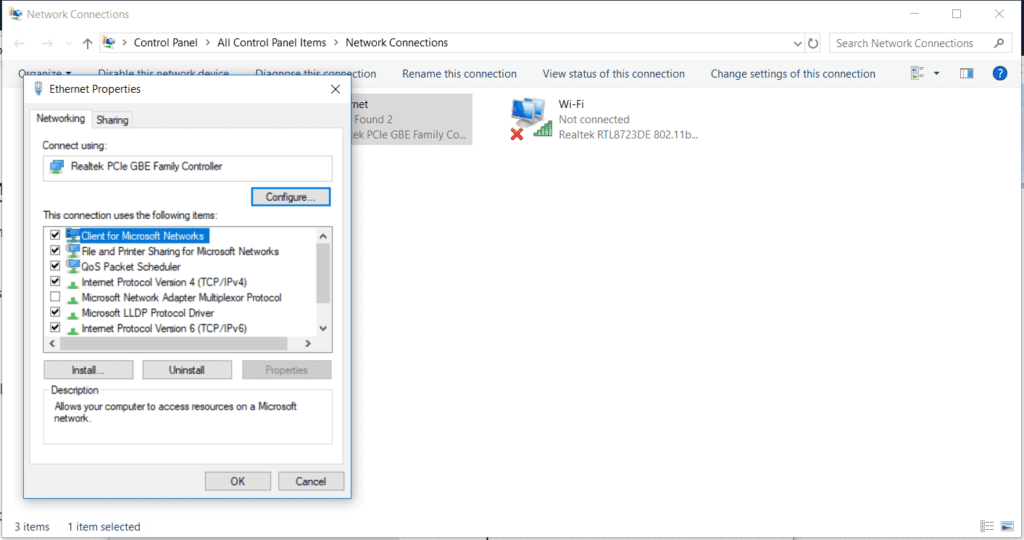
- Open Settings > Network and Internet > Change Adapter Options.
- On the next window, right-click on your wirless network.
- Choose Properties.
- On Properties window, highlight Internet Protocol Version 4.
- Here, you need to write down the two DNS entries for future reference.
- Next is to replace these entries with 1.1.1.1 and 1.0.0.1
- Click OK.
- Restart your browser to changes take place.
Method 7: Disable Automatic Updates
If you find Windows 10 updates and restarts automatically, then you can disable automatic updates to avoid trouble during game save. This is one of the easiest ways to optimize Windows 10 for gaming. To do this, follow these steps:
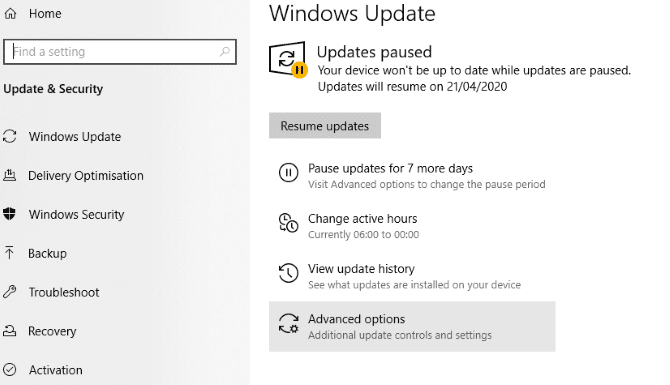
- Go to Settings > Update & Security > Windows Update.
- Click on Advanced options > Update Options.
- Here, disable Restart this device as soon as possible when a restart is required to install an update.
- Enable Show a notification to allow Windows to send notifications before restarts.
- You can click on Pause Updates to delay installation for different time duration.
Method 8: Disable Notifications in Windows 10
Notifications and pop-ups could be annoying while you are playing your favorite game. To disable notifications, chimes, and pop-ups, follow these steps:
- Go to Settings > System.
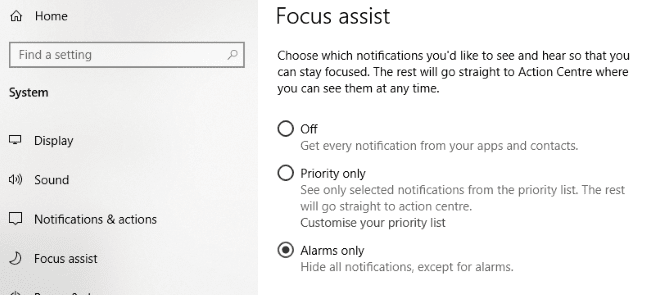
- On the next window, select Focus Assist from left pane.
- In the right pane, select Alarms Only to hide all other notifications.
- You’re done.
Method 9: Manage your Active Hours
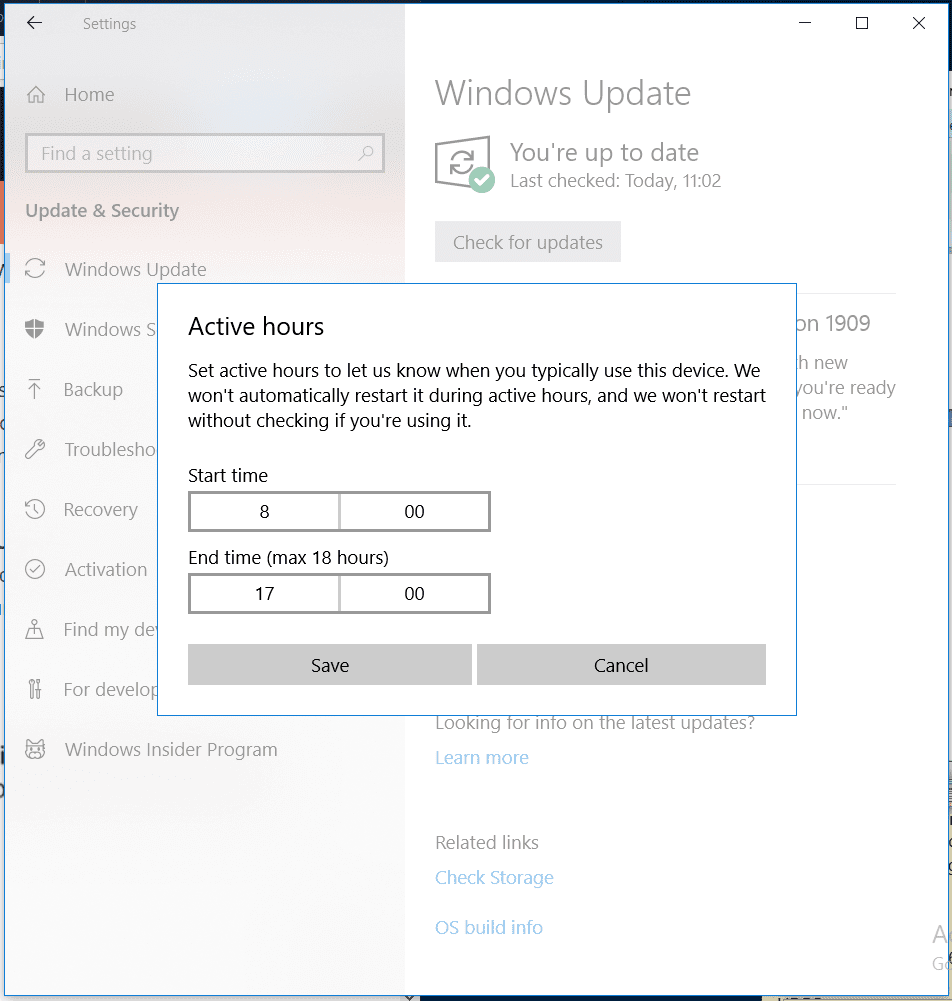
To stop Windows from updating automatically, you can consider to enable Active Hours. Once you specify active hours on your PC for gaming and working schedule, the OS will be prevented from downloading updates during those times. You can try to optimize Windows 10 for gaming using this step to heading to Settings > Update & Security > Change active hours.
Method 10: Disable Mouse Acceleration
It doesn’t improve your Windows performance directly, instead, it helps you enhance your personal gaming performance. When this feature is enabled, your system mouse will move based on detection of physical movements and on speed. Thus, it may interfere with gaming performance. To disable mouse acceleration, follow these steps.
- Press Windows key + I to open Settings.
- On Settings window, type Change the mouse pointer display or speed and press Enter.
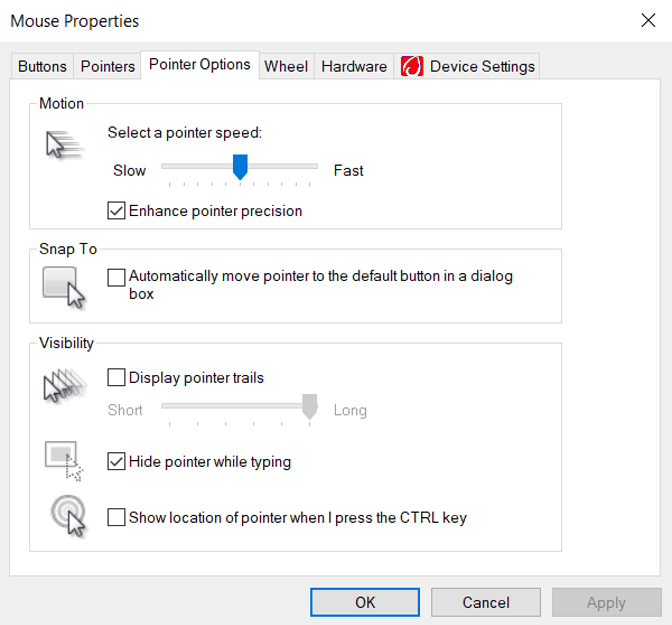
- On the next window, select Pointer Options tab and uncheck Enhance pointer precision.
You can also try to change the pointer speed slider to set it to the best configuration that suits you.
FAQ
How to turn on Game Mode in Windows 10?
To turn on Game Mode in Windows 10, press Windows + I keys to open Settings. On Settings page, type game mode and press Enter. Next click Game Mode settings or Turn on Game Mode. On the gaming screen, turn on Game Mode option.
How to clean & optimize Windows 10 for gaming?
There are multiple ways to clean & optimize Windows 10 for gaming. It includes turnig on Game Mode, disabling Nagle’s algorithms, using faster DNS servers, disabling automatic updates, disabling notifications, and more. You can also use best PC cleaner to speed up gaming performance.
Which Windows 10 is best for gaming?
If you are going to use your system only for gaming, then Windows 10 Home edition will suffice. You can upgrade to Pro version, if you are power user. Here, you will find better security and compatibility features.
Does RAM increases FPS?
Depending on the memory size you are using, it could affect FPS. By adding more RAM, you could expect to increase your FPS. As all games require certain amount of memory to run, more RAM will translate into better gaming speed.
Conclusion
Following above mentioned steps, you can easily clean & optimize Windows 10 for gaming performance. Do try these steps and share your experience in the comments below.
Author Bio:
Dinesh Lakhwani 

Dinesh Lakhwani, the entrepreneurial brain behind “TechCommuters,” achieved big things in the tech world. He started the company to make smart and user-friendly tech solutions. Thanks to his sharp thinking, focus on quality and the motto of never giving up, TechCommuters became a top player in the industry. His commitment to excellence has propelled the company to a leading position in the industry.
Popular Post











Recent Post

How to Switch Windows 10 to a Local Account: Complete Guide
Windows 10 allows users to sign in with either a Microsoft account or a local account. When you set up a new computer, the system often suggests using a Microsoft account. This account connects your device to Microsoft services such as Outlook, OneDrive, and the Microsoft Store. It also syncs settings, themes, and passwords across […]

How To Change Default Apps For File Types In Windows
Windows is designed to make using your computer easy. One way it does this is by assigning default apps to different file types. This means when you open a file, Windows automatically opens it with a specific program. For example, photos may open with Photos, music with Groove Music, and PDFs with Edge. These default […]

How To Adjust The Mouse Pointer Speed: Complete Guide
Using a computer every day means you use the mouse a lot. The mouse pointer moves on the screen and helps you click, scroll, and select items. Many people never think about the speed of the mouse pointer. They have used the default setting for years. This can cause small problems over time. A slow […]

How to Change Mouse Scrolling Settings In Windows
A mouse is one of the most used computer tools. People use it every day. They scroll through emails. They scroll through documents. They scroll through websites and images. The movement becomes automatic. Most users do not notice it. That is why problems often go unnoticed. Scrolling problems show up slowly. At first, it feels […]

Keyboard Light Settings: Keyboard Lighting Control [Complete Guide]
Keyboards are no longer simple typing tools. Well, yes! Over time, they have evolved to include features that improve comfort, visibility, and overall experience. One of the most useful features today is keyboard lighting. It helps users work comfortably in low-light conditions. It also reduces strain when typing for long hours. Many users first notice […]

Customizing Pointer Appearance: Complete Guide
The way your mouse pointer looks on your computer may seem like a small detail. But customizing pointer appearance can make using your PC more comfortable and visually appealing. Many users do not realize that they can change the pointer size, color, and style to fit their needs. Whether you want a bigger pointer for […]

How To Choose a Computer Monitor: Monitor Buying Guide
Buying a monitor looks easy. Many people think all screens are the same. That belief causes regret later. A monitor is not just a display. It is a daily tool. You read on it. You work on it. You relax with it. Small problems become big over time. Poor brightness hurts eyes. Bad size causes […]

How To Get Help With File Explorer in Windows 11 [Complete Guide]
File Explorer is one of the most important tools in Windows 11. It is used to open folders, view files, and manage stored data. Almost every action on a Windows computer depends on it in some way. When users open documents, save downloads, or organize photos, File Explorer is always involved. Because it is used […]

How To Fix A Frozen Computer: Complete Guide [Windows 11/10]
A frozen computer is one of the most common problems Windows users face. The screen stops responding. The mouse pointer does not move. Keyboard inputs do nothing. You may hear the fan running loudly. Sometimes the system looks alive, but nothing works. This situation often happens when you are busy or working on something important. […]

How to Upgrade Computer RAM: Complete Guide
Upgrading RAM is one of the simplest ways to improve a computer. It helps the system feel faster and smoother. Apps open quicker. Browsers handle more tabs. Games and tools run with less delay. Many users search for how to upgrade computer RAM because it gives real results without high cost. You do not need […]

