How To Check Screen Time On android?
Last updated on August 31st, 2025 at 8:03 am
Digital Well-being is an essential health aspect that you need to take care of. It is very important to understand that mobile phones should not be used so much that it becomes a threat to your social life. Additionally, with several applications that are interesting, you could get addicted to using your mobile. However, to improve your digital well-being, you can check your screen time on your android mobile phones and control your routine.
In this article, we are going to learn how to implement virtual well-being and parent restrictions on android. It moreover describes how to configure app timers, sleep mode, attention mode, as well as parental controls.
How to Configure Virtual Wellness on Android?
Android’s Digital Wellness function monitors your everyday screen usage, notifications, as well as phone unlocks. This option is useful if you simply can’t bring yourself to quit using and cut back on a certain app. You may set up a certain amount of hours every day to concentrate on particular apps.
After you have reached your daily screen time restriction, you won’t be able to access that application again unless the countdown resets at nightfall. This Digital Wellbeing option is accessible via your phone’s settings. It must be enabled because it is not enabled by default. Here’s how you do it.
- Go to the Settings menu.
- Select Digital Wellbeing & Parental Controls.
- Tap on the three-dot button in the upper right corner and choose to manage your data.
- Switch to Daily device usage. The circular chart upon that Digital Wellbeing screen indicates which applications you have used. Within the circle, users can really see the overall screen time, as well as how many instances you’ve unlocked and how many alerts you’ve gotten.
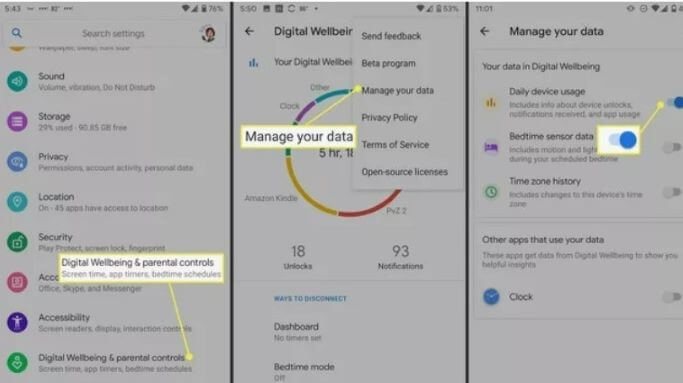
5. Your phone would then record app use, notifications, and the device unlocks.
You may also reach Digital Wellbeing through an app shortcut. Scroll down to the bottom of the home screen and choose the Show icon.
Keep an eye on your screen time
The Digital Wellbeing application includes two sorts of features to assist you in reducing screen time as well as obstructions: Ways to disengage and Minimize interruptions.
Application timers, sleeping mode, and concentrate mode are all ways to unplug. Shortcuts to application notification management, including the Do Not Disturb option, are available in the Minimize Interruptions tab.
How to Configure App Timers
Set up a daily schedule for the applications you use most often to avoid getting lost in the Instagram rabbit tunnel or playing games while you must be studying or communicating with others. When you exceed the threshold, you’ll receive a message that the timeframe has expired, the application will become grey, and users won’t be permitted to access it till after midnight until you deliberately turn it off.
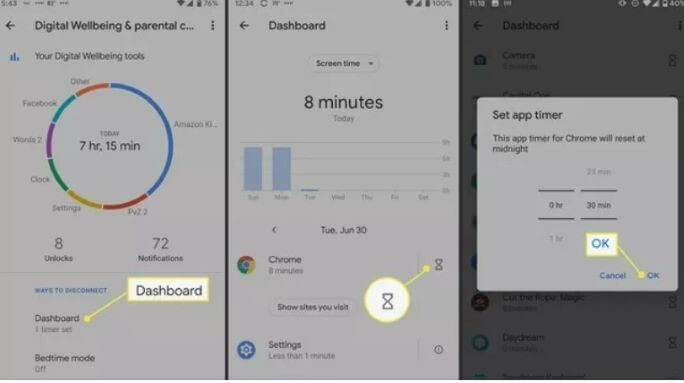
- Navigate to Dashboard.
- You’ll get a summary of the applications you use most often. To examine screen time, alerts, and instances opened on a regular or hourly basis, tap the application. To set up a timeframe, click the hourglass symbol beside the application.
- You may also specify a timer by going to the application details page and selecting App Timer.
- Set a timer (all schedules refresh at nightfall) and then press OK.
How to Configure Bedtime Mode?
Bedtime mode assists you in winding down by shutting your phone as well as setting the display monochrome so you don’t remain up late surfing around social networks or reading. Bedtime mode may offer a variety of things to assist you in limiting your time on screen. To begin, enable the Do Not Disturb option, change the display to grayscale, then maintain the screen black.
You may choose whether any of these functions are engaged at sleeping. You may program the hours and days when you wish to utilize bedtime mode, and then it will turn on and off immediately, so you shouldn’t have to bother about forgetting. You may also configure Bedtime mode to activate just when the smartphone is plugged in for charging.
You may activate the sleep setting on a routine and whenever you plug up your phone to recharge before going to sleep. In both cases, you specify asleep as well as awakening time.
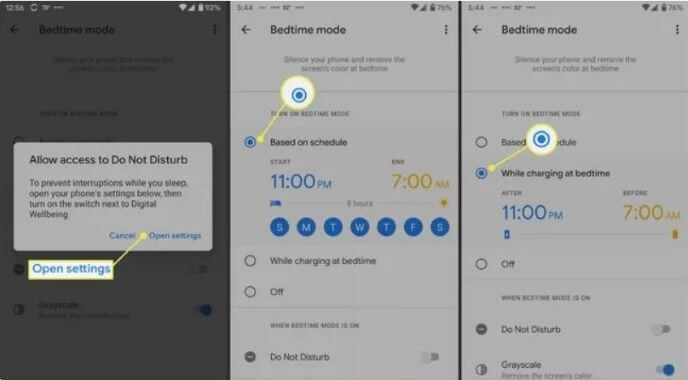
Select Customize to also have the Do Not Disturb switch on while you’re in sleep and to select if the screen becomes grey.
How to Activate Focus Mode
Focus mode allows you to halt applications directly or even on a routine. You can select a time as well as a day after, or several days. If you want to take breaks from concentrate mode, you may do so from here.
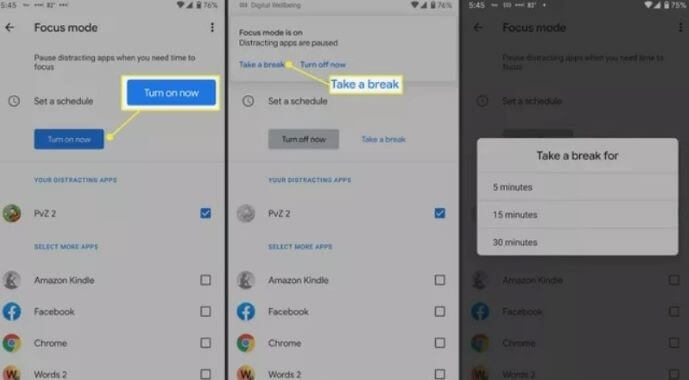
In the Reduce Interruptions area, you may control app notifications as well as enable do not disturb mode. Parental controls can help you manage your children’s screen time. The final part is dedicated to parental restrictions. Unless you’re the default parent profile on a child’s phone, you may control their profile.
Set Android Phone’s Parent Control systems
You may begin configuring parental controls using the Digital wellness settings screen, but first, you must install Home Link, a Google program. Now you and your children must possess a Google account in order to use the application.
- Navigate to Settings > Digital Wellbeing and Parental Controls.
- At the end of the window, select Set up parental controls.
- Press Start on the next screen.
- Select Parent.
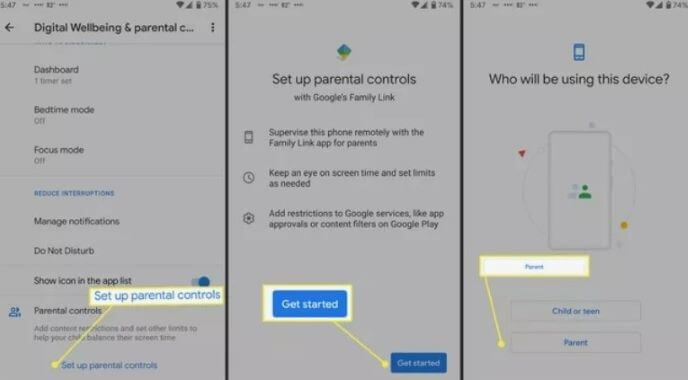
5. There will be a popup for you to install the Family Link application. Install it and then continue the on-screen instructions.
What Is Google Family Link & How Do You Use It?
Until you can adjust your children’s time on screen as well as other controls, you’ll connect the google accounts on your mobile phone.
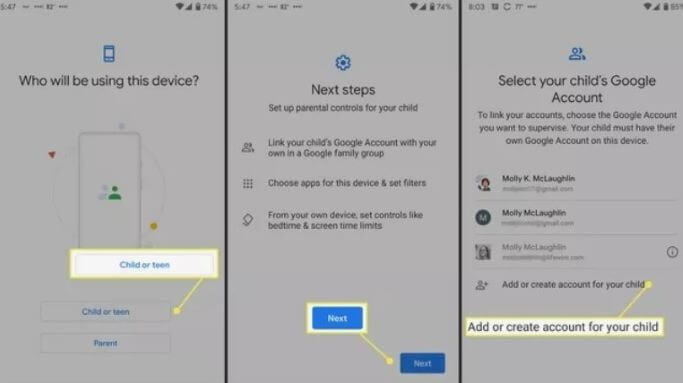
- Go to Settings > Digital wellbeing & parental controls on your children’s smartphone.
- At the foot of the window, choose Set up parental controls.
- Tap Begin on the following screen.
- Select Child or teen.
If your children’s account does not appear on the page, select Add or Create Account. After you’ve registered it, choose it from the selection. Then, continue following the on-screen instructions.
Conclusion
Digital Wellbeing is also a wonderful tool to keep track of your children’s screen usage. You must first install the Family Link application on the Google Play Store in order to activate the parental controls provided by Digital Wellbeing. Then you should configure it all on your smartphone and also on your children’s smartphone.
When everything is in place, you can examine your children’s screen use, establish time restrictions for them, block their applications before sleep, and do other things. And in the growing wake of social media, it is very important to monitor your screen time, as well as your children’s time. It will help you in a lot of ways.
Author Bio:
Dinesh Lakhwani 

Dinesh Lakhwani, the entrepreneurial brain behind “TechCommuters,” achieved big things in the tech world. He started the company to make smart and user-friendly tech solutions. Thanks to his sharp thinking, focus on quality and the motto of never giving up, TechCommuters became a top player in the industry. His commitment to excellence has propelled the company to a leading position in the industry.
Popular Post











Recent Post

How to Upgrade Computer RAM: Complete Guide
Upgrading RAM is one of the simplest ways to improve a computer. It helps the system feel faster and smoother. Apps open quicker. Browsers handle more tabs. Games and tools run with less delay. Many users search for how to upgrade computer RAM because it gives real results without high cost. You do not need […]

How To Clean Your Computer Keyboard: Complete Guide
A computer keyboard is touched more than almost any other device you own. It is used during work, study, gaming, and casual browsing. Fingers carry natural oils, sweat, and dirt. Small food crumbs fall between keys without notice. Dust settles each day slowly. Over time, this creates a hidden layer of grime. Many users do […]
Computer Mouse Buying Guide for Beginners and Advanced Users
Buying a mouse looks easy at first. Many people think all mouse work the same way. Well, that idea often leads to regret later. A mouse affects comfort, speed, and daily work. It matters for office tasks, gaming, design, and study. The right choice reduces strain and improves control. The wrong one feels annoying every […]

How To Overclock a Computer: A Complete Guide
Overclocking is the process of making your computer run faster than its factory settings. It mainly affects the processor, graphics card, and sometimes memory. Many people choose this method to improve performance without buying new hardware. It is popular among gamers, video editors, and users who run heavy software. When done properly, overclocking can give […]
How To Find Password Saved on This Computer: Complete Guide
Many people forget their login details at some point. It happens often. We create many accounts every year. Each one needs a username and a password. Over time, it becomes hard to remember all of them. That is why computers offer ways to store login details. These saved details help users sign in faster. They […]

How To Open/Access Computer Management & Advanced Tips
Every Windows computer has many hidden tools. Most users never see them. They only use basic settings. They change wallpapers. They install apps. They adjust sound and display. That is enough for daily work. But problems still happen. The system slows down. Storage fills up. Errors appear without warning. At this stage, normal settings do […]

How To Transfer Photos From Android Phone To PC/Laptop [2026]
Moving photos from a phone to a computer is something most people need to do often. Phones fill up fast. Photos also matter more than apps. You may want a safe backup. You may want to edit images on a bigger screen. This guide explains how to transfer photos from Android to PC without stress. […]
Top 9 Browsers With Built-In VPN – VPN Browser
Online browsing is no longer private by default. Every website collects data in some form. This includes location details, device information, and browsing habits. Over time, this data builds a clear picture of user behavior. Many people are now uncomfortable with this level of tracking. A VPN browser helps reduce this exposure. It adds a […]

AI In Cyber Security: Who is Winning, Hackers or Security Companies
Cybersecurity once followed clear rules. Companies built firewalls. Users created passwords. Antivirus tools scanned files and removed known threats. When an attack happened, security teams studied it and added new rules. This method worked for many years. It created a sense of control and stability. That sense is gone today. Artificial intelligence has changed how […]

The Biggest AI-Run Cyber Attacks Of All Time
Artificial intelligence is now part of everyday technology. It helps people search faster. It improves medical research. It supports businesses in making better choices. But AI is not used only for good purposes. Cyber criminals have also learned how to use it. This has changed the nature of cyber attacks across the world. In the […]

