10 Best GPU Benchmark Software for Windows 11/10/8/7 in 2026
Last updated on February 9th, 2026 at 11:55 pm
GPU benchmark software helps you understand how well your graphics card performs under real workloads. For gamers, creators, and everyday users, these tools offer clear scores that reflect rendering power, stability, and overall system balance. In 2026, benchmarking has become more reliable and easier to run, even on older versions of Windows.
This guide covers the best GPU benchmark software for Windows 11, 10, 8, and 7. Each tool serves a slightly different purpose, from quick hardware checks to intense graphics stress tests. Knowing what each one does best makes it easier to pick the right option for your setup.
How to Choose the Best GPU Benchmark Software
Choosing the right benchmark depends on your goal. Some users want quick comparisons, while others need deep performance analysis. These points help narrow the choice.
- Benchmark Type
Some tools focus on gaming performance, others on general system graphics. Pick one that matches how you use your PC. - Score Clarity
A good benchmark presents results in clear numbers and charts. You should easily understand what the score means. - Real World Tests
Software that simulates real game engines or workloads gives more useful results than synthetic tests alone. - Hardware Detection
Accurate GPU detection matters, especially on laptops with integrated and dedicated graphics. - System Compatibility
Make sure the tool supports your Windows version and older hardware if needed. - Stress Testing Ability
Some benchmarks push the GPU hard over time. This helps reveal overheating or stability issues. - Reporting and Export Options
Being able to save or share results is useful for upgrades or comparisons. - Ease of Use
Clear menus and guided tests save time and reduce setup errors.
Top 5 GPU Benchmark Software Comparison
Below is a comparison of the most trusted GPU benchmark tools used in 2026. Each offers a different balance of detail and simplicity.
| Software | Best Use Case | GPU Benchmark Focus | Stress Testing | Ease of Use | Reporting |
| Speccy | Hardware overview | Basic | No | Very Easy | Limited |
| 3DMark | Gaming performance | Advanced | Yes | Easy | Detailed |
| PassMark | System comparison | Balanced | Yes | Moderate | Detailed |
| Catzilla | Graphics-heavy tests | Strong | Yes | Moderate | Good |
| PCMark | Overall system tasks | Mixed GPU and CPU | No | Easy | Clear |
This table shows how each tool fits different user needs. Dedicated gamers often prefer 3DMark, while general users may find PassMark or PCMark more practical.
Author’s Tip
Do not rely on a single benchmark score when judging GPU performance. Each tool uses its own testing methods, scenes, and scoring logic, which can favor certain hardware setups. Running at least two different benchmarks helps balance these differences and gives a more realistic picture of how your GPU performs across workloads.
It is also important to close unnecessary programs before testing. Background apps can use CPU, memory, or disk resources and quietly lower benchmark scores. Disabling overlays, updates, and startup utilities creates a clean test environment, making the results more stable and easier to compare.
Before We Start, Let’s Discuss These Important Questions
Is GPU benchmarking safe for my graphics card?
Yes, benchmarking software is designed to test hardware within safe limits. However, stress tests can push the GPU close to its thermal limits. Make sure your system cooling is working properly and stop the test if temperatures rise too high.
Why do my benchmark scores change between runs?
Small differences are normal. Background tasks, temperature changes, and driver behavior can all affect results. Running the test multiple times and averaging the scores gives a more accurate picture.
Can I use benchmark results to decide on a GPU upgrade?
Yes. Benchmarks help compare your current GPU with newer models. They also show if your GPU is holding back performance in games or creative software.
10 Best GPU Benchmark Software for Windows 11/10/8/7 in 2026
For Windows users, we have tried many different software for GPU benchmarking, and after intense comparing, we shortlisted the best ten options—suiting all the leading Windows versions.
1. Speccy
CNET Rating -4.2/5
PC Magazine Rating – 3/5
Compatibility – Windows 10, 11, 8.1, 7, Vista, and XP for both 32-bit and 64-bit versions.
Number of Downloads – N/D
Price – Free with the option to upgrade to a Professional version for $19.95.
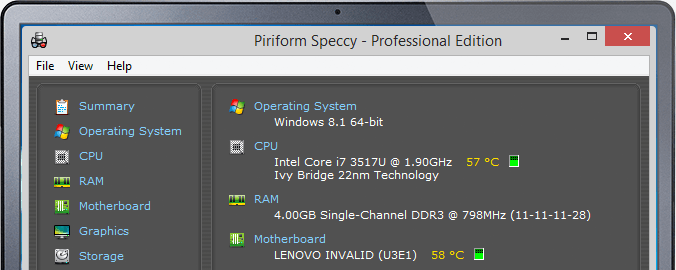
If you are looking for feature-rich free software for GPU benchmarking, Speccy is your tool. It comes with Piriform’s trust stamp, so it has the full capacity to analyze your CPU and GPU. Gamers highly appreciate this software as they can compare various CPU components with it. By clicking on the GPU section, users can easily see storage, temperature, and RAM status.
Features
- Speccy has a very simple and initiative interface. All the benchmarking features are perfectly lined on the left side, which makes it easier for new users to operate it.
- PC wizard is also very interactive and easy to understand.
- PC’s basic information is clearly visible like storage capacity, remaining battery life, operating system, CPU temperature, etc.
- It let you effortlessly look inside your PC.
Pros
- Easy to use.
- Interactive interface.
- Good for beginners.
Cons
- Don’t provide real-time scores.
- Benchmarking features need improvement.
2. 3DMark
CNET Rating – 3.2/5
Techspot Rating – 4.2/5
Compatibility – Windows 10/8/7
Number of Downloads – 619,750
Price – Free basic version and full for $29.99.
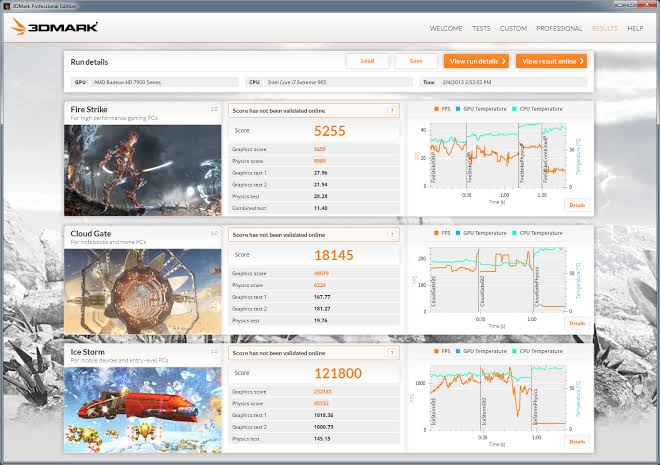
3DMark is the incredible software by FutureMark. It is a perfect tool for synthetic benchmarking. The software will quickly let you know how your GPU card is performing as compared to other cards. This benchmarking software can work with all screen sizes, including PCs, laptops, tablets, and phones. Importantly, the basic free version has lots of features to run in-depth GPU analysis.
Features
- It offers three powerful tests—DirectX 9, DirectX 10, and DirectX 11 hardware.
- GPU benchmark scores across Windows, Android, and iOS devices can be compared.
- 3DMark compares your GPU card’s score with other systems.
- You can test frame rates of your favorite games with 3DMark Advanced and Professional Edition.
- Ice Storm features let you compare tablet and phone scores.
Pros
- Effective comparison on multiple platforms.
- The free version is quite powerful.
Cons
- Don’t support older versions of Windows.
3. PassMark
Techspot Rating – 4.5/5
Amazon Rating – 3.8/5
Compatibility – Windows 7/8/10/11 for 64 bit and 32 bit
Number of Downloads – 52,778
Price – $29
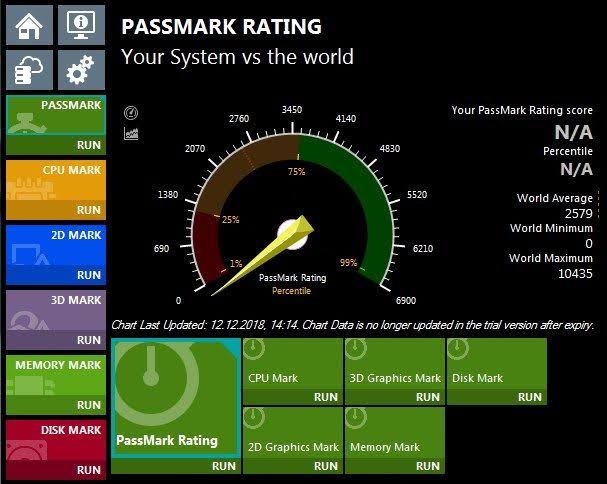
Passmark PerformanceTest is a robust GPU benchmark software with multiple tests and baselines to compare your PC’s performance. You can compare your GPU with other similar products and ensure whether you are receiving the full quality or not. The software lets you run 2D and 3D tests to compare various components such as bitmaps, vectors, fonts, 4K resolution, GUI elements, etc.
Features
- You can configure tests as per your GPU benchmark analysis needs.
- It applies 28 benchmark standards to compare multiple components of your PC.
- Complex DirectX 3D graphics and animation tests can be performed.
- Disk and Memory tests can enhance your machine’s performance and efficiency.
Pros
- Powerful 2D and 3D tests.
- Multiple benchmark standards support.
- Free technical support.
Cons
- Not free.
4. Catzilla
Steam Rating – 5/10
Softpedia Rating – 4/5
Compatibility – Windows 7/8/10/11 for both 64 bit and 32 bit
Number of Downloads – 1,840
Price – $7.49
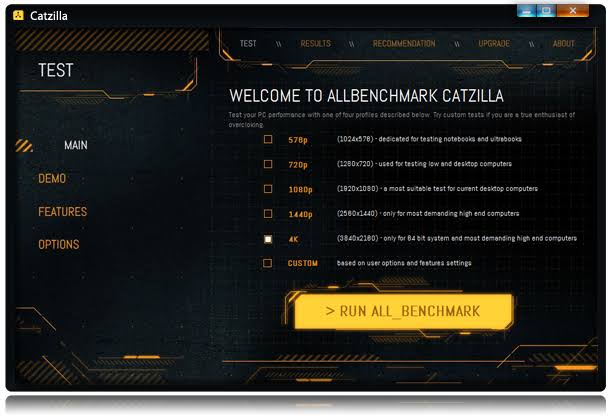
Catzilla is a bit different GPU benchmark software. Instead of benchmarking and spitting your PC, the software will divide your system into four badges—Kitty, Cat, Tiger, and Catzilla. Each badge has three stars, and once you receive three Tiger stars, you’ll get a Catzilla badge. The software can further create the games’ list that you can play on your computer and even recommend which part to upgrade for better performance.
Features
- You can record and share your Catzilla scores with others.
- It will also tell you whether your Windows or drivers required updates.
- The software provides a 720-pixel test.
Pros
- Polished tool.
- Unique benchmark features.
Cons
- Not used by many people.
5. PCMark
TechPowerUp Rating -3/5
Techspot Rating – 3.5/5
Compatibility – Windows 7/8/10/11 for both 64 bit and 32 bit
Number of Downloads – 50,310
Price – $1495 per year with the free basic version.
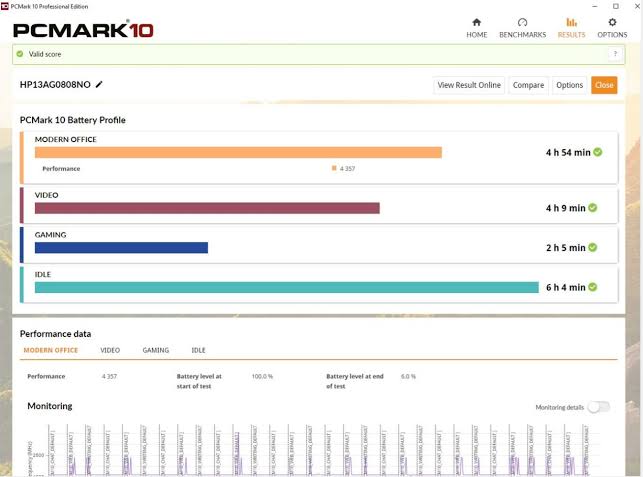
It is a computer benchmark software to make your PC run faster and more powerfully. Users can perform various tasks with this software, such as battery life profile, storage benchmark, and many other custom features. It can measure your entire system’s performance using robust features and applications. It is a perfect tool for modern workplaces.
Features
- PCMark can measure the overall system’s performance, but you can expand your options with Extended, Express, and Custom features.
- It comes with both Accelerated and Conventional benchmarking modes.
- The software generates multilevel reports with each benchmark, including mid-level test group scores, high level, and low-level benchmark scores.
- The user interface is similar to 3DMark, so you can easily start using it.
Pros
- Easy to use.
- Frequent updates.
- Simple interface.
Cons
- Quite expensive.
- The free version has nothing special to offer.
6. MSI Kombustor
Softpedia Ratings – 3.2/5
PCWorld Ratings – 3/5
Compatibility – Windows 7/8/10/11 for both 64 bit and 32 bit
Number of Downloads – N/D
Price – Free
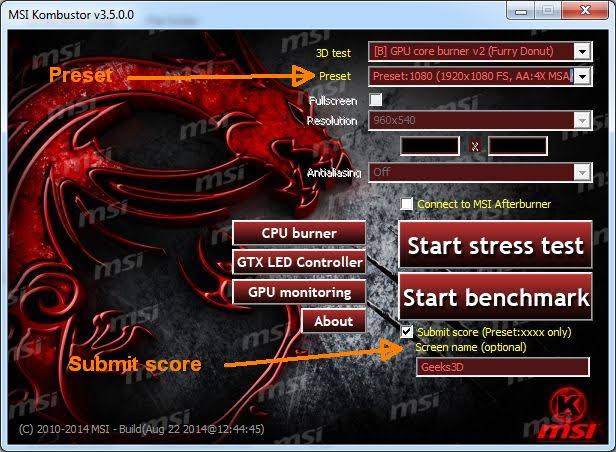
MSI Kombustor is a robust GPU benchmark software based on the other well-known software—FurMark (mentioned next). It is an exclusive graphics card performance enhancer tool. The software can test GPU stability and thermal performance to the dot. Additionally, the software supports dynamic 3D APIs like OpenGL, Vulkan, etc.
Features
- It is GPU stress test software rather than a benchmarking application.
- Boasts your system’s GPU manager.
- Offers support to a wide range of APIs.
- It is a quite lightweight software that won’t consume much space on your PC.
Pros
- A dedicated graphics card performance booster.
- Multiple APIs support.
Cons
- Not a complete PC benchmark solution.
7. FurMark
Techspot Rating – 4.4/5
Softpedia Rating – 3.6/5
Compatibility – Windows 7/8/10/11 for both 64 bit and 32 bit
Number of Downloads – 533,297
Price – Free with a paid version for $3799 yearly.
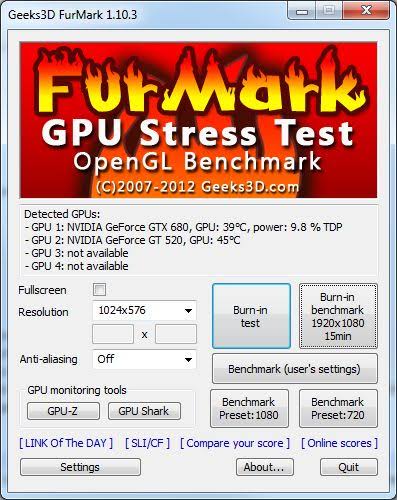
FurMark is OpenGL software for GPU benchmarking that uses fur rendering algorithms to test your graphics card’s performance. The fur rendering helps measure the overheated GPU; therefore, it is a perfect tool for stability and stress testing.
Features
- The GPU temperature monitoring and recording are available in the file format.
- You have the facility to pick fullscreen or windowed screen for every type of run mode.
- For overclocked, burn-in test mode is available.
- AMD Radeon RX 6900 XT support was recently added.
Pros
- GPU temperature monitoring.
- Easy to use.
Cons
- The paid version is quite expensive.
- Some users complained that their systems crashed with FurMark.
8. Superposition
Techspot Rating – 4.3/5
Guru3D Rating – 4.5/5
Compatibility – Windows 7/8/10/11 for both 64 bit and 32 bit—also supports Linux.
Number of Downloads – 2400
Price – Free basic. Advanced for $19.95. Professional for $995.
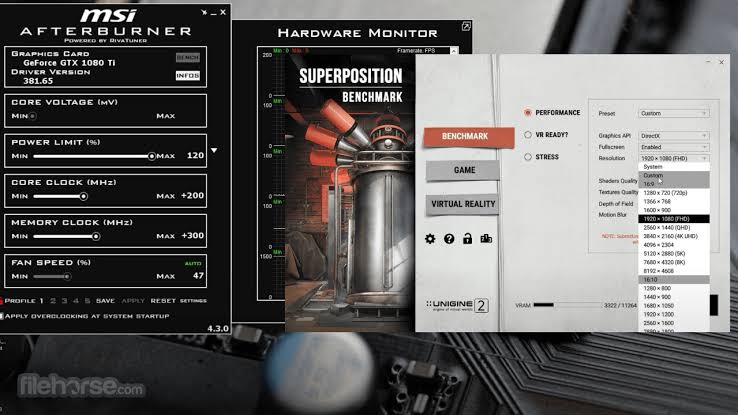
This GPU benchmark software is a treat by Unigine. Superposition can run various rigorous tests on your graphics card to improve performance and stability. It is based on the technology that delivers impressive results without RTX hardware. After getting your performance results, you can compare your GPU scores with other leaderboard scores.
Features
- You can play interactive mini-games while testing your GPU performance.
- It offers high-quality hardware stability, GPU temperature monitoring, and clock recording tests.
- The software supports Screen-Space Ray-Traced Global Illumination, aka SSRTGI, which is an incredibly light technology.
- You can use 900+ interactive objects with a VR experience.
Pros
- Global leaderboards integration.
- Fantastic visual presentation.
- Extremely powerful tests.
Cons
- Small user base.
9. OCCT
Techspot Ratings – 4.3/5
Firehorse Rating – 6.9/10
Compatibility – Windows 7/8/10/11 for both 64 bit and 32 bit
Number of Downloads – 138,954
Price – Free with paid upgrade option.
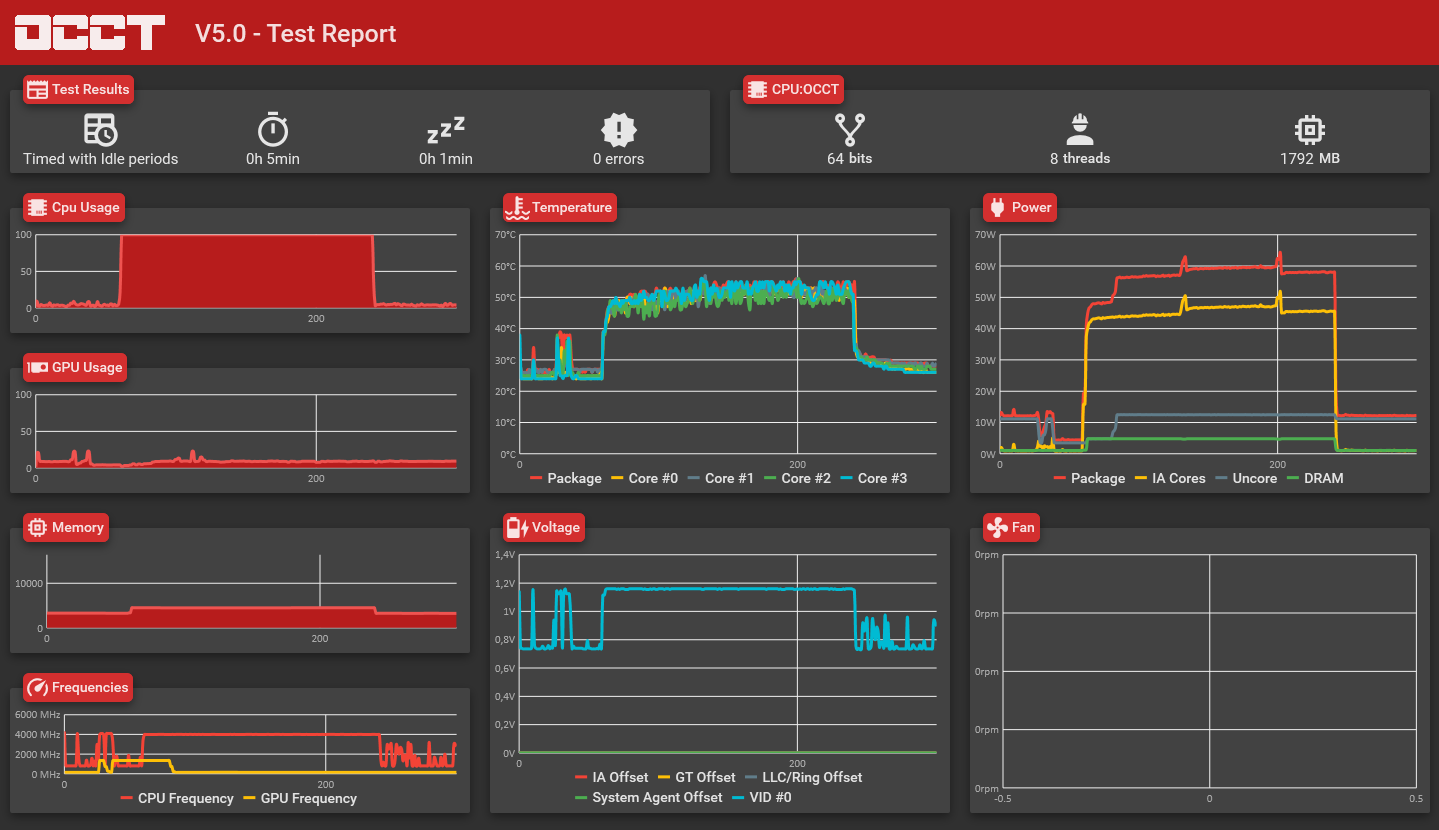
OCCT is also known as Overclock Checking Tool. As the name suggests, the software helps with benchmarking and overclocking your system’s various elements. The software functions pretty simply—it pushes GPU to the maximum level to identify hardware issues. Additionally, it comes with a monitoring engine that helps you judge GPU performance when there’s heavy loading.
Features
- It offers five graphics card tests, temperature monitoring, and real time performance tests.
- Constantly check GPU temperature during heavy loading.
- Generates the complete test report so you can accurately evaluate GPU performance.
Pros
- A good tool for gamers.
- Multiple testing options.
Cons
- Real-time monitoring isn’t always correct.
- Many people might advise against overclocking your system.
10. Novabench
Techspot Rating – 4.4/5
Filehorse Rating – 6.8/10
Compatibility – Windows 7/8/10/11 for both 64 bit and 32 bit—along with macOS support.
Number of Downloads – 9239
Price – Free. Commercial version for $49.
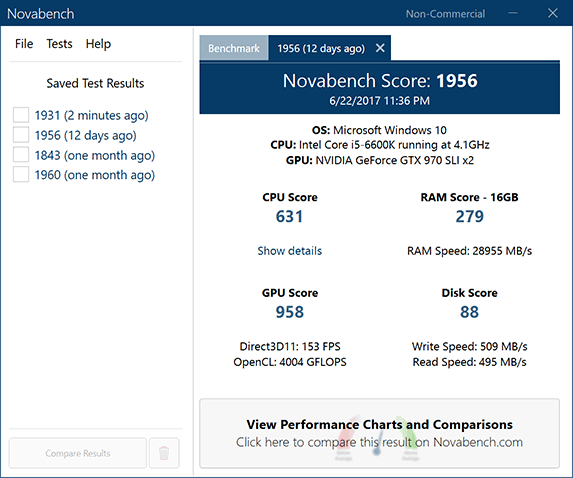
Novabench is a typical software for GPU benchmarking that can help you test your system’s graphics and processing abilities. You can even share benchmark scores with your friends and compare your PC’s performance. It is a relatively fast, simple, and effective benchmarking solution for Windows and macOS users.
Features
- You don’t need to download Novabench to scan your system—it works perfectly fine with USB.
- The software’s specific GPU tests are—OpenCL compute test and Direct3D 11/ Metal graphics test.
- Memory transfer speed is really outstanding.
- You can compare your computer’s benchmark scores with thousands of other systems.
Pros
- Can read and write disk.
- Test in minutes.
- Easy to compare.
Cons
- Limited advanced.
Wrap Up
If your graphics card has been troubling you a lot lately, you should not wait for another second and get stellar GPU benchmark software. Especially when you have so many great options available, you should not tolerate slow-performing graphics and processing components. Simply pick the suitable software from our recommendations and share your user experiences with us—we are eager to hear from you!
FAQs
What is the difference between GPU benchmarks and stress tests?
GPU benchmarks measure performance and produce a score. Stress tests focus on stability and heat over time. Some tools combine both, while others focus on one area.
Do I need internet access to run GPU benchmark software?
Most tools run offline once installed. Internet access may be needed only to download updates, compare scores online, or submit results to leaderboards.
Which GPU benchmark is best for older Windows systems?
PassMark and Speccy work well on older Windows versions. They are lighter on system resources and still provide useful performance data without modern graphics requirements.
Author Bio:
Dinesh Lakhwani 

Dinesh Lakhwani, the entrepreneurial brain behind “TechCommuters,” achieved big things in the tech world. He started the company to make smart and user-friendly tech solutions. Thanks to his sharp thinking, focus on quality and the motto of never giving up, TechCommuters became a top player in the industry. His commitment to excellence has propelled the company to a leading position in the industry.
Popular Post











Recent Post

How To Change Default Apps For File Types In Windows
Windows is designed to make using your computer easy. One way it does this is by assigning default apps to different file types. This means when you open a file, Windows automatically opens it with a specific program. For example, photos may open with Photos, music with Groove Music, and PDFs with Edge. These default […]

How To Adjust The Mouse Pointer Speed: Complete Guide
Using a computer every day means you use the mouse a lot. The mouse pointer moves on the screen and helps you click, scroll, and select items. Many people never think about the speed of the mouse pointer. They have used the default setting for years. This can cause small problems over time. A slow […]

How to Change Mouse Scrolling Settings In Windows
A mouse is one of the most used computer tools. People use it every day. They scroll through emails. They scroll through documents. They scroll through websites and images. The movement becomes automatic. Most users do not notice it. That is why problems often go unnoticed. Scrolling problems show up slowly. At first, it feels […]

Keyboard Light Settings: Keyboard Lighting Control [Complete Guide]
Keyboards are no longer simple typing tools. Well, yes! Over time, they have evolved to include features that improve comfort, visibility, and overall experience. One of the most useful features today is keyboard lighting. It helps users work comfortably in low-light conditions. It also reduces strain when typing for long hours. Many users first notice […]

Customizing Pointer Appearance: Complete Guide
The way your mouse pointer looks on your computer may seem like a small detail. But customizing pointer appearance can make using your PC more comfortable and visually appealing. Many users do not realize that they can change the pointer size, color, and style to fit their needs. Whether you want a bigger pointer for […]

How To Choose a Computer Monitor: Monitor Buying Guide
Buying a monitor looks easy. Many people think all screens are the same. That belief causes regret later. A monitor is not just a display. It is a daily tool. You read on it. You work on it. You relax with it. Small problems become big over time. Poor brightness hurts eyes. Bad size causes […]

How To Get Help With File Explorer in Windows 11 [Complete Guide]
File Explorer is one of the most important tools in Windows 11. It is used to open folders, view files, and manage stored data. Almost every action on a Windows computer depends on it in some way. When users open documents, save downloads, or organize photos, File Explorer is always involved. Because it is used […]

How To Fix A Frozen Computer: Complete Guide [Windows 11/10]
A frozen computer is one of the most common problems Windows users face. The screen stops responding. The mouse pointer does not move. Keyboard inputs do nothing. You may hear the fan running loudly. Sometimes the system looks alive, but nothing works. This situation often happens when you are busy or working on something important. […]

How to Upgrade Computer RAM: Complete Guide
Upgrading RAM is one of the simplest ways to improve a computer. It helps the system feel faster and smoother. Apps open quicker. Browsers handle more tabs. Games and tools run with less delay. Many users search for how to upgrade computer RAM because it gives real results without high cost. You do not need […]

How To Clean Your Computer Keyboard: Complete Guide
A computer keyboard is touched more than almost any other device you own. It is used during work, study, gaming, and casual browsing. Fingers carry natural oils, sweat, and dirt. Small food crumbs fall between keys without notice. Dust settles each day slowly. Over time, this creates a hidden layer of grime. Many users do […]

