How To Fix Touchpad Cursor Disappears Windows 11 and 10

Last updated on November 29th, 2024 at 4:19 pm
Introduction
The functionality of touchpads has seamlessly integrated into our daily tasks. However, an increasing problem user faces is that the touchpad cursor disappears from Windows 11/10 systems. Let’s dig into the heart of this issue and understand why this occurs, shedding light on the scenarios that trigger this issue.
Furthermore, most importantly, this step will help you with various effective troubleshooting methods. If you’re facing the challenge of disappearing the touchpad cursor on your Windows system, this step is your guide to resolving the issue and restoring the smooth functioning of your device.
Explanation Of The Touchpad Cursor Issue
The touchpad cursor disappearing on Windows 11 and 10 systems has been a persistent concern for users. When the mouse pointer disappears from Windows 11/10, users frequently find themselves unable to locate it on their screens.
Whether it’s a misplaced click, a brief delay in movement, or an inability to follow the cursor’s position, the mouse pointer disappears windows 11/10 is a huge stumbling block. This incidence is worsened further by the fact that users rely significantly on touchpad navigation in current computer settings.
Why Does This Touchpad Cursor Issue Occur?
Sometimes, it might be difficult to face the challenge of the mouse disappearing in Windows 11/10, although knowing these typical circumstances is the first step towards fixing the problem. Here are some common errors that can lead to touchpad disappearance issues.
- Old Driver Issues: Outdated touchpad drivers can frequently cause issues, such as cursor disappearance. Improper communication between the hardware and the operating system can cause the cursor to be missing.
- Hardware Glitches: Physical touchpad hardware flaws can occur due to normal wear and tear, manufacturing defects, or other technological concerns. These bugs can cause the cursor to stop working correctly.
- Settings Configuration: Unintentional modifications to touchpad settings can cause the pointer to disappear. Unexpected cursor behavior can result from accidental key combinations or erroneous setup settings.
- Software Conflicts: Conflicts between third-party applications and touchpad drivers might also result in the disappearance of the cursor. Background apps or utilities may interfere with the usual operation of the Touchpad.
Troubleshooting Steps to Solve Touchpad Cursor Disappears Windows 11 and Windows 10
There is no need to worry when facing the frustrating issue of the touchpad cursor disappearing on Windows 11/10. Here are some necessary steps to gain control and resolve the disappearing mouse pointer issue.
1. Restart Your Computer/Laptop:
This essential operation is highly recommended since it can successfully cure transitory problems that cause the cursor to disappear.
- A restart refreshes the entire system, allowing it to correct tiny software flaws that cause the mouse pointer to disappear in Windows 11/10. This strategy can restore cursor appearance.
- Temporary software bugs that contribute to cursor difficulties are frequently remedied by restarting the computer. By taking this action, you are taking a proactive step to address the problem.
- Before starting a restart, save any unsaved work to prevent data loss.
- Close all open applications and programs on your computer. This ensures that no ongoing processes might interfere with the restart.
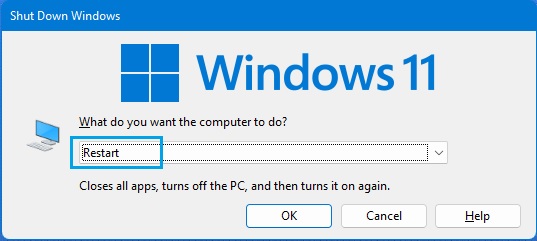
- Press the combination of the keys “ALT +F4”. It will pop up a dialogue box, and choose the “Restart” option from the dropdown menu and hit the “Enter” key.
- Your windows will now begin the reboot process. Wait for the system to shut down and restart.
2. Check that the Touchpad is not disabled using Function Key:
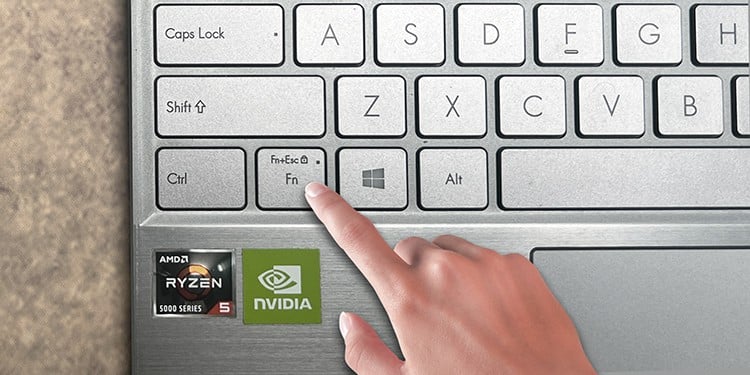
Some laptops and computers have function keys that can disable the Touchpad, which could cause the mouse pointer to disappear in Windows 11/10. Find a key that has an icon that resembles a touchpad or mouse.
- Press this key with the “Function” key, typically found close to the lower-left corner of your keyboard, in a coordinated motion like a delicate dance.
- This synchronization has the potential to change the status of the Touchpad accidentally.
3. Switch your mouse to a different USB port:
It is best to attach an external mouse to a different USB port on your computer while using one. After changing ports, if the cursor usually behaves once again, it could have been an issue with the first port. By taking this approach, you ensure a thorough investigation of potential causes of the mouse disappearing on Windows 11/10.
4. Use an external mouse if the touchpad cursor disappears:
You can connect an external mouse if your touchpad issue is not solved. You can use a USB mouse with your system if the mouse disappears Windows 11/10. This step helps determine whether the problem is restricted to the Touchpad or a more significant problem affecting cursor performance.
Using an external mouse, you can manually identify the problem and determine whether the disappearance is due to an isolated touchpad issue.
5. Remove the Mouse Pointer While Typing:
When typing, you can modify the setting to hide the cursor to change the mouse pointer behavior. This is accomplished by adjusting the “Hide pointer while typing” setting in the Mouse settings. However, when this feature is enabled, the cursor may suddenly disappear.
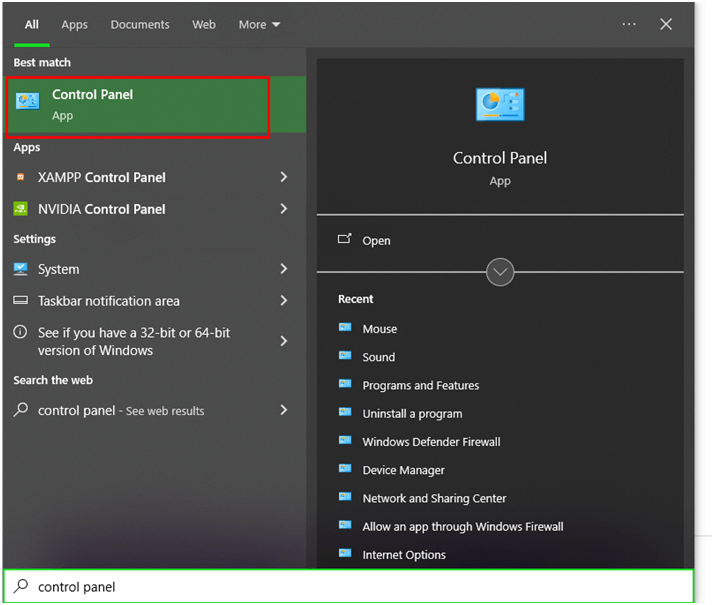
- Click the search icon to bring up the Windows search bar in the taskbar, and type “Control Panel”.
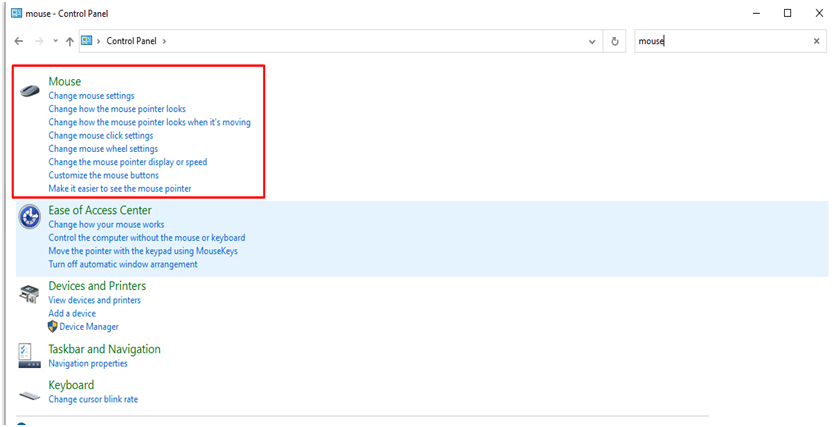
- In the Control Panel, use the search box to look for the Mouse option. Now select Mouse settings.
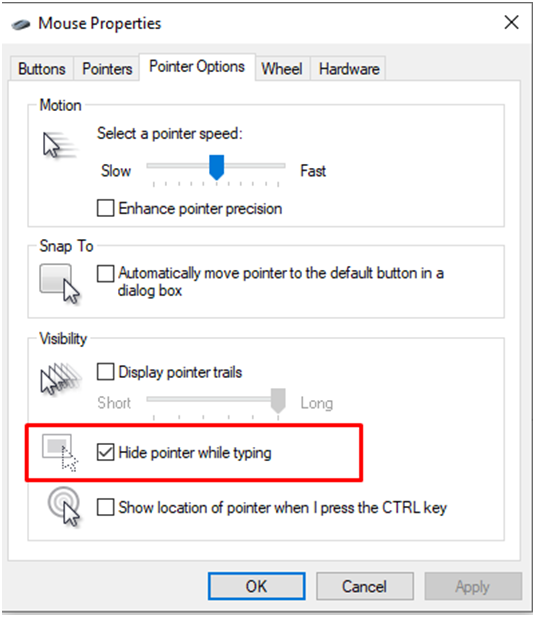
- In the window that appears, navigate to the Pointer Options tab.
- Uncheck the Hide pointer while typing the checkbox and click the “ok” button. This approach can resolve the touchpad cursor disappearing in Windows 11/10 during the time of typing.
6. Enable Touchpad in Mouse Setting:
When the touchpad is disabled on certain laptops, the mouse cursor may not be visible. Therefore, it is recommended to enable the touchpad first. Here are the steps:
- To perform the task, press the Windows and R keys simultaneously, enter “control mouse” and press Enter.
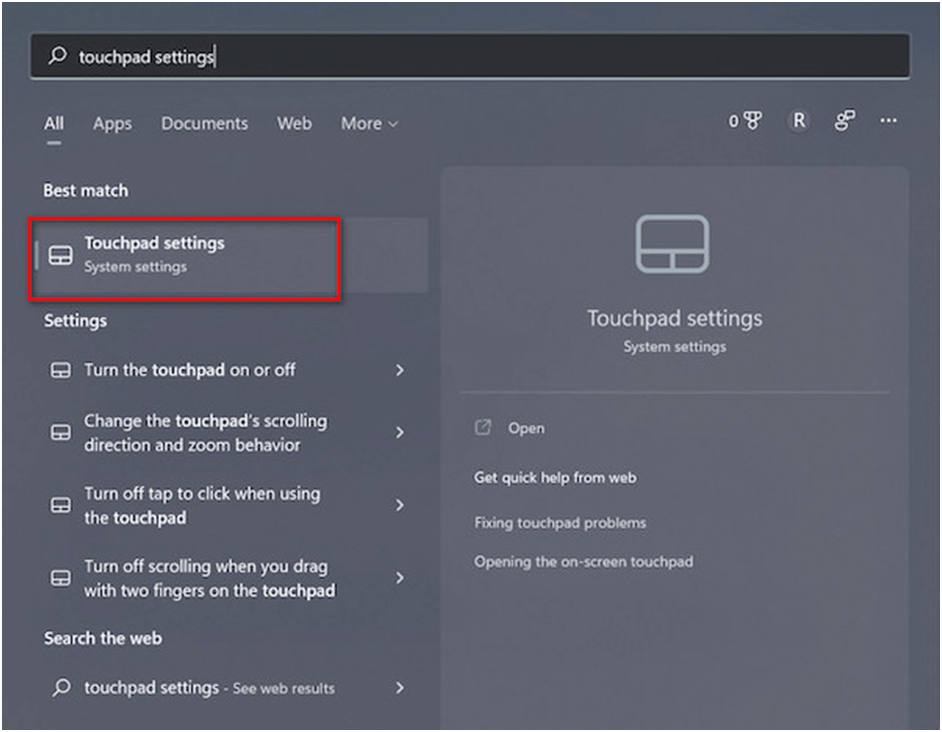
- Click the Tab to navigate to the touchpad button and then press the spacebar to click the touchpad on/off.

7. Update the Touchpad Driver:
Outdated or corrupted mouse drivers can cause various problems, including cursor disappearance. Updating drivers is critical for consistent cursor performance and general system functionality. Regular updates maintain optimal compatibility and can alleviate issues caused by driver issues.
- Use the Control Panel’s search bar to look for Device Manager.
- Choose Device Manager from the Devices and Printers menu.
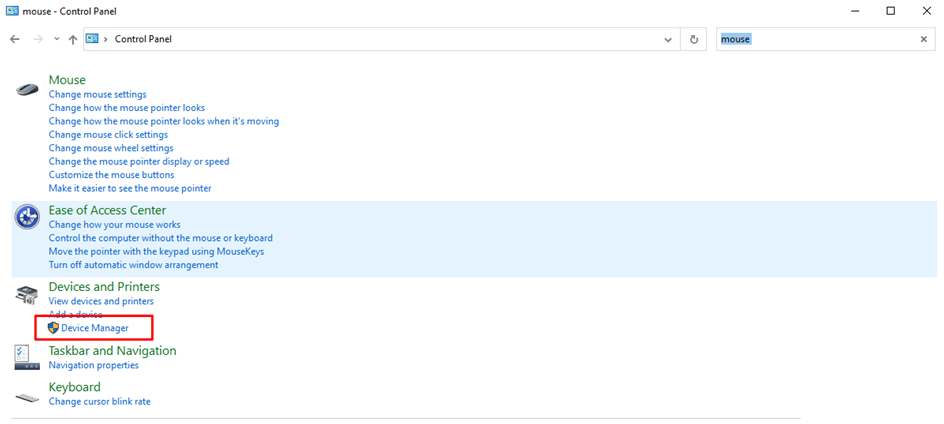
- ‘Mice and other pointing devices may be expanded by clicking on it.
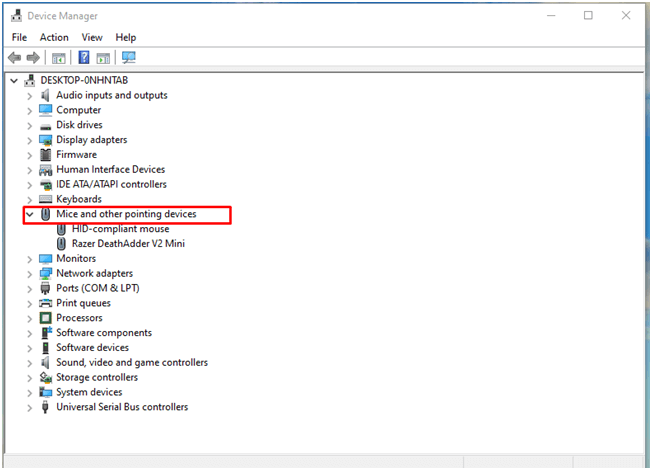
- Your mouse will now be visible under that option. Right-click it and choose Update driver.
Conclusion:
The Touchpad cursor disappears Windows 11/10 can be a frustrating problem, interfering with productivity and user experience. Fortunately, users can efficiently address the issue by following the troubleshooting procedures indicated in this tutorial.
Windows 11 and 10 users can restore the functionality of their touchpad cursor and resume seamless navigation. Users can also interact on their laptops by understanding the common reasons for this issue and following the procedures suggested.
Frequently Asked Questions:
How can I fix the cursor back on my laptop, Windows 11?
Follow these steps to resolve cursor problems on a laptop running Windows 11: Start your computer again, then update or reload the mouse and touchpad drivers. 3. Verify Windows’s updates; 4) Modify the cursor settings in the Control Panel; 5) Run a virus scan; 6) Consider using a wireless mouse.
Why does my mouse pointer keep disappearing in Windows 10?
Obsolete drivers, power settings, software incompatibilities, display driver issues, or spyware might cause mouse pointer disappearance in Windows 10. To troubleshoot, update drivers, change power settings, scan for viruses, and install updates. Consult a technical specialist for help if the issue continues.
Can I recover the touchpad cursor back?
Certainly! Restart your laptop, ensure the Touchpad is enabled in settings, update touchpad drivers, and check for hardware issues to regain the touchpad cursor. If the problem persists, consider using an external mouse or contacting tech support.
Is there any quick fix if the cursor disappears while typing?
You can try these fixes if the cursor disappears:
1) In the touchpad settings, activate the Touchpad.
2) Update the drivers for the Touchpad
Try out a few options to see which suits you the best.
Author Bio:
Dinesh Lakhwani 

Dinesh Lakhwani, the entrepreneurial brain behind “TechCommuters,” achieved big things in the tech world. He started the company to make smart and user-friendly tech solutions. Thanks to his sharp thinking, focus on quality and the motto of never giving up, TechCommuters became a top player in the industry. His commitment to excellence has propelled the company to a leading position in the industry.
Popular Post











Recent Post
![Adjusting Audio Output Settings Complete Guide [2026]](https://www.techcommuters.com/wp-content/uploads/2026/03/Adjusting-Audio-Output-Settings-Complete-Guide.webp)
Adjusting Audio Output Settings: Complete Guide [2026]
Sound is part of almost everything we do on a computer. It lets you watch videos, join calls, play music, and hear alerts. When the audio stops working the right way, it can interrupt both work and daily use. That is why adjusting audio output settings matters for every user. Many people get unsure when […]

Artificial Intelligence Explained: Concepts, Terminology, Benefits, and Future Trends
Artificial Intelligence, or AI, is basically computers doing things that usually need a human brain. We’re talking about stuff like learning from experience, figuring out problems, understanding language, and making decisions. It’s not magic, just a lot of data, pattern-spotting, and math behind the scenes. Now, AI doesn’t actually think or feel like we do. […]

Resolving Microphone Detection Problems: Latest Guide [2026]
Microphones are important tools in daily life. People use them for office meetings, online classes, interviews, gaming, customer support, and content creation. When a system fails to detect a microphone, communication stops at once. This situation can cause stress and confusion. Many users believe the microphone is damaged. In reality, most problems are simple and […]

How To Switch To A Dark Background Theme In Windows [2026]
Most people spend many hours each day in front of a computer screen. Office work, online classes, editing, browsing, and streaming all require long screen time. A bright white background may look clean at first. However, over time, it can feel sharp and tiring. The strong contrast between white backgrounds and black text may cause […]

How to Switch From Local To Microsoft Account On Windows
Many users begin with a local account when they set up a new Windows computer. A local account works only on that single device. It stores settings, files, and preferences locally. It does not connect to online Microsoft services. For basic offline use, it works well. However, as digital needs grow, many users want better […]

How to Switch Windows 10 to a Local Account: Complete Guide
Windows 10 allows users to sign in with either a Microsoft account or a local account. When you set up a new computer, the system often suggests using a Microsoft account. This account connects your device to Microsoft services such as Outlook, OneDrive, and the Microsoft Store. It also syncs settings, themes, and passwords across […]

How To Change Default Apps For File Types In Windows
Windows is designed to make using your computer easy. One way it does this is by assigning default apps to different file types. This means when you open a file, Windows automatically opens it with a specific program. For example, photos may open with Photos, music with Groove Music, and PDFs with Edge. These default […]

How To Adjust The Mouse Pointer Speed: Complete Guide
Using a computer every day means you use the mouse a lot. The mouse pointer moves on the screen and helps you click, scroll, and select items. Many people never think about the speed of the mouse pointer. They have used the default setting for years. This can cause small problems over time. A slow […]

How to Change Mouse Scrolling Settings In Windows
A mouse is one of the most used computer tools. People use it every day. They scroll through emails. They scroll through documents. They scroll through websites and images. The movement becomes automatic. Most users do not notice it. That is why problems often go unnoticed. Scrolling problems show up slowly. At first, it feels […]

Keyboard Light Settings: Keyboard Lighting Control [Complete Guide]
Keyboards are no longer simple typing tools. Well, yes! Over time, they have evolved to include features that improve comfort, visibility, and overall experience. One of the most useful features today is keyboard lighting. It helps users work comfortably in low-light conditions. It also reduces strain when typing for long hours. Many users first notice […]

