How to Fix the Phasmophobia Stuck at 90% Loading Screen Error?
Last updated on January 13th, 2025 at 9:13 am
With multiplayer games becoming increasingly popular worldwide, many game developers have focused on the Action and Adventure genres. Among these, Battle Royale games like PubG have gotten much attention, which is why Kinetic Games has released Phasmophobia, a multiplayer horror game. This game has been prereleased as an early access game, which means that specific bugs are being fixed as they are reported by players worldwide.
One such bug that prevents you from even playing the game is the Phasmophobia stuck at 90% on the loading screen. This problem can be resolved by attempting a few fixes mentioned ahead. So, let’s check out easy solutions to fix Phasmophobia errors.
Reasons Behind Phasmophobia Stuck at 90% Loading Screen Errors
Before moving ahead, let’s see the main reasons that cause the Phasmophobia loading errors on your screen. This can help you optimize your computer for the game.
- System Requirements: Double-check the game’s minimum system requirements if you’re running Phasmophobia on a low-end machine. Also, make sure your system meets the game’s minimum system requirements.
- Outdated Graphics Drivers: If you run the game with obsolete video card drivers, the game will not support you and will be unable to connect to the gaming server, resulting in this issue.
- Missing or Corrupted Game Files: During installation, some of the game’s files become corrupted or missing, preventing the game from running and ultimately causing this issue when launching.
- Corrupted Saved Game Files: There may be an issue with the game’s saved files that is causing this Phasmophobia to remain stuck.
- Administrator Privilege Is Missing: Some games require admin privilege to launch correctly, so grant the game and steam administrator privilege so that no other third-party apps or services interfere with their operations.
- Network Issues: A wrong network or an issue with the internet router can cause various problems, including the one in question. The unstable or poor internet connection causes problems when launching or attempting to run the game, as well as this issue.
7 Solutions to Fix Phasmophobia Stuck at 90% Loading Screen
Are you a hardcore gamer? Then, playing Phasmophobia must be on your wishlist. But unfortunately, this new game has some issues that gamers often discuss on the gaming forums.
Phasmophobia stuck at 90% loading screen error is a common problem many players have reported. So, based on our research and expert game analysts’ opinions, the following solutions can easily fix the Phasmophobia stuck at 90% loading error:
Solution 1. Ensure Your Device’s Compatible
One of the primary reasons your PC may randomly freeze while gaming is that you are using a computer incapable of handling games like Phasmophobia. Not only that but if you want to have an immersive gaming experience, make sure your PC meets the game’s requirements. Ensure your device has the following specifications:
- Operating System: Windows 10 64 bit
- Processor: Intel Core i5-4590/AMD FX 8350
- RAM: 8 GB
- Graphics Card: NVIDIA GTX 970/AMD Radeon R9 290
- HDD Storage: 13GB
After meeting the system requirements, you should try the next solution if the game remains stuck on the loading screen.
Solution 2. Update Your Graphic Drivers
Phasmophobia stuck at 90% loading screen is frequently caused by outdated graphics drivers. As a result, updating them is critical because they are required to run games like Phasmophobia on Windows. You can update your graphics drivers as detailed below:
Option 1: Using Device Manager (Manually)
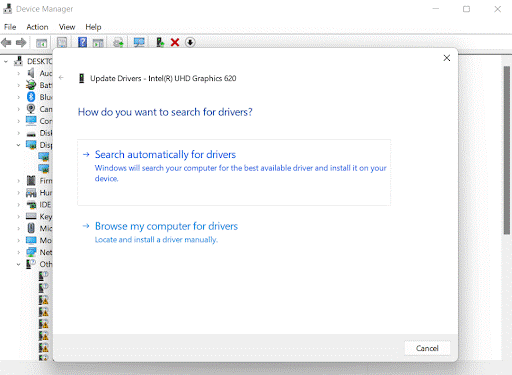
NVIDIA, Intel, and AMD frequently release driver updates. Consider manually updating drivers using an in-built tool like Device Manager if you are well-versed in computer knowledge and specifications. It performs a thorough scan, locates drivers from reliable sources, and downloads them in just a few clicks.
You must choose between Searching automatically for drivers and Browsing my computer for drivers. Assume you select the first option and, double-click on the downloaded file, follow the on-screen instructions.
Option 2: Using Driver Easy (Automatically)
Driver Easy can fix the error for you if you don’t have the time, patience, or computer skills to update drivers manually.
Driver Easy will detect your system and locate the appropriate drivers for it. You don’t need to know your computer’s operating system or risk downloading and installing the incorrect driver. Also, you don’t have to be worried about making a mistake when installing.
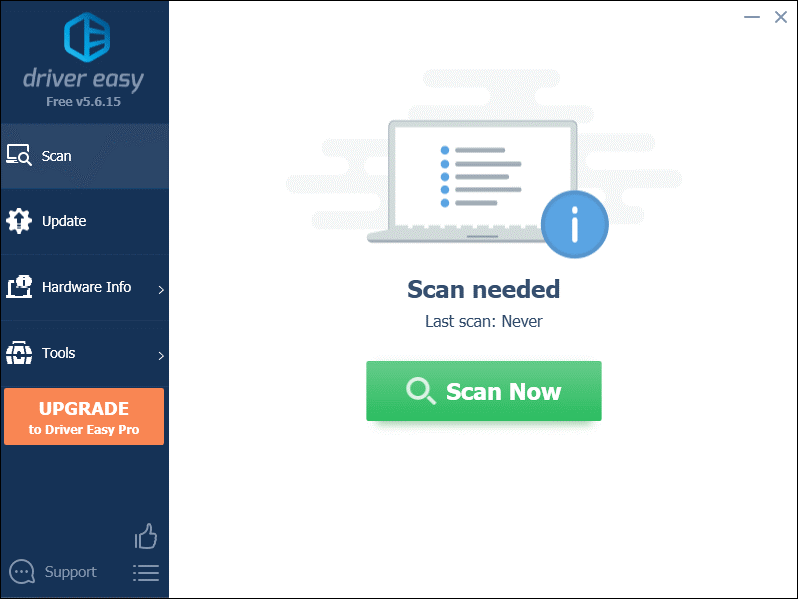
Step 1. Get and install Driver Easy.
Step 2. Launch Driver Easy and select the Scan Now option. Driver Easy will then scan your computer for problematic drivers.
Step 3. Click Update All to automatically download and install the correct version of all missing or out-of-date drivers on your system.
Solution 3. Verify the Game File Integrity
When you encounter game bugs, such as the Phasmophobia screen being stuck at loading, it is recommended that you verify the integrity of the game files. It can assist you in determining whether the integrity of your game files is intact. If not, it will restore any missing or corrupted files. This is how you do it:
Step 1. Open the Steam client. Next, right-click on Phasmophobia in the LIBRARY section and choose Properties from the menu.
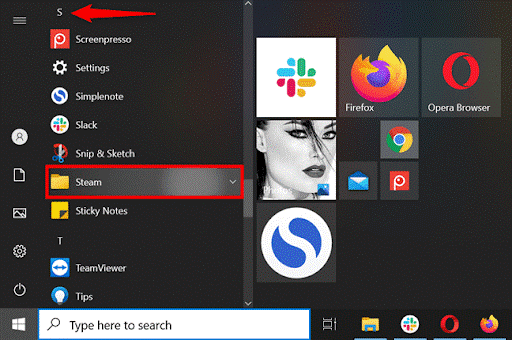
Step 2. Select the “VERIFY INTEGRITY OF GAME FILES…” button on the LOCAL FILES tab.
Step 3. Steam will verify the game’s files, which may take a few minutes. When it’s finished, try launching your game to see if it works. If not, proceed to the next repair.
Solution 4. Run Steam as an Administrator
If nothing else worked to solve your problem and your game freezes, allowing Steam to be the administrator may help. You are removing barriers that may interfere with gaming processes by granting Steam admin privileges. Follow the steps below to run Steam as an Administrator:
Step 1. Right-click the Steam app on your desktop and navigate to the open file location.
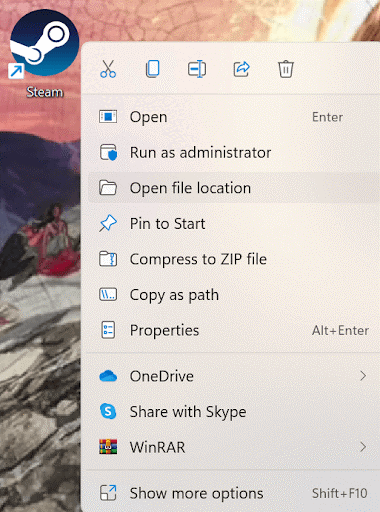
Step 2. Right-click the Steam file again and select Properties.
Step 3. Choose to Run this program as an administrator option from the compatibility tab.
Step 4. Choose Apply, then OK.
Check to see if your PC freezes randomly while gaming; if so, continue with another workaround that may help with Phasmophobia stuck at 90 loading screen issues.
Solution 5. Delete the Game File
If your game files are corrupt, your game may become stuck on the loading screen. Occasionally, deleting the files will solve the problem:
Step 1. Press the Windows and R keys simultaneously on your keyboard to open the Run box.
Step 2. Enter %appdata%LocalLowKinetic GamesPhasmophobia on your keyboard.
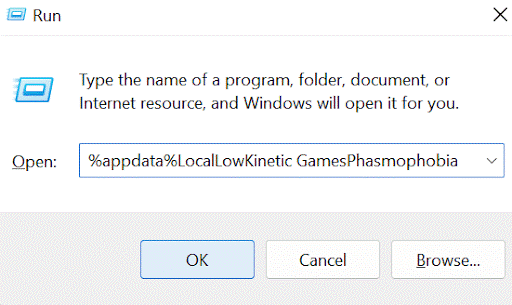
Step 3. Locate and delete the saveData.txt file.
Step 4. Restart your Phasmophobia game to check if the problem has been fixed.
Solution 6. Reset Your Network
The game can get stuck at the 90% loading screen due to a network connection issue. One of the recommended troubleshooting steps is to reset the network settings. Network reset is a feature that returns all network-related features and settings to their factory settings. To resolve the issue, you must perform a network reset.
This is how you do it:
Step 1. Enter network reset in the Search bar, and select Network reset from the results.
Step 2. Now click Reset.
Step 3. Select Yes.
Step 4. Restart your computer, and your issue should be resolved.
Solution 7. Uninstall and Reinstall Phasmophobia
If the above solutions don’t work, you should consider uninstalling and reinstalling Phasmophobia. However, this will undo your progress.
Follow these steps:
Step 1. press the Windows and R keys simultaneously on your keyboard to open the Run dialogue box.
Step 2. In the search box, type %appdata%LocalLowKinetic Games and press Enter.
Everything in the Kinetic Games folder should be deleted.
Step 3. Launch the Steam client. Right-click on Phasmophobia in the LIBRARY section and select Manage > Uninstall. When a confirmation window appears, simply click Uninstall.
Step 5. Once your game has been uninstalled, restart your computer and reinstall it from Steam.
Parting Remarks
We truly hope you were able to resolve the Phasmophobia stuck at 90% loading screen issue. All the fixes above are simple to implement and come from reputable game forums. So make sure to go through them one by one. However, if you can still not resolve the issue in your case, please contact the Phasmophobia game support center and submit a ticket describing the error.
Further, you can follow this website for more gaming hacks and solutions.
Author Bio:
Dinesh Lakhwani 

Dinesh Lakhwani, the entrepreneurial brain behind “TechCommuters,” achieved big things in the tech world. He started the company to make smart and user-friendly tech solutions. Thanks to his sharp thinking, focus on quality and the motto of never giving up, TechCommuters became a top player in the industry. His commitment to excellence has propelled the company to a leading position in the industry.
Popular Post











Recent Post

Keyboard Light Settings: Keyboard Lighting Control [Complete Guide]
Keyboards are no longer simple typing tools. Well, yes! Over time, they have evolved to include features that improve comfort, visibility, and overall experience. One of the most useful features today is keyboard lighting. It helps users work comfortably in low-light conditions. It also reduces strain when typing for long hours. Many users first notice […]

Customizing Pointer Appearance: Complete Guide
The way your mouse pointer looks on your computer may seem like a small detail. But customizing pointer appearance can make using your PC more comfortable and visually appealing. Many users do not realize that they can change the pointer size, color, and style to fit their needs. Whether you want a bigger pointer for […]

How To Choose a Computer Monitor: Monitor Buying Guide
Buying a monitor looks easy. Many people think all screens are the same. That belief causes regret later. A monitor is not just a display. It is a daily tool. You read on it. You work on it. You relax with it. Small problems become big over time. Poor brightness hurts eyes. Bad size causes […]

How To Get Help With File Explorer in Windows 11 [Complete Guide]
File Explorer is one of the most important tools in Windows 11. It is used to open folders, view files, and manage stored data. Almost every action on a Windows computer depends on it in some way. When users open documents, save downloads, or organize photos, File Explorer is always involved. Because it is used […]

How To Fix A Frozen Computer: Complete Guide [Windows 11/10]
A frozen computer is one of the most common problems Windows users face. The screen stops responding. The mouse pointer does not move. Keyboard inputs do nothing. You may hear the fan running loudly. Sometimes the system looks alive, but nothing works. This situation often happens when you are busy or working on something important. […]

How to Upgrade Computer RAM: Complete Guide
Upgrading RAM is one of the simplest ways to improve a computer. It helps the system feel faster and smoother. Apps open quicker. Browsers handle more tabs. Games and tools run with less delay. Many users search for how to upgrade computer RAM because it gives real results without high cost. You do not need […]

How To Clean Your Computer Keyboard: Complete Guide
A computer keyboard is touched more than almost any other device you own. It is used during work, study, gaming, and casual browsing. Fingers carry natural oils, sweat, and dirt. Small food crumbs fall between keys without notice. Dust settles each day slowly. Over time, this creates a hidden layer of grime. Many users do […]
Computer Mouse Buying Guide for Beginners and Advanced Users
Buying a mouse looks easy at first. Many people think all mouse work the same way. Well, that idea often leads to regret later. A mouse affects comfort, speed, and daily work. It matters for office tasks, gaming, design, and study. The right choice reduces strain and improves control. The wrong one feels annoying every […]
How To Overclock a Computer: A Complete Guide
Overclocking is the process of making your computer run faster than its factory settings. It mainly affects the processor, graphics card, and sometimes memory. Many people choose this method to improve performance without buying new hardware. It is popular among gamers, video editors, and users who run heavy software. When done properly, overclocking can give […]
How To Find Password Saved on This Computer: Complete Guide
Many people forget their login details at some point. It happens often. We create many accounts every year. Each one needs a username and a password. Over time, it becomes hard to remember all of them. That is why computers offer ways to store login details. These saved details help users sign in faster. They […]

