Understanding FileVault and its Role in Data Security

Last updated on March 24th, 2024 at 4:19 pm
Introduction:
In this modern era where data breaches loom at large and data privacy is a serious concern, safeguarding personal and sensitive information is paramount. Keeping this in mind, Apple has designed this wonderful encryption software to safeguard the data of its Mac users which is known as FileVault. In this article, we will take a detailed look at what exactly is FileVault and how can you safeguard your data using this encryption software known as FileVault.

What is Encryption:
Before we learn about FileVault it is important to know what encryption is. Whenever data is stored on the hard disk drive it is usually written in a language that can be easily read by any other computer. This means if someone stole just the hard disk drive and connected it with any other computer using proper cables, there is a high chance that the data stored on that drive will be easily accessible to that person.
In encryption, the data is stored on the disc in an encoded form using special algorithms in a manner that even if the disc is lost or stolen no one will be able to read the data unless the proper decoding key is entered. This decoding key could be a password, a biometric, or a combination of both depending on the sensitivity of the information.
What is FileVault:
FileVault is a wonderful encryption software which is built-in for Mac users. It is a part of Apple’s Mac Operating System. Introduced in Mac OS X Panther (10.3), it has been refined multiple times over the subsequent versions. It provides full disc encryption for the contents of the Mac’s startup disk. It scrambles the data on the startup disc in such a manner that it is rendered unreadable and useless without its decryption key.
Key features of the FileVault:
- FileVault is the proprietary encryption software for MacOS computers.
- It is a full disc encryption software.
- FileVault provides a 128-bit AES encryption with a 256-bit key.
- FileVault operates on the block level, which means the data is encrypted and decrypted on the fly as you continue to use the computer without impacting the performance or speed of the system.
How to use FileVault to protect data:
You don’t need any technical knowledge to enable and use FileVault. The encryption of the data on FileVault happens automatically and in real-time. This means simply enable FileVault and you are good to go. You can use your computer normally as you always do, and you won’t even know that there is encryption going on in the background.
As soon as you turn your computer off or the screen gets locked, the data will be encrypted and will decrypt only when you enter the key/passcode. Other than that, no user intervention is needed and the process is an autonomous encryption.
How to check the status of FileVault
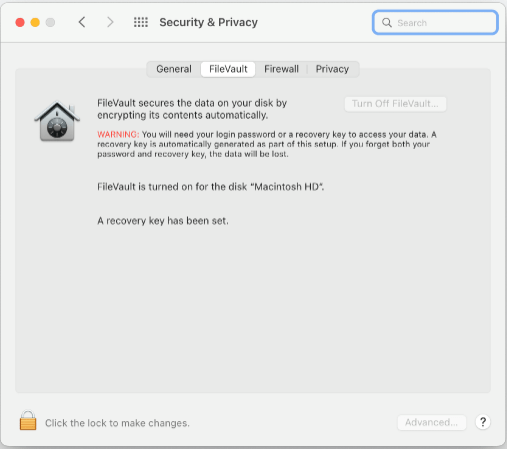
Before we learn how to enable FileVault, it is important to know what the current status of FileVault is. To check the status of FileVault you need to follow the following steps:
- Click on the Apple Menu
- Select System Preferences.
- Go to Security & Privacy.
- Click FileVault to check the status.
How to enable FileVault:
Once you check the status of FileVault as mentioned above, if the status is enabled you are good to go. If however, the status is disabled, follow the following steps to enable FileVault.
- Click on the Apple Menu
- Select Preferences and go to Security & Privacy.
- Click FileVault
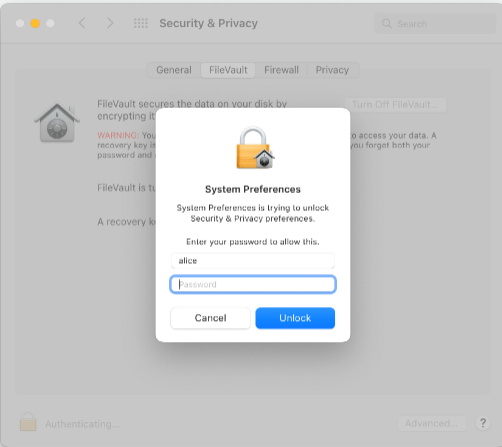
- Click on the Lock Icon and then add your administration login ID and password.
- Now select Turn on FileVault and add the administration login ID and password again if prompted.
- Once done you need to select how you would like to unlock the disc. There are two options given. You can select any one of them. The following are the 2 options available.
- iCloud Account: If you are already using iCloud Account, you can click on “Allow my iCloud Account to unlock my disc.” If, however, you do not have an iCloud Account you will have to set up one by clicking on “Setup my iCloud Account to reset password.”
- Recovery Key: If you do not wish to use your iCloud Account you can create a recovery key by clicking on “Create a recovery key and do not use my iCloud Account.” Make sure you keep this recovery key safe and do not forget the same.
- Finally, Click on Continue and follow the steps to successfully activate FileVault.
There are a few important points that you need to keep in mind while enabling FileVault.
- Firstly, the encryption will not happen in sleep mode.
- Mac needs to be connected to power for activation.
- If there are multiple users on your Mac, you may be prompted to add the passwords of all the users to be able to unlock the disc.
- The users added after enabling FileVault will be automatically encryption enabled.
The FileVault works seamlessly and there won’t be any impact on the performance speed of your MacBook. However, in exceptional circumstances, if you experience that your MacBook has slowed down then it is recommended that you run your PC through a cleaner to know what is impacting the performance of your MacBook. To run a cleaner follow the following steps:
- Visit CleanMyMac X website.
- Follow the onscreen instructions to clean up and optimize your MacBook.
- The best part is you can run a free 7-day Trial and see the effectiveness of this software.
- Be it large hidden files, or system junk, or even some malware, Cleanmymac software is effective in finding all of them.
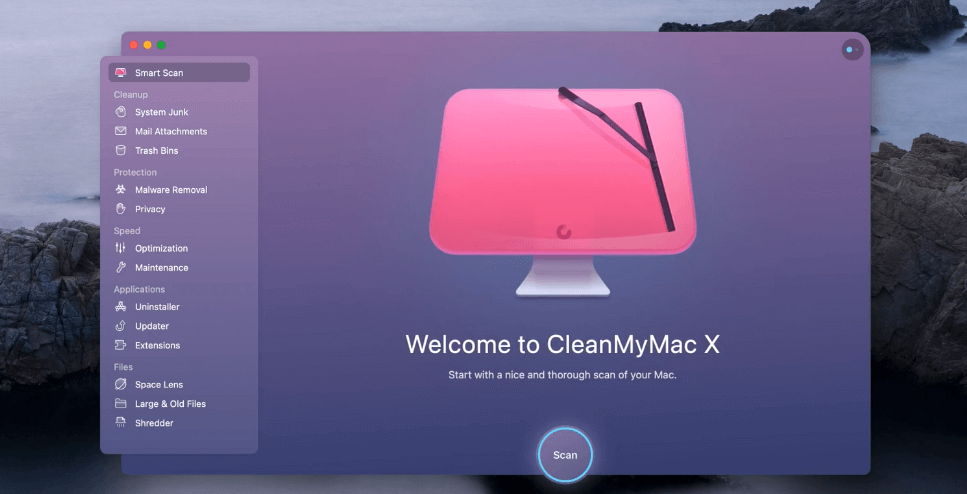
Once done you must see a drastic improvement in the performance of your MacBook. This is how the homepage of Cleanmymac software will look like:
How to unlock your MacBook with Recovery Key
Generating a Recovery Key for unlocking the MacBook is an excellent way of improving the security of your data. However, the following are the important points that you need to remember before using Recovery Key.
- The Recovery Key is a 28-character randomly generated code.
- It is important for the user to write the recovery key somewhere and keep it safe as Apple will not remember or store it anywhere.
- Turning on the Recovery Key would mean that the alternative account recovery method will be turned off.
The following are the steps needed to be followed to generate a recovery Key:
- Go to System Preferences à Apple ID à Account Details
- Add your Apple ID and Password (If prompted)
- Click on Security
- In the Recovery Key Section select Turn On.
- Click on Use Recovery Key. Note down this recovery Key and keep it in a safe place.
- Click Continue.
- Confirm the Recovery Key by entering it on the next page.
To unlock your computer using the Recovery Key follow the following steps:
- Restart your MacBook.
- Enter your password or click on the? button.
- Click on “Restart and show password Reset options.”
- Now choose the “Reset using Recovery Key” option.

- Select the user for whom you wish to reset the password.
- Now enter the FileVault key and click on Next.
- Enter the new Password and click on next.
- When the password reset is complete restart your MacBook again.
What to do in case you lose your Recovery Key
It is very important that you store the Recovery Key generated by Apple in a safe place where no one else can access it because Apple doesn’t store the Recovery Key in any place and if someone else gets access to the same then the whole purpose of FileVault fails. If, however, in exceptional circumstances, you forget or lose the Recovery Key you can regenerate the recovery key provided you are logged in to your Apple ID on an alternative device such as an iPhone. To do this you need to follow the following steps:
- Sign in with your Apple ID on the applied.apple.com
- Sign in using your password from your trusted device.
- In the Sign-in section go to Recovery Key à Change Recovery Key.
The above steps will work only if you are already logged in with an alternative device using the same Apple ID. If you do not have any alternative device using the same Apple ID, then there is no way you can recover the Recovery Key and you will lose access to all the data stored on that user. Besides, you will need to create a new Apple ID to be able to use your device.
Conclusion
FileVault plays a significant role in safeguarding your data on MacOS and by providing full disc encryption, Apple ensures robust protection against any and all unauthorized access. Be it your data, applications, system settings, or files, everything is safeguarded by FileVault. It is a state-of-art encryption technology which comes in handy to all MacOS users and ensures their peace of mind always safeguarding their critical data from prying eyes.
Author Bio:
Dinesh Lakhwani 

Dinesh Lakhwani, the entrepreneurial brain behind “TechCommuters,” achieved big things in the tech world. He started the company to make smart and user-friendly tech solutions. Thanks to his sharp thinking, focus on quality and the motto of never giving up, TechCommuters became a top player in the industry. His commitment to excellence has propelled the company to a leading position in the industry.
Popular Post











Recent Post

How to Switch Windows 10 to a Local Account: Complete Guide
Windows 10 allows users to sign in with either a Microsoft account or a local account. When you set up a new computer, the system often suggests using a Microsoft account. This account connects your device to Microsoft services such as Outlook, OneDrive, and the Microsoft Store. It also syncs settings, themes, and passwords across […]

How To Change Default Apps For File Types In Windows
Windows is designed to make using your computer easy. One way it does this is by assigning default apps to different file types. This means when you open a file, Windows automatically opens it with a specific program. For example, photos may open with Photos, music with Groove Music, and PDFs with Edge. These default […]

How To Adjust The Mouse Pointer Speed: Complete Guide
Using a computer every day means you use the mouse a lot. The mouse pointer moves on the screen and helps you click, scroll, and select items. Many people never think about the speed of the mouse pointer. They have used the default setting for years. This can cause small problems over time. A slow […]

How to Change Mouse Scrolling Settings In Windows
A mouse is one of the most used computer tools. People use it every day. They scroll through emails. They scroll through documents. They scroll through websites and images. The movement becomes automatic. Most users do not notice it. That is why problems often go unnoticed. Scrolling problems show up slowly. At first, it feels […]

Keyboard Light Settings: Keyboard Lighting Control [Complete Guide]
Keyboards are no longer simple typing tools. Well, yes! Over time, they have evolved to include features that improve comfort, visibility, and overall experience. One of the most useful features today is keyboard lighting. It helps users work comfortably in low-light conditions. It also reduces strain when typing for long hours. Many users first notice […]

Customizing Pointer Appearance: Complete Guide
The way your mouse pointer looks on your computer may seem like a small detail. But customizing pointer appearance can make using your PC more comfortable and visually appealing. Many users do not realize that they can change the pointer size, color, and style to fit their needs. Whether you want a bigger pointer for […]

How To Choose a Computer Monitor: Monitor Buying Guide
Buying a monitor looks easy. Many people think all screens are the same. That belief causes regret later. A monitor is not just a display. It is a daily tool. You read on it. You work on it. You relax with it. Small problems become big over time. Poor brightness hurts eyes. Bad size causes […]

How To Get Help With File Explorer in Windows 11 [Complete Guide]
File Explorer is one of the most important tools in Windows 11. It is used to open folders, view files, and manage stored data. Almost every action on a Windows computer depends on it in some way. When users open documents, save downloads, or organize photos, File Explorer is always involved. Because it is used […]

How To Fix A Frozen Computer: Complete Guide [Windows 11/10]
A frozen computer is one of the most common problems Windows users face. The screen stops responding. The mouse pointer does not move. Keyboard inputs do nothing. You may hear the fan running loudly. Sometimes the system looks alive, but nothing works. This situation often happens when you are busy or working on something important. […]

How to Upgrade Computer RAM: Complete Guide
Upgrading RAM is one of the simplest ways to improve a computer. It helps the system feel faster and smoother. Apps open quicker. Browsers handle more tabs. Games and tools run with less delay. Many users search for how to upgrade computer RAM because it gives real results without high cost. You do not need […]

