Discord Screen Share No Audio – 6 Ways to Fix [2026]

Last updated on December 26th, 2025 at 1:11 am
Discord has become a popular platform for gamers and other communities to connect and communicate. One of its most useful features is the screen share option, which allows users to share their screen with others. However, it can be frustrating when you encounter the issue of no audio during screensharing. Here, we will explore six effective ways to fix the Discord screenshare no audio problem.
Understanding the Issue:
When users attempt to screen share on Discord, they may find that the audio from the shared content is not transmitted to the other participants in the call. This can be frustrating and disruptive, particularly in scenarios where audio is an essential component of the shared content, such as during gaming sessions or professional presentations. Understanding the underlying reasons for this issue is crucial in order to effectively address and resolve it.
Potential Causes of this Issue
There are several potential reasons why the Discord screen share no audio problem might occur. These reasons can range from software and hardware configurations to network and permissions settings. It is important to consider each of these potential causes in order to accurately diagnose and resolve the issue.
1. Audio Output Settings
One common reason for Discord screen share no audio is misconfigured audio output settings. If the audio is being routed to a different output device than the one being used for screen sharing, it can result in the absence of audio during screen sharing.
2. Application Permissions
Discord’s access to system resources, including audio, is governed by application permissions. If Discord does not have the necessary permissions to access and transmit audio from a specific application or source,it may result in a lack of audio during screen sharing.
3. Hardware and Drivers
Issues with audio hardware or outdated/incompatible audio drivers can also lead to Discord screen sharing no audio. Incompatibility between the audio hardware and Discord’s screen sharing functionality can cause audio transmission problems.
4. Network Conditions
Network connectivity and bandwidth can impact the quality of audio transmission during screensharing. If the network conditions are poor or if there are bandwidth limitations, it can result in audio dropout or absence during screen sharing.
5. Software Conflicts
Discord screen share no audio may also be attributed to conflicts with other software or applications running on the system. Interference from other audio-related software can disrupt Discord’s screen sharing capabilities.
Tips to Prevent this Issue
By following some useful tips, one may prevent this issue from occurring in the future. Here are some tips to prevent this issue from occurring:
1. Check Audio Output Settings
To prevent the Discord screenshare no audio issue, users should ensure that their audio output settings are correctly configured. This involves setting the default audio output device on their computer to the desired output source for Discordscreenshare. Users can access the audio output settings through the system sound control panel or audio settings menu.
2. Verify Application-specific Audio Settings
Users should also verify the audio settings of the specific applications they intend to screenshare. This includes checking the audio output device, volume levels, and any application-specific audio settings that may affect the transmission of audio during screen share. Ensuring compatibility between the application’s audio settings and Discord screen share can help prevent the no audio issue.
3. Update Audio Drivers
To prevent audio driver-related issues that can cause the Discord screen to share no audio problem, users should regularly update their audio drivers. This can be done through the device manager or by visiting the manufacturer’s website to download the latest audio driver updates. Keeping audio drivers up to date can improve compatibility and stability during screenshare sessions.
Discord Screenshare No Audio – 6 Ways to Fix
There are numerous ways to fix the “Discord Screenshare No Audio” issue. Some of the most effective ways to fix this issue are discussed below:
Method 1: Check Audio Settings
The first step is to ensure that your audio settings within Discord are correctly configured. Follow these steps to do so:
Step 1: Launch Discord and click on the gear icon in the bottom-left corner to open User Settings.
Step 2: Navigate to the “Voice & Video” tab.
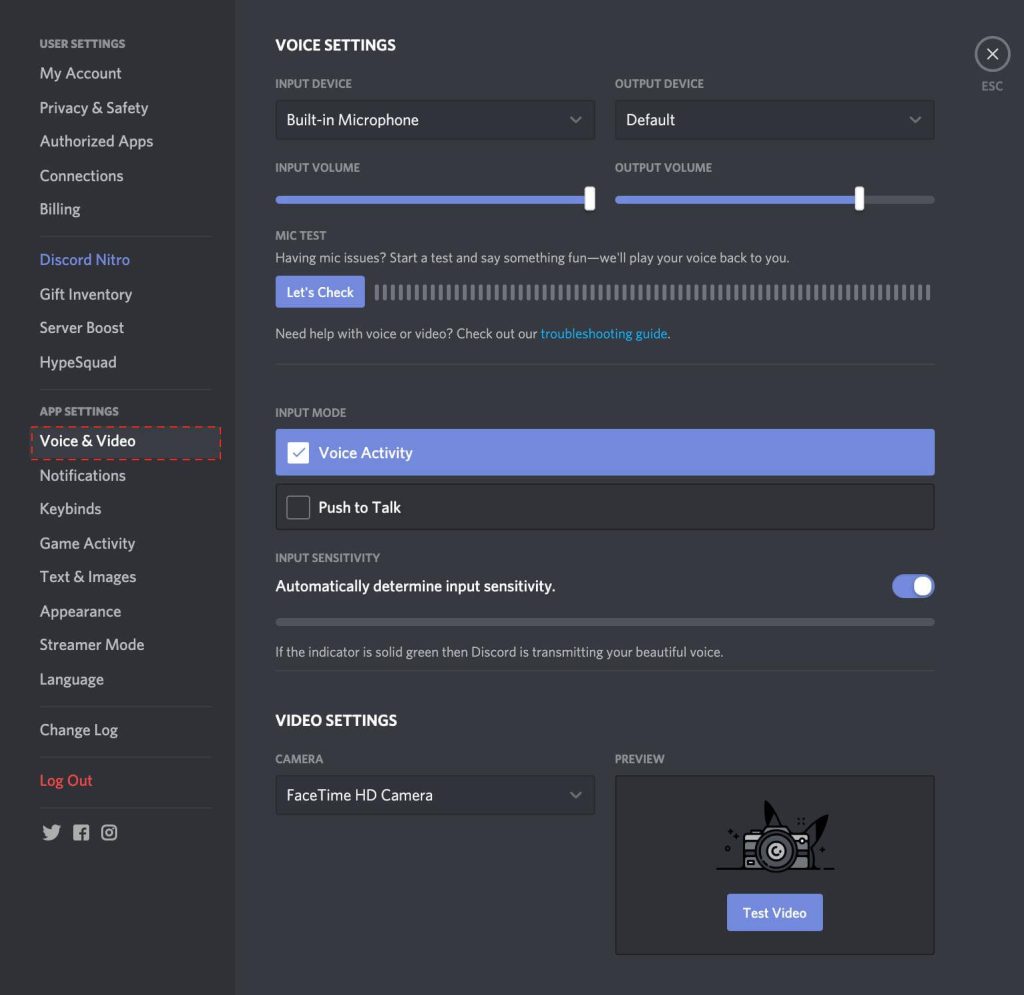
Step 3: Under the “Voice Settings,” ensure that the correct audio input and output devices are selected.
Step 4: Additionally, make sure that the input and output volume sliders are not set to zero.
Method 2: Restart Discord
Sometimes, the simplest solution is the most effective. Restarting Discord can resolve many common issues, including the no audio problem during screen sharing. Close Discord completely, ensure it is not running in the background, and then relaunch the application.

Method 3: Update Audio Drivers
Outdated or incompatible audio drivers can often cause audio-related issues and may be the reason for the Discord screenshare no audio issue. Follow these steps to update your audio drivers:
Step 1: Press the Windows key + X and select “Device Manager” from the menu.
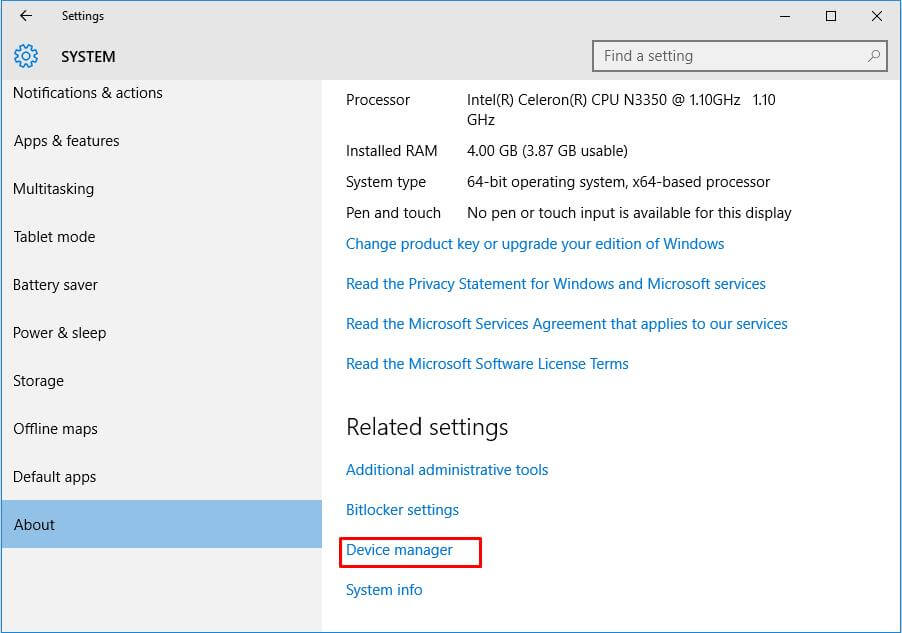
Step 2: Expand the “Sound, video, and game controllers” section.
Step 3: Right-click on your audio device and select “Update driver.”
Step 4: Choose the option to automatically search for updated drivers online.
Step 5: Follow the on-screen instructions to install any available updates.
Method 4: Disable Exclusive Mode
Windows has a feature called “Exclusive Mode” that can prevent other applications from accessing audio devices simultaneously. Disabling this mode might resolve the Discord screenshare audio issue. Here’s how to do it:
Step 1: Right-click on the speaker icon in the system tray and select “Sounds.”
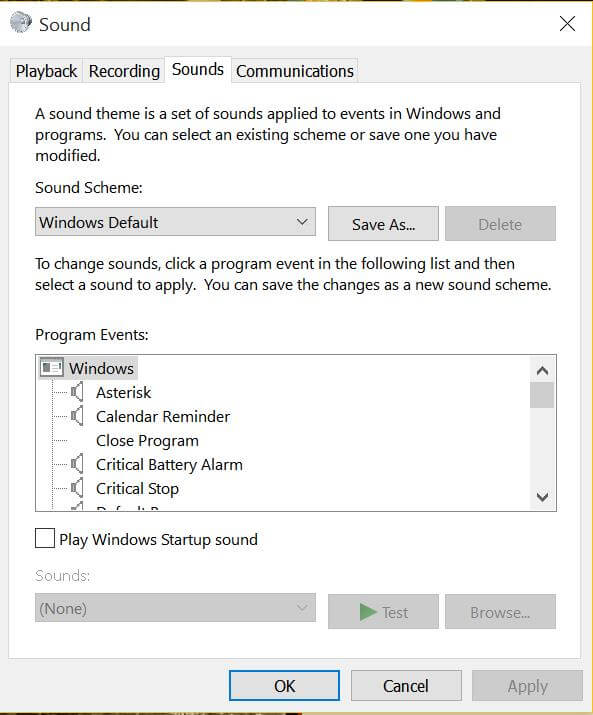
Step 2: In the “Playback” tab, right-click on your default playback device and choose “Properties.”
Step 3: Navigate to the “Advanced” tab.
Step 4: Uncheck the box next to “Allow applications to take exclusive control of this device.”
Step 5: Click “Apply” and then “OK” to save the changes.
Method 5: Run Discord as an Administrator
Running Discord with administrative privileges can help resolve certain issues related to permissions and access. To run Discord as an administrator, follow these steps:
Step 1: Close Discord completely.
Step 2: Right-click on the Discord shortcut and select “Run as administrator.”
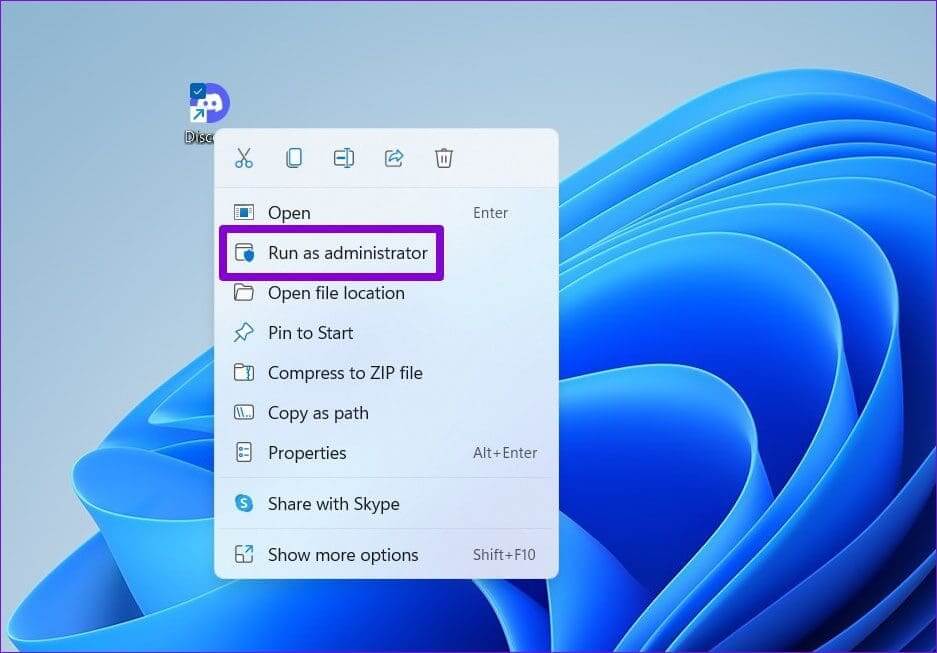
Step 3: If prompted, click “Yes” to grant administrative privileges.
Step 4: Try screen sharing with audio again and check if the issue is resolved.
Method 6: Reinstall Discord
If none of the above solutions work, reinstalling Discord might be the final step to resolve the Discord screen share no audio problem. Here’s how to reinstall Discord properly:
Step 1: Press the Windows key + R to open the Run dialog box.
Step 2: Type “appwiz.cpl” and press Enter to open the Programs and Features window.
Step 3: Locate “Discord” in the list of installed programs, right-click on it, and select “Uninstall.”
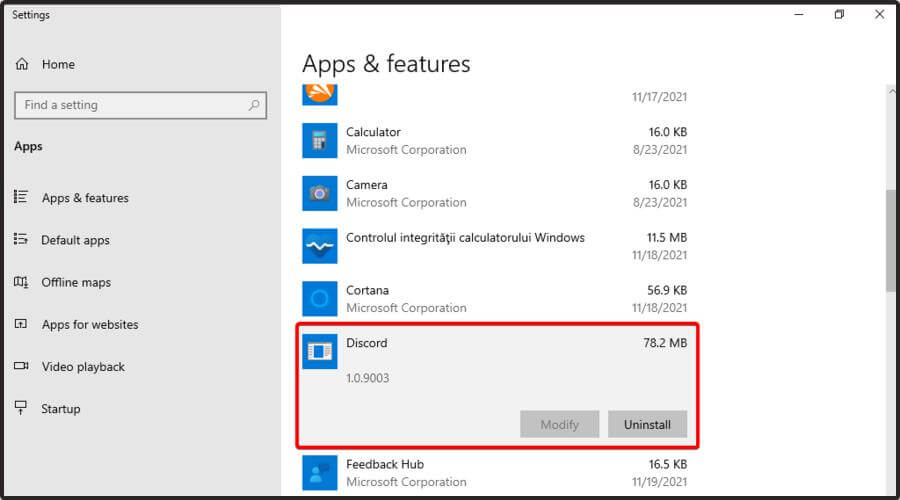
Step 4: Follow the on-screen instructions to complete the uninstallation process.
Step 5: Visit the official Discord website and download the latest version of the application.
Step 6: Run the installer and follow the prompts to reinstall Discord.
Step 7: Once the reinstallation is complete, try screen sharing with audio again.
Conclusion
Encountering the Discord screenshare no audio problem can be frustrating, but there are several effective ways to fix it. By following the steps outlined here, you can troubleshoot and resolve the issue promptly. With these fixes, you can enjoy uninterrupted audio during screensharing on Discord.
FAQs
1. What Causes Discord Screenshare No Audio?
One of the most common questions related to Discord Screenshare with no audio is the cause of this issue. There are several potential reasons for the lack of audio during screen sharing on Discord. These reasons can range from software and hardware configurations to network and connectivity issues.
It is important to note that the specific cause of the problem can vary from one user to another, and identifying the exact reason often requires troubleshooting and investigation.
2. Is DiscordScreenshare No Audio a Common Issue?
The prevalence of the Discord Screenshare no audio issue is another frequently asked question. While Discord is a widely used platform for communication and collaboration, the occurrence of the screenshare no audio problem is not uncommon. Many users have reported experiencing this issue at some point while using the screen share feature.
The frequency of occurrence can also depend on various factors such as the user’s device, operating system, and network environment.
3. Can UserSettings Impact Discord Screenshare Audio?
Users often wonder whether their individual settings can influence the audio output during Discord Screenshare. The answer to this question is affirmative. User-specific settings, including audio input and output devices, volume levels, and permissions, can all have an impact on the audio transmission during screen sharing.
Understanding and configuring these settings correctly is crucial for ensuring a smooth and seamless screen share experience on Discord.
4. Do NetworkConditions Affect Discord Screenshare Audio?
The role of network conditions in affecting Discord Screenshareaudio is another important aspect to consider. The stability and bandwidth of the network connection can significantly influence the quality of audio transmission during screen sharing.
Issues such as packet loss, latency, and network congestion can all contribute to audio problems during screensharing. Therefore, maintaining a stable and robust network connection is essential for mitigating potential audio issues on Discord.
Author Bio:
Dinesh Lakhwani 

Dinesh Lakhwani, the entrepreneurial brain behind “TechCommuters,” achieved big things in the tech world. He started the company to make smart and user-friendly tech solutions. Thanks to his sharp thinking, focus on quality and the motto of never giving up, TechCommuters became a top player in the industry. His commitment to excellence has propelled the company to a leading position in the industry.
Popular Post











Recent Post

How To Adjust The Mouse Pointer Speed: Complete Guide
Using a computer every day means you use the mouse a lot. The mouse pointer moves on the screen and helps you click, scroll, and select items. Many people never think about the speed of the mouse pointer. They have used the default setting for years. This can cause small problems over time. A slow […]

How to Change Mouse Scrolling Settings In Windows
A mouse is one of the most used computer tools. People use it every day. They scroll through emails. They scroll through documents. They scroll through websites and images. The movement becomes automatic. Most users do not notice it. That is why problems often go unnoticed. Scrolling problems show up slowly. At first, it feels […]

Keyboard Light Settings: Keyboard Lighting Control [Complete Guide]
Keyboards are no longer simple typing tools. Well, yes! Over time, they have evolved to include features that improve comfort, visibility, and overall experience. One of the most useful features today is keyboard lighting. It helps users work comfortably in low-light conditions. It also reduces strain when typing for long hours. Many users first notice […]

Customizing Pointer Appearance: Complete Guide
The way your mouse pointer looks on your computer may seem like a small detail. But customizing pointer appearance can make using your PC more comfortable and visually appealing. Many users do not realize that they can change the pointer size, color, and style to fit their needs. Whether you want a bigger pointer for […]

How To Choose a Computer Monitor: Monitor Buying Guide
Buying a monitor looks easy. Many people think all screens are the same. That belief causes regret later. A monitor is not just a display. It is a daily tool. You read on it. You work on it. You relax with it. Small problems become big over time. Poor brightness hurts eyes. Bad size causes […]

How To Get Help With File Explorer in Windows 11 [Complete Guide]
File Explorer is one of the most important tools in Windows 11. It is used to open folders, view files, and manage stored data. Almost every action on a Windows computer depends on it in some way. When users open documents, save downloads, or organize photos, File Explorer is always involved. Because it is used […]

How To Fix A Frozen Computer: Complete Guide [Windows 11/10]
A frozen computer is one of the most common problems Windows users face. The screen stops responding. The mouse pointer does not move. Keyboard inputs do nothing. You may hear the fan running loudly. Sometimes the system looks alive, but nothing works. This situation often happens when you are busy or working on something important. […]

How to Upgrade Computer RAM: Complete Guide
Upgrading RAM is one of the simplest ways to improve a computer. It helps the system feel faster and smoother. Apps open quicker. Browsers handle more tabs. Games and tools run with less delay. Many users search for how to upgrade computer RAM because it gives real results without high cost. You do not need […]

How To Clean Your Computer Keyboard: Complete Guide
A computer keyboard is touched more than almost any other device you own. It is used during work, study, gaming, and casual browsing. Fingers carry natural oils, sweat, and dirt. Small food crumbs fall between keys without notice. Dust settles each day slowly. Over time, this creates a hidden layer of grime. Many users do […]
Computer Mouse Buying Guide for Beginners and Advanced Users
Buying a mouse looks easy at first. Many people think all mouse work the same way. Well, that idea often leads to regret later. A mouse affects comfort, speed, and daily work. It matters for office tasks, gaming, design, and study. The right choice reduces strain and improves control. The wrong one feels annoying every […]

