Devices and Printers Settings In Windows 11: Open/Setup/Manage

Last updated on March 1st, 2025 at 5:36 am
Have you ever sat in front of your computer, unsure of how to link up a new printer or handle your devices in Windows 11? It’s a common issue. A lot of people get confused when trying to figure out all the settings and choices in Microsoft’s newest system. But don’t worry! Windows 11 has tools to help you with your devices and printers.
In this detailed guide, we’ll go through everything about the devices and printers settings in Windows 11. We’ll show you how to access, set up, and manage these settings, so you can get the best use out of your connected equipment.
Whether you’re new to technology or very experienced, this guide will give you the skills to handle any problem with your devices.
Overview of Devices and Printers Settings in Windows 11: How Useful Is It?
Before we get into the detailed specifics, let’s pause to recognize the usefulness of the device and printer options in Windows 11. This well-equipped area provides many advantages for users:
- One Place for Everything: The device and printer options give you a single place to see and handle all your connected equipment, making it easy to manage everything from one spot.
- Simple Device Setup: Setting up new devices, like printers, cameras, or extra storage drives, is straightforward thanks to the user-friendly interface.
- Help with Problems: If a device has issues, the options include tools to help you find and fix the problems quickly.
- Control Over Printing: For people who print a lot, being able to manage print jobs and printer settings is very helpful.
- Quick Access to Device Info: You can easily view and change device information, drivers, and settings without searching through various menus.
- Bluetooth Device Pairing: Seamlessly connect and manage Bluetooth devices directly from the settings interface.
- Network Device Discovery: Easily find and connect to network printers and other shared devices on your local network.
How to Open Devices and Printers Settings in Windows 11
Now that we understand the importance of devices and printer settings in Windows 11, let’s explore the various methods to access this crucial feature:
Method 1: Using the Start Menu:
Step 1: Open the Start menu search bar. Type “Printers and Scanners” in the search bar.

Step 2: Click on the “Printers and Scanners” option that appears in the search results.
Method 2: Through the Settings App:
Step 1: Press Win + I to open the Settings app. On the left menu pane, click on the “Bluetooth & devices” category

Step 2: Scroll down and click on “Printers & scanners.“
Method 3: Via Control Panel:
Step 1: Right-click on the Start button and select “Run.” Type “control” and press Enter to open the Control Panel.

Step 2: Click on “Devices and Printers.”
Method 4: Using the Run Command:
Step 1: Press Win + R to open the Run dialog.

Step 2: Type “control printers” and press Enter.
By mastering these methods, you’ll always have quick access to the printers settings in Windows 11, regardless of your preferred navigation style.
How to Setup Devices and Printers Settings in Windows 11
Setting up devices and printers in Windows 11 is a straightforward process, but it’s essential to understand the steps involved to ensure a smooth experience. Here’s a comprehensive guide to help you set up various devices:
Adding a New Printer:
Step 1: Open the devices and printers settings in Windows 11 using one of the methods described earlier. Click on “Add Device” at the top of the window.

Step 2: Windows will automatically search for available printers on your network. If your printer is found, click on it and follow the on-screen instructions to install it. If your printer isn’t found, click on “The printer that I want isn’t listed” and follow the wizard to add it manually.
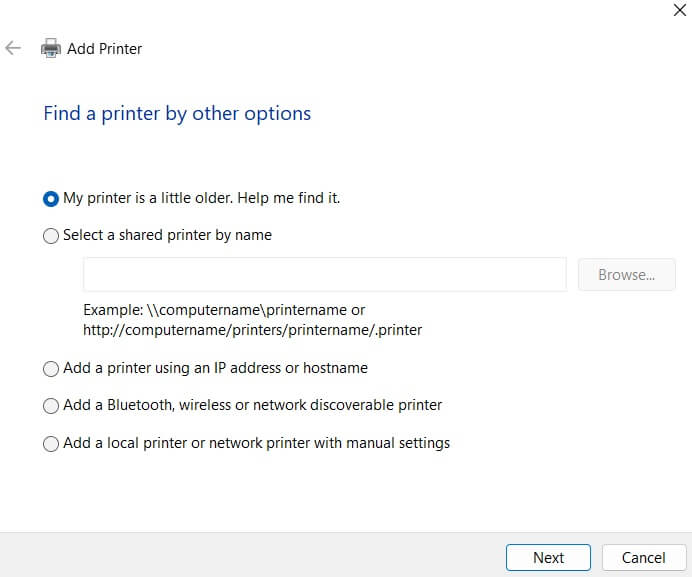
Setting Up a Bluetooth Device:
Step 1: Ensure your Bluetooth device is in pairing mode. In the devices and printers settings, click on “Add a device” at the top of the window.

Step 2: Select your Bluetooth device from the list of available devices. Follow the on-screen instructions.

Remember, the devices settings in Windows 11 provide a centralized location for managing all your connected hardware. Take the time to familiarize yourself with this interface, as it will be your go-to spot for device management.
How to Manage Devices and Printers Settings in Windows 11
Once you’ve set up your devices, the next step is learning how to manage them effectively. The devices and printers settings in Windows 11 offer a wealth of options for managing your hardware.
Let’s explore some key management tasks:
Viewing Connected Devices:
Step 1: Open the devices and printers settings in Windows 11.
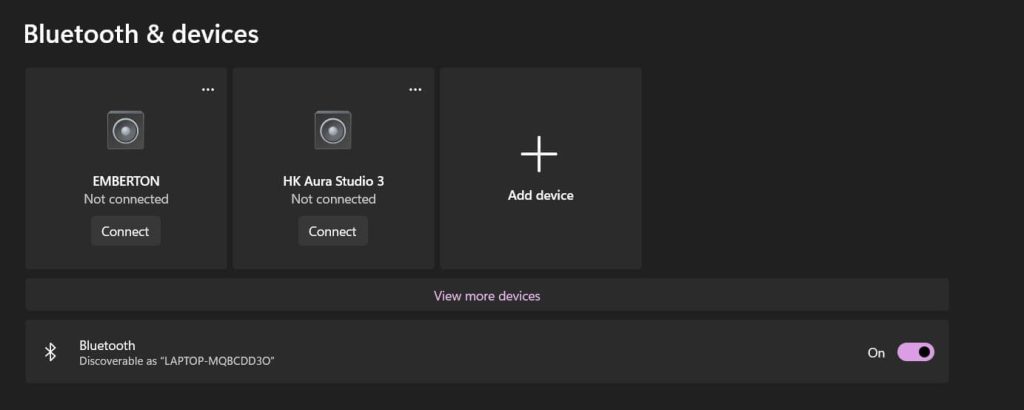
Step 2: You’ll see a list of all connected devices, categorized by type (printers, cameras, audio devices, etc.). This overview allows you to quickly assess which devices are currently connected and functional.
Updating Device Drivers:
Step 1: Open the Device Manager app on your Windows PC. You can either use the Start menu search bar. Alternatively, press the Win + R key combination to open the Run dialog box. Type “Devmgmt.msc” and hit Enter.
Step 2: In the Device Manager window, you will see various options. Double-click on “Printers” category. Select your printer, right-click on it, and select the “Update Driver” option.

Step 3: Choose whether to search automatically for updated driver software or browse your computer for driver software.
Troubleshooting Device Issues:
Step 1: Open the Settings app on your Windows 11 PC. Switch to the “System” tab. Scroll down and select “Troubleshoot”. Hit the “Other Troubleshooters” button.

Step 2: You will now see a list of various built-in troubleshooters offered by Windows. Pick a troubleshooter from the list, say Bluetooth or Printer. Hit the “Run” button placed next to it to run the troubleshooter.

Step 3: Windows 11 will run a series of diagnostic tests and attempt to resolve any issues automatically. Follow the on-screen instructions to complete the troubleshooting process.
Managing Printer Queues:
Step 1: Double-click on a printer in the devices and printers settings. Select “Open Print Queue”. This opens the print queue, showing all current and pending print jobs.

Step 2: You can pause, resume, or cancel print jobs from this interface.
Removing Devices:
Step 1: To remove a device that you no longer use, right-click on it in the devices and printers settings.

Step 2: Select “Remove device” from the context menu. Confirm the action when prompted.
Setting Default Devices:
Step 1: Navigate to Bluetooth and Devices> Printers and Scanners. Select any printer from the list. Now hit the “Printer Properties” option.

Step 2: For printers, you can also set a default printer by right-clicking and choosing “Set as default printer.”
Configuring Device-Specific Settings:
Step 1: Right-click on a device and select “Properties.” Explore the various tabs to adjust settings specific to that device.

Step 2: For example, you can change print quality for printers, adjust color settings for displays, or configure power management for USB devices.
By mastering these management techniques, you’ll be able to keep your devices running smoothly and troubleshoot any issues that arise. The devices and printers settings in Windows 11 are designed to give you comprehensive control over your hardware ecosystem.
Tips and Tricks to Make the Most of Devices and Printers Settings in Windows 11
To effectively manage your devices and printers in Windows 11, try these helpful tips:
- View Your Network Map: In the devices and printers settings, click “View network map” on the toolbar. This shows you a picture of all the devices connected to your network, making it easier to see how everything is set up in your home or office.
- Share Your Printer: Right-click on a printer in the devices and printers settings, then choose “Printer properties.” Click on the “Sharing” tab and check “Share this printer.” This lets other computers on your network use the printer.
- Enhance Device Functionality with Device Stage: Some devices have a feature called Device Stage, which offers specific tasks and information for that device. Double-click on a compatible device to see its Device Stage interface. You can find shortcuts to common tasks, support details, and more here.
- Set Up Automatic Driver Updates: Press Win + I to open Settings, then go to “Windows Update”. Here you can choose to automatically download and install driver updates for your devices.
- Use the Devices and Printers Troubleshooter: If you’re experiencing general issues with devices, use the built-in troubleshooter. Press Win + I, go to “System” > “Troubleshoot” > “Other troubleshooters.” Run the “Hardware and Devices” troubleshooter to diagnose and fix common problems.
- Use Windows Key Shortcuts: Press Win + K to quickly open the Connect pane for adding wireless displays and audio devices. Press Win + P to manage multiple displays quickly.
- Use the Microsoft Print to PDF Feature: When adding a new printer, select “Microsoft Print to PDF” as the printer. This allows you to create PDF files from any application that supports printing.
By implementing these tips and tricks, you’ll be able to leverage the full potential of the devices and printers settings in Windows 11. These advanced techniques can help streamline your workflow, improve device management, and enhance your overall computing experience.
Conclusion
Throughout this detailed guide, we’ve looked at how the device and printer settings in Windows 11 are a strong tool for handling your connected hardware. This includes everything from printers and scanners to Bluetooth devices and external storage. This main area offers a user-friendly interface for setting up, managing, and fixing various devices.
By learning the methods we’ve covered—from simple setup steps to more complex management skills—you’ll be ready to tackle any task related to devices. Remember, the secret to managing devices effectively is knowing the tools available to you. Spend time exploring the device and printer settings in Windows 11, try out different features, and don’t hesitate to look into advanced settings when necessary.
FAQs:
Q: How often should I update my device drivers?
It’s generally a good practice to check for driver updates every few months or whenever you experience device issues. Windows 11 can automatically update many drivers, but for optimal performance, it’s worth checking manually, especially for critical devices like graphics cards.
Q: Can I access the devices and printers settings in Windows 11 remotely?
Yes, if you have remote access to a Windows 11 computer, you can navigate to the devices and printers settings just as you would locally. This can be particularly useful for IT support or managing devices on a network.
Q: What should I do if Windows 11 doesn’t recognize my device?
First, ensure the device is properly connected and powered on. Try disconnecting and reconnecting it, or using a different port if possible. If the issue persists, check the manufacturer’s website for updated drivers or use the Windows troubleshooter in the devices and printers settings.
Q: Can I manage my smartphone through the devices and printers settings in Windows 11?
While you can’t fully manage smartphones through this interface, you can often see connected phones and perform basic tasks like file transfer. For more comprehensive management, use the Your Phone app in Windows 11 or device-specific software provided by the phone manufacturer.
Author Bio:
Dinesh Lakhwani 

Dinesh Lakhwani, the entrepreneurial brain behind “TechCommuters,” achieved big things in the tech world. He started the company to make smart and user-friendly tech solutions. Thanks to his sharp thinking, focus on quality and the motto of never giving up, TechCommuters became a top player in the industry. His commitment to excellence has propelled the company to a leading position in the industry.
Popular Post











Recent Post

Repair Apps And Programs: Repair Apps That Aren’t Working
Computers have become an essential part of everyday life, supporting work, study, communication, and entertainment. Most of these activities rely on apps and programs, so when one stops functioning, even simple tasks can be disrupted. Common problems include error messages, frozen screens, or apps that fail to open. On Windows systems, such issues often arise […]

Troubleshooting Microphone Privacy Settings: Complete Guide
Sound is a basic part of how we use computers today. People attend meetings, record audio, speak to others, and use voice tools almost every day. A working microphone makes all these tasks easy. When the microphone fails, even simple work becomes difficult. Many users first think the device is broken. In reality, the issue […]

Windows Sound Settings – Sound Control Panel: Complete Guide
Sound plays an important role in how we use a computer every day. It supports both work and leisure. You need it for meetings, videos, music, and alerts. When audio fails, even simple tasks become difficult. Many users feel stuck when sound issues appear. This usually happens because they are not familiar with Windows Sound […]

Run a Troubleshooter For PC Issues Windows: Complete Guide
A computer plays an important role in everyday life. People use it for work, study, communication, and entertainment. When a problem appears, it can interrupt everything. Even a small issue can waste time and create frustration. Many users feel unsure about how to fix such problems. They often think they need expert help. In reality, […]
![Adjusting Audio Output Settings Complete Guide [2026]](https://www.techcommuters.com/wp-content/uploads/2026/03/Adjusting-Audio-Output-Settings-Complete-Guide.webp)
Adjusting Audio Output Settings: Complete Guide [2026]
Sound is part of almost everything we do on a computer. It lets you watch videos, join calls, play music, and hear alerts. When the audio stops working the right way, it can interrupt both work and daily use. That is why adjusting audio output settings matters for every user. Many people get unsure when […]

Artificial Intelligence Explained: Concepts, Terminology, Benefits, and Future Trends
Artificial Intelligence, or AI, is basically computers doing things that usually need a human brain. We’re talking about stuff like learning from experience, figuring out problems, understanding language, and making decisions. It’s not magic, just a lot of data, pattern-spotting, and math behind the scenes. Now, AI doesn’t actually think or feel like we do. […]

Resolving Microphone Detection Problems: Latest Guide [2026]
Microphones are important tools in daily life. People use them for office meetings, online classes, interviews, gaming, customer support, and content creation. When a system fails to detect a microphone, communication stops at once. This situation can cause stress and confusion. Many users believe the microphone is damaged. In reality, most problems are simple and […]

How To Switch To A Dark Background Theme In Windows [2026]
Most people spend many hours each day in front of a computer screen. Office work, online classes, editing, browsing, and streaming all require long screen time. A bright white background may look clean at first. However, over time, it can feel sharp and tiring. The strong contrast between white backgrounds and black text may cause […]

How to Switch From Local To Microsoft Account On Windows
Many users begin with a local account when they set up a new Windows computer. A local account works only on that single device. It stores settings, files, and preferences locally. It does not connect to online Microsoft services. For basic offline use, it works well. However, as digital needs grow, many users want better […]

How to Switch Windows 10 to a Local Account: Complete Guide
Windows 10 allows users to sign in with either a Microsoft account or a local account. When you set up a new computer, the system often suggests using a Microsoft account. This account connects your device to Microsoft services such as Outlook, OneDrive, and the Microsoft Store. It also syncs settings, themes, and passwords across […]

