9 Best Video Enhancer Tools For Windows In 2026
Last updated on January 17th, 2026 at 6:32 pm
In the growing digital world, people are more creative and selective with content creation and editing. You can find thousands of software and applications that can help you enhance your video quality. People have different experiences with the tools, but you must find out the best editing tool.
So don’t get fussy with different opinions; we have a list of top video quality enhancer tools. Select the best suitable option that fulfills your requirements and start enhancing your video quality with the best tools in the world. Get on social media with professional-quality video content.
Top 5 Video Enhancer Tools for Windows (2026)
Video enhancers are now essential for creators who need clear, sharp footage without guesswork. In 2026, AI and smart acceleration make this task faster and more reliable on Windows. Below is a quick look at five top tools and how they perform on key points.
| Tool Name | AI Upscaling | Format Support | Export Speed | Ease of Use | Price Tier |
| Adobe Premiere Pro | Good | Very wide | Fast | Moderate | High |
| AVCLabs Video Enhancer AI | Excellent | Wide | Moderate | Easy | Mid |
| Topaz Video Enhance AI | Excellent | Good | Slow | Easy | Mid |
| HitPaw Video Enhancer | Good | Good | Fast | Very easy | Low-Mid |
| PowerDirector | Good | Very wide | Fast | Moderate | Mid |
First, Know The Answers To These Questions:
Will video enhancement damage the original look of my footage?
This is a common fear, and it is valid. Some enhancement tools push sharpening too hard. This can create halos and fake textures. AI tools try to guess missing details, not truly restore them. When presets are overused, faces may look plastic and edges may look harsh. Tools like Topaz and AVCLabs reduce this risk if settings are adjusted carefully. Editors like Premiere Pro give more manual control, which helps protect the original style. The safest approach is to preview often and export short test clips. Enhancement should improve clarity, not rewrite the image.
Do these tools really work on very old or low-resolution videos?
They help, but expectations must stay realistic. AI can clean noise and improve edges, but it cannot recreate lost information perfectly. Old videos with heavy blur or compression artifacts will still show limits. Results vary based on the source quality and lighting. AVCLabs and Topaz perform best on such footage, especially for upscaling. HitPaw and PowerDirector offer lighter improvements that look natural but less dramatic. Even a good enhancer cannot fix everything. It can make footage usable, not flawless.
Is a powerful computer required to use video enhancer tools smoothly?
System power matters more than many users expect. AI-based tools rely heavily on GPU and RAM. On weak systems, processing can feel slow, and exports take hours. Premiere Pro and PowerDirector handle mid-range systems better due to optimization. Topaz and AVCLabs demand stronger hardware for the best results. Without it, fans run loud and progress crawls. If your system is older, shorter clips and lower upscale targets work better. Hardware does not decide quality alone, but it strongly affects comfort and speed.
List of some Best Video Quality Enhancer Tools for Windows PC
Want to get fame on social media? Look no more! Check out some best video quality enhancer software that can create professional-style videos. Also, focus on their performance and how these tools provide good quality videos.
1. Adobe Premiere Pro
One of the powerful tools from Adobe Systems is to create realistic editing and enhance video quality. It is the most popular tool professionals use to enhance video quality. You can find multiple features and AI tools to help you advance video development.
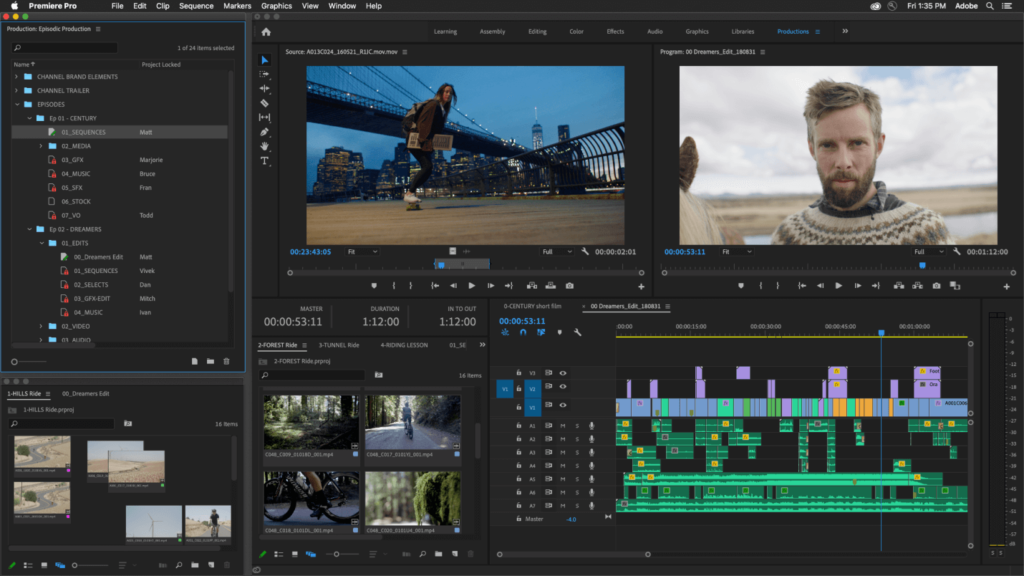
You can create a full video with short clips from this software and add a smooth transition that no one can identify. This app helps you in editing and improving video quality. You also get multiple options to add text, pictures, and amazing GIFs to the video. You can also add subtitles and captions directly from Adobe Premiere Pro to the video.
Features:
- Millions of Templates.
- Power of exporting low-quality video in high quality.
- Allow the user to add audio and captions to the video.
Pros:
- Produce a high-quality video.
- Process 360-degree video.
- Quick rendering capabilities.
Cons:
- Works only on Powerful PCs.
- Valid substitution is required to access the facilities.
2. AVCLabs Video Enhancer AI
AVCLabs is AI-based multimedia software that can help you enrich your video quality. Explore the powerful tools of AVCLabs and make your video more creative. It has multiple features to convert video into audio and read the Blu-ray disc and old DVDs. Its ripper tool lets you convert DVD and BluRay videos into any format.
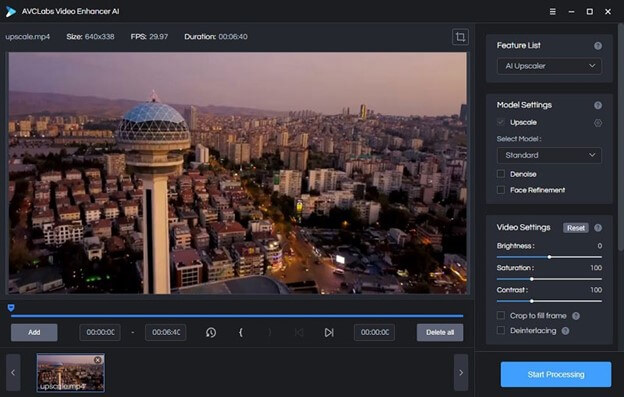
AVCLabs software is easy to use and provides multiple features required to create professional videos. You can enjoy the coolest features and powerful AI with AVCLabs in your Windows.
Features:
- Advanced AI technology
- Fast video processing.
- Convert video into different formats.
Pros:
- Allows the user to convert multiple videos at the same time.
- Color Enhancing tools.
- User-friendly interface.
Cons:
- Slightly fewer features for editing.
- Subscription active service.
3. Topaz Video Enhance AI
Topaz Video Enhance AI is a powerful software to upscale video quality. The leading developer of photos and videos, TopazLab, creates the software. The software uses high-scale algorithm learning AI that automatically enhances the video quality with suitable color changes. You can also customize your color grading with Topaz Video Enhance AI.
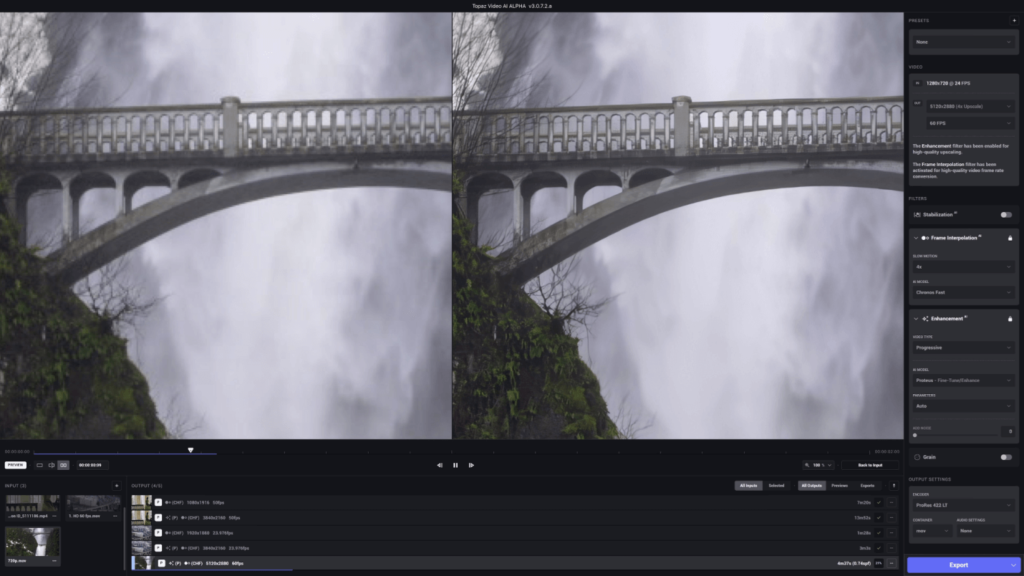
The software can enter video up to 4K with 60FPS. Now if you are sad about getting low-quality video on your phone, you can develop it professionally with topaz labs. Moreover, you can also work offline with this software and render videos.
Features:
- Power of article intelligence develops high-quality videos.
- Optimization of videos.
- Works with GPU acceleration.
Pros:
- Produce high-quality video from low quality.
- Enhance very fine details in the video.
- AI automatically reduces the grain and blurs shots.
Cons:
- Does not support every video format.
- Quite unaffordable.
4. HitPaw Video Enhancer
Not able to afford a High-resolution camera? Don’t worry! You can upscale low-quality videos with the powerful Windows software HitPaw Video Enhancer. The tool optimizes your video quality and enhances the overall pixels and graphics of the video. The tool automatically detects the part that needs to get high or low.
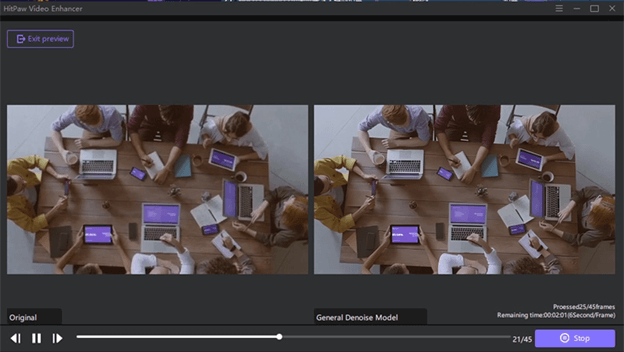
With HitPaw, you can produce professional-level videos with a low-end camera. You can directly drag the video; its AI will give you a quick enhancement you can reduce or increase later. Moreover, it can produce up to 4K videos in the final render.
Features:
- Users can access multiple video formats in this software.
- Produce video up to 4K.
- Speed rendering process.
Pros:
- Smooth video production.
- Multiple view processing at the same time.
- Autofix the video quality.
Cons:
- It cannot process 360-degree videos.
- A powerful system is essential.
5. PowerDirector
It is one of the most usable software on mobile and PC. PowerDirector has a smart AI that allows you to choose multiple video templates and filters. The software can optimize every kind of video and generate higher-resolution products.
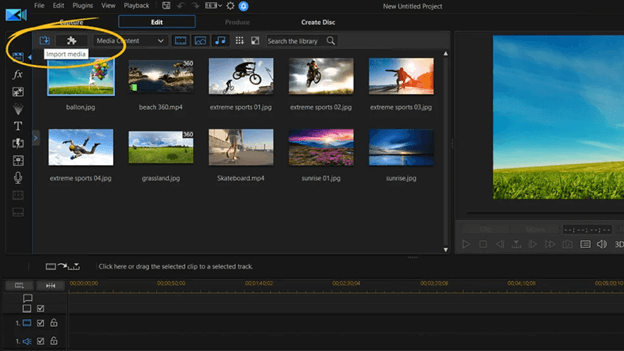
PowerDirector has all the features and tools required to edit and enhance video quality. There are millions of videos and sorts for YouTube that PowerDirector creates. If you were unaware of PowerDirector and its benefits, it could be the best tool for video optimization and quality enhancement.
Features:
- Works on Powerful AI tools.
- Capable of developing 360-degree videos.
- MultiCam edition is available.
Pros:
- Powerful rendering speed
- You can mix audio in the video.
- User-friendly interface.
Cons:
- Slightly expensive.
- The AI audio system is not available.
6. Ashampoo Video Optimizer
Video and developing with good quality software may be difficult for you. Try out Ashampoo Video Optimizer to develop videos seamlessly. It is a powerful movie video editor with color enhancement technology that can increase video contrast. You can create multiple effects in video with the powerful optimizing effect of Ashampoo Video Optimizer.
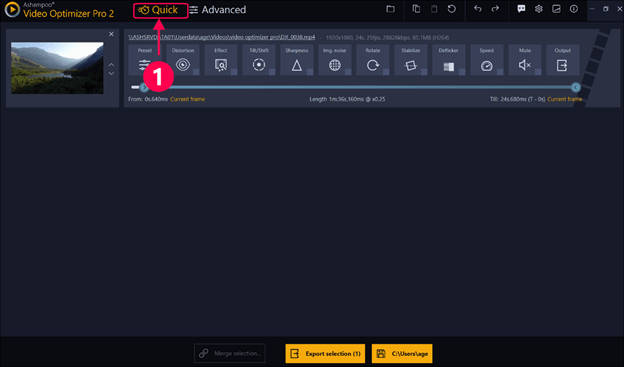
Moreover, you can edit long videos and add multiple transitions with suitable effects. The software will produce very smooth and high-resolution videos that you won’t be able to detect any transition. With Ashampoo, optimizing videos and generating them in high quality is easy.
Features:
- Quick optimization of the video.
- Powerful noise reduction and quality increment.
- AI automatically fixes the color contrast.
Pros:
- Produce Sharp, detailed video.
- Smooth Slow-Mo and transitions.
- Produce videos up to 4K quality.
Cons:
- Limited exporting options.
- Does not support 360-degree videos.
7. Pinnacle Studio
Pinnacle Studio is the smartest and simplest Windows software that helps edit and enhance video quality. It has multiple features that help you upgrade the video quality. Moreover, you can choose multiple effects and transition styles to help you create a long video.
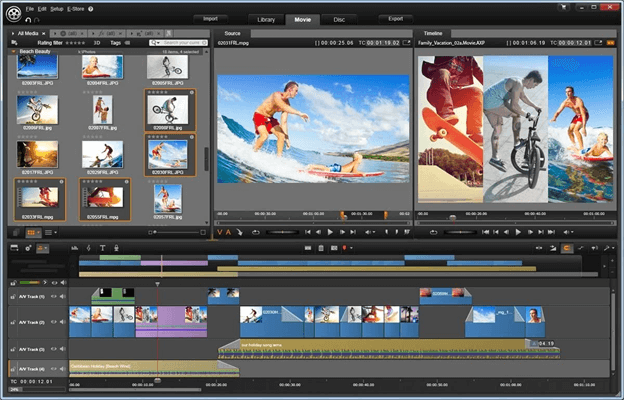
Pinnacle Studio converts different file formats, making its rendering process very smooth. If you are a blogger and want to edit 360 videos, it can be a crucial app and give a fine touch to your video. Try out Pinnacle Studio and make your videos professional style with its enhancing tools.
Features:
- The multi-camera editing feature is available.
- Powerful Color grading system.
- It can track superior Quality of motions.
Pros:
- Screen recording feature available.
- Process 360-degree videos
- Smooth transitions
Cons:
- Software may make you feel laggy while editing.
- It does not have a Built-in stock Media library.
8. Vegas Pro
Vegas Pro is the most popular video editing software used by professionals. Vegas Pro’s powerful AI technology guides you with Editing videos and upgrading quality. With the help of the advanced technology of Vegas Pro, you can create professional-style videos in your Windows system.
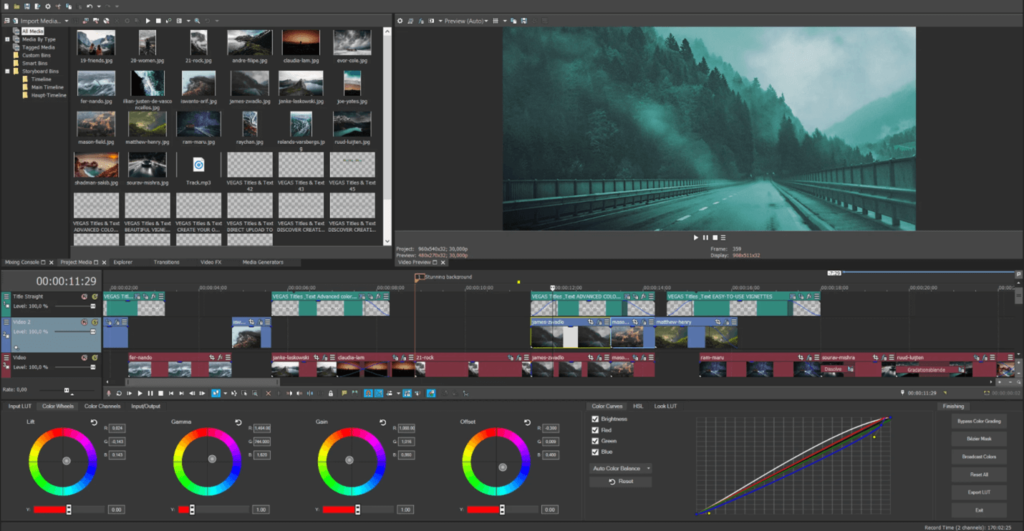
Vegas Pro gives you multiple features to upgrade your video and create realistic effects with AI. Now you can easily create professional quality videos for your YouTube channel or edit short movies with the help of Vegas Pro.
Features:
- Audio missing feature available.
- Dynamic interface for video editing.
- Fastest rendering software.
Pros:
- Stabilize your video.
- Support high frame rate videos.
- Support plugins.
Cons:
- Stock middle library not available
- Quite expensive to access the full version.
9. Pikavue
Do you want to learn how to start video editing? Pikavue is the best software for beginners who want to learn to edit and create videos. You find many professional features missing in this software, but the AI of the Pikavue does not require these features. The software automatically detects the requirements in the video and fixes them with automatic color tools.
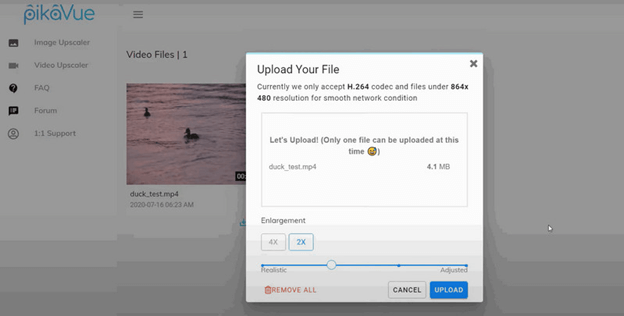
The software does the basic adjustment for the user, so it becomes easy for you to make essential changes. It produces very fast results with high quality. Therefore if you are looking for a tool to enhance the video quality for social media, Pikavue AI assists you with your video enhancement.
Features:
- Quick optimization
- Multiple transition effects and filters.
- Video stabilization feature.
Pros:
- Quick Social media share faculties.
- Affordable full version.
- Automatically color correction tools.
Cons:
- Does not support 360-degree videos.
- Fewer features are available compared to Professional software.
Conclusion
If you were uploading low-quality video on social media, now you can enhance the video quality with the help of professional tools. We shared a list of software for Windows that can perfectly enhance your video quality.
Therefore, don’t depend on professional cameras to capture high-quality videos. You can take the help of software to generate high-quality videos captured by low-end devices. Check out the features and functionality of every software and find a suitable application to enhance video quality.
FAQs
Q1 Can we produce mobile videos in 4K videos?
Yes, these powerful software automatically detect the color correction and enhance the overall quality. This software reduces the grain and adjusts the light for professional cinematic shots. With video-enhancing software, you don’t have to buy professional cameras.
Q2 Which is the most powerful and simplest tool for editing?
There are thousands of software programs with powerful editing tools, but among the list, you should consider PowerDirector. It is a free video editing and development software. It has professional features to enhance the video quality and add multiple filters and templates. It also allows you to render 4K videos at a super-fast speed.
Q3 Which is the best AI video editing software?
Talking of AI, Filmora is one of the most common and user-friendly software programs that possesses powerful AI. The AI of Filmora reduces your creative effort and gives multiple facilities. The Filmora AI text-to-speech feature allows you to create voice notes in the software and produce automatically generated texts.
Author Bio:
Dinesh Lakhwani 

Dinesh Lakhwani, the entrepreneurial brain behind “TechCommuters,” achieved big things in the tech world. He started the company to make smart and user-friendly tech solutions. Thanks to his sharp thinking, focus on quality and the motto of never giving up, TechCommuters became a top player in the industry. His commitment to excellence has propelled the company to a leading position in the industry.
Popular Post











Recent Post

Resolving Microphone Detection Problems: Latest Guide [2026]
Microphones are important tools in daily life. People use them for office meetings, online classes, interviews, gaming, customer support, and content creation. When a system fails to detect a microphone, communication stops at once. This situation can cause stress and confusion. Many users believe the microphone is damaged. In reality, most problems are simple and […]

How To Switch To A Dark Background Theme In Windows [2026]
Most people spend many hours each day in front of a computer screen. Office work, online classes, editing, browsing, and streaming all require long screen time. A bright white background may look clean at first. However, over time, it can feel sharp and tiring. The strong contrast between white backgrounds and black text may cause […]

How to Switch From Local To Microsoft Account On Windows
Many users begin with a local account when they set up a new Windows computer. A local account works only on that single device. It stores settings, files, and preferences locally. It does not connect to online Microsoft services. For basic offline use, it works well. However, as digital needs grow, many users want better […]

How to Switch Windows 10 to a Local Account: Complete Guide
Windows 10 allows users to sign in with either a Microsoft account or a local account. When you set up a new computer, the system often suggests using a Microsoft account. This account connects your device to Microsoft services such as Outlook, OneDrive, and the Microsoft Store. It also syncs settings, themes, and passwords across […]

How To Change Default Apps For File Types In Windows
Windows is designed to make using your computer easy. One way it does this is by assigning default apps to different file types. This means when you open a file, Windows automatically opens it with a specific program. For example, photos may open with Photos, music with Groove Music, and PDFs with Edge. These default […]

How To Adjust The Mouse Pointer Speed: Complete Guide
Using a computer every day means you use the mouse a lot. The mouse pointer moves on the screen and helps you click, scroll, and select items. Many people never think about the speed of the mouse pointer. They have used the default setting for years. This can cause small problems over time. A slow […]

How to Change Mouse Scrolling Settings In Windows
A mouse is one of the most used computer tools. People use it every day. They scroll through emails. They scroll through documents. They scroll through websites and images. The movement becomes automatic. Most users do not notice it. That is why problems often go unnoticed. Scrolling problems show up slowly. At first, it feels […]

Keyboard Light Settings: Keyboard Lighting Control [Complete Guide]
Keyboards are no longer simple typing tools. Well, yes! Over time, they have evolved to include features that improve comfort, visibility, and overall experience. One of the most useful features today is keyboard lighting. It helps users work comfortably in low-light conditions. It also reduces strain when typing for long hours. Many users first notice […]

Customizing Pointer Appearance: Complete Guide
The way your mouse pointer looks on your computer may seem like a small detail. But customizing pointer appearance can make using your PC more comfortable and visually appealing. Many users do not realize that they can change the pointer size, color, and style to fit their needs. Whether you want a bigger pointer for […]

How To Choose a Computer Monitor: Monitor Buying Guide
Buying a monitor looks easy. Many people think all screens are the same. That belief causes regret later. A monitor is not just a display. It is a daily tool. You read on it. You work on it. You relax with it. Small problems become big over time. Poor brightness hurts eyes. Bad size causes […]

