Top 9 Debugging Tools for Windows in 2026

Last updated on December 26th, 2025 at 2:32 am
One of the most significant issues in software coding that users face frequently is errors or bugs. These problems can cause programs to crash unexpectedly and harm the system’s operational ability.
It is better to use a Windows debugger to eradicate this issue. This software can identify and rectify bugs, defects, and errors in software codes and assist in better operational setup management of PC systems.
To note, you should choose the best debugging tools for Windows that can work on multiple subsystems/modules effectively. CCleaner, in particular, has many benefits. Here, we list more options, so read ahead.
9 Best Debugging Tools for Windows
After carefully going through many variations of debugging software, we have finally compiled a list of the nine best alternatives. For this, we are looking at their features, costs, functionality quality, and reviews for a comprehensive breakdown.
1. CCleaner
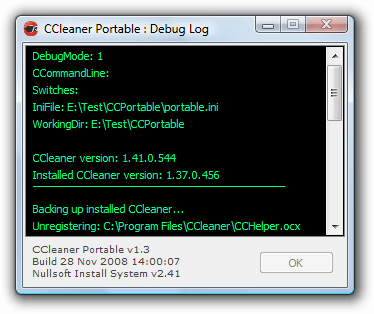
CCleaner is one of the most useful debugging tools for Windows, though it is primarily used for more features. To debug the codebase using CCleaner, you need to activate the debug mode.
Step 1: Click on the “Start” menu while using Windows 7 or right-click on the “Start” button for the newer version.
Step 2: Then, press “Run”, which would bring a dialog box. Type in <path to CCleaner> /debug. E.g., “C:\Program Files\CCleaner\CCleaner.exe” /debug
Step 3: Select OK to begin CCleaner debug mode.
Step 4: Take the same path as the installation method while quitting the program through the Windows Explorer browser. The log file would appear as “CCleaner_log[date].txt”.
Compatibility: Windows 10/8.1/7
Prices: $11.93 for Professional Plus
Features:
- Standard-level privacy protection
- Driver updater
- Standard-level cleaning
- Updates the applications automatically to avoid security risks
Pros:
- Use it to clean the PC completely
- It conducts an intensive system health check
- Detects/removes available internet trackers
Cons:
- Most advanced features available under the premium plan only
2. WinDbg
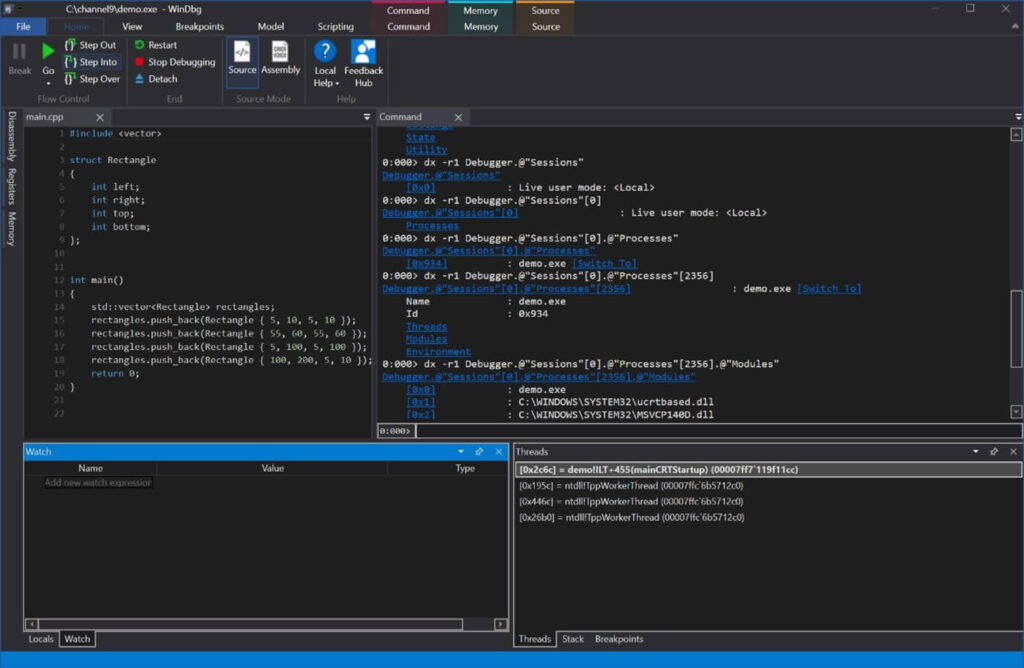
WinDbg or Windows Debugger is a debugging software, best for its multipurpose resolution quality. It comes with all the necessary features that make the debugging process simpler to conduct.
Compatibility: Windows 10 Pro S
Price: Free
Features:
- Includes diverse debugging equipment for detecting and resolving bugs in drivers, user-mode programs, and Kernel-mode-centric devices
- It works best with systems running at high capacity
- Read through processor registers
- Detect and rectify worm assault types
Pros:
- Multipurpose usage
- Quickly analyze various crash dumps
Cons:
- Standard level use mostly
3. Visual Studio Debugger
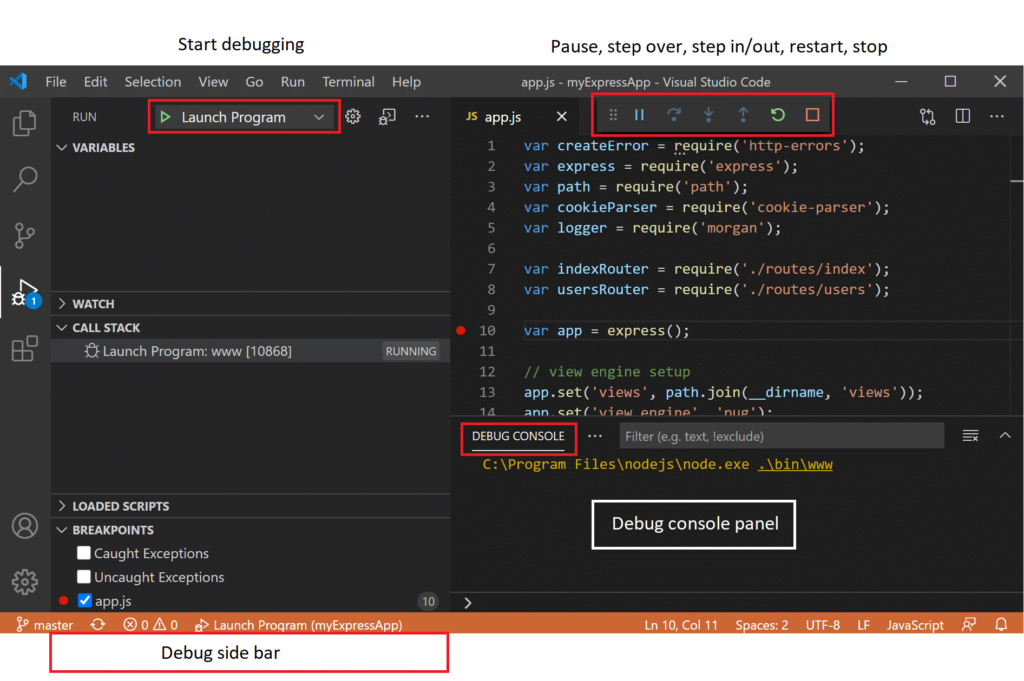
Visual Studio is one of the best available debugging tools for Windows that provide many debugging benefits. It comes with various debugging equipment and challenge construct support. Detect issues and debug your codebase with zero hassles.
Compatibility: Windows User System ARM
Price: Free
Features:
- Modify interface as per personal preferences
- Supports multiple coding languages and frameworks
- Detect code issues after intensive unit assessment/code analysis
Pros:
- Can write with multiple scripting languages
- Build suitable output processes
Cons:
- Limited advanced features
4. Syser Debugger
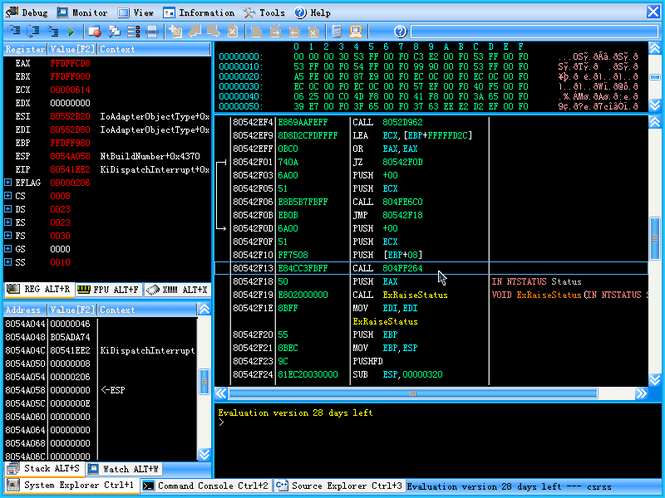
Syser Debugger is another notable debugging tool for the Windows version that supports total color disassembly. It is simple and free to utilize.
Compatibility: Windows NT OS range
Prices: Free
Features:
- 32Bit X86 kernel-level debugger
- Can operate digital engines like VMWare
- VC PDF structure-centric supply code debugging
- Supports C/C++ scripting languages
Pros:
- It can read all OS instructions within the deadline
- Free to use
Cons:
- The paid version is costly
- Can show performance errors
5. Immunity Debugger
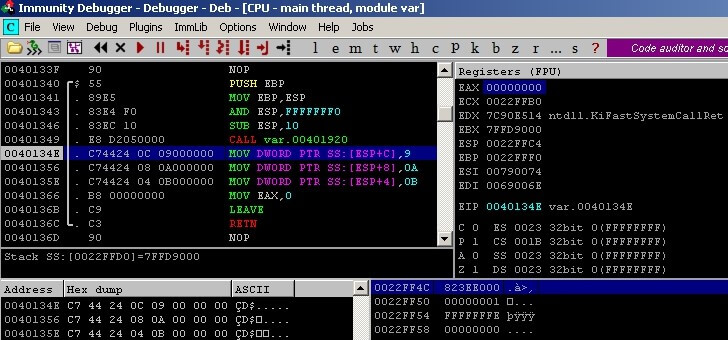
Immunity Debugger is a free debugging tool that comes with diverse features. It works with a robust scripting language that helps automate the process of intelligent system debugging. It can handle advanced research and effectively stop rapid code corruption.
Compatibility: Windows 10
Prices: Free
Features:
- Detects and notes exploits
- Promises to reduce the exploit development time by 50%
- Can reverse engineer all code in binary information
- Detects malware condition
Pros:
- Free to use
- Simple interface
Cons:
- Not very beginner-friendly
6. OllyDbg
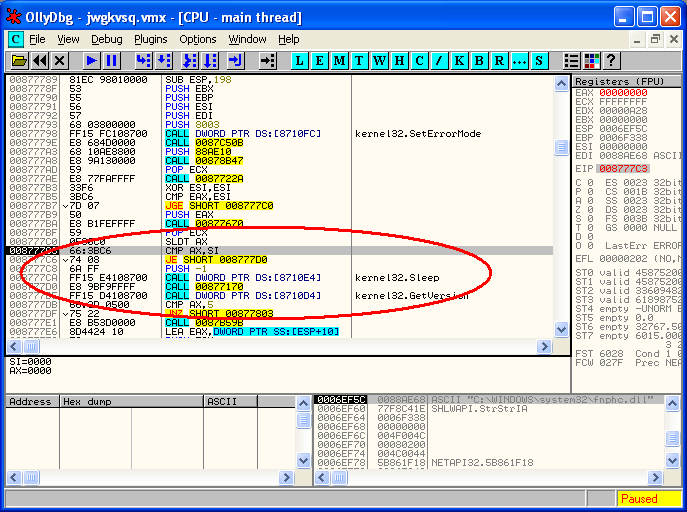
OllyDbg is a useful debugging tool available for Windows that simplifies the whole software code debugging process. Users can handle this tool for complex and basic level detection, and it automatically completes all functions. It can reverse engineer the entire system of your PC and third-party apps available. Some of its best qualities include file scanning, code analysis, virus/malware analysis, among others.
Compatibility: Windows 7/10
Prices:
Features:
- It can check and find registered content
- Routine tracking is possible for files and object libraries
- Determinates tables, procedures, API calls, constants
- All functions run on automation
Pros:
- Lightweight
- Free to use
Cons:
- Limited version support
7. Zend Studio Debugger
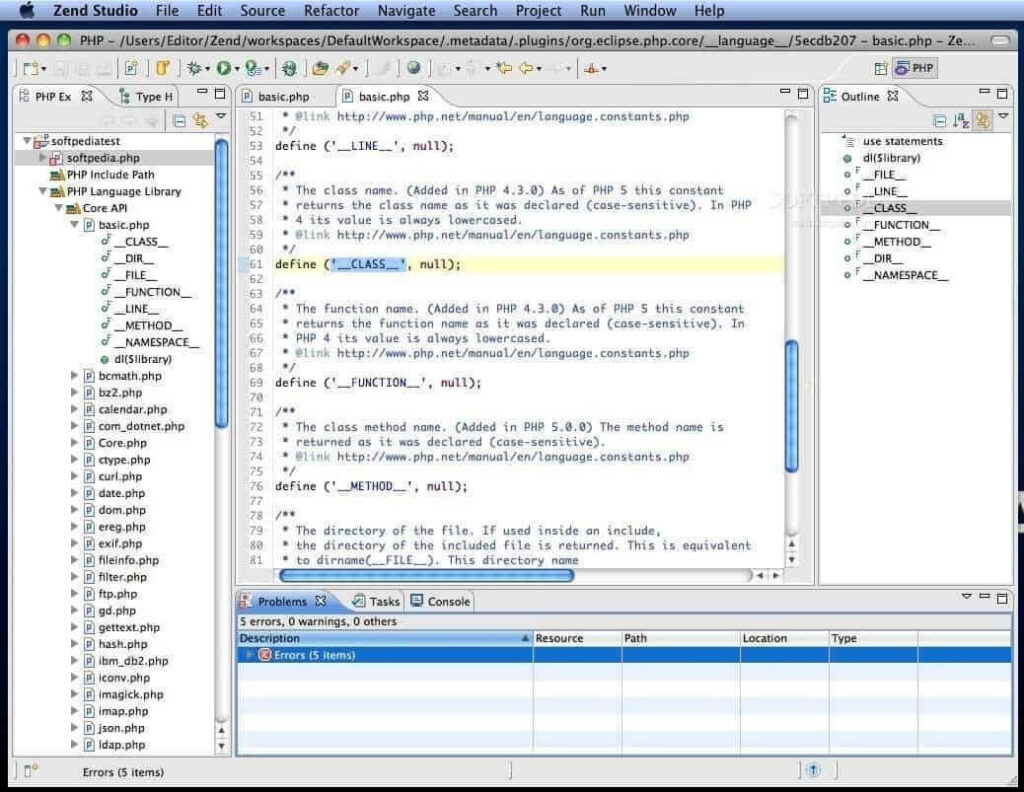
This Windows debugger is an intelligent tool that researches the codes correctly. It cleverly highlights codes and has an intuitive processing capacity. Then, it offers features that support custom coding activities.
Compatibility: Windows 7/8.2/10
Prices: $3.60 for basic plan
Features:
- Compatible with GitFlow, Docker, Eclipse plugins
- Advanced feature for PHP app deployment on diverse server types
- Includes diverse plugin/add-on library
- Multi-technology integration support
Pros:
- Quick coding
- Third-party plugin support
Cons:
- It can be costly for many users
8. IDA Pro
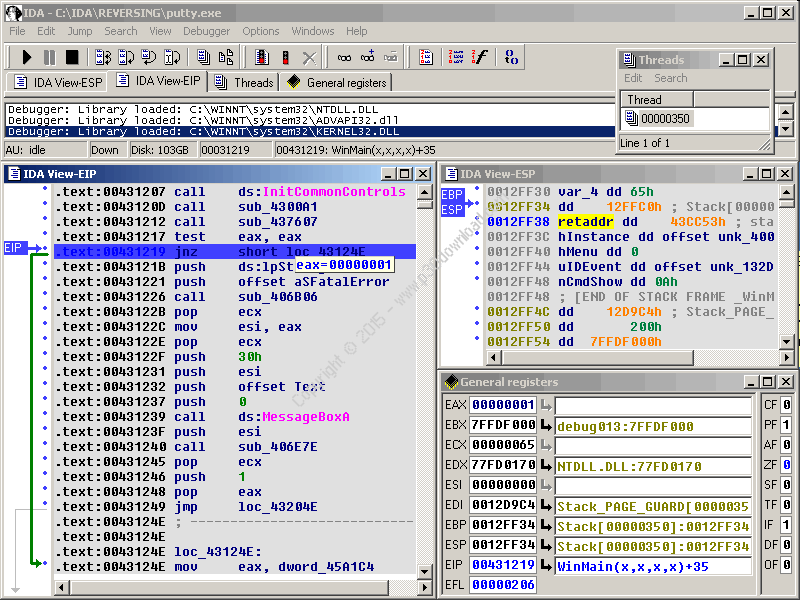
IDA Pro works as a high-quality debugging software for Windows and other operating systems. It is easy to find issues in the general code and resolve the basic-level bugs and errors quickly. IDA Pro is compatible with diverse program types and can do its work without affective the functionality of the system.
Compatibility: Windows 95/98/Me/NT/2000/XP/2003 Server/Vista
Prices: Free
Features:
- Multi-processing debugging benefits
- It can handle both local and remote operations
- Multi-platform and multi-OS debugging capacity
- It can debug Android and iOS-centric platforms as well
Pros:
- Works with different OS types besides Windows, like Mac and Linux
- Diverse program support
Cons:
- Not available for newer versions
9. GNU Debugger
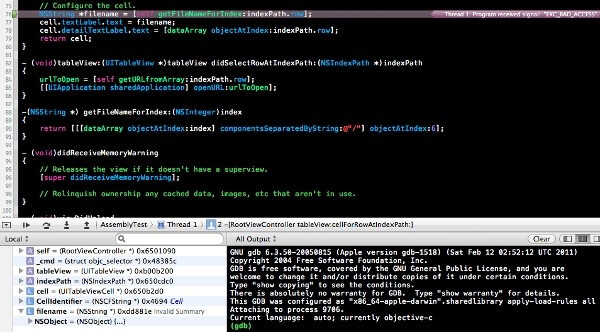
GNU Debugger is one of the most helpful utility tools for debugging programs quickly. It can systematically and effectively check the whole system for main bugs or errors. The tools and functions in GNU Debugger can effectively detect complex codes.
Compatibility: UNIX/Windows/Mac OS X
Prices: Free
Features:
- You can use different scripting languages like Go C, Fortran, C++, and Free Pascal
- It is compatible with different Unix-based systems
- Advanced tools available check for bug issues
- It is a portable debugging tool
Pros:
- Compatible with different programming languages
- Detects and fixes various bug types
Cons:
- Debugging on kernel distribution is not the same
Conclusion
Overall, the best debugging tools for Windows are compatible with different versions and systematically detect errors/bugs after deep research. Some of them, like CCleaner, can work on both standard-level and newer versions well and come with supplementary features. Choose your preferred option as per your system needs and compatibility.
Author Bio:
Dinesh Lakhwani 

Dinesh Lakhwani, the entrepreneurial brain behind “TechCommuters,” achieved big things in the tech world. He started the company to make smart and user-friendly tech solutions. Thanks to his sharp thinking, focus on quality and the motto of never giving up, TechCommuters became a top player in the industry. His commitment to excellence has propelled the company to a leading position in the industry.
Popular Post











Recent Post

How to Switch Windows 10 to a Local Account: Complete Guide
Windows 10 allows users to sign in with either a Microsoft account or a local account. When you set up a new computer, the system often suggests using a Microsoft account. This account connects your device to Microsoft services such as Outlook, OneDrive, and the Microsoft Store. It also syncs settings, themes, and passwords across […]

How To Change Default Apps For File Types In Windows
Windows is designed to make using your computer easy. One way it does this is by assigning default apps to different file types. This means when you open a file, Windows automatically opens it with a specific program. For example, photos may open with Photos, music with Groove Music, and PDFs with Edge. These default […]

How To Adjust The Mouse Pointer Speed: Complete Guide
Using a computer every day means you use the mouse a lot. The mouse pointer moves on the screen and helps you click, scroll, and select items. Many people never think about the speed of the mouse pointer. They have used the default setting for years. This can cause small problems over time. A slow […]

How to Change Mouse Scrolling Settings In Windows
A mouse is one of the most used computer tools. People use it every day. They scroll through emails. They scroll through documents. They scroll through websites and images. The movement becomes automatic. Most users do not notice it. That is why problems often go unnoticed. Scrolling problems show up slowly. At first, it feels […]

Keyboard Light Settings: Keyboard Lighting Control [Complete Guide]
Keyboards are no longer simple typing tools. Well, yes! Over time, they have evolved to include features that improve comfort, visibility, and overall experience. One of the most useful features today is keyboard lighting. It helps users work comfortably in low-light conditions. It also reduces strain when typing for long hours. Many users first notice […]

Customizing Pointer Appearance: Complete Guide
The way your mouse pointer looks on your computer may seem like a small detail. But customizing pointer appearance can make using your PC more comfortable and visually appealing. Many users do not realize that they can change the pointer size, color, and style to fit their needs. Whether you want a bigger pointer for […]

How To Choose a Computer Monitor: Monitor Buying Guide
Buying a monitor looks easy. Many people think all screens are the same. That belief causes regret later. A monitor is not just a display. It is a daily tool. You read on it. You work on it. You relax with it. Small problems become big over time. Poor brightness hurts eyes. Bad size causes […]

How To Get Help With File Explorer in Windows 11 [Complete Guide]
File Explorer is one of the most important tools in Windows 11. It is used to open folders, view files, and manage stored data. Almost every action on a Windows computer depends on it in some way. When users open documents, save downloads, or organize photos, File Explorer is always involved. Because it is used […]

How To Fix A Frozen Computer: Complete Guide [Windows 11/10]
A frozen computer is one of the most common problems Windows users face. The screen stops responding. The mouse pointer does not move. Keyboard inputs do nothing. You may hear the fan running loudly. Sometimes the system looks alive, but nothing works. This situation often happens when you are busy or working on something important. […]

How to Upgrade Computer RAM: Complete Guide
Upgrading RAM is one of the simplest ways to improve a computer. It helps the system feel faster and smoother. Apps open quicker. Browsers handle more tabs. Games and tools run with less delay. Many users search for how to upgrade computer RAM because it gives real results without high cost. You do not need […]

