5 Best Bloatware Removal Tools for Windows

Last updated on February 1st, 2026 at 11:35 am
Introduction:
Is your Windows computer cluttered with pre-installed software that you never use? Are you tired of dealing with bloatware that slows down your system and takes up valuable storage space? If so, you’re not alone. Bloatware, or pre-installed software or junkware, has become an unwelcome nuisance for many Windows users.
But fret not! In this blog post, we introduce you to the 5 best bloatware removal tools for Windows, designed to help you regain control over your system and optimize its performance. These powerful tools are specifically created to detect and eliminate unwanted software, freeing up valuable resources and enhancing your overall experience.
What is a Bloatware Removal Tool?
A bloatware remover is a software program designed to identify and remove unwanted or unnecessary software, commonly known as bloatware or junkware, from a computer system. Bloatware refers to the pre-installed software that comes bundled with many new computers, often added by the manufacturer or third-party vendors.
While some pre-installed software can be helpful, many users find that bloatware consumes valuable system resources, slows down their computers, and takes up significant storage space. Bloatware removal tools aim to address these issues by providing an efficient and convenient way to detect and uninstall unwanted programs.
FLUQs
FLUQ 1: Which tool removes bloatware most completely
Revo Uninstaller removes bloatware most thoroughly. It scans for leftover files. It clears registry traces. Standard uninstallers miss these. Revo gives manual control. Advanced scans go deeper. Power users prefer this level of cleanup.
FLUQ 2: Is a dedicated bloatware tool better than all-in-one cleaners
It depends on your goal. Dedicated tools focus on removal only. They act fast and stay simple. All-in-one cleaners handle speed and storage, too. They suit casual users. Focused tools suit quick debloating. Both have their place.
FLUQ 3: Do bloatware removal tools improve PC speed
Yes, they often do. Removing background apps frees RAM. Startup becomes faster. Disk activity reduces. The system feels cleaner. Results vary by system load. Heavily bloated PCs see bigger gains.
Top 5 Bloatware Removal Tools Compared
Windows PCs often ship with preinstalled apps that slow down startup and waste storage. Bloatware removal tools help clean these extras safely. Some focus on system optimization, while others specialize in deep uninstalling. The table below compares five popular tools based on cleanup strength, ease of use, and control.
| Feature / Tool | AVG TuneUp | Avast Cleanup | Bloatware Removal Utility | IObit Uninstaller | Revo Uninstaller |
| Core Purpose | System cleanup | PC optimization | Remove Windows bloatware | App uninstaller | Deep uninstall |
| Ease of Use | Very Easy | Very Easy | Simple | Easy | Moderate |
| Built-in Bloatware Removal | Partial | Partial | Yes | Yes | Yes |
| Leftover File Cleanup | Yes | Yes | Limited | Good | Excellent |
| Startup App Control | Yes | Yes | No | Yes | No |
| Advanced User Control | Low | Low | Medium | Medium | High |
| Best For | Beginners | Casual users | Quick debloat | Daily cleanup | Power users |
| Free Version Availability | Limited | Limited | Yes | Yes | Yes |
5 Best Bloatware Removal Tools for Windows
1. AVG Tuneup
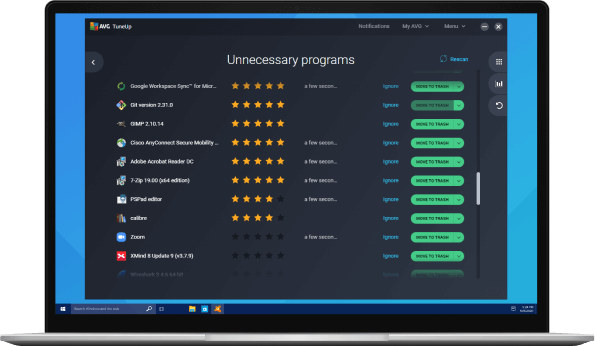
AVG TuneUp is a nifty tool for Windows that can be used to optimize their systems and bid farewell to bloatware. With AVG TuneUp, you get more than just a bloatware remover – it’s an all-in-one performance booster for your PC. AVG Tuneup helps optimize your system’s performance and has a built-in software uninstaller to tackle bloatware head-on.
Using AVG TuneUp is a breeze. Its user-friendly interface makes it a cinch to identify those unnecessary programs clogging up your system. With a quick scan, it detects and lists the bloatware, recommending what to remove. It’s like having a trusty assistant guiding you through the process.
Features:
- Easily uninstall unwanted programs, including bloatware, from your Windows system.
- Improve performance through disk cleanup, registry cleaning, and startup program management.
- Enhance speed and responsiveness by freeing up resources and optimizing system settings.
- Schedule automatic maintenance for convenient system optimization.
Pros:
- 24×7 automatic maintenance.
- Removes junk files.
- User-friendly interface for easy navigation.
- Comprehensive optimization tools for overall system performance.
- 30-day money-back guarantee.
Cons:
- Paid software with a subscription model.
- Some users may prefer more advanced customization options.
Compatibility: Windows 11/10/8/7.
Price: $29.99/yearly for one device and $34.99/yearly for up to 10 devices.
2. Avast Cleanup
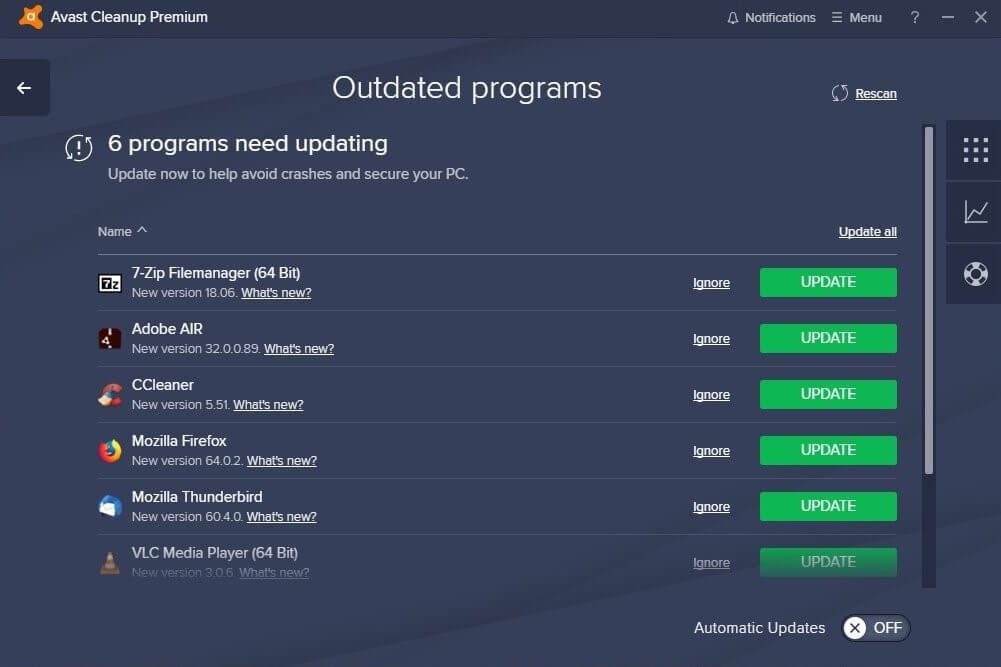
With Avast Cleanup, you can easily identify and uninstall bloatware programs that are not needed or rarely used. It scans your system thoroughly to detect such software and provides you with a list of applications categorized as bloatware. You can choose which ones to remove, freeing up storage space and improving system performance.
Avast Cleanup bloatware uninstaller not only targets third-party programs but also identifies and suggests the removal of built-in Windows apps that you may not require. This ensures a more thorough cleanup and allows you to customize your system according to your preferences.
Avast Cleanup also provides additional optimization features beyond bloatware removal. It offers junk file cleaning, registry cleanup, disk optimization, and even a software updater to keep your applications up to date.
Features:
- Detect and fix registry issues for improved system stability.
- Effectively uninstall bloatware and other unwanted pre-installed programs, third-party trials, ads, and toolbars.
- Provides a quick overview of the PC’s health.
- Scan and remove junk files to free up storage space.
Pros:
- Automatic updates.
- Cross-platform compatibility.
- Fixes and prevents disk errors.
Cons:
- The price may seem slightly higher if you are considering low-cost alternatives.
- Resource intensive.
Compatibility: Windows 11/10/8.1/8/7 (Both 64-bit and 32-bit versions)
Price: $49.99/per user/yearly, $89.99 for two years, and $129.99 for three years.
3. Bloatware Removal Utility
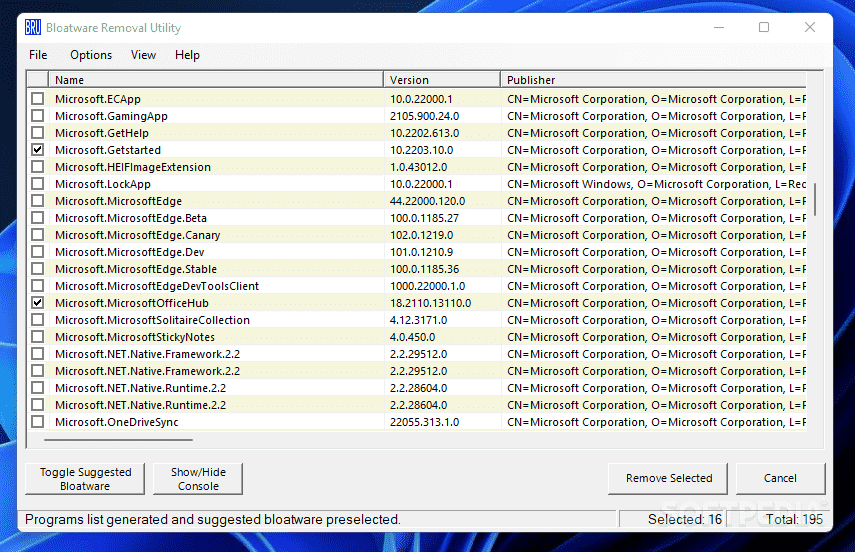
This is a handy freeware bloatware removal tool specifically designed to eliminate preinstalled bloatware from Windows 7, 8, 10, and 11 operating systems.
The interface of this built-in Utility is designed to be simple and easy to use. You can easily navigate through the list of installed applications and uncheck the ones you want to remove. What impressed us is that the program not only detects the standard preinstalled bloatware that comes with Windows but also identifies all other installed apps. If you are looking for a free-of-cost option to remove bloatware on Windows, this can serve as one of the best software to remove bloatware you can choose.
Features:
- Easily remove preinstalled bloatware from Windows 7, 8, 10, and 11.
- Execute the utility with a batch file for quick operation.
- Identifies all types of installed applications for removal.
Pros:
- Simple and easy-to-use graphical interface.
- Free to use.
Cons:
- Caution is advised when removing applications to avoid unintentional deletions.
Compatibility: Windows 11/10/8/7.
Price: Free.
4. IObit Uninstaller
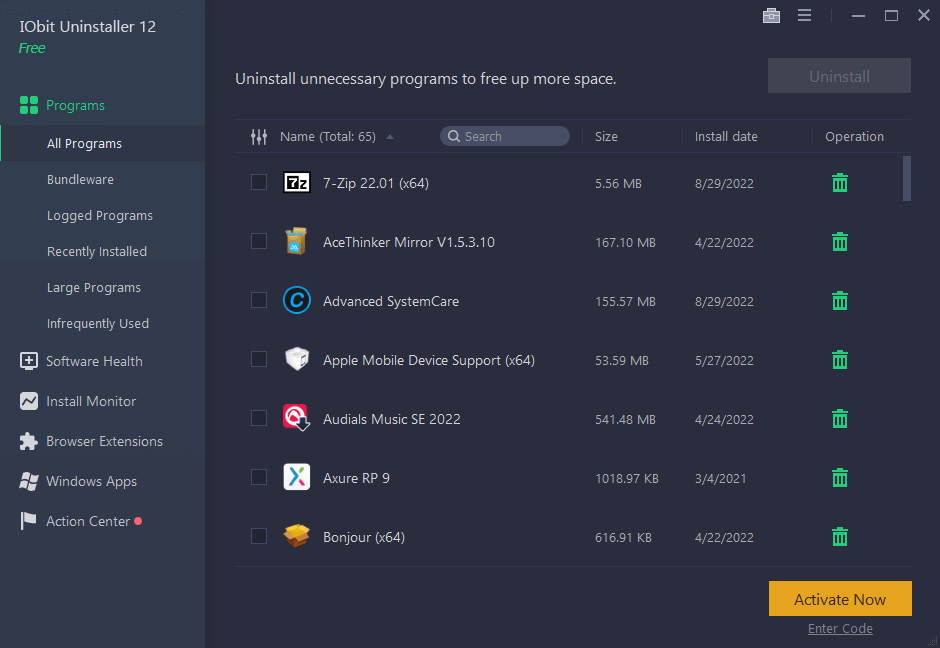
IObit Uninstaller is not only known for its comprehensive software uninstallation capabilities but also for its effectiveness in removing bloatware from your Windows system. Bloatware refers to the unnecessary and often unwanted software that comes preinstalled on your device, taking up valuable system resources.
With IObit bloatware Uninstaller you can easily identify and uninstall bloatware programs that are often difficult to remove using standard methods. It provides a user-friendly interface that lists all the installed applications on your computer, including the preinstalled bloatware. You can select the bloatware programs you want to remove, and IObit Uninstaller will thoroughly uninstall them, removing all associated files, folders, and registry entries.
IObit Uninstaller also offers additional features that can aid in bloatware removal. For example, it has a Powerful Scan feature that can detect and remove leftover files and registry entries after uninstalling a program, ensuring a clean and optimized system.
Features:
- Thoroughly uninstalls programs and remove associated files and registry entries.
- Identifies and helps you remove unwanted bundleware or potentially unwanted programs (PUPs) that often come bundled with freeware or shareware.
- Removes malicious toolbars and plugins.
Pros:
- Effective removal of bloatware, freeing up system resources.
- Offers a secure surfing experience.
- User-friendly interface for easy navigation and operation.
- Batch uninstallation feature for efficient removal of multiple programs.
Cons:
- Some advanced features are only available in the paid version.
- Occasionally, certain bloatware programs may require manual removal if not detected by the tool.
Compatibility: Windows 11/10/8.1/8/7/Vista/XP.
Price: $16.77/yearly for one device with a 60-day money-back guarantee.
5. Revo Uninstaller
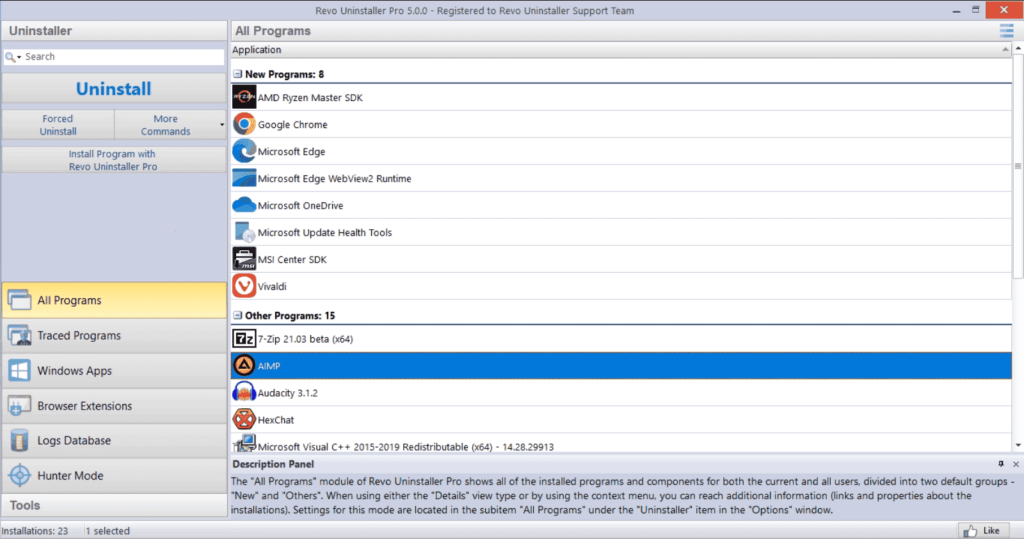
Here comes the last pick on our list of top bloatware removal tools for Windows. Revo Uninstaller is a comprehensive software tool that goes beyond the standard uninstallation process offered by Windows. It helps users remove programs thoroughly, ensuring that no traces are left behind. While its main focus is on complete program removal, it can also be useful for removing bloatware from your system.
One of the standout features of Revo Uninstaller is its advanced scanning capability. After uninstalling a program, Revo Uninstaller scans your system for any leftover files, folders, and registry entries associated with the uninstalled program. It provides you with a detailed list of these remnants and allows you to choose which ones to remove.
Features:
- Removes stubborn programs that won’t uninstall through standard methods.
- Tracks system changes during installations for the complete program removal.
- Removes programs and scans for leftover files and registry entries.
Pros:
- Dark mode and other customization options are supported.
- Removes unwanted browser extensions.
- Free professional technical support.
Cons:
- Some advanced features are only available in the paid version.
- The interface can be overwhelming for novice users.
Compatibility: Windows 11/10/8.1/8/7/Vista/XP.
Price: $24.95.
Conclusion
These 5 best bloatware removal tools provide efficient solutions for removing unwanted preinstalled software from Windows systems. With their powerful features, intuitive interfaces, and ability to free up system resources, these top tools to remove bloatware empower users to optimize their Windows experience and improve overall performance. Choose the tool that best suits your requirements and enjoy a clutter-free and optimized computer.
FAQs
FAQ 1: What is bloatware on Windows
Bloatware refers to preinstalled apps you never asked for. These include trial software, ads, and system extras. They run in the background. They consume RAM and storage. Some slow startup times. Others send notifications. Removing them improves clarity and control.
FAQ 2: Is it safe to remove Windows bloatware
Yes, it is safe if done carefully. Trusted tools avoid critical system files. They show what will be removed before action. You should avoid deleting core Windows components. Backup or restore points add safety. Good tools guide users clearly.
FAQ 3: Can bloatware return after removal
Sometimes, yes. Major Windows updates may reinstall apps. OEM utilities may reappear. This is common on laptops. You may need to remove them again. Some tools block reinstallation. Regular checks keep the system clean.
Author Bio:
Dinesh Lakhwani 

Dinesh Lakhwani, the entrepreneurial brain behind “TechCommuters,” achieved big things in the tech world. He started the company to make smart and user-friendly tech solutions. Thanks to his sharp thinking, focus on quality and the motto of never giving up, TechCommuters became a top player in the industry. His commitment to excellence has propelled the company to a leading position in the industry.
Popular Post











Recent Post

How to Switch Windows 10 to a Local Account: Complete Guide
Windows 10 allows users to sign in with either a Microsoft account or a local account. When you set up a new computer, the system often suggests using a Microsoft account. This account connects your device to Microsoft services such as Outlook, OneDrive, and the Microsoft Store. It also syncs settings, themes, and passwords across […]

How To Change Default Apps For File Types In Windows
Windows is designed to make using your computer easy. One way it does this is by assigning default apps to different file types. This means when you open a file, Windows automatically opens it with a specific program. For example, photos may open with Photos, music with Groove Music, and PDFs with Edge. These default […]

How To Adjust The Mouse Pointer Speed: Complete Guide
Using a computer every day means you use the mouse a lot. The mouse pointer moves on the screen and helps you click, scroll, and select items. Many people never think about the speed of the mouse pointer. They have used the default setting for years. This can cause small problems over time. A slow […]

How to Change Mouse Scrolling Settings In Windows
A mouse is one of the most used computer tools. People use it every day. They scroll through emails. They scroll through documents. They scroll through websites and images. The movement becomes automatic. Most users do not notice it. That is why problems often go unnoticed. Scrolling problems show up slowly. At first, it feels […]

Keyboard Light Settings: Keyboard Lighting Control [Complete Guide]
Keyboards are no longer simple typing tools. Well, yes! Over time, they have evolved to include features that improve comfort, visibility, and overall experience. One of the most useful features today is keyboard lighting. It helps users work comfortably in low-light conditions. It also reduces strain when typing for long hours. Many users first notice […]

Customizing Pointer Appearance: Complete Guide
The way your mouse pointer looks on your computer may seem like a small detail. But customizing pointer appearance can make using your PC more comfortable and visually appealing. Many users do not realize that they can change the pointer size, color, and style to fit their needs. Whether you want a bigger pointer for […]

How To Choose a Computer Monitor: Monitor Buying Guide
Buying a monitor looks easy. Many people think all screens are the same. That belief causes regret later. A monitor is not just a display. It is a daily tool. You read on it. You work on it. You relax with it. Small problems become big over time. Poor brightness hurts eyes. Bad size causes […]

How To Get Help With File Explorer in Windows 11 [Complete Guide]
File Explorer is one of the most important tools in Windows 11. It is used to open folders, view files, and manage stored data. Almost every action on a Windows computer depends on it in some way. When users open documents, save downloads, or organize photos, File Explorer is always involved. Because it is used […]

How To Fix A Frozen Computer: Complete Guide [Windows 11/10]
A frozen computer is one of the most common problems Windows users face. The screen stops responding. The mouse pointer does not move. Keyboard inputs do nothing. You may hear the fan running loudly. Sometimes the system looks alive, but nothing works. This situation often happens when you are busy or working on something important. […]

How to Upgrade Computer RAM: Complete Guide
Upgrading RAM is one of the simplest ways to improve a computer. It helps the system feel faster and smoother. Apps open quicker. Browsers handle more tabs. Games and tools run with less delay. Many users search for how to upgrade computer RAM because it gives real results without high cost. You do not need […]

