Top 10 AI Video Enhancers in 2026: Complete Guide

Last updated on December 29th, 2025 at 3:28 pm
Introduction:
The ever-evolving world of video editing has offered us an incredible boon, Artificial intelligence. It has emerged as a true game-changer, completely revolutionizing the way we enhance, refine, and bring videos to life. We can finally say goodbye to the days of tedious manual adjustments and traditional editing techniques, because AI has taken center stage, empowering video editors and enthusiasts with powerful tools that can elevate the visual quality of their creations.
Thanks to AI, what used to be a time-consuming and complex process can now be streamlined and automated with astonishing precision. In this blog, we have listed the 10 best AI video enhancers of 2026 that will open up a whole new world of possibilities for professionals and enthusiasts alike.
Before You Start, Know The Answer To These Questions
1. My enhanced video looks too sharp and unnatural. How can I correct this?
Strong sharpening happens when the AI tries to highlight edges that were not clear in the original clip. You can fix this by lowering the enhancement strength or switching to a preset that focuses on clarity rather than heavy detail. A softer setting restores balance and keeps faces, textures, and motion from looking harsh.
2. The tool takes very long to process high-resolution videos. What can I do to speed it up?
AI enhancers work frame by frame, so large files take time. Close background apps, free memory, and check that your graphics drivers are updated. Some tools also offer lighter modes that finish faster with only a small drop in improvement. These small changes help the software run at a steadier pace.
3. The colors in my video changed after enhancement. Why does this happen?
AI models sometimes adjust brightness and contrast to clean up noise or improve clarity. This can shift colors a bit. You can use the color controls to bring the tone back to a natural level. A mild change in exposure or saturation is usually enough to restore the original look.
What is an AI Video Enhancer?
An AI video enhancer is a software or algorithm that utilizes artificial intelligence techniques to improve the quality of videos. It aims to enhance various aspects of the video, such as resolution, sharpness, color accuracy, and noise reduction.
Traditional video enhancement techniques often involve manual adjustments or basic algorithms that may not produce optimal results. AI video enhancers, on the other hand, leverage deep learning algorithms and neural networks to analyze and understand the content of the video. They learn from vast amounts of training data to recognize patterns and features that represent high-quality videos.
How We Made This List
We reviewed many AI video enhancers and studied how well they improve clarity, color, and overall quality. Our goal was to highlight tools that offer real value for beginners and regular users. We checked performance, features, safety, and long-term reliability to make a list that feels balanced and useful.
- Quality of enhancement
We looked at how clearly each tool improves resolution, color accuracy, and sharpness. - AI model strength
We checked how advanced the AI engine is and how well it handles motion, noise, and low-light scenes. - Speed and stability
We tested how fast each tool processes long videos and how steady it remains during export. - Ease of use
We chose tools with simple controls that guide users during the entire editing flow. - Format support
We checked whether the tool can handle common formats and export in high quality without errors. - Extra editing features
Many tools offer trimming, color correction, or filters. These extras helped us compare real value. - Support and updates
We preferred tools that receive steady updates and have helpful support channels. - Price and value
We compared free and paid features to see which tools deliver strong results at a fair cost.
Top 5 Comparison Table
These five tools stand out due to quality, speed, and user-friendly design. The table helps readers compare the key points before choosing the right option for their work.
| Tool | Quality of Enhancement | Ease of Use | Speed | Extra Features |
| Wondershare Filmora | Very strong | Very easy | Fast | Many editing tools |
| HitPaw | Strong | Easy | Fast | Noise removal and repair |
| Veed | Good | Very easy | Moderate | Online editing tools |
| Lightworks | Strong | Moderate | Fast | Advanced editing options |
| AVC Labs | Very strong | Easy | Moderate | AI upscaling and repair |
10 Best AI Video Enhancers To Use in 2026
1. Wondershare Filmora
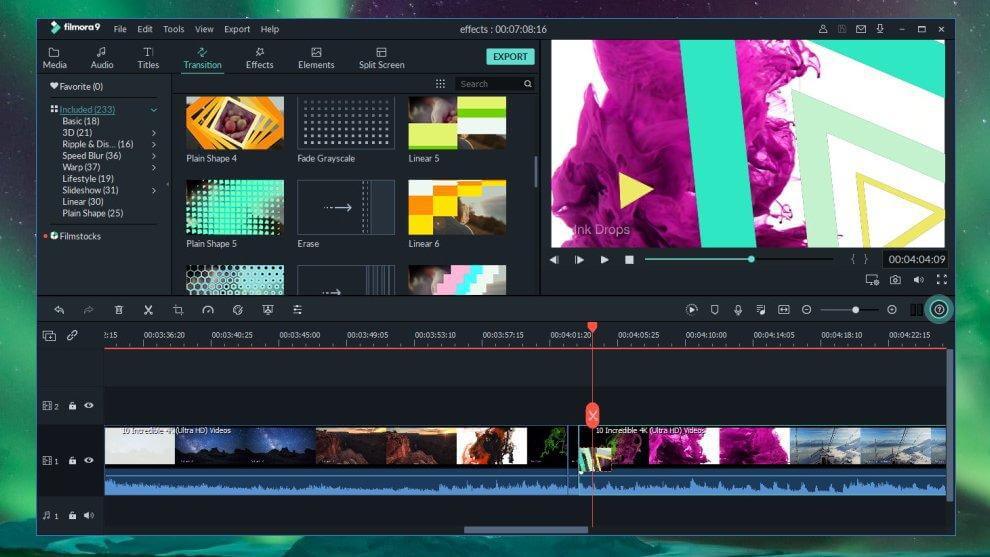
Let us introduce you to Wondershare Filmora, one of the best AI tools to enhance video that seamlessly operates on both Windows and Mac operating systems. With its extensive collection of audio and video effects, along with support for over 50 international formats, including 4K editing, this app opens up a world of creative possibilities. What sets Wondershare Filmora apart is its provision of advanced video editing tools and access to the vast library of Filmstock effects.
Moreover, Filmora’s AI portrait feature is a game-changer, allowing users to effortlessly detect and focus on humans in their videos, significantly reducing editing time and effort. With Wondershare Filmora, creating high-quality videos becomes a breeze, even for those seeking simplicity and efficiency.
Features:
- Offers a wide range of audio and video effects to enhance your videos.
- Supports a wide range of formats, including 4K editing, providing flexibility in video creation and enhancement.
- Access to advanced tools for precise video editing and customization.
- Offers a vast library of Filmstock effects to add creativity and visual appeal to your videos.
Pros:
- Supports a wide range of video formats, ensuring compatibility with various devices and platforms.
- AI Portrait Feature simplifies the process of detecting and focusing on human subjects.
- User-friendly interface.
Cons:
- The free version of Filmora adds a watermark to exported videos.
- Slower performance on older systems.
Compatibility: Windows and Mac.
Price: Free, Monthly ($28.98, Annual ($68.98), Perpetual ($116.95).
2. HitPaw
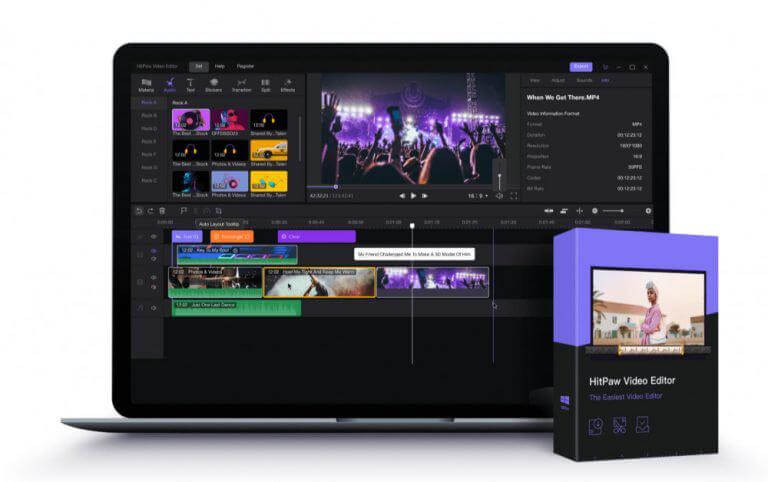
It is the ultimate app powered by the best AI upscale video software. With its cutting-edge technology, this app automatically enhances and upscales your videos using trained AI algorithms, taking them from low resolution to stunning 4K or even 8K quality. Say goodbye to blurry footage as HitPaw AI Video Enhancer tool employs the most advanced noise reduction techniques, ensuring crystal-clear visuals and eliminating any traces of blur.
But that’s not all – this app goes beyond traditional video enhancement capabilities. It features an exclusive AI specifically designed to repair videos of anime and human faces, providing unparalleled results. Whether you’re an anime enthusiast or a filmmaker working with live-action footage, HitPaw is your go-to tool for achieving flawless video restoration.
Features:
- Automatically enhances and upscales videos up to 4K/8K using AI technology.
- Removes blur and provides clear visuals.
- Specifically repairs anime and human face videos.
- Stunning colorization of black and white films.
Pros:
- Advanced AI technology for effortless video enhancement.
- High-quality upscaling and noise reduction.
- 24×7 tech support.
Cons:
- Requires a subscription or purchase for full access.
- Limited to video enhancement and repair features.
- It may take some time to process large or lengthy videos.
Compatibility: Windows and Mac.
Price: Windows ($29.95/per month), Mac ($35.95/per month).
3. Veed
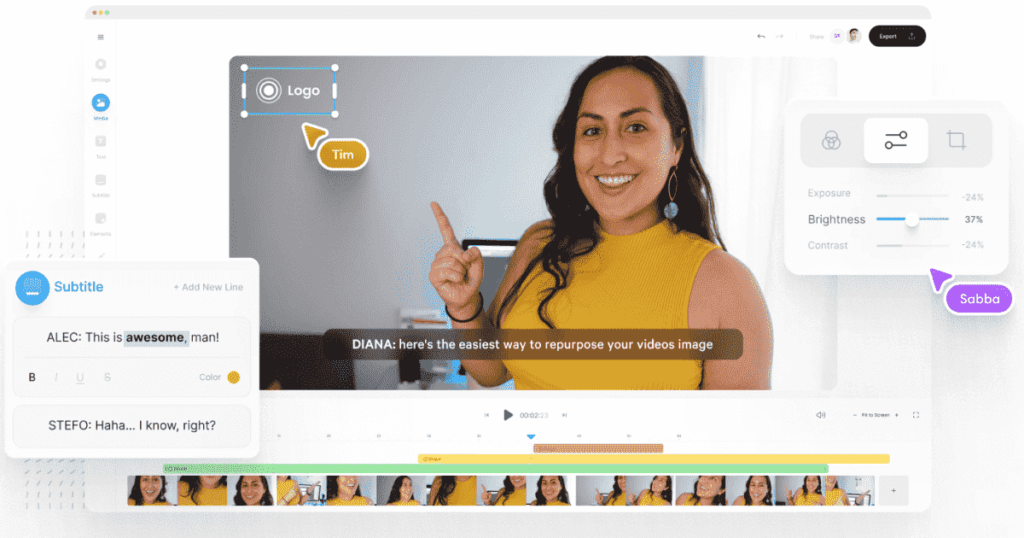
VEED’s incredible AI-powered software effortlessly detects and swiftly eliminates audio noise, giving your recordings a pristine sound quality. It’s an ideal solution for tidying up audio captured in your home office, where you can’t always control every little sound that sneaks into your microphone.
Creating professional-grade videos has never been easier with VEED. Their user-friendly video editor empowers you to make precise adjustments to frame rate, resolution, size, lighting, audio quality, and more, all with just a few simple clicks. Unleash your creativity by adding background music, voice commentary, and even auto-generated subtitles. Plus, VEED goes the extra mile by offering a handy noise removal feature that effortlessly banishes any bothersome background noise from your videos.
Features:
- Effortless and swift noise removal for improved audio quality.
- Easily adjust frame rate, resolution, size, lighting, audio quality, and more to enhance the overall video quality.
- Add background music, voice commentary, auto-generated subtitles, and more.
- Creative enhancements to add depth and engagement to your videos.
Pros:
- User-friendly video editor for easy customization.
- Elevates the overall look and professionalism of your videos.
- Comprehensive editing tools for professional-grade results.
Cons:
- Some advanced features may require a subscription or purchase.
Compatibility: Windows, macOS, and Linux.
Price: Free, Basic ($12/per month), Pro ($24/per month).
4. Lightworks
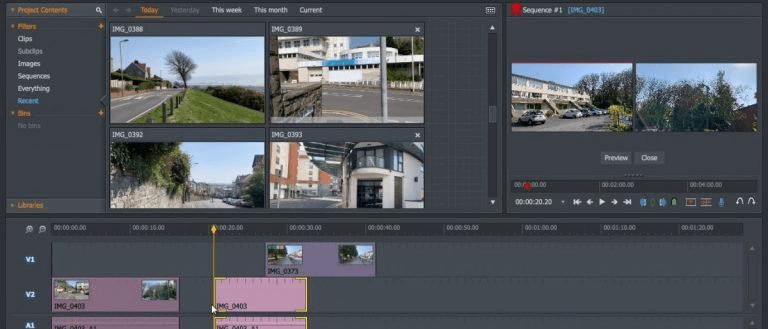
Lightworks is an exceptional video editing software that brings professional-level editing capabilities to users of both Windows and Mac. Renowned for its extensive range of features, adaptability, and applicability across diverse industries such as film, television, and online content creation, Lightworks stands out as a powerful tool.
What truly sets Lightworks apart is its seamless integration with plugins from NewBlue and TotalFX. This remarkable feature empowers users to infuse their intricate projects with a distinct touch. By leveraging these plugins, users can unlock an additional layer of creativity and uniqueness, enhancing their editing process and resulting in visually captivating and engaging content. With Lightworks and its plugin integration, the possibilities for crafting exceptional videos are boundless.
Features:
- Allows for non-destructive editing, enabling flexibility in rearranging and modifying clips.
- Supports editing and exporting videos in various high-resolution formats, including 4K.
- Offers a wide array of video effects, transitions, and color grading tools to enhance visual quality.
- Provides advanced features like multi-cam editing, real-time effects, and audio mixing for precise control over the editing process.
Pros:
- Works seamlessly on Windows, macOS, and Linux operating systems.
- Flexible workflow.
- Multi-camera video editing.
Cons:
- The free version imposes some limitations on export options and output formats.
- Limited effects and transitions.
Compatibility: Windows and Mac.
Price: Free, Lightworks Pro ($23.99/per month).
5. AVC Labs
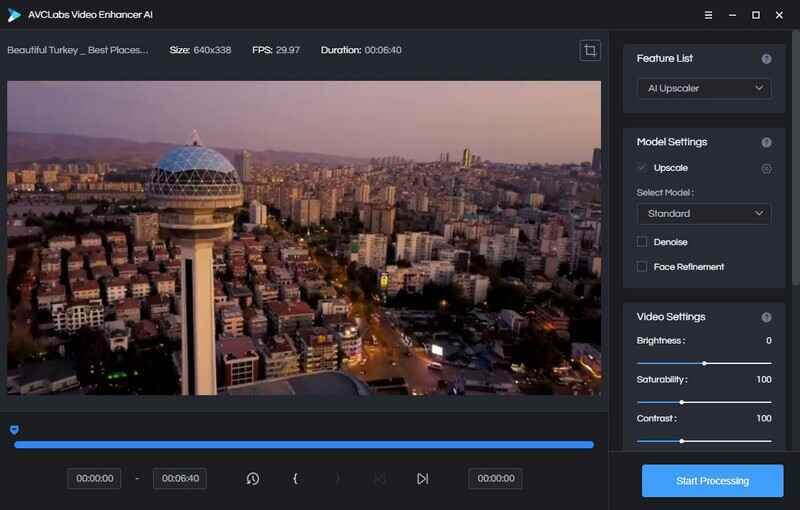
Here comes another amazing pick on our list of best AI video enhancers for Windows and Mac. AVC Labs is an all-in-one AI video editor that combines quick and automatic selection tools with convenient one-click AI features. With AVC Labs, enhancing and perfecting your videos has never been easier.
Harnessing the power of neural networks, this tool employs super-resolution upscaling and multi-frame enhancement to elevate your video quality. Whether you’re working with SD, HD, or 4K footage, it seamlessly upscales them to HD, 4K, and even 8K resolutions. By utilizing advanced algorithms, it goes beyond simply increasing the resolution, effectively removing noise, artifacts, and blurring. Furthermore, it expertly enhances your video’s overall quality, achieving an impeccable balance in brightness, contrast, and saturation levels.
Features:
- Utilizes cutting-edge neural networks for superior upscaling and enhancement results.
- Achieves exceptional detail and clarity in upscaled videos.
- Enhances video quality by removing noise, artifacts, and blurring using multi-frame processing.
- Balances brightness, contrast, and saturation levels to enhance overall video quality.
Pros:
- Flexible resolution options.
- Enhances video clarity, detail, and overall visual appeal.
Cons:
- Processing high-resolution videos may require significant computational resources.
- May require a purchase or subscription for full access to all features and higher-resolution upscaling.
Compatibility: Windows and Mac.
Price: Free, 1-month plan ($39.95), 1-year plan ($119.95), one-time purchase ($299).
6. Topaz Labs
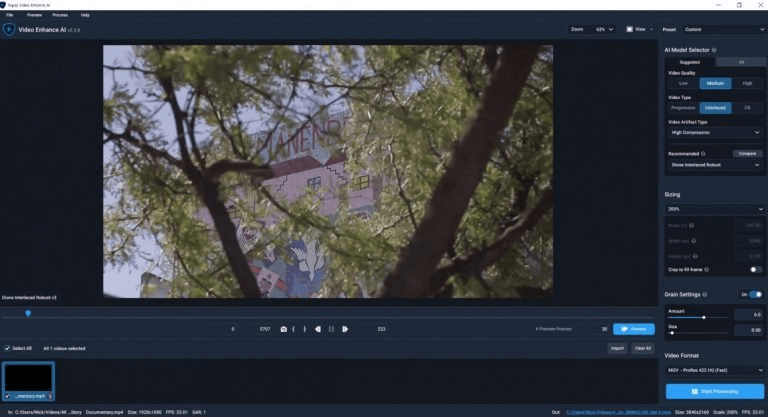
Topaz Video AI is a game-changing solution for video upscaling, deinterlacing, and frame interpolation, meticulously designed to optimize local production workflows. Immerse yourself in the world of high-resolution videos like never before. The app’s advanced algorithms excel at upscaling, breathing new life into low-resolution content. Say goodbye to pixelated images and hello to stunning clarity and detail.
Experience seamless motion with our exceptional deinterlacing capabilities. No more distracting interlacing artifacts or jagged lines. Your videos will flow smoothly, capturing every frame with precision.
Features:
- Video upscaling for enhanced clarity and detail.
- Deinterlacing for smoother playback.
- Frame interpolation for realistic motion.
- Workflow optimization for seamless integration.
Pros:
- Used advanced machine learning technology to enhance videos.
- Supports a wide range of video formats, making it compatible with various cameras, devices, and editing software.
- Creative flexibility.
Cons:
- Slightly expensive.
- Might be resource-intensive at times.
Compatibility: Windows and Mac.
Price: $299.
7. Clipchamp
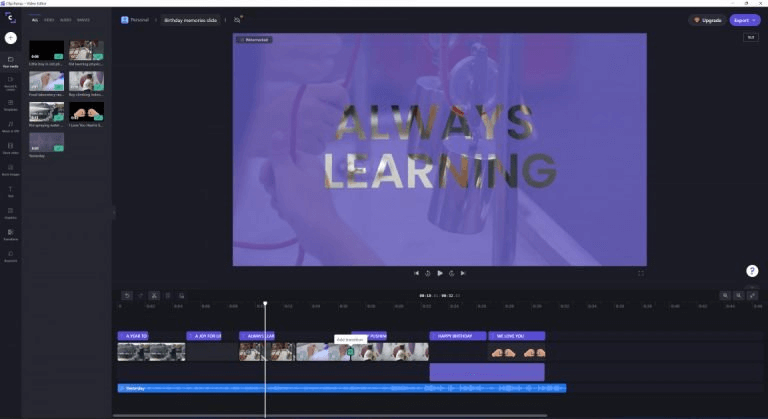
Clipchamp is a widely used online platform for video editing, providing a comprehensive set of tools and features for creating and editing videos. It’s user-friendly interface and diverse editing options cater to the needs of both novice and experienced video creators.
One notable feature of Clipchamp is its AI-powered voiceover functionality, which enables users to generate text-to-speech voiceovers in multiple languages. With a library of 170 lifelike voices available, users have the freedom to customize the speed and pitch of the generated voice, ensuring it aligns perfectly with the requirements of their video.
Features:
- Adjusts and balances colors of the videos to enhance the overall quality.
- Offers a variety of filters and transitions for editing.
- Text-to-speech voiceover capabilities in more than 70 different languages.
- Provides “Brand Kit” features to add a logo or a watermark.
Pros:
- Convenient accessibility from any device with an internet connection.
- Affordable pricing plans.
- Intuitive editing experience suitable for beginners and experienced users.
Cons:
- Limited to online editing, requiring an internet connection.
- Possible constraints on advanced editing features compared to desktop software.
Compatibility: Windows and Mac.
Price: Free, Clipchamp Pro ($6/per month)
8. Shotcut
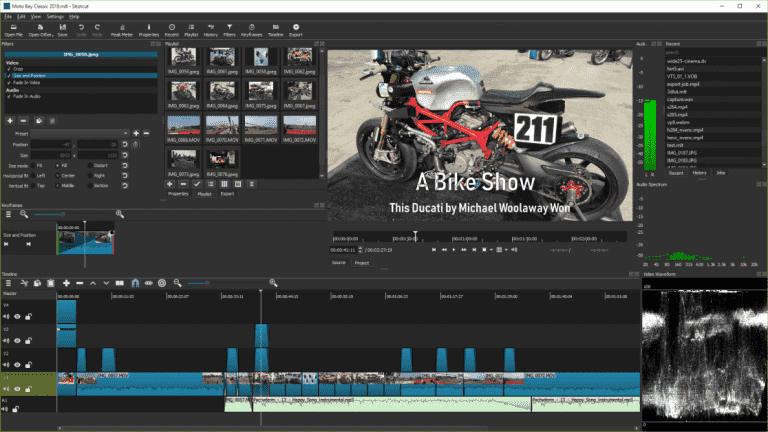
Shotcut is a free, open-source AI video enhancer tool for Windows and Mac that can be used to create professional-quality videos. For video editing enthusiasts seeking high-quality results on a budget, Shotcut is an exceptional choice. This powerful, open-source, and free video editor offers a range of advanced features typically found in more expensive software, making it a versatile tool for creating impressive videos effortlessly.
With Shotcut, users can effortlessly incorporate special effects like blur and fish-eye correction, adding a unique touch to their projects. Exporting videos in stunning 4K quality is a breeze, unlocking exciting possibilities for creativity. Experience the ease and cost-effectiveness of Shotcut today, and start producing stunning videos quickly and effortlessly.
Features:
- Advanced editing tools with special effects and transitions.
- Wide format support for various video and audio files.
- 4K video editing and exporting capabilities.
Pros:
- Powerful features comparable to more expensive software.
- Open-source and free, making it cost-effective.
- User-friendly interface for easy video editing.
Cons:
- Steeper learning curve for beginners.
- Occasional stability issues were reported.
- Limited availability of comprehensive tutorials or support resources.
Compatibility: Windows, Mac, and Linux.
Price: Free.
9. DaVinci Resolve 18
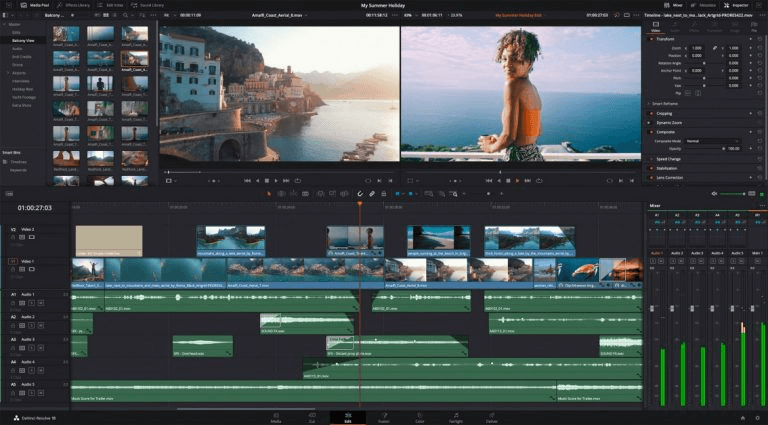
Discover the power of DaVinci Resolve 18, the ultimate software for professional video editing and color correction. Designed to unleash the creativity of filmmakers, video editors, and visual artists, it provides a robust toolkit brimming with features and precision, elevating your projects to new heights.
Experience seamless editing with a diverse range of tools at your fingertips. From timeline-based editing to multi-camera support, advanced trimming, and captivating transitions, DaVinci Resolve 18 empowers you to craft your videos with finesse. This nifty tool lets you take control of your visuals using color wheels, curves, scopes, and the cutting-edge AI-powered Color Match feature, ensuring every frame resonates with your creative vision.
Features:
- Comprehensive video editing tools with timeline-based editing, multi-camera support, and advanced effects.
- Advanced keyframing and cutting tools.
- Audio enhancement.
- Integrated Fusion page for advanced visual effects and motion graphics.
Pros:
- Professional-grade software with unmatched versatility and precision.
- Powerful color grading capabilities for achieving cinematic looks.
- Multi-user collaboration.
- Extensive editing and effects tools for creative flexibility.
Cons:
- Higher system requirements for optimal performance.
- Some advanced features may require additional plugins or modules.
Compatibility: Windows and Mac.
Price: Free, DaVinci Resolve Studio ($295).
10. Pixop

Pixop is an incredible app that operates in the cloud, bringing the power of advanced AI technology to enhance and upscale videos. With Pixop, you can transform your videos into stunning works of art by utilizing its cutting-edge algorithms that analyze and improve different aspects of your footage.
One of the standout features of Pixop is its video upscaling functionality. It empowers you to take low-resolution videos and turn them into high-quality masterpieces with improved resolution, clarity, and intricate details. This is particularly beneficial when working with older or lower-quality video content, as Pixop works its magic to enhance the visual appeal and overall quality of your videos.
Features:
- Remasters and enhance your video in the highest quality.
- Improves video quality with automated filters and effects.
- Offers robust tools for video quality analysis.
Pros:
- Advanced AI technology enhances video quality.
- No expensive hardware or plugins are required to run the tool.
- Transforms low-resolution videos into high-quality footage.
- Cloud-based efficiency and workflow integration.
Cons:
- As a cloud-based solution, Pixop requires a stable internet connection for access and usage. Limited or unreliable internet connectivity may hinder the user experience.
- Depending on the specific version or package, some advanced features or functionalities may be limited or require additional purchases or subscriptions.
Compatibility: Windows and Mac.
Price: Free, Starting Price of $2.29/per month for the paid plan.
Conclusion
AI video enhancers have become important for creators who want clean and sharp output without complex editing skills. Each tool in this list offers something useful. Some focus on deep AI upscaling while others support quick improvements for short clips. The best choice depends on the kind of videos you work with and the level of control you want during editing. A simple tool may be enough for social posts, while a feature-rich option works better for long-format content.
The top five options stood out because they balance performance and usability. They improve video quality while keeping the editing flow smooth. This helps users stay focused on their content instead of fighting with the interface. A careful look at your workflow, speed needs, and budget will guide you to the right fit. A good enhancer always saves editing time and helps your output look polished.
FAQs
1. Can AI video enhancers fix old or low-light videos
Yes. Many tools use AI to brighten dark scenes, reduce noise, and sharpen edges. The results depend on how damaged the original clip is, but most tools offer a clear improvement.
2. Do these enhancers need strong hardware
Some tools run well on normal PCs while others use GPU power for faster results. You can still use them on average hardware, although the processing time may increase.
3. Will the quality drop after exporting
Quality stays high when you choose the right export settings. Most enhancers guide you with presets that keep the video clear and stable.
Author Bio:
Dinesh Lakhwani 

Dinesh Lakhwani, the entrepreneurial brain behind “TechCommuters,” achieved big things in the tech world. He started the company to make smart and user-friendly tech solutions. Thanks to his sharp thinking, focus on quality and the motto of never giving up, TechCommuters became a top player in the industry. His commitment to excellence has propelled the company to a leading position in the industry.
Popular Post











Recent Post

How To Change Default Apps For File Types In Windows
Windows is designed to make using your computer easy. One way it does this is by assigning default apps to different file types. This means when you open a file, Windows automatically opens it with a specific program. For example, photos may open with Photos, music with Groove Music, and PDFs with Edge. These default […]

How To Adjust The Mouse Pointer Speed: Complete Guide
Using a computer every day means you use the mouse a lot. The mouse pointer moves on the screen and helps you click, scroll, and select items. Many people never think about the speed of the mouse pointer. They have used the default setting for years. This can cause small problems over time. A slow […]

How to Change Mouse Scrolling Settings In Windows
A mouse is one of the most used computer tools. People use it every day. They scroll through emails. They scroll through documents. They scroll through websites and images. The movement becomes automatic. Most users do not notice it. That is why problems often go unnoticed. Scrolling problems show up slowly. At first, it feels […]

Keyboard Light Settings: Keyboard Lighting Control [Complete Guide]
Keyboards are no longer simple typing tools. Well, yes! Over time, they have evolved to include features that improve comfort, visibility, and overall experience. One of the most useful features today is keyboard lighting. It helps users work comfortably in low-light conditions. It also reduces strain when typing for long hours. Many users first notice […]

Customizing Pointer Appearance: Complete Guide
The way your mouse pointer looks on your computer may seem like a small detail. But customizing pointer appearance can make using your PC more comfortable and visually appealing. Many users do not realize that they can change the pointer size, color, and style to fit their needs. Whether you want a bigger pointer for […]

How To Choose a Computer Monitor: Monitor Buying Guide
Buying a monitor looks easy. Many people think all screens are the same. That belief causes regret later. A monitor is not just a display. It is a daily tool. You read on it. You work on it. You relax with it. Small problems become big over time. Poor brightness hurts eyes. Bad size causes […]

How To Get Help With File Explorer in Windows 11 [Complete Guide]
File Explorer is one of the most important tools in Windows 11. It is used to open folders, view files, and manage stored data. Almost every action on a Windows computer depends on it in some way. When users open documents, save downloads, or organize photos, File Explorer is always involved. Because it is used […]

How To Fix A Frozen Computer: Complete Guide [Windows 11/10]
A frozen computer is one of the most common problems Windows users face. The screen stops responding. The mouse pointer does not move. Keyboard inputs do nothing. You may hear the fan running loudly. Sometimes the system looks alive, but nothing works. This situation often happens when you are busy or working on something important. […]

How to Upgrade Computer RAM: Complete Guide
Upgrading RAM is one of the simplest ways to improve a computer. It helps the system feel faster and smoother. Apps open quicker. Browsers handle more tabs. Games and tools run with less delay. Many users search for how to upgrade computer RAM because it gives real results without high cost. You do not need […]

How To Clean Your Computer Keyboard: Complete Guide
A computer keyboard is touched more than almost any other device you own. It is used during work, study, gaming, and casual browsing. Fingers carry natural oils, sweat, and dirt. Small food crumbs fall between keys without notice. Dust settles each day slowly. Over time, this creates a hidden layer of grime. Many users do […]

