Top 10 AI Video Editor for Windows and Mac 2026
Last updated on December 26th, 2025 at 1:27 am
Remember those days when we used to spend long hours struggling to work on complex video editing software? Well, thanks to AI, anyone can now unleash their creativity and produce impressive videos without any hassle. These AI video editors are equipped with intelligent features and algorithms that automate repetitive tasks, enhance visual quality, and provide intuitive interfaces, transforming video editing into a seamless and enjoyable experience.
In this blog, we will explore the 10 best AI video editors available for Windows and Mac platforms. Each tool has its unique set of features, making it easier than ever to find the perfect fit for your editing needs.
Before You Start, Know The Answer To These Questions
1. The AI keeps making cuts that feel rushed or out of place. How do I fix this
AI follows patterns based on dialogue, pauses, or movement, and these choices may not match the tone you want. Open the timeline and adjust the cut points yourself. Many editors also let you lower the automation strength so the AI only suggests cuts instead of forcing them. A small change here helps the flow feel more natural.
2. My video looks softer after using AI effects. What caused this
Some effects focus on smoothing noise or stabilizing frames, and this can soften fine details. Switch to a lighter enhancement level or disable the effect in clips that do not need it. A balanced setting keeps the video clean without losing texture.
3. The editor slows down during heavy AI tasks. How can I improve performance
AI features use memory and GPU power, so long projects can strain the system. Close extra apps, clear temporary files, and switch to proxy or low-resolution previews while editing. This keeps the timeline responsive and speeds up the final render.
Top 5 Comparison Table
We compared these AI video editors on how well they balance editing power, automation, and ease of use. The table below highlights key traits that matter most for creators on Windows and Mac. It helps you choose a tool based on your workflow, skill level, and project needs.
| Tool | AI Features | Ease of Use | Platform Support | Best For |
| WiseCut | Strong smart cuts and pacing | Easy | Windows, Mac | Quick edits and pacing |
| Descript | Advanced text-based editing | Moderate | Windows, Mac | Podcast/voice-driven projects |
| Runway ML | Generative video tools | Moderate | Windows, Mac | Creative effects and AI tools |
| InVideo | Template-rich automation | Very easy | Windows, Mac (browser) | Fast video creation |
| Lumen5 | Script to video with AI | Very easy | Windows, Mac (browser) | Social and marketing videos |
10 Best AI Video Editor for Windows and Mac To Use in 2026
From automated video enhancements to smart object tracking and intelligent scene detection, these tools empower users to effortlessly transform their raw footage into professional-grade videos in just a few clicks.
Explore these top AI based software to edit videos and pick the best tool to suit your need and preferences.
1. WiseCut
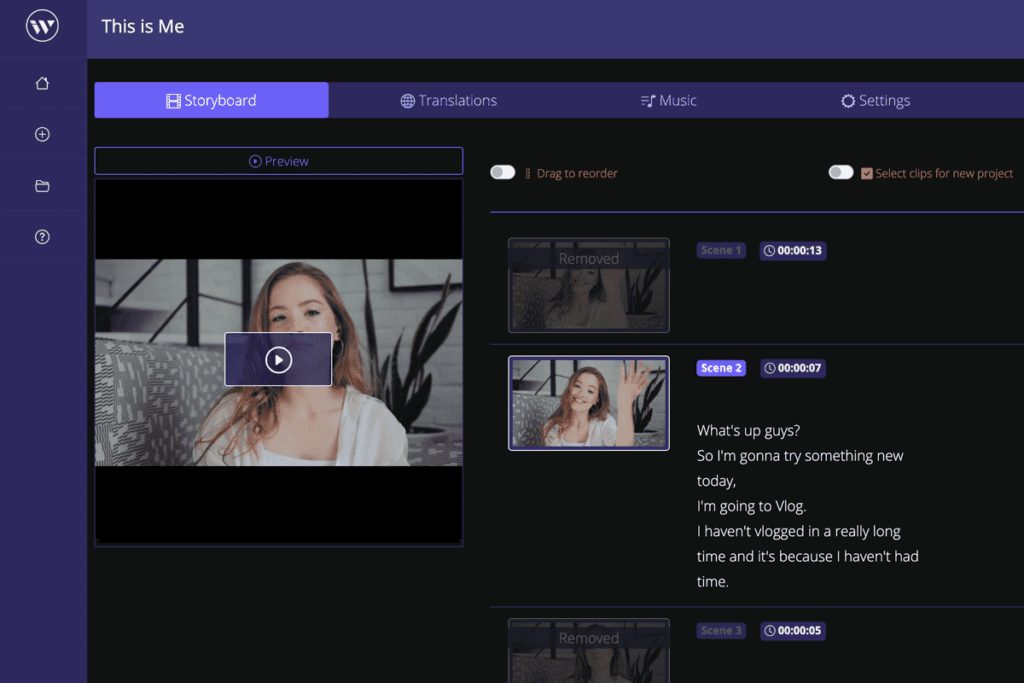
Wisecut is a revolutionary online video editing software that harnesses the power of artificial intelligence (AI) and voice recognition technology to transform the way you edit videos. With Wisecut, creating engaging and professional videos has never been easier or faster.
It utilizes cutting-edge AI technology to analyze your video footage and automatically make intelligent editing decisions. It identifies the most important scenes, detects optimal transition points, and seamlessly blends everything for a visually stunning result.
Features:
- AI algorithms automatically analyze and edit videos.
- Control the editing process with voice commands.
- Automatic scene detection.
- AI-powered audio ducking.
- Smart background music.
- Text and caption support.
Pros:
- Time-Saving
- User-Friendly
- Professional Results
- Effortless Transitions
Cons:
- Watermarked videos with the free version.
- 4K resolution is only supported along with the WiseCut Professional subscription.
Compatibility: Windows and Mac
Price: Free, WiseCut Professional ($29/ per month)
2. Descript
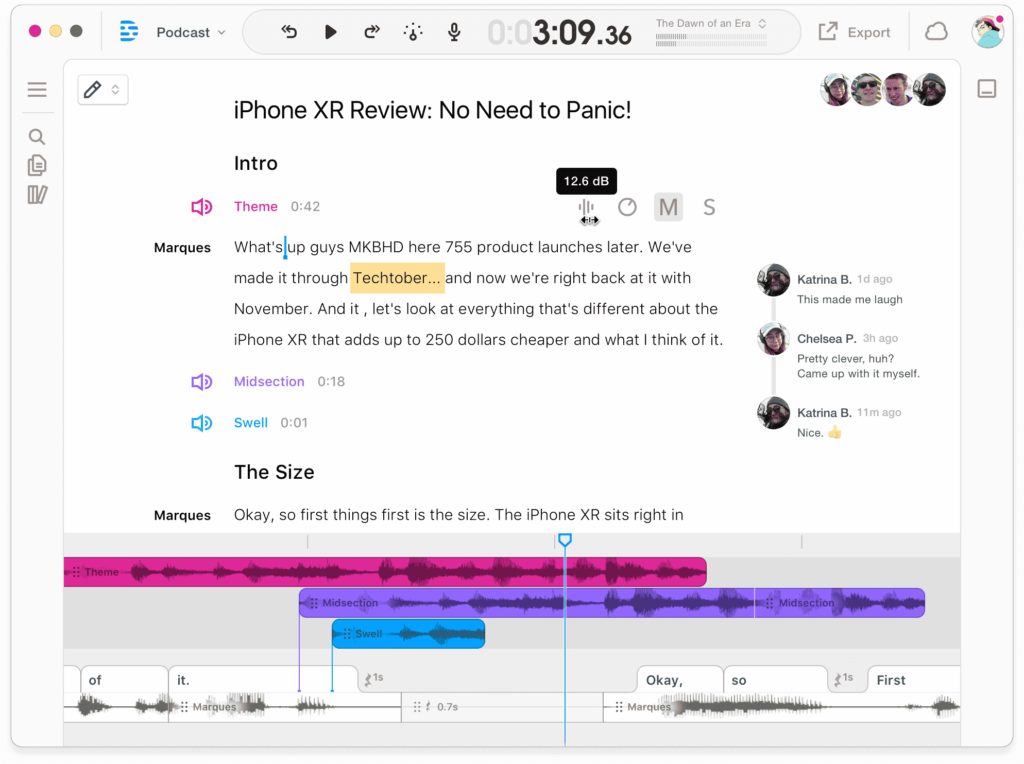
Descript is an exceptional AI video editor for Windows and Mac that revolutionizes the way you approach video editing. With its impressive range of features, editing becomes a seamless and intuitive process.
One standout feature is the AI transcription and editing capability. Descript automatically transcribes your video’s audio, allowing you to edit the text-based transcript and sync the changes effortlessly with the corresponding video segments. This intelligent transcription feature saves you valuable time and provides a solid foundation for refining your content. This simple yet powerful video editing tool lets you take complete control over your storytelling and craft compelling narratives with ease.
Features:
- AI Transcription and Editing.
- Visual Timeline Editing.
- AI-Powered Transitions and Effects.
- Custom font upload.
- Collaboration and Real-time Feedback.
- Removes unnecessary filler voices from your videos.
Pros:
- Multi-language transcription.
- Watermark-free video export.
Cons:
- Limited features are available with the free version.
Compatibility: Windows and Mac.
Price: Free, Descript Pro ($24/ per month).
3. Runway ML
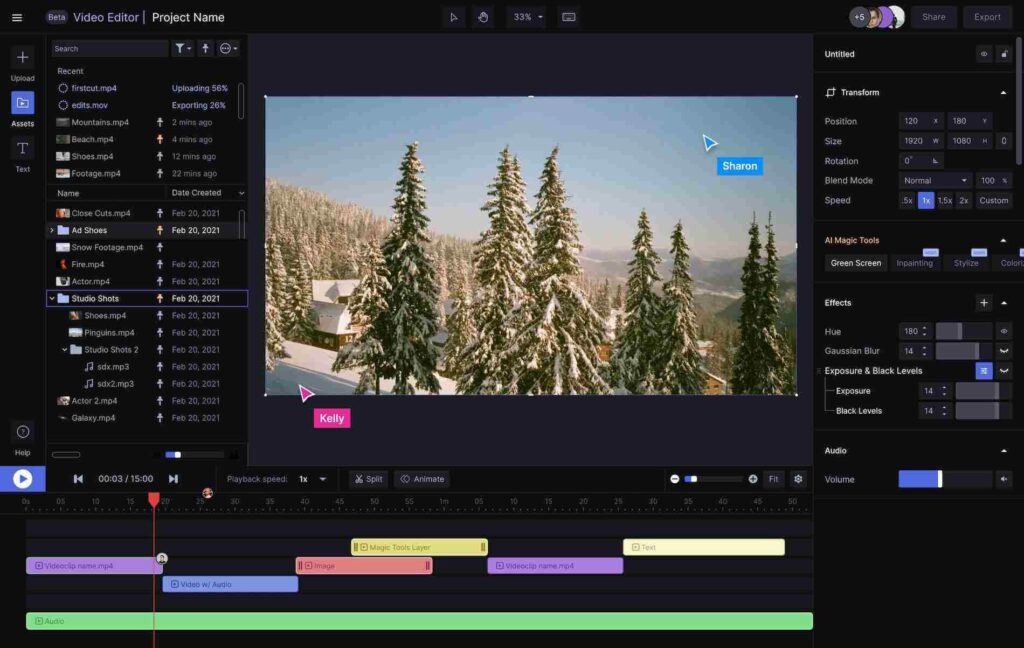
Introducing Runway ML, a robust AI video editor for Mac and Windows that excels in green screen editing and flawlessly removes unwanted objects or bystanders from your background. You can use this powerful tool to seamlessly blend your footage and achieve a professional look with ease, all while keeping your edits undetectable by AI tools.
One remarkable feature of Runway ML is its powerful inpainting tool. With just a few clicks, you can effortlessly remove objects or people from your video background, ensuring a clean and captivating visual composition. In addition to its advanced editing capabilities, Runway ML offers an extensive collection of customizable templates.
Features:
- Automatic background noise detection.
- Offers automatic subtitles based on the video’s language.
- Inpainting tool to easily remove unwanted objects or bystanders from your video background.
- Offers hundreds of customizable video templates to get started.
Pros:
- Effortless object removal.
- Ideal for beginners and novice users.
- Wide range of customizable templates.
Cons:
- Some advanced features are only available with the paid plans.
- You can only create up to 3 video projects with the free version.
Compatibility: Windows and Mac
Price: Free, Runway ML Pro ($28/per month).
4. InVideo
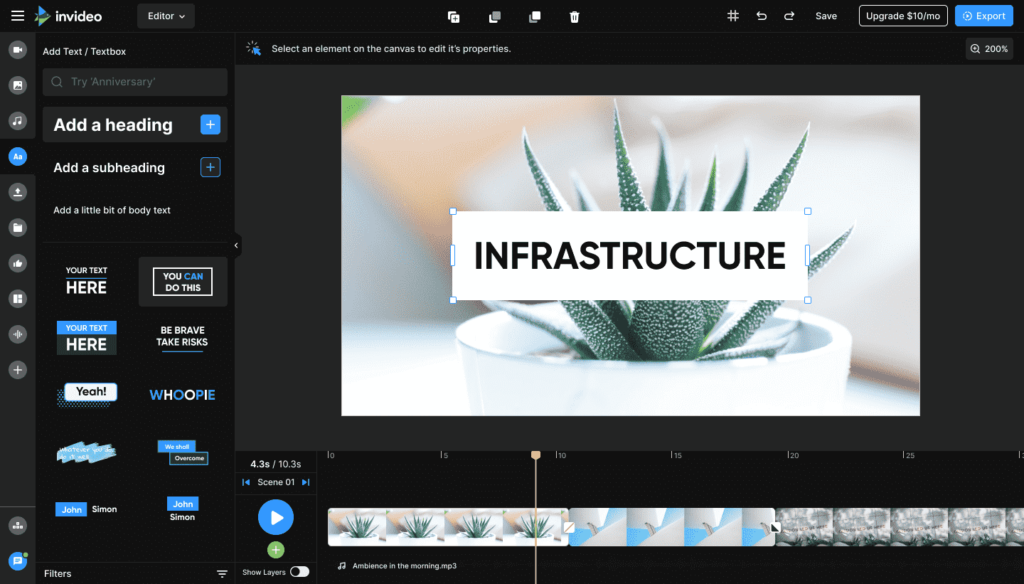
If you’re looking for an all-in-one ai video editor for Windows and Mac that can be used to create, share and edit videos within minutes, InVideo can be your savior. With Invideo online tools to edit videos, you gain access to a powerful text-to-speech converter, allowing you to transform your written content into captivating audio narratives effortlessly. Additionally, an extensive collection of customizable templates empowers you to personalize your videos with ease, achieving a unique and professional touch.
Unleash your creativity with Invideo’s comprehensive stock library, offering an array of cool video transitions, animated icons, masks, and overlays. Elevate your video content by seamlessly incorporating these elements, resulting in visually stunning and engaging productions.
Features:
- AI-powered video creation.
- Text-to-speech converter.
- Extensive customizable templates.
- Wide range of video transitions, icons, masks, and overlays.
Pros:
- Beginner-friendly.
- Quick and efficient video creation.
- Professional-quality results.
Cons:
- Lacks advanced editing capabilities.
- Limited control over AI-generated content.
Compatibility: Windows and Mac.
Price: Free, Business Lifetime ($15/per month), Unlimited Lifetime ($30/ per month).
5. Lumen5

Here comes another pick on our list of best AI-based tools to edit videos. Lumen5 is a user-friendly drag-and-drop AI video creation tool equipped with built-in editing functionalities. With Lumen5, you can effortlessly crop, rotate, resize, and trim your videos in a matter of seconds. The intuitive interface and powerful editing features make the process seamless and efficient.
Take your video creation to the next level with Lumen5’s customizable themes, fonts, and brand kits. Personalize your videos and make them more engaging by selecting from a range of options that align with your brand’s identity.
Features:
- Customizable video templates.
- Instantly crop, rotate, resize, and trim videos with ease, saving time and effort.
- Supports multiple file formats.
- Access to customizable themes, fonts, and brand kits to personalize and enhance your videos.
Pros:
- Offers customizable themes and branding options.
- Drag-and-drop functionality makes video creation and editing accessible to users of all skill levels.
Cons:
- Reliance on templates may limit creative freedom sometimes.
- The free plan contains a Lumen5 watermark on videos.
Compatibility: Windows and Mac
Price: Free, Basic ($19/per month), Starter ($59/ per month), Professional ($149/ per month).
6. Adobe Premiere Pro
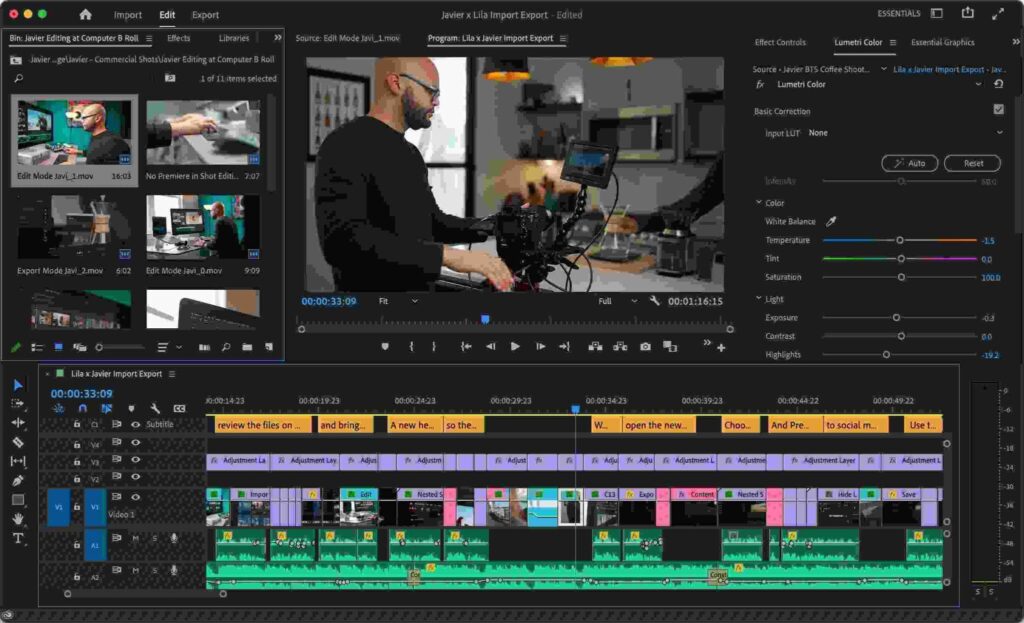
Adobe Premiere Pro is renowned as one of the most popular video editing software in the industry. Powered by Adobe Sensei, its integrated AI tool, Premiere Pro empowers you to transform your raw video clips into breathtaking cinematic masterpieces.
Harness the power of Adobe Sensei’s AI capabilities to enhance your editing workflow. From automated tasks like intelligent color matching and audio cleanup to advanced features such as content-aware editing and automatic video stabilization, Adobe Premiere Pro streamlines the editing process and delivers exceptional results.
Features:
- Offers advanced motion-tracking technology that automatically tracks objects on the video.
- Built-in AI tool that enhances editing workflow with automated tasks and intelligent features.
- Extensive library of effects, filters, and color grading options to elevate your videos.
Pros:
- Intuitive interface for nondestructive editing, allowing flexibility and experimentation.
- Robust editing features.
- Works seamlessly with other Adobe Creative Cloud applications, allowing smooth collaboration and sharing.
Cons:
- Steep learning curve.
- Resource intensive.
Compatibility: Windows and Mac.
Price: Free, Adobe Premiere Pro for Individuals ($20.99/per month), Adobe Premiere Pro for Teams ($35.99/per month).
7. VideoMaker

Developed by Design.AI, Videomaker is a simple yet powerful one of the best AI video editor for Mac and Windows that can streamline your editing process. Design AI Video Maker, a cutting-edge video creation and editing tool driven by AI technology. With its remarkable capabilities, you can effortlessly translate your text scripts into captivating videos enriched with stunning effects, seamless transitions, and captivating animations.
Design AI Video Maker offers a user-friendly interface and a wide range of customizable options, allowing you to personalize every aspect of your videos to align with your unique brand and style. Elevate your content and leave a lasting impression with videos that grab attention and drive engagement.
Features:
- Effortlessly converts text scripts into videos.
- Creates visually stunning videos with impressive effects and animations, enhancing the overall quality and appeal.
- Lets you customize videos with the brand logo and colors.
- Publish your videos across various platforms, including social media handles, business websites, and blogs.
Pros:
- AI-driven efficiency.
- Versatility for multiple purposes.
Cons:
- Slightly pricey compared to other AI video editors in the segment.
- Limited template options.
Compatibility: Windows and Mac.
Price: Free, Basic ($29/per month), Pro ($69/per month).
8. Animoto
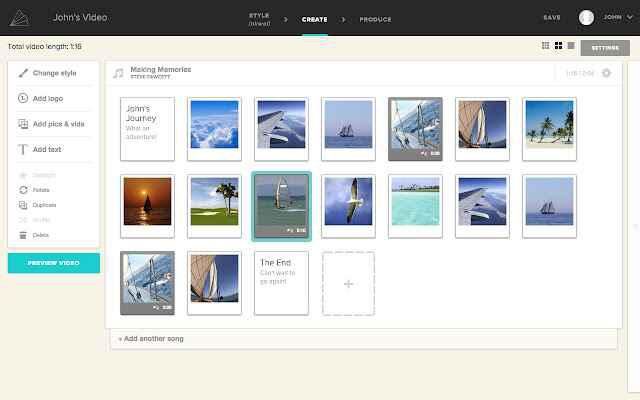
Get ready to create videos that captivate and leave a lasting impression with Animoto AI Video Editor. With its intuitive drag-and-drop editing tools and stunning visual effects, you can effortlessly craft professional videos that showcase your creativity. No need for extensive training or prior experience – Animoto makes it easy for anyone to dive right in.
Engage your audience like never before by transforming your ideas into polished and visually appealing videos. With a user-friendly interface, you can effortlessly arrange your video clips, add seamless transitions, and enhance them with eye-catching effects. The result? Videos that grab attention and keep viewers hooked.
Features:
- Access to a range of visually appealing effects to enhance the overall look and feel of your videos.
- Add smooth transitions between video clips for a polished and professional result.
- Choose from a variety of customizable templates to jumpstart your video projects.
- Create custom brands and templates.
Pros:
- With its intuitive tools and pre-designed templates, you can quickly create engaging videos without spending excessive time on editing.
- Time-efficient.
- Affordable pricing plans.
Cons:
- Limited customization plans.
Compatibility: Windows and Mac.
Price: Free, Professional ($15/per month), Business ($39/per month).
9. Filmora9
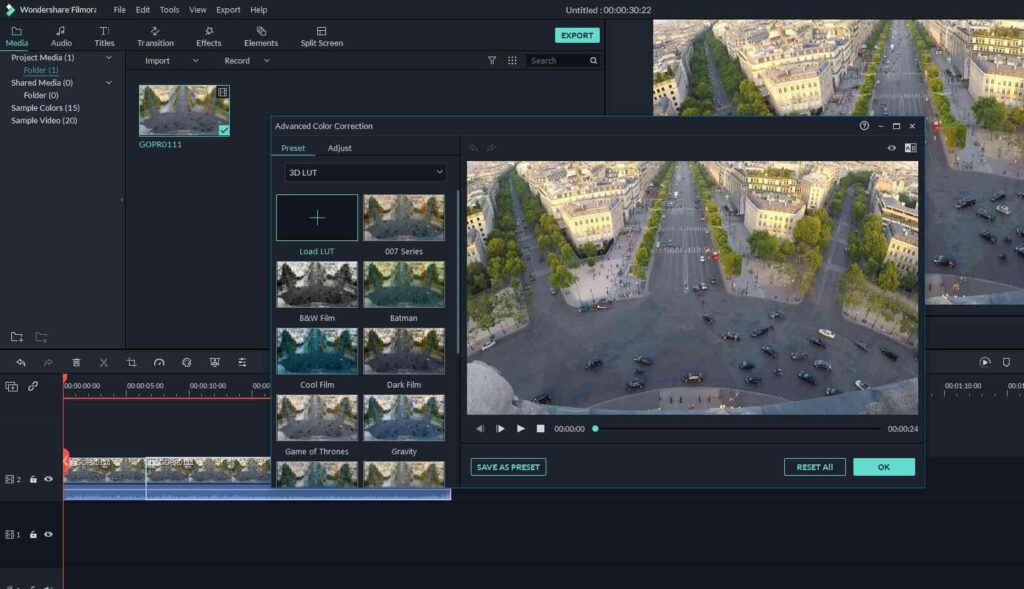
Filmora9 AI Video Editor is a versatile and powerful video editing software designed for both Windows and Mac platforms. With its AI-powered features and intuitive interface, Filmora9 empowers users to bring their creative vision to life with ease.
It automatically adjusts the aspect ratio of your videos to fit different social media platforms, saving time and effort. This nifty ai video editor for Windows and Mac smartly recognizes different scenes in your video footage, allowing for easy organization and efficient editing.
Features:
- Automatically adjusts video aspect ratios for different social media platforms.
- Smartly detects and organizes different scenes in video footage.
- Access a vast library of effects and transitions to enhance videos.
- AI enhancements streamline the editing process and deliver professional-looking results.
Pros:
- Works seamlessly on both Windows and Mac operating systems.
- Offers a wide range of editing features and options for creative flexibility.
Cons:
- Editing large or complex projects may require additional processing time.
Compatibility: Windows and Mac
Price:
- Free.
- Windows: Annual ($39.99), Perpetual ($69.99).
- Mac: Annual ($44.99), Perpetual( $69.99), Bundle ($104.87).
10. Nero Video
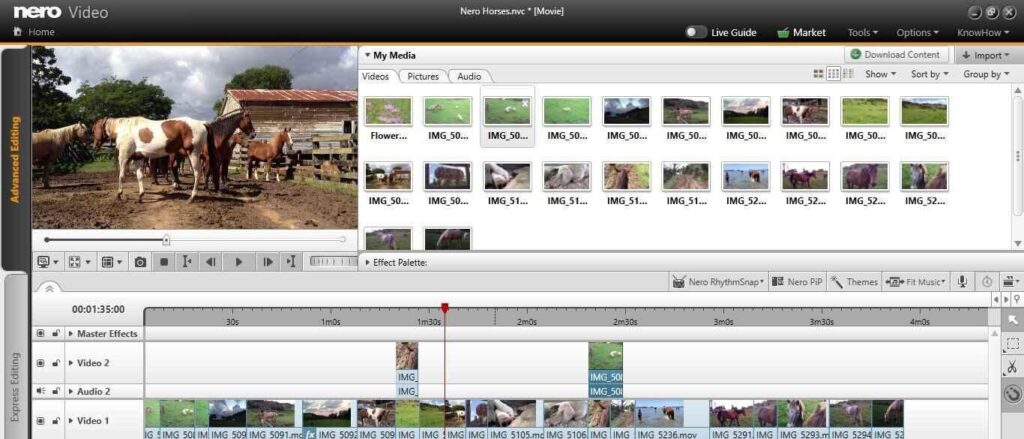
Discover Nero Video, an all-inclusive video editing tool designed to empower you with a vast array of features and functionalities. Whether you’re a novice or a seasoned editor, Nero Video offers a user-friendly interface that makes the editing process a breeze. With Nero Video, you have the freedom to edit multiple video and audio tracks simultaneously, allowing for precise control over your project.
But that’s not all – Nero Video goes beyond editing. It enables you to create personalized DVDs and Blu-ray discs with customized menus and interactive elements. Share your videos with a touch of creativity and professionalism.
Features:
- Offers professional effects like alpha channel green-screen and PiP.
- AI-based media management.
- Multi-track video editing in 4K resolution.
- Thousands of templates and effects to choose from.
Pros:
- Comprehensive editing tools and features.
- Offers disc authoring capabilities that can be used to create customized DVDs and Blu-ray discs with interactive menus.
Cons:
- Might be resource-intensive at times.
- Limited features for audio editing.
Compatibility: Windows and Mac.
Price: $55.95.
Conclusion
AI video editors are changing how creators work. These tools help shorten editing time, handle routine cuts, and suggest improvements without great technical skill. The best editors combine automation and control so you can refine your vision while the software handles the repetitive parts. Whether you want text-driven edits, auto assembly from scripts, or creative AI effects, there is an option here for every level of user.
When choosing a tool, think about how it fits your workflow. If you focus on long-form narrative or podcast-style content, an editor with strong text and timeline controls will save time. If you work on short promotional clips or social posts, templates and AI assembly help you produce polished videos quickly. These five options reflect the varied ways AI supports video creation in 2026.
FAQs
1. Can these AI editors replace traditional editing skills
They speed up many tasks and reduce manual trimming, but the real editing craft still matters. You decide pacing, cuts, and creative intent; the tool helps you reach that point faster.
2. Do these tools work well on older computers
Basic editing works on most systems, but advanced AI features run faster on recent hardware with good memory and GPU support. Older machines may still function, but processing time will be longer.
3. Are these editors suitable for professional projects
Yes, many creators use them for client and professional work. The quality depends on how you use the features and balance automation with manual refinement.
Author Bio:
Dinesh Lakhwani 

Dinesh Lakhwani, the entrepreneurial brain behind “TechCommuters,” achieved big things in the tech world. He started the company to make smart and user-friendly tech solutions. Thanks to his sharp thinking, focus on quality and the motto of never giving up, TechCommuters became a top player in the industry. His commitment to excellence has propelled the company to a leading position in the industry.
Popular Post











Recent Post

How To Overclock a Computer: A Complete Guide
Overclocking is the process of making your computer run faster than its factory settings. It mainly affects the processor, graphics card, and sometimes memory. Many people choose this method to improve performance without buying new hardware. It is popular among gamers, video editors, and users who run heavy software. When done properly, overclocking can give […]

How To Find Password Saved on This Computer: Complete Guide
Many people forget their login details at some point. It happens often. We create many accounts every year. Each one needs a username and a password. Over time, it becomes hard to remember all of them. That is why computers offer ways to store login details. These saved details help users sign in faster. They […]

How To Open/Access Computer Management & Advanced Tips
Every Windows computer has many hidden tools. Most users never see them. They only use basic settings. They change wallpapers. They install apps. They adjust sound and display. That is enough for daily work. But problems still happen. The system slows down. Storage fills up. Errors appear without warning. At this stage, normal settings do […]

How To Transfer Photos From Android Phone To PC/Laptop [2026]
Moving photos from a phone to a computer is something most people need to do often. Phones fill up fast. Photos also matter more than apps. You may want a safe backup. You may want to edit images on a bigger screen. This guide explains how to transfer photos from Android to PC without stress. […]

Top 9 Browsers With Built-In VPN – VPN Browser
Online browsing is no longer private by default. Every website collects data in some form. This includes location details, device information, and browsing habits. Over time, this data builds a clear picture of user behavior. Many people are now uncomfortable with this level of tracking. A VPN browser helps reduce this exposure. It adds a […]

AI In Cyber Security: Who is Winning, Hackers or Security Companies
Cybersecurity once followed clear rules. Companies built firewalls. Users created passwords. Antivirus tools scanned files and removed known threats. When an attack happened, security teams studied it and added new rules. This method worked for many years. It created a sense of control and stability. That sense is gone today. Artificial intelligence has changed how […]

The Biggest AI-Run Cyber Attacks Of All Time
Artificial intelligence is now part of everyday technology. It helps people search faster. It improves medical research. It supports businesses in making better choices. But AI is not used only for good purposes. Cyber criminals have also learned how to use it. This has changed the nature of cyber attacks across the world. In the […]

Switch To a Dark Background Theme on Windows: Enable Dark Mode
People often like a screen that feels gentle on the eyes. A darker style softens bright areas and makes long computer sessions easier to handle. It also gives the desktop a cleaner and more modern feel. When you switch to a dark background theme in Windows, the colors shift to deeper shades that reduce glare […]
![Complete Guide on Managing Audio Input Devices [Latest In 2026]](https://www.techcommuters.com/wp-content/uploads/2025/12/Complete-Guide-on-Managing-Audio-Input-Devices.webp)
Complete Guide on Managing Audio Input Devices [Latest In 2026]
People use microphones for meetings, games, classes, recordings, and voice chats, so any problem with the device can interrupt their work. Even a small system error can make the voice weak or stop it fully. This is why knowing the basics of managing audio input devices is helpful for new and experienced users. Windows includes […]

Resetting Audio Settings on Windows 11: Complete Guide
Sound problems can disrupt work, study, or entertainment. Many users face issues where the audio becomes too low, too loud, unclear, or does not play at all. A common way to solve these problems is by resetting audio settings to their original state. This helps Windows rebuild its sound setup from the beginning. Windows 11 […]

