












Read my honest Wise Duplicate Finder review. See features, pricing, pros and cons, and real PC test results. Find out if this free duplicate cleaner can free up your Windows storage.
How to Fix “Zoom Share Screen Not Working”—10 Quick Solutions
When you are in the middle of an important Zoom meeting with your boss or hosting a Zoom webinar for your peers—and suddenly you realize that the Zoom share screen is not working for you.
This is going to be a very frustrating situation, especially when you can’t figure out the reason behind the Zoom share screen not working. To be honest, it is a very common situation and once a while we all have faced it due to vivid reasons.
Today, our tech experts have dwelled into common causes behind the Zoom share screen not working and figured out an easy way to fix them on all the leading operating systems.
10 Zoom Share Screen Not Working Causes & Solutions
If your Zoom share screen feature is troubling you, these might be the reasons behind it:
1. Host Forget to Enable “All Participants” Settings
Sometimes your host might have missed configuring screen sharing settings and doesn’t enable it for “All Participants,” which can block you from sharing the screen.
To confirm this doubt, click on the Share Screen button, and if you receive a “Host disabled participant screen sharing” message, your host has disabled screen sharing for all participants.
You can easily send a message to your host over chat and request to enable the “All Participants” share screen option.
Solution
On Mac and Windows:
Click on the Share Screen button and then on the “Advanced Sharing Options…”. Next, under Who Can View, tick on All Participants.
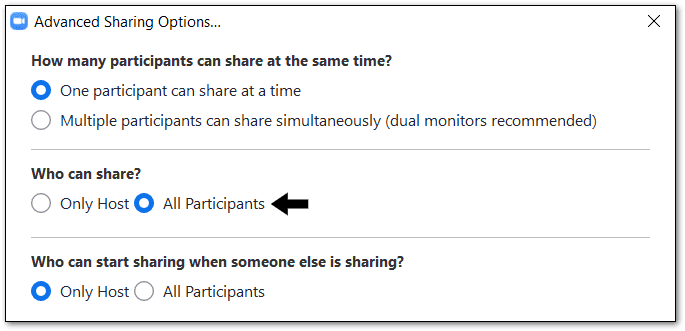
On Android & iOS:
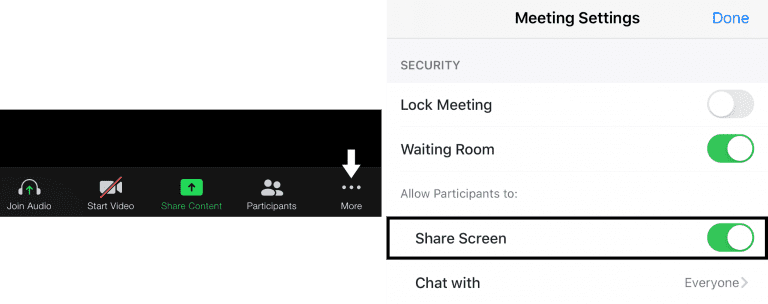
Click on the More button at the Meeting Setting page, enable Share Screen under the “Allow Participants to” option.
2. Disabled Zoom App Permissions
If you haven’t allowed the Zoom app to use the camera and microphone on your device, it is going to cause the Zoom share screen not to work for you. Therefore, you have to check your system settings to ensure whether you have granted camera and microphone access to the app or not.
Solution
On Windows and Mac:
You have to open up the Apple menu or Windows Settings, then choose System Preferences. From there, click Security & Privacy, then open the Privacy tab. Now, you can see all the permission categories, from location to app analytics.
On Android and iOS:
Open Settings on your Android and iOS device, scroll down to the Zoom app tab, and open it. There you’ll see all the accesses permitted to the app on your device.
3. Exit and Restart Zoom
Sometimes temporary caches impact the Zoom application on your device and generate multiple glitches. So, if you completely exit the program and immediately reopen, it can solve the “Zoom share screen not working” problem for you. Note, you have to completely exit the app—not just close it.
Solution
On Windows and Mac:
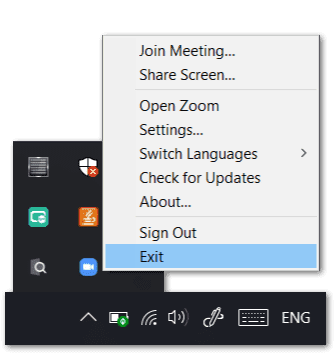
On Windows, go to the Windows tray on the Taskbar and left-click on the Zoom icon and click on the Exit. For Mac, from the Menu Bar, left-click on the Zoom icon and click on the Quit from the drop-down menu.
On Android and iOS:
Press the home button to close the app and then remove it from the recent app list.
4. Outdated Graphics Driver
To share the screen seamlessly, your graphic driver plays a very vital role. If you have outdated graphic drivers, you can’t flawlessly make a video call and will often counter with the “Zoom share screen not working” issue.
Before downloading the new graphic driver on your device, you have to check with the manufacturer’s website about the version supported by your device.
Solution
On Windows and Mac:
In Windows, go to the AMD website, then click Drivers & Support and download the right graphic driver. Mac users, select Graphics, select Mac Graphics in the next column, and then select Apple Boot Camp in the next column.
On Android and iOS:
From the Play Store and App Store, graphic drivers can be updated on your device.
5. Unstable Internet Connection
According to Zoom Support, you’ll need a minimum of 800kbps to 1mbps of download/upload speeds for an optimal video conferencing experience. If your internet speed isn’t up to the mark, you might face turbulence in your video call or constant error of the Zoom share screen not working. The best solution here would be to check your network speed and boost it.
Solution
On Windows and Mac:
If you are using a Wi-fi network, check your router once—all wires and connections. Secondly, you can move near to your wi-fi router for fast speed. You can also try to exit your network from the Network Settings and again login using a password.
On Android and iOS:
Android and iOS users can activate Airplane Mode for one minute, then deactivate. They can also switch to cellular data for better speed.
6. Update Zoom App
If you haven’t updated the Zoom app on your device for very long, the old version might have some bugs, which you can be easily fixed by upgrading to the new version. The company constantly updates the Zoom app as they frequently identify new bugs and fix them to provide a better user experience.
Solution
You can go to the app store on your device and check for the latest Zoom version. If you don’t want to download from the application store, you can open the Zoom website and download the latest version on any device.
7. Outdated System Version
When you tried to download the latest version of the Zoom app on your Android and iOS devices, and you received a message saying that your device’s OS doesn’t support the app version—it means that you have to upgrade your device’s operating system.
Generally, the new app version is designed to meet the latest operating system version requirements; therefore, if you have an old OS on your device, you can’t upgrade to the latest Zoom version, and this can create the Zoom share screen not working troubles.
Solution
Based on the Zoom website, the software supports Android 5.0 or higher and iOS 11.0 or higher. So, open the Settings tab on your device and scroll to the About Device/Phone option, and check your device’s OS. If you have an older OS, you have to download and then install the latest version.
8. Stop Video Button
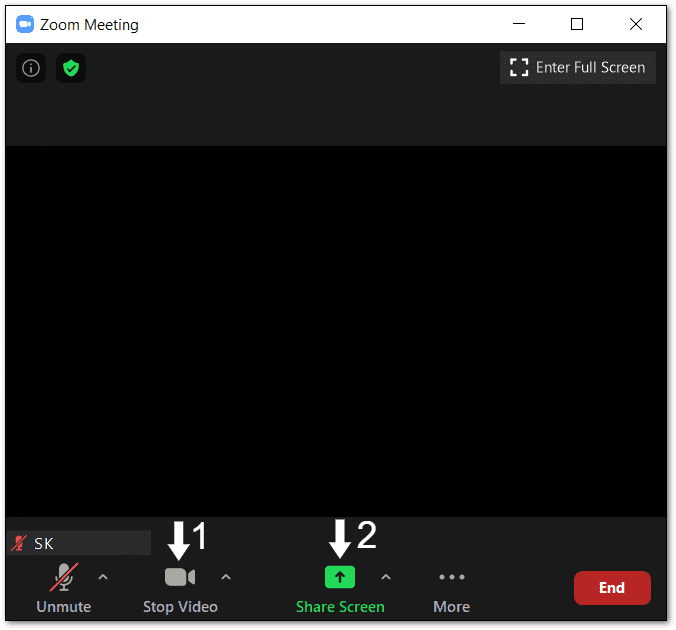
As we have already mentioned, the Zoom share screen is not working at poor internet speed, and when video and screen share features are enabled together, it consumes more bandwidth. Thus, you should disable video before enabling the share screen option.
Additionally, if you entered the Zoom room with the video already turned on, it will turn off the share screen by default.
Solution
Rejoin your meeting with the video turned off and only enable the share screen. This way, you can also share the screen over a slow internet connection.
9. Reinstall the Zoom App
We recommend uninstalling the Zoom app from your device on the last resort, including all setup files, and reinstalling it from the app store. Sometimes the app files aren’t completely downloaded, or you accidentally delete any file—in that case, uninstalling and reinstalling is the best option.
Solution
On Windows:
By pressing the Windows and R key together, activate the Run prompt and then type appwiz.cpl and click OK. Uninstall Zoom from the list of apps. Then, reinstall from Microsoft App Store or Zoom.com.
On Mac:
From the Menu bar, click zoom.us, and then uninstall from the drop-down menu. Navigate to Mac App Store and download the Zoom app.
On Android and iOS:
Press the Zoom app for 30 seconds on your phone, and then click on the X mark to install it. Later on, from the Play Store/App Store, reinstall the app.
10. Zoom Support
Zoom offers an amazing customer support system. You can visit zoom support online and get help from professionals directly. There are plenty of different support topics, video tutorials, and other resources available that can help you fix your share screen troubles. If nothing works for you, anytime, you can have a chat with Zoom’s support team.
Wrap Up
“Zoom share screen not working”—is a no problem. Zoom is a highly popular team collaboration and video conferencing app, so there are unlimited blogs, YouTube videos, and TechCommuters like free portals available where you can find lots of informative content to fix Zoom troubleshoots. So, be productive in the pandemic period and easily share the screen on Zoom.
Author Bio:
Dinesh Lakhwani 

Dinesh Lakhwani, the entrepreneurial brain behind “TechCommuters,” achieved big things in the tech world. He started the company to make smart and user-friendly tech solutions. Thanks to his sharp thinking, focus on quality and the motto of never giving up, TechCommuters became a top player in the industry. His commitment to excellence has propelled the company to a leading position in the industry.
Popular Post
Recent Post

How to Recover Deleted Files from Pen drive, USB Drive, SD Card
Introduction: On tech forums, you’ll often see posts like this: “I connected my pen drive to my laptop this morning, but the folder was empty. All my college project files had vanished. I don’t have a backup. Can someone help me?” Stories like this are very common. Pen drives, USB drives and SD cards are […]

How To Recover Files Deleted from the Recycle Bin [Windows 11]
Losing a file can happen in seconds. You clear your desktop, hit Delete, and empty the Recycle Bin. Then, just when you need that file again, it seems to have vanished. This guide will walk you through ways to restore files removed from the Recycle Bin. We will begin with simple fixes, then look at […]

Disk Drill Data Recovery Tool Explained: Full Review and Guide
It happens in a split second. You delete a folder by mistake. Your drive stops showing up. A photo album from your last trip just vanishes. And your stomach drops. Lost files feel personal. They are not just data. They are memories, work hours, and sometimes years of effort packed into a few gigabytes. When […]

Recover Deleted Files In Windows 11 With Software & Without
Introduction What is the first thing that goes through your mind the second an important file vanishes from a Windows 11 PC? For most people, it is a mix of panic and disbelief, followed by a frantic click through every folder that file could possibly be hiding in. It happens in a split second: one […]

EaseUS Data Recovery Wizard: Everything To Know
Data loss does not always come from a big disaster either. Most cases start small and boring. A drive gets formatted by mistake. A laptop freezes mid-save and restarts on its own. A memory card stops showing up after being pulled out too fast. None of these feel like emergencies at first, until you realize […]

Recuva Data Recovery Tool: Is it Actually Worth it?
When I first tried Recuva Data Recovery, I wanted to see if it could really bring back lost files. The tool is free, small in size, and promises quick recovery, which made me curious enough to test it on my own PC. The setup was fast, and the wizard guided me step by step. I […]

GetData Recover My Files Data Recovery Tool: Honest Review
A hard drive error brings a special kind of silence. Well, yes! The screen freezes, then a message appears saying the drive can’t be found or must be formatted. In that moment, years of photos and work files feel at risk. It never happens at a good time. Coffee spills near a laptop, a memory […]

Windows File Recovery: A Complete Review [Tried & Tested]
Imagine this. You spend hours perfecting a video project. You hit save. Then your laptop freezes, reboots, and when the screen comes back. The file is gone. Your stomach sinks. It’s not just you. Lost files happen all the time. A dropped hard drive, a bad update, an accidental delete, or a corrupted partition can […]

5 Best Data Recovery Software For Windows 11 and Windows 10
Introduction: A crashed drive can ruin a whole day. One minute your photos, work files, and tax records sit safe on your PC. The next minute they are gone. A power cut, a bad update, or one wrong click can wipe out years of memories and months of work in seconds. That sinking feeling is […]

