












Read my honest Wise Duplicate Finder review. See features, pricing, pros and cons, and real PC test results. Find out if this free duplicate cleaner can free up your Windows storage.
10 Best WinZip Alternatives for Windows and Mac
When you want to compress files to free up space on disk or quickly email them, WinZip is the best software to create and extract archive files—but it’s not the only solution. There are many better and powerful alternatives to WinZip available that can offer more features than just file compression and decompression. On the top, some of the best WinZip alternatives are completely free—how awesome is that?
Without any ado, let’s check out the ten best alternatives to WinZip for Windows and Mac users.
Why You Need a WinZip Alternative?
While WinZip has long been a staple for file compression and archiving, it’s not without its limitations. From pricing concerns to compatibility issues, many users are seeking alternatives that offer more flexibility, better performance, or a simpler interface.
Whether you’re a casual user or a power user, exploring WinZip alternatives can unlock new features and streamline your workflow.
- WinZip is a paid tool, while many alternatives are free or open-source.
- Some alternatives offer better support for modern compression formats.
- WinZip’s interface can feel outdated compared to newer, sleeker options.
- Alternatives often consume fewer system resources and run faster.
- Cross-platform compatibility is stronger in some alternatives.
- Advanced features like encryption, batch processing, and cloud integration are more robust elsewhere.
- Frequent updates and community support are more active in open-source tools.
- Alternatives may offer better integration with macOS or Windows-specific features.
Head-to-Head: Best Alternatives to WinZip
Choosing the right compression tool depends on your operating system and specific needs. Below is a comparison of the top five WinZip alternatives for both Windows and Mac users. These tools stand out for their performance, ease of use, and feature sets.
Top 5 WinZip Alternatives For Windows:
| Tool | Price | Format Support | Key Features | Ease of Use |
| 7-Zip | Free | ZIP, 7z, TAR, GZIP | High compression ratio, open-source | Moderate |
| Zip Opener | Free | ZIP, RAR, 7z | Simple UI, fast extraction | Easy |
| Bandizip | Free/Paid | ZIP, RAR, ISO, 7z | Multi-core compression, password support | Easy |
| Zip Extractor Pro | Paid | ZIP, TAR, GZIP | Batch extraction, cloud integration | Easy |
| PeaZip | Free | ZIP, 7z, ARC, TAR | Secure deletion, encryption options | Moderate |
5 Best WinZip Alternatives for Mac
| Tool | Price | Format Support | Key Features | Ease of Use |
| Better Zip | Paid | ZIP, RAR, 7z, TAR | Preview archive contents, password protection | Easy |
| The Unarchiver | Free | ZIP, RAR, 7z, ISO | Lightweight, auto-extraction | Very Easy |
| WinRAR | Paid | RAR, ZIP, TAR | Strong compression, split archives | Moderate |
| Entropy | Paid | ZIP, RAR, 7z | Drag-and-drop interface, encryption | Easy |
| iZip | Free | ZIP, RAR | Cloud sharing, secure encryption | Easy |
5 Best WinZip Alternatives for Windows
WinZip is the perfect compressed file archives creator, but when our tech reviewers explored the market for the finest replacements of WinZip, we found numerous paid and free WinZip alternatives for Windows, such as:
1. 7-Zip
Software Rating – 4/5
Compatible OS – Windows, MacOS, Linux, ReactOS
Supported Formats – 7z, ZIP, gzip, bzip2, xz, tar, WIM, APM, and more.
Price – Free
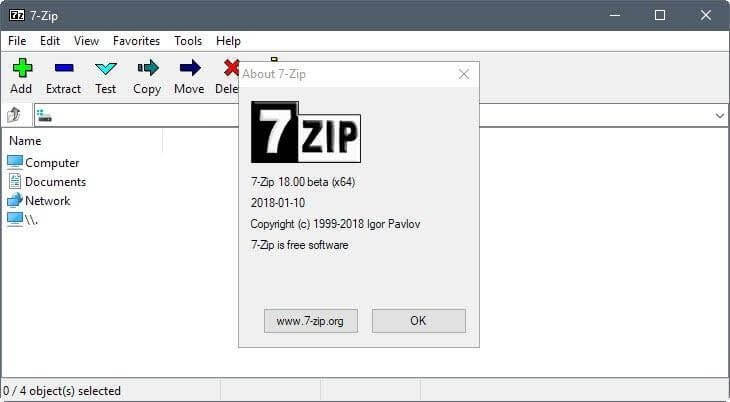
7-Zip is a free WinZip alternative for Windows and Mac devices that can compress a group of files into containers called ‘archives.’ Igor Pavlov developed the software in 1999. The 7z archive format is a default 7-Zip format, but users can compress files in numerous other formats as well. The program can be used from a command-line interface as most of the 7-Zip source code is under the GNU LGPL license under unRAR restrictions.
Archiving Features
- The program supports a 256-bit AES cipher that enables users to encrypt compressed files with passwords.
- Users can create a backup for removable media like writable CDs and DVDs.
- 7-Zip supports multiple-core CPU threading.
- File Manager toolbar comes with various options such as creating an archive, extracting an archive, testing an archive, and so much more.
- The command-line user interface makes it easy to use the program.
- The tool uses LZMA (Lempel Ziv Markov Chain Algorithm) and LZMA2 for the compression.
Pros
- It can be localized in over 87 languages.
- Needs fewer system resources.
- Completely free to download and use.
- High-compression 7z format.
Cons
- Lack of archive repair tools.
- Sparse interface.
2. Zip Opener
Software Rating – 3.5/5
Compatible OS – Windows, macOS, iOS, Android
Supported Formats – ZIP, RAR, TAR, 7z, GZIP2, BZ, and many more.
Price – Free with in-program purchases.
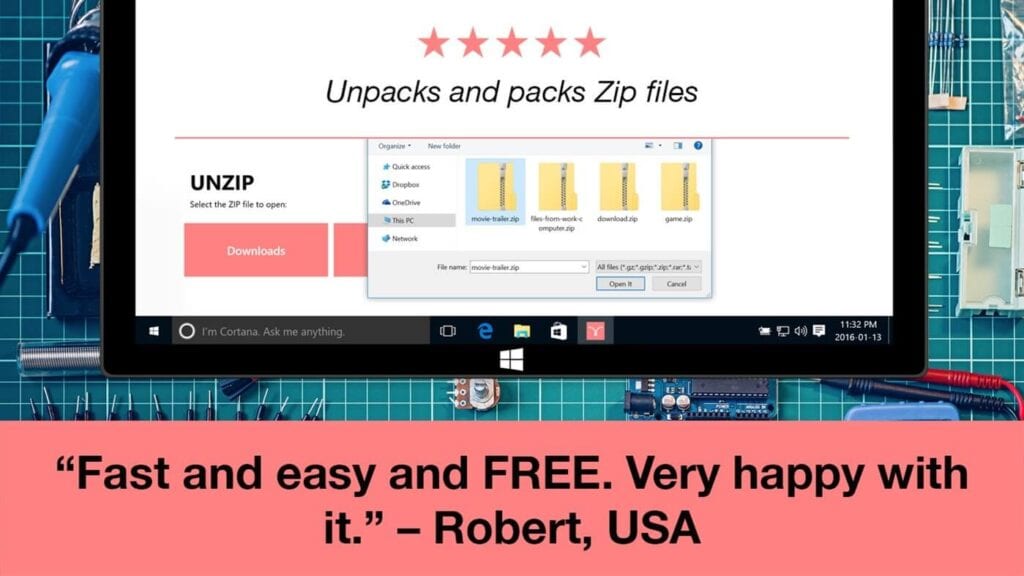
Zip Opener is a free alternative of WinZip for Mac and Windows users to open Zip and RAR files within seconds. It is simple Zip software with no technical jargon. You can simply compress files in your computer system and free up space on your disk.
Archiving Features
- For non-technical users, it is a one-tap solution to archive files.
- Zip Opener can dramatically reduce file sizes to free up space on your drive.
- The program has no junk, toolbars, or any other technical features.
- The program requires a steady internet connection to operate.
Pros
- Easy and simple to use.
- Free features are quite awesome.
- Good for nontech savvy users.
Cons
- Way too simple.
- Doesn’t offer any additional security features.
3. Bandizip
Software Rating – 3.8/5
Compatible OS – Windows
Supported Formats – RAR, RAR5, 7z, Zip, and 30+ other formats.
Price – Free basic license. Professional license for $30 (single user).
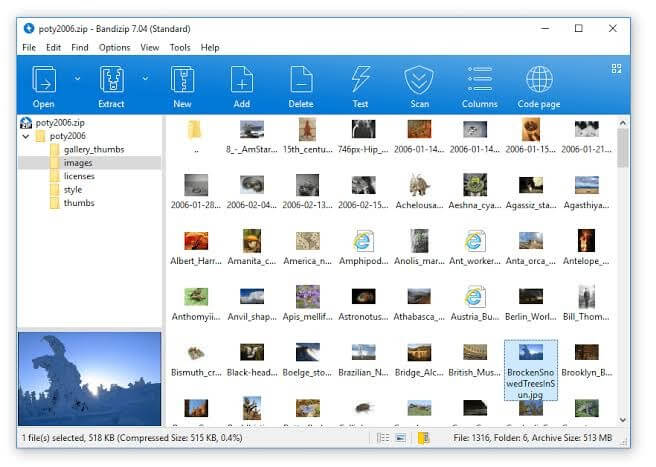
Bandizip is a powerful WinZip alternative with ultra processing speed and amazing features. You can download basic features loaded in Bandizip for free, but you can always upgrade to paid editions if you want to try advanced features. This is an all-in-one archive solution that supports compression, decompression, editing, and browsing over multiple file formats.
Archiving Features
- Multi-volume files can be quickly compressed and password-protected.
- Password Manager helps to enter frequently used passwords for handling bulk archives.
- Bandizip Repair archive tools can analyze corrupted files and collect uncorrupted data.
- By optimizing brute force search, you can recover your archive passwords.
- Image thumbnails can be previewed with decompression.
- You can run an antivirus scan on archives to detect malware and viruses.
Pros
- It helps in keeping files safe.
- Password recovery.
- Enables multi-core file compress.
Cons
- The full version is expensive.
- Few interface glitches.
4. Zip Extractor Pro
Software Rating – 4/5
Compatible OS – Windows, macOS, iOS, Android, Linux
Supported Formats – RAR, 7z, XZ, BZIP2, GZIP, TAR, ZIP, and WIM.
Price – $2.99
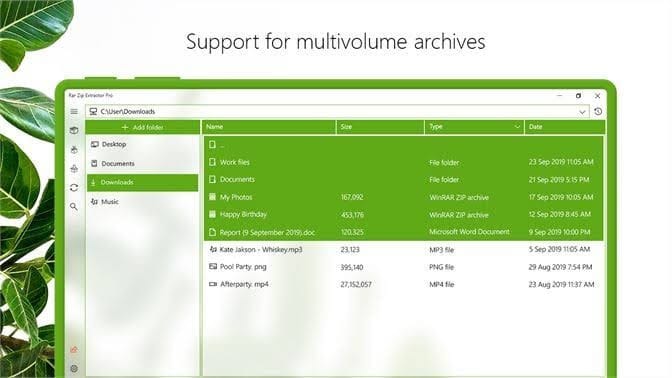
Zip Extractor Pro is a utility software that allows you to work with archives. The software has scored a position in the list because it can pack and unpack file archives in numerous leading formats, offers automatic packing, password protection, and even a high compression ratio. Moreover, you can run Zip Extractor Pro over multiple devices at your convenience.
Archiving Features
- You can password-protect your archived files for extensive protection.
- It is a very fast and easy process to add files to archives.
- Zip Extractor Pro also supports deleted files in the archive.
- You can easily browse, view, and extract archive files.
Pros
- Strong customer care support.
- Easy and fast compression.
- Password protection.
- Multiple format support.
Cons
- Some system glitches.
- Not free.
5. Peazip
Software Rating – 3/5
Compatible OS – Microsoft Windows, ReactOS, Linux
Supported Formats – ZIP, RAR, TAR, 7z, GZIP2, BZ, and many more
Price – Free.
Peazip is a next-generation WinZip alternative for file compression and decompression. The software supports numerous file formats and can even compress images, documents, and other folders. It supports its native PEA archive format and other mainstream formats, with special focus on handling open formats. To compress your files to the smallest sizes, Peazip is your tool.
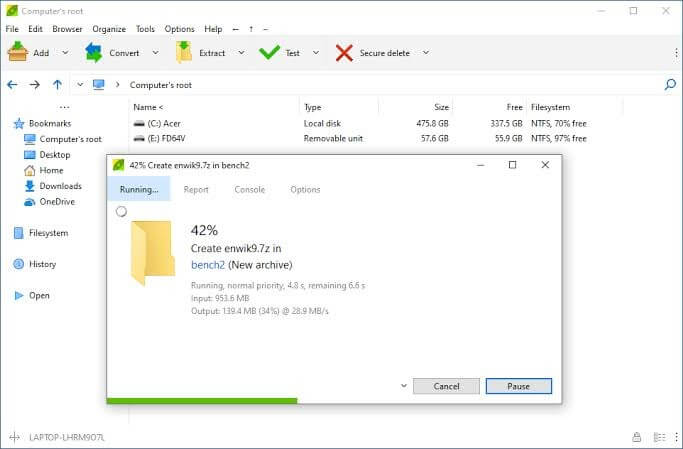
Archiving Features
- It can compress and decompress all types of media files like photos, PDF, word files, and others.
- For privacy, AES-256 password protection is also available.
- Compression and decompression activities can be customized to enhance the user experience.
- The source files can be cleaned in no time.
Pros
- Simple and easy to use.
- Interactive user interface.
- Free software.
Cons
- Advertisements disturb a lot.
5 Best WinZip Alternatives for Mac
If you are a Mac user, we will suggest the following WinZip replacements to compress and decompress your files:
1. Better Zip
Software Rating – 4.4/5
Compatible OS – macOSX
Supported Formats – ZIP, 7-ZIP, DMG, XAR, TXZ, and more.
Price – 7 days free trial. Full version for $9.99/month.
To simply compress and decompress files on Mac, you can download the best alternative to WinZip in the form of Better Zip. This program can archive numerous file formats for easy access, and password-protect your archives for better privacy. In short, if you are looking for a better and free WinZip alternative, Better Zip got many salient features for you.
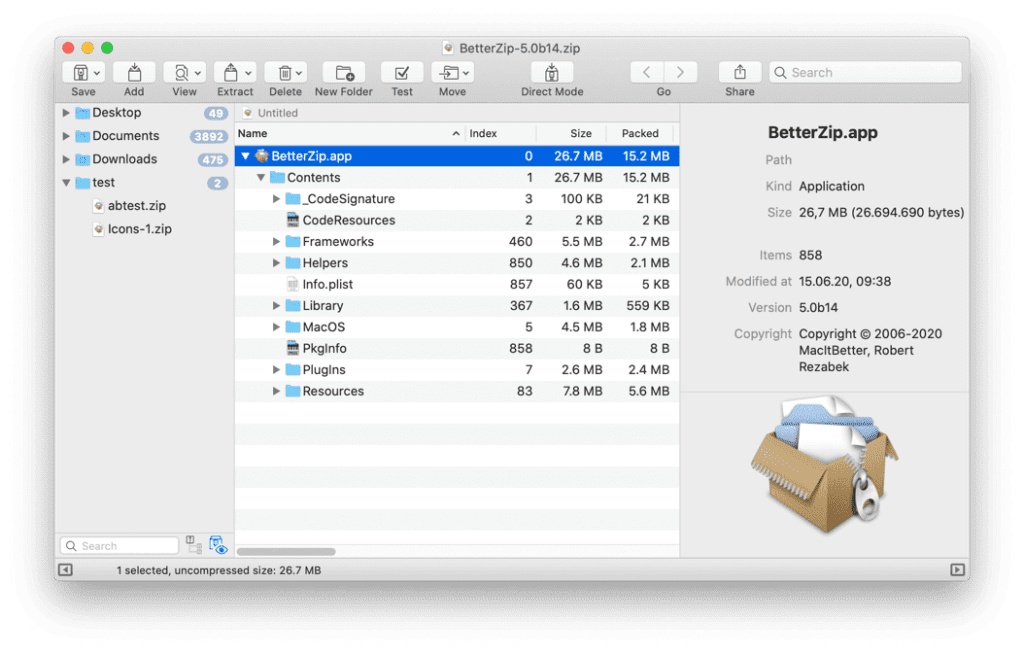
Archiving Features
- The program offers AES 256 password encryption features to protect your compressed files from unauthorized access.
- It allows previewing archive content without extracting it.
- Using AppleScript, you can even integrate the tool into your workflow.
- You can effortlessly compress and decompress large files.
Pros
- Simple user interface.
- Easy to use.
- Password protection.
Cons
- Expensive tool.
2. The Unarchiver
Software Rating – 3.5/5
Compatible OS – macOS and only command line for Windows and Linux
Supported Formats – Ability to handle old file formats like Stuffit, AmigaOS, LZH, LZX, and more.
Price – Free
The Unarchiver is a proprietary freeware utility tool that can support some of the obscure file formats. This free tool can handle file names in various character coding and operating system versions. A noteworthy factor is that The Unarchiver is a decompression program only—it doesn’t support compression features.
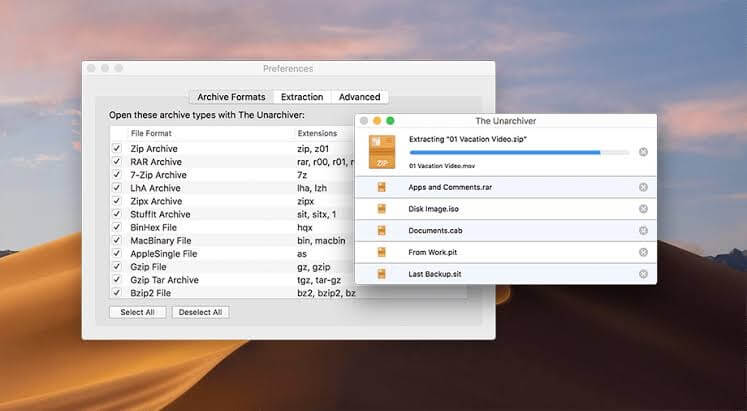
Archiving Features
- Users can easily archive files named with non-Latin characters.
- Within a few clicks, you can set up a free tool to archive bulk files on your Mac and Windows.
- The corresponding command line utilities unar and lsar run on Windows.
Pros
- Freeware software—always going to be.
- Supports old and obscure file formats.
Cons
- Only decompress files.
3. WinRAR
Software Rating – 4/5
Compatible OS – Windows, Android, macOS (command line only), Linux, FreeBSD.
Supported Formats – RAR, ARJ, BZIP2, CAB, GZ, ISO, JAR, LHA, RAR, TAR, UUE, XZ, Z, ZIP, ZIPX, 7z, and more.
Price – $21 per computer and user.
WinRAR is a trialware file archiver developed by Eugene Roshal. It is a great WinZip alternative because WinRAR can create and view archives in both RAR and ZIP formats, supports encryption, multipart, and self-extracting archives. Further, users can test archives’ integrity with WinRAR as it is embedded with CRC32 or BLAKE2 checksums. However, it is a Windows-only program, but macOS users can use the command-line version.
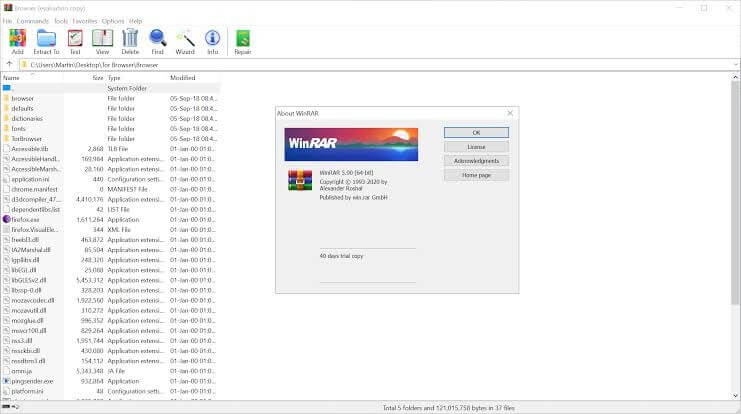
Archiving Features
- The program supports multithreaded CPU compression and decompression.
- It can support a maximum file size of 16 EiB, about 1.8 × 1019 bytes or 18 million TB.
- The compression dictionary ranges from 1 MiB to GiB.
- AES encryption with a 256-bit key in CBC mode is available.
- Capability to create multi-volume, self-extracting, and NTFS files.
- Checksum verification for multiple file formats available—ARJ, BZIP2, CAB, GZ, BZIP2, RAR, XZ, ZIP, and 7z archives.
Pros
- Consumes less system space.
- Quick file compression and decompression.
- Multiple options and file support.
Cons
- Not available for all operating systems.
- Not free.
4. Entropy
Software Rating – 3.5/5
Compatible OS – MacOS
Supported Formats – ZIP, RAR, TAR, 7z, GZIP2, BZ, and many more.
Price – Free
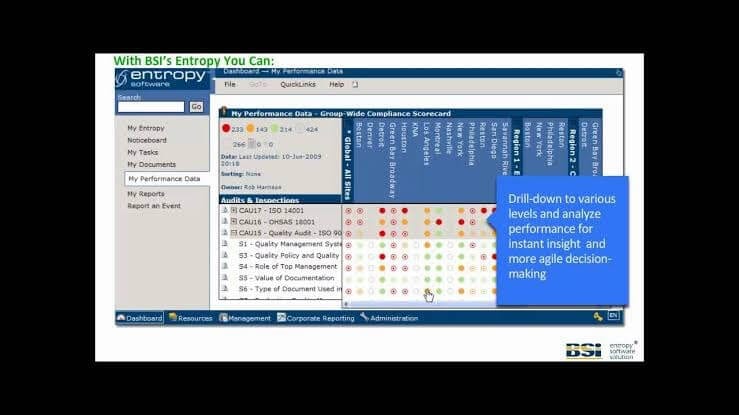
Entropy is another resilient alternative to WinZip for easily archiving files. It is a complete utility tool with a powerful feature for creating and extracting archive files. The software can even quickly preview your compressed archives without unzipping the content.
Archiving Features
- Impressive drag and drop functionality allows users to create and extra archive files with ease.
- It also offers AES-256 password encryption along with an inbuilt password manager.
- With the help of AppleScript, you can automate archiving and unarchiving tasks on a Mac.
- You can even preview the files before extracting them using this free unarchiving software.
Pros
- Preview archive files.
- Interactive UI.
Cons
- Not much technical support is available.
5. iZip
Software Rating – 3.5/5
Compatible OS – MacOS
Supported Formats – ZIP, RAR, 7ZIP, ZIPX, TAR, and more.
Price – Free
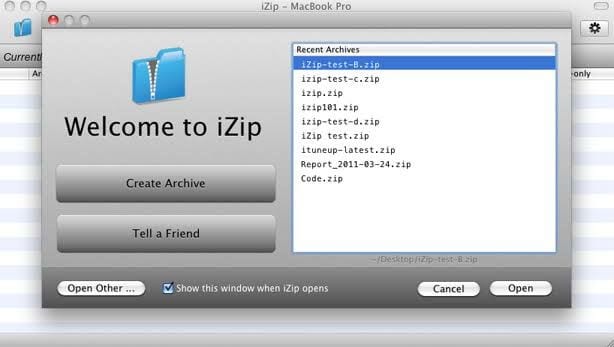
When you want an easy and simple archiving and unarchiving tool with lots of features, iZip is the best WinZip alternative for you. It is software without technical complexities and loads of features like password encryption protection, content preview facility, and multiple file formats support. It is a technically rich yet simple-to-use program.
Archiving Features
- Almost all the leading file formats are supported by iZip, such as ZIP, RAR, 7ZIP, ZIPX, TAR, etc.
- You can even play a slideshow of photos without extracting them from the file.
- With AES-256 technology, you can keep your compressed data private and protected.
Pros
- Initiative user interface.
- Advanced archiving features.
- Easy to use.
Cons
- Only for Mac.
- Needs basic improvements.
Let’s Zip It
Whether you’re looking for a lightweight tool for occasional use or a robust solution for daily file management, there’s a WinZip alternative that fits your needs. With better pricing, modern interfaces, and advanced features, these tools prove that zipping files doesn’t have to be a zipped-up experience.
FAQs
1. Is it safe to use free WinZip alternatives?
Yes, many free alternatives like 7-Zip and The Unarchiver are open-source and widely trusted by the tech community. As with any software, it’s important to download from official websites or reputable sources to avoid malware or bundled software.
2. Can I open RAR files with these alternatives?
Absolutely. Most of the listed alternatives support RAR files, including 7-Zip, Bandizip, The Unarchiver, and WinRAR. However, some tools may only allow extraction and not creation of RAR archives due to licensing restrictions.
3. Which alternative is best for handling encrypted archives?
Tools like Better Zip, PeaZip, and WinRAR offer strong encryption support and password protection features. If security is a priority, look for options that support AES-256 encryption and secure file deletion.
Author Bio:
Dinesh Lakhwani 

Dinesh Lakhwani, the entrepreneurial brain behind “TechCommuters,” achieved big things in the tech world. He started the company to make smart and user-friendly tech solutions. Thanks to his sharp thinking, focus on quality and the motto of never giving up, TechCommuters became a top player in the industry. His commitment to excellence has propelled the company to a leading position in the industry.
Popular Post
Recent Post

How to Recover Deleted Files from Pen drive, USB Drive, SD Card
Introduction: On tech forums, you’ll often see posts like this: “I connected my pen drive to my laptop this morning, but the folder was empty. All my college project files had vanished. I don’t have a backup. Can someone help me?” Stories like this are very common. Pen drives, USB drives and SD cards are […]

How To Recover Files Deleted from the Recycle Bin [Windows 11]
Losing a file can happen in seconds. You clear your desktop, hit Delete, and empty the Recycle Bin. Then, just when you need that file again, it seems to have vanished. This guide will walk you through ways to restore files removed from the Recycle Bin. We will begin with simple fixes, then look at […]

Disk Drill Data Recovery Tool Explained: Full Review and Guide
It happens in a split second. You delete a folder by mistake. Your drive stops showing up. A photo album from your last trip just vanishes. And your stomach drops. Lost files feel personal. They are not just data. They are memories, work hours, and sometimes years of effort packed into a few gigabytes. When […]

Recover Deleted Files In Windows 11 With Software & Without
Introduction What is the first thing that goes through your mind the second an important file vanishes from a Windows 11 PC? For most people, it is a mix of panic and disbelief, followed by a frantic click through every folder that file could possibly be hiding in. It happens in a split second: one […]

EaseUS Data Recovery Wizard: Everything To Know
Data loss does not always come from a big disaster either. Most cases start small and boring. A drive gets formatted by mistake. A laptop freezes mid-save and restarts on its own. A memory card stops showing up after being pulled out too fast. None of these feel like emergencies at first, until you realize […]

Recuva Data Recovery Tool: Is it Actually Worth it?
When I first tried Recuva Data Recovery, I wanted to see if it could really bring back lost files. The tool is free, small in size, and promises quick recovery, which made me curious enough to test it on my own PC. The setup was fast, and the wizard guided me step by step. I […]

GetData Recover My Files Data Recovery Tool: Honest Review
A hard drive error brings a special kind of silence. Well, yes! The screen freezes, then a message appears saying the drive can’t be found or must be formatted. In that moment, years of photos and work files feel at risk. It never happens at a good time. Coffee spills near a laptop, a memory […]

Windows File Recovery: A Complete Review [Tried & Tested]
Imagine this. You spend hours perfecting a video project. You hit save. Then your laptop freezes, reboots, and when the screen comes back. The file is gone. Your stomach sinks. It’s not just you. Lost files happen all the time. A dropped hard drive, a bad update, an accidental delete, or a corrupted partition can […]

5 Best Data Recovery Software For Windows 11 and Windows 10
Introduction: A crashed drive can ruin a whole day. One minute your photos, work files, and tax records sit safe on your PC. The next minute they are gone. A power cut, a bad update, or one wrong click can wipe out years of memories and months of work in seconds. That sinking feeling is […]

