












Read my honest Wise Duplicate Finder review. See features, pricing, pros and cons, and real PC test results. Find out if this free duplicate cleaner can free up your Windows storage.
10 Best Parental Control Software for Windows & Mac
Parenting is hard—and in the digital age, it’s even harder. Today, parents don’t have an option to outcast their kids from the dark and scary World Wide Web because, from online studies to virtual games, children are non stop online, which means they are constantly exposed to numerous threats and vulnerabilities.
Therefore, when you are parenting a smart generation, you gotta be smart too and need to use the best parental control software to safeguard your kids. From blocking certain websites to providing protection against cyberbullies, our ten best tools for Windows and Mac can make you a smart parent.
How To Choose The Best Parental Control Software?
Choosing the right parental control software can feel overwhelming, especially with so many options available. The key is to focus on your family’s specific needs—whether it’s screen time limits, content filtering, or location tracking.
A good tool should balance safety with flexibility, giving parents peace of mind without invading a child’s privacy unnecessarily.
- Platform Compatibility: Ensure the software works seamlessly on both Windows and Mac.
- Web Filtering: Look for tools that block inappropriate content and allow customization.
- Screen Time Management: Choose software that lets you set daily usage limits.
- Location Tracking: GPS tracking is essential for monitoring your child’s whereabouts.
- App Monitoring: Check if it tracks app usage and can block specific apps.
- Activity Reports: Opt for software that sends regular updates and alerts.
- Multi-Device Support: Ideal for families with multiple kids and devices.
- Pricing & Plans: Compare free vs. premium features to get the best value.
Comparison Table: Top 5 Parental Control Software
To help you narrow down your choices, here’s a side-by-side comparison of five leading parental control solutions. Each offers unique strengths, so your pick should reflect your priorities—whether it’s advanced monitoring, ease of use, or affordability.
| Software | Key Features | Platforms | Pricing (2025) | Best For |
| Norton Family | Web filtering, time supervision, search tracking | Windows only | Free with Norton 360 | Families with older kids |
| FamiSafe | Location tracking, app blocking, driving reports | Windows, Mac | $9.99/month | On-the-go monitoring |
| Kaspersky Total Security | Antivirus + parental controls, content filtering | Windows, Mac | $49.99/year | All-in-one protection |
| Qustodio | Detailed reports, social media monitoring | Windows, Mac | $54.95/year | Tech-savvy parents |
| Mobicip | Screen time limits, YouTube monitoring | Windows, Mac | $4.99/month | Budget-conscious families |
10 Top-rated Parental Control Software for Windows 10/11 and macOS
There are various good security and safety tools available nowadays due to emerging cybercrime activities. However, when parents are looking for tools to protect their children, it requires certain functions and features that we can assure are available in the following ten software:
1. Norton Family
Rating – 4/5
Compatible Windows OS – Windows 32-bit, Vista 32 and 64-bit
Compatible MacOS – MacOS X 10.5
Developer – Symantec
Price – $39.99
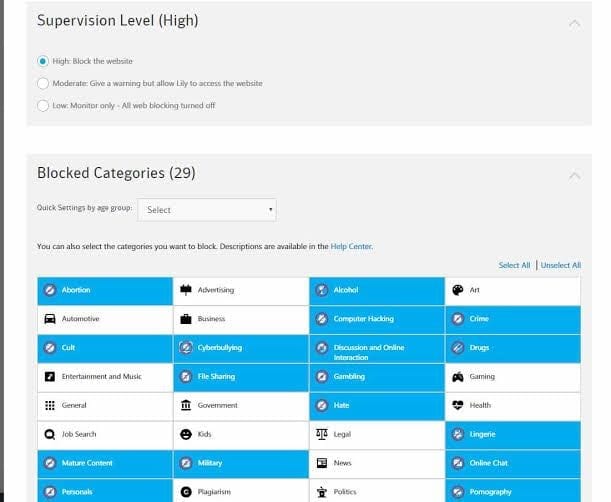
Norton Family or some might know as Norton Online Family, is a cloud-based parental control software to foster good communication among parents and their children. The software can discreetly monitor children’s online activities and report back to the parents. This tool can monitor instant messengers, social media platforms, and other websites based on the Norton Safety Minder policy enforced by you. Parents can block specific websites using over 40+ filters, preset computer usage time, along with numerous other features.
Assuring Features
- Based on your kid’s birthdate, you can preconfigure the site block feature.
- With the separate weekdays and weekends setting, you can fix your child’s daily online time quota.
- Parents can blacklist the information that they don’t want their children to share via IM or social networking sites.
- IM control manager offers three control levels; at the strictest, children cannot chat with friends until each one has received parental approval.
Pros
- Easy to use.
- Simple reporting system.
- Most popular parental control software
Cons
- No real-time reporting.
- Long installation process.
2. FamiSafe
Rating – 2.9/5
Compatible Windows OS – Windows 10
Compatible MacOS – MacOS 10.0
Developer – Wondershare
Price – Monthly plan for $9.99 per month, the quarterly plan is $6.66 per month, and the annual plan is $4.99 per month.
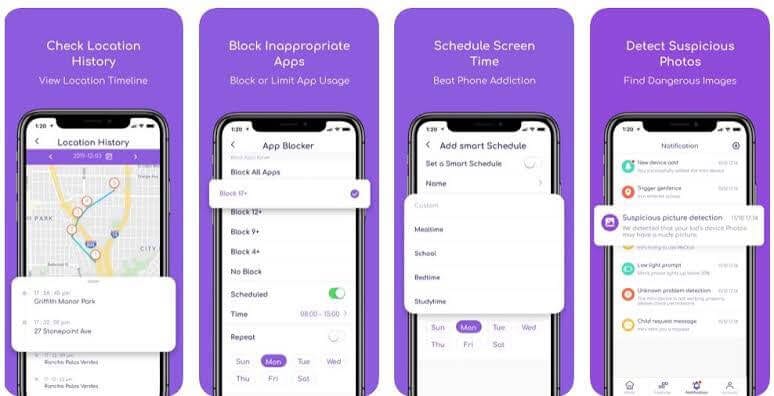
FamiSafe is an all in three parental control software offering control, track and detect options. You can develop some good digital habits in your kids by restricting their screen time, tracking their physical presence, and shielding them from potential online risks. From your three-year-old to your teenager, you can parent all ages of children with this tool.
Assuring Features
- Parents can generate activity reports to know which apps are newly installed or deleted on their kids’ devices.
- Inappropriate websites and applications can be blocked.
- Web browser history analysis enables safe web surfing.
- You can set app usage and app limits based on your kid’s schedule.
- Instant parental alerts help to detect suspicious text or content on the kids’ devices.
Pros
- Easy to set screen time limits.
- Mobile and desktop support.
- Defines purchasing limit.
Cons
- Only three days free trial.
- Doesn’t support Chromebook.
3. Kaspersky Total Security
Rating – 4/5
Compatible Windows OS – Windows 7 or higher
Compatible MacOS – MacOS 10
Developer – Kaspersky Lab
Price – A three-license subscription lists for $89.99 per year, five licenses cost $99.99, and a 10-license family plan for $149.99.
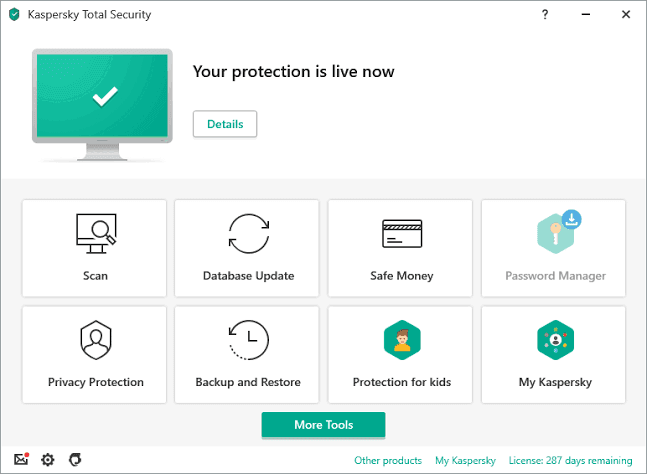
Since McAfee doesn’t support macOS; therefore, Kaspersky Total Security is the second-best software in our experience. It is a complete online safety bundled with anti-virus, anti-ransomware, webcam security, password manager, and tons of other features. For parents, it is a powerful interface to keep tabs on your kids’ web surfing activities.
Assuring Features
- It can provide safety against numerous viruses, crypto lockers, and other cyber vulnerabilities.
- You can encrypt payments so your teenagers won’t unnecessarily shop online.
- Online data sending and receiving can be encrypted with a VPN.
- You can keep webcam spies away from your children.
- Advanced parental control features are highly robust and innovative.
Pros
- Comprehensive online security solutions.
- Additional payment protection and password managers are very helpful for parents.
- It is compatible with all the leading operating systems.
Cons
- VPN is required to use some features.
- Limited data protection per device.
4. Qustodio
Rating – 4/5
Compatible Windows OS – Windows 7 or higher
Compatible MacOS – MacOS X Mavericks (10.9) to OS X Catalina (10.15)
Developer – Qustodio
Price – The five device plan costs $54.95, ten device plan $96.95, and 15 devices for $137.95 per year.
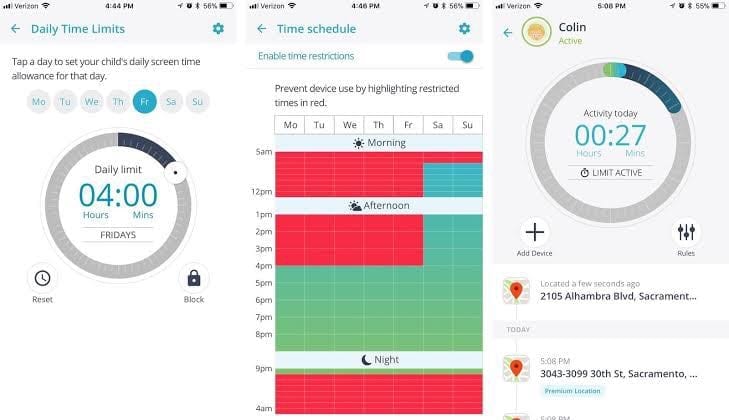
Qustodio is premium security and parental control software. It is developed to provide extended support to parents with advanced blocking and monitoring features. From virtual game control to blocking pornography sites, you can fully shield your kid’s online activities with Qustodio. This tool provides a special YouTube monitoring feature to protect your children from unfiltered YouTube content.
Assuring Features
- Extended reporting helps in better analyzing your kids’ online behavior.
- According to your children’s schedule, you can balance their study, sleep, and computer time.
- You can track calls and SMS on your kid’s Android devices.
- For Android users, Qustodio provides a special panic button that your kids can use in an emergency.
- The tool also offers a family locator to monitor your entire family’s real-time location.
Pros
- Helpful time restriction options.
- Cross-platform support.
- Well structured web interface.
Cons
- Social media tracking is only limited to Facebook.
- Expensive.
- Some features are only available on Android.
5. Mobicip
Rating – 3.5/5
Compatible Windows OS – Windows 32-bit, Vista 32 and 64-bit
Compatible MacOS – MacOS X 10.5
Developer – Mobicip
Price – For a device, $49.99 per year, $89.99 for ten devices, $124.99 for 15 devices, and $159.99 for 20 devices.
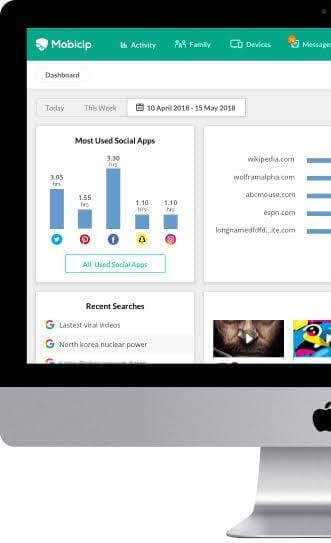
Mobicip is a cloud based internet filter and parental control program that supports all the leading devices, including iPhone, iPad, iPod Touch, Windows, Android, macOS, and even Chromebook. Initially, it was a safe web browser, but lately, it has been turned into a full-fledged parental control application with app blocking, track location, screen time regulations, and other similar features.
Assuring Features
- Using the web as well as mobile applications, parents can customize the filters to create whitelists and blacklists.
- Mobicip lets parents monitor their kids’ online activities on multiple devices.
- You can streamline the video content for your kids through age-appropriate filtering.
- The software can track your kids in real-time, so you can protect them online as well as offline.
- Limit screen time according to your children’s schedule.
Pros
- Well formulated mobile app.
- Simple web interface.
- App blocking is great.
- Multiple platform support.
Cons
- Desktop browsing restrictions can be bypassed.
- No geofencing.
- You can only schedule time—can’t set total time limits.
6. Net Nanny
Rating – 3/5
Compatible Windows OS – Windows 10;
Compatible MacOS – MacOS X 10.13 or higher
Developer – ContentWatch Inc.
Price – Basic plan for $39.99, five device plan for $54.99, and 20 device plan for $89.99.
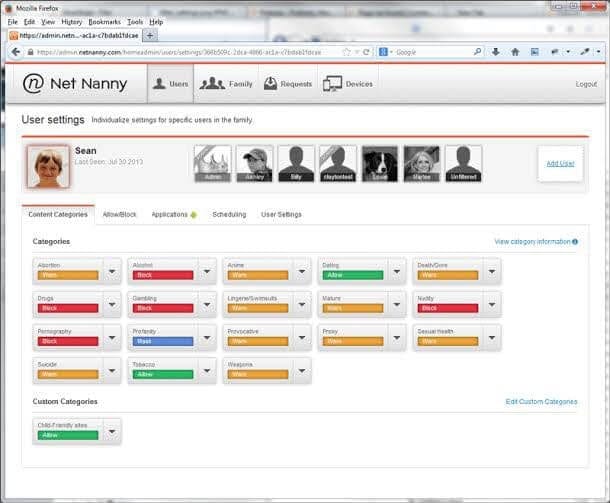
Net Nanny, as the name suggests, is a nanny to content-control your kid’s online activities. The software enables parents to monitor and control their child’s computer and phone activities around the clock. Originally, Net Nanny was a web browser that helped filter web and IRC content and blocked certain images and profanity. However, the modern version is a complete parent application, including multiple security and monitoring features.
Assuring Features
- The software allows or blocks the usage of devices through the controlled schedule.
- Using various categories, you can monitor or block internet activities.
- Parents can customize websites and apps whitelist and blacklist.
- Children’s search engine usage can be tracked.
- Mobile device location tracking option.
- Based on your kid’s age or schedule, you apply different rules for individuals.
Pros
- Simple to set up and use.
- Capable screen time options.
- Multiple custom web filters.
Cons
- A fewer preset web filter compared to other software.
- Super expensive.
- Lacks good geofencing features.
7. KidLogger
Rating – 3.5/5
Compatible Windows OS – Windows 2000 or higher
Compatible MacOS – Mac OS X 10.13-10.15
Developer – KidLogger
Price – Free basic. Professional for $29 for three months.
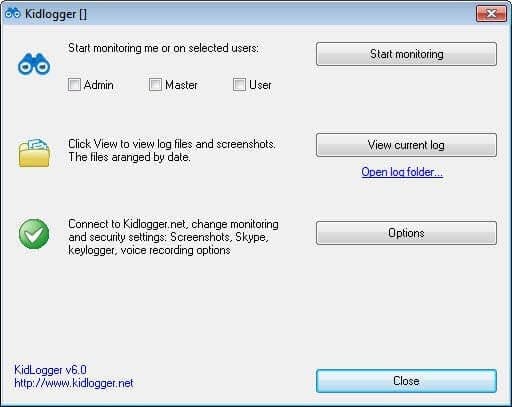
KidLogger is a monstrous parental control software that can record every program, screencaps, and calls on your kid’s devices. If you are concerned about who your kids might be talking to online, you have a voice-activated sound recorder for that. Based on your kid’s age, you can customize privacy options. With the instant messaging control, you can effortlessly keep your kids out of trouble.
Assuring Features
- With keyword monitoring, you can define the keywords and phrases that you want to monitor.
- You can monitor Skype video chats by making a screenshot logger.
- The server solution allows you to easily track the activity on many PCs and Macs.
- The software can monitor the mic’s voice level and automatically start recording when voice activities are detected.
Pros
- Multiple platform support.
- Automatic call recorder.
Cons
- Average Interface.
- The free version supports only one device.
8. Bark
Rating – 3.5/5
Compatible Windows OS – Windows 7 or higher
Compatible MacOS – MacOSX 10.0
Developer – Bark
Price – Bark Jr for free. Pro for $99 per year.
If you are looking for simple software, you must try Bark. The developers claim that software has stopped 16 school shootings and identified 10,000 self-harm situations. This software uses an impressive algorithm that constantly recognizes warning signs in social media posts, text messages, photos, and emails. Bark is an alert system that tells what’s going in your child’s life without grounding their gadgets.
Assuring Features
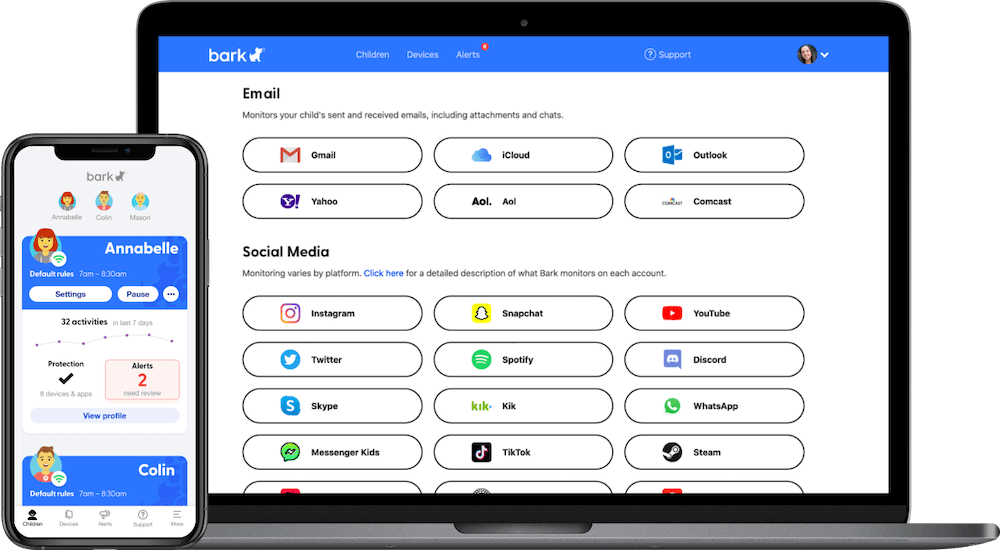
- Bark keeps a 24*7 tab on your child’s different social media accounts, including Facebook, Snapchat, YouTube, and Facebook.
- Detects alarming content emails such as Gmail, Yahoo!, Outlook, AOL, Comcast, and iCloud email accounts.
- Bark will immediately alert you if a worrisome message appears on your kid’s text message or social media platforms.
Pros
- Easy to use.
- Free 7 days trial.
- Even alert when it’s uninstalled.
Cons
- Too expensive.
- Lots of alerts—some are even unnecessary.
9. OurPact
Rating – 3.5/5
Compatible Windows OS – Windows 7 or higher
Compatible MacOS – MacOS X
Developer – OurPact
Price – Basic free version. A premium plan for $6.99 per month.
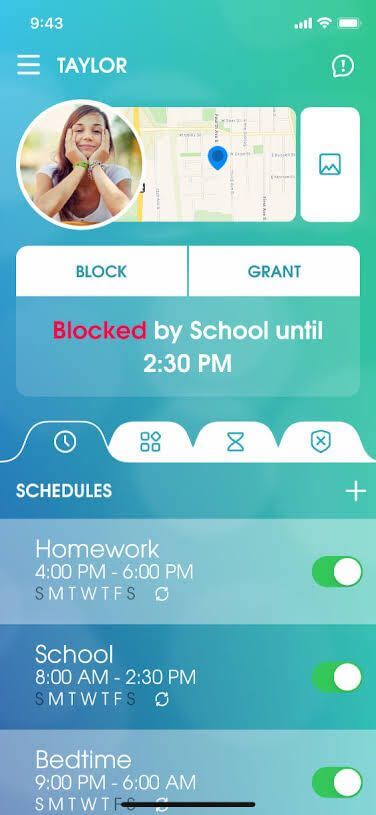
OurPact is a comprehensive time management and family location sharing system. It can enable parents to restrict their children’s online access time and track their location anytime. This user-friendly software offers a variety of management and oversight tools to parents—from app blocking to text message monitoring.
Assuring Features
- There is an array of blocking features available, including apps, texts, and web blocking.
- You can track your kids’ location in real-time.
- Helps in regulating your kid’s allowance spending.
- Set an online schedule based on multiple categories.
Pros
- Brilliant user interface.
- Instant notifications and alerts.
- High-quality features.
Cons
- A little difficult to use.
- Doesn’t support geofencing.
10. SafeDNS
Rating – 3/5
Compatible Windows OS – Windows 10
Compatible MacOS – MacOS X
Developer – SafeDNS
Price – $19.95
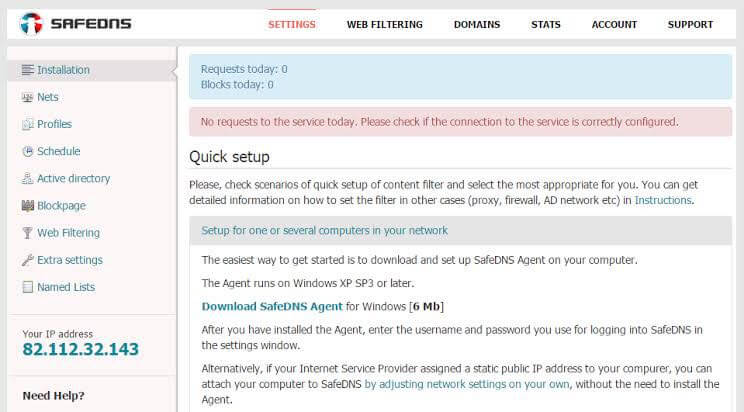
SafeDNS isn’t just parental control software; it is powerful cybersecurity for small organizations. This system provides security against multiple cyber attacks like botnets, ransomware, viruses, phishing, and more. Additionally, SafeDNS supports various parental control and malicious sites, URLs, and IP address blocking features.
Assuring Features
- Schools and libraries can create a safe learning environment with it.
- You can block inappropriate content from your kid’s devices.
- Protection against the wide range of online threats and vulnerabilities.
Pros
- Filters out objectionable content.
- Multiple profiles can be created.
- Good time scheduling feature.
Cons
- Time scheduler is only available online.
- Fails to block phishing or malware-hosting URLs.
Author’s Tip
Start small. Avoid piling on too many rules at once. Let your kids adjust gradually. This helps them feel supported, not controlled.
Talk openly about your reasons. Explain the purpose behind each setting. Kids respond better when they feel included. Review your setup often. Children’s needs change quickly. Stay flexible and adapt as they grow.
Conclusion
Parental control software is no longer just a luxury—it’s a necessity in today’s digital world. With children spending more time online, these tools help parents guide, protect, and stay informed about their kids’ digital habits.
The best software strikes a balance between safety and trust. It’s not about surveillance, but about creating a secure environment where children can explore and learn. Choose a solution that fits your family’s lifestyle and revisit your settings as your child grows.
FAQs:
1. Can parental control software monitor social media?
Yes, many tools like Qustodio and FamiSafe offer social media monitoring. They can track usage, flag suspicious activity, and even block access to certain platforms. However, effectiveness varies by app and operating system.
2. Is free parental control software reliable?
Free versions can offer basic features like web filtering and screen time limits. But for advanced tools like location tracking or app blocking, premium plans are usually more reliable and comprehensive.
3. Will my child know they’re being monitored?
Most software is transparent and visible on the device. Some allow stealth mode, but it’s best to inform your child. Open communication builds trust and encourages responsible behavior.
Author Bio:
Dinesh Lakhwani 

Dinesh Lakhwani, the entrepreneurial brain behind “TechCommuters,” achieved big things in the tech world. He started the company to make smart and user-friendly tech solutions. Thanks to his sharp thinking, focus on quality and the motto of never giving up, TechCommuters became a top player in the industry. His commitment to excellence has propelled the company to a leading position in the industry.
Popular Post
Recent Post

How to Recover Deleted Files from Pen drive, USB Drive, SD Card
Introduction: On tech forums, you’ll often see posts like this: “I connected my pen drive to my laptop this morning, but the folder was empty. All my college project files had vanished. I don’t have a backup. Can someone help me?” Stories like this are very common. Pen drives, USB drives and SD cards are […]

How To Recover Files Deleted from the Recycle Bin [Windows 11]
Losing a file can happen in seconds. You clear your desktop, hit Delete, and empty the Recycle Bin. Then, just when you need that file again, it seems to have vanished. This guide will walk you through ways to restore files removed from the Recycle Bin. We will begin with simple fixes, then look at […]

Disk Drill Data Recovery Tool Explained: Full Review and Guide
It happens in a split second. You delete a folder by mistake. Your drive stops showing up. A photo album from your last trip just vanishes. And your stomach drops. Lost files feel personal. They are not just data. They are memories, work hours, and sometimes years of effort packed into a few gigabytes. When […]

Recover Deleted Files In Windows 11 With Software & Without
Introduction What is the first thing that goes through your mind the second an important file vanishes from a Windows 11 PC? For most people, it is a mix of panic and disbelief, followed by a frantic click through every folder that file could possibly be hiding in. It happens in a split second: one […]

EaseUS Data Recovery Wizard: Everything To Know
Data loss does not always come from a big disaster either. Most cases start small and boring. A drive gets formatted by mistake. A laptop freezes mid-save and restarts on its own. A memory card stops showing up after being pulled out too fast. None of these feel like emergencies at first, until you realize […]

Recuva Data Recovery Tool: Is it Actually Worth it?
When I first tried Recuva Data Recovery, I wanted to see if it could really bring back lost files. The tool is free, small in size, and promises quick recovery, which made me curious enough to test it on my own PC. The setup was fast, and the wizard guided me step by step. I […]

GetData Recover My Files Data Recovery Tool: Honest Review
A hard drive error brings a special kind of silence. Well, yes! The screen freezes, then a message appears saying the drive can’t be found or must be formatted. In that moment, years of photos and work files feel at risk. It never happens at a good time. Coffee spills near a laptop, a memory […]

Windows File Recovery: A Complete Review [Tried & Tested]
Imagine this. You spend hours perfecting a video project. You hit save. Then your laptop freezes, reboots, and when the screen comes back. The file is gone. Your stomach sinks. It’s not just you. Lost files happen all the time. A dropped hard drive, a bad update, an accidental delete, or a corrupted partition can […]

5 Best Data Recovery Software For Windows 11 and Windows 10
Introduction: A crashed drive can ruin a whole day. One minute your photos, work files, and tax records sit safe on your PC. The next minute they are gone. A power cut, a bad update, or one wrong click can wipe out years of memories and months of work in seconds. That sinking feeling is […]

